

Update SSD firmware, check its health, reseat connections, repair Windows, and replace the drive if hardware tests show failure.
An SSD can trigger repeated blue screen errors when it has damaged flash memory, old firmware, poor connections, overheating, or corrupted system files. After troubleshooting many storage-related crashes, I have found that the fastest fix is to protect your data first, identify the stop code, and then test the SSD before changing random Windows settings. This guide explains how to fix SSD causing blue screen error problems safely, even when Windows cannot start normally.
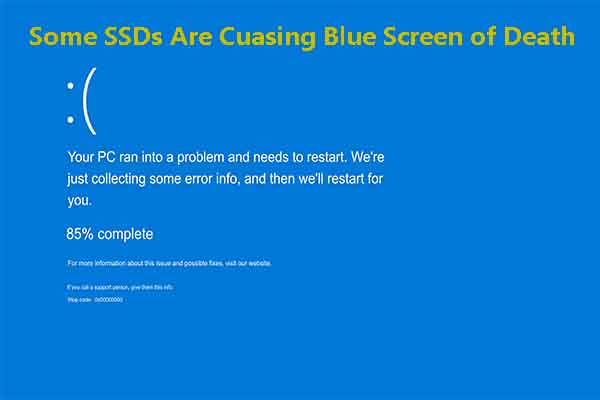
Why an SSD Can Cause a Blue Screen Error
A blue screen, also called a bug check or BSOD, appears when Windows detects a serious problem that it cannot safely recover from. If the operating system cannot read vital files from the SSD, the computer may crash to prevent further damage.
Common SSD-related causes include:
- Failing NAND flash memory or controller hardware
- Outdated SSD firmware
- Loose SATA data or power cables
- Poor contact between an M.2 drive and its motherboard slot
- Excessive SSD temperature
- Corrupted Windows system files
- Damaged storage controller or chipset drivers
- Incorrect BIOS storage settings
- A weak power supply or unstable power connection
- A recently installed Windows update or device driver
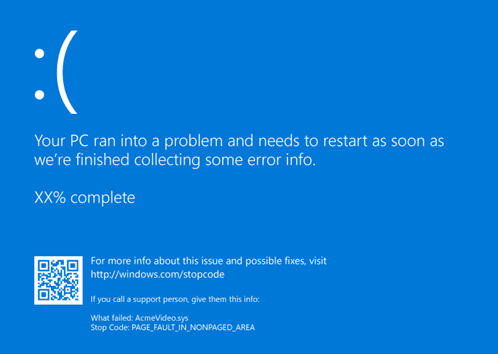
The blue screen code can provide a useful clue. For example, INACCESSIBLE_BOOT_DEVICE often points to a boot drive, storage driver, or BIOS mode problem. WHEA_UNCORRECTABLE_ERROR may indicate hardware instability, although the SSD is not always the cause. KERNEL_DATA_INPAGE_ERROR can also appear when Windows cannot read data from storage.
The SSD may be the cause, but it may not be the only cause. A faulty motherboard slot, damaged cable, memory error, or power problem can produce similar symptoms.
Protect Your Data Before Troubleshooting
Before learning how to fix SSD causing blue screen error problems, protect important files. Repeated crashes can place extra stress on a failing drive, and some SSD failures become sudden and permanent.
If Windows still starts, copy your important files to an external drive or secure cloud storage. Focus on documents, photos, work files, browser data, passwords, and any local project folders.
If Windows will not start, use one of these options:
- Remove the SSD and connect it to another working computer with a compatible SATA-to-USB adapter or NVMe enclosure.
- Start the computer from a Windows installation USB drive and use the repair environment.
- Boot a trusted Linux live USB and copy files to another drive.
- Ask a professional data recovery service for help if the SSD is not detected.
Do not repeatedly run repair commands on a drive that is making clicking sounds, disappearing from BIOS, or showing severe health warnings. SSDs do not usually click like hard disk drives, but unusual sounds from the computer can point to another failing component.
Check the Blue Screen Stop Code
The stop code can help you decide whether to focus on the SSD, Windows, or another component. Take a photo of the blue screen if it disappears too quickly.
Look for codes such as:
INACCESSIBLE_BOOT_DEVICE: Windows cannot access the boot drive.CRITICAL_PROCESS_DIED: A vital Windows process stopped, often because of corrupted files or storage problems.KERNEL_DATA_INPAGE_ERROR: Windows could not read required data from storage or memory.WHEA_UNCORRECTABLE_ERROR: A hardware error was reported, often involving the CPU, memory, motherboard, or storage.NTFS_FILE_SYSTEM: The file system or storage device may be damaged.DPC_WATCHDOG_VIOLATION: A driver or storage controller may have stopped responding.
The stop code is evidence, not a final diagnosis. For example, WHEA_UNCORRECTABLE_ERROR does not prove that the SSD has failed. It simply tells you that Windows detected a serious hardware-level issue.
You can also check crash details in Event Viewer after Windows starts:
- Right-click the Start button.
- Select Event Viewer.
- Open Windows Logs, then System.
- Look for errors near the time of the crash.
- Check for disk, storahci, stornvme, ntfs, or WHEA-related events.

Power Off and Check the SSD Connection
A loose connection is one of the easiest SSD problems to fix. It is also easy to overlook.
For a 2.5-inch SATA SSD, shut down the computer and unplug it. If it is a desktop, switch off the power supply and hold the power button for several seconds. Then check both the SATA data cable and the SATA power cable.
Try the following:
- Reseat both cables firmly.
- Test a different SATA data cable.
- Connect the SSD to another SATA port.
- Avoid damaged or sharply bent cables.
- Check whether another drive works from the same port.
For an M.2 NVMe SSD, remove the power cable, open the case, and confirm that the drive is fully inserted into the slot. Secure it with the correct screw, but do not overtighten it. If the motherboard has more than one M.2 slot, test the SSD in another supported slot.
Always ground yourself before touching internal parts. If the computer is under warranty, check the warranty terms before opening the case.
In my experience, a slightly loose M.2 drive can cause crashes that look like a Windows problem. The computer may work for hours, then fail when heat causes the connection to expand slightly.

Check SSD Health and Temperature
SSD health tools can reveal warning signs before the drive stops working. Check the drive with the manufacturer’s utility or a reliable SMART monitoring tool.
Review these details:
- Overall health status
- Media and data integrity errors
- Available spare capacity
- Percentage used
- Unsafe shutdown count
- Temperature
- Firmware version
- Total bytes written
A high percentage used does not automatically mean the SSD is defective. SSDs have a rated endurance level, and many continue working beyond that rating. However, warnings about uncorrectable errors, critical warnings, or a rapidly declining health status deserve attention.
Temperature matters too. An NVMe drive that runs too hot may slow down, disconnect, or become unstable. Improve airflow, remove dust, and make sure the motherboard heat shield is installed correctly. Do not place a thermal pad where it can prevent proper contact or create pressure on the drive.
SMART data is helpful, but it is not perfect. A drive can fail without giving a clear warning. If the SSD disappears from BIOS or another computer, treat that behavior as a serious hardware warning.

Update SSD Firmware and Motherboard Drivers
Outdated firmware can cause compatibility problems between an SSD, motherboard, and Windows. SSD makers sometimes release firmware updates that improve stability, power management, error handling, or compatibility with newer systems.
Before updating:
- Back up your files.
- Confirm the exact SSD model.
- Download the utility only from the SSD manufacturer.
- Close other programs.
- Connect a desktop computer to reliable power.
- Follow the manufacturer’s instructions carefully.
Do not interrupt a firmware update. A power loss during the process may make the SSD unusable.
Also update the motherboard chipset and storage controller drivers. Use the motherboard or computer manufacturer’s support page when possible. Windows Update can install useful drivers, but the manufacturer may provide a newer chipset package.
Avoid driver download websites that bundle unknown installers. They can create new problems while claiming to solve the old one.

Start Windows in Safe Mode
Safe Mode loads Windows with a limited set of drivers and services. If the blue screen stops in Safe Mode, a normal startup driver, utility, or recent update may be causing the problem.
To enter Safe Mode from Windows:
- Open Settings.
- Select System, then Recovery.
- Choose Advanced startup and select Restart now.
- Select Troubleshoot, Advanced options, Startup Settings, and Restart.
- Press
4for Safe Mode or5for Safe Mode with Networking.
If Windows cannot start:
- Turn on the computer.
- When Windows begins loading, hold the power button to shut it down.
- Repeat this process up to three times.
- Windows should open the Recovery Environment.
- Select Troubleshoot, Advanced options, Startup Settings, and Restart.
In Safe Mode, remove a recently installed storage driver, disk utility, antivirus tool, or system tuning program. You can also use Device Manager to inspect storage controllers and update or roll back a recent driver.
Do not delete random drivers. If you are unsure, record the driver name first and use the manufacturer’s support documentation.
Repair Windows System and File System Errors
Corrupted Windows files can make an SSD appear to be the problem. Windows may crash because system files are damaged, even when the SSD hardware is healthy.
Open Windows Terminal or Command Prompt as an administrator and run:
sfc /scannow
This checks protected Windows files and replaces damaged copies when possible.
Next, run:
DISM /Online /Cleanup-Image /RestoreHealth
Restart the computer after both commands finish. If Windows cannot start normally, run these tools from the Windows Recovery Environment, but the commands and drive letters may differ.
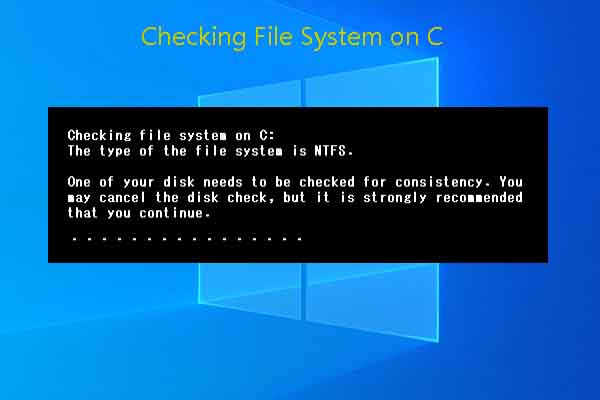
You can also check the file system with:
chkdsk C: /scan
Use caution with repair commands that make major changes. A command such as chkdsk /f can modify the file system. That may help with corruption, but it should not be the first step on a failing SSD when your data is not backed up.
If the SSD health is poor, back up your files before running intensive scans.
Test RAM, Power, and Other Hardware
Sometimes the SSD receives blame for a problem caused by another component. Faulty RAM can corrupt data before Windows writes it to the SSD. An unstable power supply can also cause storage errors and sudden restarts.
Run Windows Memory Diagnostic:
- Press
Windows + R. - Type
mdsched.exe. - Select Restart now and check for problems.
For a deeper memory test, use a reputable bootable memory testing tool and allow several passes to complete. Even one error is important. Reseat the RAM or test one memory module at a time if you are comfortable working inside the computer.
Also check:
- CPU and motherboard temperatures
- Power supply age and capacity
- BIOS stability
- Overclocking or undervolting settings
- Other USB devices
- GPU drivers
- Motherboard error indicators
Return BIOS settings to their default values if you use overclocking. Storage crashes often become more frequent when a system is only slightly unstable.
Check BIOS Storage Settings
Incorrect BIOS settings can make Windows lose access to the boot SSD. This can happen after a BIOS reset, motherboard replacement, or storage mode change.
Enter BIOS or UEFI setup by pressing the key shown during startup. Common keys include Delete, F2, F10, or Esc.
Check whether:
- The SSD appears in the storage list.
- The motherboard detects the correct model.
- The boot order points to the Windows drive.
- SATA mode has not changed unexpectedly.
- NVMe support is enabled when required.
- The system uses UEFI or Legacy mode consistently.
Do not change AHCI, RAID, or Intel VMD settings without checking how Windows was installed. Changing the storage mode can cause INACCESSIBLE_BOOT_DEVICE even when the SSD is healthy.
If the SSD appears in BIOS but Windows crashes, the problem may involve Windows, drivers, or file system corruption. If the SSD does not appear in BIOS, focus on the connection, slot, firmware, or hardware.
Replace the SSD When Testing Confirms Failure
Replacement is usually the correct fix when the SSD repeatedly disappears, reports critical SMART errors, fails diagnostic tests, or causes crashes on more than one computer.
Before replacing it:
- Back up all readable data.
- Record the Windows product and account details.
- Check whether the SSD is under warranty.
- Confirm the replacement drive’s size and interface.
- Create a Windows installation USB drive.
- Keep the old SSD untouched if professional recovery may be needed.
For a system drive, clone it only if the original SSD remains stable and readable. A failing drive may become worse during cloning. In that case, copy the most important files first or use a professional recovery tool.
After installing the new SSD, update the motherboard firmware if needed, install Windows, apply chipset and storage drivers, and restore your files. Keep the old SSD until you are certain that all important data has been recovered.
What Not to Do When an SSD Causes BSODs
Some common fixes can make the situation worse. Avoid these mistakes:
- Do not format the SSD before backing up your files.
- Do not run many repair scans on a drive that is disappearing.
- Do not install random driver tools.
- Do not flash firmware meant for a different SSD model.
- Do not change BIOS storage mode without a recovery plan.
- Do not ignore repeated crashes after a clean Windows installation.
- Do not assume a health percentage proves the drive is safe.
- Do not keep using a failing SSD as your only backup.
A clean Windows installation can solve corrupted software, but it cannot repair worn flash memory or a defective controller. If the same blue screen returns after a fresh installation, test the hardware again.
How to Prevent Future SSD Blue Screen Errors
Prevention starts with good storage habits. Keep at least one current backup on a separate device. A second internal partition is not a true backup because one hardware failure can affect the entire drive.
Helpful habits include:
- Leave some free space on the SSD.
- Install firmware updates from the manufacturer.
- Keep the computer cool and dust-free.
- Use a surge protector or uninterruptible power supply.
- Avoid forced shutdowns when possible.
- Install chipset drivers from trusted sources.
- Monitor SMART warnings and unusual system behavior.
- Replace an SSD that shows repeated critical errors.
For important files, use the 3-2-1 backup approach: keep three copies, on two different types of storage, with one copy stored away from the computer. This simple plan turns a stressful SSD failure into a manageable hardware repair.
Frequently Asked Questions About How to Fix SSD Causing Blue Screen Error
Can a bad SSD cause a blue screen?
Yes. A failing SSD may cause Windows to lose access to system files, which can trigger errors such as INACCESSIBLE_BOOT_DEVICE, NTFS_FILE_SYSTEM, or KERNEL_DATA_INPAGE_ERROR. However, cables, drivers, RAM, and the motherboard can create similar symptoms.
How do I know whether my SSD is causing the BSOD?
Check the stop code, SSD health data, Event Viewer logs, and whether the drive appears consistently in BIOS. Testing the SSD in another computer or with the manufacturer’s diagnostic tool provides stronger evidence than a single blue screen.
Can updating SSD firmware fix blue screen errors?
It can fix bugs related to compatibility, power management, or error handling. Firmware updates cannot repair physical flash damage, so back up your data and confirm the exact drive model before updating.
Should I run CHKDSK on a failing SSD?
Back up important files first. CHKDSK may repair file system problems, but it cannot repair failed hardware and may place extra activity on a drive that is already unstable.
Why does my SSD disappear from BIOS after a crash?
A loose connection, overheating, firmware problem, failed controller, motherboard slot issue, or power problem may cause this behavior. Reseat the drive, test another slot or cable, and check whether another computer detects it.
Will reinstalling Windows fix an SSD blue screen?
Reinstalling Windows can fix corrupted system files and driver problems. It will not fix a failing SSD, so test the drive and protect your data before performing a clean installation.
Conclusion
An SSD-related blue screen usually comes from one of four areas: failing hardware, poor connections, outdated drivers or firmware, or corrupted Windows files. Start by backing up your data, recording the stop code, checking the SSD in BIOS, and reviewing its health. Then work through connections, temperature, firmware, drivers, Windows repairs, and hardware tests in that order.
If the SSD fails diagnostics or disappears from more than one computer, replacement is safer than repeated repairs. Use the steps above to troubleshoot carefully, protect your files, and share your experience or questions in the comments.
