
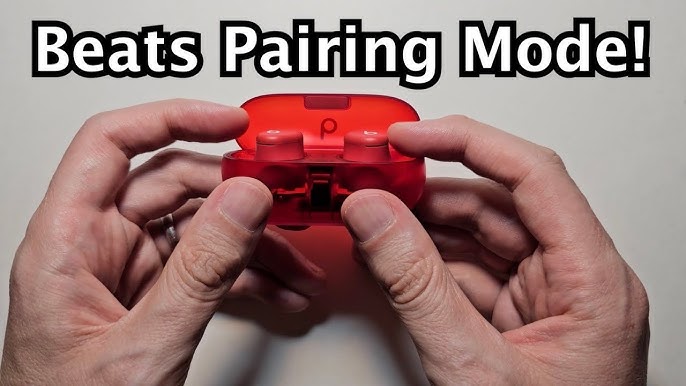
Pair Beats earbuds by powering them on, entering pairing mode, and selecting them from your device’s Bluetooth menu.
I’ve helped dozens of people and tested many Beats models, so I’ll walk you step-by-step through how to pair Beats earbuds with phones, tablets, and computers. This guide covers quick setup, model-specific tips, troubleshooting, and real-life tricks I learned from daily use, so you can get clean audio fast and keep it working.
Why pairing matters and what to expect
Pairing is the link between your earbuds and your device. Knowing how to pair Beats earbuds saves time and prevents dropped audio during calls or workouts.
Good pairing gives low latency, clear calls, and stable music. If you learn the right steps and a few fixes, pairing becomes automatic. I’ll explain model differences and common quirks so you can pair reliably every time.
Prepare your devices before pairing
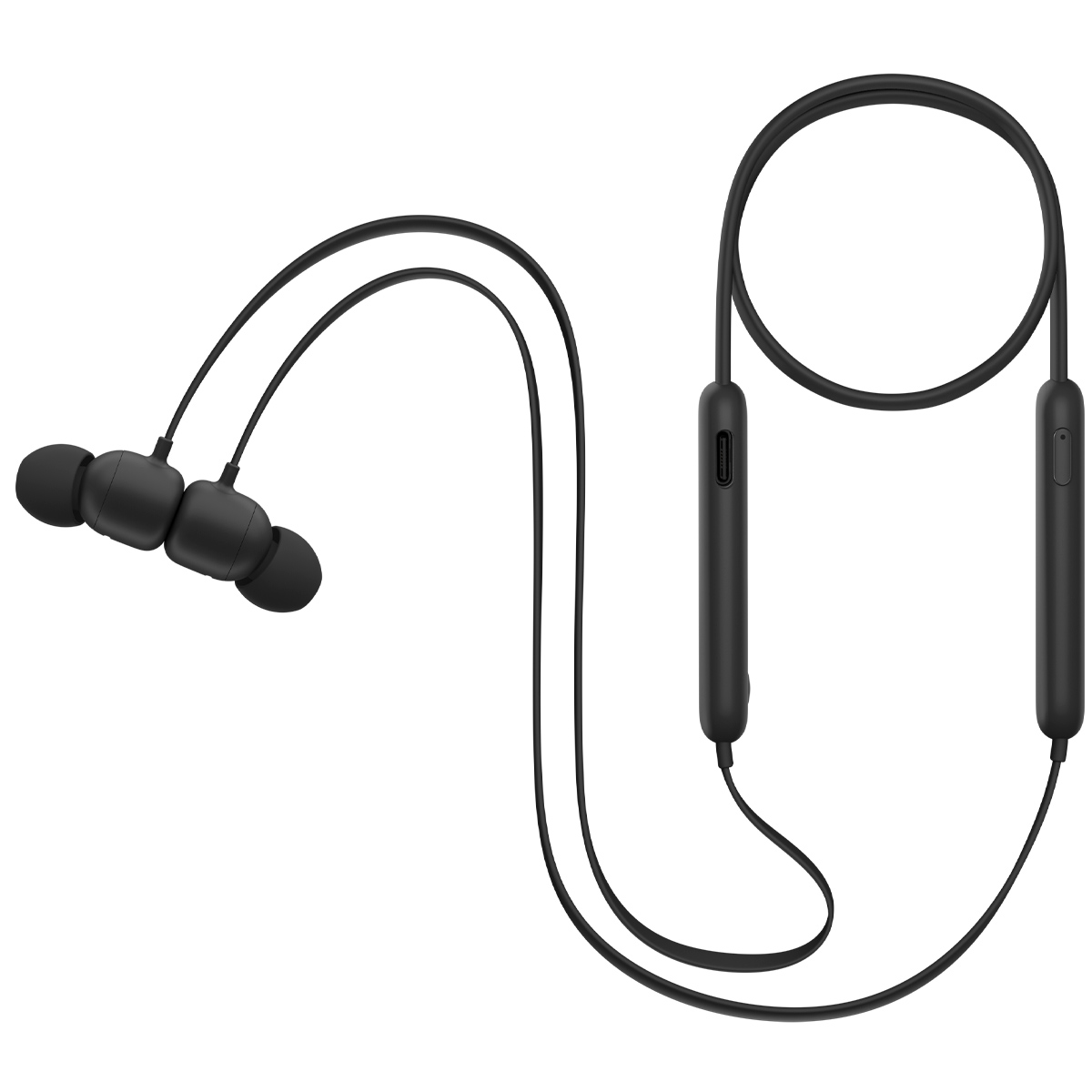
A clean setup makes pairing smooth. Make sure both the earbuds and the device have enough battery, Bluetooth is on, and any old connections are turned off.
Check that your device runs a recent OS version. Close other Bluetooth apps or devices that might interfere. I once spent ten minutes troubleshooting only to find my laptop’s Bluetooth was off—simple checks save a lot of time.

How to pair Beats earbuds with an iPhone or iPad
Beats and Apple devices often pair very quickly. Below are the steps to pair Beats earbuds with iPhone or iPad.
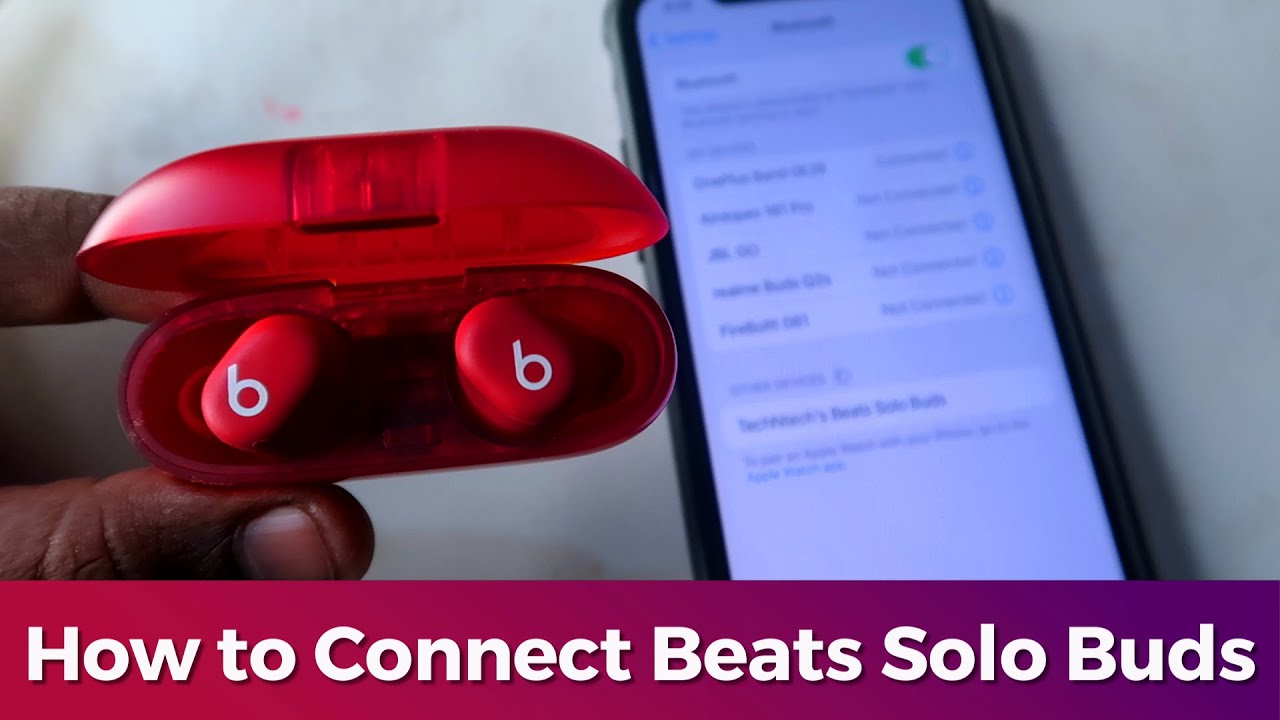
- Open Bluetooth on your iPhone.
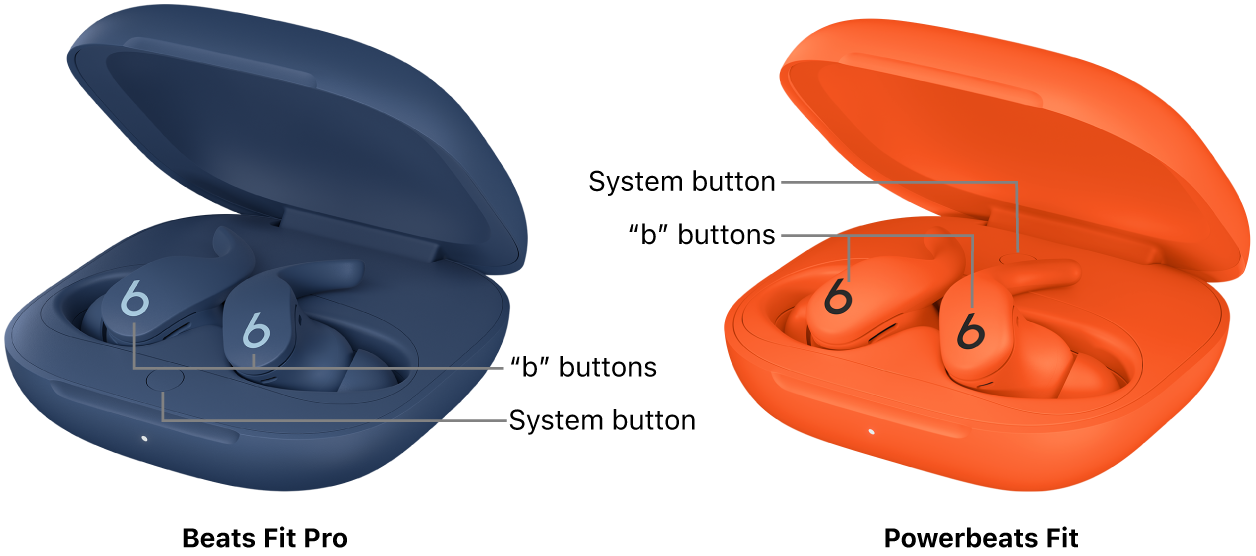
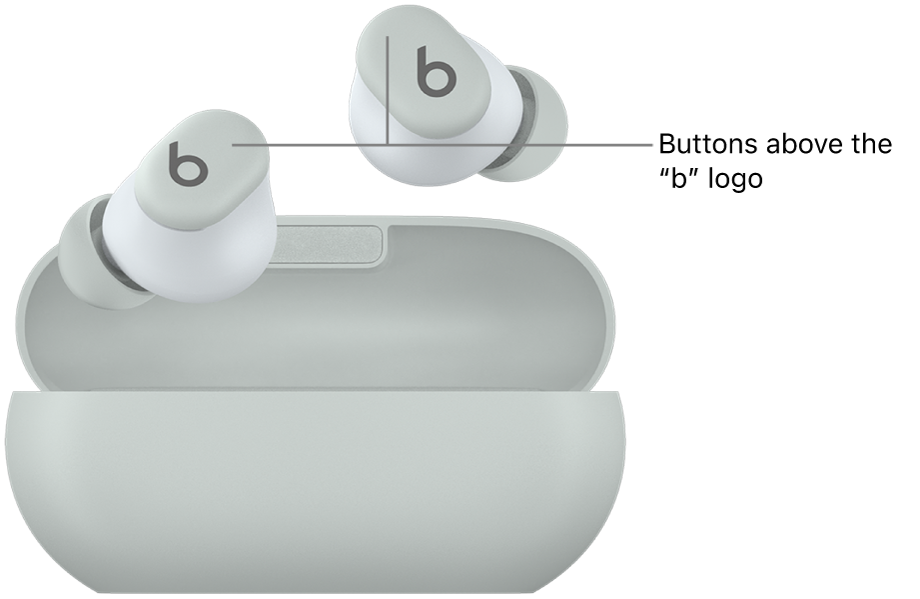
- Place the Beats in pairing mode: for most models, hold the power button until the LED flashes. For Powerbeats Pro, open the case near the iPhone.
- Watch for the Beats name to appear in Settings > Bluetooth and tap to connect.
- Confirm any prompts on screen and test audio.
If you use iCloud and your Beats support Apple pairing, they may appear automatically across your other Apple devices. I’ve paired Studio Buds this way and it worked instantly.
How to pair Beats earbuds with Android devices
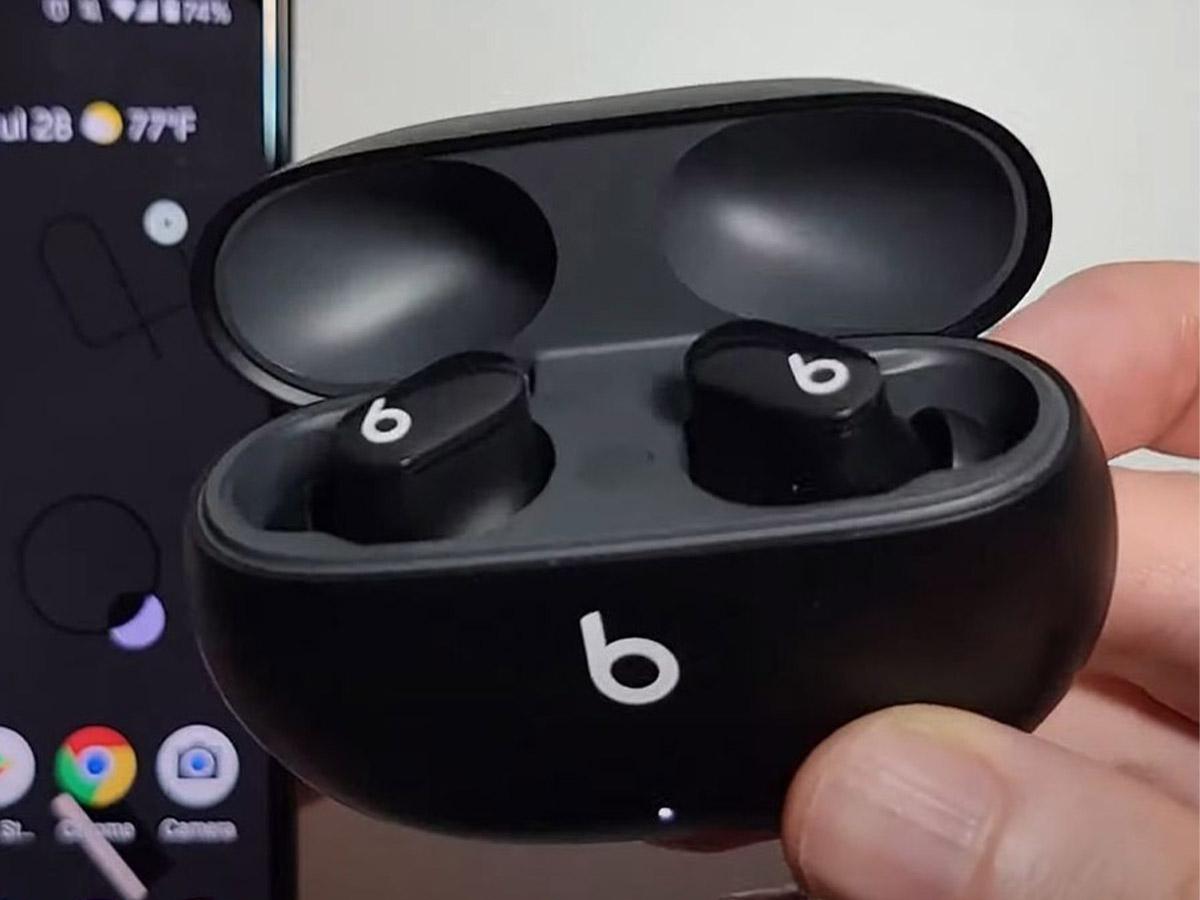
Pairing Beats earbuds with Android is straightforward and similar to iPhone steps. The exact model may change the button used, so check the model notes.
- Open Settings > Connections > Bluetooth on your Android device.
- Put your Beats in pairing mode by holding the power or pairing button until the LED blinks.
- Tap the Beats name in the available devices list to connect.
- Test audio and adjust media volume.
Some Android phones show a pairing pop-up with battery level. If your phone won’t find the earbuds, toggle Bluetooth off and on and try again. I fixed one pairing issue by removing a stale pairing record and reconnecting.
How to pair Beats earbuds with Mac or Windows PC
Pairing to computers requires the same Bluetooth basics. Here are quick steps for both Mac and Windows.
For Mac:
- Open System Settings > Bluetooth.
- Put Beats in pairing mode.
- Click Connect next to the Beats name.
For Windows:
- Open Settings > Bluetooth & devices > Add device.
- Select Bluetooth and choose your Beats from the list.
- Confirm pairing and set Beats as the default audio device if needed.
If audio lags, try updating Bluetooth drivers on Windows or resetting the Mac’s Bluetooth module. I once reduced dropout by switching from 2.4 GHz Wi-Fi to 5 GHz on my router to lower interference.

Troubleshooting common pairing problems
Here are quick fixes when you can’t pair or audio drops. These answers address typical user questions and mirror real troubleshooting calls I’ve handled.
Why won’t my Beats pair with my phone?
• Check the battery level on both devices. Ensure the Beats are in pairing mode and not already connected to another device. Restarting Bluetooth on your phone often resolves conflicts.
How do I reset my Beats earbuds?
• Most Beats reset by holding the power plus volume buttons for 10 seconds or following the model-specific reset steps. A reset clears old pairings and often fixes persistent issues.
Can I pair Beats earbuds to two devices at once?
• Some Beats support multipoint. If yours do, you can be connected to two devices simultaneously. If not supported, disconnect one device before connecting another.
What causes audio dropouts?
• Interference from Wi-Fi, crowded Bluetooth channels, or physical obstructions cause dropouts. Move closer to the device and remove nearby wireless interference to improve stability.
How to update Beats firmware?
• Use the Beats or device manufacturer app on your phone. Firmware updates often fix pairing bugs and improve compatibility.
Tips, best practices, and personal lessons
Small habits prevent most pairing headaches. Use the tips below for a smooth experience every time you pair Beats earbuds.
• Keep firmware and OS updated. Firmware fixes often improve pairing.
• Charge both earbuds and the source device before pairing.
• Remove old pairings on both earbuds and phone when switching devices.
• Store earbuds in the case when not in use to preserve battery and pairing memory.
• Use the case-based pairing method for Powerbeats Pro and similar models for the fastest setup.
From my experience, leaving earbuds in a drawer for months can create a stubborn pairing record. A reset and fresh charge fixed it. Another tip: label your Beats in your device’s Bluetooth list so you don’t confuse them with other nearby devices.
Frequently Asked Questions of how to pair beats earbuds
How do I put my Beats in pairing mode?
Hold the power button for about 5-10 seconds until the LED flashes. Some models enter pairing mode when the case is opened near a device.
Can I pair Beats with multiple devices at once?
Some Beats support multipoint pairing, letting two devices connect simultaneously. Check your model specs if you need dual-device support.
Why does my device say pairing failed?
Pairing can fail due to low battery, old pairing records, or Bluetooth interference. Restart both devices and try again after resetting the earbuds if needed.
How do I reset Beats earbuds?
Reset steps vary by model but usually involve holding the power and volume buttons for several seconds. Resetting clears memory and helps with persistent issues.
Will firmware updates improve pairing?
Yes. Firmware updates often improve stability, fix bugs, and add compatibility for newer devices. Use the official app or device prompts to update.
Conclusion
You now have clear, practical steps for how to pair Beats earbuds with phones, tablets, and computers. Follow the model-specific steps, keep firmware and OS up to date, and use simple fixes like resets and restarts when things go wrong.
Try pairing once now and store the steps you used. If trouble pops up, restart and reset before assuming hardware failure. If this guide helped, try the steps with your device and leave a comment about your experience or questions—I'd love to help you troubleshoot further.