

To pair Beats earbuds, open the case, enter pairing mode, then select them in your device’s Bluetooth settings.
Learning how to pair Beats earbuds is simple once you know where pairing mode is and what to do when your earbuds do not appear. Whether you use an iPhone, Android phone, Windows PC, Mac, or another Bluetooth device, this guide explains the process clearly, including setup, troubleshooting, switching devices, and reset steps.
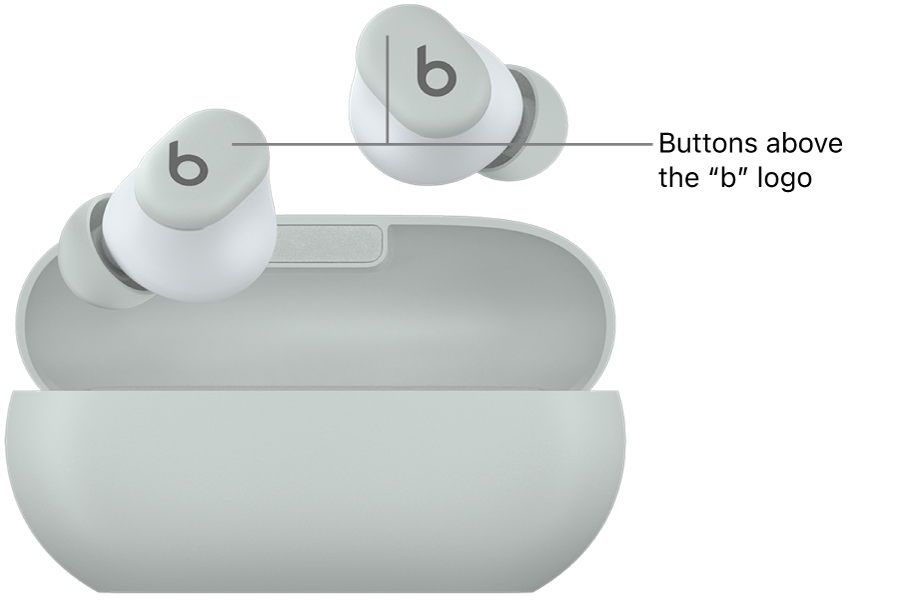
How to Pair Beats Earbuds With an iPhone
Beats earbuds work smoothly with Apple devices. Newer models may show an automatic setup card when you open the charging case near your unlocked iPhone. If that card does not appear, you can pair the earbuds through Bluetooth settings.
Follow these steps:
- Charge both earbuds and place them inside the charging case.
- Open the case lid.
- Keep the case near your iPhone.
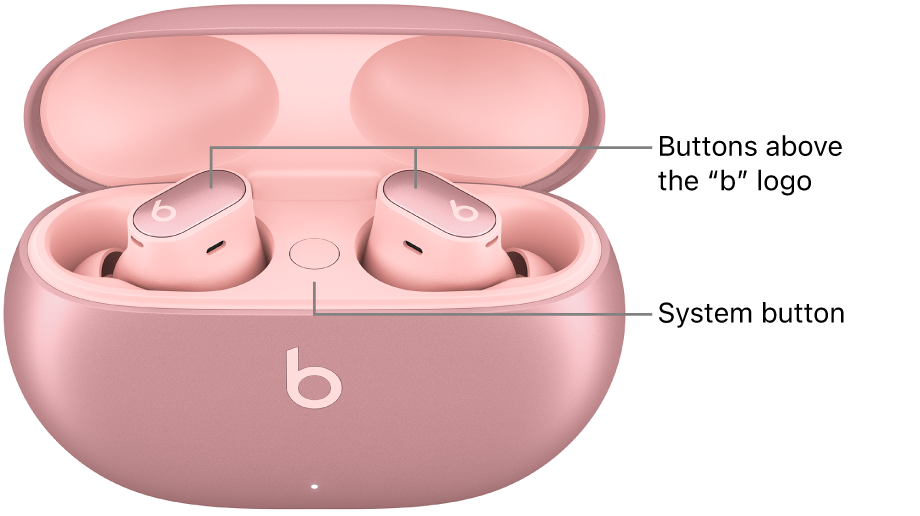
- Press and hold the system button on the case until the indicator light flashes white.
- Open Settings on your iPhone.
- Tap Bluetooth.
- Turn Bluetooth on if it is off.
- Select your Beats earbuds from the list of available devices.
- Follow any setup instructions on the screen.
Once connected, the earbuds should appear under My Devices. Your iPhone may also connect to them automatically the next time you open the case nearby.
If you are learning how to pair Beats earbuds for the first time, keep both earbuds in the case during setup. This helps the phone detect the set as one Bluetooth device.
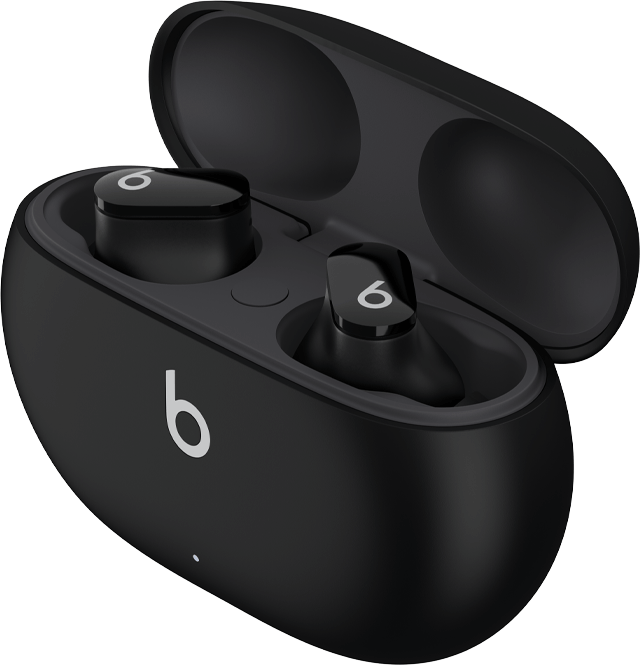
How to Pair Beats Earbuds With an Android Phone
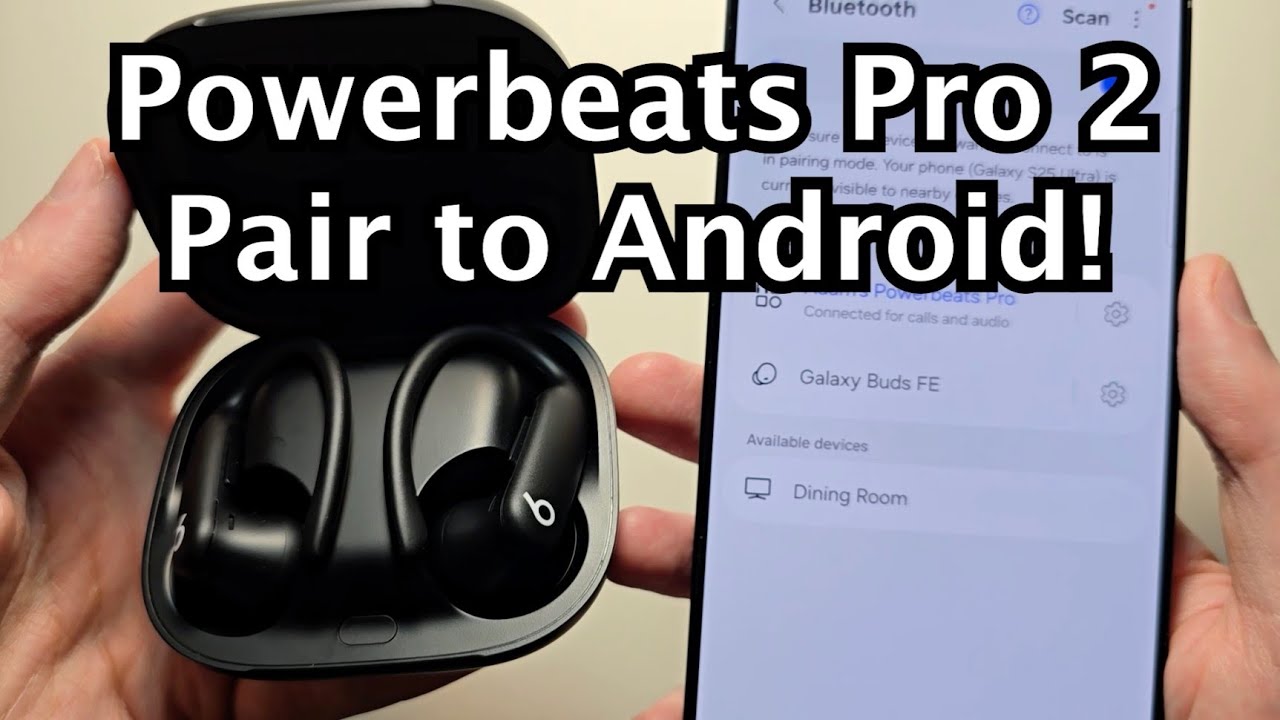
Android phones connect to Beats earbuds through Bluetooth. Some newer Beats models also support Google Fast Pair, which can make setup quicker when Bluetooth and location services are enabled.
To pair Beats earbuds with Android, use these steps:
- Put both earbuds in the charging case.
- Open the lid.
- Press and hold the case button until the light flashes white.
- Open Settings on your Android phone.
- Tap Connected devices, Connections, or Bluetooth. The name may vary by phone brand.
- Select Pair new device if needed.
- Tap your Beats earbuds when they appear.
- Approve the pairing request.
After pairing, your phone may show battery levels for the earbuds and case. The exact display depends on your Android version and Beats model.
Google Fast Pair may show a pop-up on compatible Android phones. If you do not see it, use the regular Bluetooth menu. The earbuds can still work normally without Fast Pair.
Knowing how to pair Beats earbuds manually is useful because Android menus differ between Samsung, Google Pixel, OnePlus, and other phones.

How to Put Beats Earbuds in Pairing Mode
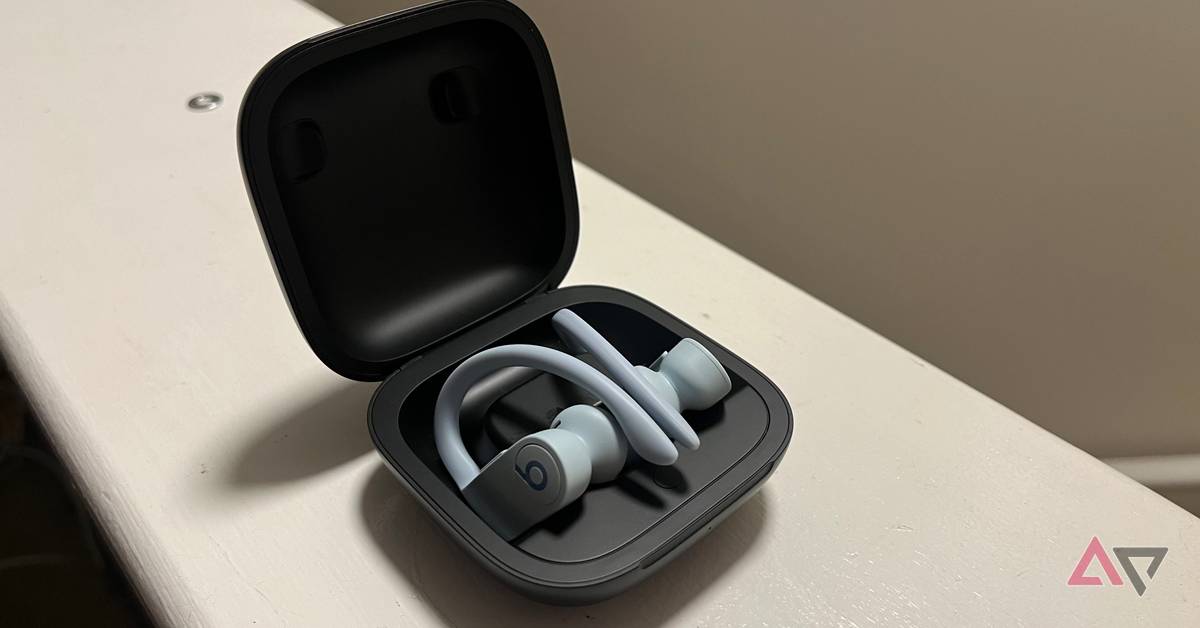
Pairing mode allows another device to find your earbuds. Most Beats true wireless models use the button on the charging case, but some older models use a button on the earbuds themselves.
For most Beats earbuds:
- Put the earbuds in the case.
- Leave the lid open.
- Press and hold the case system button.
- Wait until the indicator light flashes white.
- Open the Bluetooth menu on your device.
- Choose the Beats earbuds from the list.
A flashing white light usually means the earbuds are ready to pair. A red or amber light often points to low battery, charging, or a reset process.
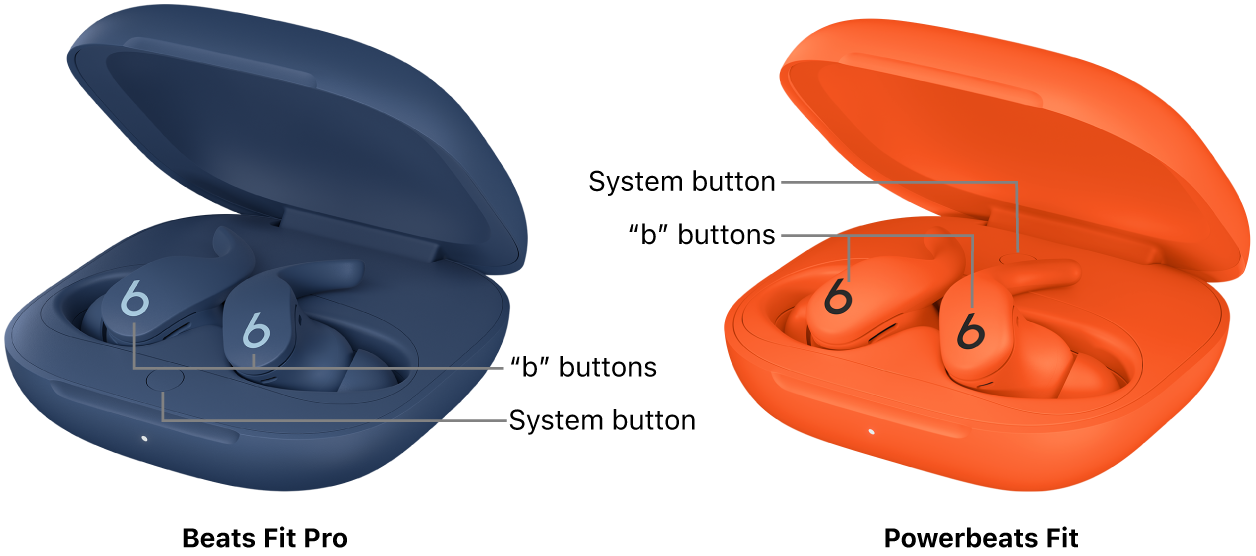
The button location can differ by model. Beats Studio Buds, Beats Studio Buds +, Beats Fit Pro, and Beats Powerbeats Pro generally use a case button. Beats Flex uses the power button and may enter pairing mode when you hold it down.
If the earbuds do not flash white, charge the case for at least a few minutes and try again. Also keep the earbuds close to the device during setup.

How to Pair Beats Earbuds With a Windows PC
Beats earbuds can connect to a Windows laptop or desktop like any other Bluetooth headphones. This is useful for video calls, music, gaming, and work.
Use this process:
- Put the Beats earbuds in their case.
- Open the case lid.
- Hold the system button until the light flashes white.
- On your PC, open Settings.
- Select Bluetooth & devices.
- Turn Bluetooth on.
- Click Add device.
- Choose Bluetooth.
- Select your Beats earbuds.
- Wait for Windows to confirm the connection.
On older Windows versions, open Settings, choose Devices, select Bluetooth & other devices, and click Add Bluetooth or other device.
For calls, Windows may show two sound options. One is often the stereo music profile, while the other is a hands-free call profile. The hands-free option may reduce sound quality but is needed for the earbud microphones in some apps.
When learning how to pair Beats earbuds with a PC, test both audio output and microphone input. Open your meeting app and confirm that the Beats earbuds are selected for sound and voice.
How to Pair Beats Earbuds With a Mac
Mac computers use the Bluetooth menu for Beats setup. If the earbuds are already connected to your iPhone with the same Apple Account, they may appear as an available device automatically.
To connect them manually:
- Place the earbuds in the case.
- Open the case.
- Press and hold the case button until the light flashes white.
- Click the Apple menu on your Mac.
- Open System Settings.
- Select Bluetooth.
- Find your Beats earbuds.
- Click Connect.
On older macOS versions, open System Preferences and choose Bluetooth.
If the earbuds connect but sound still comes from the Mac speakers, open System Settings, select Sound, and choose the Beats earbuds as the output device. For calls, also confirm the earbuds are selected as the microphone.
The same basic steps apply when you pair Beats earbuds with a MacBook, iMac, or Mac mini.

How to Pair Beats Earbuds With a Second Device
Most Beats earbuds can remember several devices, but they may not actively play audio from all of them at once. To use a second device, place the earbuds in pairing mode and select them from that device’s Bluetooth menu.
Follow these steps:
- Disconnect the earbuds from the first device, or turn off Bluetooth on it.
- Place the earbuds in the charging case.
- Open the lid.
- Hold the case button until the light flashes white.
- Open Bluetooth settings on the second device.
- Select the Beats earbuds.
Some newer Beats models support automatic switching or multipoint features. Availability depends on the model, firmware, operating system, and device combination.
If your earbuds keep returning to the first phone, turn Bluetooth off on that phone for a moment. This gives the second device a clear chance to connect.
A practical lesson from testing Bluetooth earbuds is that saved connections can create confusion. If several phones, tablets, and computers are nearby, temporarily disable Bluetooth on devices you are not using.
How to Fix Beats Earbuds That Will Not Pair
When how to pair Beats earbuds steps do not work, the cause is usually simple. The case may have a low charge, the earbuds may still be connected to another device, or the Bluetooth record may be corrupted.
Try these solutions in order:
• Charge the case and earbuds for at least 15 minutes.
• Turn Bluetooth off, wait a few seconds, and turn it back on.
• Move the earbuds within a few feet of your phone or computer.
• Close the charging case, wait 10 seconds, and open it again.
• Restart the phone, tablet, or computer.
• Remove the old Beats connection from Bluetooth settings.
• Put the earbuds back into pairing mode.
• Check that both earbuds are seated correctly in the case.
• Install available operating system updates.
• Reset the Beats earbuds if other steps fail.
On your phone, remove the earbuds by tapping the information button beside their name and selecting Forget This Device. On Android, choose Unpair or Forget. Then repeat the normal how to pair Beats earbuds process.
Avoid trying to pair while the earbuds are connected to another nearby device. Bluetooth can behave like a door with one active key; the first device may keep opening it.
How to Reset Beats Earbuds
A reset can solve repeated pairing failures, one-earbud problems, and connection loops. It also removes saved Bluetooth connections, so you will need to pair the earbuds again afterward.
For many Beats true wireless models, use this method:
- Put both earbuds in the charging case.
- Keep the lid open.
- Press and hold the case system button for about 15 seconds.
- Watch the indicator light.
- Release the button when the light flashes red and white, or changes according to your model’s reset pattern.
- Close the case.
- Open it again and enter pairing mode.
- Pair the earbuds with your device.
The exact light pattern can vary by model. Check the instructions for your specific Beats earbuds if the reset does not start.
Resetting should be a later step, not the first one. It removes useful connection data, so first try charging, restarting Bluetooth, and forgetting the old device.
How to Pair Beats Earbuds When Only One Earbud Works
If only one earbud produces sound, both earbuds may not be charging or communicating correctly. Start by placing both earbuds in the case and checking whether each one shows a charging response.
Try the following:
- Clean the charging contacts gently with a dry, soft cloth.
- Check that each earbud sits firmly in its slot.
- Charge the case and earbuds.
- Forget the Beats device from your phone.
- Reset the earbuds.
- Pair them again as a set.
Also check your device’s left and right audio balance. On an iPhone, open Accessibility settings, choose Audio & Visual, and make sure the balance slider is centered. Android and computer audio settings have similar controls.
If one earbud still stays silent after a reset, the issue may involve hardware, moisture, impact, or a worn battery. In that case, contact Beats support or an authorized service provider rather than forcing the earbud into the case.
Tips for a Better Beats Bluetooth Connection
Good pairing is only the first step. A few habits can make your connection more stable and your earbuds last longer.
• Keep the earbuds and source device close during setup.
• Keep your phone’s operating system and Beats firmware current.
• Avoid pairing in crowded Bluetooth areas when possible.
• Store the earbuds in the case when you are not using them.
• Keep the charging contacts clean and dry.
• Do not leave the case fully drained for long periods.
• Remove old Bluetooth entries for devices you no longer use.
• Use the correct microphone setting for calls on a computer.
Bluetooth signals can weaken near thick walls, crowded wireless networks, and other electronic devices. Most people will not notice this during normal use, but distance and obstacles can cause dropouts.
Water resistance also has limits. Some Beats models resist sweat or light water, but that does not mean they are safe to submerge or use in heavy rain. Moisture damage may not be covered by warranty.
Common Mistakes to Avoid When Pairing Beats Earbuds
Many pairing problems come from skipping one small step. Avoid these common mistakes:
• Searching for the earbuds without putting them in pairing mode.
• Holding the case button for too little time.
• Leaving the earbuds connected to a previous phone.
• Trying to pair with a nearly empty case.
• Selecting a similarly named Bluetooth device.
• Resetting the earbuds before trying basic fixes.
• Assuming the earbuds are connected because they appear in the saved device list.
A saved device is not always an active connection. Open your Bluetooth settings and check that the status says Connected.
Another common mistake is placing only one earbud in the case during setup. For the most reliable result, keep both earbuds in the case, open the lid, and hold the pairing button.
Frequently Asked Questions About How to Pair Beats Earbuds
Why are my Beats earbuds not showing up in Bluetooth?
Put both earbuds in the open case and hold the system button until the light flashes white. If they still do not appear, charge the case, disable Bluetooth on nearby devices, and try again.
How do I put Beats Studio Buds in pairing mode?
Place both Beats Studio Buds in the case and leave the lid open. Hold the case button until the indicator flashes white, then select the earbuds in your device’s Bluetooth menu.
Can I pair Beats earbuds with an Android phone?
Yes, Beats earbuds can pair with Android phones through Bluetooth. Open Bluetooth settings, place the earbuds in pairing mode, and select their name from the available device list.
How do I reset Beats earbuds?
Place both earbuds in the case, keep the lid open, and hold the case button for about 15 seconds. Release it when the indicator shows the reset light pattern, then pair the earbuds again.
Can Beats earbuds connect to two devices?
Some Beats models support automatic switching or multipoint connections, while others connect to one active device at a time. The available feature depends on the model and software version.
Why does only one Beats earbud connect?
The earbuds may have different charge levels, dirty charging contacts, or a lost connection between them. Charge both earbuds, clean the contacts, forget the Bluetooth connection, and reset the set if needed.
Conclusion
Learning how to pair Beats earbuds takes only a few steps: charge the earbuds, open the case, hold the pairing button, and select them in Bluetooth settings. The same basic method works with iPhone, Android, Windows, and Mac, although menu names may differ.
If pairing fails, start with simple fixes such as charging, restarting Bluetooth, removing the old connection, and checking nearby devices. Use a reset only when those steps do not work. Now pair your Beats earbuds, test both sound and microphone settings, and share your experience or questions in the comments.
