
Put earbuds in the case, press pairing on the case, then connect via Bluetooth settings.
I’ve guided dozens of people through pairing and troubleshooting soundcore earbuds, so you’re in good hands. This guide gives clear steps for Android, iPhone, Windows, and Mac, plus fixes for common issues, practical tips from real use, and simple maintenance advice to keep your soundcore earbuds working reliably.

Understanding soundcore earbuds and Bluetooth basics
Soundcore earbuds are true wireless earbuds that use Bluetooth to stream audio. They pair with phones, tablets, and computers using standard Bluetooth profiles for audio and hands-free calling.
Bluetooth pairing creates a link between your device and the earbuds. Once paired, the device remembers the earbuds and reconnects automatically when both are on and in range. Knowing basic Bluetooth behavior helps when a connection fails or drops.

Preparing before pairing
Charge both the earbuds and the case. Low battery often blocks pairing or can cause disconnections.
Update the Soundcore app and your device’s OS when possible. App updates can add pairing features and firmware fixes for soundcore earbuds.
Turn off other active Bluetooth devices nearby. Too many active signals can confuse the pairing process. Also, clear previous pairings on the host device if you have pairing errors.
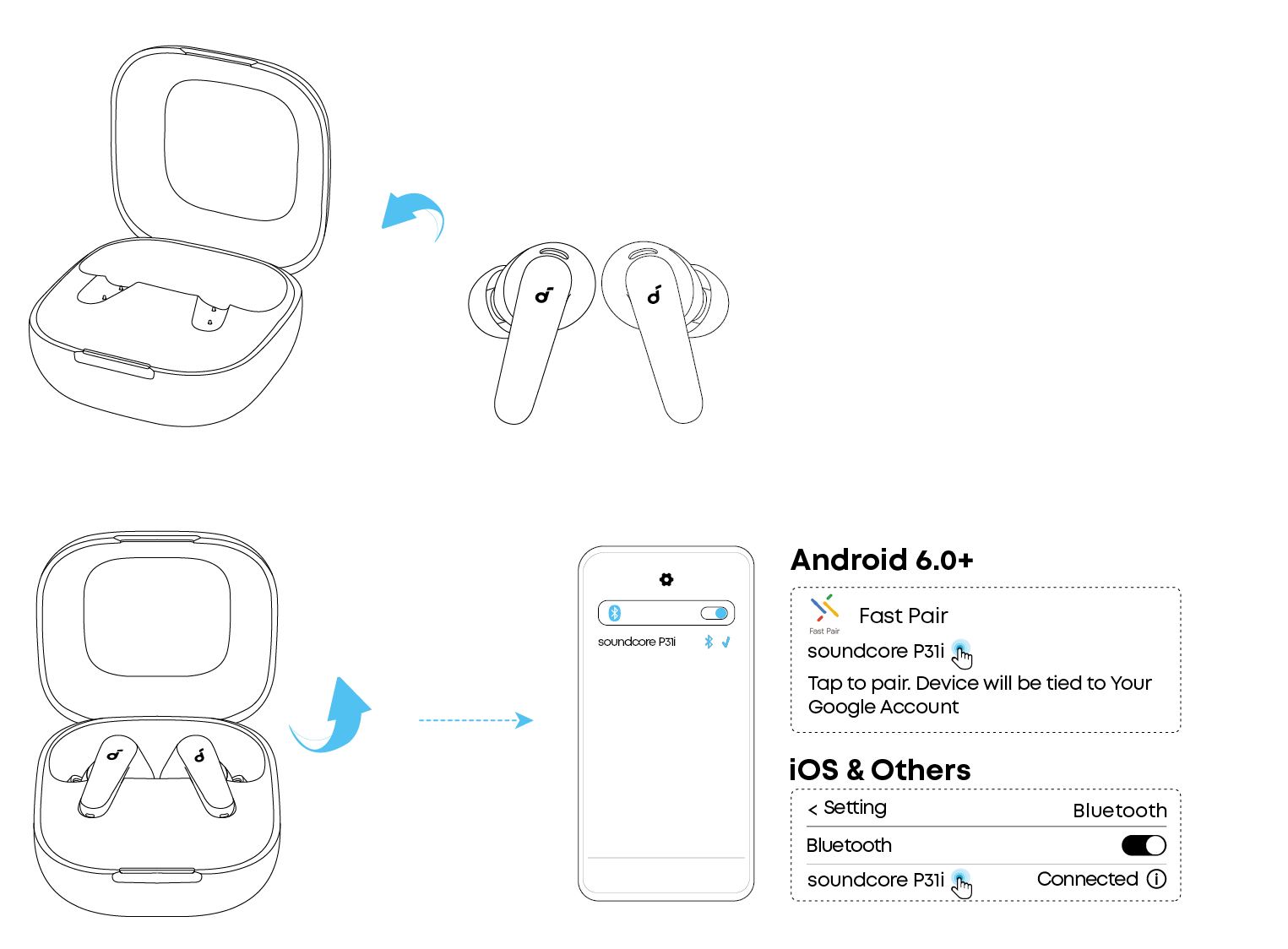
How to connect soundcore earbuds — step-by-step (universal)
- Charge the earbuds and case until the LED indicators show full or normal charge.
- Remove both earbuds from the case. Most soundcore earbuds turn on automatically when removed.
- Enter pairing mode. For many models, hold the touch sensors or press the button on the case for about 3–5 seconds until the LED flashes. This makes the earbuds discoverable.
- Open Bluetooth settings on your phone, tablet, or computer.
- Look for the name that matches your model, such as “Soundcore Liberty” or “Soundcore Life.” Tap to pair.
- Confirm any prompts and allow permissions if asked (microphone permission is common for hands-free calls).
- Wait for “Connected” or a confirmation sound. The earbuds are ready to use.
- Return the earbuds to the case and reconnect automatically when you remove them next time.
I once missed step 3 and wondered why my phone could not find the earbuds. Putting them into explicit pairing mode fixed it instantly. If one earbud won’t pair, try placing both back into the case for 10 seconds and repeat.

Pairing soundcore earbuds with Android
- Charge the earbuds and put them in pairing mode.
- Open Settings > Connections > Bluetooth. Turn Bluetooth on.
- Scan for new devices. Select the soundcore earbuds name when it appears.
- If asked, accept pairing permissions and grant the app permission to use Location if required by your Android version.
- Use the Soundcore app for firmware updates and custom settings like touch controls and EQ.
On Android, I recommend using the Soundcore app. It simplifies firmware updates and helps if one bud isn’t connecting. If you have trouble, toggle Bluetooth off and on, then forget the device and retry.
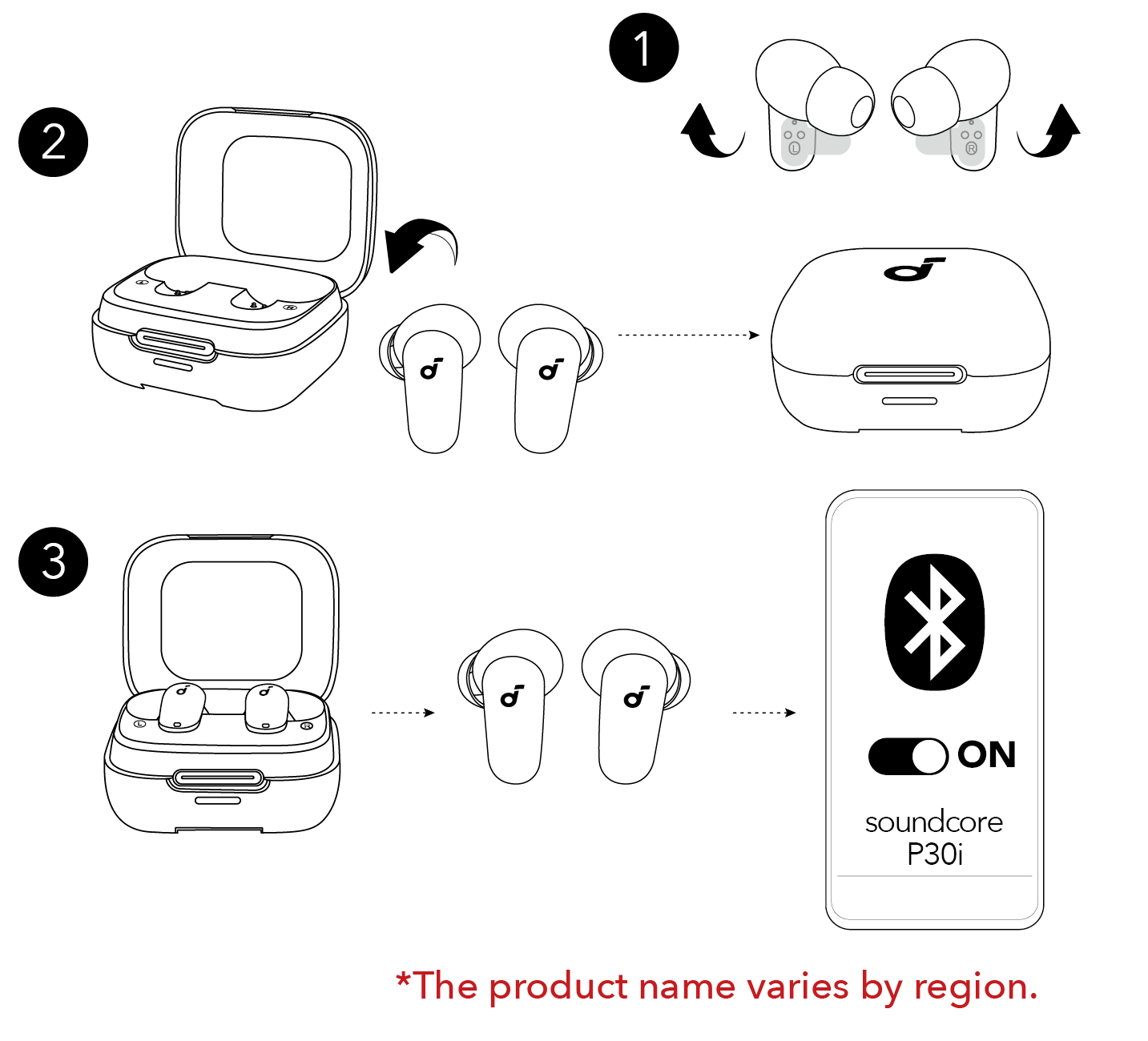
Pairing soundcore earbuds with iPhone
- Charge earbuds and enable pairing mode.
- Open Settings > Bluetooth. Keep this screen open while pairing.
- Tap the soundcore earbuds name when it appears under Other Devices.
- Allow any prompts and check Control Center for audio controls.
- Use the Soundcore app from the App Store for extra features and firmware updates.
iPhone usually pairs quickly. If you see “Pairing” but no sound, check the device audio output and make sure the earbuds are selected as the output device in Control Center.

Pairing soundcore earbuds with Windows and Mac
For Windows:
- Open Settings > Bluetooth & devices > Add device.
- Select Bluetooth, then choose your soundcore earbuds name from the list.
- Confirm pairing and set the earbuds as the default audio device for media and calls in Sound settings.
For Mac:
- Open System Settings > Bluetooth.
- Put the earbuds in pairing mode.
- Click Connect next to the earbuds name.
- Set the earbuds as the output and input device in Sound settings if needed.
On laptops, audio can default to a different device. I often open both the Bluetooth settings and sound control panel to ensure the earbuds are fully selected for both playback and microphone use.

Troubleshooting common issues
If earbuds won’t enter pairing mode:
• Ensure they are charged and placed correctly in the case.
• Try a hard reset: hold the earbuds’ buttons or touch for 10–15 seconds until LEDs flash.
• If reset fails, use the Soundcore app to perform a firmware reset when available.
If left or right bud won’t connect:
• Place both earbuds in the case, close for 10 seconds, then remove both together.
• Forget the earbuds on your device and repeat pairing steps.
• Check for debris in the charging contacts.
If audio stutters or drops:
• Move closer to the device and reduce obstacles. Bluetooth range is limited.
• Turn off other nearby Bluetooth devices.
• Update firmware via the Soundcore app to fix known connection bugs.
If calls sound quiet or echo:
• Make sure the earbuds are set as the default microphone in the device settings.
• Disable any audio enhancements on the phone temporarily.
• Test with another device to isolate whether earbuds or phone is the issue.
Can I pair soundcore earbuds to two devices at once?
Most soundcore earbuds support multipoint for two devices, but not all models. Check your model’s manual; enable multipoint in the Soundcore app if supported.
Why do my earbuds show connected but no sound?
Your device might be using a different audio output. Open Bluetooth or sound settings and set the soundcore earbuds as the active output device.
How long does pairing mode last?
Pairing mode typically lasts 2–5 minutes or until the earbuds connect. If it times out, put the earbuds back in pairing mode.

Tips, best practices, and maintenance
Battery care:
• Charge regularly and avoid deep discharges. Short daily charges keep battery health better over time.
• Remove earbuds from the case after charging to prevent trickle charging stress.
Fit and sound:
• Try different ear tips for a tight seal. A good seal improves bass and reduces dropouts.
• Clean earwax and dust off tips and charging pins with a soft, dry cloth.
Firmware and app:
• Check the Soundcore app weekly for firmware updates. Updates fix bugs and improve performance.
• Customize touch controls in the app to suit how you use your earbuds.
Travel and storage:
• Store earbuds in the case when not in use. This protects them and saves battery.
• Keep the case in a cool, dry place to protect battery longevity.
From my experience, swapping to smaller ear tips solved a frequent dropout issue. It felt like unlocking a better connection simply by improving the fit.
Frequently Asked Questions of how to connect soundcore earbuds
How do I put my soundcore earbuds into pairing mode?
Most soundcore earbuds enter pairing mode by holding their touch sensor or pressing a button for 3–5 seconds until an LED flashes. Place both earbuds in pairing mode together if one won’t connect.
Why won’t my phone find my soundcore earbuds?
Sometimes the earbuds aren’t in pairing mode or their battery is low. Restart Bluetooth on your phone, place earbuds in pairing mode, and try again.
How do I reset soundcore earbuds?
Reset methods vary by model but often involve holding the touch sensors or a button for 10–15 seconds. Check the Soundcore app or your user manual for model-specific reset steps.
Can I update the firmware on soundcore earbuds?
Yes. The Soundcore app lets you update firmware. Open the app, connect the earbuds, and follow the prompts to install updates.
What if only one earbud connects?
Put both earbuds back in the case for 10 seconds and then remove them together. If that fails, forget the device on your Bluetooth settings and pair again.
Will soundcore earbuds work with any Bluetooth device?
They work with devices that support standard Bluetooth audio profiles. Most modern phones, tablets, and computers are compatible.
Conclusion
Connecting soundcore earbuds is straightforward when you follow clear steps: charge, enter pairing mode, and select the earbuds in Bluetooth settings. Use the Soundcore app for updates and advanced controls, and follow simple maintenance to avoid common problems. Try the tips here, and you’ll spend more time enjoying music and less time fixing connections. If this guide helped, subscribe for more how-to tips or leave a comment with your model and issue — I’ll help troubleshoot.