

Open your device’s bluetooth settings, companion app, or charging case to see earbud battery levels.
Learning how to check earbud battery takes only a few seconds once you know where to look. Most earbuds show their charge on your phone, inside a brand app, through a charging case light, or with a voice alert.
The exact steps vary by device, but the main idea stays the same: check both earbuds and the case, then confirm that the reading updates after a short charge. This guide explains how to check earbud battery levels on iPhone, Android, Windows, Mac, and popular earbud brands, along with simple fixes when the battery reading looks wrong.
Why checking your earbud battery matters
Earbuds often run out of power at the worst time. You may be on a call, starting a workout, or halfway through a flight when one earbud suddenly says “low battery.” A quick battery check helps you avoid that surprise.
Battery readings also help you spot problems. If one earbud always shows far less power than the other, it may not be charging well. Dirt on the charging contacts, a poor case connection, or an aging battery can cause this pattern.
Most wireless earbuds use small lithium-ion batteries. Their capacity slowly drops after many charge cycles. Checking the battery often helps you notice this change before it affects daily use.
How to check earbud battery on an iPhone
Apple devices usually make it easy to check AirPods and many compatible Bluetooth earbuds. The most useful methods include the Batteries widget, the Bluetooth menu, and the charging case.
Use the Batteries widget
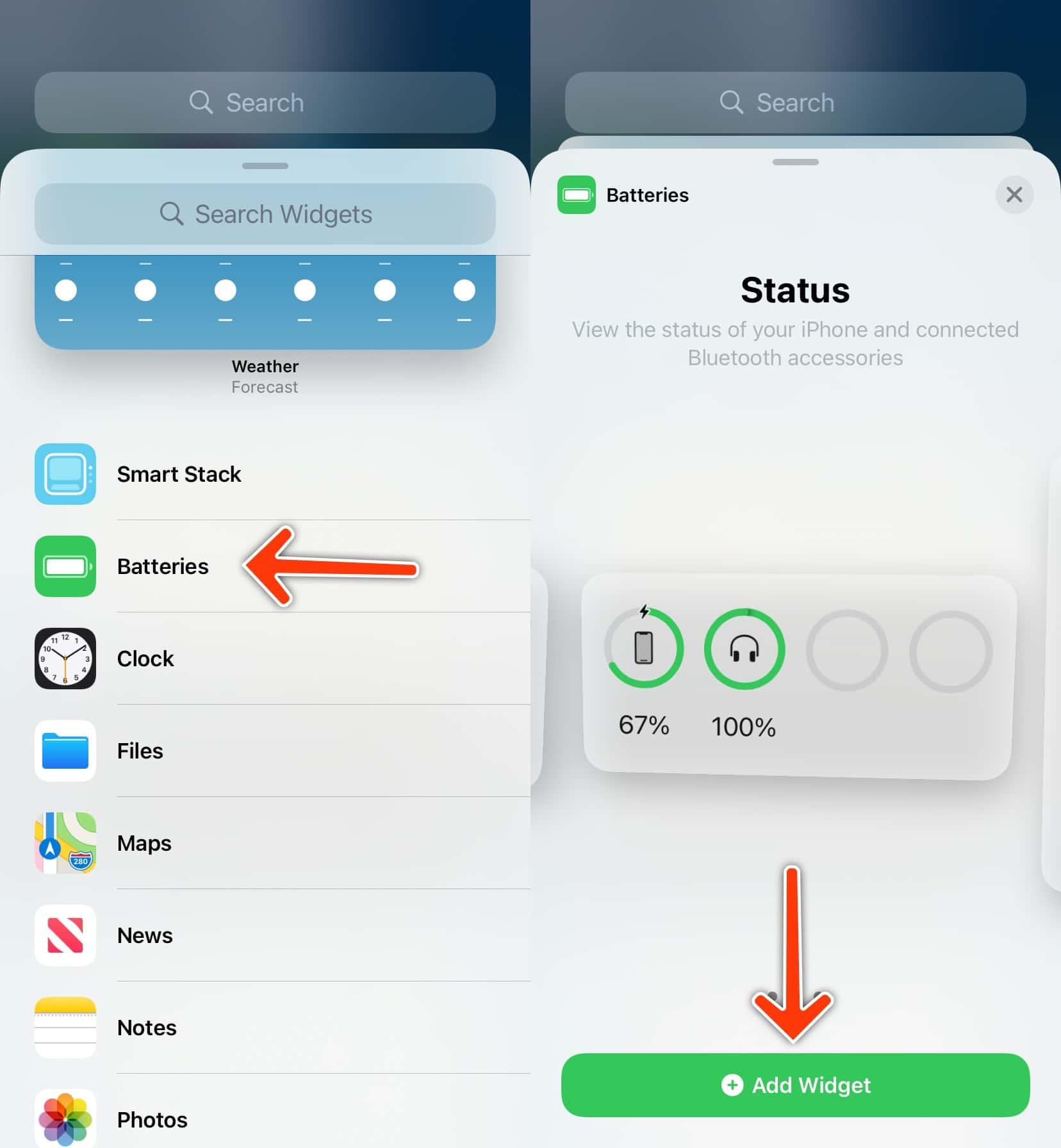
The Batteries widget can show the charge of connected AirPods and some supported accessories.
- Pair your earbuds with your iPhone.
- Swipe right to open the Today View, or touch and hold an empty area on the Home Screen.
- Tap the plus sign.
- Search for Batteries.
- Choose a widget size and tap Add Widget.
- Open the earbud case or place the earbuds in your ears.
The widget may show separate levels for the left earbud, right earbud, and charging case. Some third-party earbuds may not display every level because their software does not share that data with iOS.
Check the Bluetooth settings
- Open Settings.
- Tap Bluetooth.
- Find your earbuds in the device list.
- Look for the battery percentage beside the connected device, if supported.
This method is quick, but it may show only a general battery level. For more detail, use the manufacturer’s app.
Check the charging case
For AirPods, open the case near your iPhone. A pop-up usually shows the battery level of the earbuds and case. You can also place the AirPods inside the case and open the lid to view their charge.
If the pop-up does not appear, close the case, wait a few seconds, and open it again. Make sure Bluetooth is enabled and the earbuds are already paired.

How to check earbud battery on Android
Android phones can show earbud battery levels in several ways. The exact display depends on your phone brand, Android version, earbud model, and Bluetooth features.
Check the Bluetooth panel
- Turn on Bluetooth.
- Connect your earbuds.
- Open Settings.
- Tap Connected devices, Connections, or Bluetooth.
- Select your earbuds.
Many Android phones show a battery icon or percentage beside the connected earbuds. On some phones, you may need to tap the gear icon next to the device name.
You can also open Quick Settings by swiping down from the top of the screen. Some phones show connected device details there.
Use a battery widget
Some Android phones offer a battery widget that can display Bluetooth accessories. Touch and hold an empty area on the Home Screen, choose Widgets, and search for Battery or Bluetooth.
Widget support is not the same on every Android phone. If the widget does not show your earbuds, the manufacturer’s app is usually the better option.
Use the earbud maker’s app
Brand apps often provide the most accurate information. They may show:
• Left earbud battery percentage
• Right earbud battery percentage
• Charging case battery level
• Charging status
• Firmware updates
• Equalizer settings
• Touch control settings
Install the official app from Google Play, pair your earbuds inside the app, and allow nearby-device permissions when requested. Without these permissions, the app may connect but fail to show battery details.
How to check earbud battery on Windows
Windows can connect to Bluetooth earbuds, but battery reporting is less consistent than it is on phones. Some Windows 11 computers show the battery in Bluetooth settings, while others display only the connection status.
- Open Settings.
- Select Bluetooth & devices.
- Choose Devices.
- Find your earbuds.
- Look for the battery percentage under the device name.
If no percentage appears, your earbuds or Bluetooth adapter may not support battery reporting on Windows. You can still check the level through the earbud case, voice prompt, or official companion app.
For work calls, check the battery before opening a meeting. Windows may connect the earbuds for audio but fail to show a reliable level until the earbuds are actively in use.
How to check earbud battery on a Mac
A Mac can show the battery level of many Bluetooth earbuds through the Control Center or Bluetooth settings.
- Connect the earbuds to your Mac.
- Click the Control Center icon in the menu bar.
- Select Bluetooth.
- Find your earbuds.
- Check for the displayed battery percentage.
You can also open System Settings, select Bluetooth, and view the connected device. AirPods may show separate levels for each earbud and the case when paired with compatible Apple devices.
If the level is missing, disconnect and reconnect the earbuds. An older Mac, outdated software, or limited Bluetooth battery reporting can prevent the percentage from appearing.
How to check earbud battery without a phone
You do not always need a phone to check earbud battery. Several earbuds provide information through the charging case, LED lights, sounds, or voice prompts.
Read the charging case light
Charging case lights commonly use colors such as:
• Green or white: The earbuds or case have a high charge.
• Yellow or amber: The battery is partly charged or charging.
• Red: The battery is low, or the case needs power.
• Flashing light: The earbuds may be pairing, resetting, or showing an error.
Light meanings vary by brand. Always check the manual for your exact model before treating a color as a precise percentage.
Listen for voice alerts
Some earbuds announce battery levels when you put them in your ears. Others play a tone when the battery becomes low.
Voice prompts are useful when you are driving, walking, or away from a screen. They may not give an exact percentage, but they can warn you before the earbuds shut down.
Look at the case display
Some newer charging cases include a small screen. These displays may show each earbud and the case as separate percentages. They offer the clearest phone-free method, but they are not available on all models.
:max_bytes(150000):strip_icc()/004_check-airpod-battery-levels-on-android-phone-5218519-1e1e539057e6484ab272e95c5f96ae46.jpg)
How to check battery levels for popular earbud brands
Different brands place battery information in different menus. These examples cover common models and show where to begin.
AirPods
Open the case near an iPhone or iPad. A battery card should appear on the screen. You can also use the Batteries widget, Bluetooth settings, or the status menu on a Mac.
Samsung Galaxy Buds
Open the Galaxy Wearable app and select your earbuds. The app normally shows the left earbud, right earbud, and case separately.
Some Samsung phones also show Galaxy Buds battery levels in a connected-device panel or Bluetooth menu.
Google Pixel Buds
Open the Pixel Buds app or Pixel Buds settings on a compatible Android phone. The app can show both earbuds and the case, along with other device controls.
Sony earbuds
Use the Sony | Sound Connect app, formerly known on some devices under an older app name. The app typically displays the earbuds and case battery levels after pairing.
Bose earbuds
Open the Bose app and select the connected earbuds. The app may show a percentage, a battery icon, or a simple status such as full, medium, or low.
Jabra earbuds
Open the Jabra Sound+ app. It generally shows separate earbud levels and the charging case level for supported products.
Beats earbuds
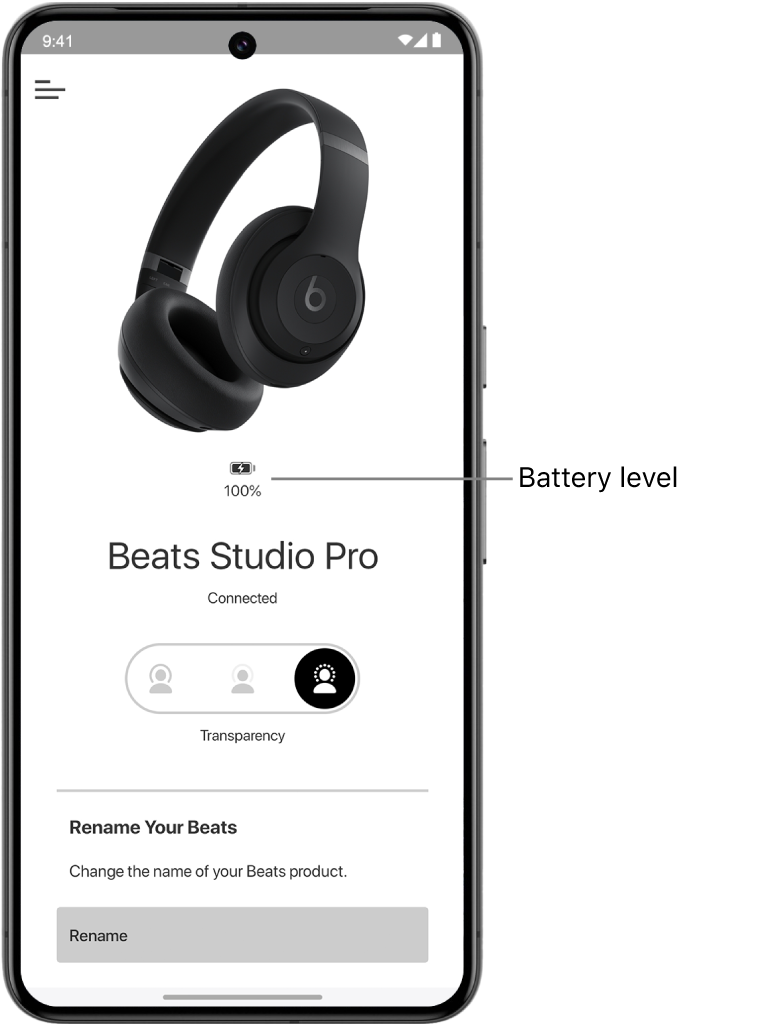
Use the iPhone Batteries widget, Bluetooth menu, Android settings, or the Beats app, depending on your phone. The exact features depend on the model and operating system.
The best general rule is simple: if your phone shows only one combined level, try the official brand app. It often provides more detail than the standard Bluetooth menu.
How to check the charging case battery
The case has its own battery, so checking the earbuds alone is not enough. A low case can leave both earbuds unable to recharge during the day.
Try these methods:
- Put both earbuds inside the case.
- Close and reopen the lid.
- Connect the case to your phone.
- Check the brand app or Bluetooth menu.
- Read the case LED or screen.
- Plug in the case and watch whether the light changes.
Some cases show the earbud level when the earbuds are inside and the case level when the earbuds are removed. This can make the reading seem confusing at first.
If the case shows a high charge but the earbuds remain low, clean the charging contacts and make sure each earbud sits firmly in its slot.
What to do when the earbud battery level does not appear
A missing battery percentage does not always mean the earbuds are faulty. The phone, software, and earbuds must support battery reporting together.
Try these steps:
• Confirm that the earbuds are connected, not just saved in the Bluetooth list.
• Put both earbuds in the case, close the lid, and reconnect them.
• Turn Bluetooth off and on.
• Restart your phone.
• Charge the case for at least 15 minutes.
• Install the official companion app.
• Update the phone and earbud firmware.
• Remove the earbuds from Bluetooth settings and pair them again.
• Check whether the app has nearby-device permission.
During my own earbud testing, the most common mistake was checking the Bluetooth menu while the earbuds were still inside a closed case. The phone showed an old reading. Opening the case and waiting several seconds produced the correct level.
How to fix inaccurate earbud battery readings
Battery readings are estimates. The number may change after the earbuds connect, start playing audio, or complete a charge cycle.
If the reading looks wrong, clean the metal contacts on the earbuds and inside the case. Use a dry cotton swab or soft cloth. Avoid water, sharp tools, and household cleaners.
Then charge the case and earbuds fully. Use the earbuds until they become low, recharge them, and check the reading again. This may help the software update its estimate, though it will not restore an old battery’s lost capacity.
You can also reset the earbuds. The reset method varies by model, so follow the official instructions for your device. Resetting removes stored pairing data and may require you to connect the earbuds again.
Do not repeatedly drain lithium-ion earbuds to zero as a routine habit. Modern batteries work best with normal partial charges rather than constant deep discharges.
Why one earbud loses battery faster
Uneven battery use is common. One earbud may act as the main connection to the phone, while the other receives audio through it. The main earbud can use slightly more power.
Other causes include:
• One earbud being used for calls more often
• Noise cancellation running on one side
• A weak charging contact
• Different volume levels or microphone use
• An older battery in one earbud
• One earbud staying connected after the other is placed in the case
A small difference is usually normal. A large and repeated difference suggests a charging or battery problem. Test both earbuds after cleaning the contacts and charging them fully.
If one side drops from full to empty much faster than the other, contact the manufacturer. Many earbuds include a limited warranty, and a battery service may be possible.
How to make earbud battery readings more reliable
Good charging habits improve both battery life and the accuracy of the displayed level.
• Keep the case charged before long trips.
• Store both earbuds inside the case when not in use.
• Clean the charging contacts once in a while.
• Keep firmware updated through the official app.
• Avoid extreme heat, such as leaving earbuds in a hot car.
• Use a suitable charging cable and power adapter.
• Turn off noise cancellation when you do not need it.
• Lower the volume when practical.
• Use one earbud at a time for calls when you need extra listening time.
Battery estimates are not laboratory measurements. Treat them as useful guidance, not an exact promise of remaining minutes. Playback time also changes with volume, codecs, calls, noise cancellation, and temperature.
Common mistakes when checking earbud battery
Many battery problems come from simple oversights. Avoid these mistakes:
Checking only one earbud
The left and right earbuds may have different charge levels. Always look for separate readings when possible.
Ignoring the charging case
A full earbud does not help much if the case cannot recharge it later. Check the case before leaving home.
Trusting an old reading
Battery information may not refresh until the earbuds connect or begin playing audio. Wait a few seconds and check again.
Using an unofficial app
Third-party battery apps may show delayed or incomplete data. The official app is usually safer and more accurate.
Cleaning with liquid
Moisture can damage charging contacts and microphones. Use a dry, soft tool instead.
Assuming a low percentage always means failure
Battery levels can jump after a software refresh. Check the earbuds again after charging and reconnecting them before replacing them.
How long should earbuds last on one charge?
Battery life depends on the model and how you use it. Many current wireless earbuds provide several hours of playback per charge, while the case adds multiple extra charges.
Noise cancellation, phone calls, high volume, and high-quality audio modes can reduce playback time. A manufacturer’s advertised figure is usually measured under specific test conditions, so real use may be shorter.
If your earbuds once lasted six hours but now last less than two, the batteries may have aged. Lithium-ion batteries naturally lose capacity over time, and software cannot fully reverse that loss.
Frequently Asked Questions About How to Check Earbud Battery
How do I check earbud battery on my phone?
Connect the earbuds, then open Bluetooth settings and look for a battery icon or percentage. For separate left, right, and case levels, use the manufacturer’s app or a supported battery widget.
Can I check earbud battery without opening the case?
Sometimes. If the earbuds support background battery reporting, your phone may show their last known level, but the reading may be outdated. Opening the case or connecting the earbuds usually refreshes it.
Why does my phone not show my earbud battery percentage?
Your earbuds, phone, or Bluetooth software may not support battery reporting. Try the official companion app, update both devices, or reconnect the earbuds.
How do I check the charging case battery?
Place the earbuds in the case and open the lid near your phone. You can also check the case LED, built-in screen, Bluetooth menu, or official earbud app.
Why is one earbud battery lower than the other?
One earbud may handle more Bluetooth, microphone, or call work. A large gap can also point to dirty charging contacts, a poor case connection, or an aging battery.
How often should I check my earbud battery?
Check it before long calls, workouts, commutes, and travel. For normal use, checking the earbuds and case once a day is usually enough.
Does charging the case charge the earbuds?
Yes, when the earbuds are seated correctly in the case and the case has power. If charging does not start, clean the contacts and confirm that the earbuds fit securely.
Conclusion
Checking your earbud battery is simple once you know the right method. Use your phone’s Bluetooth settings, a battery widget, the official companion app, or the charging case light and screen. Check the left earbud, right earbud, and case separately whenever possible.
If a reading looks wrong, reconnect the earbuds, clean the charging contacts, update the software, and give the case time to refresh. Make battery checks part of your routine before calls, travel, and exercise so low power never interrupts your day.
Try these steps with your earbuds today, and explore the manufacturer’s support guide for model-specific battery and reset instructions.
