How To Connect Heyday Earbuds: Easy Pairing Guide
To connect Heyday earbuds, turn on Bluetooth, open the case, and select Heyday from your device list.
Learning how to connect Heyday earbuds is usually quick, but small details can cause trouble. The steps may vary slightly by model, yet the basic process stays the same across iPhone, Android, Windows, and Mac devices. This guide explains the full setup, fixes common pairing errors, and shares simple habits that help your earbuds reconnect smoothly.
What You Need Before Pairing Heyday Earbuds
Before you connect Heyday earbuds, check that both earbuds and the charging case have power. A low battery can stop pairing or make one earbud disconnect during setup.
You should also place the earbuds close to your device. Bluetooth works best at short range during the first connection. Keep the earbuds within a few feet of your phone, tablet, or computer.


Make sure your device’s Bluetooth setting is active:
• iPhone or iPad: Open Settings, then tap Bluetooth.
• Android phone or tablet: Open Settings, then tap Connected devices or Bluetooth.
• Windows PC: Open Settings, choose Bluetooth & devices, and turn Bluetooth on.
• Mac: Open System Settings, then choose Bluetooth.
If your Heyday earbuds were paired with another device nearby, turn Bluetooth off on that device for a moment. Otherwise, the earbuds may connect to the old device instead of the one you want to use.
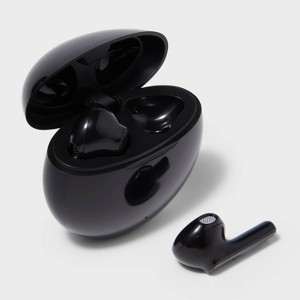
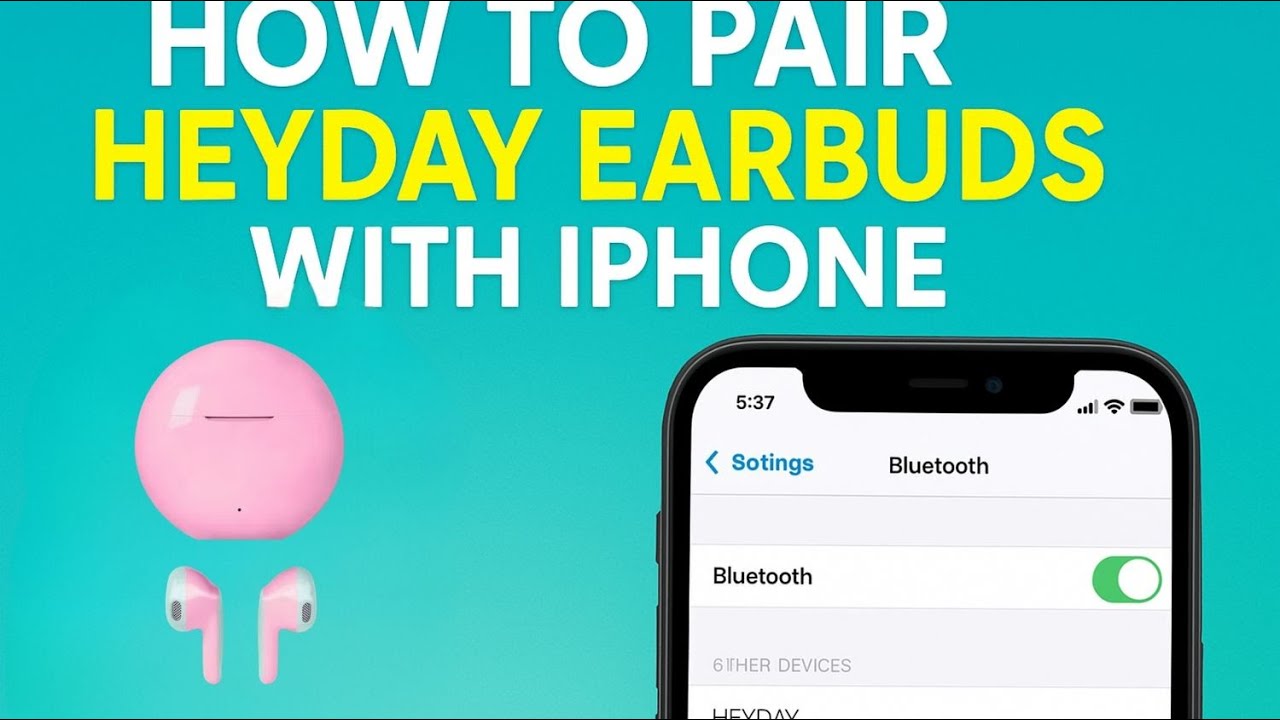
How to Connect Heyday Earbuds to an iPhone
The iPhone pairing process is simple. Keep both earbuds inside the case at first, and make sure the case has enough charge.
-
Open the Heyday charging case.
-
Remove both earbuds from the case.
-
Look for a pairing button on the case or earbuds. Press and hold it if your model does not enter pairing mode automatically.
-
On your iPhone, open Settings.
-
Tap Bluetooth and make sure Bluetooth is on.
-
Look under Other Devices.
-
Tap the listing that includes “Heyday” or your specific Heyday model.
-
Wait for the status to change to Connected.
Your Heyday earbuds should now play audio from the iPhone. Test them by playing a song or video. If sound comes from the phone speaker, open the audio output menu and choose your Heyday earbuds.
When learning how to connect Heyday earbuds, many people tap the wrong listing. If you see several Bluetooth devices, choose the one that clearly includes the Heyday name. Avoid selecting a nearby speaker, car system, or older headset by mistake.
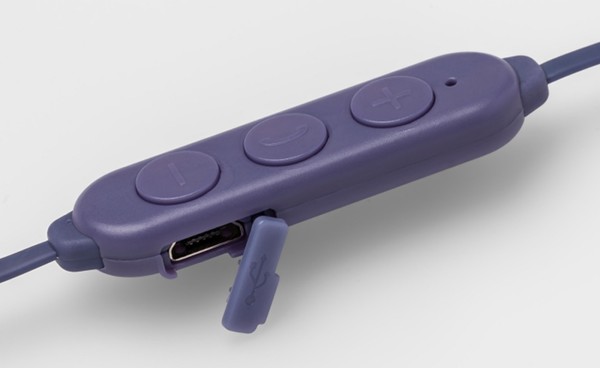
How to Connect Heyday Earbuds to an Android Device
Android menus can look different between Samsung, Google Pixel, Motorola, and other phones. The names may change, but the pairing steps are nearly the same.


-
Open the Heyday charging case.
-
Remove the earbuds.
-
Put the earbuds into pairing mode. Some models do this automatically. Others require you to press and hold the case button or touch controls.
-
Open Settings on your Android device.
-
Tap Connected devices, Connections, or Bluetooth.
-
Choose Pair new device if that option appears.
-
Find your Heyday earbuds in the list.
-
Tap the Heyday name.
-
Approve the pairing request if your phone asks for permission.
The earbuds should appear under Paired devices after a successful connection. The next time you open the case, they will often connect automatically to that phone.
If the earbuds do not appear, close the case for about 10 seconds. Then open it and press the pairing button again. This refreshes the connection and often solves the issue without a full reset.
How to Connect Heyday Earbuds to a Windows PC
You can connect Heyday earbuds to a Windows computer for music, video calls, games, and other audio. Windows may show two sound options after pairing, so selecting the correct output matters.
-
Place the Heyday earbuds in pairing mode.
-
On your PC, open Settings.
-
Select Bluetooth & devices.
-
Turn Bluetooth on.
-
Click Add device.
-
Select Bluetooth.
-
Choose your Heyday earbuds from the device list.
-
Wait for Windows to display “Connected.”
Next, click the speaker icon on the Windows taskbar. Select the audio output menu and choose your Heyday earbuds. If you are joining a meeting, also check the microphone input in the meeting app.
Some computers show separate options for stereo audio and hands-free audio. Stereo mode usually gives better music quality. Hands-free mode may be needed when you use the earbud microphone during a call.

How to Connect Heyday Earbuds to a Mac
Connecting Heyday earbuds to a Mac takes only a few steps. The key is to put the earbuds into pairing mode before opening the Bluetooth menu.
-
Open the Heyday case and remove the earbuds.
-
Press and hold the pairing button if needed.
-
On your Mac, open the Apple menu.
-
Select System Settings.
-
Click Bluetooth.
-
Find your Heyday earbuds under Nearby Devices.
-
Click Connect.
-
Open the sound menu and select the earbuds as the output device.
If your Mac connects but does not send sound to the earbuds, open System Settings and select Sound. Choose the Heyday earbuds under Output. This manual step is useful when the Mac keeps using its built-in speakers.
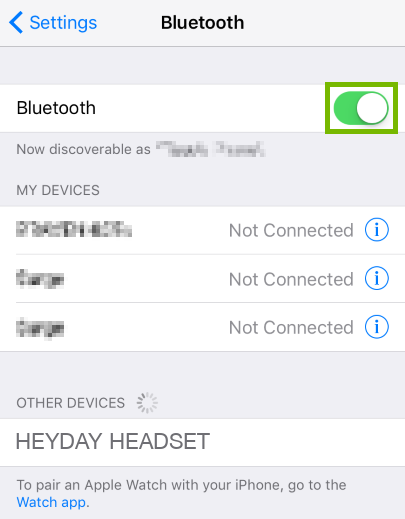
How to Put Heyday Earbuds Into Pairing Mode
Pairing mode allows a device to discover your earbuds. Without it, the earbuds may remain connected to a previous phone and stay hidden from your new device.
The exact method depends on the Heyday model, but these methods are common:
• Place both earbuds in the charging case, then open the lid.
• Press and hold the case button for several seconds.
• Remove both earbuds and touch or hold their controls.


• Put the earbuds back into the case, close the lid, and open it again.
• Turn off Bluetooth on the device that was previously connected.
A flashing white or blue light often signals pairing mode. Some models use different colors, so check the quick-start card that came with your earbuds when possible.
One useful lesson from troubleshooting wireless earbuds is to avoid pressing every button at once. Give the earbuds a few seconds after each step. Rapid taps can cancel pairing mode or pause the process.
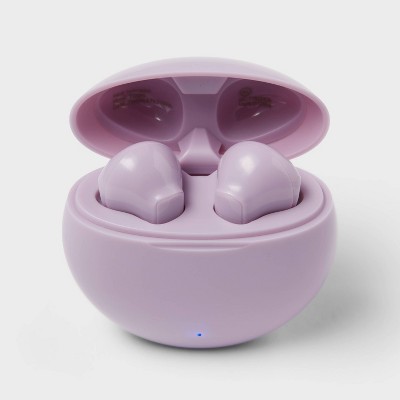
How to Pair Heyday Earbuds With a Second Device
Most Heyday earbuds can remember one or more paired devices, but many models do not support true multipoint pairing. This means they may connect to only one device at a time.
To pair with a second device:
-
Disconnect the earbuds from the first device.
-
Turn off Bluetooth on the first device if the earbuds reconnect automatically.
-
Put the Heyday earbuds into pairing mode.
-
Open Bluetooth settings on the second device.
-
Select the Heyday earbuds.
-
Confirm the connection.
If you switch between a phone and computer often, disconnect the earbuds from one device before selecting them on the other. This is usually faster than repeatedly resetting them.
Some newer Bluetooth devices can manage switching more smoothly, but you should not assume every Heyday model supports automatic device switching. The product instructions are the best guide for model-specific features.
How to Reconnect Heyday Earbuds Automatically
After the first successful pairing, Heyday earbuds usually reconnect when you open the case near the same device. Bluetooth must be turned on, and the earbuds need enough battery power.
Use these habits for a reliable automatic connection:
• Turn on Bluetooth before opening the case.
• Keep the phone or computer within a few feet.
• Make sure the earbuds are not connected to another device.
• Keep both earbuds in the case when they are not in use.
• Charge the case and earbuds regularly.


• Avoid deleting the Heyday pairing entry unless you are troubleshooting.
If automatic reconnection fails, open Bluetooth settings and tap the Heyday name manually. If that works, the issue is usually a temporary Bluetooth delay rather than a hardware problem.
Heyday Earbuds Connected but No Sound
A Bluetooth connection does not always mean that your device selected the earbuds for audio output. Your phone or computer may still use its built-in speaker.
Try these fixes:
• Play audio and open the device’s output selector.
• Choose the Heyday earbuds as the sound output.
• Raise the volume on both the device and earbuds.
• Pause and restart the media.
• Disconnect other Bluetooth speakers or headphones.
• Close and reopen the app playing the audio.
On an iPhone, tap the AirPlay or audio output icon while media is playing. On Android, check the media panel or volume menu. On Windows and Mac, choose the Heyday earbuds from the system sound settings.
If only one earbud produces sound, return both earbuds to the case. Wait a few seconds, then remove them together. This can resync the left and right earbuds.
Heyday Earbuds Will Not Show Up in Bluetooth
If your Heyday earbuds do not appear in the Bluetooth list, they may not be in pairing mode. They may also be connected to another device.
Work through these steps in order:
-
Turn Bluetooth off, wait 10 seconds, and turn it on again.
-
Place both earbuds in the charging case.
-
Charge the case for at least a short time.
-
Close the case, wait 10 seconds, and open it.
-
Remove the earbuds and activate pairing mode.
-
Move away from other active Bluetooth devices.
-
Search for available devices again.
Keep the earbuds near your phone while pairing. Walls, crowded wireless areas, and other active devices can sometimes make discovery less reliable.
If the earbuds still do not appear, restart your phone or computer. A restart clears many temporary Bluetooth errors and is worth trying before a factory reset.
How to Reset Heyday Earbuds
A reset removes stored pairing information and returns the earbuds to a fresh setup state. It is helpful when the earbuds connect to the wrong device, show only one earbud, or refuse to pair.


The reset method varies by model. Common steps include:
-
Forget or remove the Heyday earbuds from your device’s Bluetooth menu.
-
Place both earbuds in the charging case.
-
Keep the case open.
-
Press and hold the case button for several seconds.
-
Watch for a flashing light or another reset signal.
-
Close and reopen the case.
-
Put the earbuds into pairing mode again.
Some models require holding both earbud touch controls instead of a case button. Do not assume every Heyday model uses the same reset sequence. If your model has a printed guide, follow that guide first.
A reset should be the last major step, not the first. It removes the saved connection, so you will need to connect Heyday earbuds again from the beginning.
Common Heyday Earbud Pairing Problems
Several issues can make Bluetooth pairing feel harder than it should. Most are simple to fix once you know the cause.
One Heyday Earbud Is Not Working
Place both earbuds in the case and confirm that each one is charging. Clean the charging contacts with a dry, soft cloth if one earbud does not seem to charge.
Then remove both earbuds at the same time. If the problem continues, forget the earbuds from Bluetooth and perform the model’s reset process.
The Earbuds Keep Disconnecting
Distance, low battery, and interference can cause dropouts. Keep your phone nearby and test the earbuds in a different room.
If disconnections happen only with one device, update that device and restart it. If they happen with every device, charge and reset the earbuds.
The Wrong Device Connects
Turn Bluetooth off on nearby phones, tablets, or laptops that have used the earbuds before. Then place the Heyday earbuds into pairing mode and select them on the device you want.
This is one of the most common mistakes when people connect Heyday earbuds in a busy home or office.
The Bluetooth Name Looks Different
Some Heyday models show a short product code rather than a full product name. Check the model printed on the case or packaging before choosing an unfamiliar listing.
If the name seems suspicious, cancel the request and try pairing mode again. This helps prevent connecting to the wrong Bluetooth device.
Tips for Better Heyday Earbud Performance
Good pairing habits can improve both connection speed and battery life. They also reduce the need for repeated resets.
• Keep the charging contacts clean and dry.


• Store the earbuds in their case when not in use.
• Charge the case before long trips or work calls.
• Keep your phone’s operating system updated.
• Avoid pairing in a crowded room with many active wireless devices.
• Do not leave the earbuds connected when you are not using them.
• Keep the earbuds and case away from water unless your exact model is rated for water resistance.
Battery performance also changes with age. If the earbuds are several years old and lose power quickly, connection problems may be linked to worn batteries rather than Bluetooth settings.
In my experience with wireless earbud setup, patience solves more problems than repeated button presses. A clean reset, a full charge, and a clear Bluetooth list often work like turning a tangled knot into a straight line.
Frequently Asked Questions About How to Connect Heyday Earbuds
Why are my Heyday earbuds not showing up on Bluetooth?
The earbuds may not be in pairing mode, or they may still be connected to another device. Charge them, place them in pairing mode, and turn off Bluetooth on nearby devices that used them before.
How do I connect Heyday earbuds after forgetting the device?
Open the charging case and activate pairing mode. Then open your phone’s Bluetooth settings, select the Heyday earbuds, and wait for the Connected status.
Can I connect Heyday earbuds to an iPhone and Android phone?
You can pair them with both types of phones, but many Heyday models connect to only one device at a time. Disconnect the earbuds from one phone before selecting them on the other.
How do I reset Heyday earbuds?
Remove the Heyday earbuds from your device’s Bluetooth list first. Then place them in the case and use the case button or earbud controls to start the model-specific reset process.
Why is only one Heyday earbud working?
One earbud may not be charged, or the two earbuds may have lost synchronization. Put both earbuds in the case, charge them, remove them together, and reset them if the issue remains.
Do Heyday earbuds connect automatically?
They often reconnect to the last compatible device when Bluetooth is on and the earbuds have enough power. Automatic connection may fail if another paired device is nearby or already connected.
Do Heyday earbuds need an app to connect?
Most Heyday earbuds use standard Bluetooth and do not need a special app for basic pairing. Extra features, if available, depend on the specific model.
Conclusion
To connect Heyday earbuds, charge them, place them in pairing mode, open your device’s Bluetooth settings, and select the Heyday name. If pairing fails, check the battery, disconnect old devices, choose the correct audio output, and reset the earbuds only when needed.
Once you complete the first pairing, future connections should be much faster. Save this guide for your next setup, and share your model or troubleshooting experience in the comments.