
Turn on Bluetooth on both devices, set earbuds to pairing mode, then connect from the laptop's Bluetooth menu.
I’ve paired earbuds to dozens of laptops at work and at home, and I’ll walk you through reliable, step-by-step methods that work on Windows and macOS. This guide covers why pairing matters, pre-checks, detailed steps for how to pair earbuds to laptop, troubleshooting, and practical tips I learned the hard way so you can connect quickly and keep audio clean.
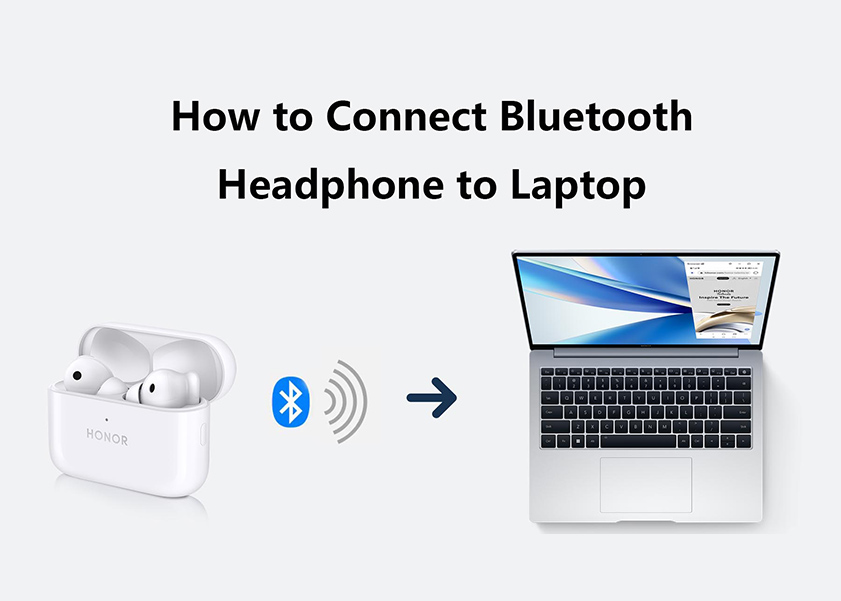
Why pairing earbuds to laptop matters
Pairing earbuds to laptop gives you private, wireless audio for calls, music, and videos.
Good pairing prevents audio lag, dropouts, and mic issues during meetings.
Knowing how to pair earbuds to laptop saves time and avoids fiddly resets.
Quick checklist before you pair
- Confirm earbuds battery is charged and earbuds are powered on.
- Put earbuds into pairing mode (follow the brand’s short press or long press).
- Turn on laptop Bluetooth and make the laptop discoverable if needed.
- Close other apps that might interfere, like phone Bluetooth scanners.
- For secure connections, forget old pairings you no longer use.

How to pair earbuds to laptop on Windows 10 and Windows 11
Windows uses a short, consistent flow. Follow these steps for how to pair earbuds to laptop on Windows.
- Open Settings. Click Start, then Settings.
- Choose Devices (Windows 10) or Bluetooth & devices (Windows 11).
- Toggle Bluetooth On if it’s off.
- Put earbuds in pairing mode. Look for a blinking light or follow the manual.
- Click Add Bluetooth or other device, then choose Bluetooth.
- Select your earbuds from the device list. Click Connect.
- Wait for "Connected" or notification. Test audio by playing a short track.
Troubleshooting quick tips for Windows: if earbuds don’t appear, restart Bluetooth on the laptop, ensure distance is small, and remove old paired entries for the earbuds before retrying.

How to pair earbuds to laptop on macOS
macOS pairs in a few clear steps. Here’s how to pair earbuds to laptop on a Mac.
- Open System Settings (or System Preferences on older macOS).
- Click Bluetooth. Make sure Bluetooth is On.
- Put earbuds into pairing mode. The earbuds should show up in the list.
- Click Connect next to the earbuds name.
- Confirm any prompts and check the sound output in Sound settings.
- For calls, open Sound > Input and choose the earbuds’ microphone if available.
If macOS fails to connect, remove the device from the list and retry. Restarting the Mac’s Bluetooth module can help in stubborn cases.

Troubleshooting common issues
Why won’t my earbuds pair?
- Often the earbuds aren’t in pairing mode, battery is low, or the laptop’s Bluetooth is off. Make sure each device is ready and in range.
Why is audio choppy or delayed when I pair earbuds to laptop?
- Interference, outdated Bluetooth drivers, or old Bluetooth versions cause lag. Move closer, update drivers, or use a lower-latency codec if supported.
How do I reset earbuds or laptop Bluetooth?
- Reset earbuds with the manufacturer’s reset sequence. On laptops, toggle Bluetooth off/on, remove the device, and restart the Bluetooth service or machine.
Why does my laptop connect to only one earbud?
- Some earbuds need both pieces in the charging case to pair properly. Re-seat them in the case, then pair both together.
If you see repeated “Failed to connect,” try these steps: update laptop Bluetooth drivers, turn off other nearby Bluetooth devices, and perform a full restart on both devices.
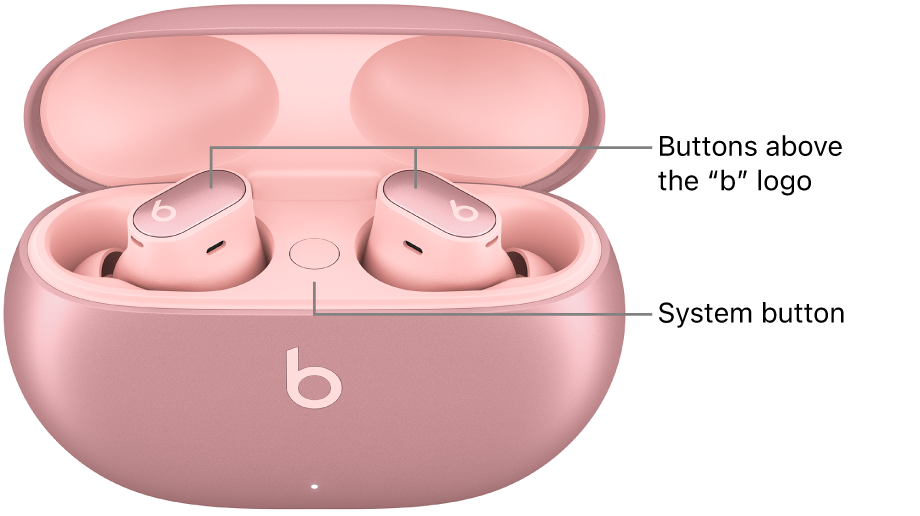
Tips, best practices, and personal lessons
- Keep firmware updated. I once struggled for days until a firmware update fixed constant dropouts.
- Use the laptop’s Bluetooth driver from the vendor for best results. Generic drivers sometimes break audio profiles.
- Turn off your phone’s Bluetooth when pairing the laptop. Phones love to steal connections during setup.
- For meetings, test mic and speakers in the app before joining. I learned this after a rushed call where my mic defaulted to the laptop.
- Store earbuds in their case when not in use to avoid accidental pairing and battery drain.
Practical pro tip: if you need the lowest latency for video editing or gaming, look for earbuds or a USB Bluetooth adapter that support aptX Low Latency or an equivalent codec. This matters when you pair earbuds to laptop for audio-video sync.
PAA-style quick questions
Q: How long does it take to pair earbuds to laptop?
A: Most pairings take 10–30 seconds once in pairing mode. If not, a quick reset usually helps.
Q: Can multiple laptops pair to the same earbuds?
A: Yes, many earbuds remember multiple devices, but they typically connect to only one at a time.
Q: Will wired and Bluetooth audio work at the same time?
A: No, laptops usually switch to the active output device, so only one is used at a time.

Frequently Asked Questions of how to pair earbuds to laptop
How do I make my earbuds discoverable to my laptop?
Put your earbuds into pairing mode. On most models this is a long press on a button or opening the case with earbuds inside. Then open your laptop’s Bluetooth settings and look for the device name.
My laptop can’t find the earbuds. What should I do?
Move closer, ensure no other device is connected to the earbuds, toggle Bluetooth on the laptop, and retry. If that fails, reset the earbuds and remove old pairings on the laptop.
Do I need special drivers to pair earbuds to laptop?
Typically no for basic audio. For advanced features or better support, install the laptop manufacturer’s Bluetooth drivers or the earbud maker’s companion app.
Why is my microphone not working after I pair earbuds to laptop?
Some earbuds use limited Bluetooth profiles for mic and audio at the same time. Switch the laptop’s input device to the earbuds’ microphone, and update drivers if needed.
How can I get better battery life when using Bluetooth earbuds with a laptop?
Lower the volume, use mono mode when appropriate, and turn off active noise canceling if available. Also close unused apps that stream audio continuously.
Can I pair two earbuds to one laptop at once?
Some modern laptops and OS versions support sharing audio with two sets of earbuds, but it depends on hardware and OS features. Check system settings for “audio sharing” or similar options.
Conclusion
Pairing earbuds to laptop is straightforward when you follow the right steps. Start with a quick checklist: charged earbuds, pairing mode, Bluetooth on the laptop, and minimal interference. Use the specific Windows or macOS steps above, apply the troubleshooting tips, and keep firmware and drivers updated for the best experience. Try the steps now, test with a short call or song, and leave a comment about which earbuds and laptop you used — I’d love to hear what worked for you.