

Open Bluetooth settings, put earbuds in pairing mode, select them, and confirm the connection.
Learning how to pair earbuds to laptop is simple once you know where Bluetooth settings live and how pairing mode works. Whether you use Windows, macOS, ChromeOS, or Linux, the process usually takes less than two minutes.
Most pairing problems come from one of three causes: the earbuds are not in pairing mode, they are connected to another device, or Bluetooth needs a quick reset. This guide explains how to pair earbuds to laptop, fix common connection issues, improve sound quality, and prevent the same problems later.
What You Need Before Pairing Earbuds to a Laptop
Before you start, check a few basics. Your earbuds should have enough battery, and your laptop must support Bluetooth. Most modern laptops include Bluetooth, but some older desktop computers need a small USB Bluetooth adapter.
Keep the earbuds close to the laptop during setup. A distance of less than three feet is best because walls, other wireless devices, and low battery power can interfere with the first connection.
You should also disconnect the earbuds from your phone or tablet. Many earbuds try to reconnect to the last device they used, which can make your laptop appear unable to find them.
Use this quick checklist:
• Charge the earbuds and their charging case.
• Turn on Bluetooth on the laptop.
• Place both earbuds in the case, then remove them if needed.
• Keep the earbuds close to the laptop.
• Disconnect them from nearby phones, tablets, and smart TVs.
• Find the earbuds’ pairing button or touch control.
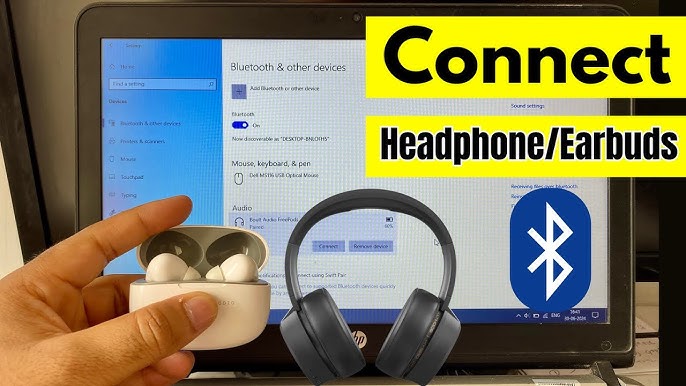
How to Put Earbuds in Pairing Mode
Pairing mode makes the earbuds visible to nearby Bluetooth devices. Without it, your laptop may not find them, even when Bluetooth is turned on.
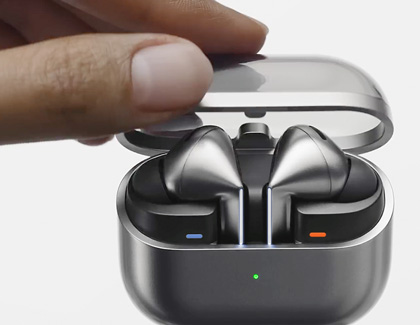
The exact steps vary by brand. In many cases, place the earbuds in the charging case, open the lid, and press the case button for several seconds. A flashing white or blue light often means the earbuds are ready to pair.
Some models use touch controls instead of a case button. You may need to touch and hold both earbuds, or hold one earbud for five to ten seconds. Check the quick-start guide if the indicator light does not flash.
If the earbuds have connected to another device before, pairing mode may require a longer press. This step is one of the most common reasons people struggle with how to pair earbuds to laptop.
Look for these signs:
• A blinking white, blue, or red-and-blue light.
• A voice prompt that says “pairing” or “ready to connect.”
• The earbuds appearing as a new device in Bluetooth settings.
• The earbuds stopping their connection to your phone.
Do not remove the earbuds from pairing mode too soon. Some models stay discoverable for only one or two minutes.
How to Pair Earbuds to a Windows Laptop
Windows 11 and Windows 10 use similar Bluetooth steps. The names may look slightly different, but the basic process is the same.
Pair Earbuds to a Windows 11 Laptop
Follow these steps to pair earbuds with a Windows 11 laptop:
Put the earbuds in pairing mode.
Select the Start button.
Open Settings.
Select Bluetooth & devices.
Turn on Bluetooth.
Select Add device.
Choose Bluetooth.
Select your earbuds from the list.
Wait for the message that says your device is connected.
Windows may show the earbuds by their brand name or model number. For example, they may appear as “Pixel Buds,” “AirPods,” “Galaxy Buds,” or a series of letters and numbers.
Once connected, play music or a short video to test the sound. If the audio still comes from the laptop speakers, select the speaker icon on the Windows taskbar and choose your earbuds as the output device.
Pair Earbuds to a Windows 10 Laptop
Windows 10 uses a slightly different settings menu:
Put the earbuds in pairing mode.
Open Start and select Settings.
Select Devices.
Choose Bluetooth & other devices.
Turn on Bluetooth.
Select Add Bluetooth or other device.
Choose Bluetooth.
Select your earbuds.
Select Done if Windows asks for confirmation.
If you see “Connected,” the earbuds should work. If you see “Paired” but not “Connected,” select the earbuds and choose Connect.
When explaining how to pair earbuds to laptop for Windows users, I always recommend checking the sound output right away. Windows can pair with earbuds but continue sending sound to the internal speakers.
Set Earbuds as the Default Audio Device
If the earbuds connect but produce no sound, change the output device:
Select the speaker icon on the taskbar.
Select the audio output menu.
Choose your earbuds.
Open Sound settings if you need more control.
Select the earbuds under Output.
You can also check the Input section if you plan to use the earbud microphone for calls. Some Bluetooth earbuds show two audio profiles. The headset profile supports the microphone but may reduce music quality during calls.

How to Pair Earbuds to a MacBook
Pairing earbuds with a MacBook takes only a few steps. This method works on MacBook Air, MacBook Pro, iMac, and other recent Mac computers.
Put the earbuds in pairing mode.
Select the Apple menu in the top-left corner.
Open System Settings.
Select Bluetooth.
Turn Bluetooth on.
Find your earbuds under Nearby Devices.
Select Connect.
On older versions of macOS, open System Preferences, select Bluetooth, and then choose Connect beside the earbuds.
After pairing, select the Control Center icon in the menu bar. Choose Sound and select your earbuds if the Mac is still using its internal speakers.
For calls, open System Settings and select Sound. Choose the earbuds under both Output and Input. This lets you hear the call and use the earbud microphone.
A useful Mac tip is to remove old or duplicate Bluetooth devices. If you see several entries for the same earbuds, select the information button beside an old entry and choose Forget This Device. Then place the earbuds in pairing mode and connect again.
That small cleanup step often solves repeated connection failures. It is one of the most reliable parts of how to pair earbuds to laptop when the normal process stops working.
How to Pair Earbuds to a Chromebook
Chromebooks use a simple Bluetooth menu. They work with many wireless earbuds, including models made for Android phones and iPhones.
Put the earbuds in pairing mode.
Select the status area in the lower-right corner.
Select Bluetooth.
Turn Bluetooth on.
Select your earbuds under Unpaired devices.
Follow any on-screen instructions.
If the earbuds appear under Previously connected devices, select them to connect. You may need to open the Bluetooth menu again if the first connection does not start automatically.
Keep ChromeOS updated when possible. Software updates can improve Bluetooth support and fix connection bugs, especially with newer wireless earbuds.
Some school or work Chromebooks have Bluetooth controls restricted by an administrator. In that case, you may need to contact the organization’s technology team.

How to Pair Earbuds to a Linux Laptop
Bluetooth pairing on Linux depends on the desktop environment. Ubuntu and many other Linux distributions include a Bluetooth panel in system settings.
Try these steps:
Put the earbuds in pairing mode.
Open Settings.
Select Bluetooth.
Turn Bluetooth on.
Select the earbuds from the device list.
Confirm the pairing request.
If the earbuds do not appear, open the Bluetooth panel and scan for devices. On some systems, you may need to install or enable the Bluetooth service first.
Linux audio may use different profiles, such as A2DP for high-quality music and HFP or HSP for calls. Choose the A2DP profile for music. Select a headset or hands-free profile when you need the microphone.
The exact menu names may differ between Ubuntu, Fedora, Linux Mint, and other distributions. However, the main idea remains the same: enable Bluetooth, make the earbuds discoverable, and select them from the device list.

How to Connect Earbuds After the First Pairing
After the first successful setup, most earbuds connect automatically. Turn on Bluetooth, remove the earbuds from their case, and wait a few seconds.
If they do not connect, open the laptop’s Bluetooth settings and select the earbuds. Choose Connect instead of pairing them as a new device.
Some earbuds connect to the first nearby device they recognize. If your phone is close, turn off Bluetooth on the phone for a moment. This gives the laptop a clear chance to connect.
You can also place the earbuds back in the case, close the lid, wait ten seconds, and try again. This simple reset often works faster than restarting the laptop.
Learning how to pair earbuds to laptop once is helpful, but knowing how to reconnect them saves time every day.

How to Fix Earbuds That Will Not Pair
When earbuds will not pair, avoid repeating the same step again and again. Start with the most likely causes and work through them in order.
Check Pairing Mode
Make sure the earbuds are actually discoverable. A steady light often means they are already connected, while a flashing light usually means they are ready to pair.
Place the earbuds in the case, open the lid, and hold the pairing button again. If the case has no button, hold the touch controls based on the manufacturer’s instructions.
Disconnect Other Devices
Turn off Bluetooth on your phone, tablet, smartwatch, or television. The earbuds may be connecting to one of those devices instead of the laptop.
You can also select the earbuds in the other device’s Bluetooth menu and choose Forget, Remove, or Disconnect. This is especially useful when the earbuds keep returning to an old phone.
Remove and Re-add the Earbuds
On Windows, open Bluetooth & devices, select the earbuds, and choose Remove device. On a Mac, open Bluetooth settings and choose Forget This Device.
Then restart the laptop, put the earbuds in pairing mode, and add them again. Removing the old connection creates a clean Bluetooth profile.
Restart Bluetooth
Turn Bluetooth off, wait about ten seconds, and turn it on again. This refreshes the wireless connection without requiring a full system restart.
If that does not help, restart the laptop. It is a basic fix, but it clears many temporary driver and service errors.
Reset the Earbuds
A factory reset may solve stubborn pairing problems. The reset method varies by brand, but it often involves holding the case button for 10 to 30 seconds.
A reset deletes saved connections, so you will need to pair the earbuds again with your phone and laptop. Use this step only after simpler fixes fail.
Update Drivers and Software
Windows users can check Windows Update and Device Manager for Bluetooth driver updates. Mac, Chromebook, and Linux users should install available system updates.
Use drivers from the laptop maker or the operating system when possible. Random driver websites can contain outdated or unsafe files.
Check Bluetooth Compatibility
Most Bluetooth earbuds work with modern laptops, but older computers may have limited support. Certain features, such as multipoint control, low-latency modes, and advanced codecs, may not work on every laptop.
The earbuds may still connect for basic audio even when special features are unavailable.
How to Fix Sound, Delay, and Microphone Problems
Pairing is only the first step. Good performance also depends on the selected audio device, Bluetooth profile, and wireless environment.
No Sound From the Earbuds
Confirm that the earbuds are selected as the output device. A laptop can show the earbuds as connected while sending audio to built-in speakers.
Raise the volume on both the laptop and the earbuds. Also check the volume mixer to make sure the specific app is not muted.
Close and reopen the music or video app after connecting. Some programs choose their audio device when they start and do not switch automatically.
One Earbud Is Silent
Place both earbuds in the case and charge them. Clean the charging contacts with a dry, soft cloth if one earbud is not charging.
If the problem continues, reset the earbuds and pair them again. The left and right earbuds sometimes lose their internal connection and need to sync with each other.
Audio Delay During Videos
A small delay can happen with Bluetooth audio. It may be more noticeable in games or video calls than in music.
Try these fixes:
• Move closer to the laptop.
• Close other Bluetooth devices.
• Turn off high-quality audio modes during calls.
• Update the laptop and earbud software.
• Restart the video app.
Bluetooth delay depends on the earbuds, laptop hardware, operating system, and app. Some models include a low-latency mode, but it can reduce range or battery life.
The Microphone Sounds Poor
Many Bluetooth earbuds use a hands-free profile when the microphone is active. This profile can lower music quality because Bluetooth must handle both playback and microphone input.
For important meetings, use the laptop’s built-in microphone while keeping the earbuds as the output device. This often gives clearer audio.
You can also use a wired headset or a separate USB microphone when voice quality matters most. Wireless earbuds are convenient, but convenience does not always equal studio-quality sound.
How to Improve Bluetooth Earbud Performance
Good habits can make pairing more reliable. Keep the laptop and earbuds within a reasonable range, especially during video calls.
Avoid placing the laptop beside a Wi-Fi router, USB 3.0 hub, or other wireless transmitter. These devices can sometimes add interference, though the effect varies by hardware and environment.
Keep the earbuds’ firmware and laptop software current. Updates may improve stability, battery reporting, security, and device compatibility.
Do not store the earbuds at zero battery for long periods. Charge them before important meetings, flights, or study sessions.
For the most stable connection:
• Keep the earbuds within 10 to 30 feet of the laptop.
• Remove unused Bluetooth devices from the laptop.
• Close apps that are not needed.
• Avoid connecting the earbuds to several devices at once if problems occur.
• Use the correct audio profile for music or calls.
• Keep the charging contacts clean.
In my experience, the biggest practical mistake is trying to pair earbuds while they are still connected to a phone. Turning off phone Bluetooth first often solves the issue in less than a minute.
Bluetooth Earbuds Versus Wired Earbuds
Bluetooth earbuds offer freedom from cables. They are useful for travel, exercise, online classes, and work calls. They also make it easy to move away from the laptop without pulling on a cable.
However, wireless earbuds need charging and can experience delay or interference. Their microphones may also sound less clear than a wired headset or dedicated USB microphone.
Wired earbuds usually work immediately through a compatible audio jack or USB port. They do not need pairing, charging, or wireless troubleshooting.
Choose Bluetooth earbuds when convenience and movement matter most. Choose wired earbuds when you want the lowest delay, simple setup, or dependable performance for long work sessions.
Security and Privacy Tips for Bluetooth Earbuds
Bluetooth connections are designed with security features, but you should still pair devices in a private place. Avoid accepting unknown pairing requests in public areas.
Only select earbuds that you recognize. If a strange device appears in the Bluetooth list, do not connect to it.
When selling or giving away a laptop, remove saved Bluetooth devices. Also reset the earbuds before giving them to someone else.
For work or school computers, follow your organization’s Bluetooth rules. Some workplaces disable wireless accessories to protect data or reduce interference.
Frequently Asked Questions About How to Pair Earbuds to Laptop
Why are my earbuds not showing up on my laptop?
Your earbuds may not be in pairing mode, or they may already be connected to another device. Charge them, disconnect nearby phones, and hold the pairing button until the indicator light flashes.
Can I pair wireless earbuds with any laptop?
Most laptops with Bluetooth can pair with standard wireless earbuds. Older laptops may need a USB Bluetooth adapter, and some advanced features may not work across every device.
How do I pair earbuds to a laptop without Bluetooth?
Use a USB Bluetooth adapter if the laptop lacks built-in Bluetooth. Install the adapter’s driver if required, then follow the normal pairing steps.
Why do my earbuds connect but have no sound?
The laptop may still be using its internal speakers as the output device. Open sound settings and select the earbuds as the playback device.
Can I connect earbuds to my laptop and phone at the same time?
Some earbuds support multipoint Bluetooth, which allows connections to two devices. If your earbuds do not support multipoint, they may switch between devices rather than stay connected to both.
How do I disconnect earbuds from my laptop?
Open Bluetooth settings, select the earbuds, and choose Disconnect. You can also place the earbuds in their charging case or turn off Bluetooth on the laptop.
Why is the Bluetooth earbud microphone low quality?
Bluetooth often switches to a hands-free audio profile when the microphone is active. This can reduce playback quality, so try using the laptop’s built-in microphone with the earbuds as the output device.
Conclusion
Pairing earbuds with a laptop usually takes only a few steps: charge the earbuds, activate pairing mode, open Bluetooth settings, and select the correct device. Windows, Mac, Chromebook, and Linux laptops follow the same basic process, though their menus look different.
If the connection fails, disconnect other devices, restart Bluetooth, remove the old pairing, and reset the earbuds only when necessary. Once you understand these steps, how to pair earbuds to laptop becomes a quick daily task instead of a frustrating problem.
Try the method for your laptop today, and share your laptop model or earbud brand in the comments if you need help with a specific connection issue.
