

If you use a Windows PC, Mac, or Linux computer in the United States, TRIM is a storage command that helps an SSD manage deleted data. Your operating system tells the SSD which data blocks no longer contain useful files. The SSD can then prepare those blocks before it needs to write new data.
TRIM does not make every SSD faster. It also does not erase files securely. Its main value is helping an SSD maintain write performance and manage flash memory over time.
This guide explains what TRIM means, how it works, how to check it on Windows, macOS, and Linux, and what to do if TRIM is not active.

What Does TRIM Mean on an SSD?
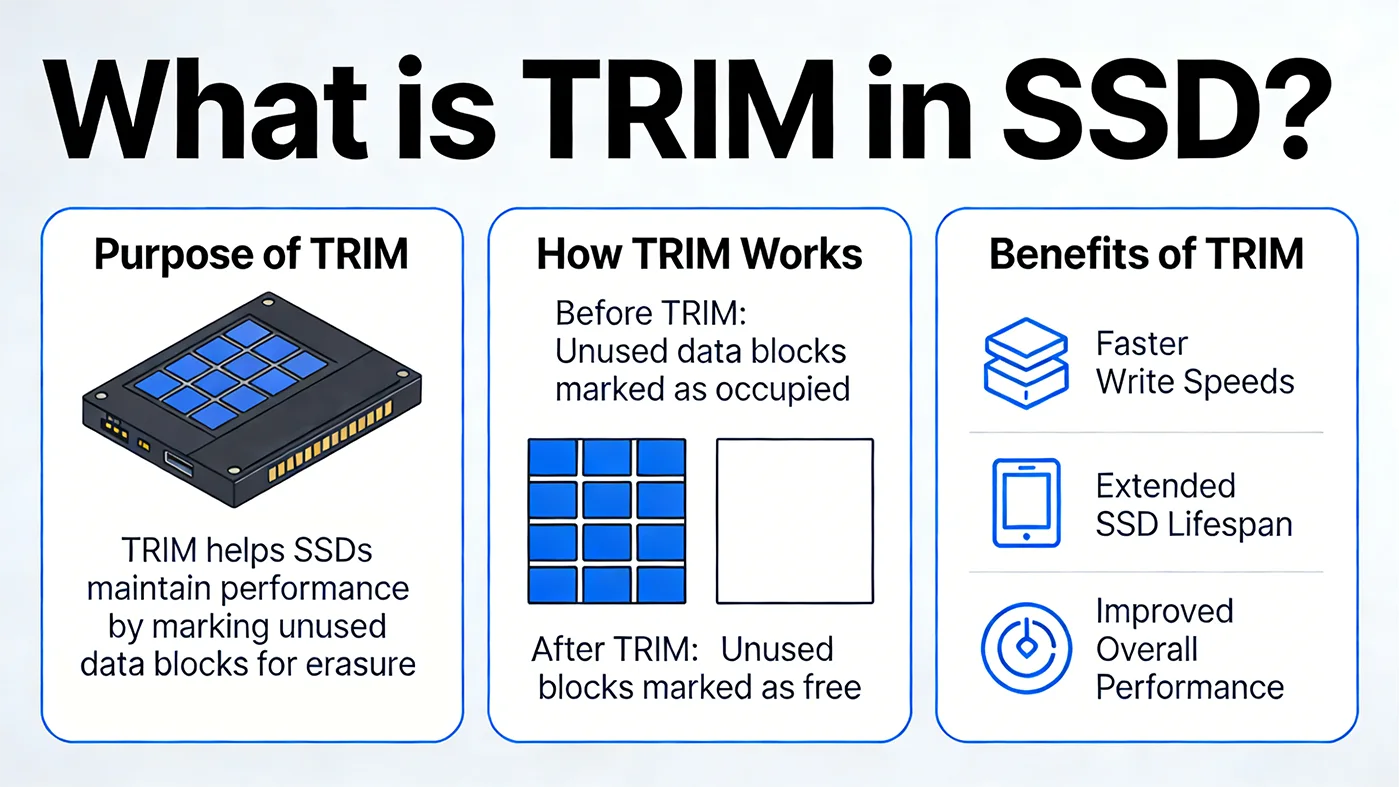
TRIM is a command that tells an SSD which blocks of storage are no longer needed because the operating system deleted the data stored there.
When you delete a file, your computer usually removes the file’s directory entry. It does not immediately clear every flash memory cell that held the file. Without TRIM, the SSD may not know which pages contain useful data and which pages contain deleted data.
The operating system can send a TRIM command after a file is deleted. The SSD then marks the related pages as invalid. Later, during garbage collection, the SSD can ignore those pages instead of copying them.
TRIM is also called deallocate, unmap, or discard, depending on the storage interface and operating system:
| Term | Where you may see it | Meaning |
|---|---|---|
| TRIM | SATA SSDs and general SSD discussions | A command that identifies unused blocks |
| Deallocate | NVMe documentation and some operating systems | A command that releases unused logical blocks |
| UNMAP | SCSI storage and some enterprise systems | A similar block-release command |
| Discard | Linux tools and file systems | The operating system’s request to release unused blocks |
These terms are related, but the exact command depends on the storage protocol. A SATA SSD commonly uses the ATA TRIM command. An NVMe SSD uses an NVMe deallocate command.

Why Does an SSD Need TRIM?
An SSD cannot overwrite flash memory in the same simple way that a hard drive overwrites magnetic sectors.
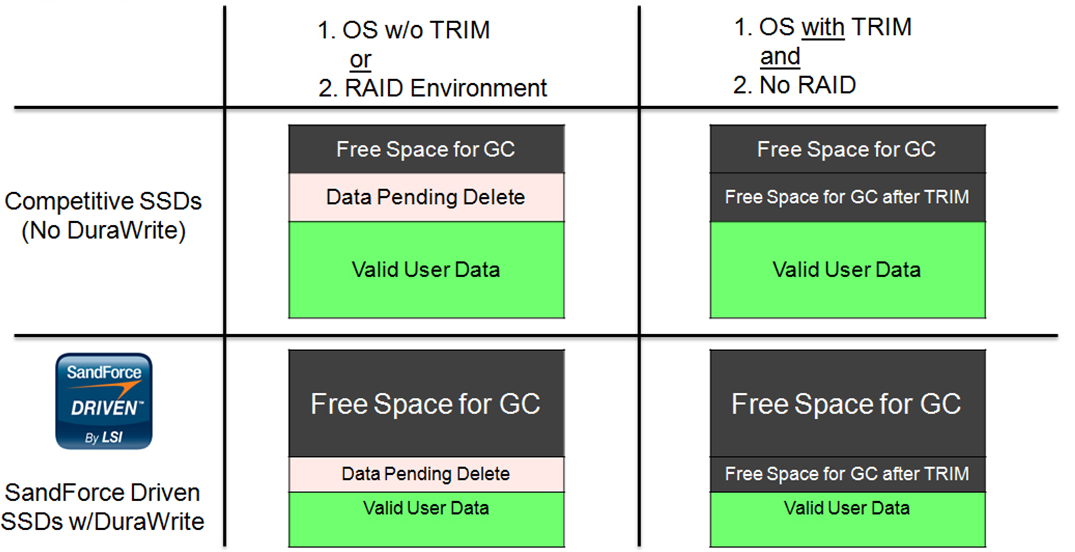
Flash storage writes data in pages but erases data in larger groups called blocks. If an SSD needs to reuse a block, it may first need to copy valid pages elsewhere, erase the full block, and then write new data.
This process is called garbage collection. It is normal SSD maintenance, but it creates extra work when the drive does not know which pages contain deleted files.
TRIM gives the SSD an early warning. It is like removing canceled items from a packing list before someone begins sorting boxes. The SSD can avoid moving data that the operating system has already discarded.
TRIM may help with:
- Sustained write performance
- Write latency during heavy use
- Background garbage collection
- Write amplification
- Flash memory management
- Long-term performance consistency
The effect depends on the SSD, controller, firmware, free space, workload, and operating system. A modern SSD may appear to work normally even when TRIM is unavailable, especially during light everyday use. Problems often become more noticeable during large file transfers, video editing, virtual machine work, or a drive that is nearly full.
TRIM and write amplification
Write amplification happens when the SSD writes more data internally than the host computer requested.
For example, the computer may ask the SSD to write 100 MB. If the SSD must move valid pages during garbage collection, it may write much more than 100 MB internally. TRIM can reduce unnecessary copying because the drive knows which pages are no longer valid.
Lower write amplification can reduce internal work. However, TRIM is only one factor. The SSD’s controller, NAND type, firmware, overprovisioning, temperature, and workload also matter.

Does TRIM Improve SSD Speed?
TRIM can help an SSD maintain performance, but it is not a permanent speed boost or a benchmark setting.
A drive with working TRIM may perform better during sustained writes than the same drive without reliable discard information. The difference may be small for web browsing, office work, and gaming. It can matter more when the drive handles repeated writes and deletes.
TRIM also does not restore a worn-out SSD, add storage capacity, or upgrade an older SATA connection. If an SSD is slow, other causes may include:
- A nearly full drive
- Low-quality or aging flash memory
- Thermal throttling
- A faulty cable or enclosure
- A slow USB connection
- Background encryption or backup work
- File system problems
- Low free space for the SSD’s internal operations
- A drive that is reaching its endurance limit
TRIM is best viewed as routine maintenance. It helps the SSD understand its current state, but it cannot overcome every hardware or software limit.
Is TRIM required for an SSD?
An SSD can operate without TRIM. The drive may still use its own garbage collection and wear-leveling systems.
However, TRIM is useful when the operating system, file system, storage controller, and SSD all support it. Modern versions of Windows, macOS, and Linux normally support SSD discard functions, but external enclosures, RAID controllers, virtual machines, and older hardware can interrupt the command.
How to Check TRIM on Windows
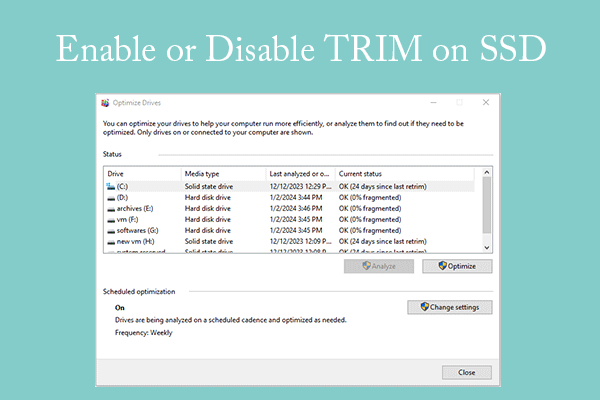
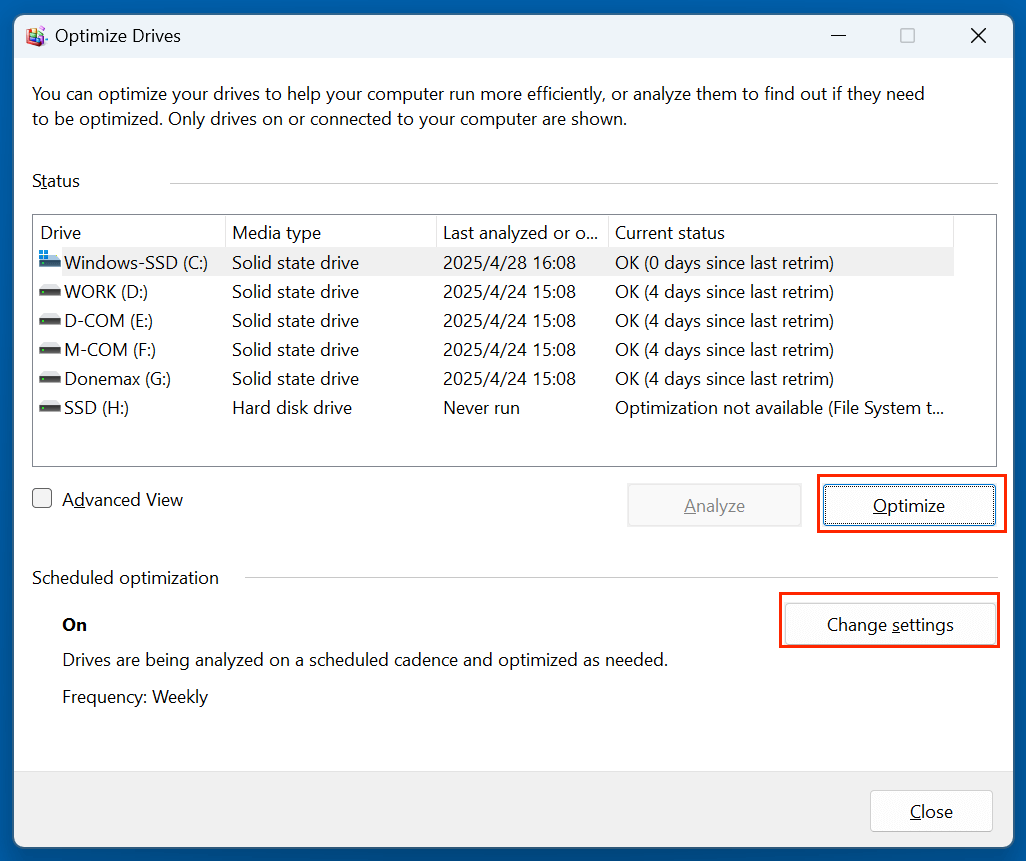
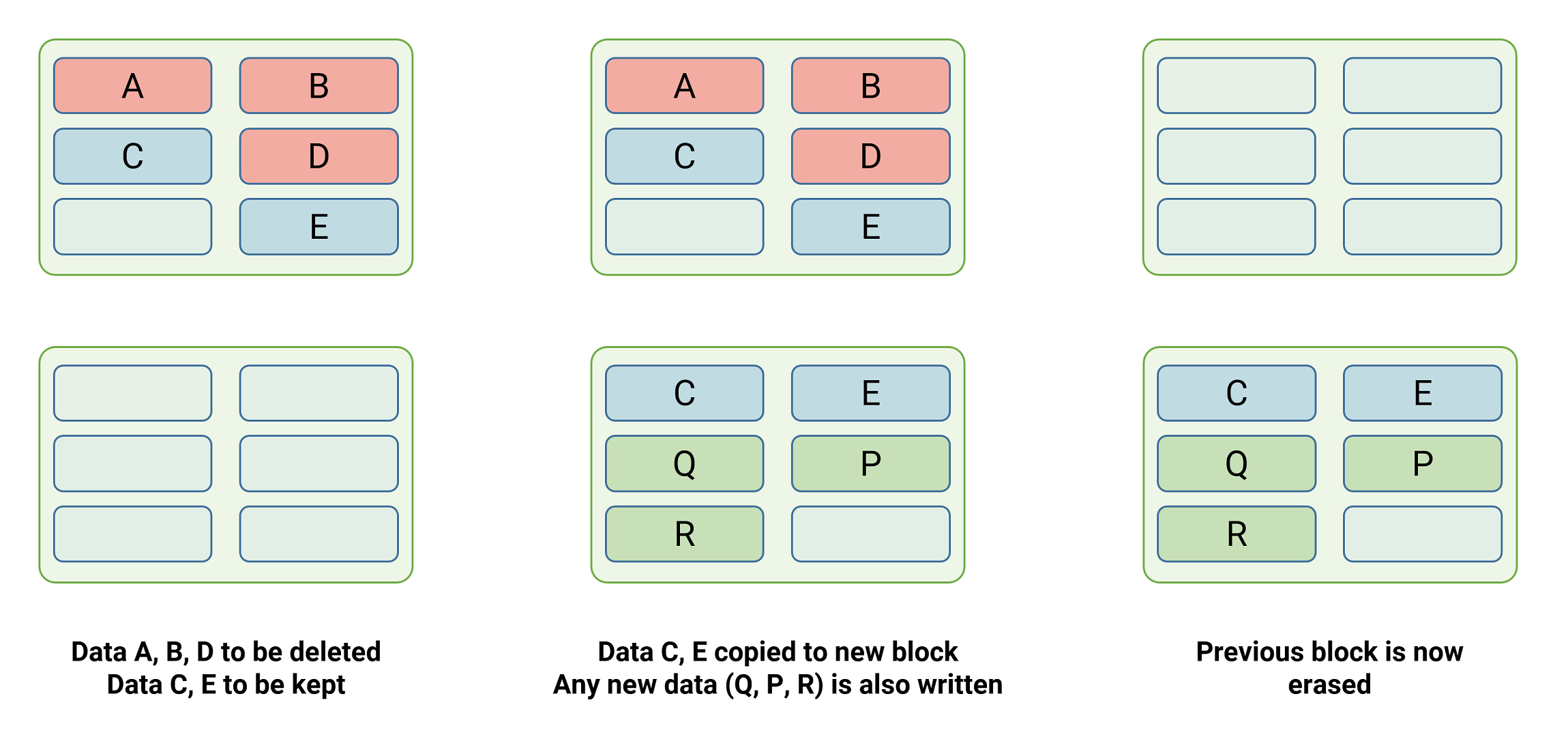
Windows usually manages TRIM automatically through its built-in drive optimization tools. On current Windows systems, the Optimize Drives utility normally recognizes an SSD and sends a retrim command as part of scheduled maintenance.
You can check the Windows TRIM setting from an elevated Command Prompt.
Check whether TRIM is enabled
- Open the Start menu.
- Search for Command Prompt.
- Select Run as administrator.
- Enter:
fsutil behavior query DisableDeleteNotify
Windows may return one or more values. The key interpretation is:
DisableDeleteNotify = 0: delete notifications are enabled.DisableDeleteNotify = 1: delete notifications are disabled.
On some Windows versions, the command may show separate NTFS and ReFS values. Read the file system label beside each result. A value of 0 means Windows is allowed to send delete notifications for that file system.
This command checks the Windows setting. It does not prove that every SSD, USB enclosure, RAID controller, or virtual disk successfully passes TRIM through to the flash storage.
Use Optimize Drives
Windows provides a safer routine method:
- Press the Windows key.
- Search for Defragment and Optimize Drives.
- Open the tool.
- Select the SSD.
- Check the Media type column.
- Select Optimize if you want to run the recommended operation.
Windows should treat an SSD differently from a hard disk. For an SSD, the operation generally sends a retrim command rather than performing the same type of surface defragmentation used for a hard drive.
Do not repeatedly run optimization as a daily manual task. Scheduled maintenance is normally enough.
Use PowerShell to retrim a volume
On supported Windows systems, an administrator can use PowerShell:
Optimize-Volume -DriveLetter C -ReTrim -Verbose
Replace C with the correct drive letter. Confirm the drive letter before running the command. The -ReTrim option asks Windows to send trim information for the volume.
If the command fails, check whether:
- The volume uses a supported file system.
- The drive is actually an SSD.
- The storage device is connected through an enclosure or controller that blocks TRIM.
- PowerShell is running with administrator rights.
- The volume is inside a virtual machine.
- The SSD firmware or storage driver needs an update.
How to Check TRIM on Linux
Linux commonly uses the term discard for releasing unused SSD blocks. Linux can send discard commands immediately when files are deleted, or it can run periodic discard with the fstrim utility.
Periodic trimming is often preferred for many desktop systems because continuous discard can add overhead on some hardware.
Check whether the device supports discard
Open a terminal and run:
lsblk --discard
Look at the DISC-GRAN and DISC-MAX columns:
- A nonzero discard granularity suggests that the device reports discard support.
- A nonzero maximum discard value suggests that the device accepts discard requests.
A blank or zero value may indicate that the device does not support discard or that a storage layer is blocking it.
You can also inspect a specific device with:
sudo blkdiscard --verbose /dev/nvme0n1
Do not run blkdiscard casually. It discards blocks from a device and can destroy access to data. Use lsblk --discard for inspection. Use fstrim for a mounted file system.
Run TRIM manually with fstrim
For a mounted file system, use:
sudo fstrim -av
This asks Linux to trim eligible unused blocks on mounted file systems. The output reports the amount of space released or processed.
You can trim one mount point instead:
sudo fstrim -v /
Replace / with the correct mount point.
Check the periodic fstrim timer
Many Linux distributions use a systemd timer for periodic trimming:
systemctl status fstrim.timer
To see whether it is enabled:
systemctl is-enabled fstrim.timer
A result such as enabled means the timer is configured to run automatically. The exact schedule depends on the Linux distribution.
If the timer is not enabled, you can enable it with:
sudo systemctl enable --now fstrim.timer
The command may differ on systems that do not use systemd. Check your distribution’s documentation before changing scheduled storage tasks.
Linux warnings about continuous discard
Linux also supports mount options such as discard. This can send discard commands as files are deleted. It is convenient, but it is not always the best choice for every SSD.
Periodic fstrim can reduce the number of discard operations and may work better for some devices. The right choice depends on the file system, SSD, kernel, and workload.
How to Check TRIM on macOS
macOS supports SSD maintenance, but the exact way to inspect TRIM depends on the Mac model, macOS version, and whether the drive is internal or external.
For an Apple-installed internal SSD, macOS normally manages storage maintenance without requiring the user to enable a setting. Apple hardware and software integration also means that generic PC instructions may not apply directly.
You can inspect storage information in System Information:
- Hold the Option key.
- Open the Apple menu.
- Select System Information.
- Open the storage section, such as NVMExpress or SATA/SATA Express.
- Review the information listed for the drive.
Older Intel Macs and third-party SATA SSD upgrades may show a TRIM Support field. Apple silicon Macs may show different storage details.
Enabling TRIM on a third-party Mac SSD
Some older macOS systems included the trimforce command for compatible third-party SSDs:
sudo trimforce enable
This command may not be available or relevant on every Mac. macOS displays a warning before enabling it. Read that warning, keep a current backup, and confirm that the installed SSD and macOS version are supported.
Do not assume that a USB SSD will gain TRIM because an internal drive supports it. The USB bridge chip, enclosure firmware, file system, and macOS support all affect whether discard commands reach the SSD.
Does TRIM Delete Files Securely?
No. TRIM is not a secure erase method.
TRIM tells the SSD that certain logical blocks are no longer needed. The SSD may erase those blocks later, but the timing is controlled by the drive. TRIM does not provide a user-verifiable guarantee that every trace of a file has disappeared.
This matters when selling, recycling, or disposing of an SSD. A normal file delete followed by TRIM may not meet a strict data destruction requirement.
For sensitive data:
- Use full-disk encryption before storing important files.
- Follow the SSD maker’s secure erase or sanitize guidance.
- Use the operating system’s supported reset process where appropriate.
- Check whether the drive supports a standards-based sanitize function.
- Destroy or replace the drive through a qualified data disposal service when required.
Do not use random low-level erase commands from the internet. A mistake can permanently remove the wrong disk or damage access to needed data.

Does TRIM Work on External SSDs?
TRIM may work on an external SSD, but it is less predictable than TRIM on an internal drive.
The complete storage path matters:
Operating system → file system → USB or Thunderbolt bridge → enclosure firmware → SSD controller
Any layer can block or translate the command. USB Attached SCSI, commonly called UAS, may support UNMAP in some configurations. Other USB bridges may not pass discard commands through at all.
To improve your chances:
- Use a modern enclosure with documented TRIM or UNMAP support.
- Update the enclosure firmware when the maker provides a safe update.
- Test the complete enclosure and computer combination.
- Keep backups before changing storage settings.
- Do not assume that a fast USB connection supports TRIM.
An external SSD can still work well without TRIM, but sustained write performance and long-term behavior may differ from an equivalent internal installation.
Does TRIM Work with RAID?
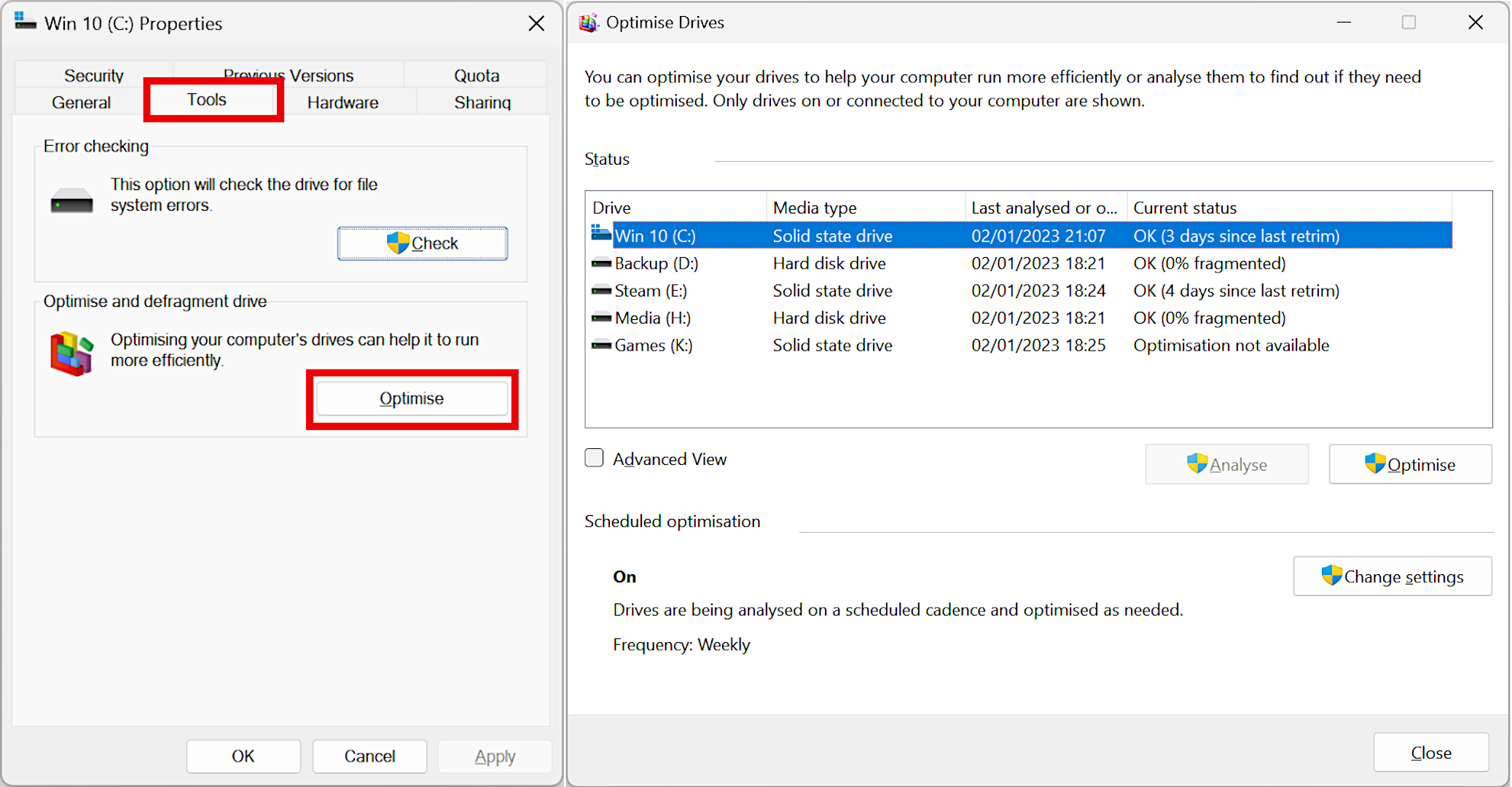
TRIM support depends on the RAID type, controller, driver, operating system, and SSD arrangement.
Software RAID may pass discard requests in some configurations. Hardware RAID controllers may support them, translate them, or block them. RAID levels also change how the controller handles logical blocks.
Before enabling or changing anything:
- Identify whether the array uses software RAID, motherboard RAID, or a hardware controller.
- Check the controller documentation for SSD TRIM, discard, or UNMAP support.
- Confirm the operating system can see the logical volume as discard-capable.
- Test with noncritical data.
- Keep a verified backup.
Do not send raw discard commands to a RAID member disk unless the controller documentation specifically allows it. A member disk is not the same as the logical RAID volume.

What If TRIM Is Not Working?
If TRIM appears disabled, start with the least risky checks.
1. Confirm that the drive is an SSD
Some systems expose storage through generic names. Check the drive model in Windows Device Manager, macOS System Information, or Linux with:
lsblk -d -o NAME,MODEL,ROTA
On Linux, ROTA commonly shows 0 for nonrotating storage and 1 for rotating media. Treat this as a useful clue, not a complete hardware diagnosis.
2. Check free space
A nearly full SSD has less room for internal housekeeping. Delete or move unneeded files, but keep a backup before removing important data.
3. Check the connection
For an internal SATA SSD, a damaged data cable or a storage controller setting may interfere with commands. For an external SSD, test another enclosure or direct connection if available.
4. Update carefully
Check for updates to:
- SSD firmware
- Chipset and storage drivers
- Motherboard firmware
- Operating system components
- External enclosure firmware
Read the manufacturer’s instructions first. Firmware updates can carry a risk of data loss or interruption.
5. Check encryption, virtualization, and RAID layers
BitLocker, FileVault, virtual disks, storage pools, snapshots, and RAID can change how discard commands work. The top-level operating system may report TRIM support even when a lower layer does not pass the command to the physical SSD.
6. Do not force TRIM without a backup
A TRIM command is not normally dangerous when sent correctly to the intended mounted volume. The risk comes from using the wrong device, an unsuitable low-level command, or an unsupported storage layer.
Common TRIM Mistakes
Avoid these common errors:
- Defragmenting an SSD repeatedly: Modern operating systems manage SSD maintenance differently from hard-drive defragmentation.
- Assuming TRIM equals secure erase: It does not provide guaranteed data destruction.
- Running
blkdiscardon the wrong device: This can make data inaccessible. - Using a hard-drive optimizer on an SSD: Follow the operating system’s storage tool instead.
- Ignoring a full drive: Low free space can affect performance even when TRIM works.
- Assuming external SSD support: The enclosure may block discard commands.
- Checking only one layer: A Windows or Linux setting does not prove that a RAID controller or USB bridge passes TRIM.
- Expecting an instant benchmark jump: TRIM mainly supports ongoing maintenance and sustained behavior.
Key Takeaways
- TRIM tells an SSD which deleted data blocks are no longer needed.
- It helps garbage collection work with less unnecessary copying.
- TRIM can support sustained performance and reduce write amplification.
- Windows usually manages TRIM through scheduled drive optimization.
- Linux commonly uses
fstrimand the systemdfstrim.timer. - macOS usually manages Apple-installed SSDs automatically.
- External SSDs, RAID, virtual machines, and storage pools may block or change TRIM.
- TRIM is not the same as secure erase.
- A backup is essential before storage maintenance or low-level commands.
Frequently Asked Questions About SSD TRIM
Should I enable TRIM on my SSD?
Enable or keep TRIM enabled when your operating system and SSD support it. Windows, macOS, and many Linux distributions handle this automatically. Check the setting before changing it manually.
How often should I run TRIM?
Most users should let the operating system schedule TRIM. Windows scheduled optimization and Linux periodic fstrim are usually sufficient. Running TRIM repeatedly does not create a useful daily speed boost.
Does TRIM shorten an SSD’s life?
TRIM itself is a normal SSD maintenance command. It can reduce unnecessary internal copying by identifying data that the drive no longer needs. The overall effect depends on the SSD and workload, so it should not be treated as a guaranteed lifespan increase.
Does TRIM work on NVMe drives?
Yes. NVMe drives use a related deallocate command rather than the older SATA command name. Operating systems may still describe the function as TRIM, discard, or deallocate.
Can TRIM recover deleted files?
No. TRIM can make deleted data harder to recover because the SSD may later erase the released blocks. It should not be used as a file recovery method. Stop using the drive and use a qualified recovery service if the deleted files are important.
Should I turn off TRIM for better privacy?
Turning off TRIM does not create a dependable privacy method. For data protection, use encryption and follow the SSD manufacturer’s secure erase or sanitize instructions when retiring the drive.
Conclusion
TRIM is a normal communication process between an operating system and an SSD. It tells the drive which storage blocks no longer hold useful files, allowing the SSD to manage garbage collection with less wasted work.
For most users in the United States, the best approach is simple: keep the operating system updated, leave scheduled storage maintenance enabled, avoid filling the SSD completely, and maintain backups. Check external enclosures, RAID controllers, and virtual storage separately because they may prevent TRIM from reaching the physical drive.
