

Stop using the SSD, then try backups, built-in recovery tools, or trusted data recovery software.
Learning how to recover deleted files from SSD drive requires quick action and realistic expectations. SSDs use flash memory, TRIM, garbage collection, and wear leveling, so deleted data may disappear faster than it would on a traditional hard drive. This guide explains safe recovery steps, common mistakes, useful tools, and ways to prevent permanent data loss.
Why recovering deleted files from an SSD is difficult
When you delete a file, your computer usually removes its entry from the file system. The data may still exist for a short time, but the operating system marks that space as available for new files.
On a hard disk drive, deleted data can often remain until another file replaces it. An SSD works differently. Most modern SSDs support a command called TRIM.
TRIM tells the SSD which data blocks are no longer needed. The drive can then erase those blocks in the background. This process improves performance and helps the SSD manage its storage life, but it can make file recovery much harder.
Several factors affect your chances of recovery:
• Whether TRIM is enabled
• How much time has passed since deletion
• Whether the computer has written new data
• Whether the SSD uses hardware encryption
• The type of file system, such as NTFS, exFAT, APFS, or EXT4
• Whether the SSD is healthy or failing
• Whether you have a backup or cloud copy
A useful way to think about an SSD is like a desk with an automatic cleaning service. Once you remove a note, the cleaner may quickly shred it instead of leaving it in the trash.
In my experience with file loss cases, the biggest mistake is continuing to use the affected computer. People often install recovery software, download files, browse the web, and save recovered files to the same SSD. Each action can overwrite information that might still be recoverable.

What to do immediately after deleting files
The first few minutes matter. Your goal is to reduce new writes and preserve the SSD in its current state.
Follow these steps:
- Stop using the affected SSD
Close applications and avoid browsing, downloading, gaming, editing, or copying files. If the deleted files are on the system drive, shut down the computer when practical.
- Do not install recovery software on the same SSD
Installing an application can overwrite deleted data. Use a second internal drive, an external drive, or a bootable recovery environment instead.
- Do not save recovered files to the original drive
Choose a different physical drive. Saving a recovered file to the source SSD can overwrite other deleted files.
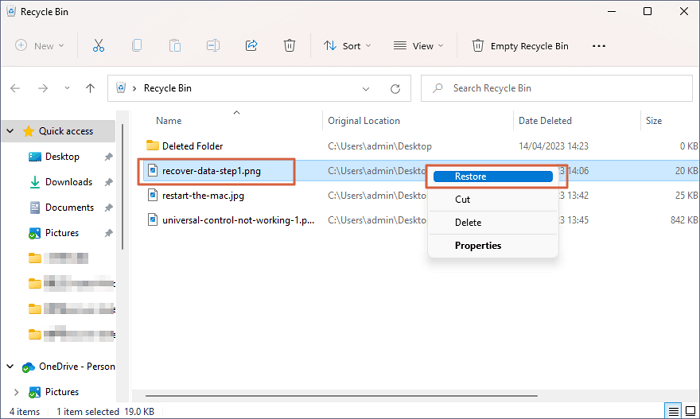
- Check the Recycle Bin or Trash
A normal deletion may move files there instead of removing them permanently. Restore the file to a different drive when possible.
- Check cloud storage
Look in services such as OneDrive, iCloud Drive, Google Drive, Dropbox, or your company’s file system. Many services keep deleted files or earlier versions for a limited time.
- Disconnect the SSD if necessary
For an external SSD, unplug it safely. For an internal drive, shut down the computer instead of repeatedly restarting it.
- Record what happened
Write down the file name, folder, approximate deletion time, and actions taken afterward. This information helps you choose the safest recovery method.
Do not run disk cleanup, defragmentation, secure erase, or factory reset tools. Also avoid repeatedly scanning a failing SSD. A failing drive can become worse with every power cycle.

Check backups before using recovery software
Backups are usually safer and more complete than file recovery. They also avoid unnecessary stress on the SSD.
Check these locations:
• Windows File History
• Windows Backup
• OneDrive version history
• macOS Time Machine
• iCloud Drive recovery
• External backup drives
• Network attached storage
• Company backup systems
• Email attachments
• Shared folders
• Application-specific backups
On Windows, open the folder where the file was stored. Right-click the folder and look for options related to restoring previous versions. This works only if File History, System Protection, or another backup feature was active before deletion.
On macOS, open the original folder and enter Time Machine. Move back to a date when the file existed, select it, and restore it to a safe location.
Cloud services often have a deleted-file area. The retention period varies by service and account type. Some personal accounts keep deleted items for about 30 days, while business plans may offer longer retention or administrator recovery.
If the file was created in Microsoft Word, Excel, Photoshop, or another program, check its recent files and auto-recovery folders. A document that appears deleted may still have a temporary copy.
A backup is like a spare key. It does not matter how difficult the locked door is if you have a safe copy elsewhere.

How to recover deleted files from SSD drive with built-in tools
Built-in tools are a good first choice because they are free and often safer than random third-party programs. They work best when deletion was recent and TRIM has not removed the data.
Windows File Recovery
Microsoft’s Windows File Recovery can scan local storage for lost files. It is a command-line tool, so it may feel less friendly than a graphical application.
A basic example looks like this:
winfr C: E: /regular /n \Users\YourName\Documents\report.docx
In this example:
• C: is the source drive
• E: is the destination drive
• /regular performs a standard scan
• /n limits the search to a file name, folder, or file type
For older deletions or damaged file systems, an extensive scan may work better:
winfr C: E: /extensive /n *.jpg
Never use the same drive as both the source and destination. If Windows File Recovery finds files, check their names and contents before deleting anything else.
macOS data recovery options
macOS does not include a simple undelete command for every situation. Time Machine, iCloud recovery, and application auto-save features are usually the safest options.
If the SSD has a damaged file system, Disk Utility can help diagnose the volume. However, do not erase or reformat the drive if you still need to recover data. Repair actions can change the file system and may complicate later recovery.
Linux recovery tools
Linux users may use tools such as TestDisk and PhotoRec. TestDisk can help restore lost partitions or file system structures. PhotoRec searches for file signatures and may recover files without their original names or folder structure.
These tools can be effective, but they require careful command use. Always write recovered files to a separate drive.

How to recover deleted files from SSD drive using recovery software
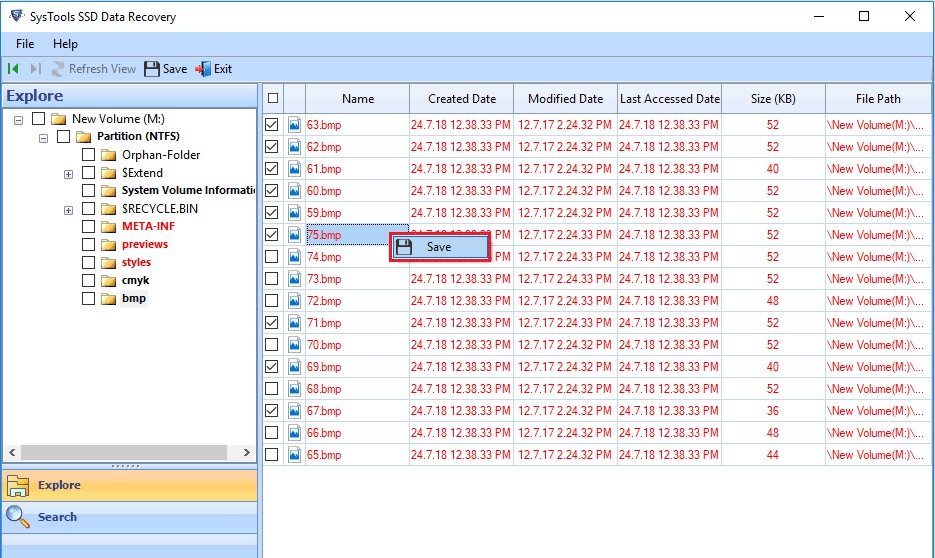
If backups and built-in tools do not work, reputable recovery software may be the next step. Choose software that supports your operating system, file system, SSD type, and desired file formats.
A good recovery application should offer:
• A read-only scan mode
• File previews before recovery
• Support for NTFS, exFAT, APFS, HFS+, EXT4, or your needed file system
• Recovery from partitions and formatted volumes
• A way to create or scan a disk image
• Clear pricing and licensing
• A trustworthy company history
Use the software from another storage device when possible. If you cannot avoid installing it on the affected computer, stop using the SSD first and understand that installation may reduce your chances.
A careful process looks like this:
Connect a second storage device with enough free space.
Install the recovery tool on that second device.
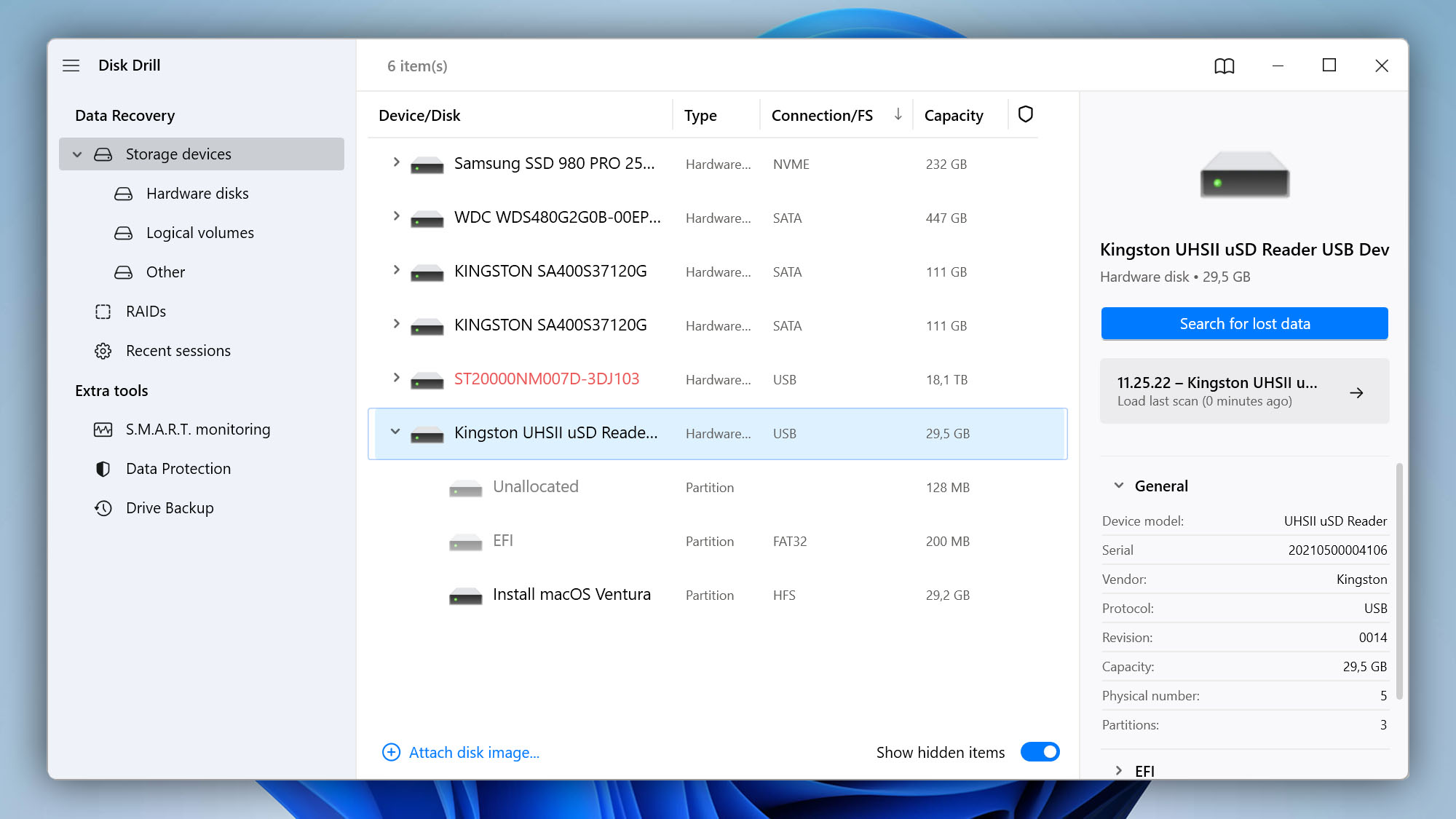
Select the affected SSD as the source.
Run a quick scan first.
Use a deep or signature scan only if needed.
Preview important files.
Recover them to the second device.
Open several recovered files to test their quality.
File names and folders may not survive recovery. A signature scan may find the contents of a JPEG, PDF, or ZIP file but lose its original name. You may need to sort recovered files by type, date, size, or preview.
Some programs advertise perfect recovery. Treat such claims with caution. No software can restore data that TRIM has already erased or that new data has overwritten.

Create a disk image before attempting advanced recovery
A disk image is a sector-by-sector copy of a storage device. It gives you a working copy for analysis and protects the original SSD from repeated scans.
This step is especially helpful when:
• The SSD disconnects during use
• The drive shows errors
• Files open slowly
• The computer freezes
• The SSD makes the system crash
• The drive reports the wrong capacity
• You suspect hardware failure
Professional technicians often image a failing drive with specialized tools that can handle read errors. Home users can use imaging software, but the process must be planned carefully.
The destination drive must have enough space for the source drive or its used sectors. The image should be stored on a healthy device. Once created, work from the image rather than the original.
Do not confuse a disk image with a normal file copy. A normal copy may skip deleted, hidden, or damaged areas. An image preserves the storage layout as closely as the tool allows.
When to use a professional data recovery service
Professional help is often the best option when the files are valuable, the SSD is failing, or software scans have not helped.
Contact a specialist if:
• The SSD is not detected
• The drive repeatedly disconnects
• The computer freezes when the SSD is connected
• The drive reports zero bytes
• The SSD has suffered water, fire, or impact damage
• The files are needed for legal, medical, or business reasons
• You have already tried several scans without success
• The SSD uses hardware encryption and the computer no longer starts
Ask the provider these questions:
• Do you work with SSDs and TRIM-related recovery?
• Will you create an image before examining the drive?
• Do you have a cleanroom for damaged components?
• Is there a no-data, no-fee policy?
• How will you protect private information?
• Will you explain the likely recovery chances before starting?
A cleanroom is mainly needed for hard disk drives with exposed magnetic platters. SSDs have no spinning platters, but specialist equipment and controlled procedures may still be needed for damaged circuit boards, controllers, or memory chips.
Chip-off recovery can sometimes read flash memory directly. It is not a simple home repair. SSD controllers use wear leveling, encryption, compression, and mapping tables, so raw memory chips may not contain files in an easy-to-read order.
Be honest with the technician about everything you have done. Running a scan does not always ruin recovery, but repeated repairs, formatting, or secure erase operations can.

Common reasons SSD file recovery fails
Understanding the limits of recovery can save time and money.
TRIM has erased the deleted blocks
When TRIM and background garbage collection have processed a deleted file, software may find nothing useful. This is the most important difference between SSD and hard drive recovery.
New data has overwritten the space
Installing programs, downloading videos, or saving new documents may reuse the blocks that held the deleted files. Even small system tasks can create new writes.
The file system is badly damaged
A damaged partition table or file system may hide files even when the flash memory still works. A full scan can sometimes help, but results vary.
The SSD controller has failed
The controller manages flash translation, wear leveling, and error correction. If it fails, the memory chips may still contain data, but recovering it can require specialist tools.
Encryption keys are unavailable
Many modern SSDs use encryption automatically. If the key is lost, the drive may be impossible to decrypt even when the hardware is intact.
The drive was securely erased
Secure erase, cryptographic erase, and some factory reset processes are designed to make recovery impossible. Recovery software cannot bypass a properly completed secure erase.
The honest answer to how to recover deleted files from SSD drive is sometimes that recovery is not possible. A trustworthy technician should explain this possibility instead of promising a result.
How to recover deleted files from SSD drive after formatting
Formatting does not always remove every file immediately. A quick format may create a new file system structure while leaving some old data in place. A full format, secure erase, or active TRIM process can make recovery much less likely.
If you accidentally formatted the SSD:
Stop using it immediately.
Do not create new partitions.
Do not reinstall the operating system.
Check backups and cloud storage.
Create a disk image if the drive is stable.
Scan the image with recovery software.
Save recovered files to another drive.
Recovery may return files without their original names or folders. It may also find fragments that cannot be opened. Large files, databases, virtual machines, and encrypted containers are often more difficult to recover than small photos or documents.
If the formatting happened during an operating system installation, stop the installation process. Continuing can overwrite a large amount of old data.
How to recover deleted files from SSD drive on Windows and Mac
The basic strategy is similar on both platforms: stop using the drive, check backups, scan safely, and save recovered files elsewhere.
Windows
Windows users should check:
• Recycle Bin
• File History
• Previous Versions
• OneDrive recycle bin
• Windows File Recovery
• Professional recovery software
• The user profile and temporary folders
NTFS metadata can sometimes help recovery software identify deleted file names and folders. However, TRIM can still remove the underlying data.
macOS
Mac users should check:
• Trash
• Time Machine
• iCloud Drive recovery
• Recently Deleted folders inside applications
• macOS version history
• External backup drives
• APFS-aware recovery software
APFS uses snapshots and other features that may help in some cases. It also commonly works with SSDs and encryption, so the recovery result depends heavily on whether the volume remains accessible and whether TRIM has processed the blocks.
External SSDs
For an external SSD, disconnect it safely and connect it to another computer only when ready to scan. Do not allow the operating system to initialize, format, or repair the drive automatically if it reports that the disk needs formatting.
How to prevent future SSD data loss
The strongest recovery plan starts before deletion occurs. No recovery tool is a substitute for a tested backup.
Use the 3-2-1 backup rule:
• Keep three copies of important data.
• Store those copies on at least two different types of media.
• Keep one copy off-site or in the cloud.
A practical setup might include your computer, an external backup drive, and encrypted cloud storage. Test the backups by restoring sample files. A backup that has never been tested is only a hope.
Other useful habits include:
• Turn on File History or Time Machine.
• Enable cloud version history.
• Keep the operating system updated.
• Protect the computer from power loss.
• Use a surge protector or uninterruptible power supply.
• Monitor SSD health with a reliable utility.
• Keep free space available on the SSD.
• Replace an SSD that shows repeated errors.
• Encrypt sensitive backups.
• Keep recovery keys in a secure place.
• Label backup drives with their dates.
One lesson I have seen repeatedly is that people back up photos but forget work folders, browser profiles, accounting files, and application settings. Make a list of data that would be painful or expensive to recreate, then include it in the backup plan.
Mistakes to avoid during SSD file recovery
A few common actions can turn a difficult recovery into an impossible one.
Avoid these mistakes:
• Continuing to work from the affected SSD
• Installing recovery software on the source drive
• Saving recovered files to the source drive
• Formatting the drive when prompted
• Running disk cleanup
• Defragmenting an SSD
• Using random freeware from unknown websites
• Opening and editing damaged files repeatedly
• Power cycling a failing SSD many times
• Assuming a deep scan guarantees recovery
• Using repair tools before making an image
• Sharing sensitive data with an untrusted recovery provider
A recovery scan can take hours. Do not stop and restart it without a reason. If the SSD is unstable, imaging it first is usually safer than scanning it directly.
Also, avoid changing file extensions manually. Renaming a file from .tmp to .docx does not repair damaged file content. It may only make the file appear to have a different type.
Frequently asked questions about how to recover deleted files from SSD drive
Can deleted files be recovered from an SSD?
Sometimes, but the chance is lower than with a traditional hard drive. TRIM, garbage collection, encryption, overwriting, and secure erase can permanently remove the data.
Does TRIM make SSD file recovery impossible?
TRIM can make recovery impossible after the SSD processes the command and clears the related blocks. If deletion was very recent, a backup, snapshot, or recovery scan may still find usable files.
Should I keep using my computer after deleting a file?
No. Stop using the affected SSD as soon as possible. New system activity can overwrite deleted data and reduce the chance of recovery.
Can Windows File Recovery restore files from an SSD?
Windows File Recovery can restore some deleted files, especially when deletion is recent and the data remains available. It cannot recover information that TRIM or secure erase has already removed.
Is professional SSD recovery worth the cost?
It may be worthwhile when the files are important, the SSD is failing, or software tools cannot detect it. Ask for an assessment and recovery estimate before authorizing work.
Can I recover files after formatting an SSD?
A quick format may leave some recoverable data, but the outcome depends on TRIM, the format type, and later drive activity. Stop using the SSD and scan an image or use a professional service.
Where should I save recovered files?
Save them to a different physical drive. Never save recovered files back to the SSD being scanned because doing so can overwrite other lost data.
Conclusion
The safest approach to how to recover deleted files from SSD drive is simple: stop using the drive, check backups, avoid writing new data, and choose a recovery method that matches the situation. Built-in tools and reputable software may help with recent deletion, but TRIM and SSD encryption can limit results.
If the SSD is failing or the files are highly valuable, create an image or contact a qualified recovery service before trying risky repairs. Then strengthen your backup plan so one accidental deletion does not become a crisis. Share your recovery experience or explore trusted backup resources to protect your files next time.
