

Enable TRIM, keep free space available, control heat, update firmware, and reduce needless writes to extend SSD life.
Solid-state drives are fast, quiet, and reliable, but they still need sensible care. The best way to increase SSD lifespan with proper settings is not to disable useful features or avoid normal use. It is to help the drive manage data efficiently, reduce extreme heat, and prevent unnecessary write activity.
I have seen many SSD problems caused by poor airflow, outdated firmware, full storage, or incorrect maintenance tools rather than ordinary daily use. This guide explains the settings that matter, the myths to avoid, and the simple habits that can help your SSD stay healthy for years.

What affects SSD lifespan?
An SSD stores data in NAND flash memory. Unlike a hard disk drive, it has no spinning platters or moving heads. That makes it faster and more resistant to physical shocks, but flash cells can only handle a limited number of program and erase cycles.
Manufacturers describe endurance with terms such as TBW, or terabytes written, and DWPD, or drive writes per day. A 1 TB SSD rated at 600 TBW is designed to handle about 600 terabytes of total written data under stated test conditions.
That number is not a countdown timer. Many drives work well beyond their rated TBW, while other issues, such as controller failure or power loss, can happen first. Still, reducing wasteful writes and managing heat are practical ways to increase SSD lifespan with proper settings.
The main factors include:
• Write volume: Large downloads, video editing, virtual machines, and scratch disks can write huge amounts of data.
• Available space: A nearly full SSD has less room to move and organize data.
• Temperature: High heat can speed wear and may reduce performance.
• Power stability: Sudden power loss can damage data or, in rare cases, the drive’s internal mapping data.
• Firmware and settings: Poor firmware support or disabled maintenance features can affect performance and reliability.
Enable TRIM on your operating system
TRIM tells an SSD which blocks no longer contain useful data. The drive can then prepare those blocks for future writes instead of treating them as unknown or occupied.
TRIM works in the background on modern versions of Windows, macOS, and Linux. It is one of the most important settings to check when you want to increase SSD lifespan with proper settings.
Check TRIM in Windows
Open Command Prompt as an administrator and run:
fsutil behavior query DisableDeleteNotify
A result of 0 usually means TRIM is enabled. A result of 1 means it is disabled for that file system type.
You can also open the Windows optimization tool by searching for “Defragment and Optimize Drives.” For an SSD, Windows should show an optimization action related to retrimming rather than traditional disk defragmentation.
Check TRIM in Linux
Most current Linux distributions support periodic TRIM. You can check the timer with:
systemctl status fstrim.timer
You can run a manual trim with:
sudo fstrim -av
Do not run manual TRIM every day. A weekly or monthly scheduled trim is usually enough for normal use.
Check TRIM on macos
macos normally manages TRIM automatically for Apple-installed storage. Third-party SSD support can vary by model and macOS version, so check the drive maker’s instructions before using unofficial tools.
TRIM is not the same as erasing your files. It simply gives the SSD better information about unused space. Leave it enabled unless a specific troubleshooting guide for your exact system says otherwise.

Keep at least 10% to 20% free space
An SSD needs spare blocks for garbage collection, wear leveling, and background maintenance. When the drive is nearly full, the controller has fewer clean blocks available and may need to move more data before completing a write.
For everyday use, try to keep 10% to 20% of the drive free. A 1 TB SSD should ideally have about 100 GB to 200 GB available, especially if it holds an operating system, games, creative projects, or virtual machines.
This free space acts like a small workbench. It does not guarantee a longer life, but it can help maintain write speed and reduce internal data movement. It is one of the easiest settings and habits to use when learning how to increase SSD lifespan with proper settings.
To free space safely:
• Remove temporary files with your operating system’s storage tool.
• Uninstall programs and games you no longer use.
• Move large videos, photos, and archives to another drive.
• Review cloud-sync folders that keep local copies of large files.
• Avoid filling the drive beyond 90% for long periods.
Do not confuse free space with hidden overprovisioning. Some SSDs reserve spare NAND internally, while others benefit from user-created unallocated space. Leaving 10% of a drive unallocated can help some models, but the ideal amount depends on the controller, NAND type, workload, and manufacturer guidance.

Manage heat and airflow
Heat is a quiet enemy of storage hardware. SSDs often slow down when they become hot, a process called thermal throttling. This protects the drive, but repeated high temperatures can reduce performance and place more stress on the controller and flash memory.
NVMe SSDs can run hotter than SATA SSDs because they use a high-speed PCIe connection. A drive under a motherboard heat spreader may be fine, while one installed below a graphics card may receive much more heat.
Use these practical steps:
• Install the SSD under a motherboard heatsink when the board provides one.
• Improve case airflow with a clear intake and exhaust path.
• Keep dust away from filters, fans, and vents.
• Avoid placing an NVMe drive directly under a hot graphics card when another slot is available.
• Monitor temperature during large file transfers, gaming, and video exports.
Many consumer SSDs operate safely at temperatures around 0°C to 70°C, but the exact limit varies by model. Check the manufacturer’s specifications instead of relying on a general number.
Temperature monitoring tools can show current, highest, and warning temperatures. A brief spike is usually less concerning than hours of sustained heat. Good airflow is a simple, low-cost way to increase SSD lifespan with proper settings.
Update SSD firmware and motherboard drivers
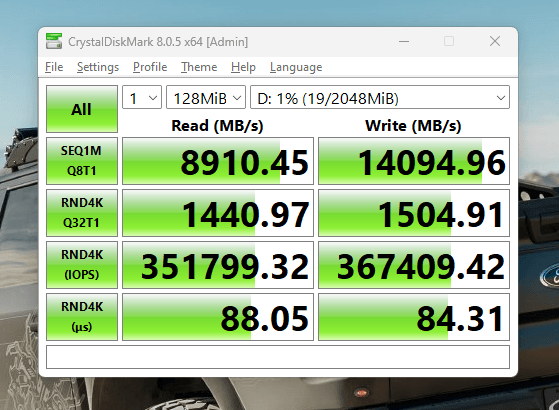
SSD firmware controls how the drive handles garbage collection, error correction, wear leveling, power states, and performance. Manufacturers sometimes release updates that fix bugs or improve compatibility.
Before updating firmware, create a current backup. Most updates are safe, but a power interruption or unexpected system error can still cause trouble.
Check for updates through:
• The SSD manufacturer’s official management tool.
• Your computer or motherboard support page.
• The motherboard’s BIOS or UEFI update notes.
Also install suitable chipset and storage controller drivers. On Windows, avoid random driver tools that install software from unknown sources. On Linux and macOS, normal system updates often include important storage compatibility fixes.
Firmware updates do not always improve endurance. Some address stability or performance only. Read the release notes and avoid changing firmware on a healthy drive without a clear reason.

Use the correct storage mode
For SATA SSDs, AHCI is generally the correct mode on systems that do not use RAID. AHCI allows features such as native command queuing and proper operating system communication.
Modern NVMe drives use the NVMe protocol rather than AHCI. They connect through PCIe and usually need no special performance setting in the operating system.
Do not switch a system from IDE or RAID to AHCI without preparation. Changing the setting carelessly can cause a boot failure. If you are installing a new operating system, choose the proper mode during setup. If the system already works, follow a trusted guide for your exact operating system and motherboard.
A correct storage mode can improve compatibility and performance, but it will not transform a budget SSD into an enterprise drive. The goal is stable communication, not chasing small benchmark gains.

Avoid unnecessary writes
Normal computer use does not usually wear out a modern SSD quickly. However, some workloads can create far more writes than users expect.
Common high-write activities include:
• Video editing with large scratch files.
• Database development and test servers.
• Virtual machines.
• Continuous security camera recording.
• Cryptocurrency plotting.
• Large download and cache folders.
• Frequent operating system image creation.
You do not need to disable every cache or system feature. Many caches improve performance, and disabling them can create other problems. Instead, move heavy temporary workloads to a suitable secondary SSD or hard drive when practical.
For example, a video editor can place its cache on a separate high-endurance drive. A virtual machine user can store virtual disks on a drive rated for that workload. This spreads writes instead of forcing one system SSD to handle everything.
Do not disable the page file just because it writes to the SSD. Windows manages virtual memory for stability, and removing it can cause application crashes. If you have a specific memory-heavy workload, adjust it after testing rather than following a blanket rule.

Choose the right power settings
Power management affects both temperature and write behavior. A desktop with stable power can use normal or balanced settings without concern. A laptop may benefit from balanced power mode because it lowers heat and reduces unnecessary high-performance activity.
Recommended practices include:
• Use Balanced mode for general work.
• Use high-performance mode only when you need sustained performance.
• Allow the system to sleep when it will be idle for a long period.
• Keep laptop firmware and chipset drivers current.
• Use a reliable surge protector for desktops.
• Consider an uninterruptible power supply for workstations and servers.
Some SSDs include aggressive low-power states. These can save battery power but may cause wake delays or compatibility problems on certain systems. If you see freezes, disconnects, or errors after sleep, check the SSD and motherboard support notes before disabling power management.
Power settings alone do not determine drive life. They matter most when they control heat, unstable sleep behavior, or repeated unexpected shutdowns.
Do not defragment an SSD manually
Traditional defragmentation is designed for hard drives. It moves file fragments together to reduce mechanical head movement. An SSD has no moving head, so routine manual defragmentation is unnecessary and can create extra writes.
Modern Windows storage optimization can identify SSDs and use TRIM instead of regular hard-drive defragmentation. Let the operating system manage scheduled optimization.
Do not panic if a Windows tool mentions optimization or occasional retrim activity. The key point is to avoid third-party tools that repeatedly perform full defragmentation on an SSD.
There are rare cases where an operating system performs a limited file-system optimization for reliability. That is different from repeatedly defragmenting an SSD by hand. Trust the built-in tool unless you have a specific technical reason to do otherwise.
Monitor SSD health without obsessing
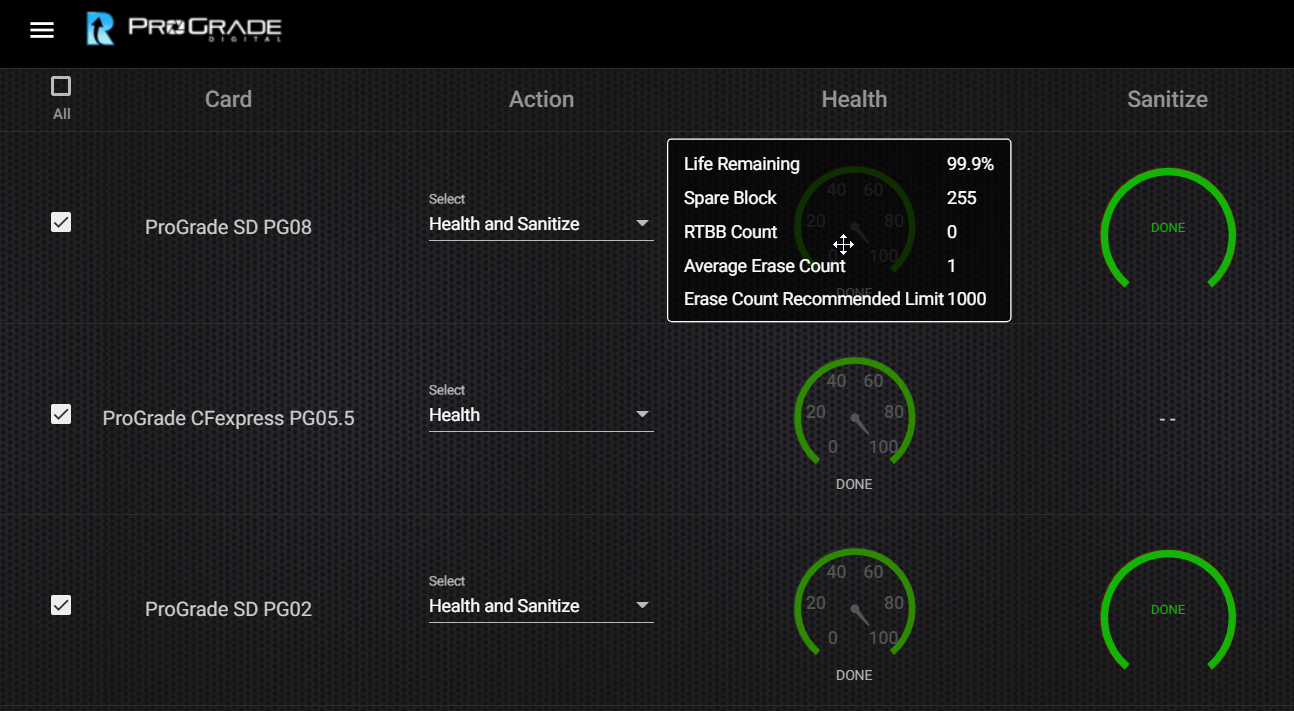
SSD health software can report useful information, including:
• Drive temperature.
• Total host writes.
• Percentage used or remaining life.
• Media and data integrity errors.
• Unsafe shutdown counts.
• Available spare capacity.
SMART data is helpful, but it is not a perfect prediction of failure. Different manufacturers calculate health percentages in different ways. A drive showing 90% health is not necessarily safer than one showing 85%.
Check health every few months or when you notice slowdowns, crashes, read errors, or unusual warnings. Replace the drive when the manufacturer reports critical warnings, the drive becomes unreliable, or your backup plan cannot tolerate failure.
The most important protection is still a backup. SSD health tools can miss sudden controller failure, electrical damage, or file-system corruption. Use the 3-2-1 backup approach when the data matters: keep three copies, on two types of storage, with one copy stored away from the main device.
Understand SSD lifespan ratings
TBW is a useful comparison number, but it is not a promise that a drive will fail immediately after reaching the rating. It is a tested endurance target under particular conditions.
For example, a drive rated at 300 TBW may be suitable for an office computer, while a drive rated at 1,200 TBW may better fit a workstation with daily video exports. Capacity also matters. Larger SSDs often have more NAND cells available for wear leveling.
NAND type affects endurance too:
• SLC stores one bit per cell and offers high endurance, but it is expensive.
• MLC stores two bits per cell and is uncommon in many consumer products today.
• TLC stores three bits per cell and offers a strong balance of cost, speed, and endurance.
• QLC stores four bits per cell and usually provides lower write endurance, though it can be excellent for read-heavy storage.
A QLC SSD is not automatically bad. It may be a good choice for games, media libraries, and general storage. Match the drive to the workload instead of judging it by NAND type alone.
Settings that are usually safe to leave alone
Many online tips recommend disabling useful operating system features to save a small amount of SSD wear. These changes can create more problems than they solve.
Usually, leave these enabled unless you have a tested reason to change them:
• System restore.
• The Windows page file.
• File indexing, if you use search often.
• Browser caches, unless they are causing a known storage issue.
• Automatic updates.
• Normal sleep and hibernation features.
The best way to increase SSD lifespan with proper settings is balanced management, not extreme optimization. A stable computer that writes a little more data is often better than a fragile computer with every cache disabled.
One mistake I have seen repeatedly is moving all temporary files to a slow external drive just to reduce SSD writes. The system then becomes sluggish, applications fail during transfers, and the user gains little real endurance. Optimize only measurable problems.
A practical SSD maintenance plan
Use this simple routine to keep your storage healthy:
Check that TRIM is enabled.
Keep 10% to 20% free space when possible.
Monitor temperature during heavy workloads.
Install important firmware and system updates after creating a backup.
Use the operating system’s built-in SSD optimization tool.
Avoid manual defragmentation and questionable cleaning utilities.
Move high-write workloads to suitable storage when practical.
Review SMART health data every few months.
Keep at least one current backup outside the computer.
Replace the drive before critical health warnings become an emergency.
This plan does not require constant tuning. Once the main settings are correct, most SSD maintenance becomes automatic.
Common mistakes that shorten SSD life
Some habits are more harmful than people expect. Filling the drive completely can reduce performance and increase internal data movement. Ignoring high temperatures can lead to throttling and unstable operation.
Other mistakes include:
• Using a low-quality power adapter or unstable power supply.
• Installing unknown storage utilities.
• Repeatedly running secure erase tools without a reason.
• Testing drive speed for hours every week.
• Storing important files without a backup.
• Buying a low-end drive for a write-heavy server workload.
Benchmarking once is harmless. Constant stress testing, however, adds writes and heat without improving normal use. Run tests only when comparing hardware, checking a problem, or verifying a configuration.
Frequently Asked Questions About How to Increase SSD Lifespan With Proper Settings
Does enabling TRIM increase SSD lifespan?
Yes, TRIM can help an SSD manage deleted data more efficiently. It reduces the work needed during future writes and may help preserve performance over time.
How much free space should I leave on an SSD?
Leaving 10% to 20% free is a useful general target. The exact amount depends on the drive model and workload, but avoiding long periods above 90% capacity is a sensible rule.
Should I disable Windows page file to protect my SSD?
No. The page file supports system stability and does not normally cause harmful wear on a modern SSD. Disable or reduce it only for a tested, specific reason.
Is SSD defragmentation harmful?
Repeated traditional defragmentation can create unnecessary writes and provides little benefit on an SSD. Use the operating system’s built-in optimization tool instead.
Do SSDs need a heatsink?
Not every SSD needs one, but an NVMe drive under heavy load can benefit from a motherboard heatsink or improved airflow. Check temperatures before deciding whether extra cooling is necessary.
Does filling an SSD reduce its lifespan?
A nearly full SSD may have less free space for garbage collection and wear leveling. Keeping 10% to 20% free can support better performance and may reduce unnecessary internal writes.
How often should I check SSD health?
Checking every few months is enough for most home computers. Check sooner if you notice crashes, read errors, sudden slowdowns, or warnings from the drive’s health software.
Conclusion
The safest way to increase SSD lifespan with proper settings is to keep TRIM active, maintain free space, control heat, update firmware, and avoid needless write-heavy tasks. You do not need to disable normal system features or treat your SSD like fragile glass.
Choose storage that matches your workload, monitor health occasionally, and keep reliable backups. Apply these steps today, then explore your SSD maker’s official support tools for model-specific guidance and share your own storage tips in the comments.
