

Pairing 3M headphones usually takes less than two minutes. Turn on the Bluetooth feature, place the headset in pairing mode, then choose the 3M device from your phone, tablet, or computer’s Bluetooth menu.
The exact button may differ by model. 3M makes several Bluetooth hearing protectors, including WorkTunes Connect and PELTOR headsets. Some 3M earmuffs are passive models and do not pair with any device.
Before You Pair Your 3M Headphones
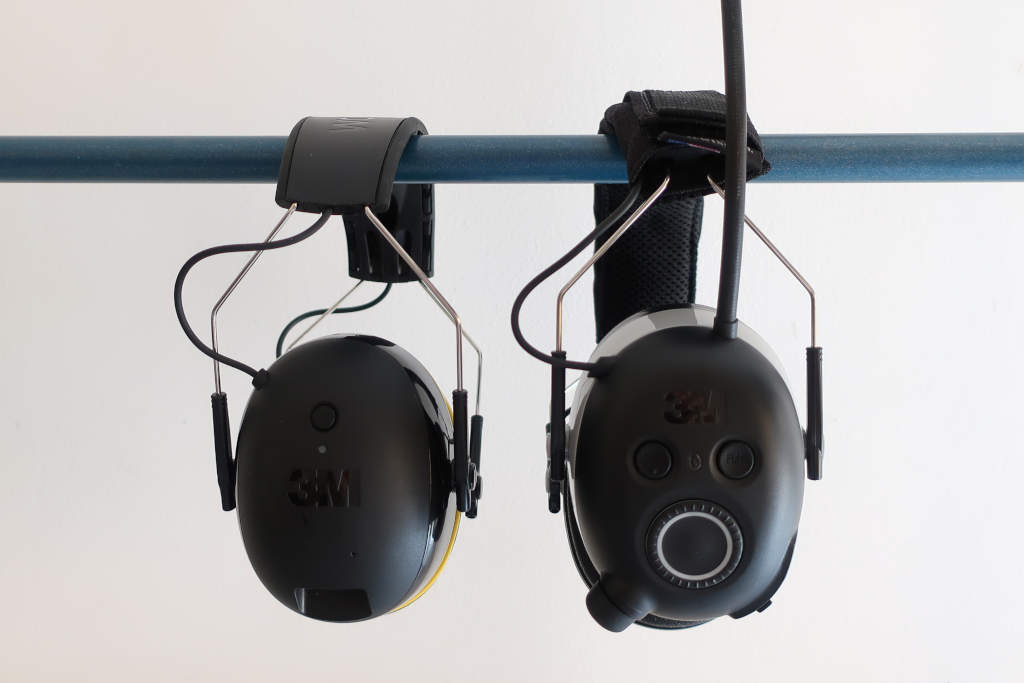
First, confirm that your 3M headphones support Bluetooth. Look for a Bluetooth symbol, a power button, volume controls, or a model name that includes terms such as WorkTunes Connect, PELTOR, WS Alert, or Bluetooth.
You will also need:
- A charged 3M headset
- A Bluetooth phone, tablet, or computer
- The device you want to connect
- The 3M headset’s model number, if available
The model number is often printed inside the headband, on the ear cup, or on the product label. This matters because pairing buttons, voice prompts, and reset steps can vary.
Bluetooth 3M headphones versus passive earmuffs
Not every 3M hearing protector has wireless audio. Standard passive earmuffs reduce sound through their ear cushions and acoustic materials. They do not contain Bluetooth electronics and cannot connect to a phone.
Bluetooth models can receive audio, but their main purpose may still be hearing protection. Audio volume should remain low enough that you can hear important warnings, alarms, vehicles, and people around you.
How to Pair 3M Headphones With a Phone
Use these steps for most 3M Bluetooth hearing protectors, including many WorkTunes Connect models.
Charge the headset.
A low battery can prevent pairing or cause the connection to drop.Turn off nearby Bluetooth devices.
If the headset has paired with another phone, tablet, or computer, that device may connect first. Temporarily turn Bluetooth off on those devices.Turn on the 3M headphones.
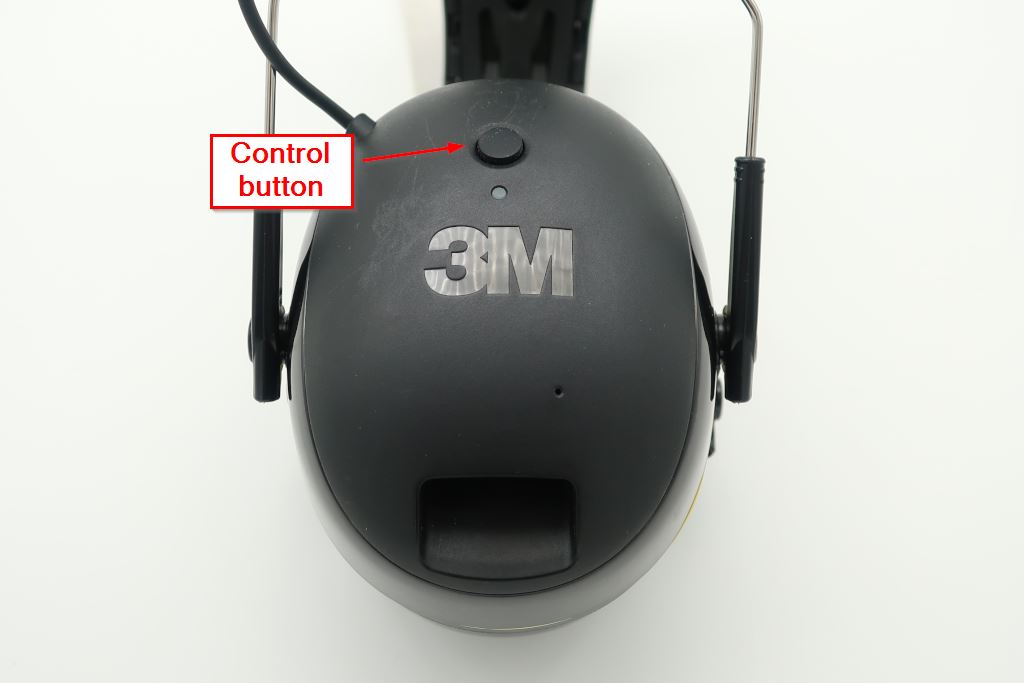
Press and hold the power button until you hear a tone or voice prompt. On some models, the power button also controls pairing.Enter Bluetooth pairing mode.
Press and hold the Bluetooth or power button until the status light flashes or the headset announces that it is ready to pair. The required hold time differs by model, so use the manual if the headset does not enter pairing mode.Open Bluetooth settings on your phone.
On an iPhone, go to Settings > Bluetooth.
On most Android phones, go to Settings > Connected devices > Pair new device, although menu names can vary by manufacturer.Select the 3M headset.
Look for a name such as 3M WorkTunes, PELTOR, or the specific model name. Tap it once.Accept the pairing request.
If the phone asks for a code, try the code shown on the screen. If no code appears, check the model’s manual rather than guessing repeatedly.Play a short audio file.
Test music or a podcast at low volume. Confirm that sound comes from both ear cups and that the phone shows the headset as connected.
A successful connection normally produces a connected message, a voice prompt, or a steady status light. The headset may reconnect automatically the next time you turn it on and enable Bluetooth on the same phone.
How to Pair 3M Headphones With an iPhone
The iPhone pairing process is handled through iOS Bluetooth settings.
- Open Settings.
- Tap Bluetooth.
- Turn Bluetooth on.
- Put the 3M headset in pairing mode.
- Tap the headset name under Other Devices.
- Wait until it moves to My Devices and shows Connected.
- Play audio to confirm the connection.
If the headset appears under My Devices but will not connect, tap the information button next to its name and select Forget This Device. Put the 3M headphones back into pairing mode, then connect again.
If the headset does not appear, move it close to the iPhone and make sure it is not connected to another device.

How to Pair 3M Headphones With an Android Phone
Android phones use slightly different menus, but the basic process is the same.
- Open Settings.
- Tap Connected devices, Connections, or Bluetooth.
- Turn Bluetooth on.
- Select Pair new device, if that option appears.
- Put the 3M headphones into pairing mode.
- Tap the 3M headset in the list.
- Approve the pairing request.
- Play audio at a low level.
If you cannot find the pairing option, use the search box in Android Settings and type Bluetooth. Some phones also display a Bluetooth icon in Quick Settings. Pressing and holding that icon usually opens the full Bluetooth menu.

How to Pair 3M Headphones With a Windows PC
You can pair compatible 3M Bluetooth headphones with a Windows 10 or Windows 11 computer.
- Turn on the 3M headset.
- Put it into Bluetooth pairing mode.
- On the PC, open Settings.
- Select Bluetooth & devices.
- Turn Bluetooth on.
- Choose Add device.
- Select Bluetooth.
- Click the 3M headset when it appears.
- Select Done.
- Choose the headset as the sound output if Windows does not do so automatically.
To select it manually, click the speaker icon on the Windows taskbar. Open the sound output list and choose the connected 3M headset.
Some desktop computers do not have built-in Bluetooth. In that case, a compatible USB Bluetooth adapter may be required. The adapter must support the Bluetooth audio profile used by the headset.

How to Pair 3M PELTOR Headsets
3M PELTOR products include several different wireless systems. Some use standard Bluetooth, while others may be designed for two-way radio communication, job-site communication, or specialized PELTOR accessories.
For a PELTOR Bluetooth model:
- Charge the headset.
- Turn it off if it is already on.
- Press and hold the power or Bluetooth button.
- Keep holding until the indicator flashes or a voice prompt confirms pairing mode.
- Open Bluetooth settings on the phone or computer.
- Select the PELTOR device name.
- Test the connection at low volume.
Do not assume that every PELTOR headset pairs like a consumer Bluetooth headphone. Some models have separate controls for Bluetooth calls, radio functions, or accessory connections. The model-specific 3M instructions are the best source for the correct button sequence.

How to Pair 3M WorkTunes Connect Headphones
Many 3M WorkTunes Connect models pair through the power or Bluetooth control on the ear cup.
A typical process is:
- Turn off the WorkTunes headset.
- Press and hold the main button until the headset enters pairing mode.
- Watch for a flashing light or listen for a voice prompt.
- Open Bluetooth settings on your phone.
- Select the WorkTunes device.
- Confirm the connection.
- Play audio at a safe, low level.
The exact behavior may differ between WorkTunes versions. If the headset turns on but does not appear in your phone’s Bluetooth list, release the button and repeat the process while the headset is off. If that fails, use the reset instructions for the exact model.

What to Do If Your 3M Headphones Will Not Pair
Pairing failures usually come from one of four causes: the headset is not in pairing mode, another device has connected, the old Bluetooth record is damaged, or the headset battery is too low.
Try these checks in order.
1. Confirm pairing mode
Turning on the headset is not always enough. The device must be discoverable. Hold the correct button until the light flashes or the voice prompt announces pairing.
2. Move the devices close together
Keep the phone and headset within a few feet during setup. Remove thick barriers and avoid pairing in a crowded area with many active Bluetooth devices.
3. Disconnect the old device
A 3M headset may automatically reconnect to the last phone or computer it used. Turn Bluetooth off on that device or move it out of range.
4. Forget the old connection
On your phone or computer, remove the saved 3M device:
- iPhone: Settings > Bluetooth > Info button > Forget This Device
- Android: Open Bluetooth settings, tap the gear or settings icon, then choose Forget or Unpair
- Windows: Settings > Bluetooth & devices, select the headset, then choose Remove device
After removing it, restart Bluetooth and pair again.
5. Restart both devices
Turn the headset off. Turn Bluetooth off on the phone for about 10 seconds, then turn it back on. Restart the phone if the headset still does not appear.
6. Charge the headset
Connect the headset to power and allow it to charge. A headset may power on with a weak battery but fail during Bluetooth discovery.
7. Reset the headset only when needed
A reset may erase saved connections or change other settings. Use the instructions for the exact 3M model. Do not rely on a button combination from a different WorkTunes or PELTOR version.

Common 3M Bluetooth Pairing Problems
| Problem | Likely cause | Best first step |
|---|---|---|
| The headset does not appear | Pairing mode is not active | Turn it off and enter pairing mode again |
| It connects to the wrong phone | Another device is nearby | Disable Bluetooth on the old device |
| It shows as connected but has no sound | The wrong audio output is selected | Choose the 3M headset in sound settings |
| Audio cuts out | Low battery, distance, or interference | Charge it and keep the phone nearby |
| Only one side plays | Audio balance or headset fault | Check device balance settings and test another source |
| A PIN is requested | Model-specific pairing code | Check the official manual |
| It pairs but will not reconnect | Saved connection issue | Forget the device and pair it again |
| Buttons do not respond | Lock mode, low power, or fault | Charge it and follow the model reset guide |
A phone can show “connected” for calls while routing music to its speaker. Check the phone’s audio output selector during playback. On an iPhone, use the AirPlay or audio output button. On Android, use the media output control or volume panel.

How to Use 3M Headphones Safely
3M Bluetooth hearing protectors can reduce exposure to loud sound, but Bluetooth audio does not make every work environment safe. Use the correct hearing protection for the noise level and follow workplace rules.
Keep the volume low. Loud music can add to the sound reaching your ears and may make it harder to hear alarms, coworkers, vehicles, or equipment changes. In a high-noise area, do not remove required hearing protection just to adjust a phone or answer a call.
Also check the condition of the ear cushions and headband. Cracked cushions, poor fit, or damaged parts can reduce protection. Replace parts according to the model instructions, and stop using damaged equipment until it has been inspected or replaced.
Bluetooth hearing protectors are not automatically approved for every workplace, radio system, or hazardous location. Check the product labeling and employer requirements before using one on a job site.

How to Disconnect or Switch 3M Headphones
To disconnect without deleting the pairing:
- Turn off Bluetooth on the phone.
- Choose another audio output.
- Turn off the 3M headset.
- Select Disconnect in the device’s Bluetooth menu.
To switch the headset to another phone, disconnect it from the first phone or turn Bluetooth off there. Then put the headset into pairing mode and select it on the second phone.
If the headset keeps switching back to the first phone, remove the old saved connection or keep the first phone’s Bluetooth disabled.

How to Reset 3M Headphones
There is no single reset method for all 3M headphones. The correct procedure depends on the model, firmware, and control layout.
Before resetting:
- Record the model name and number.
- Remove the headset from your phone’s Bluetooth list.
- Check the official 3M user instructions.
- Charge the headset.
- Follow the exact reset sequence.
- Pair it again as a new device.
A reset is useful when the headset is visible but repeatedly refuses to connect, connects to the wrong device, or stops responding after a software or device change. It is not the first step for every problem because it can remove saved connections.

Frequently Asked Questions
Do all 3M headphones use Bluetooth?
No. Some 3M earmuffs are passive hearing protectors and have no wireless function. A Bluetooth symbol, power control, or model documentation can confirm whether pairing is supported.
Can I pair 3M headphones with two devices at once?
Some models may support multipoint connections, but this is not universal. Do not assume that a headset can stay connected to two phones or switch between a phone and computer automatically. Check the instructions for the exact model.
What is the 3M Bluetooth pairing code?
There is no universal code for every 3M headset. If your phone requests a code, check the model’s manual or on-screen instructions. Avoid repeated guesses because they may create more failed connection records.
Why does my 3M headset connect but play no sound?
The phone or computer may still be using its built-in speaker. Open the audio output controls and select the connected 3M headset. On a computer, also check the selected input and output devices in sound settings.
Can I use 3M Bluetooth headphones for phone calls?
Many Bluetooth models support calls, but microphone performance and call controls vary. Test the headset in a quiet place before relying on it for work communication.
Will 3M headphones pair with a TV?
They may pair with a TV that supports Bluetooth audio. Some TVs support only certain Bluetooth profiles or may introduce audio delay. Check the TV and headset manuals before purchasing an adapter.
Final Checklist
To pair 3M headphones successfully:
- Confirm that the model supports Bluetooth.
- Charge the headset.
- Turn off Bluetooth on old nearby devices.
- Put the headset into pairing mode.
- Select it in your phone, tablet, or computer settings.
- Test audio at a low volume.
- Forget and re-pair the device if the connection fails.
- Use the exact 3M manual before performing a reset.
The next best step is to find the model number printed on the headset and use its official 3M instructions for the pairing and reset procedure.
