

Connect Bluetooth headphones to Roku through a compatible Roku TV or the Roku mobile app for private listening.
Learning how to connect Bluetooth headphones to Roku is easier once you know which Roku device you have. Some Roku TVs support direct Bluetooth pairing, while many Roku streaming players work best through the Roku mobile app. This guide explains both methods, common mistakes, sound delays, connection limits, and simple fixes that work in real homes.
Check whether your Roku supports Bluetooth headphones
Before you try to connect Bluetooth headphones to Roku, identify your Roku device. Roku TVs, Roku streaming sticks, and Roku boxes do not all handle Bluetooth audio in the same way.
Some newer Roku TV models include a Bluetooth menu for headphones and speakers. Other Roku TVs support private listening only through the Roku mobile app. Many Roku streaming players also use the app rather than pairing headphones directly.
Look for these details:
• Roku TV: Check Settings for a Bluetooth devices menu.
• Roku streaming stick or box: Use the Roku mobile app for private listening.
• Roku voice remote with a headphone jack: Plug wired headphones into the remote.
• Bluetooth headphones: Make sure they are charged and not connected to another device.
• Roku mobile app: Install the official Roku app on an iPhone or Android phone.
Roku model names can be confusing because a television may include Roku software but use hardware from TCL, Hisense, onn., Philips, or another brand. The TV’s settings menu is the best guide. If you cannot find Bluetooth options, use private listening in the Roku app.
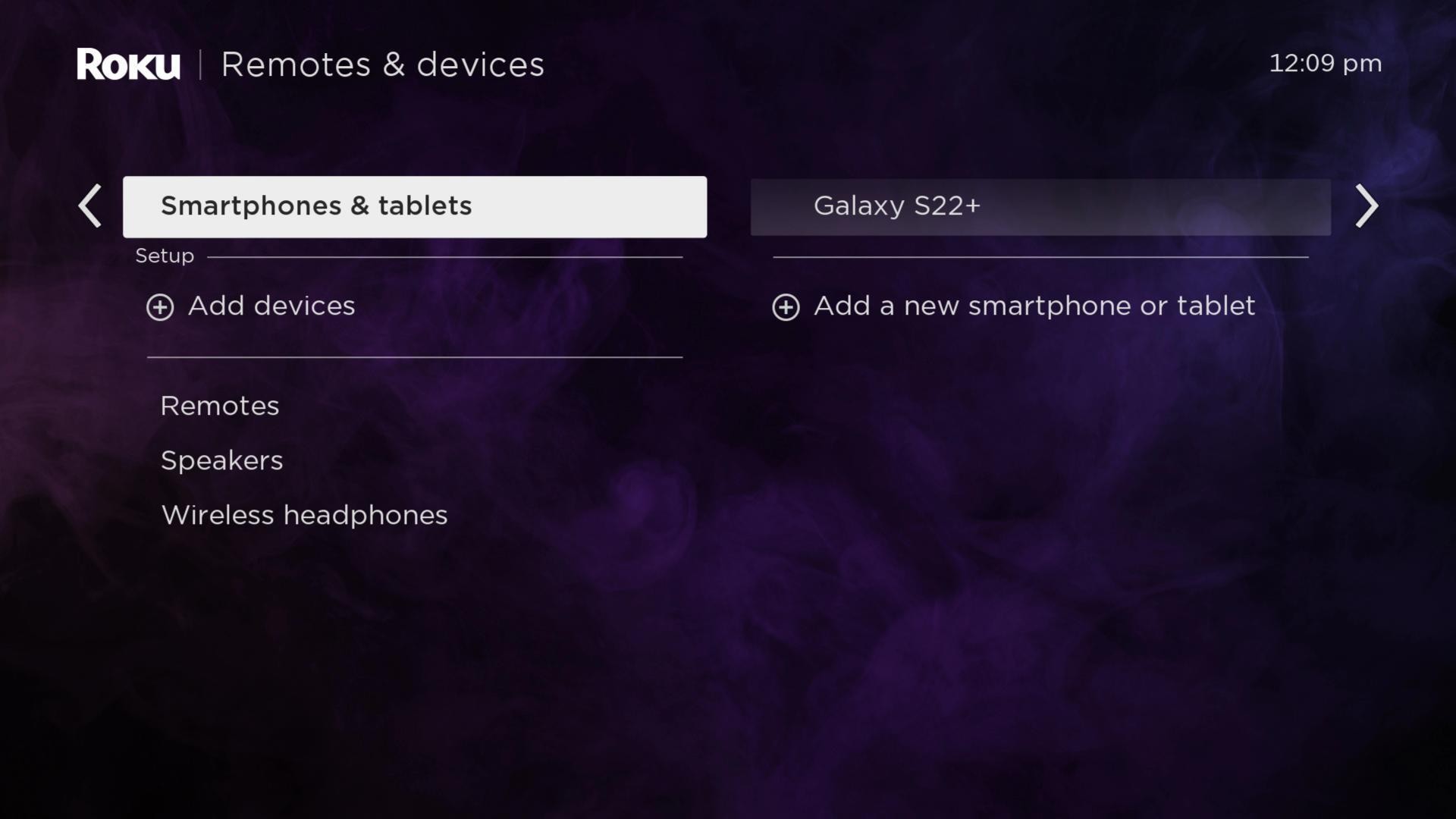
How to connect Bluetooth headphones to Roku with the mobile app
The Roku mobile app is the most reliable way to connect Bluetooth headphones to Roku when your player does not support direct Bluetooth pairing. In this setup, the Roku sends audio to the app, and your phone sends that audio to your Bluetooth headphones.
This method works well with Roku streaming sticks, Roku boxes, and many Roku TVs. Your phone and Roku device must be connected to the same Wi-Fi network.
Step 1: Pair your headphones with your phone
First, connect the headphones to your phone through the phone’s Bluetooth settings.
On an iPhone:
- Open Settings.
- Tap Bluetooth.
- Turn Bluetooth on.
- Put the headphones in pairing mode.
- Tap the headphone name when it appears.
On an Android phone:
- Open Settings.
- Select Connected devices or Bluetooth.
- Tap Pair new device.
- Put the headphones in pairing mode.
- Select the headphones from the list.
Play a short song or video on your phone to confirm that the headphones work before opening the Roku app.
Step 2: Install and open the Roku app
Download the official Roku mobile app from the Apple App Store or Google Play Store. Open the app and allow it to find devices on your local network.
If the app does not find your Roku:
• Confirm that your phone and Roku use the same Wi-Fi network.
• Turn off a phone VPN for a moment.
• Avoid guest Wi-Fi networks, which may block device discovery.
• Restart the Roku and reopen the app.
• Check that the Roku is powered on and connected to the internet.
Step 3: Select your Roku device
The Roku app may show more than one Roku device if you have several TVs or players at home. Tap the Roku you want to control.
This step matters. If you select the wrong Roku, the headphone icon may still appear, but the audio will come from another television. I have seen this happen in homes with a Roku TV in both the living room and bedroom.
Step 4: Turn on private listening
Look for the headphone icon in the Roku app. It usually appears on the remote control screen. Tap it to activate private listening.
You should hear the Roku program through your Bluetooth headphones. The TV may continue showing the video, but its speakers should become silent or lower in volume, depending on the Roku model and software version.
If you do not see the headphone icon, update the Roku app and Roku software. Some app screens also place private listening under the remote controls or devices menu.
Step 5: Adjust the sound
Use the volume buttons on your phone or the headphones. Keep the Roku TV volume low if the television speakers continue playing.
The Roku app may use your phone’s battery and data connection to manage private listening. The video still comes from the Roku, but the app handles the private audio stream. Keep the phone near you for the best result.
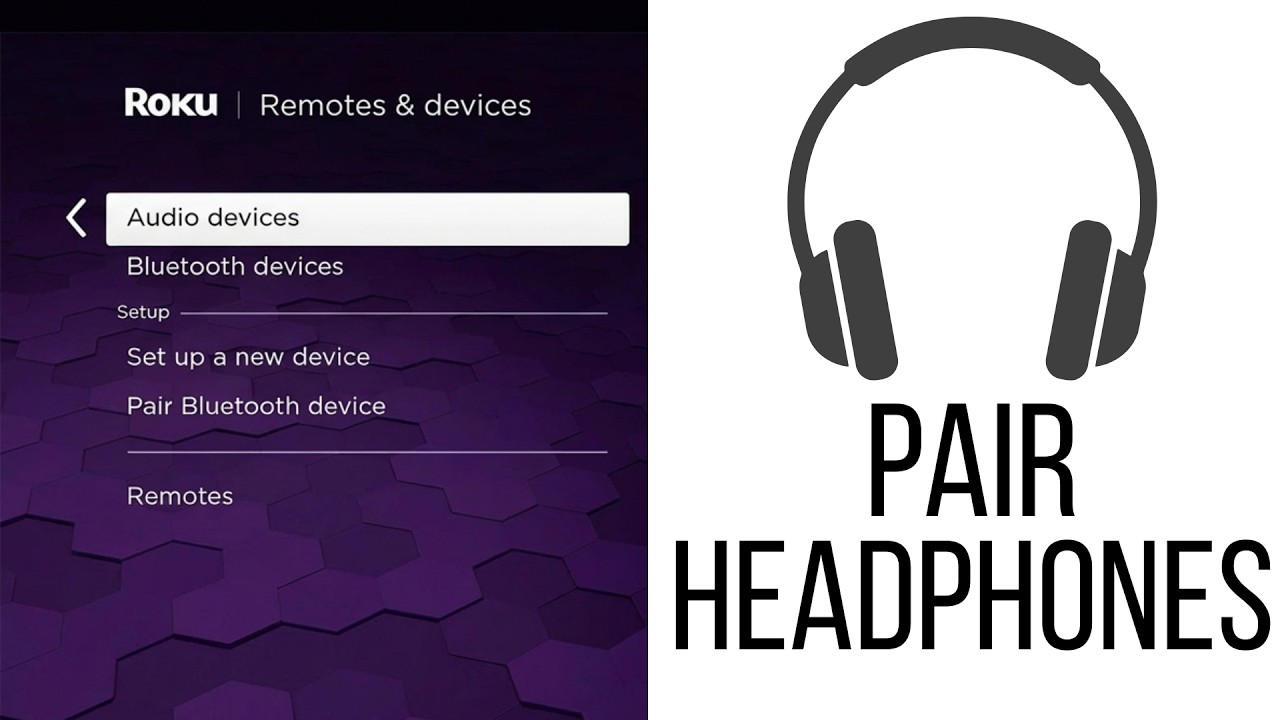
How to connect Bluetooth headphones to Roku TV directly
Some Roku TVs allow direct Bluetooth audio pairing. This is different from using the Roku app because the TV connects to the headphones itself.
The exact menu names can vary by Roku TV model, brand, and Roku OS version. Try these steps:
- Turn on your Bluetooth headphones.
- Put them into pairing mode.
- Press Home on the Roku remote.
- Open Settings.
- Select Remotes & devices.
- Choose Bluetooth devices.
- Select Pair new device.
- Choose Headphones or another matching device category.
- Select your headphones from the list.
- Wait for the pairing message.
After pairing, start a program and check the sound. Some TVs automatically switch audio to the headphones. Others may require you to select the headphones as the current audio output.
If your Roku TV has no Bluetooth devices option, it may not support direct Bluetooth audio. In that case, use the Roku mobile app or connect a Bluetooth transmitter to the TV’s audio output.
How to put Bluetooth headphones in pairing mode
Most headphones enter pairing mode when you hold the power or Bluetooth button for several seconds. A flashing blue, white, or red light often indicates pairing mode.
The steps differ by brand. If your headphones connect to your phone automatically, disconnect them first. A headphone set that is still linked to a phone, tablet, or laptop may not appear on the Roku TV.
How to disconnect Bluetooth headphones from Roku TV
To disconnect them temporarily:
- Open Settings.
- Select Remotes & devices.
- Choose Bluetooth devices.
- Select the headphones.
- Choose Disconnect or Remove device.
You can also turn off the headphones. Removing the device is useful if the TV keeps reconnecting to the wrong headphones.
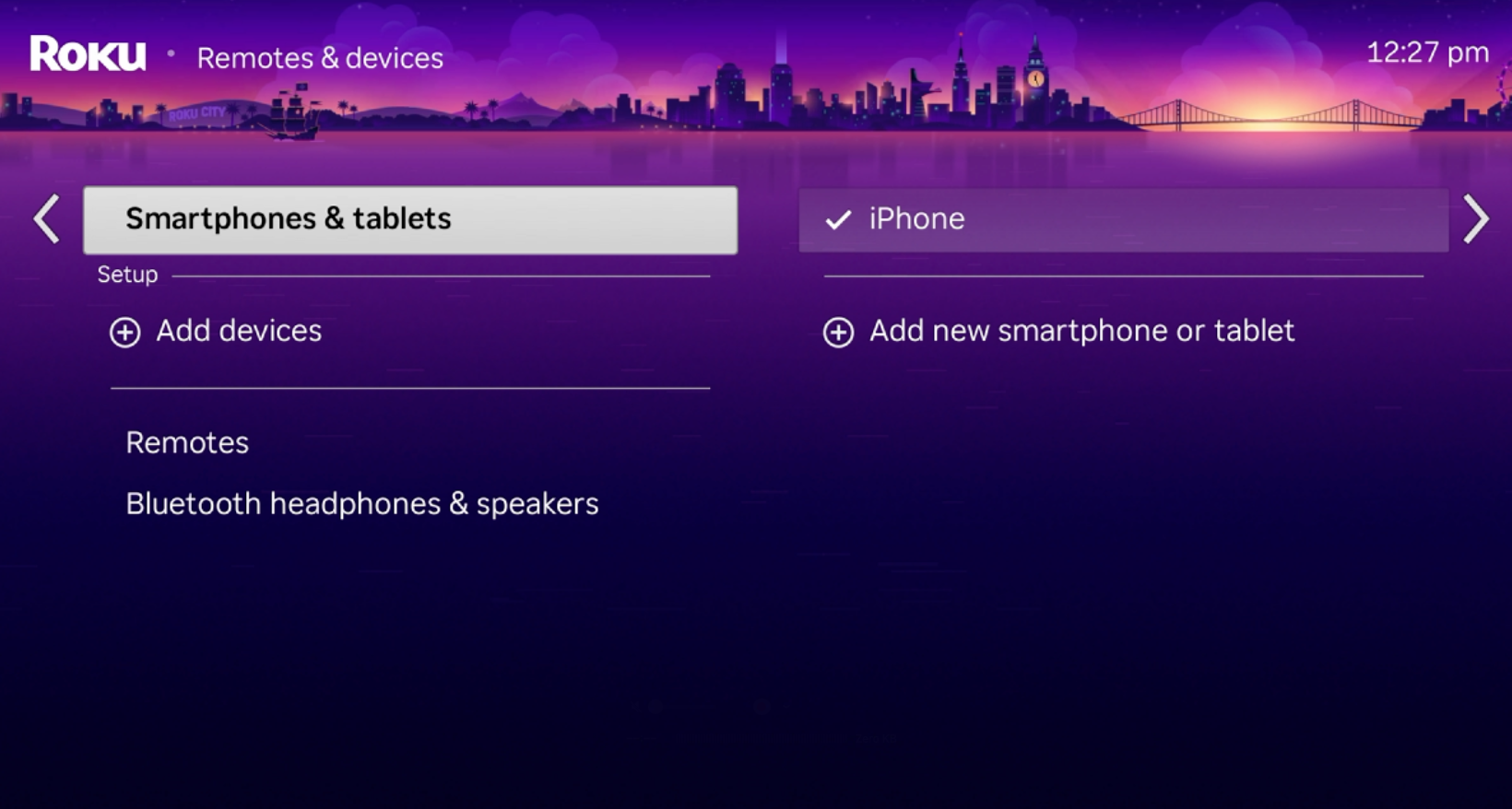
How to connect Bluetooth headphones to Roku with a Roku voice remote
Some Roku voice remotes include a 3.5-millimeter headphone jack. This option does not pair Bluetooth headphones directly with the remote. It works with wired headphones that use a standard plug.
To use it:
- Start a show on Roku.
- Plug wired headphones into the remote.
- Wait for private listening to activate.
- Adjust the volume with the remote buttons.
This method is simple and often has less audio delay than Bluetooth. It also avoids Wi-Fi problems because the sound travels through the remote.
Some Roku voice remotes support wireless audio features, but compatibility depends on the remote and Roku TV model. Do not assume that every Roku voice remote supports Bluetooth headphones. Check the remote model and the settings available on your television.
What to do if the remote headphone jack does not work
Try these fixes:
• Push the headphone plug in firmly.
• Test another pair of wired headphones.
• Restart the Roku device.
• Replace the remote batteries.
• Check the remote’s volume buttons.
• Confirm that the remote is paired with the Roku.
A damaged plug or worn headphone jack can cause one-sided sound, crackling, or no audio.

How to connect Bluetooth headphones to Roku using a Bluetooth transmitter
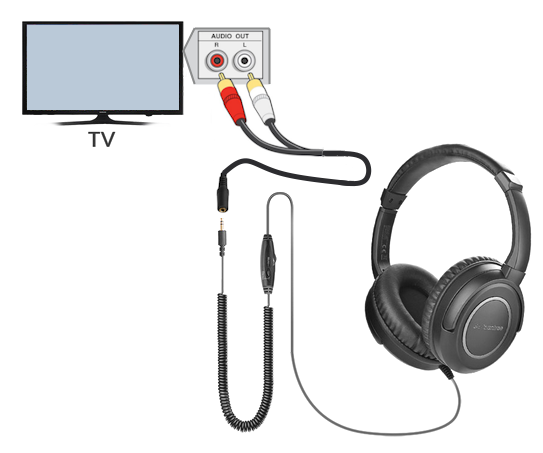
A Bluetooth transmitter can add wireless headphone support to a Roku TV that lacks built-in Bluetooth. The transmitter receives sound from the TV and sends it to your headphones.
This method is useful when the Roku app is inconvenient or when several people want different audio setups. However, the transmitter must connect to an audio output that works while the TV is playing Roku content.
Common connection options include:
• Optical audio output
• 3.5-millimeter headphone output
• RCA audio output
• HDMI ARC or eARC, if the transmitter supports it
Before buying one, check the TV’s available ports. A transmitter designed for optical audio will not connect directly to a 3.5-millimeter port without the right cable.
Pair the transmitter and headphones
The general process is:
- Connect the transmitter to the TV.
- Switch the transmitter to pairing mode.
- Put your Bluetooth headphones into pairing mode.
- Wait for the devices to connect.
- Select the correct audio output on the TV.
- Test the sound with a show or movie.
A Bluetooth transmitter can introduce a small delay. Choose a model with low-latency support if your headphones and TV also support that feature. Even then, the result can vary between brands.
Why Bluetooth headphones may have audio delay on Roku
Audio delay happens when the picture appears before the sound. It can make conversation look unnatural, especially during news programs, sports, and movies.
Bluetooth audio passes through several steps. Roku creates the sound, the transmitter or phone processes it, and the headphones decode it. Each step can add a small delay.
Try these solutions:
• Move the phone or transmitter closer to the headphones.
• Disconnect other Bluetooth devices.
• Restart the Roku, phone, and headphones.
• Use the Roku app instead of a third-party transmitter.
• Try headphones with low-latency Bluetooth support.
• Use wired headphones with a Roku voice remote.
• Check the TV’s audio delay or lip-sync setting.
Bluetooth version numbers alone do not guarantee perfect timing. The codec, phone, transmitter, headphones, and Roku software all affect performance. Wired headphones usually provide the most consistent timing.

Fix common Roku Bluetooth headphone problems
Even when you follow the right steps to connect Bluetooth headphones to Roku, small network or pairing issues can interfere. Start with simple checks before changing advanced settings.
Roku cannot find the headphones
Make sure the headphones are in pairing mode, not just powered on. Turn off Bluetooth on nearby phones and laptops so the headphones do not connect to another device.
Then restart both devices. If the headphones have a saved connection list, remove unused devices or reset the headphones according to the manufacturer’s instructions.
The Roku app does not show the headphone icon
Update the Roku app and check that the phone and Roku are on the same Wi-Fi network. Private listening may also be unavailable if the app is controlling a different Roku device.
Avoid using a guest network. Guest networks often prevent phones from communicating with streaming devices.
The headphones connect but there is no sound
Check the headphone volume first. Then confirm that private listening is active in the Roku app or that the Roku TV selected the headphones as its audio output.
Pause and restart the program. If that does not help, close the Roku app, restart the headphones, and reconnect them.
The TV speakers keep playing
Some Roku setups let you control private listening separately from TV speaker volume. Lower the TV volume or check the TV’s sound output menu.
With the Roku mobile app, tap the headphone icon again to turn private listening off and on. This often restores the correct audio route.
The sound cuts out
Keep your phone close to you when using the Roku app. For direct Bluetooth, reduce the distance between the TV and headphones and move away from busy wireless devices.
Microwaves, crowded Wi-Fi areas, walls, and other Bluetooth connections can affect wireless performance. A wired connection is the best fallback when stability matters.

Tips for better private listening on Roku
Private listening is helpful when someone is sleeping, working, or studying nearby. It is also useful for people who need a clearer volume level without raising the TV speakers for everyone else.
Use these practical tips:
• Charge the headphones before watching a long movie.
• Keep the Roku app open during private listening.
• Turn off automatic Bluetooth connections on nearby devices.
• Use a stable home Wi-Fi network.
• Keep the phone within a few feet of you.
• Update Roku OS and the Roku mobile app.
• Use one pair of headphones at a time unless your TV supports multiple Bluetooth connections.
• Test a short program before starting a live event or movie.
In my own troubleshooting experience, the most common mistake is pairing headphones with the phone but forgetting to activate private listening in the Roku app. Pairing alone does not send Roku audio to the headphones. The headphone icon is the step that completes the connection.
Another common mistake is choosing the wrong Roku device in the app. Give each Roku a clear name, such as “Living Room Roku” or “Bedroom TV.” This small change prevents many connection problems.

Bluetooth headphones versus wired headphones on Roku
Bluetooth headphones offer freedom of movement and no cable across the room. They are a good choice for late-night viewing and shared spaces.
Wired headphones can be more dependable. They usually have no wireless interference, need no battery, and often produce less audio delay.
Choose Bluetooth headphones when:
• You want to move around easily.
• Your Roku TV supports direct Bluetooth pairing.
• You already use the Roku app for remote control.
• You want a clean, cable-free setup.
Choose wired headphones when:
• You need the lowest possible delay.
• Your Roku remote has a headphone jack.
• Your Wi-Fi network is unreliable.
• You do not want to charge another device.
The best option depends on your room, equipment, and comfort. There is no single headphone method that works perfectly for every Roku setup.

Roku Bluetooth headphone limitations to know
Roku does not treat every streaming device as a general Bluetooth audio receiver. A Roku player may support Bluetooth for certain functions while still lacking direct Bluetooth headphone pairing.
The Roku mobile app is also not the same as a universal Bluetooth adapter. It depends on a local network connection, app support, and a compatible Roku device.
Other limitations include:
• Some Roku TVs support Bluetooth headphones only on certain software versions.
• Bluetooth connection limits vary by TV and headphone model.
• Audio delay may occur with some headphones.
• Private listening may use extra phone battery.
• Multiple listeners may require a compatible TV or separate setup.
• A Bluetooth transmitter may not work with every TV audio output.
Roku’s official support information and your TV manufacturer’s manual are the most reliable places to confirm compatibility. Menu names can change after software updates, so instructions may look slightly different on your screen.
Frequently Asked Questions
Can I connect Bluetooth headphones directly to Roku?
You can connect Bluetooth headphones directly to some Roku TVs that include Bluetooth audio support. If your Roku TV does not show Bluetooth options, use the Roku mobile app for private listening.
How do I connect Bluetooth headphones to Roku without the app?
Use a Roku TV with built-in Bluetooth support or connect a Bluetooth transmitter to the TV’s audio output. A Roku voice remote with a headphone jack can also work, but it requires wired headphones.
Why will my Bluetooth headphones not connect to Roku?
The headphones may still be connected to another device, or they may not be in pairing mode. Restart both devices, disconnect nearby Bluetooth connections, and check whether your Roku model supports direct Bluetooth audio.
Can I use AirPods with Roku?
Yes, AirPods can work through the Roku mobile app when they are paired with your iPhone or Android phone. They may also work with a compatible Roku TV that supports direct Bluetooth pairing.
Can two Bluetooth headphones connect to Roku at the same time?
Most Roku setups support one private listening connection at a time. Some newer Roku TVs may support more than one Bluetooth device, but the exact limit depends on the model and software.
How can I reduce Bluetooth audio delay on Roku?
Keep the headphones near the Roku or phone, restart the connection, and use low-latency headphones when possible. Wired headphones connected to a compatible Roku voice remote usually provide the best timing.
Does Roku support Bluetooth headphones without Wi-Fi?
Direct Bluetooth pairing on a compatible Roku TV may not need the Roku app, but the Roku TV still needs its normal network connection for streaming. App-based private listening requires the phone and Roku to communicate over the same local Wi-Fi network.
Conclusion
The easiest way to connect Bluetooth headphones to Roku is usually the Roku mobile app. Pair the headphones with your phone, select the correct Roku device, and tap the headphone icon to start private listening.
If you own a compatible Roku TV, direct Bluetooth pairing may be even simpler. For the most stable sound and lowest delay, consider wired headphones through a Roku voice remote or a suitable Bluetooth transmitter.
Check your Roku model, update the software, and test the setup before settling in for a movie. Try the method that matches your equipment, then explore Roku’s support resources or share your experience in the comments.
