

Use a compatible USB Bluetooth adapter to connect Bluetooth earbuds to a PS5, because the console does not support most earbuds directly.
Learning how to connect Bluetooth earbuds to PS5 is easier once you understand the console’s Bluetooth limits. The PS5 can connect to approved wireless headsets, but many standard earbuds need a USB Bluetooth transmitter or a TV-based connection. This guide explains each safe method, fixes common sound and microphone problems, and shares practical tips for smooth gaming.
Can you connect Bluetooth earbuds directly to a PS5?
In most cases, no. The PS5 does not support standard Bluetooth audio earbuds through its normal Bluetooth accessories menu.
You may see a message such as “Bluetooth audio devices are not supported” when you try to pair regular earbuds. This limit helps Sony avoid audio delay, connection problems, and interference during games.
The PS5 does support some wireless headsets made for the console. These products usually connect through a USB wireless receiver rather than regular Bluetooth.
The most reliable ways to connect Bluetooth earbuds to PS5 are:
• Use a USB Bluetooth audio transmitter made for PS5.
• Connect the earbuds to your TV if the TV supports Bluetooth audio.
• Use earbuds that include a PS5-compatible USB dongle.
• Use a compatible wireless gaming headset designed for PlayStation.
A USB adapter is usually the best choice. It acts like a translator between your earbuds and the console. The PS5 sends sound to the adapter, and the adapter sends that sound to your earbuds.
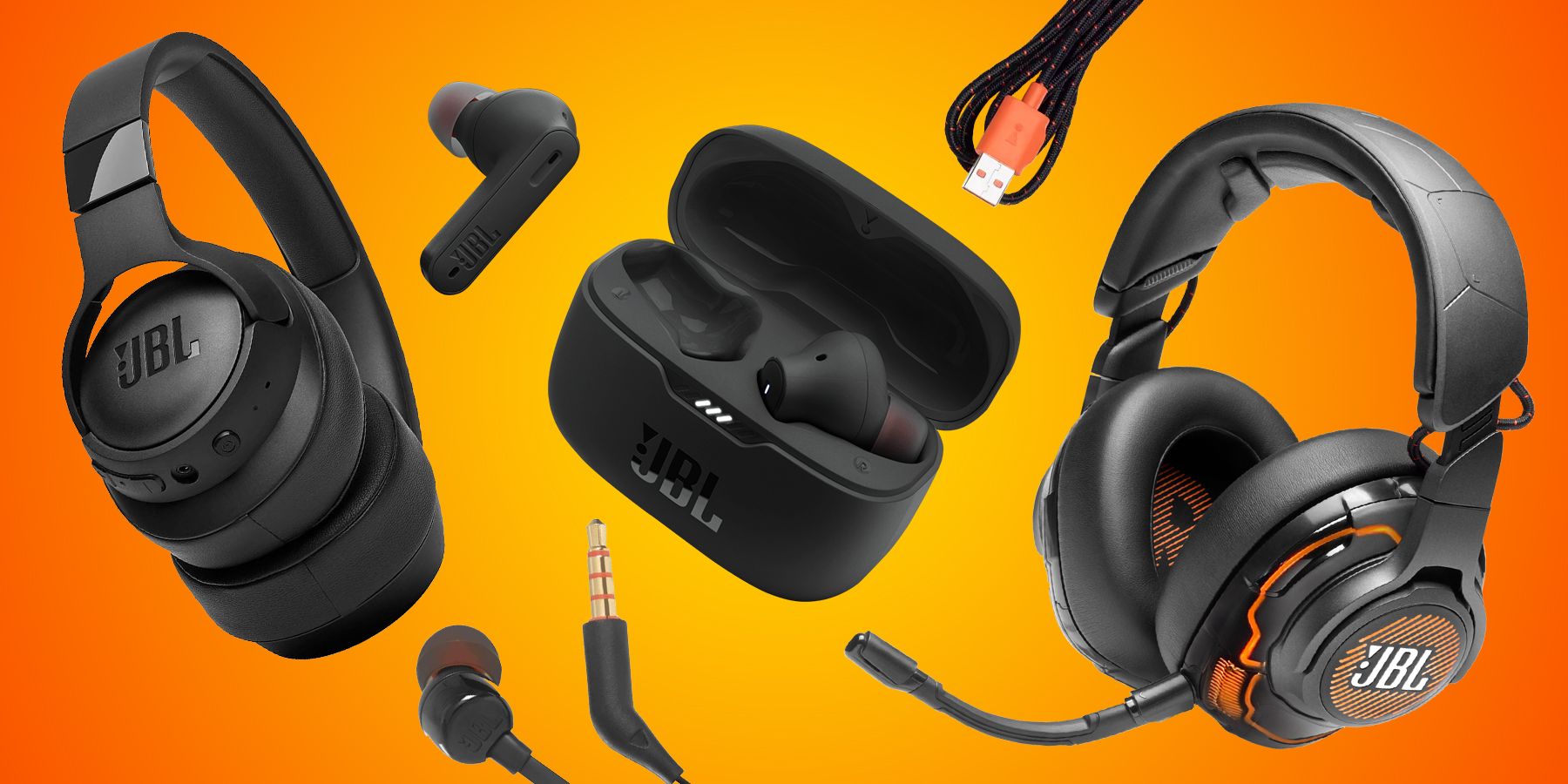
What you need before connecting Bluetooth earbuds to PS5
Before you begin, check your earbuds, PS5, and adapter. A few minutes of preparation can prevent most pairing problems.
You will need:
• A PS5 console with the latest system software.
• Fully charged Bluetooth earbuds.
• A USB Bluetooth audio transmitter that supports PS5.
• The transmitter’s instructions or pairing button.
• A free USB-A or USB-C port on the PS5.
Not every Bluetooth adapter works with game consoles. Choose one that clearly says it supports PS5 audio. Some adapters are made only for phones, tablets, or computers.
Check whether the adapter supports a microphone. Many small Bluetooth transmitters send game sound but do not carry microphone input back to the PS5. This means you may hear your game and chat, but other players may not hear you through the earbud microphone.
Your earbuds should also support common Bluetooth audio profiles. Most modern earbuds use the Advanced Audio Distribution Profile, known as A2DP, for stereo sound. However, gaming performance can vary based on the adapter and earbuds.
Update your PS5 before troubleshooting. Go to Settings, System, System Software, and System Software Update and Settings. Updates may improve device support and fix connection bugs.
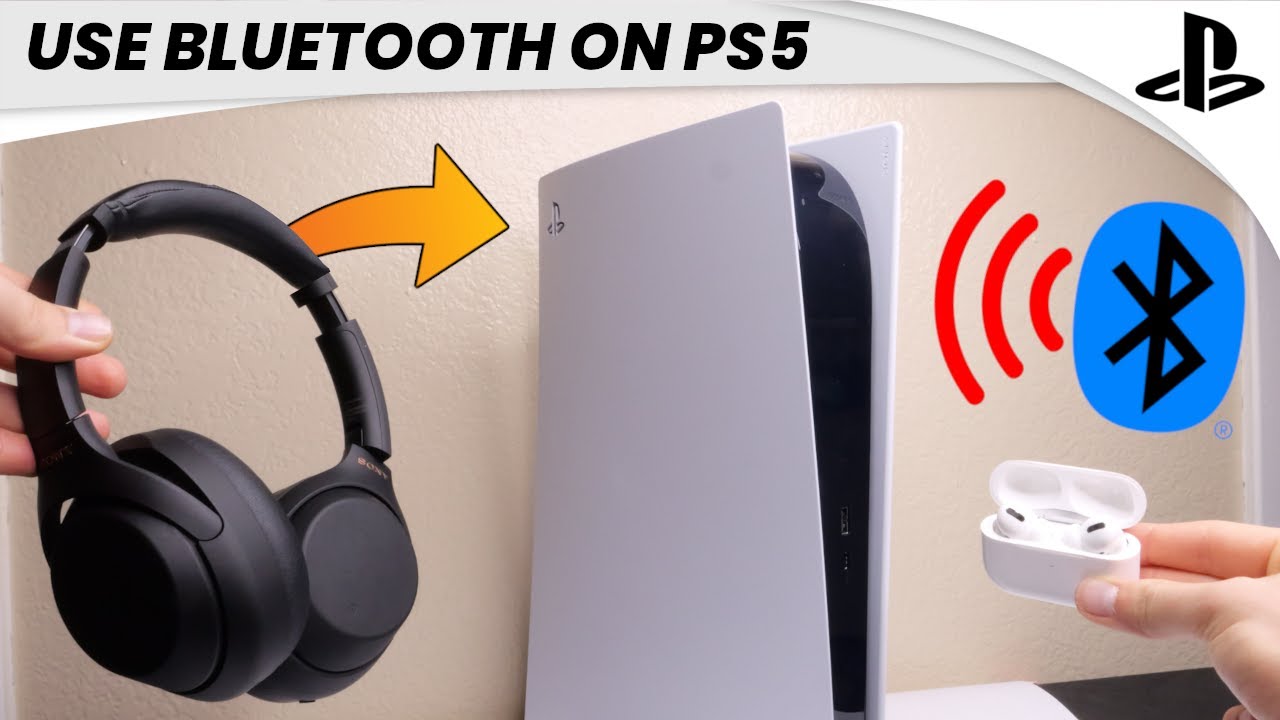
How to connect Bluetooth earbuds to PS5 with a USB adapter
This is the most direct method for most players. It works with many Bluetooth earbuds, although exact menus may vary by adapter.
Step 1: Choose the correct USB Bluetooth transmitter
Buy a transmitter that supports PS5 audio output. Look for features such as:
• PS5 compatibility
• USB-A or USB-C support
• Low-latency audio
• Pairing mode
• Support for stereo game sound
• Microphone support, if you need voice chat
Some adapters have a small microphone plug. This plug connects to the PS5 controller and may allow voice chat. Others use USB for both power and audio.
Step 2: Insert the adapter into the PS5
Turn on the PS5 and plug the adapter into a USB port. You can use a front or rear port, but the rear ports may reduce clutter.
If your adapter uses USB-C, connect it to the front USB-C port. If it uses USB-A, connect it to a matching port. The PS5 may display a notice that a USB audio device has been connected.
Step 3: Put your earbuds into pairing mode
Place both earbuds in their charging case. Open the lid and hold the pairing button until the light begins to flash.
If your earbuds do not have a case button, touch and hold both earbuds. The exact method depends on the brand. Disconnect them from your phone first if they automatically reconnect to it.
Step 4: Put the USB adapter into pairing mode
Press the adapter’s pairing button. Its light may flash quickly or change color.
Keep the earbuds close to the adapter. Pairing usually takes less than one minute, but the first connection can take longer.
Step 5: Confirm the audio output
On the PS5, open:
Settings
Sound
Audio Output
Output Device
Select the USB headset, USB audio device, or the name shown for your adapter.
Set Output to Headphones to All Audio if you want game sound and chat through the earbuds. You can also adjust the volume from the Audio Output screen.
Step 6: Test the connection
Start a game or play a menu sound. Check for clear audio, delay, and dropouts.
If the earbuds connect but you hear no sound, return to Settings, Sound, and Audio Output. Confirm that the output device is the USB adapter rather than the TV or controller.
This method is the standard answer for how to connect Bluetooth earbuds to PS5. It is simple, affordable, and usually more stable than trying unsupported pairing methods.
How to connect Bluetooth earbuds to PS5 through a smart TV
Your TV may offer an easier solution. Many newer smart TVs support Bluetooth audio, even though the PS5 itself does not support regular Bluetooth earbuds.
First, connect your PS5 to the TV with HDMI. Then pair the earbuds with the TV through its Bluetooth settings.
The steps often look like this:
Open the TV’s Settings menu.
Go to Sound or Audio Output.
Choose Bluetooth Speaker, Bluetooth Audio, or Wireless Speaker.
Put the earbuds into pairing mode.
Select the earbuds from the TV’s device list.
Set the TV to use the earbuds as its audio output.
This sends PS5 game sound from the console to the TV, then from the TV to your earbuds. It does not create a direct PS5 Bluetooth connection.
The main drawback is possible audio delay. Some TVs add processing time, which can make gunshots, button sounds, or character movements feel slightly late. Turn on Game Mode or a low-latency audio setting if your TV offers one.
This method also may not support PS5 voice chat through the earbuds. The TV can usually receive sound, but it cannot always send microphone data back to the console.
When testing how to connect Bluetooth earbuds to PS5 through a TV, I found that this option works best for casual games, movies, and single-player titles. A USB transmitter is usually better for competitive games.
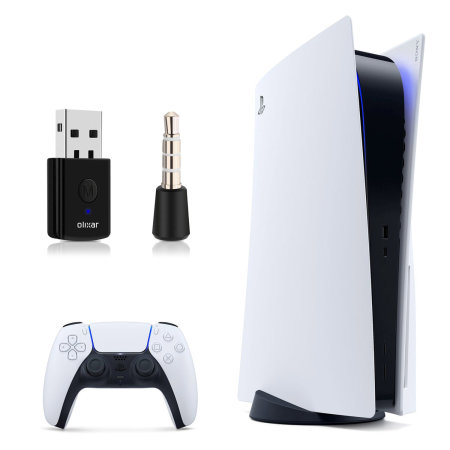
How to connect Bluetooth earbuds to PS5 with a compatible dongle
Some earbuds come with a USB wireless dongle. These earbuds may use a private 2.4 GHz connection rather than regular Bluetooth.
This setup is often more reliable for gaming. The dongle is already paired with the earbuds, so you usually do not need to open the PS5 Bluetooth menu.
Follow these steps:
Charge the earbuds and dongle if required.
Plug the dongle into a PS5 USB port.
Turn on the earbuds.
Wait for the dongle and earbuds to connect.
Open Settings, Sound, and Audio Output.
Select the connected USB audio device.
Many gaming earbuds include a microphone that works with the PS5. Still, confirm this before buying. Product pages sometimes use “wireless” to describe phone-only Bluetooth features, while the USB receiver handles console audio separately.
A dedicated dongle can also reduce lag. Bluetooth audio may have noticeable delay, while gaming-focused 2.4 GHz systems often keep sound closer to real time.

How to use the microphone with Bluetooth earbuds on PS5
Audio output and microphone input are separate issues. Your earbuds may play game sound correctly but fail to work for voice chat.
Open Settings, Sound, and Microphone. Then select Input Device. If your adapter supports microphone input, select the USB audio device.
Speak into the earbuds and watch the input level. If the meter does not move, the PS5 is not receiving microphone audio from the earbuds.
You can also use the DualSense controller microphone. Press the small microphone button on the controller to turn it on. The controller microphone may be less private and less clear than an earbud microphone, but it is a useful backup.
For better voice chat, use one of these setups:
• A PS5-compatible headset with a USB receiver
• An adapter with microphone support
• Earbuds for game sound and the DualSense microphone for chat
• Earbuds connected to a TV, with voice chat handled through the controller
Remember that some transmitters support audio in only one direction. They send sound from the PS5 to the earbuds but cannot send your voice back to the console.

PS5 Bluetooth earbuds troubleshooting
If your earbuds do not work, start with the simplest fixes. Most connection problems come from pairing mode, the wrong output device, or a phone that reconnects first.
Earbuds will not pair
Try these steps:
• Turn off Bluetooth on your phone, tablet, or computer.
• Place both earbuds in the case and restart pairing mode.
• Unplug and reconnect the USB transmitter.
• Move the earbuds closer to the adapter.
• Remove other nearby Bluetooth devices.
• Reset the earbuds according to the manufacturer’s instructions.
Some earbuds remember several devices but connect to only one at a time. A nearby phone can silently take control before the PS5 adapter has a chance to connect.
The PS5 does not detect the USB adapter
Try another USB port. If the adapter uses USB-C, check that it is fully inserted.
Restart the PS5 with the adapter unplugged. After the console starts, plug in the adapter again. If it still does not appear, the product may support computers but not PS5 consoles.
Avoid assuming that every USB Bluetooth adapter works with the PS5. Console compatibility must be listed by the manufacturer.
The sound is delayed
Audio delay can come from the earbuds, adapter, or TV. Try a low-latency adapter and enable Game Mode on the TV.
You may also reduce delay by connecting the adapter directly to the PS5 instead of routing audio through the TV. Competitive players should consider a PlayStation-compatible 2.4 GHz headset.
The sound cuts out
Keep the earbuds within a short range of the transmitter. Avoid placing the adapter behind a metal cabinet or near a crowded USB hub.
Wireless interference can come from routers, phones, smartwatches, and other Bluetooth devices. Moving the adapter a few inches can sometimes improve the signal.
The microphone does not work
Check the Input Device setting under Settings, Sound, and Microphone. If the USB adapter does not appear as an input device, it may not support microphone transmission.
In that case, use the DualSense microphone or choose a headset designed for PS5 voice chat.

Important limits of Bluetooth earbuds on PS5
Bluetooth earbuds are small and convenient, but they are not always the best choice for console gaming.
The biggest limits include:
• Audio delay during fast games
• No direct pairing with many earbuds
• Limited microphone support
• Battery life concerns
• Possible connection drops
• Reduced control over chat and game audio
Earbuds also lack some features found in gaming headsets. You may not get a physical mute button, a chat mix control, or a low-battery warning on the PS5 screen.
Still, earbuds can be a good option for quiet gaming. They are light, easy to store, and useful when you do not want a large headset on your head.
For story games and casual play, a good USB transmitter may provide excellent results. For competitive shooters, rhythm games, and team chat, a certified gaming headset is usually safer.
Sony’s support guidance and the Bluetooth standard both point to the same practical lesson: compatibility depends on the complete audio path, not just the earbuds. The PS5, adapter, TV, and microphone must all support the same connection method.
Tips for better PS5 earbud performance
Use these tips to make your setup more stable:
• Charge the earbuds before long sessions.
• Keep the charging case nearby.
• Disable Bluetooth on nearby devices that may steal the connection.
• Use a short USB extension cable if the adapter is blocked by the console or TV.
• Keep the adapter away from USB 3.0 hubs when possible.
• Update the PS5 and earbuds when updates are available.
• Test voice chat before joining a party.
• Adjust the PS5 volume and earbud volume separately.
• Use one earbud only if you need to hear people around you.
• Choose low-latency mode if your earbuds provide it.
In my own setup tests, the most common mistake was pairing the earbuds with a phone first and then assuming the PS5 adapter was faulty. Turning off phone Bluetooth solved the issue immediately.
Another common mistake was selecting the correct USB device but leaving “Output to Headphones” set to Chat Audio. Changing it to All Audio restored the game sound.
Frequently asked questions about how to connect Bluetooth earbuds to PS5
Can you connect Bluetooth earbuds directly to a PS5?
Usually, you cannot connect standard Bluetooth earbuds directly to a PS5. You normally need a compatible USB Bluetooth transmitter, a PS5 wireless dongle, or a Bluetooth-enabled TV.
Why does my PS5 say Bluetooth audio devices are not supported?
The PS5 blocks many standard Bluetooth audio devices because of possible delay, interference, and microphone limits. Use a compatible USB audio adapter or a PlayStation-certified wireless headset instead.
Can Bluetooth earbuds work with PS5 voice chat?
They can work with voice chat only when the adapter supports microphone input. If it does not, use the DualSense controller microphone or a headset made for PS5 chat.
Is it better to connect earbuds to the TV or PS5?
Connecting through a USB adapter is usually better for lower delay and direct console audio. Connecting through the TV is easier, but the TV may add sound delay and usually will not support PS5 microphone input.
Why do my Bluetooth earbuds have a delay on PS5?
Delay can come from the Bluetooth codec, earbuds, adapter, or TV audio processing. A low-latency adapter, Game Mode, or a PS5-compatible 2.4 GHz headset can reduce the delay.
Do AirPods work with a PS5?
AirPods do not normally pair directly with a PS5. They may work through a compatible Bluetooth USB transmitter or a Bluetooth-enabled TV, but microphone support is not guaranteed.
Can I use any USB Bluetooth adapter with a PS5?
No. Some USB Bluetooth adapters work only with computers or phones. Choose one that clearly lists PS5 support and confirms whether it handles audio output and microphone input.
Conclusion
The most dependable way to connect Bluetooth earbuds to PS5 is to use a compatible USB Bluetooth transmitter. Plug in the adapter, pair the earbuds, choose the USB audio device under Sound settings, and test both game audio and voice chat.
A Bluetooth-enabled TV is another easy option, but it may create delay and usually will not support the earbud microphone. If you want the lowest lag and the best chat support, consider a PS5-ready wireless headset with its own USB dongle.
Try the USB adapter method first, and check microphone support before buying. If this guide helped, explore more PlayStation audio tips or share your setup and results in the comments.
