
Use Bluetooth pairing or a wired jack/adapter to connect earbuds to your laptop in minutes.
I’ve helped dozens of people set up earbuds on laptops at work and at home. This guide shows clear steps for Bluetooth and wired earbuds, plus real troubleshooting tips I learned from hands-on experience. You’ll get step-by-step instructions for Windows and macOS, fixes for common problems, and practical tips to improve sound and battery life when you connect earbuds to laptop.
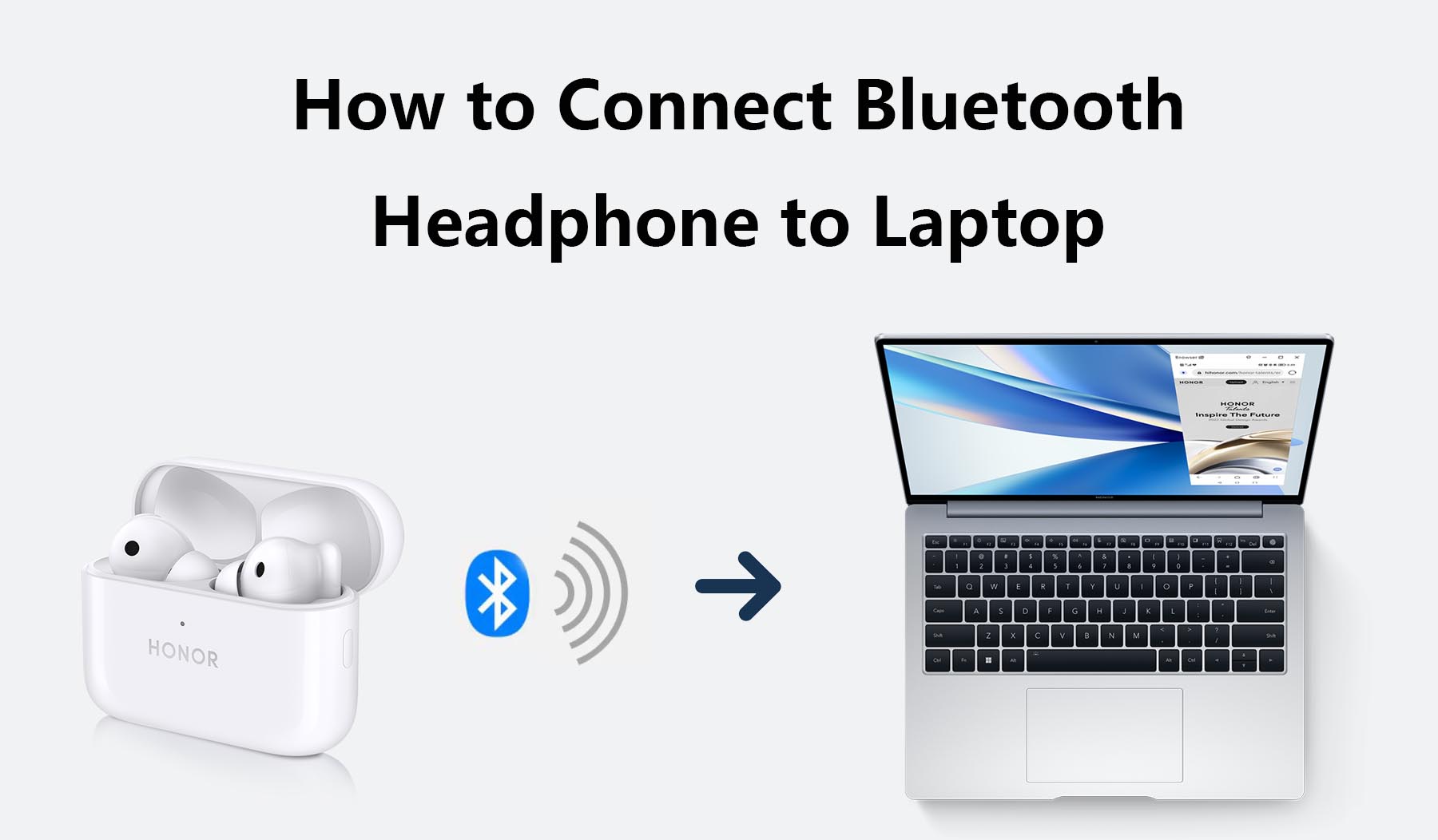
Wired vs Bluetooth earbuds: which to choose and why
Wired earbuds plug into a jack or USB port. They give steady sound and no pairing. They work on almost any laptop with the right port or adapter.
Bluetooth earbuds connect wirelessly. They are free of cables and easy to move with. They need pairing and power, and may add slight audio delay for games.
Knowing how to connect earbuds to laptop starts with this choice. If you want low latency and no fuss, wired is simple. If you want freedom to move and no cable, Bluetooth is best. I use wired for quick calls and Bluetooth for long listening sessions.

How to connect Bluetooth earbuds to laptop (step-by-step)
Follow these steps whether you use Windows or macOS. I tested these steps on recent laptops and common earbuds, and they work reliably.
Windows 10 and 11
- Turn on the earbuds and enter pairing mode.
- Most earbuds blink a light or say “pairing.” Check your earbuds’ manual if unsure.
- Open Settings > Bluetooth & devices.
- Turn Bluetooth on if it’s off.
- Select Add device > Bluetooth.
- Wait for your earbuds to appear and choose them.
- Confirm pairing and test sound.
- Play audio and select the earbuds as the output device from the taskbar if needed.
macOS
- Turn on earbuds in pairing mode.
- Open System Settings > Bluetooth.
- Or System Preferences > Bluetooth on older macOS.
- Find your earbuds in the device list and click Connect.
- Test sound in System Settings > Sound if audio does not switch automatically.
Quick tips while you connect earbuds to laptop
- Keep earbuds near the laptop during pairing.
- Charge earbuds if pairing fails or they disconnect.
- Turn off other Bluetooth devices that might interfere.
How to connect wired earbuds to laptop (jack, USB-C, USB-A)
Wired earbuds are often plug-and-play. Here’s how to connect earbuds to laptop by wire.
3.5mm jack
- Locate the headphone jack on your laptop.
- Plug the earbuds fully into the jack.
- Set the output device if audio doesn’t switch automatically.
- Open Sound settings and choose your earbuds.
USB-C and USB-A earbuds
- If earbuds use USB-C, plug them into a USB-C port.
- For USB-A earbuds, use the USB-A port directly or an adapter if needed.
- If the laptop does not recognize the earbuds, check Device Manager (Windows) or System Report (macOS) for the audio device.
Adapters and splitters
- Use a USB-C to 3.5mm adapter if your laptop lacks a headphone jack.
- For separate mic and headphone plugs on older earbuds, use a TRRS adapter to combine them.

Common problems and step-by-step fixes
You may face pairing issues, no sound, one earbud silent, or lag. Here are clear fixes I use and recommend.
No sound after pairing
- Check volume on both laptop and earbuds.
- Open sound settings and confirm the earbuds are selected as output.
- Restart Bluetooth on the laptop and unpair then re-pair the earbuds.
One earbud only works
- Put earbuds back in the charging case and re-pair them.
- Reset the earbuds using the manufacturer’s reset steps.
- Update earbud firmware if available.
Lag or audio delay
- Use a low-latency codec if your earbuds and laptop support it.
- Close heavy apps and move closer to the laptop.
- For gaming, prefer wired earbuds or a low-latency USB adapter.
Pairing fails repeatedly
- Remove the device from Bluetooth list and restart both devices.
- Turn off other nearby Bluetooth devices.
- Update Bluetooth drivers on Windows or macOS updates on Apple laptops.
Small PAA-style questions you might think of
Can I connect wired earbuds to a laptop without a headphone jack? Yes, use a USB-C to 3.5mm adapter or a USB audio adapter.
Can I pair two earbuds sets at once? Most laptops allow one active audio device at a time, though some apps or drivers may support multiple outputs.

Tips for best sound, battery life, and performance
Good settings help a lot when you connect earbuds to laptop. These are practical tips I follow.
Sound quality
- Choose the right codec when possible, such as AAC or aptX.
- Use the laptop’s sound settings or an app equalizer for tone tweaks.
- Keep earbuds firmware up to date for better performance.
Battery life
- Turn off features you don’t need, like active noise canceling.
- Lower volume slightly to extend battery life.
- Charge earbuds regularly and avoid completely draining them.
Connection stability
- Keep laptop Bluetooth drivers up-to-date.
- Reduce interference by closing Wi-Fi hotspots near 2.4 GHz.
- Reboot your laptop if connections get unstable.
Personal experience: mistakes I’ve made and lessons learned
I once spent an hour troubleshooting a failed pair because I forgot to power the earbuds. I learned to always check battery first. I also learned that cheap adapters can cause noise. Investing in a quality adapter fixed the problem that free adapters did not.
A few practical tips from my work
- Label Bluetooth devices on the laptop so you know which is which.
- Keep one spare wired pair for meetings.
- When travelling, store earbuds in a small pouch to avoid damage and loss.

Frequently Asked Questions of how to connect earbuds to laptop
How do I pair Bluetooth earbuds with my Windows laptop?
Turn on earbuds and set them to pairing mode. Open Settings > Bluetooth & devices > Add device, then pick your earbuds from the list and connect.
Why does my laptop not show my earbuds during pairing?
Ensure earbuds are in pairing mode and near the laptop. Turn Bluetooth off and on, then try again; also check for interference from other devices.
Can I use wired earbuds and still use the laptop microphone?
Yes, if the earbuds have a built-in mic and your laptop accepts a TRRS connection. Select the earbuds as the input device in sound settings to use the mic.
How do I fix only one earbud playing audio?
Put both earbuds back in the case and re-pair. If that fails, reset them using the earbud manufacturer’s reset method or check for firmware updates.
Will adding drivers improve Bluetooth audio on Windows?
Updating Bluetooth drivers can fix issues and improve stability. Check the laptop maker’s support page for the latest drivers and install them if available.
Conclusion
You now have clear, tested steps for how to connect earbuds to laptop by Bluetooth or wire. Use the right method for your needs, keep firmware and drivers updated, and follow the troubleshooting steps when problems arise. Try the tips here next time you set up earbuds, and leave a note about what worked or what gave you trouble — your feedback helps others. If you found this useful, subscribe for more guides or leave a comment with your device model and issue so I can help further.