
Check BIOS, load storage drivers, clean the disk, and use UEFI media.
If your SSD vanishes during setup, take a breath. I’ve installed Windows on hundreds of systems, from gaming rigs to thin laptops. In this guide on how to fix ssd not detected during windows installation, I’ll walk you through proven steps that work in the real world. We will cover BIOS tweaks, driver tricks, disk cleanup, and hardware checks so you can finish your install without guesswork. Read on to learn how to fix ssd not detected during windows installation the right way, the first time.

Understand the problem: what “not detected” really means
When Windows Setup says “We couldn’t find any drives,” it can mean a few things. The system firmware may not expose the SSD. The storage driver may be missing. Or the partition table may be corrupt. On rare days, the hardware is at fault.
Most cases are fixable in minutes. You will see how to fix ssd not detected during windows installation with simple checks, then go deeper if needed. These fixes work for both SATA and NVMe drives.

Quick checks before you dive into BIOS
Do these fast checks. They solve many installs on my bench.
- Unplug other drives. Leave only the target SSD. This avoids confusion in Setup.
- Try another USB port for your installer. A rear USB 2.0 port is a safe bet on desktops.
- Reseat the SSD. Push the M.2 stick in flat. Use the standoff and screw. For SATA, reseat both power and data cables.
- Try a new SATA cable and a new power lead. Cables fail more often than you think.
- Confirm the SSD shows in the firmware info screen. If it is not listed there, Windows cannot see it yet.
These small moves often solve how to fix ssd not detected during windows installation without any advanced work.

Set BIOS/UEFI settings the right way
Wrong firmware settings are the top reason Windows does not see a brand new SSD.
- Use UEFI boot mode. Turn off Legacy or CSM. Windows 10 and 11 want UEFI for best results.
- Set storage to AHCI if you are not using RAID. AHCI is the safe default for most users.
- Intel VMD on newer laptops and desktops can hide NVMe drives. Either load the VMD driver in Setup or turn VMD off. Pick one and stick with it.
- Check M.2 slot sharing. Some boards disable SATA ports when an M.2 NVMe is used. Move the SATA cable to another port or change which M.2 slot you use.
- Turn off Secure Boot only if you must. It should not block drive detection. But if you see odd behavior, test with it off.
After any changes, save and reboot. This step alone often nails how to fix ssd not detected during windows installation.
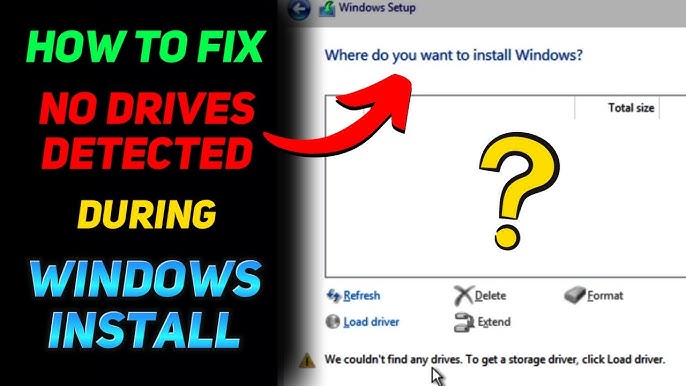
Load storage drivers during Windows Setup
Windows 10 and 11 include NVMe and AHCI drivers. Yet some systems still need vendor drivers, especially with Intel VMD or RAID.
- At the “Where do you want to install Windows?” screen, click Load driver.
- For Intel systems with VMD or RAID, use the Intel RST VMD F6 drivers. Put them on the same USB stick. Browse to them and load.
- For AMD RAID, load the AMD RAIDXpert2 drivers.
- For laptops, the safest choice is the storage driver from the laptop support page.
Once loaded, click Refresh. The SSD should appear. This driver step is a key move in how to fix ssd not detected during windows installation on modern laptops.

Clean and prep the disk with DiskPart
If the disk has a broken or foreign partition table, Setup may hide it. Cleaning the disk fixes that.
- On the disk selection screen, press Shift + F10 to open Command Prompt.
- Type these commands:
- diskpart
- list disk
- select disk X (replace X with your SSD number)
- clean
- convert gpt
- exit
- Close the window. Click Refresh in Setup.
This wipes all data on that drive. Make sure you picked the right disk. Then try the install again. This step often ends the chase for how to fix ssd not detected during windows installation.

Hardware checks that people overlook
Hardware is simple. But small details matter.
- Power and data on SATA. Use a known good SATA cable. Try another power plug from the PSU.
- M.2 form factor. Make sure the drive length matches the standoff. Do not bend the stick. It must sit flat.
- Slot and lanes. Some motherboards have one CPU-linked NVMe slot and one chipset-linked slot. Try both.
- PCIe adapter cards. Not all older boards can boot from adapter cards. Detection can also fail with outdated firmware.
- Test the SSD in another machine or with a USB NVMe enclosure. If it fails there too, the drive may be bad.
These checks ground your plan for how to fix ssd not detected during windows installation. You rule out the simple, then move on.

Update firmware, BIOS, and check compatibility
Firmware is the silent partner in every install.
- Update the motherboard BIOS or UEFI to the latest version. Many updates improve NVMe support and stability.
- Update SSD firmware if the vendor offers a bootable tool. Firmware can fix detection bugs or power state issues.
- Check QVL lists from the board vendor. Some boards have quirks with certain SSDs.
- On very old systems, NVMe boot may not be supported. You can install Windows to the drive, but the board may not boot from it. In that case, use a SATA SSD or a newer board.
Compatibility steps like these are a smart part of how to fix ssd not detected during windows installation when nothing else clicks.
Create the right Windows install media
Bad media waste hours. Build it right from the start.
- Use the official Media Creation Tool for Windows 10 or 11.
- If you use Rufus, pick GPT and UEFI. Use FAT32 for best support with Secure Boot. Rufus can split large files when needed.
- Avoid old ISOs. Newer ISOs include better drivers and fixes.
- Try a different USB drive if errors persist.
Good media makes how to fix ssd not detected during windows installation much faster. A fresh ISO saves time and stress.

Keep your data safe while you fix the issue
Many fixes are safe. Some will erase the disk. Plan first.
- Back up any data before you wipe or clean a disk.
- Unplug backup drives during install to avoid mistakes.
- Label your drives in your case or on your desk to avoid mix-ups.
Good habits turn how to fix ssd not detected during windows installation into a clean, low-risk job.
Step-by-step checklist you can follow now
Use this path. It has worked for me in countless builds.
- Confirm the SSD appears in BIOS. If not, reseat and switch ports or slots.
- Set UEFI mode. Set AHCI unless you use RAID or VMD.
- Build fresh Windows media. Use GPT and UEFI with Rufus or the official tool.
- Start Setup and click Load driver if needed. Add Intel VMD or AMD RAID drivers, then Refresh.
- If still missing, open Command Prompt. Use DiskPart to clean and convert to GPT.
- Update BIOS and SSD firmware. Reboot and retry.
- Test the SSD in another system. Replace it if it fails again.
Follow this flow, and you will master how to fix ssd not detected during windows installation without guesswork.
Pro tips from the field
Here are lessons that saved me hours in client jobs.
- Do not switch from RAID to AHCI after Windows is installed. Change it before the install.
- Some laptops hide the VMD toggle. If you cannot find it, load the VMD driver in Setup.
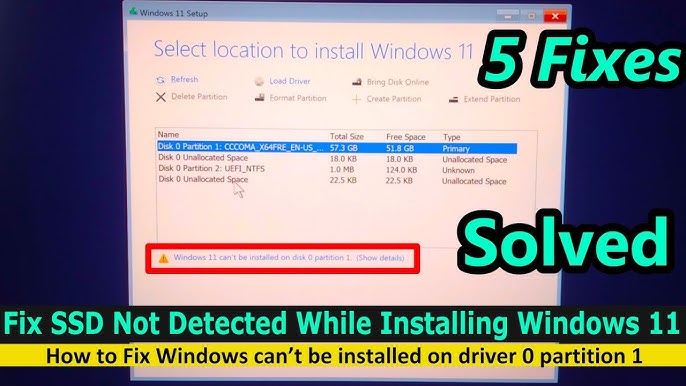
- If Windows sees the SSD but cannot install, delete all partitions on that SSD in the installer. Then let Setup create new ones.
- If your board has two M.2 slots, the top one near the CPU is often the fastest and most compatible.
- Use the newest Intel RST VMD package for 11th–14th Gen systems. Old packages may not work.
These small edges make how to fix ssd not detected during windows installation smoother and faster.
Frequently Asked Questions
Why does my SSD not show in BIOS but shows in Windows Setup?
If BIOS does not show it, the hardware link is broken or the slot is disabled. Reseat the drive, check cables, try another slot, and update BIOS.
Do I need drivers for NVMe on Windows 10 or 11?
Most NVMe drives work without extra drivers. You need drivers if using Intel VMD, Intel RAID, or AMD RAID.
Should I use GPT or MBR for a new Windows install?
Use GPT with UEFI. It is modern, supports larger drives, and avoids old boot limits.
Will DiskPart clean erase my files?
Yes, clean removes all partitions and data. Back up first, then run clean and convert gpt.
Can Secure Boot or TPM block SSD detection?
Not usually. They affect boot policy, not drive detection. If unsure, disable Secure Boot while testing, then enable it later.
Conclusion
You now have a clear, proven playbook. Start with simple checks, set UEFI and AHCI, load the right driver, and clean the disk when needed. When that fails, update firmware, switch slots, or test the SSD elsewhere. With this plan, how to fix ssd not detected during windows installation becomes a steady process, not a guessing game.
Put these steps to work today and finish your install with confidence. If this helped, subscribe for more hands-on PC fixes, or drop a comment with your system specs and what solved it for you.