

Open the charging case, press and hold the setup button, then select your earbuds from your device’s Bluetooth menu.
Knowing how to put earbuds into pairing mode makes wireless audio much easier. Most earbuds use a simple button press, touch control, or automatic setup process, but the exact steps can vary by brand and model. This guide explains the safest method for popular earbuds, what the indicator lights mean, and how to fix pairing problems without wasting time.
What pairing mode means
Pairing mode is a special state that lets your earbuds connect with a new phone, tablet, computer, or other Bluetooth device. When pairing mode is active, the earbuds send out a wireless signal that nearby devices can detect.
Most earbuds show pairing mode with a flashing white, blue, or red-and-blue light. Some models also play a sound or say “pairing.” Think of pairing mode as your earbuds raising their hand and saying, “I am ready to connect.”
Bluetooth pairing normally happens only during setup. After the first connection, your earbuds usually reconnect to the same device when you open the case or turn them on.

How to put earbuds into pairing mode
Before you begin, charge both earbuds and place them close to the device you want to connect. Keep other nearby phones and tablets from trying to connect at the same time.
Follow these steps:
- Take both earbuds out of the charging case.
- Turn on Bluetooth on your phone, tablet, or computer.
- Press and hold the button on one earbud, both earbuds, or the charging case.
- Continue holding for about three to five seconds.
- Watch for a flashing indicator light or listen for a pairing sound.
- Open the Bluetooth settings on your device.
- Select the name of your earbuds.
- Tap Pair, Connect, or Confirm if your device asks.
If the earbuds do not appear, place them back in the case and try again. Many models enter pairing mode only when they are not already connected to another device.
Using the charging case button
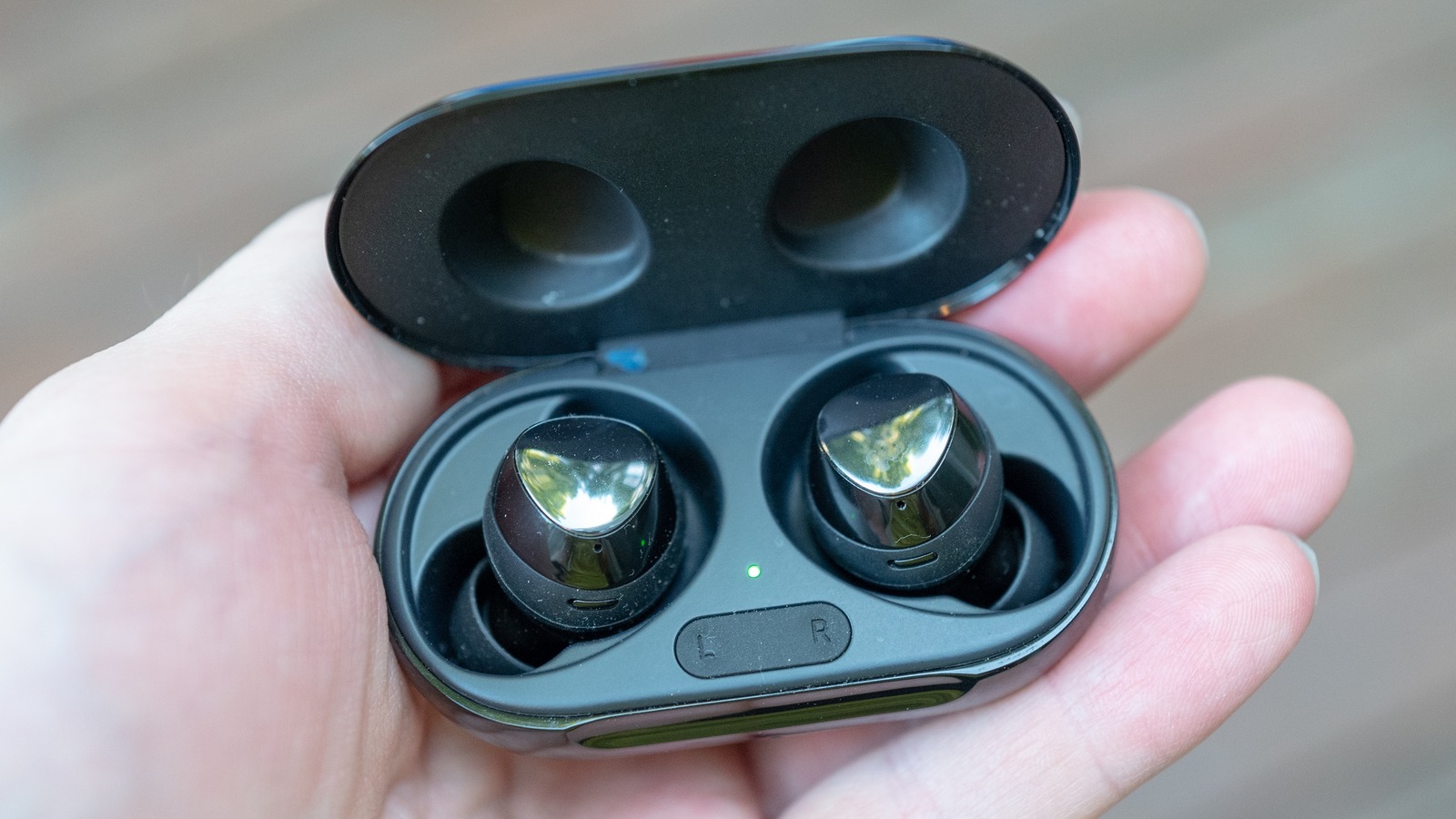
Many true wireless earbuds have a small setup button on the front, side, or back of the case. Open the lid, leave the earbuds inside, and press the button until the light begins to flash.
This method is common with Apple AirPods, Google Pixel Buds, and several other popular models. The button may sit nearly flush with the case, so feel around the case edge if you cannot see it.
Using earbud touch controls
Some earbuds have no physical button. Instead, touch and hold the outer surface of both earbuds while they are outside the case.
Hold for five to ten seconds, depending on the model. A voice prompt or flashing light usually confirms that the earbuds have entered pairing mode.
Avoid tapping several times while testing. Multiple taps may pause music, skip tracks, activate a voice assistant, or reject a call.
Using one earbud at a time
A few earbuds support single-earbud use. If you want to pair only one earbud, remove that earbud from the case and hold its button or touch panel.
Some models cannot enter normal pairing mode with only one earbud removed. If that happens, remove both earbuds, pair them together, and then return one earbud to the case.

How to put popular earbuds into pairing mode
The basic process is similar across brands, but the controls are not always the same. The steps below cover common models and product families.
Apple AirPods and AirPods Pro
To put most AirPods into pairing mode:
- Place both AirPods in the charging case.
- Open the lid.
- Press and hold the button on the back of the case.
- Release it when the status light flashes white.
- Open Bluetooth settings on your device.
- Select your AirPods from the list.
If you are pairing AirPods with an iPhone, keep the case near the phone. An onscreen setup card may appear. For a Windows PC or Android phone, use the regular Bluetooth menu.
AirPods that are linked to another Apple device may connect there first. Turn off Bluetooth on the old device for a moment if your new device cannot find them.
Samsung Galaxy Buds
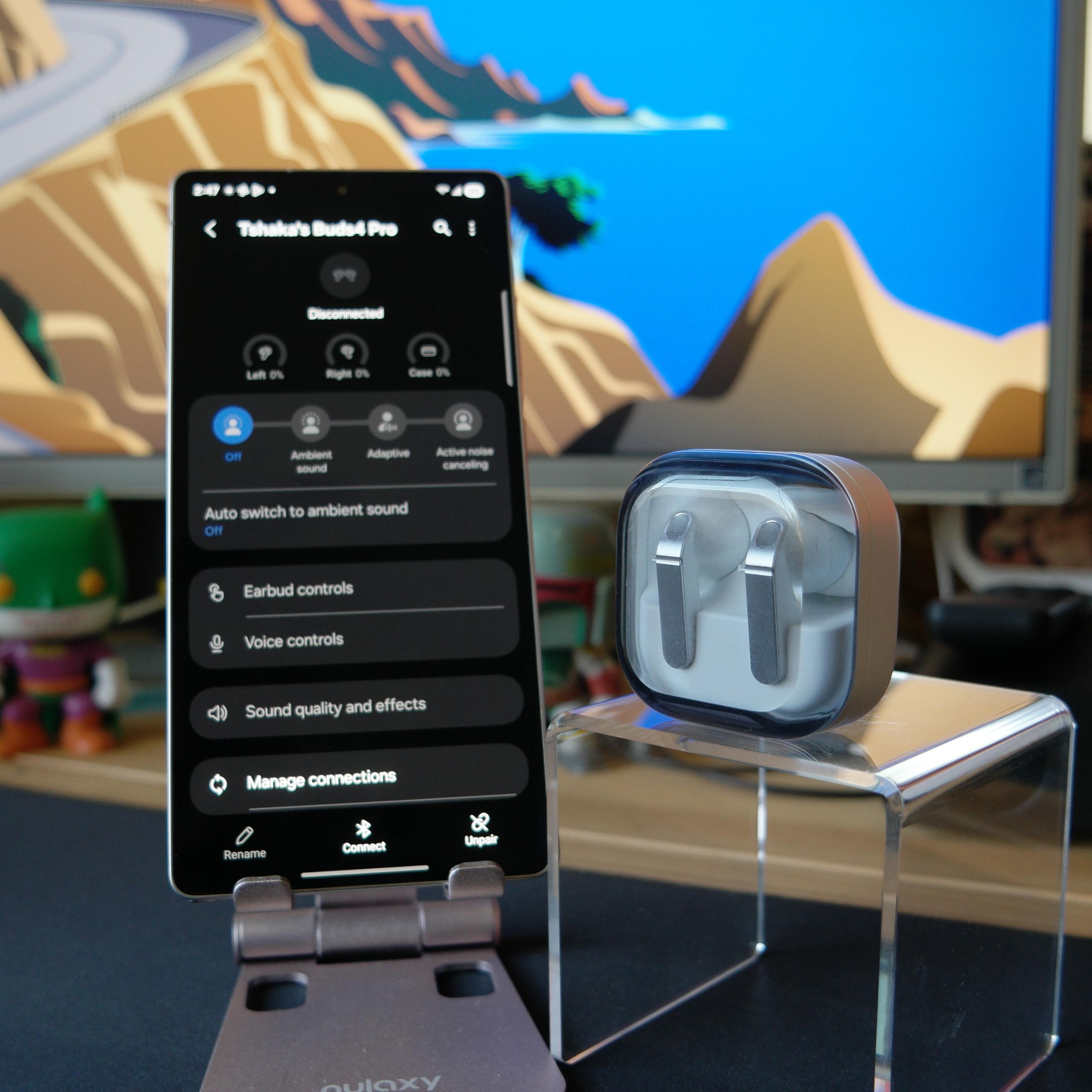
For Galaxy Buds, place the earbuds in your ears and touch and hold both touchpads. Wait for the pairing sound or open the Galaxy Wearable app and follow the setup steps.
If the earbuds are already connected to another phone, place them in the case, close the lid, reopen it, and try again. Some Galaxy Buds models use the app for setup, while others can pair directly through Bluetooth settings.
Google Pixel Buds
Place the Pixel Buds in the case and keep the lid open. Press and hold the case button until the status light pulses or flashes white.
Then open your device’s Bluetooth menu and choose the Pixel Buds. If Fast Pair is supported, an alert may appear automatically on a nearby Android phone.
Sony earbuds
Many Sony WF-series earbuds enter pairing mode when you remove them from the case for the first time. For later connections, touch and hold both earbud surfaces or use the case button, depending on the model.
Sony earbuds often provide a spoken pairing message. If you hear “Bluetooth pairing,” open the Bluetooth menu and select the model name.
Bose earbuds
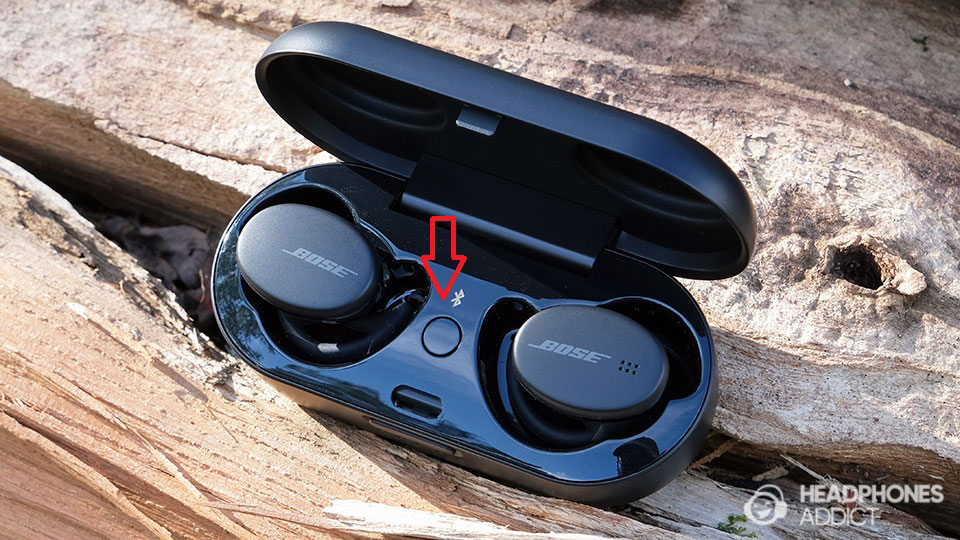
Open the Bose case and remove the earbuds. Touch and hold the control surface on each earbud, or use the Bluetooth button on the case if your model has one.
The Bose Music app can guide setup and firmware updates. Direct Bluetooth pairing also works on many models.
Jabra earbuds
Place the earbuds in your ears and press and hold the buttons on both sides. Keep holding until the LEDs flash blue or you hear the pairing prompt.
Jabra models often require a longer hold than other earbuds. Holding for around three seconds may be enough to turn them on, while a longer hold may activate pairing mode.
Beats earbuds
Open the charging case and press the system button until the light flashes white. On some Beats models, the button is inside the case near the earbuds.
Select the Beats name from your phone or computer’s Bluetooth list. If the earbuds connect to an old device, disable Bluetooth on that device and repeat the process.
Pairing earbuds with a phone
The process is nearly the same on Android and iPhone devices.
On an iPhone
- Open Settings.
- Tap Bluetooth.
- Turn Bluetooth on.
- Put the earbuds into pairing mode.
- Tap the earbuds’ name under Other Devices.
- Accept any pairing request.
The earbuds should move to My Devices after a successful connection. The status may change to Connected.
On an Android phone
- Open Settings.
- Select Connected devices or Connections.
- Tap Pair new device or Bluetooth.
- Put the earbuds into pairing mode.
- Select the earbuds from the list.
- Confirm the pairing request.
Android menus differ between Samsung, Google, Motorola, OnePlus, and other brands. If you cannot find the Bluetooth menu, use the Settings search bar and type Bluetooth.
Pairing earbuds with a Windows PC
- Open Settings.
- Select Bluetooth & devices.
- Turn Bluetooth on.
- Click Add device.
- Choose Bluetooth.
- Select your earbuds.
Windows may show separate entries for the earbuds and the charging case. Choose the entry that matches the earbud model.
Pairing earbuds with a Mac
- Open the Apple menu.
- Select System Settings.
- Click Bluetooth.
- Turn Bluetooth on.
- Put the earbuds into pairing mode.
- Click Connect beside the earbuds.
Older macOS versions may label the menu as System Preferences. The Bluetooth process remains much the same.

What the earbud light colors mean
Indicator lights are useful, but colors vary by brand. Always check the manual for your exact model when the light pattern seems unusual.
Common meanings include:
• Flashing white: The earbuds are ready to pair or are searching for a device.
• Flashing blue: The earbuds may be in Bluetooth pairing mode.
• Red or orange: The battery is low, the earbuds are charging, or the case needs power.
• Green: The case or earbuds may be fully charged.
• Solid blue or white: The earbuds may already be connected.
• Flashing red and white: The earbuds may need a reset or may have a connection problem.
The light is not a universal code. For example, one brand may use blue for pairing while another uses white. A voice prompt is often more reliable than color alone.
Why your earbuds will not enter pairing mode
When earbuds refuse to pair, the problem is often simple. Start with power, distance, and old connections before trying a full reset.
The battery is too low
Earbuds may light up briefly but fail to enter pairing mode when the battery is nearly empty. Charge the case and earbuds for at least 15 to 30 minutes.
Make sure the charging contacts are clean. Dust or skin oil can prevent the earbuds from charging even when they are sitting inside the case.
They are connected to another device
Earbuds often reconnect to the last phone, tablet, or laptop they used. This can stop them from appearing on your new device.
Turn off Bluetooth on nearby devices, or select Forget This Device on the old device. Then try the pairing process again.
Bluetooth is stuck
Turn Bluetooth off, wait about ten seconds, and turn it back on. If that does not work, restart your phone or computer.
This simple step clears many temporary Bluetooth errors. It is often faster than changing advanced settings.
The earbuds are too far away
Keep the earbuds within a few feet of the device during setup. Walls, metal objects, and many active wireless devices can weaken the first connection.
After pairing, Bluetooth usually works across a room. Initial setup is more reliable at close range.
One earbud is not charging
If only one earbud works, inspect the charging pins and the bottom of the earbud. Wipe them gently with a dry cotton swab.
Do not pour liquid into the case. If the contacts are damaged, the earbuds may need service.
The earbuds need a reset
A reset can solve software conflicts, but it also removes saved pairing information. Use it only after charging, restarting, and forgetting the old connection.
The reset method differs by model. It may involve holding the case button for 10 to 30 seconds or pressing both touch controls for a set period.

How to reset earbuds before pairing again
Resetting earbuds gives them a clean start. It is helpful when the earbuds connect to the wrong device, appear twice in Bluetooth settings, or pair with only one side.
Use this general process only if it matches your product manual:
- Remove the earbuds from your device’s Bluetooth list.
- Turn off Bluetooth on nearby devices.
- Place both earbuds in the charging case.
- Keep the lid open.
- Press and hold the case button or both earbud controls.
- Wait for the light to change or flash several times.
- Close and reopen the case.
- Put the earbuds into pairing mode.
- Pair them as a new device.
A reset does not usually repair physical damage, weak batteries, or water damage. It only clears software and connection settings.
From testing many Bluetooth accessories, one common mistake is resetting too early. People often erase a working connection when the real issue is that one earbud was not charged or another phone was still connected.
Best tips for a faster first connection
Small habits can make pairing much smoother.
• Charge before setup: A low battery can interrupt pairing.
• Use one host device: Turn off Bluetooth on nearby phones and tablets.
• Keep the case open: Many earbuds enter setup mode only with the lid open.
• Stay close: Keep the earbuds within a few feet of the device.
• Remove old entries: Forget duplicate or outdated earbud names.
• Read the light pattern: Look for a flashing signal, not just a solid light.
• Avoid random button presses: Different taps may control calls, music, or voice assistants.
• Update the companion app: Brand apps may fix connection bugs and improve compatibility.
• Pair one set at a time: Multiple similar earbuds nearby can cause confusion.
• Save the manual: The exact reset and pairing steps depend on the model.
One practical lesson is to identify the exact model before troubleshooting. “Wireless earbuds” is a broad category, and a method that works for AirPods may not work for Jabra, Bose, Sony, or generic earbuds.

Bluetooth pairing limits to know
Bluetooth is convenient, but it is not perfect. Most earbuds can remember several devices but actively connect to only one or two at a time. This feature is called multipoint when two active connections are supported.
Older earbuds may save a connection history but require you to disconnect from one device before connecting to another. Some budget models also show a generic name such as TWS or Wireless Earbuds, which can make them harder to identify in a busy Bluetooth list.
Wireless performance may change near Wi-Fi routers, crowded offices, airports, and other places with many radio signals. Bluetooth devices use adaptive frequency techniques to reduce interference, but no wireless connection is completely immune to it.
Frequently asked questions
How do I know if my earbuds are in pairing mode?
Look for a flashing white or blue light, a voice prompt, or a sound that says pairing. Then check the Bluetooth list on your phone or computer.
Why are my earbuds not showing up in Bluetooth?
They may be connected to another device, turned off, out of battery, or not in pairing mode. Turn off nearby Bluetooth connections, charge the earbuds, and repeat the setup process.
How long should I hold the earbud button?
Most earbuds need a three to ten-second hold, but some models require longer. Release the button when the light flashes or you hear a pairing prompt.
Can I pair earbuds without a charging case?
Some earbuds support pairing directly from their touch controls or buttons. However, many true wireless models need the case to activate pairing or reset the connection.
How do I put earbuds into pairing mode on Android?
Open Settings, choose Connected devices or Bluetooth, and turn Bluetooth on. Then activate pairing mode on the earbuds and select their name from the available device list.
How do I put earbuds into pairing mode on an iPhone?
Open Settings, tap Bluetooth, and turn it on. Put the earbuds into pairing mode, then tap their name under Other Devices.
Will resetting my earbuds delete saved connections?
Usually, yes. A reset clears the earbuds’ stored Bluetooth information, so you will need to pair them again with your phone, computer, or tablet.
Conclusion
Learning how to put earbuds into pairing mode usually takes only a few steps: charge the earbuds, open the case, hold the correct button or touch control, and select the earbuds in Bluetooth settings. If the connection fails, check old devices, battery levels, charging contacts, and the indicator light before performing a reset.
The exact steps depend on the brand and model, so keep the product manual nearby when the usual method does not work. Try these steps with your earbuds today, and share your model or pairing experience in the comments.
