

Introduction
To sync Jabra earbuds, place both earbuds in the charging case, open the lid, then press and hold the buttons on both earbuds until they enter pairing mode. On your phone or computer, open Bluetooth settings and select the Jabra model from the list. If the earbuds do not connect, forget the old Bluetooth record and reset the earbuds.
This guide is for users in the United States who want to connect Jabra earbuds to an iPhone, Android phone, Windows PC, Mac, tablet, or other Bluetooth device. The button layout and reset process can vary by model, so always check the manual for your exact Jabra earbuds.

What “syncing” Jabra earbuds means
“Syncing” can mean two different things:
Pairing the earbuds with a device
This connects the earbuds to a phone, computer, tablet, or another Bluetooth source.Re-syncing the left and right earbuds
This restores the wireless link between the two earbuds if only one side works.
Most Jabra earbuds sync with each other automatically when they are placed in the charging case. The main task is usually to pair the earbuds with your device through Bluetooth.
A Jabra earbud may also remember more than one device. Some models support Bluetooth multipoint, which lets the earbuds stay connected to two devices at once. The exact number of remembered devices and supported features depends on the model.

How to pair Jabra earbuds with an iPhone or Android phone
Use these steps for most Jabra Elite earbuds, including many Elite 3, Elite 4, Elite 5, Elite 7, Elite 8, and Elite 10 models. Exact button actions may differ.
1. Charge the earbuds and case
Put both earbuds in the charging case. Make sure the case has enough power to complete setup.
If an earbud does not charge, remove it and clean the metal charging contacts with a dry, soft cloth. Do not use water or metal tools inside the case.
2. Turn on Bluetooth
On an iPhone:
- Open Settings.
- Tap Bluetooth.
- Turn Bluetooth on.
- Keep this screen open.
On an Android phone:
- Open Settings.
- Tap Connected devices, Connections, or Bluetooth.
- Turn Bluetooth on.
- Select the option to pair a new device if needed.
The menu names can vary between Android brands.
3. Put the Jabra earbuds into pairing mode
Remove both earbuds from the case. Press and hold the buttons on the left and right earbuds at the same time for about three seconds, or until the LEDs flash blue.
Some Jabra models use touch controls rather than physical buttons. On those models, press and hold the touch areas instead.
If the earbuds do not enter pairing mode, place them back in the case, close the lid for a few seconds, and try again. If they were already paired with another nearby device, turn Bluetooth off on that device for the moment.
4. Select the Jabra earbuds
Look for the model name in the Bluetooth device list. It may appear as:
- Jabra Elite 4
- Jabra Elite 7 Active
- Jabra Elite 8 Active
- Jabra Elite 10
- Another model-specific Jabra name
tap the name. Wait for the status to change to Connected.
Do not select a name that belongs to only one earbud if your model shows separate entries. Most Jabra stereo earbuds should appear as one main Bluetooth device.
5. Complete setup in the Jabra Sound+ app
Install Jabra Sound+ from the Apple App Store or Google Play Store if your model supports it. The app can help with firmware updates, sound settings, battery status, device management, and some connection features.
The app does not replace Bluetooth pairing. Pair the earbuds in your phone’s Bluetooth settings first, then open Jabra Sound+.
Signs that pairing worked
You should see:
- The Jabra earbuds listed as connected in Bluetooth settings.
- Audio playing through both earbuds.
- Battery information for the earbuds or case.
- Touch or button controls responding during music playback.
If only one earbud plays sound, the earbuds may be paired to the phone but not synced with each other. Follow the re-sync steps below.
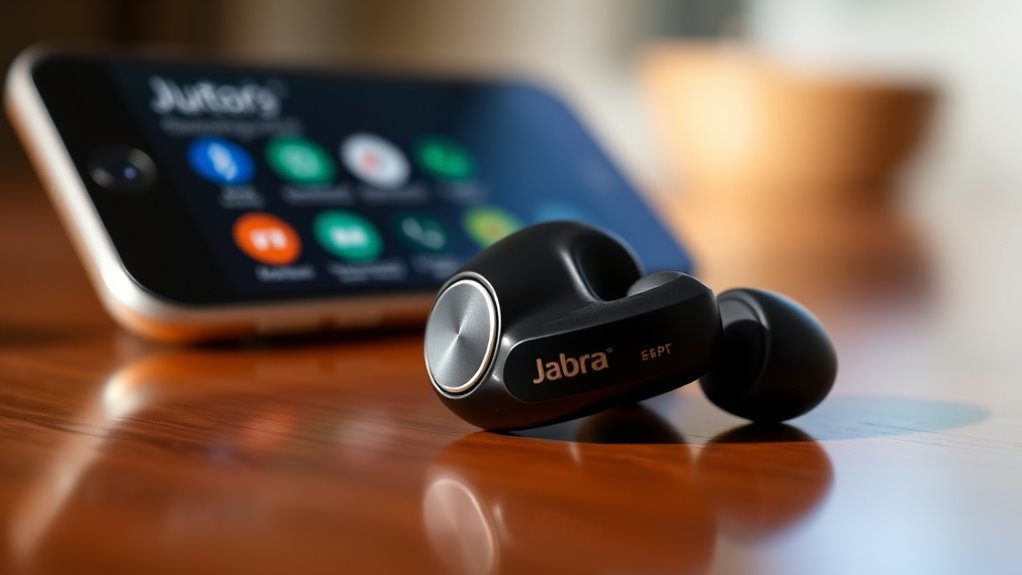
How to sync the left and right Jabra earbuds
If one earbud works and the other does not, first place both earbuds in the charging case. Close the lid, wait about 10 seconds, and open it again.
Remove both earbuds at the same time. They should link to each other automatically. If they remain separate, use this process:
- On your phone, open Bluetooth settings.
- Tap the Jabra earbuds.
- Choose Forget This Device, Unpair, or Remove Device.
- Turn Bluetooth off.
- Place both earbuds in the charging case.
- Remove both earbuds.
- Press and hold both earbud buttons for about three seconds to enter pairing mode.
- Turn Bluetooth back on.
- Pair with the Jabra earbuds again.
The exact reset method depends on the model. On many Jabra Elite models, a factory reset starts by placing both earbuds in the case and pressing and holding both earbud buttons for around 10 seconds. The LEDs may flash purple during the reset. This action can erase previous pairing information.
After a reset, leave both earbuds in the case for a short time, then remove them together and pair them again.

How to connect Jabra earbuds to a Windows PC
Jabra earbuds can connect to a Windows computer through Bluetooth if the PC has Bluetooth hardware.
Windows 11
- Put the Jabra earbuds in pairing mode.
- Open Start and select Settings.
- Choose Bluetooth & devices.
- Turn Bluetooth on.
- Select Add device.
- Choose Bluetooth.
- Select the Jabra earbuds.
Windows 10
- Put the earbuds into pairing mode.
- Open Start.
- Go to Settings > Devices > Bluetooth & other devices.
- Turn Bluetooth on.
- Select Add Bluetooth or other device.
- Choose Bluetooth.
- Select the Jabra earbuds.
After pairing, click the speaker icon in the Windows taskbar and select the Jabra earbuds as the sound output. If you want to use the earbud microphones for calls, also check the input device selected in Windows sound settings.
Some computers show two audio profiles for Bluetooth headsets. A high-quality music profile may use less microphone functionality, while a headset profile supports calls but may reduce audio quality. This is a limitation of Bluetooth audio profiles, not always a fault with the Jabra earbuds.

How to connect Jabra earbuds to a Mac
To pair Jabra earbuds with a Mac:
- Put both earbuds into pairing mode.
- Select the Apple menu.
- Open System Settings.
- Select Bluetooth.
- Find the Jabra earbuds.
- Click Connect.
On older versions of macOS, Bluetooth settings may appear under System Preferences.
If music plays from the Mac but calls use the wrong microphone, open System Settings > Sound. Choose the Jabra earbuds under both Output and Input when appropriate.
If the Mac connects but does not send sound to the earbuds, select the Jabra device from the sound menu in the menu bar or from the Control Center.
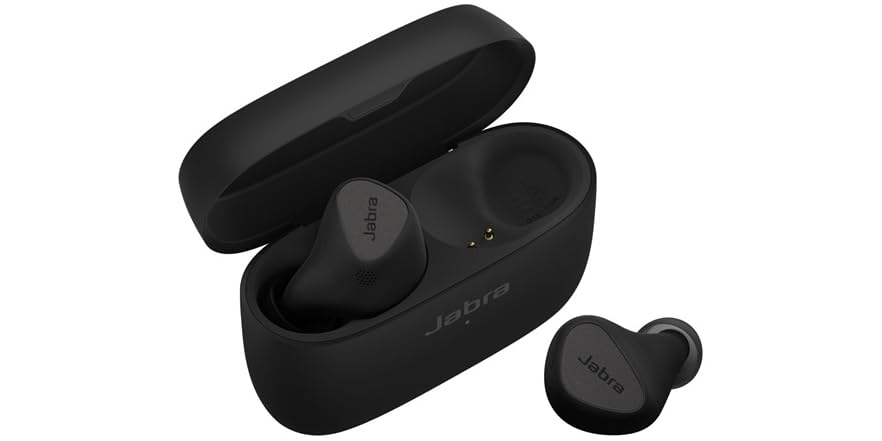
How to use Jabra earbuds with two devices
Some Jabra models support multipoint Bluetooth. This feature allows the earbuds to stay connected to two devices, such as a phone and a laptop.
To use it:
- Pair the earbuds with the first device.
- Turn Bluetooth off on the first device, or disconnect the earbuds.
- Pair the earbuds with the second device.
- Turn Bluetooth back on for the first device.
- Reconnect the earbuds if necessary.
If your model supports multipoint, both devices may remain connected. For example, music can play from a computer while the earbuds remain ready for calls from a phone.
There are limits:
- Not every Jabra model supports multipoint.
- Some models require a firmware update.
- Active audio on one device can prevent another device from taking control.
- A call may interrupt music, depending on the device and app.
- Bluetooth multipoint does not mean the earbuds play two audio streams at the same time.
Check the product page or Jabra Sound+ app for model-specific support.

Jabra earbuds will not pair: troubleshooting steps
Work through these checks in order. The first steps solve many connection problems without erasing all settings.
Check the battery
Low power can prevent pairing or cause one earbud to shut down. Charge the case and both earbuds for at least a short period before trying again.
Check that each earbud sits firmly in its charging slot. If the case light does not react when an earbud is inserted, the charging contacts may be dirty or the earbud may not be seated correctly.
Move away from other Bluetooth devices
Nearby phones, tablets, cars, watches, and computers can compete for the connection. Turn Bluetooth off on devices that have previously used the Jabra earbuds.
You do not need to disable every wireless device in your home. Start with devices that are nearby and already saved as a Jabra connection.
Remove the old Bluetooth connection
A damaged or outdated Bluetooth record can stop a new connection.
On your phone or computer:
- Open Bluetooth settings.
- Find the Jabra earbuds.
- Select Forget, Unpair, or Remove.
- Restart Bluetooth.
- Pair the earbuds again.
This is often more effective than repeatedly tapping the same device name.
Restart the source device
Restart the iPhone, Android phone, Windows PC, or Mac. This clears temporary Bluetooth errors and gives the device a fresh scan.
Update the earbuds
Open Jabra Sound+ and check for a firmware update. Keep the earbuds in the case and follow the app’s instructions. Do not close the app or remove the earbuds during an update unless the app tells you to do so.
Firmware features and update support differ by model.
Reset the Jabra earbuds
Use a reset only after the simpler checks fail. A factory reset may remove stored Bluetooth connections and customized settings.
The reset process varies by product. Many Jabra Elite models use a long press on both earbud buttons while the earbuds are in the case, but you should confirm the steps for your exact model in the official Jabra support guide.
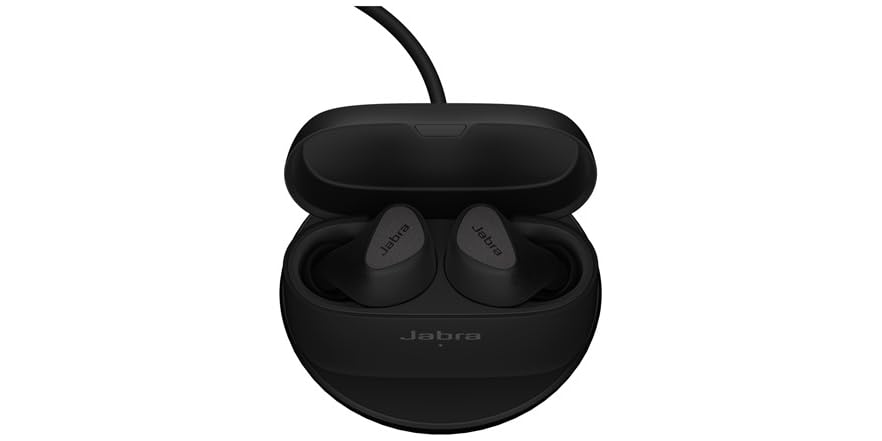
What to do when only one Jabra earbud works
Only one side working usually points to one of four causes:
- The second earbud is not charged.
- The earbuds lost their link with each other.
- The charging contacts are dirty.
- The earbuds need to be reset and paired again.
Try this sequence:
- Put both earbuds in the case.
- Check that both charging indicators respond.
- Clean the charging contacts with a dry cloth.
- Close the case for 10 seconds.
- Remove both earbuds together.
- Forget the Jabra connection on your phone.
- Pair the earbuds again.
- Reset them if the problem continues.
Also check the phone’s accessibility settings. A left-right audio balance moved fully to one side can make one earbud seem broken. On an iPhone, look under Settings > Accessibility > Audio & Visual. Android menu names vary by manufacturer.
If one earbud never lights up, never charges, or stays unresponsive after a reset, the issue may be hardware-related. Contact Jabra support or the retailer if the earbuds are still covered by a warranty.

Common mistakes when syncing Jabra earbuds
Pairing before both earbuds are ready
Pairing one earbud while the other remains in the case can create a partial setup. Remove both earbuds together unless your model’s instructions say otherwise.
Selecting the wrong Bluetooth entry
If several Jabra entries appear, remove old entries and pair with the current model name. Avoid pairing with an entry that clearly represents only one side unless the manual tells you to use it.
Keeping the earbuds connected to another device
A nearby laptop or tablet may reconnect automatically. Temporarily disable Bluetooth on those devices during setup.
Resetting too soon
A reset can help, but it also removes saved connections and settings. Try charging, forgetting the old connection, and restarting Bluetooth first.
Assuming all Jabra models use the same controls
Jabra earbuds use different button and LED patterns across product lines. A three-second press, 10-second reset, or blue light may not apply to every model.

Jabra sync checklist
Use this short checklist when you want the fastest reliable setup:
| Check | What to do |
|---|---|
| Power | Charge the case and both earbuds |
| Earbud contact | Make sure both earbuds sit correctly in the case |
| Bluetooth | Turn Bluetooth on for the phone or computer |
| Pairing mode | Press and hold both earbuds until the LEDs indicate pairing |
| Old connection | Forget the previous Jabra entry |
| Nearby devices | Turn off Bluetooth on devices that may reconnect |
| App | Use Jabra Sound+ for supported updates and settings |
| Reset | Reset the earbuds only if normal pairing still fails |
The most important distinction is whether the issue affects the device connection or the earbud-to-earbud connection. If neither earbud connects, focus on Bluetooth pairing. If one earbud works but the other does not, focus on charging, re-syncing, and resetting.

Frequently asked questions
Why do my Jabra earbuds not appear in Bluetooth settings?
They may not be in pairing mode, may be connected to another device, or may have low battery. Charge them, turn off Bluetooth on nearby devices, then press and hold both earbuds until the pairing light appears.
Can I sync Jabra earbuds without the Jabra Sound+ app?
Yes. Bluetooth pairing works through your phone, tablet, or computer settings. The Jabra Sound+ app is useful for supported firmware updates, sound controls, battery information, and device settings.
How do I reset Jabra earbuds?
The reset method depends on the model. Many Jabra Elite models reset when both earbuds are placed in the case and their buttons are held for about 10 seconds. Confirm the exact process in the manual for your model before resetting.
Why does only the right Jabra earbud connect?
The left earbud may not be charged, may have lost its link with the right earbud, or may be affected by an old Bluetooth record. Charge both earbuds, forget the Jabra connection, remove both earbuds together, and pair them again.
Can Jabra earbuds connect to an iPhone and a computer at the same time?
Some models support Bluetooth multipoint, while others do not. Check your model’s specifications or Jabra Sound+ settings. Even with multipoint, the earbuds cannot normally play two audio streams at once.
Final answer: the quickest way to sync Jabra earbuds
For most Jabra models, charge both earbuds, remove them from the case, press and hold both controls until pairing mode starts, then select the Jabra name in your phone or computer’s Bluetooth settings.
If the connection fails, forget the old Bluetooth record, turn off nearby Bluetooth devices, restart the source device, and pair again. If only one earbud works, check charging contacts and reset both earbuds using the instructions for the exact model.
