

To sync Beats earbuds, open the case, hold the button, choose them in bluetooth settings, and follow the pairing prompts.
Learning how to sync Beats earbuds is simple once you understand pairing mode, Bluetooth settings, and reset steps. This guide covers iPhone, Android, Mac, Windows, automatic reconnection, common problems, and model-specific tips so you can get clear sound without wasting time.
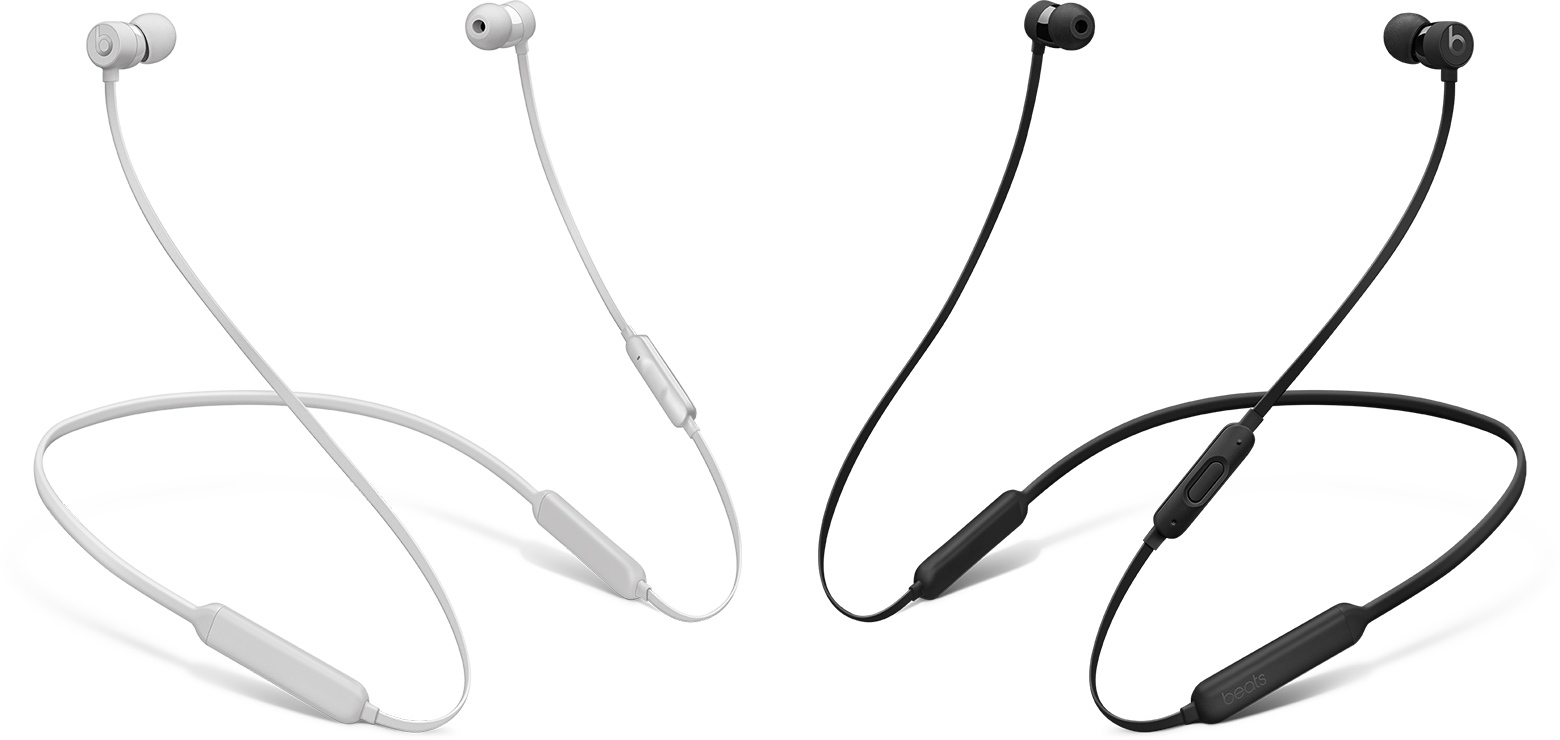
How to sync Beats earbuds for the first time
Most Beats earbuds use the same basic process. Keep both earbuds in the charging case, make sure they have power, and place them close to your device.
Follow these steps:
- Open the Beats charging case.
- Leave both earbuds inside the case.
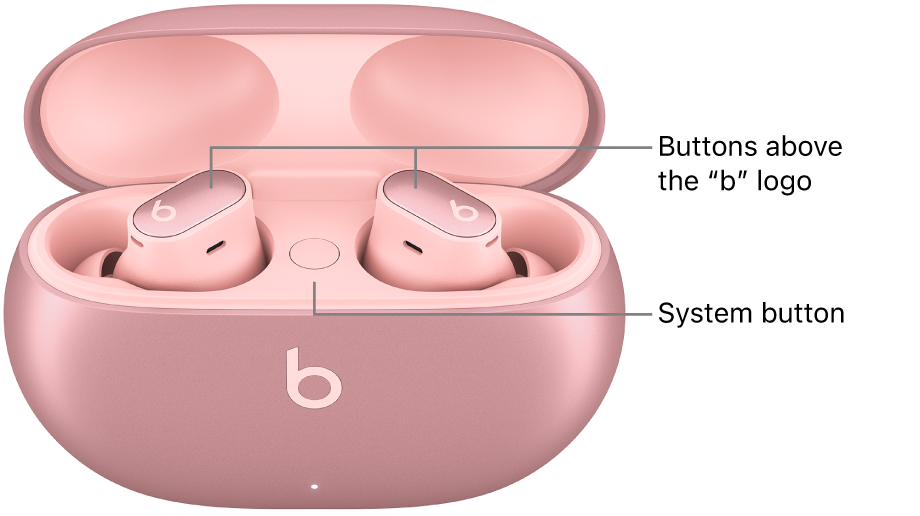
- Press and hold the system button on the case.
- Release the button when the light flashes white.
- Open the Bluetooth menu on your phone, tablet, or computer.
- Select your Beats earbuds from the list.
- Accept the pairing request if one appears.
The flashing white light usually means the earbuds are ready to pair. A solid or slowly pulsing light may mean they are already connected to another device.
Knowing how to sync Beats earbuds becomes easier when you treat the case like a small control center. The earbuds charge, reset, and enter pairing mode through the case.
How to sync Beats earbuds with an iPhone
Beats earbuds work especially well with Apple devices. If your iPhone uses a recent version of iOS, you may see a setup animation when you open the case near the phone.
Here is how to sync Beats earbuds with an iPhone:
- Turn on Bluetooth by opening Settings, then Bluetooth.
- Place both earbuds in the case.
- Open the lid.
- Hold the case button until the light flashes white.
- Keep the case near your iPhone.
- Tap Connect when the Beats setup card appears.
- Follow the remaining instructions on the screen.
If no setup card appears, use the Bluetooth list instead. Tap the name of your Beats earbuds under Other Devices.
After pairing, your Beats earbuds should appear under My Devices. The next time you open the case near the iPhone, they should reconnect on their own if Bluetooth is active.
How to sync Beats earbuds with an Android phone
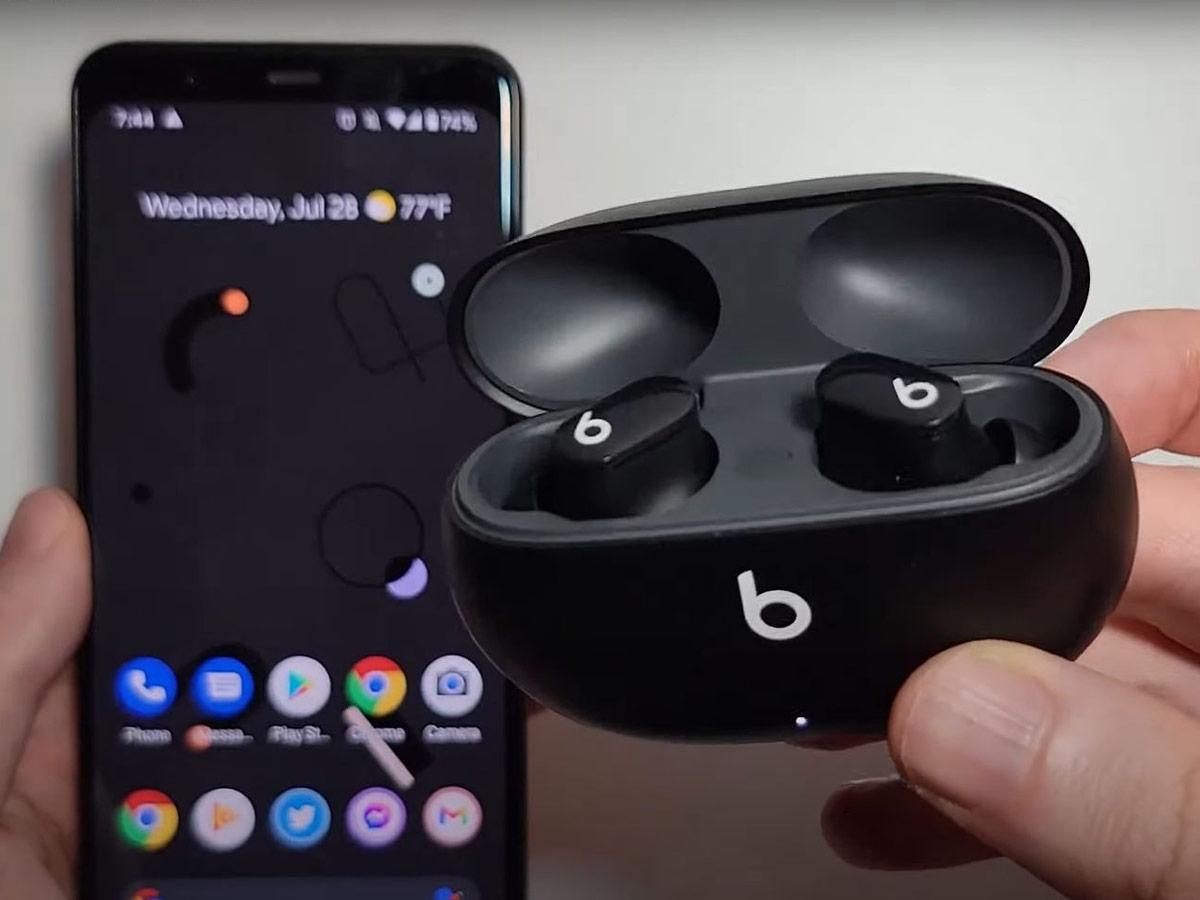
You can sync Beats earbuds with almost any modern Android phone that supports Bluetooth. Some Beats models also support Google Fast Pair, which can make setup faster.
To learn how to sync Beats earbuds with Android, use these steps:
- Open Settings on your Android phone.
- Select Connected devices, Connections, or Bluetooth.
- Turn Bluetooth on.
- Open the Beats case.
- Press and hold the case button until the light flashes white.
- Tap your Beats model under Available devices.
- Confirm the pairing request.
Android menus vary by brand. A Samsung phone may place Bluetooth under Connections, while a Google Pixel may place it under Connected devices.
If a Fast Pair notification appears, tap Connect. You may also be asked to install or open the Beats app. The app can provide battery details, firmware updates, and control options on supported models.
How to sync Beats earbuds with a Mac
Mac computers can pair with Beats earbuds through the Bluetooth menu. Before you start, close music apps on your phone if the earbuds keep connecting to the wrong device.
Use this method:
- Open the Apple menu.
- Select System Settings.
- Click Bluetooth.
- Open the Beats charging case.
- Hold the case button until the light flashes white.
- Find your earbuds in the list.
- Click Connect.
On older macOS versions, Bluetooth may appear under System Preferences. The wording is different, but the process is nearly the same.
If you use the same Apple Account across devices, your Beats earbuds may appear on other Apple devices after the first connection. This depends on the model, software version, and account settings.
How to sync Beats earbuds with a Windows PC
Windows pairing is also straightforward, though the menus differ between Windows versions.
To sync Beats earbuds with a Windows PC:
- Open Settings.
- Select Bluetooth & devices.
- Turn Bluetooth on.
- Click Add device.
- Choose Bluetooth.
- Put the Beats earbuds into pairing mode.
- Select them from the device list.
- Click Done.
On some computers, the earbuds may appear as headphones, stereo earbuds, or their full model name. Choose the option that matches your Beats device.
If your PC connects but sound still plays through its speakers, click the speaker icon on the taskbar. Select your Beats earbuds as the output device.
Windows can also connect the earbuds for calls. If the sound becomes less clear during a call, the computer may be switching to a lower-quality headset mode. This is a normal Bluetooth behavior on some systems.
How to put different Beats models in pairing mode
The general pairing process is similar, but the physical design differs across Beats products. Knowing your model can prevent confusion.
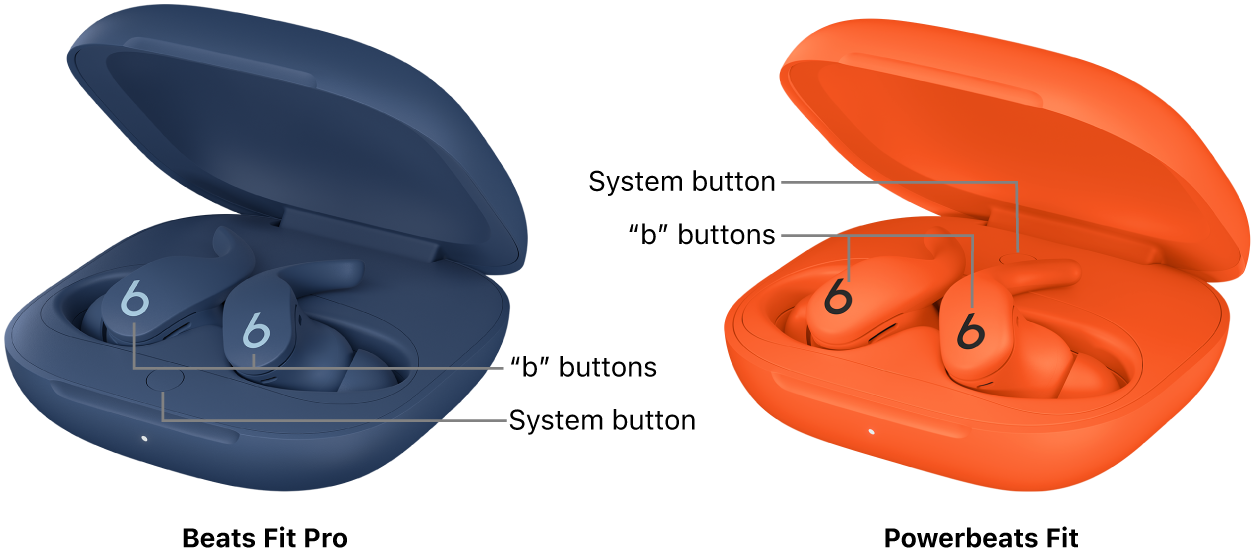
Beats Fit Pro
- Place both earbuds in the charging case.
- Open the lid.
- Press and hold the system button inside the case.
- Wait for the light to flash white.
- Select Beats Fit Pro in your device’s Bluetooth menu.
Beats Studio Buds and Studio Buds +
- Put the earbuds in the case.
- Keep the case open.
- Press and hold the button inside the case.
- Wait for the indicator to flash white.
- Choose the earbuds from Bluetooth settings.
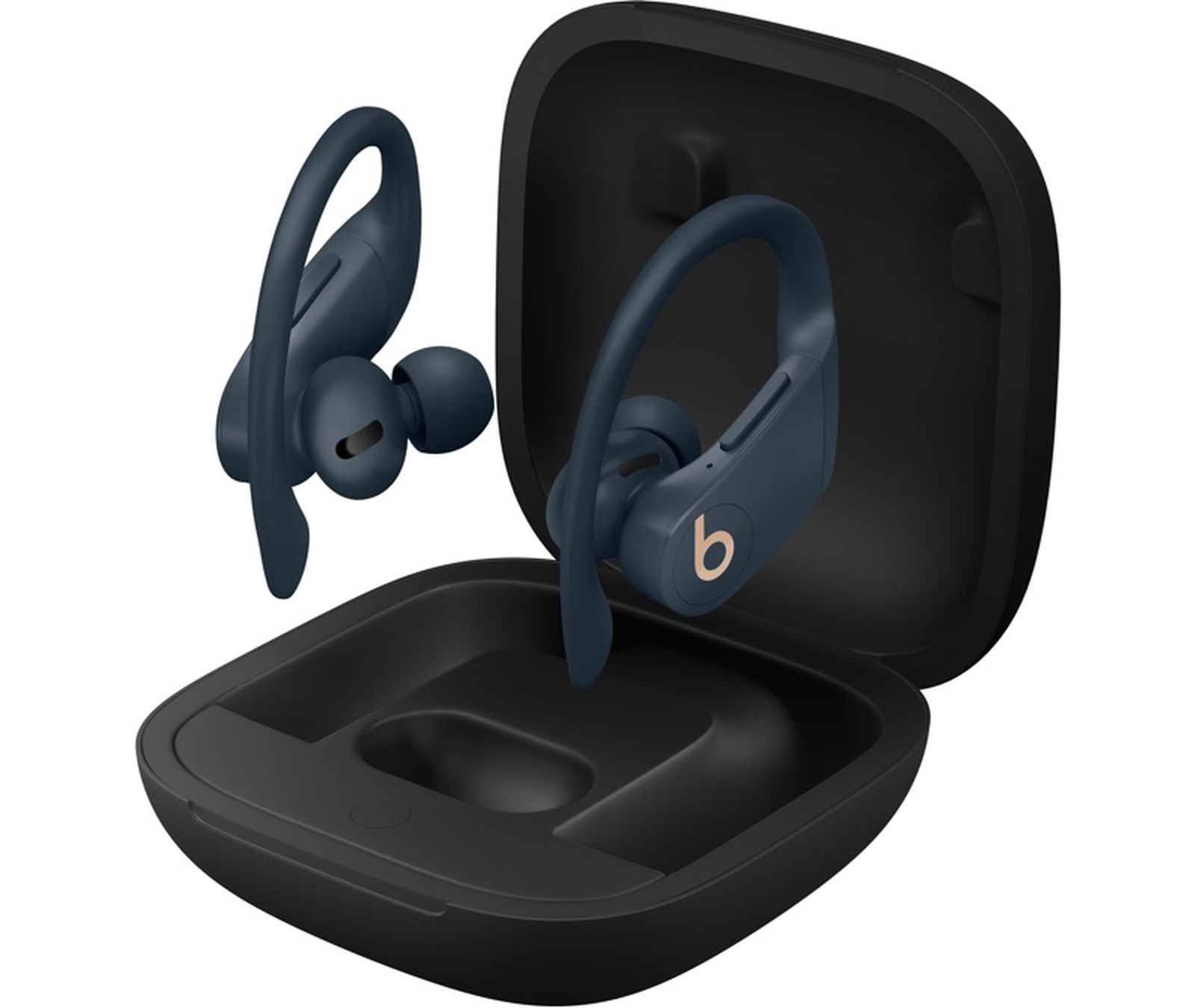
Beats Powerbeats Pro
- Put both earbuds in the charging case.
- Open the lid.
- Press and hold the system button in the case.
- Pair them from your phone or computer.
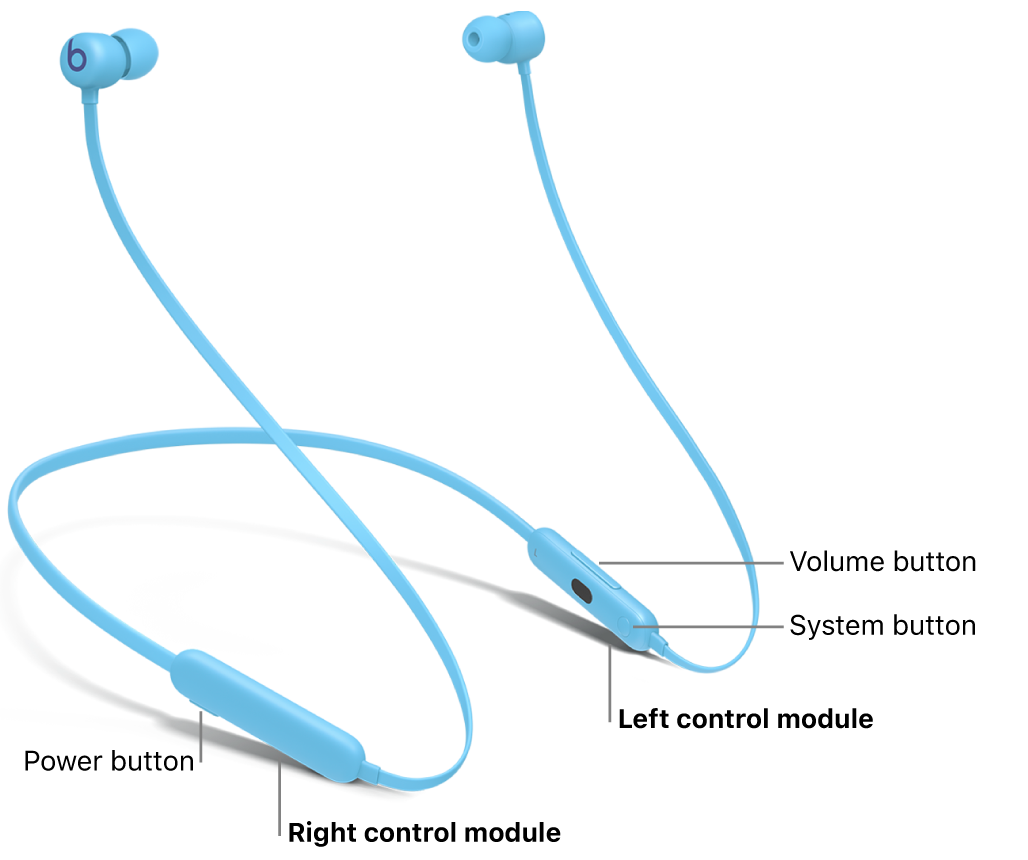
Beats Flex
Beats Flex uses a power button and a separate pairing process. Turn the earphones on, then hold the power button until the indicator flashes. Open Bluetooth settings and select Beats Flex.
The exact button location may differ by model. If the light does not flash white, check that the case or earphones have enough charge.

How to reconnect Beats earbuds automatically
After the first successful connection, Beats earbuds usually reconnect to the last device they used. Open the case near that device and wait a few seconds.
Automatic reconnection may fail when:
• Bluetooth is turned off
• The earbuds are connected to another phone
• The phone is out of range
• The earbuds have a low battery
• The previous pairing record is damaged
For example, if your earbuds were last used with a tablet, they may connect to the tablet instead of your phone. Turn off Bluetooth on the tablet for a moment, then open the Beats case near your phone.
When I troubleshoot how to sync Beats earbuds, I check the last connected device first. Many “connection failures” are really automatic connections to a nearby laptop or tablet.
What to do when Beats earbuds do not appear
If your Beats earbuds do not show in the Bluetooth list, make sure they are truly in pairing mode. The status light should usually flash white.
Try these checks:
- Charge the case for at least 15 minutes.
- Put both earbuds inside the case.
- Close the lid for 10 seconds.
- Open the lid again.
- Hold the case button until the light flashes white.
- Move the earbuds within a few feet of your device.
- Turn Bluetooth off and on again.
- Restart your phone or computer.
Also check the Bluetooth list for an old entry with the same Beats name. If you see it, remove or forget that device before trying again.
On an iPhone, tap the information icon next to the Beats name, then choose Forget This Device. On Android, tap the gear icon and choose Forget or Unpair.

How to reset Beats earbuds and pair them again
A reset removes old connection data and often fixes repeated pairing errors. It is useful when the earbuds connect to one side only, disconnect often, or refuse to appear.
The general reset process is:
- Place both earbuds in the charging case.
- Leave the lid open.
- Press and hold the system button.
- Continue holding it for about 15 seconds.
- Release the button when the light flashes red and white.
- Close and reopen the case.
- Pair the earbuds again.
The light pattern can vary by model. Some models may show a different sequence during reset, so avoid releasing the button too early.
Resetting erases previous pairing information. You will need to repeat the Bluetooth setup on your phone, tablet, or computer.
A reset is not the same as a software update. If the problem continues after resetting, install available updates through the Beats app or a connected Apple device when supported.
How to fix one Beats earbud not working
One earbud may stop producing sound because it is not charging, has lost its connection, or has debris on its charging contacts.
Try this process:
• Place both earbuds in the case.
• Check whether each earbud shows a charging indicator.
• Clean the metal contacts with a dry, soft cloth.
• Close the lid for 30 seconds.
• Reopen the case and test both earbuds.
• Forget the Beats device from Bluetooth settings.
• Reset the earbuds and pair them again.
Avoid using water, sharp tools, or household cleaners inside the case. Moisture and damaged contacts can create a bigger problem.
If one earbud remains silent, check your device’s audio balance. On an iPhone, look under Accessibility and Audio & Visual. Android phones may place the balance control under Accessibility.
How to improve Beats Bluetooth connection quality
Bluetooth works best when the earbuds and source device have a clear, short-range connection. Your body, walls, crowded wireless areas, and other electronic devices can affect performance.
Use these practical tips:
• Keep your phone within about 30 feet when possible.
• Avoid storing the phone in a bag on the opposite side of your body.
• Turn off Bluetooth on devices you are not using.
• Keep the earbuds and case charged.
• Install system and firmware updates.
• Avoid heavy Wi-Fi congestion when testing connection problems.
• Remove old Bluetooth devices that you no longer use.
Bluetooth range depends on the device, environment, and interference. The advertised range is not a guarantee in every home, gym, or office.
In my experience, moving the phone from a back pocket to a front pocket can solve brief audio cuts. It sounds minor, but your body can block wireless signals more than many people expect.
Common mistakes when syncing Beats earbuds
Small setup mistakes can make a simple pairing task feel broken. Avoid these common errors:
Pairing with the wrong Bluetooth entry
Old entries can remain in your device list. Remove unused Beats entries before starting a fresh pairing.
Holding the button for too little time
A quick press may show the battery or do nothing. Hold the button until the light flashes white.
Leaving the earbuds outside the case
Many Beats models enter pairing mode through the case. Keep both earbuds inside while holding the system button.
Ignoring another connected device
Your earbuds may already be connected to a nearby phone, tablet, or laptop. Disable Bluetooth on that device temporarily.
Pairing with a nearly empty battery
Low power can stop pairing or cause sudden disconnections. Charge both the case and earbuds before troubleshooting.
Resetting too soon
A reset can help, but it also removes saved pairing data. First try Bluetooth off and on, a restart, and a fresh pairing attempt.
How to keep Beats earbuds synced over time
Good maintenance can prevent many connection problems. Keep the charging case clean and avoid storing it in hot cars or damp places.
Update your phone and Beats software when updates are available. Updates can improve stability, fix bugs, and add compatibility improvements, although they cannot solve every hardware problem.
Use one main device when possible. If you switch between a phone, tablet, computer, and television often, disconnect the earbuds from one device before pairing them with another.
If connection problems return often, write down when they happen. Note the device, location, battery level, and app in use. This can reveal whether the issue comes from Bluetooth interference, a specific computer, or the earbuds themselves.
Frequently asked questions about how to sync Beats earbuds
How do I put Beats earbuds in pairing mode?
Place both earbuds in the charging case and open the lid. Hold the system button until the indicator light flashes white, then select the earbuds in your device’s Bluetooth settings.
Why are my Beats earbuds not showing up on Bluetooth?
They may already be connected to another device, have low battery, or may not be in pairing mode. Charge them, disable Bluetooth on nearby devices, and hold the case button until the light flashes white.
Can Beats earbuds connect to Android phones?
Yes. Beats earbuds can connect to Android phones through Bluetooth, and some models support Google Fast Pair. Open Bluetooth settings, activate pairing mode, and select the Beats model.
How do I reset my Beats earbuds?
Put both earbuds in the case, leave the lid open, and hold the system button for about 15 seconds. Release it when the light flashes red and white, then pair the earbuds again.
Why does only one Beats earbud work?
The silent earbud may not be charging, may have dirty contacts, or may have lost synchronization. Check both charging positions, clean the contacts with a dry cloth, and reset the earbuds if needed.
Can I sync Beats earbuds with a Windows computer?
Yes. Open Windows Bluetooth settings, choose Add device, select Bluetooth, and place the Beats earbuds in pairing mode. Choose the earbuds from the available device list.
Conclusion
Learning how to sync Beats earbuds usually takes only a few steps: charge them, open the case, hold the pairing button, and select them in Bluetooth settings. If they do not connect, forget the old Bluetooth entry, check nearby devices, and reset the earbuds.
The best long-term results come from keeping the case charged, installing updates, and avoiding unnecessary saved connections. Try the steps above with your Beats model, then explore your device’s Bluetooth and audio settings for a smoother listening experience.
