

To reset Raycon earbuds, forget them from Bluetooth, place them in the case, and hold both controls for 30 seconds.
Knowing how to reset Raycon earbuds can solve pairing errors, one-sided sound, charging confusion, and random connection drops. The exact button sequence can vary by model, so this guide explains the safest general method, model differences, common mistakes, and what to do if the reset does not work.
What a Raycon Earbuds Reset Does
A reset clears the earbuds’ current pairing data and returns their wireless connection settings to a clean state. It does not usually erase music apps, phone data, or firmware.
Think of a reset as giving the earbuds a fresh start. Your phone may still show the old Raycon entry, though, so you must remove that saved connection before pairing again.
A reset can help when:
• Only one earbud produces sound
• The earbuds connect to the wrong device
• Your phone cannot find the earbuds
• The earbuds keep disconnecting
• The left and right earbuds fail to sync
• The case shows charging, but the earbuds do not respond
A reset cannot repair a damaged battery, broken charging pin, liquid damage, or a faulty Bluetooth chip. In those cases, software steps may not be enough.

Before You Reset Your Raycon Earbuds
Take a few simple steps before starting. This prevents many failed resets and saves time.
• Charge the case and earbuds for at least 15 to 30 minutes.
• Clean the metal charging contacts with a dry cotton swab.
• Keep your phone within a few feet of the earbuds.
• Turn off Bluetooth on nearby phones, tablets, laptops, and smart TVs.
• Check the model name printed on the case, box, or Raycon app.
• Remove both earbuds from the case and inspect them for visible damage.
A low battery is one of the most common reasons a Raycon reset seems unsuccessful. If one earbud has no power, it may not receive the reset command.
Also, avoid using water, alcohol sprays, pins, or metal tools inside the charging case. A dry, soft swab is safer for the contacts.

How to Reset Raycon Earbuds
The following method works for many Raycon true wireless models, including several Everyday-style models. Raycon has released different designs over time, so treat this as the standard process rather than a universal rule.
Step 1: Forget the Raycon earbuds from your device
First, remove the old Bluetooth record from your phone.
On an iPhone:
- Open Settings.
- Tap Bluetooth.
- Find your Raycon earbuds.
- Tap the information icon beside the name.
- Select Forget This Device.
- Confirm the choice.
On an Android phone:
- Open Settings.
- Select Connected devices or Connections.
- Tap Bluetooth.
- Find the Raycon earbuds in the saved devices list.
- Tap the gear icon.
- Choose Forget, Unpair, or Remove.
The wording may differ by phone brand. The goal is the same: delete the old Raycon pairing record.
Step 2: Turn off nearby Bluetooth devices
Switch off Bluetooth on nearby devices that have used the earbuds before. This includes computers, tablets, game consoles, and another family member’s phone.
This step matters because Raycon earbuds may reconnect to the first familiar device they detect. That can make the reset look incomplete.
Step 3: Place both earbuds in the charging case
Put the left and right earbuds into their matching slots. Make sure each earbud sits firmly on its charging contacts.
The indicator lights should respond in some way. If one light stays dark, clean the contacts and charge the case before continuing.
Leave the lid open unless your model’s instructions say otherwise.
Step 4: Press and hold both earbud controls
With both earbuds seated in the case, press and hold the control button or touch area on each earbud at the same time.
Hold both controls for about 30 seconds. Some models may flash their lights, turn off, or show another change during this process.
Do not release after only five seconds. A short press may pause music, activate a voice assistant, or start pairing instead of resetting the earbuds.
Step 5: Close and reopen the case
After the 30-second hold, release both controls. Close the case for about 10 seconds, then open it again.
Remove both earbuds at the same time. They should enter pairing mode or begin searching for a device.
Step 6: Pair the earbuds again
Turn Bluetooth back on. Look for the Raycon name in the available devices list and tap it once.
If two separate Raycon entries appear, wait a few seconds. Remove both entries, repeat the reset, and pair again. In normal use, the earbuds should appear as one stereo device.
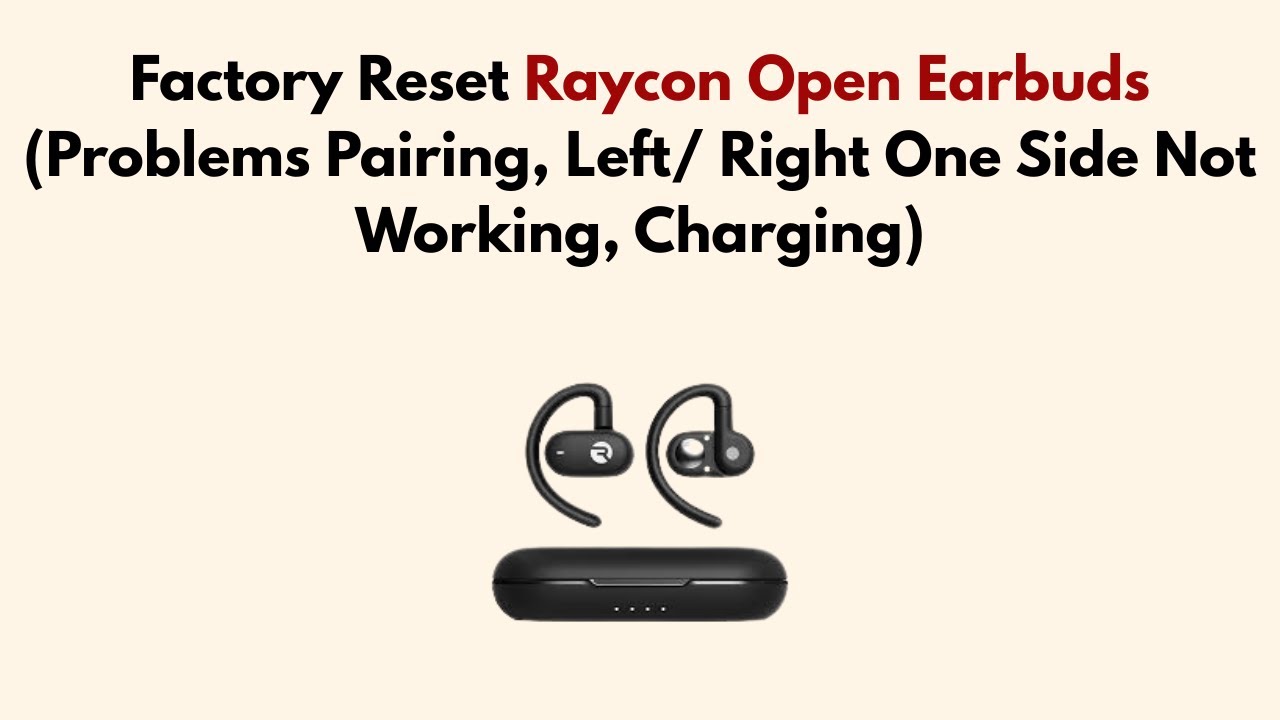
How to Reset Raycon Earbuds Without Physical Buttons
Some Raycon models use touch controls instead of raised buttons. The reset process is similar, but the touch area can be harder to activate.
Follow these steps:
- Forget the Raycon device from your phone.
- Turn off Bluetooth on nearby devices.
- Charge the case and earbuds.
- Put both earbuds into the case.
- Touch and hold the control area on both earbuds for about 30 seconds.
- Close the case for 10 seconds.
- Open the case and remove both earbuds together.
- Pair them with your phone again.
Keep your fingers flat over the touch panels. Do not tap quickly, because quick taps may control playback rather than begin a reset.
If the earbuds do not respond, check the model guide. Some newer models may use a button on the charging case, a different hold time, or an app-based reset option.

How to Reset Raycon Earbuds on an iPhone
The reset takes place on the earbuds, but the iPhone must also remove its old Bluetooth profile.
Use this order:
- Go to Settings and open Bluetooth.
- Tap the information icon next to the Raycon name.
- Tap Forget This Device.
- Place both earbuds in the charging case.
- Hold both earbud controls for about 30 seconds.
- Close and reopen the case.
- Remove both earbuds together.
- Return to iPhone Bluetooth settings.
- Select the Raycon earbuds under Other Devices.
If the Raycon name does not appear, turn Bluetooth off for 10 seconds and turn it back on. You can also restart the iPhone before trying again.
Do not use Reset Network Settings as your first option. That iPhone feature removes saved Wi-Fi networks and other network data. It is rarely needed for a simple earbud pairing problem.

How to Reset Raycon Earbuds on Android
Android phones use similar Bluetooth controls, but menu names differ among Samsung, Google Pixel, Motorola, and other brands.
Start by opening Settings, then Connected devices or Connections. Open Bluetooth, select the Raycon entry, and tap Unpair or Forget.
Next, reset the earbuds using the case and both earbud controls. After the lights change, open the Bluetooth menu and select the Raycon name again.
If Android keeps reconnecting to an old profile, restart the phone. On some devices, clearing Bluetooth cache data can help, but the menu is different by brand and Android version. Use that option only after forgetting the device and completing the earbud reset.

What to Do If Only One Raycon Earbud Works
One-sided audio often means the earbuds lost their left-right sync. It does not always mean one earbud is broken.
Try this process:
- Forget every Raycon entry from your phone.
- Turn off Bluetooth on nearby devices.
- Place both earbuds in the case.
- Confirm both earbuds are charging.
- Hold both earbud controls for 30 seconds.
- Close the case.
- Reopen the case and remove both earbuds together.
- Wait for the earbuds to sync with each other.
- Turn on Bluetooth and pair again.
Avoid removing one earbud first. Taking out only the left or right earbud can cause the phone to pair with a single channel.
If the same earbud remains silent, test it in another device. This helps separate a phone problem from an earbud problem. If it stays silent after charging and resetting, inspect the charging contact and consider Raycon support.

Common Reasons a Raycon Reset Fails
A reset can fail even when you follow the steps correctly. These are the most common causes.
The earbuds are not charging
The earbud may not touch the case pins. Remove it, wipe the contacts with a dry cotton swab, and place it back firmly.
The case battery is too low
The case must have enough power to control the reset process. Charge it with a reliable cable and adapter before trying again.
The old Bluetooth profile remains saved
Your phone may reconnect to the previous profile. Forget the Raycon device first, then reset and pair it again.
The earbuds are separated
Reset both earbuds together. Resetting only one side may leave the pair out of sync.
A nearby device captures the connection
Turn off Bluetooth on other devices. This is especially useful in homes where several people share earbuds or tablets.
The model uses a different reset method
Raycon changes controls across product lines. A case button, app command, or different hold time may apply to your model. Check the model-specific guide if the standard 30-second method produces no light or response.

How to Pair Raycon Earbuds After a Reset
After a successful reset, pairing should be simple.
- Open the charging case.
- Remove both earbuds together.
- Wait for their lights to indicate pairing mode.
- Open Bluetooth settings on your phone.
- Select the Raycon name.
- Accept the pairing request if one appears.
- Play audio in both earbuds to test the connection.
If the earbuds appear as two separate devices, do not pair with both entries. Forget both entries and repeat the reset. A correct reset should normally restore one left-right stereo connection.
Test a phone call, music, and pause controls. A successful pairing should support more than just audio playback.

Tips to Keep Raycon Earbuds Working Properly
Good care reduces the need to reset Raycon earbuds.
• Keep the case charged.
• Store both earbuds in the case after use.
• Clean the charging contacts once a week if you use them often.
• Keep the earbuds dry during exercise and rain.
• Avoid extreme heat, such as leaving the case in a parked car.
• Update your phone when practical.
• Keep the earbuds away from strong wireless interference.
• Do not force the earbuds into the wrong side of the case.
Bluetooth works best with a clear path and a short distance. Walls, crowded wireless areas, and several active Bluetooth devices can cause brief drops. A reset is useful, but it should not be the only solution for a weak signal or damaged hardware.
When to Contact Raycon Support
Contact Raycon support if the earbuds still fail after charging, cleaning, forgetting the Bluetooth profile, and repeating the reset.
Support is especially appropriate when:
• One earbud never lights up
• The case does not charge
• The earbuds become unusually hot
• The case or earbud has liquid damage
• The earbuds do not appear on any phone
• The same fault returns after every reset
Have the model name, purchase details, and steps you already tried ready. This helps support avoid repeating basic troubleshooting.
Do not open the earbuds yourself. Their small batteries and sealed parts can be damaged easily, and self-repair may affect warranty coverage.
Frequently Asked Questions About How to Reset Raycon Earbuds
How long should I hold the Raycon earbuds during a reset?
For many Raycon models, hold both earbud controls for about 30 seconds while they sit in the charging case. The exact time can vary, so check the guide for your model if there is no light response.
Will resetting Raycon earbuds delete everything from my phone?
No. Resetting the earbuds does not erase your phone, apps, music, or personal files. It only clears the earbuds’ connection information, while you must separately forget the old Bluetooth profile from your phone.
Why do my Raycon earbuds show up as two Bluetooth devices?
This usually means the earbuds lost their left-right sync or were paired separately. Forget both entries, reset both earbuds together, and pair only the single Raycon stereo name that appears afterward.
Can I reset Raycon earbuds without the charging case?
Usually, no. Many Raycon reset methods require both earbuds to sit in the charging case. If the case is lost or damaged, contact Raycon support for model-specific options.
Why will my Raycon earbuds not turn on after a reset?
They may have a low battery, dirty charging contacts, or a case that is not supplying power. Charge the case, clean the contacts with a dry swab, and test each earbud again before repeating the reset.
Do I need to reset my Raycon earbuds before connecting them to a new phone?
Not always. You can often disconnect them from the first phone and pair them with a new one. A reset is helpful when the new phone cannot find them or when the earbuds keep reconnecting to the old device.
Conclusion
Resetting Raycon earbuds usually takes only a few minutes. Forget the old Bluetooth connection, charge the case, place both earbuds inside, hold both controls for about 30 seconds, and pair them again.
The most important details are using both earbuds, removing the saved Bluetooth profile, and checking your model’s instructions when the standard method does not work. Try these steps today, and share your model and results in the comments or explore Raycon’s official support resources for further help.
