

To pair MINISO earbuds, charge them, open the case, enable Bluetooth, and select “MINISO” from your device.
Learning how to pair MINISO earbuds is usually simple, but the exact steps can vary by model. This guide explains the first connection, automatic reconnection, single-earbud use, pairing problems, and safe reset methods so you can start listening without guesswork.
Before you pair MINISO earbuds
Before starting, check a few basics. Your earbuds should have enough power, and your phone or computer should have Bluetooth turned on. Keeping the earbuds close to the device also helps the first connection work smoothly.
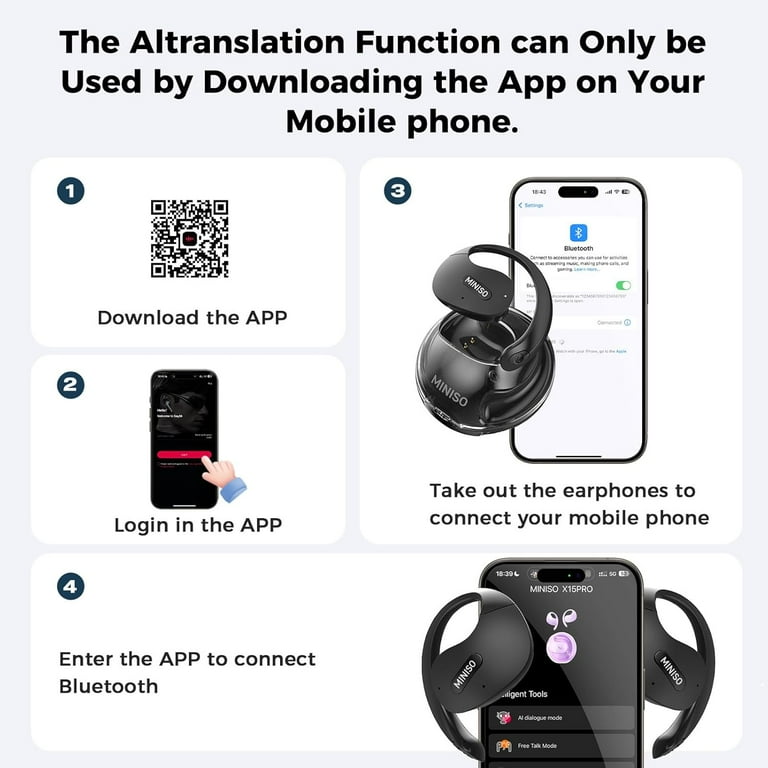
Most MINISO wireless earbuds use Bluetooth pairing. They do not need a special app for basic audio use, although some models may include extra features through a companion app or device settings.
Check these points first:
• Charge the earbuds and charging case for at least 10 to 15 minutes.
• Remove any protective film from the charging contacts.
• Keep the earbuds within about 3 feet of your phone during setup.
• Turn off Bluetooth on nearby devices that may connect to the earbuds first.
• Make sure the earbuds are not already connected to another phone, tablet, or laptop.
A low battery can cause pairing mode to fail. Think of Bluetooth pairing like introducing two people in a busy room. The closer they are and the fewer distractions around them, the easier the connection becomes.

How to pair MINISO earbuds for the first time
The first connection usually takes less than two minutes. Most MINISO earbuds enter pairing mode when you remove both earbuds from the case. Some models may require you to press and hold the touch controls.
Follow these steps:
Place both MINISO earbuds in the charging case.
Charge the case briefly if the indicator lights do not turn on.
Open the case lid and remove both earbuds.
Wait for the LED lights to flash. Flashing lights often mean the earbuds are ready to pair.
Open Settings on your phone.
Select Bluetooth.
Turn Bluetooth on and wait for nearby devices to appear.
Tap the device name that includes “MINISO,” “MINISO TWS,” or a similar model name.
Select Pair, Connect, or OK if your phone asks for permission.
Play audio to confirm that both earbuds work.
If the earbuds do not appear, put them back in the case. Close the lid for about 10 seconds, open it again, and remove them. This often restarts pairing mode without requiring a full reset.
When learning how to pair MINISO earbuds, do not tap several Bluetooth names at once. Wait for the correct MINISO name to appear, then connect to that device only.

How to pair MINISO earbuds with an iPhone
The process is nearly the same on an iPhone. Apple devices show Bluetooth accessories in a simple list, so the main challenge is making sure the earbuds are in pairing mode.
Open the Settings app.
Tap Bluetooth.
Turn on the Bluetooth switch.
Open the MINISO charging case.
Remove both earbuds and wait for the indicator lights to flash.
Look under Other Devices.
Tap the MINISO earbuds when they appear.
Wait until the status changes to Connected.
If the earbuds have connected before, they may appear under My Devices instead. Tap the information icon beside the name, choose Forget This Device if needed, and then repeat the pairing process.
A useful iPhone tip is to keep the Bluetooth screen open while removing the earbuds. You can then watch for the MINISO name as soon as it appears.
How to pair MINISO earbuds with an Android phone
Android menus can look different across Samsung, Google Pixel, Motorola, and other phones. However, the Bluetooth steps are almost always alike.
Open Settings.
Tap Connected devices, Connections, or Bluetooth.
Choose Pair new device if your phone shows that option.
Remove both earbuds from the case.
Wait for the earbuds to enter pairing mode.
Tap the MINISO device name.
Approve the pairing request.
Check that the earbuds show as Connected.
Some Android phones display a Fast Pair pop-up. If it appears, tap Connect. If no pop-up appears, use the regular Bluetooth menu.
If your Android phone shows two separate MINISO entries, do not connect to both. This can happen when the earbuds have lost their link with each other. Resetting and pairing them again as a set usually solves the issue.

How to pair MINISO earbuds with a laptop
MINISO earbuds can connect to Windows laptops, MacBooks, tablets, and many smart devices. The laptop must support Bluetooth audio.
Windows
Open Settings.
Select Bluetooth & devices.
Turn Bluetooth on.
Click Add device.
Choose Bluetooth.
Remove the MINISO earbuds from the case.
Select the MINISO name when it appears.
Click Done after the connection completes.
Mac
Open the Apple menu.
Select System Settings or System Preferences.
Choose Bluetooth.
Turn Bluetooth on.
Open the earbud case and remove both earbuds.
Find the MINISO name in the device list.
Click Connect.
After pairing, open the computer’s sound settings and select the MINISO earbuds as the output device. This matters because a laptop may connect successfully but continue playing sound through its built-in speakers.

How to reconnect MINISO earbuds automatically
After the first successful connection, MINISO earbuds should reconnect to the last device they used. Place both earbuds in the case, open the lid, and remove them near that device.
Automatic reconnection may fail when:
• Bluetooth is turned off.
• The phone is connected to another audio device.
• The earbuds are connected to a different device nearby.
• The earbuds have very little battery power.
• The previous Bluetooth record is damaged.
Open the Bluetooth menu and tap the MINISO earbuds manually if they do not reconnect. You can also turn Bluetooth off and on again. This simple step refreshes the wireless connection without erasing saved devices.
If you use the earbuds with several devices, remember that many budget wireless earbuds do not support multipoint Bluetooth. They usually connect to one device at a time.

How to pair one MINISO earbud
Many MINISO models support single-earbud use. This is useful when you want to hear traffic, talk with someone, or save battery.
To use one earbud:
Place both earbuds in the case.
Leave the earbud you do not want to use inside the case.
Remove the left or right earbud.
Wait for its light to flash.
Connect to the existing MINISO Bluetooth name.
Some models pair each earbud independently, while others connect through a primary earbud. If one earbud works but the other does not, the two earbuds may have lost their internal connection.
In that situation, place both earbuds in the case, close the lid, and wait a few seconds. Then remove them together and pair them again. This helps them act as a stereo pair instead of two separate Bluetooth devices.
How to fix MINISO earbuds that will not pair
Pairing problems are common, but most have a simple cause. Start with the least disruptive fix and move toward a reset only when necessary.
Check the battery
Place both earbuds in the case and look for charging lights. Clean the metal contacts with a dry cotton swab if one earbud does not seem to charge.
Do not use water or metal tools on the charging contacts. Moisture and scratches can damage the charging system.
Remove old Bluetooth connections
A phone may keep trying to use an old connection record. Open Bluetooth settings, tap the gear or information icon beside the MINISO earbuds, and choose Forget, Unpair, or Remove.
Then turn Bluetooth off and on. Follow the normal steps for how to pair MINISO earbuds again.
Move away from other devices
Nearby phones, tablets, laptops, and smart TVs can compete for the connection. Turn off Bluetooth on devices you are not using during setup.
Wireless signals can also become less reliable in crowded areas. Testing the earbuds in a quiet room helps you determine whether the issue is the earbuds or the environment.
Restart your phone
A phone restart clears temporary Bluetooth errors. It is a basic step, but it often works when the earbuds do not appear in the device list.
Reset the earbuds
The reset method depends on the MINISO model. Common methods include placing both earbuds in the case and holding their touch panels, or holding the case button for several seconds.
Because touch controls differ, check the instructions that came with your exact model. Avoid guessing if the earbuds have a physical button, as holding the wrong control may simply power them off.
How to reset MINISO earbuds before pairing again
A reset removes the earbuds’ previous connection state. Use it when one earbud is silent, the earbuds appear as two devices, or your phone repeatedly rejects the pairing request.
A common reset process is:
Remove MINISO earbuds from your phone’s Bluetooth list.
Turn off Bluetooth on nearby devices.
Place both earbuds in the charging case.
Leave the lid open if the model uses case controls.
Press and hold the touch areas or case button for about 10 to 15 seconds.
Watch for flashing lights or a change in the indicator pattern.
Close the lid for a few seconds.
Open the lid and remove both earbuds together.
Turn Bluetooth on and pair with the MINISO name.
The light pattern differs across models, so it is not safe to treat one color as universal. Some MINISO earbuds use white, blue, red, or green lights, while others use no visible light during every step.
The most common mistake is pairing one earbud before the two earbuds link with each other. Always remove both earbuds together after a reset unless you specifically want single-earbud use.
What the MINISO indicator lights mean
Indicator lights provide clues about charging and pairing, but their meaning is model-specific. A flashing light commonly indicates pairing mode, while a steady light may indicate a connection or charging state.
Use the product manual as the final reference. General signs may include:
• Flashing light: The earbud is searching for a device or entering pairing mode.
• Steady light: The earbud may be connected or charging.
• No light: The battery may be empty, or the light may turn off after a short time.
• Different left and right patterns: The earbuds may be linking to each other.
Do not assume that a red light always means a serious fault. On many wireless earbuds, red simply means charging or low battery. The behavior matters more than the color alone.
Tips for a stronger MINISO Bluetooth connection
Good pairing is only the first step. A few habits can improve sound quality and reduce random disconnects.
• Keep your phone within a reasonable range and avoid placing it behind thick walls.
• Keep the case and earbuds dry.
• Charge the earbuds before long calls or travel.
• Keep the phone’s operating system updated.
• Avoid storing the earbuds loose in a bag where the touch controls may activate.
• Clean the speaker mesh with a soft, dry brush.
• Disconnect the earbuds from devices you no longer use.
Bluetooth audio can be affected by distance, obstacles, interference, and battery level. It is not always a sign that the earbuds are defective. Testing them near the phone is a quick way to separate a range problem from a pairing problem.
When I troubleshoot wireless earbuds, I first check power, then remove the old Bluetooth record, and only then reset the earbuds. This order saves time and prevents unnecessary resets.
Common mistakes to avoid when pairing MINISO earbuds
Small mistakes can make the setup seem harder than it is. Avoid these common issues:
• Pairing before removing the protective film from the charging contacts.
• Leaving one earbud inside the case during the first stereo connection.
• Selecting a similarly named device from a neighbor’s earbuds.
• Trying to connect while the earbuds are already linked to another phone.
• Resetting the earbuds without removing the old Bluetooth record.
• Using the earbuds while the case battery is completely empty.
• Assuming every MINISO model uses the same reset gesture.
If the device list shows a name you do not recognize, do not connect to it. Confirm the name in the manual or on the product packaging. This is safer and helps prevent connecting to the wrong accessory.
Frequently Asked Questions About How to Pair MINISO Earbuds
Why are my MINISO earbuds not showing up in Bluetooth?
Make sure both earbuds have power and are in pairing mode. Put them back in the case, close the lid, open it again, and remove both earbuds together. If they still do not appear, forget the old Bluetooth record and reset the earbuds according to the model instructions.
Can I pair MINISO earbuds with an iPhone?
Yes, most MINISO Bluetooth earbuds work with iPhones. Open Settings, choose Bluetooth, select the MINISO device name, and wait for the status to show Connected.
Can I connect MINISO earbuds to two devices at once?
Most MINISO earbuds connect to one device at a time and do not support multipoint Bluetooth. Disconnect them from the first device before pairing them with a second phone, tablet, or computer.
Why does only one MINISO earbud work?
The earbuds may have lost their connection with each other, or one earbud may not be charging. Charge both earbuds, remove the old Bluetooth record, reset them, and remove them from the case together.
How do I put MINISO earbuds into pairing mode?
Open the charging case and remove both earbuds. Most models enter pairing mode automatically, but some require you to press and hold a touch panel or case button.
Do MINISO earbuds need an app to pair?
No, basic pairing usually works through your device’s Bluetooth settings. An app may be useful for certain models, but it is not normally required for standard music and call functions.
How far can MINISO earbuds be from my phone?
The usable range depends on the model, phone, obstacles, and wireless interference. For the most stable connection, keep the phone nearby and test the earbuds without walls or large objects between them.
Conclusion
Pairing MINISO earbuds usually takes only a few steps: charge both earbuds, open the case, enable Bluetooth, select the MINISO name, and test the connection. If pairing fails, forget the old connection, restart Bluetooth, check the charging contacts, and reset the earbuds only when needed.
The most reliable habit is to remove both earbuds together during the first setup. Try these steps with your model, check its manual for model-specific light patterns, and share your experience or questions in the comments.
