

Press and hold the power button for one second, or place Beats earbuds in their charging case and close the lid.
Learning how to turn off Beats headphones is simple, but the exact step depends on your model. Over-ear headphones use a physical power button, while Beats earbuds usually turn off when placed in their case. This guide explains each method, how to confirm your headphones are off, and what to do when they stay connected.
How to turn off Beats headphones
The fastest way to turn off most Beats headphones is to press and hold the power button for about one second. You can find this button on the earcup or control module, depending on the model.
Follow these steps:
- Stop your music or podcast.
- Remove the headphones from your ears.
- Press and hold the power button.
- Release the button when the status light turns off.
On some models, the light may blink before shutting down. This is normal. If the headphones remain connected to your phone, wait a few seconds and check your Bluetooth settings.
When learning how to turn off Beats headphones, avoid pressing the button quickly. A short press may pause audio, answer a call, or activate another control instead of powering the headphones down.

How to turn off Beats over-ear headphones
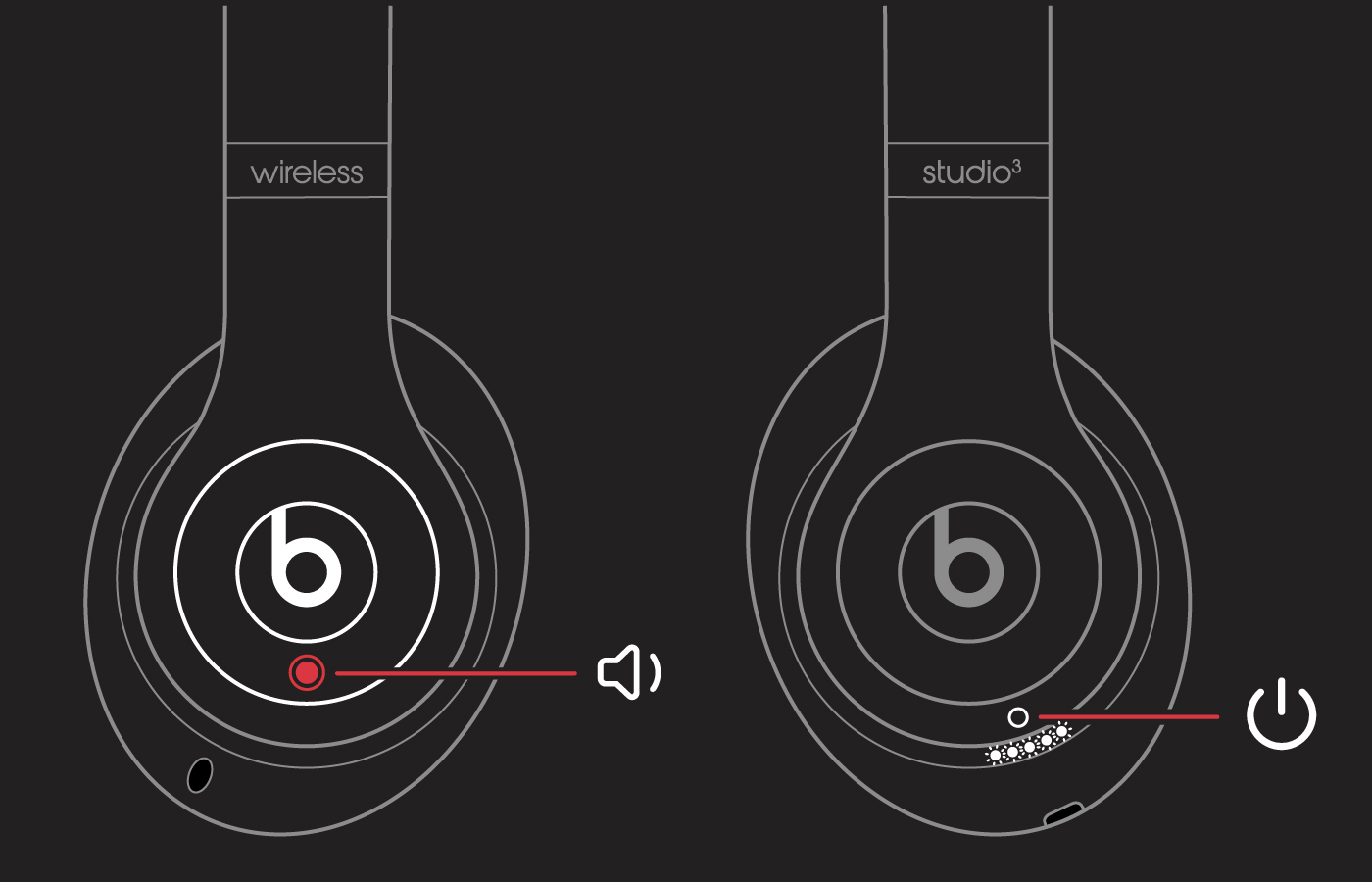
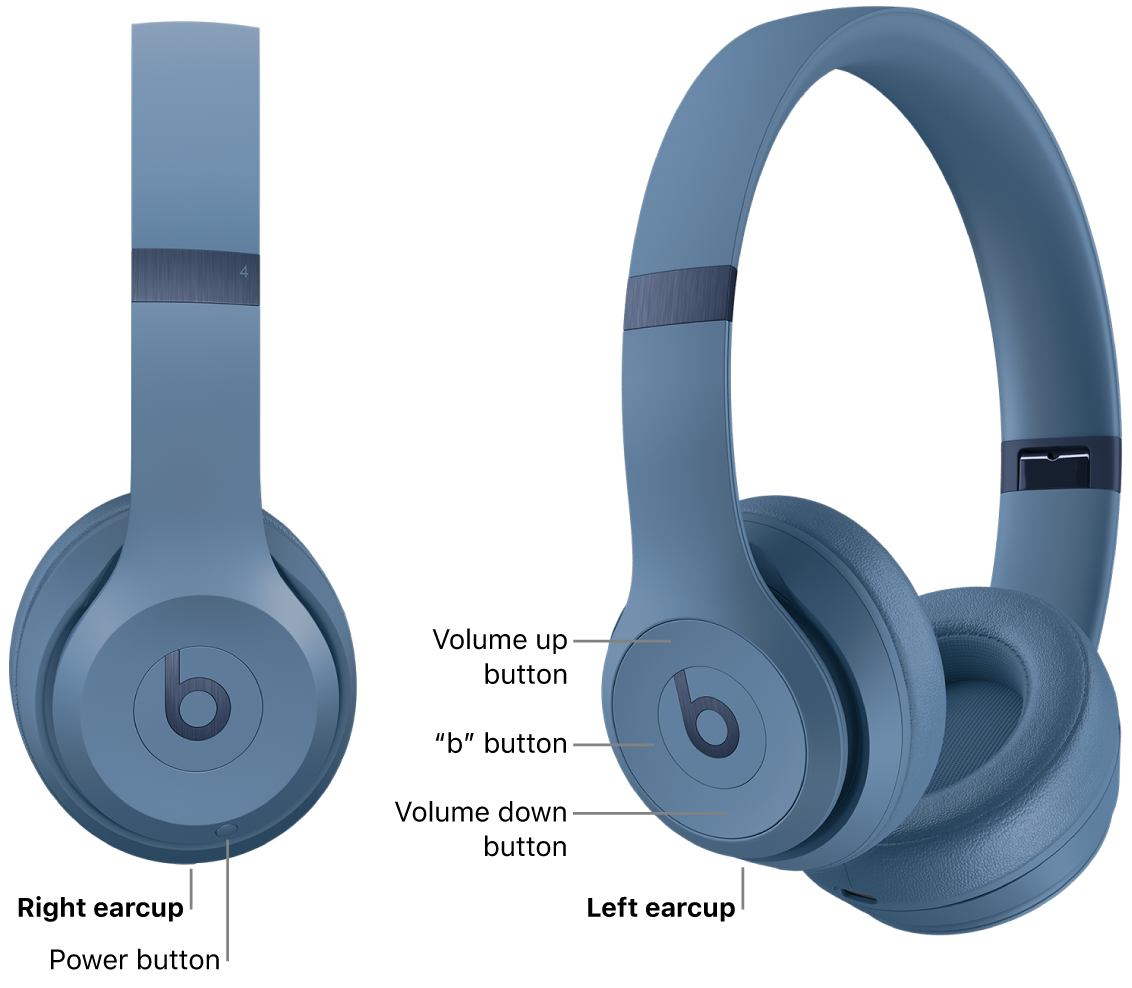
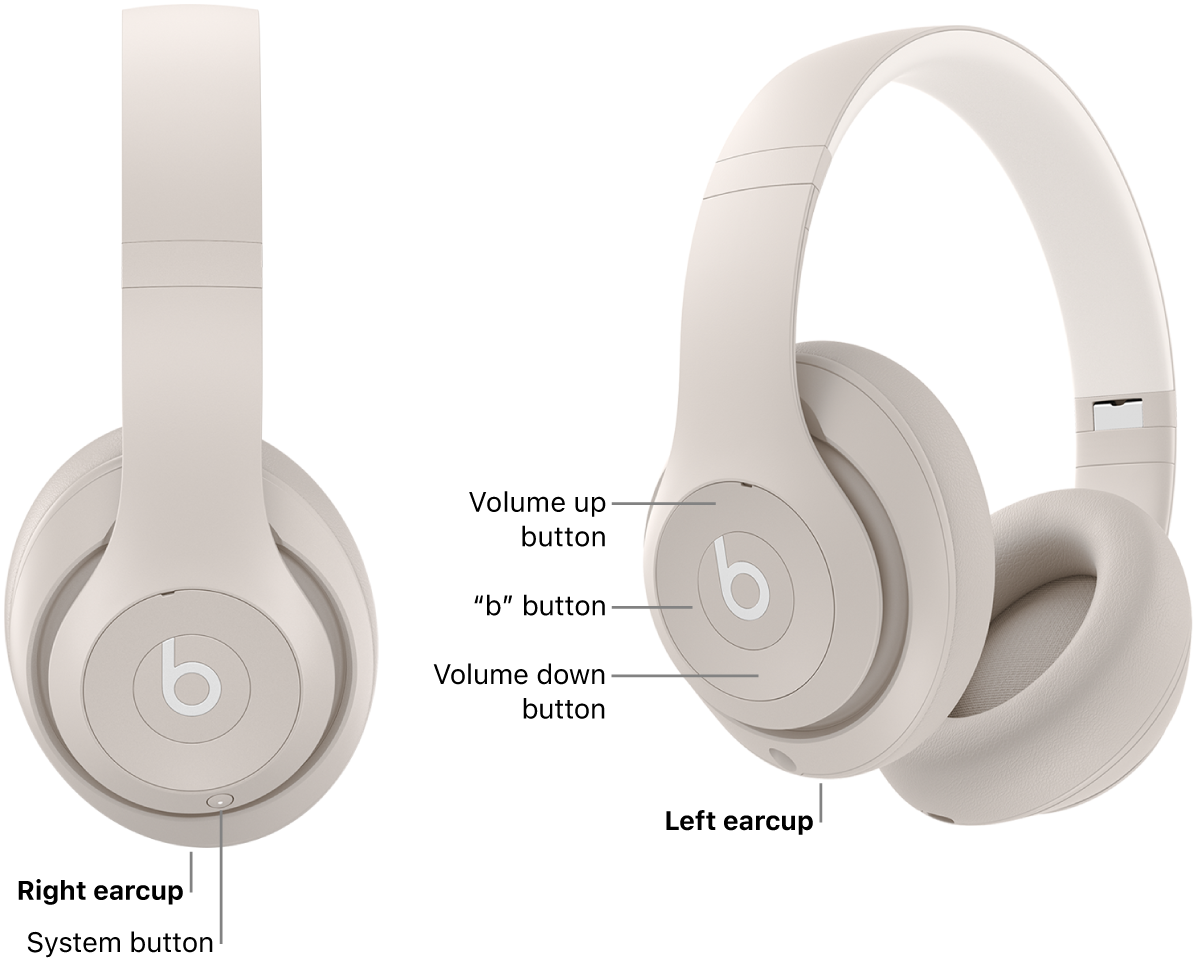
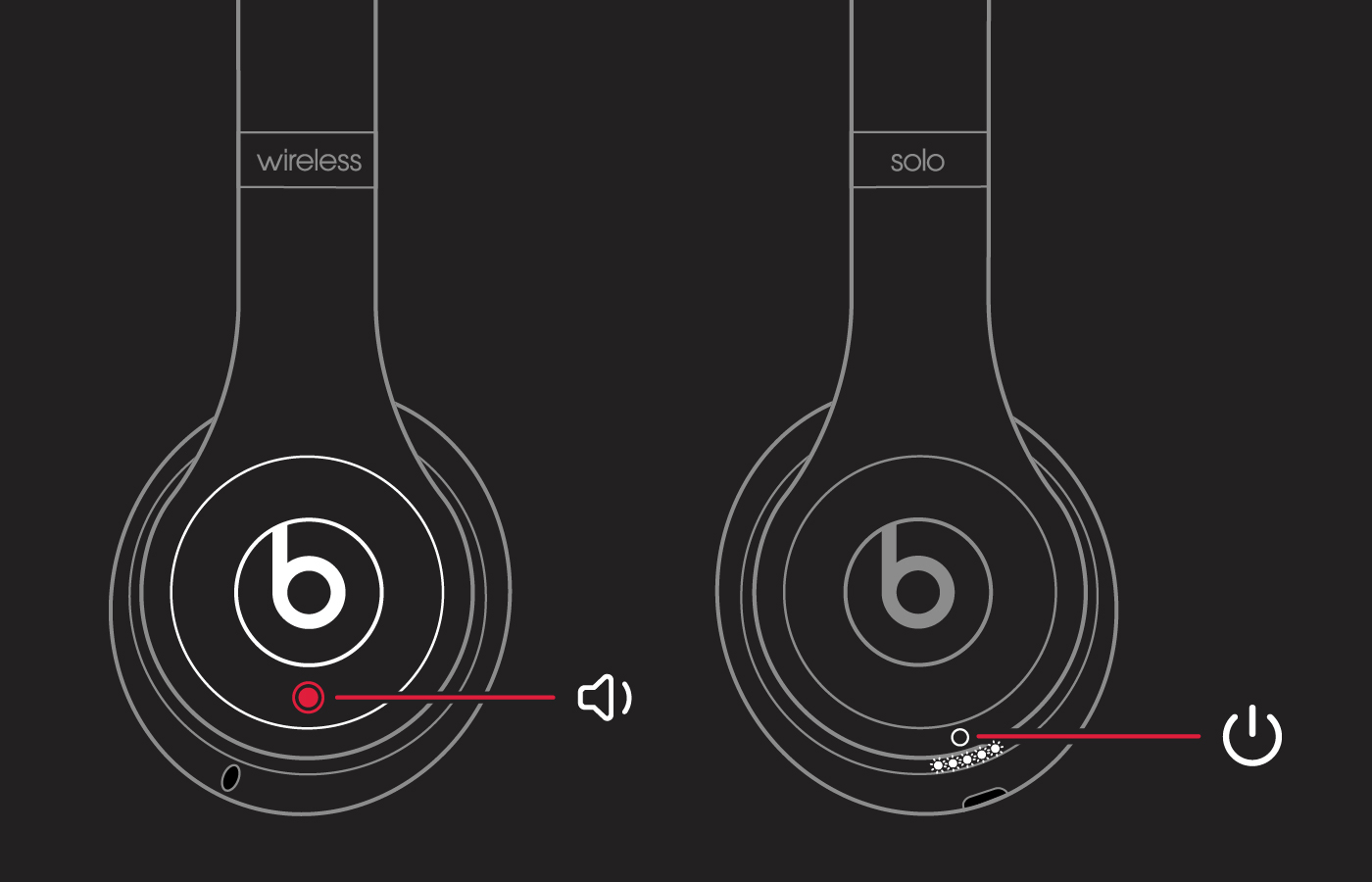
Beats Studio Pro, Beats Studio3 Wireless, Beats Solo3 Wireless, and similar models use a physical power button. The button is usually on the right earcup.
Beats Studio Pro
To turn off Beats Studio Pro:
- Press and hold the system button on the right earcup.
- Keep holding it for about one second.
- Release the button when the indicator light turns off.
Beats Studio Pro may also enter a low-power state after a period of inactivity. However, manually turning off the headphones is better when you are storing them or placing them in a bag.
Beats Studio3 Wireless
To turn off Beats Studio3 Wireless, press and hold the power button on the right earcup. Hold it until the five fuel-gauge lights go dark.
The same button controls power and shows battery status. A quick press usually displays the battery level, while pressing and holding shuts the headphones down.
Beats Solo3 Wireless
For Beats Solo3 Wireless, press and hold the power button on the right earcup. Release it once the indicator lights turn off.
If the lights stay on, press the button again and hold it slightly longer. Do not force the button or repeatedly tap it, as this can trigger Bluetooth or battery-status functions instead.
How to turn off Beats earbuds
Beats earbuds work differently from full-size headphones. Most models do not have a traditional power button that you hold to shut them down. Instead, they power down when you put them into the charging case.
This method applies to models such as:
• Beats Fit Pro
• Beats Studio Buds
• Beats Studio Buds +
• Powerbeats Pro
• Powerbeats Pro 2, where supported by the model design
To turn off Beats earbuds:
- Place both earbuds into the charging case.
- Make sure each earbud sits correctly in its charging slot.
- Close the lid.
- Wait a few seconds for the earbuds to disconnect.
The case must have enough charge to charge or manage the earbuds properly. If the case battery is empty, the earbuds may remain active longer than expected.
For Beats Fit Pro and Beats Studio Buds, placing the earbuds in the case is the most reliable way to end playback and disconnect them. You can also turn off automatic ear detection in the Beats app, but that does not replace the charging-case method.

How to turn off Beats Fit Pro
Beats Fit Pro earbuds are designed to power down when placed in their charging case. You do not need to press and hold the logo button to turn them off.
Use this process:
- Remove both earbuds.
- Place the left and right earbuds into the case.
- Check that they align with the charging contacts.
- Close the case lid.
If the earbuds do not disconnect, open the case and check whether the status light responds. Clean the metal charging contacts with a dry, soft cloth if dirt prevents a proper connection.
Beats Fit Pro can also pause audio when you remove one earbud. That action pauses playback, but it may not fully turn off the earbuds. Closing the case is the better option when you want to save battery.
How to turn off Beats Studio Buds and Studio Buds +
Beats Studio Buds and Beats Studio Buds + turn off when you place them inside the charging case and close the lid.
Make sure the earbuds are seated correctly. You should usually see a charging response from the case or earbuds. If the case does not recognize them, remove each earbud and place it back into the correct slot.
The button on each earbud is mainly used for playback, calls, noise control, and other assigned features. Pressing it may not shut down the earbuds. The case acts like a power station and storage box at the same time.
If you want to prevent accidental playback, close the lid fully. Leaving the case open can allow the earbuds to remain active or reconnect with a nearby device.

How to turn off Powerbeats Pro
Powerbeats Pro earbuds turn off when they are returned to the charging case. This is the normal shutdown method.
- Place each earbud into the case.
- Confirm that the charging pins connect.
- Close the lid.
- Leave the earbuds in the case until you need them again.
If one earbud stays connected, it may not be sitting correctly. Adjust it gently until the charging indicator responds.
Powerbeats Pro ear hooks make them secure during exercise, but they can sometimes prevent a quick fit in the case. Take a moment to align each earbud instead of pushing it down with force.
How to turn off Beats Flex
Beats Flex has a power button on the right control module. To turn off Beats Flex, press and hold the power button for about one second.
The status light should turn off after the headphones shut down. Beats Flex also has magnetic earbuds, but connecting the earbuds together does not always mean the headphones are fully powered off.
If the headphones stay on, separate the magnetic earbuds and press the power button again. Then wait several seconds before checking your phone’s Bluetooth menu.
A common mistake is to press the volume button instead of the power button. Look for the small power symbol on the control module before pressing.

How to check whether Beats headphones are off
A dark status light is the clearest sign that your Beats headphones have powered down. Still, some models may take a few seconds to disconnect from your phone.
You can also check your device:
• On iPhone, open Settings, select Bluetooth, and look under My Devices.
• On iPad, open Settings, then Bluetooth.
• On Android, open Settings, select Connected devices, and review Bluetooth devices.
• On Mac, open System Settings, select Bluetooth, and check the Beats connection.
• On Windows, open Settings, select Bluetooth & devices, and view the connection status.
A device may show your Beats headphones as saved or paired even after they are off. That does not mean the headphones are still using battery. “Paired” means the device remembers them, while “connected” means they are actively communicating.
To test the result, play audio through your phone speaker after turning off the headphones. If the audio comes from the phone and the Beats status light is off, the headphones are likely powered down.
What to do when Beats headphones will not turn off
If your Beats headphones stay on, try these steps in order:
- Press and hold the power button for up to five seconds.
- Move away from other Bluetooth devices.
- Turn Bluetooth off on your phone for a moment.
- Place Beats earbuds back into a charged case.
- Charge the headphones for at least 15 minutes.
- Restart your phone or tablet.
- Update the Beats firmware through a supported Apple device or the Beats app.
- Reset the headphones if normal power controls still fail.
A low battery can cause unusual behavior. Headphones may freeze, fail to show lights, or reconnect several times before shutting down.
Do not use water, sharp objects, or cleaning fluid around the charging port or contacts. For dirt, use a dry, soft, lint-free cloth. If the headphones become hot, swell, smell unusual, or show physical damage, stop using them and contact Apple or Beats support.
Resetting Beats headphones
A reset is different from turning off Beats headphones. It clears some settings and may remove saved Bluetooth connections.
Reset steps vary by model, so use the instructions for your exact product. A reset should be a later step, not the first solution. In many cases, a full charge and a proper press of the power button solve the problem.

How turning off Beats headphones saves battery
Turning off your headphones helps reduce battery drain when you are not listening. This matters most during travel, work breaks, and overnight storage.
Automatic sleep mode can save power, but it is not always the same as a full shutdown. Some headphones continue using a small amount of energy while waiting for a connection or monitoring controls.
Use these battery-saving habits:
• Turn off over-ear headphones before putting them in a backpack.
• Store Beats earbuds in the charging case.
• Charge the case before long trips.
• Disable Bluetooth on unused devices when practical.
• Keep firmware updated.
• Avoid leaving headphones in very hot or cold places.
Lithium-ion batteries naturally lose capacity over time. Keeping Beats headphones charged and avoiding extreme temperatures can support normal battery performance, but it cannot stop long-term battery aging.
Common mistakes when turning off Beats headphones
Many power problems come from using the wrong control. A quick button press may pause audio, show the battery level, or change noise-control settings rather than shut down the headphones.
Other common mistakes include:
• Assuming paused audio means the headphones are off
• Leaving earbuds outside their case
• Closing the case without seating the earbuds correctly
• Checking paired devices instead of active connections
• Holding the wrong button
• Ignoring a nearly empty case battery
• Resetting the headphones before trying a normal shutdown
One useful habit is to treat the headphones like a car. Pausing the music is like stopping at a red light; powering off is like switching off the engine. Both stop movement, but only one fully ends the session.
Can you turn off Beats headphones from an iPhone or Android phone?
You generally cannot fully power off every Beats model from the phone’s Bluetooth menu. You can disconnect or forget the headphones, but the hardware may remain powered on.
For a complete shutdown, use the physical power button or place the earbuds in their charging case. Turning off Bluetooth on the phone can prevent reconnection, but it is not always the same as turning off the Beats headphones.
How to use the Beats app for power and connection issues
The Beats app for Android and Apple device settings can help you view battery levels, manage controls, and install available firmware updates. These tools are useful when your headphones connect incorrectly or do not respond as expected.
The app does not replace the physical shutdown method for every model. Use the app to check settings, then use the power button or case to turn off the hardware.
Before troubleshooting, confirm that you have selected the correct Beats model. Instructions for Beats Flex may not apply to Beats Fit Pro, and instructions for Studio Pro may not apply to Studio Buds.
Frequently asked questions about how to turn off Beats headphones
How do I turn off Beats headphones manually?
Press and hold the power button for about one second on most over-ear Beats models. Release it when the status light turns off.
How do I turn off Beats earbuds without a power button?
Place both earbuds in their charging case and close the lid. Make sure they are seated correctly so the charging contacts connect.
Why are my Beats still connected after I turn them off?
Your phone may still show the headphones as paired, even when they are no longer active. Check whether the device says “connected,” and look for a dark status light on the Beats.
Do Beats headphones turn off automatically?
Many Beats models enter sleep mode after inactivity, but automatic sleep is not always a full shutdown. Turn off over-ear models manually and store Beats earbuds in their case when you want to save the most battery.
Can I turn off Beats headphones from Bluetooth settings?
Bluetooth settings can disconnect or forget Beats headphones, but they may not physically power them off. Use the power button or charging case for a complete shutdown.
What should I do if my Beats headphones will not turn off?
Charge the headphones or case, try holding the power button longer, and check for a proper earbud connection in the case. If the issue continues, update the firmware or follow the reset instructions for your exact model.
Conclusion
Turning off Beats headphones usually takes one simple action: press and hold the power button on over-ear models, or place earbuds in their charging case. Check the status light, confirm the Bluetooth connection has ended, and make sure earbuds sit correctly on their charging contacts.
Knowing how to turn off Beats headphones helps protect battery life and prevents unwanted connections. Try the steps for your model today, and explore the official support guide or share your model and troubleshooting experience in the comments.
