

To connect billboard wireless earbuds to an iPhone, turn on Bluetooth, open the case, and select the earbuds.
Learning how to connect Billboard wireless earbuds to iPhone is simple once you know the correct pairing steps. Most Billboard models use standard Bluetooth, but the button location and pairing method can vary. This guide explains the setup, fixes common connection problems, and shares practical tips for better sound and battery life.
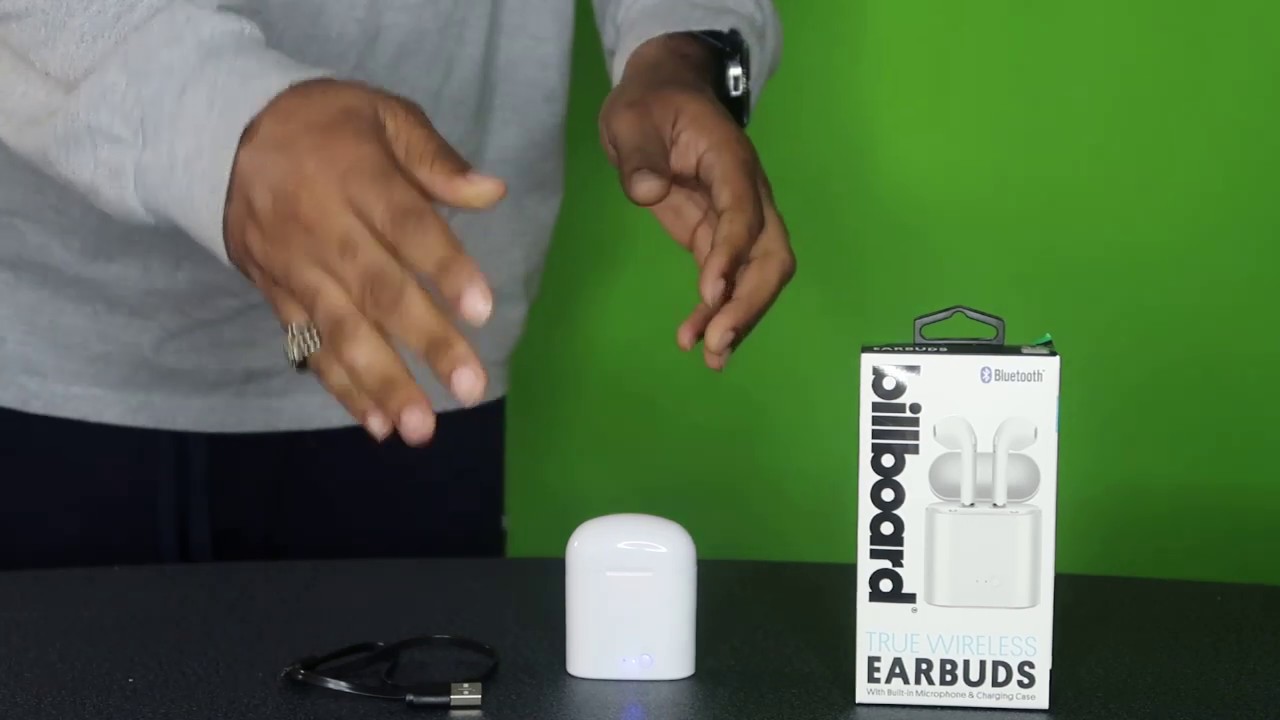
What you need before pairing Billboard earbuds with an iPhone
Before you connect Billboard wireless earbuds to iPhone, check a few basic things. Your iPhone should run a recent version of iOS, and the earbuds should have enough battery to enter pairing mode.
Keep the earbuds close to your iPhone during setup. Bluetooth works best when the devices are within a few feet of each other and away from other wireless devices.
Check these points first:
• Charge the earbuds and charging case for at least 10 to 15 minutes.
• Remove any small plastic film from the charging contacts or earbuds.
• Make sure Bluetooth is turned on, but do not connect the earbuds to another phone, tablet, or laptop.
• Keep the earbuds inside the case until you are ready to pair them.
• If you used the earbuds before, turn off Bluetooth on the old device for a moment.
Billboard sells several wireless earbud designs. Some models enter pairing mode as soon as you open the case. Others need you to press and hold a button on the case or touch panel. Because of this, your model may look slightly different from the steps below.

How to connect Billboard wireless earbuds to iPhone
The steps below work for most Billboard Bluetooth earbuds. The names shown on your iPhone may include “Billboard,” a model number, or a short product name.
Step 1: Open iPhone Bluetooth settings
Unlock your iPhone and open the Settings app. Tap Bluetooth, then tap the switch if Bluetooth is off.
Stay on the Bluetooth screen. This lets you see nearby devices as soon as the earbuds begin searching for a connection.
You can also open Control Center and tap the Bluetooth icon. However, the Settings app is better for first-time pairing because it shows the full device list.
Step 2: Put the earbuds into pairing mode
Take both earbuds out of the charging case. Many Billboard earbuds flash blue and red, or blue and white, when they are ready to pair.
If the earbuds do not flash, press and hold the button on the case for about three to five seconds. On some models, press and hold the touch panels on both earbuds instead.
Pairing mode is like making the earbuds raise their hand and say, “I am ready.” Without this step, the iPhone may not find them.
Step 3: Select the Billboard earbuds
Look under Other Devices on your iPhone’s Bluetooth screen. Tap the name that matches your Billboard earbuds.
Wait a few seconds. The name should move to My Devices and show Connected. You may also hear a tone or see the earbuds flash to confirm the connection.
This is the main process for how to connect Billboard wireless earbuds to iPhone. Once paired, your iPhone should remember the earbuds and connect to them automatically when they are removed from the case.
Step 4: Test the connection
Open Apple Music, a podcast app, or a video. Start playback and raise the volume slowly.
If sound comes from the iPhone speaker, open Control Center, tap the audio output icon, and choose the Billboard earbuds. This confirms that the earbuds are paired and selected as the current audio device.
When I test a new pair of wireless earbuds, I always make a short call after playing music. Calls can reveal microphone or left and right earbud problems that music may not show.
How to connect Billboard wireless earbuds to iPhone when they do not appear
Sometimes the earbuds do not appear in the Bluetooth list. This usually means they are not in pairing mode, they are connected to another device, or they need a reset.
Try these steps in order:
Put both earbuds back in the charging case.
Close the lid and wait about 10 seconds.
Open the lid and remove both earbuds.
Press and hold the case button or earbud touch panels until the indicator lights flash.
Turn Bluetooth off on nearby phones, tablets, computers, or smart TVs.
Return to Settings > Bluetooth on the iPhone.
Look again under Other Devices.
If the earbuds still do not appear, restart the iPhone. A restart can clear a temporary Bluetooth service error without changing your personal settings.
Also check the charging contacts. Dirt, pocket lint, or a thin shipping film can stop one earbud from charging. If one earbud stays dead, the pair may not enter normal pairing mode.

How to reconnect Billboard wireless earbuds to iPhone
After the first setup, reconnecting Billboard wireless earbuds to iPhone should take only a few seconds. Turn on Bluetooth, open the charging case, and remove the earbuds.
Your iPhone should connect automatically if the earbuds are nearby. If it does not, go to Settings > Bluetooth and tap the Billboard device name under My Devices.
If another device connects first, disable Bluetooth on that device. Some earbuds connect to the last device used, much like a key that returns to the last lock.
You can also place the earbuds back in the case and remove them again. This often wakes the connection and lets the iPhone find them.

How to fix Billboard earbuds that connect but have no sound
A Bluetooth connection does not always mean the iPhone is sending audio to the earbuds. The phone may still be using its built-in speaker or another connected device.
To select the correct audio output:
• Start playing music or a video.
• Open Control Center by swiping down from the upper right corner.
• Tap the audio output button in the media control box.
• Select your Billboard earbuds.
• Raise the volume on both the iPhone and the earbuds.
If only one earbud plays sound, place both earbuds in the case. Confirm that each one is charging, then remove them together. One earbud may have lost its link with the other.
Clean the small speaker openings with a dry, soft brush. Do not push liquid, pins, or sharp objects into the mesh. Wax and dust can make one side seem silent even when the Bluetooth connection works.
How to forget and pair Billboard earbuds again
If the connection remains unstable, remove the old Bluetooth record and pair the earbuds again. This is often the fastest fix for repeated disconnects, delayed sound, or failed automatic connections.
Follow these steps:
Open Settings on the iPhone.
Tap Bluetooth.
Find the Billboard earbuds under My Devices.
Tap the information button next to their name.
Tap Forget This Device.
Confirm the choice.
Put the earbuds into pairing mode again.
Select them under Other Devices.
Forgetting a device does not damage the earbuds. It simply removes the saved connection details from the iPhone. You will need to pair them again as if they were new.
This step helped me solve a common issue during testing: the earbuds showed as connected, but audio kept switching back to the phone. Removing the old Bluetooth profile gave the iPhone a clean start.
How to reset Billboard wireless earbuds
A factory reset can help when normal pairing steps fail. The exact reset method depends on the Billboard model, so check the model’s manual if possible.
Many true wireless earbuds use a process similar to this:
• Forget the earbuds in iPhone Bluetooth settings.
• Turn off Bluetooth on nearby devices.
• Place both earbuds in the charging case.
• Leave the case open.
• Press and hold the case button for about 10 to 15 seconds.
• Release the button when the lights flash in a new pattern.
• Close and reopen the case.
• Put the earbuds into pairing mode.
Some models reset when you press and hold both earbud touch panels while they are outside the case. Others require several taps instead. Do not assume every Billboard model uses the same reset command.
A reset may erase the earbuds’ previous device connections. It does not usually delete anything from the iPhone, but it can require you to pair the earbuds with your other devices again.
Common reasons Billboard earbuds will not pair
Understanding the cause can save time. Most pairing problems come from a small number of issues.
The earbuds are connected to another device
If the earbuds automatically connect to a tablet, laptop, or Android phone, they may not appear on the iPhone. Turn off Bluetooth on the other device or forget the earbuds there.
The earbuds are not charged
Low battery can prevent pairing mode from starting. Charge both earbuds and the case, then try again.
The earbuds are too far away
Keep the iPhone and earbuds within a few feet during setup. Walls, metal objects, and heavy wireless traffic can weaken the signal.
The Bluetooth list is crowded
An iPhone can store many Bluetooth devices. Old entries do not normally block pairing, but removing unused devices can make the list easier to manage.
One earbud is not seated correctly
If one earbud does not touch the charging pins, the pair may not reset or power on together. Wipe the contacts and check that both charging indicators respond.
The iPhone needs an update
Apple regularly improves Bluetooth performance through iOS updates. Install available updates when practical, especially if other Bluetooth accessories also disconnect.
Tips for better sound and battery life
Once you connect Billboard wireless earbuds to iPhone, a few habits can make daily use smoother.
Keep the charging case above 20 percent when possible. The case powers the earbuds between uses, so an empty case can make the earbuds appear unreliable.
Store both earbuds in the case when you are finished. This helps protect them and prevents accidental battery drain. It also gives the earbuds a chance to reconnect as a matched pair the next time you use them.
Avoid covering the earbuds with a hand or placing the iPhone deep inside a bag during calls. Bluetooth is designed for short-range use, and your body can weaken the signal.
For the best call quality, keep the microphone openings clean. Wind, hair, and fabric can cover the microphones. If callers say your voice sounds distant, test the earbuds in a quiet room before assuming they are defective.
Billboard earbuds may support different controls, codecs, and water-resistance levels. Do not use them in heavy rain or near water unless your model’s instructions clearly allow it.
How to check whether the iPhone is using the earbuds
You can confirm the connection in more than one way. First, open Settings > Bluetooth and check whether the Billboard earbuds show Connected.
Next, play audio and open the output menu in Control Center. The selected device should show the Billboard earbuds, not iPhone or another speaker.
You can also check the volume slider. If the slider changes while sound comes from the earbuds, the phone is likely using them correctly.
For calls, look at the audio button on the call screen. Tap it and choose the Billboard earbuds if the iPhone uses its built-in microphone or speaker.
These checks are useful because “paired” and “selected for audio” are not always the same thing. The first means the devices know each other. The second means the iPhone is actively sending sound to the earbuds.
Safety and privacy tips for Bluetooth earbuds
Bluetooth earbuds are convenient, but good habits still matter. Pair them in a private place and avoid accepting unknown Bluetooth requests.
Keep your iPhone’s software updated. Use a passcode and Face ID or Touch ID to protect the phone if it is lost.
Listening at a safe volume is also important. If you need to shout to speak with someone nearby, lower the volume. Long exposure to loud sound can harm hearing, according to public health guidance.
Wireless earbuds can reduce awareness of traffic, bikes, and people around you. Use transparency features if your model supports them, or remove an earbud in busy areas.
Frequently Asked Questions About How to Connect Billboard Wireless Earbuds to iPhone
Why are my Billboard earbuds not showing up on my iPhone?
The earbuds may not be in pairing mode, may have low battery, or may be connected to another device. Charge them, disable Bluetooth on nearby devices, and press the pairing button until the indicator light flashes.
How do I put Billboard wireless earbuds into pairing mode?
Open the charging case and remove both earbuds. If they do not flash, press and hold the case button or both earbud touch panels for about three to five seconds.
Can I connect Billboard earbuds to an iPhone without the case?
You may reconnect them without the case if they are already paired and powered on. For first-time pairing or a reset, most models need the case or a button on the earbuds.
Why do my Billboard earbuds connect but play no sound?
The iPhone may be sending audio to its speaker or another Bluetooth device. Open Control Center, tap the audio output button, and select your Billboard earbuds.
How do I reset Billboard earbuds before pairing them again?
Forget the earbuds in Settings > Bluetooth, place both earbuds in the case, and hold the case button or touch panels until the lights change. The exact reset method varies by model, so check the model guide when available.
Will Billboard wireless earbuds work with every iPhone?
Most Billboard Bluetooth earbuds work with iPhones that support standard Bluetooth audio. Older iPhones may have fewer features, but basic music and call functions should work when the model is compatible.
Conclusion
The easiest way to connect Billboard wireless earbuds to iPhone is to charge them, place them in pairing mode, open Settings > Bluetooth, and select the Billboard name. If the earbuds fail to appear, disable Bluetooth on other devices, restart the iPhone, forget the old connection, or reset the earbuds.
Take a minute to test music, calls, and both earbuds after pairing. These simple checks can prevent many daily connection problems. If this guide helped, share it with someone setting up new earbuds or explore more practical iPhone and Bluetooth tips.
