

Turn on Bluetooth, put your earbuds in pairing mode, then select them in Windows Bluetooth settings.
Learning how to connect Bluetooth earbuds to a PC is simple once you know where Windows hides its wireless controls. This guide covers Windows 11 and Windows 10, explains common pairing problems, and shares practical tips for getting clear sound without delays or repeated disconnects.

What You Need Before Connecting Bluetooth Earbuds
Before you connect Bluetooth earbuds to a PC, check that your computer and earbuds are ready. Most failed connections happen because one small step was missed.
You need:
- A Windows 10 or Windows 11 PC
- Bluetooth built into the computer or a working USB Bluetooth adapter
- Charged earbuds and a charged charging case
- Earbuds that are not connected to another nearby device
- Updated Bluetooth and audio drivers
Many laptops include Bluetooth by default. Desktop PCs may not. Look for a Bluetooth option in Windows settings, or check Device Manager for a Bluetooth category.
If your desktop has no Bluetooth hardware, use a USB Bluetooth adapter. These small devices are usually plug-and-play on modern versions of Windows. For the best results, install the driver supplied by the adapter maker when Windows does not detect it automatically.
Your earbuds should also be in pairing mode. This is not always the same as simply taking them out of the case. Some models enter pairing mode when you press and hold the case button, while others require holding both touch controls.

How to Connect Bluetooth Earbuds to a Windows 11 PC
Windows 11 makes the pairing process quick. Keep the earbuds close to the computer during setup, ideally within a few feet.
Follow these steps:
- Put both earbuds in the charging case.
- Open the case lid.
- Press and hold the pairing button until the indicator flashes.
- On your PC, open the Start menu.
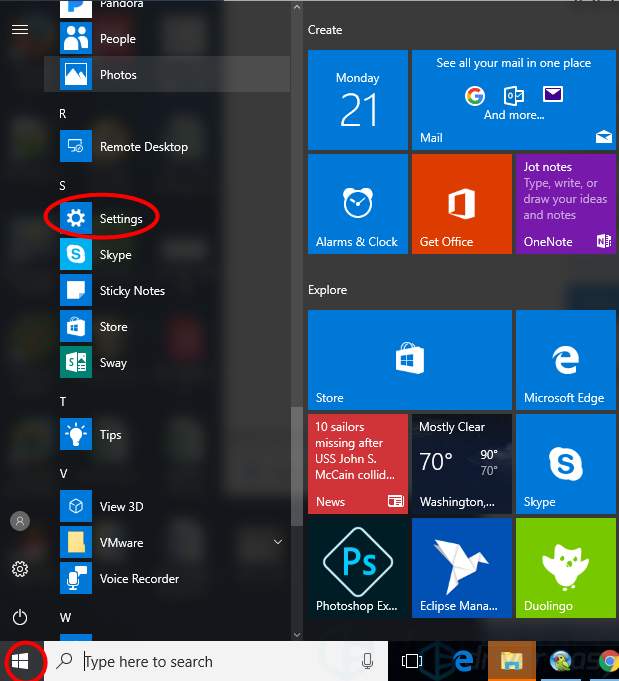
- Select Settings.
- Choose Bluetooth & devices.
- Turn on Bluetooth.
- Click Add device.
- Select Bluetooth.
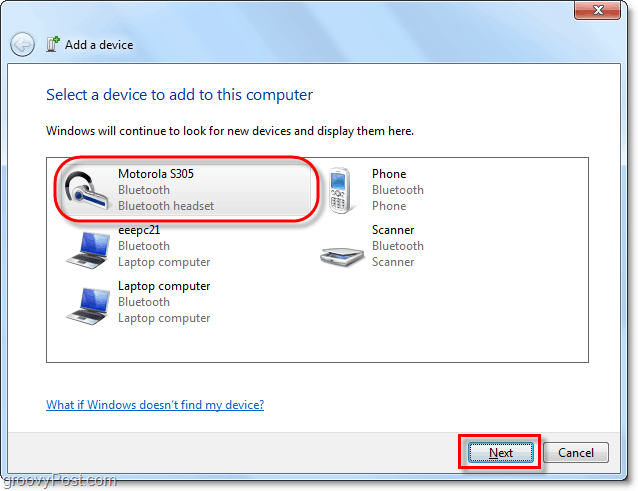
- Choose your earbuds from the list.
- Select Done when Windows confirms the connection.
The name may include the brand and model number. For example, you might see “Galaxy Buds,” “AirPods,” or “Jabra Elite.” If several devices appear, check the label on the case before selecting one.
After you connect Bluetooth earbuds to a PC, Windows should use them for sound. If you hear audio through the computer speakers, click the speaker icon on the taskbar. Select the arrow next to the volume control, then choose your earbuds as the output device.
Some earbuds show two audio options. One may say “Headphones” or “Stereo,” while another says “Headset” or “Hands-Free AG Audio.” Choose the stereo option for better music quality. The hands-free option is designed for calls and may sound less clear.

How to Connect Bluetooth Earbuds to a Windows 10 PC
The Windows 10 process is slightly different, but the core steps remain the same. First, make sure the earbuds are visible to nearby Bluetooth devices.
- Place the earbuds in pairing mode.
- Open the Start menu.
- Select Settings.
- Click Devices.
- Choose Bluetooth & other devices.
- Turn on Bluetooth.
- Select Add Bluetooth or other device.
- Click Bluetooth.
- Select your earbuds.
- Click Done.
Windows may display a message that your earbuds are connected. Test them by playing a video or song. If the sound comes from the wrong device, click the speaker icon in the taskbar and select the earbuds manually.
You can also set them as the default output device:
- Right-click the speaker icon.
- Select Open Sound settings.
- Choose your earbuds under Output.
- Open More sound settings if needed.
- Select the Playback tab.
- Right-click the earbuds.
- Choose Set as Default Device.
When learning how to connect Bluetooth earbuds to a PC, remember that pairing and audio output are two separate steps. Windows may pair the earbuds correctly but still use your monitor, speakers, or wired headset for sound.

How to Put Different Earbuds Into Pairing Mode
Pairing mode allows your PC to find the earbuds. The exact method varies by brand, so check the quick-start guide if the usual steps do not work.
Common methods include:
- Pressing and holding the button on the charging case
- Holding both earbud touch controls for several seconds
- Removing both earbuds and holding one touch panel
- Opening the case near a device that has never used the earbuds
- Resetting the earbuds when they are already linked to another device
A flashing white or blue light often means the earbuds are ready to pair. A red or orange light may indicate low battery or charging. Some models use voice prompts instead of indicator lights.
Turn off Bluetooth on your phone for a moment if the earbuds keep connecting to it. Earbuds often reconnect to the last device they used. Your PC may not find them until the phone releases the connection.
I have seen this cause confusion many times during setup. The earbuds look ready, but a phone in the same room quietly claims them first. Temporarily disabling Bluetooth on nearby phones is one of the fastest ways to solve this problem.
How to Connect Bluetooth Earbuds to a PC Without Built-In Bluetooth
Not every PC supports Bluetooth. This is especially common with older desktop computers. You can still connect Bluetooth earbuds by adding a USB Bluetooth adapter.
Choose an adapter that supports:
- Windows 10 or Windows 11
- Bluetooth 5.0 or newer
- Your preferred audio profile
- Reliable driver support
- A trusted manufacturer
Plug the adapter into a USB port. Wait for Windows to install it, then open Settings and search for Bluetooth. If Bluetooth appears, follow the normal pairing steps.
If the adapter does not work, open Device Manager. Look under Bluetooth, Network adapters, or Universal Serial Bus controllers. A warning icon may indicate a driver problem.
Avoid placing the adapter behind a metal computer case, inside a crowded USB hub, or beside a strong wireless transmitter. Bluetooth uses the 2.4 GHz radio band, which can experience interference from Wi-Fi routers, wireless mice, keyboards, and other devices.
A short USB extension cable can help move the adapter into a clearer position. This small change can improve range and reduce audio dropouts on desktop computers.
How to Choose the Correct Earbud Audio Output
After you connect Bluetooth earbuds to a PC, Windows may not switch the sound automatically. This is normal, especially when you use a monitor with built-in speakers or several audio devices.
To choose your earbuds in Windows 11:
- Click the speaker icon on the taskbar.
- Select the sound output menu.
- Click your earbuds.
- Adjust the volume.
To choose them in Windows 10:
- Click the speaker icon.
- Open the output device list.
- Select your earbuds.
- Play audio to test the connection.
You can also open Settings, select System, and choose Sound. Under Output, select the connected earbuds.
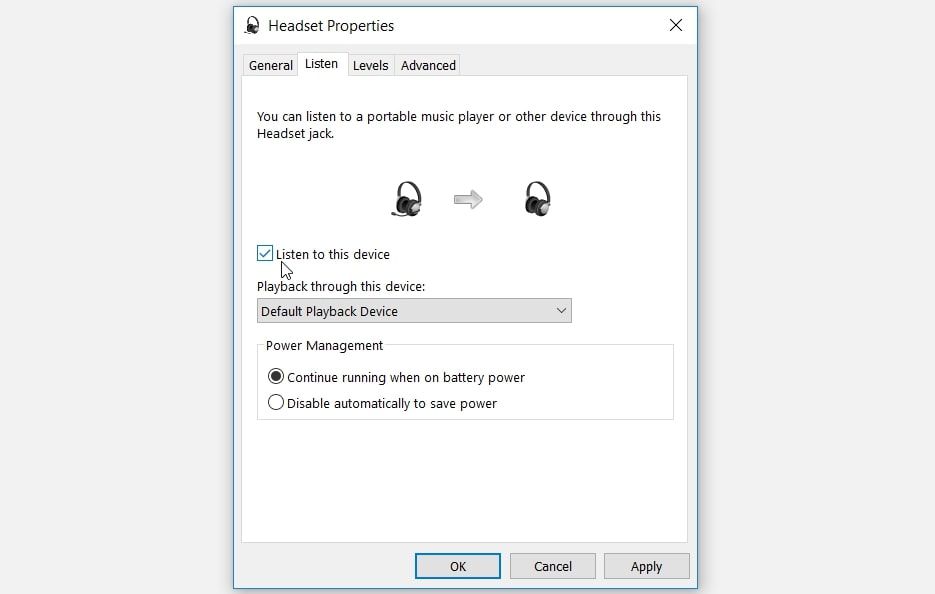
For music and video, use the stereo or headphones profile. For video calls, Windows may switch to the hands-free profile because it activates the earbud microphones. This can lower sound quality.
That tradeoff comes from Bluetooth audio profiles. A high-quality stereo mode focuses on playback. A hands-free mode sends audio in both directions, so your microphone can work during a call. If call quality matters, a separate USB microphone may let you keep better stereo sound.
:max_bytes(150000):strip_icc()/006-how-to-connect-bose-headphones-to-a-pc-f0a2640c1de544d780eb9385f1301fdf.jpg)
How to Connect Bluetooth Earbuds to a PC for Calls
Bluetooth earbuds can work with Microsoft Teams, Zoom, Google Meet, Discord, and other calling apps. However, you must select the earbuds inside the app as well as in Windows.
Before joining a call:
- Open Windows sound settings.
- Select the earbuds as the output device.
- Select the earbud microphone as the input device.
- Open the call app’s audio settings.
- Choose the same earbuds for speaker and microphone.
- Make a short test call.
If the other person cannot hear you, check whether the app has microphone permission. In Windows, open Settings, select Privacy & security, and choose Microphone. Make sure access is enabled for the system and the calling app.
Keep the charging case nearby. Some earbuds switch off when their battery is low, even if Windows still shows them as connected. A full charge also helps prevent sudden audio cuts during long meetings.
For work calls, a wired headset or dedicated wireless headset may perform better. Earbuds are convenient, but small microphones can pick up wind, keyboard noise, and room echo.
Troubleshooting Bluetooth Earbuds That Will Not Connect
When Bluetooth earbuds do not connect, start with the simple fixes. Most problems do not require advanced repairs.
Try these steps in order:
- Charge the earbuds and case.
- Turn Bluetooth off and on in Windows.
- Restart the PC.
- Put the earbuds back into pairing mode.
- Move the earbuds closer to the PC.
- Turn off Bluetooth on nearby phones and tablets.
- Remove the earbuds from Windows and pair them again.
- Install Windows updates.
- Update the Bluetooth driver.
- Reset the earbuds according to the manufacturer’s instructions.
To remove an old pairing in Windows 11, open Bluetooth & devices, find the earbuds, select the three-dot menu, and choose Remove device. In Windows 10, open Bluetooth & other devices, select the earbuds, and click Remove device.
Then restart the earbuds and pair them again. This clears an outdated connection record, much like deleting an old address before saving a new one.
If your earbuds do not appear at all, confirm that Bluetooth is enabled and that the computer has Bluetooth hardware. Also check whether another device is already connected. Some earbuds support only one active connection, while others support multipoint connections.

Fixing Bluetooth Earbud Sound, Delay, and Dropouts
A successful connection does not always mean perfect performance. You may notice low volume, lag, crackling, or sound that cuts out.
For low volume:
- Raise the volume on the earbuds.
- Raise the Windows volume.
- Check the app’s volume control.
- Confirm the correct output device.
- Disable volume limits in the earbud app, if available.
For audio delays, update the earbuds’ firmware and Bluetooth driver. Video apps often correct small delays automatically, but games may make latency more noticeable. Bluetooth earbuds designed for gaming may offer a low-latency mode, though results vary by computer and game.
For crackling or dropouts, reduce distance between the earbuds and PC. Remove large objects between them. Move USB 3.0 storage devices or wireless adapters away from the Bluetooth adapter, as some USB devices can create radio interference.
I once solved repeated desktop dropouts by moving a USB Bluetooth adapter from the back of the case to the top of the desk. The earbuds had not changed. The signal path had. Small physical changes can matter more than people expect.
How to Keep Bluetooth Earbuds Connected to a PC
Good setup habits can prevent most connection issues. Keep Windows, the earbud firmware, and the Bluetooth driver current.
Use these habits:
- Store the earbuds in their case when not in use.
- Charge the case before long calls or trips.
- Keep the PC’s Bluetooth driver updated.
- Remove old devices you no longer use.
- Avoid connecting too many wireless devices at once.
- Keep the earbuds within a practical range.
- Turn off Bluetooth on devices that keep stealing the connection.
Battery level also affects reliability. Some earbuds remain connected at a low charge but produce skips or shut down without much warning. Charging them before meetings and travel is a simple way to avoid trouble.
If you use the same earbuds with a phone and a PC, multipoint support can help. It allows compatible earbuds to stay connected to two devices. However, switching between devices may still take a few seconds, and not every model handles multipoint equally well.
Bluetooth Earbuds Versus a USB Wireless Adapter
Bluetooth earbuds connect directly to a PC with built-in Bluetooth. A USB wireless adapter is different. It may use a special 2.4 GHz receiver made for one headset model.
Bluetooth offers convenience and broad compatibility. You can often use the same earbuds with a PC, phone, tablet, and TV.
A dedicated USB receiver may offer:
- Lower audio delay
- A stronger connection
- Better range
- Easier microphone support
- More stable gaming performance
The right option depends on your needs. Bluetooth is usually enough for music, videos, web browsing, and casual calls. A dedicated receiver may be better for competitive gaming or demanding work calls.
Some gaming earbuds support both Bluetooth and a USB receiver. In that case, use the receiver for your PC and Bluetooth for your phone when possible. This setup can reduce delay and preserve battery life.
Security and Privacy Tips for Bluetooth Connections
Bluetooth connections are designed to be convenient, but basic security still matters. Only pair devices you recognize, and avoid accepting unknown connection requests.
Use these safety practices:
- Pair earbuds in a private place.
- Keep Windows updated.
- Do not approve unfamiliar Bluetooth devices.
- Remove old pairings from shared computers.
- Use a separate Windows account on public or shared PCs.
- Turn off Bluetooth when you do not need it on a public computer.
Modern Bluetooth devices use authentication and encryption during normal pairing. Still, security depends on the device, software, and environment. Keeping the operating system and device firmware updated reduces avoidable risks.
Frequently Asked Questions About How to Connect Bluetooth Earbuds to a PC
Why are my Bluetooth earbuds not showing up on my PC?
Put the earbuds into pairing mode and make sure they are not connected to your phone. Then restart Bluetooth on the PC, charge the earbuds, and search again. If they still do not appear, your PC may need a Bluetooth driver or USB adapter.
Can I connect Bluetooth earbuds to a desktop PC?
Yes, but the desktop must have Bluetooth hardware. If it does not, plug in a USB Bluetooth adapter and install its driver if Windows does not set it up automatically.
How do I connect Bluetooth earbuds to a PC with Windows 11?
Open Settings, select Bluetooth & devices, turn on Bluetooth, and choose Add device. Select Bluetooth, choose your earbuds, and then select Done.
Why are my earbuds connected but no sound plays?
Windows may still be using your monitor or speakers as the output device. Click the taskbar speaker icon and select your earbuds, or choose them under Settings, System, and Sound.
Can I use Bluetooth earbuds as a microphone on my PC?
Yes. Select the earbuds as the input device in Windows and inside your calling app. The sound may switch to a hands-free mode, which can reduce music quality while the microphone is active.
How do I remove and reconnect Bluetooth earbuds?
Open Windows Bluetooth settings, select the earbuds, and choose Remove device. Put the earbuds into pairing mode again, then select Add device and choose them from the list.
Do Bluetooth earbuds work with Windows 10?
Most modern Bluetooth earbuds work with Windows 10 if the PC has Bluetooth support. Compatibility can vary by driver, earbud model, microphone profile, and Windows updates.
Conclusion
Connecting Bluetooth earbuds to a PC usually takes only a few steps: enable Bluetooth, place the earbuds in pairing mode, select them in Windows, and choose them as the audio output. If the connection fails, remove old pairings, charge the earbuds, update drivers, and check for interference.
Once you understand the difference between pairing and selecting an audio device, the process becomes much easier. Try the steps above on your Windows 10 or Windows 11 PC, and explore your earbud maker’s support guide for model-specific features.
