

To pair Bose QC35 headphones, turn them on, hold the Bluetooth switch, and select QC35 in your device’s Bluetooth menu.
Learning how to pair Bose QC35 headphones is simple once you know what each control does. The process works with iPhone, Android, Windows, Mac, tablets, and many Bluetooth-enabled TVs. This guide explains the exact steps, solves common connection problems, and shares practical tips for switching between devices with less hassle.
How to Pair Bose QC35 Headphones for the First Time
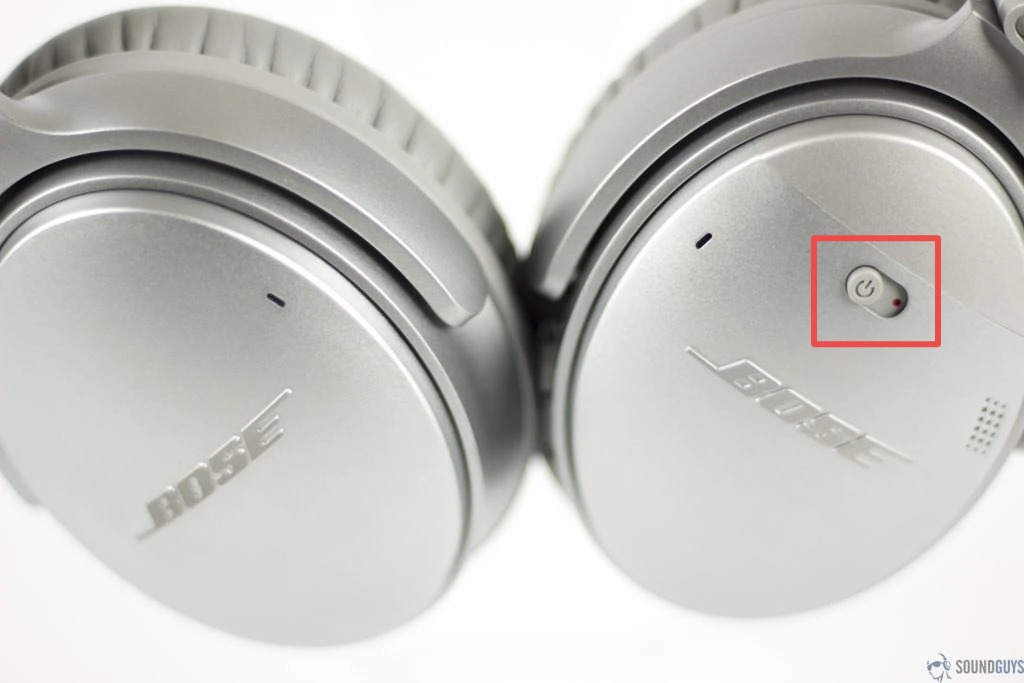
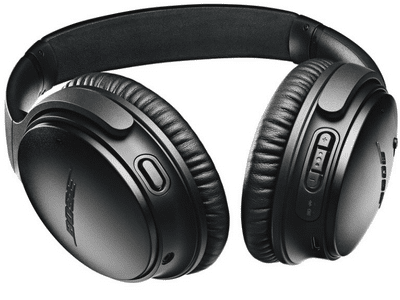
Bose QC35 headphones enter pairing mode through the power and Bluetooth switch on the right earcup. You do not need the Bose app for the first connection, although the app can make device management easier.
Follow these steps:
- Turn on your headphones by sliding the power switch toward the Bluetooth symbol.
- Keep holding the switch in that position for about three seconds.
- Release the switch when you hear “Ready to pair” or see the Bluetooth light blink blue.
- Open the Bluetooth settings on your phone, tablet, or computer.
- Look for “Bose QC35” or “Bose QC35 II” in the list of available devices.
- Tap or click the headphone name.
- Wait for the status to change to “Connected.”
Your QC35 headphones should now play audio from the selected device. The headphones also usually confirm the connection with a voice prompt.
If the headphones connect to a nearby device instead, turn Bluetooth off on that device for a moment. Then repeat the pairing steps with your preferred phone or computer.
How to Pair Bose QC35 Headphones With an iPhone
The iPhone pairing process takes less than a minute in most cases. Keep the headphones close to the phone, ideally within three feet during the first connection.
- Open the Settings app on your iPhone.
- Tap Bluetooth.
- Turn Bluetooth on if it is disabled.
- Slide and hold the QC35 power switch toward the Bluetooth icon.
- Release it after about three seconds.
- Tap Bose QC35 under Other Devices.
- Wait until the device appears under My Devices with a Connected label.
If you see two Bose entries, choose the one that matches your headphone model. The QC35 and QC35 II names may appear differently depending on the firmware and iPhone version.
After pairing Bose QC35 headphones with an iPhone, the phone should remember them. The next time you turn on the headphones, they should reconnect automatically if Bluetooth is active.

How to Pair Bose QC35 Headphones With Android
Android menus vary by brand, but the main process stays the same. Samsung, Google Pixel, OnePlus, and Motorola phones all use similar Bluetooth controls.
- Open Settings.
- Select Connected devices, Connections, or Bluetooth.
- Tap Pair new device if your phone shows that option.
- Hold the headphone switch toward the Bluetooth symbol for three seconds.
- Choose Bose QC35 from the available devices.
- Approve the pairing request if your phone asks for confirmation.
Some Android phones may show a pairing code. If that happens, try 0000 if the phone does not fill in a code automatically. Most newer devices connect without requiring a code.
Bose QC35 headphones may also support NFC pairing with compatible Android phones. To try it, turn on NFC, unlock the phone, and touch the phone’s NFC area to the left earcup. NFC support depends on the phone model and software, so standard Bluetooth pairing is the more reliable method.

How to Pair Bose QC35 Headphones With a Windows PC
Pairing Bose QC35 headphones with Windows is useful for music, video calls, and work. First, make sure your computer has Bluetooth. Many laptops include it, but some desktop computers need a USB Bluetooth adapter.
On Windows 11:
- Open Settings.
- Select Bluetooth & devices.
- Turn Bluetooth on.
- Click Add device.
- Choose Bluetooth.
- Hold the QC35 power switch toward the Bluetooth icon.
- Select Bose QC35 from the list.
- Click Done when Windows confirms the connection.
On Windows 10, open Settings, select Devices, choose Bluetooth & other devices, and click Add Bluetooth or other device. Then select Bluetooth and choose your headphones.
If Windows connects the QC35 for calls but not music, open the sound settings. Select Bose QC35 Stereo as the output device for music. The Hands-Free or Headset option may use a lower-quality mode designed for microphone calls.
How to Pair Bose QC35 Headphones With a Mac
A Mac can pair with the QC35 through the Bluetooth menu in System Settings or System Preferences. The menu name depends on your version of macOS.
- Open the Apple menu.
- Select System Settings or System Preferences.
- Open Bluetooth.
- Hold the QC35 power switch toward the Bluetooth symbol.
- Find Bose QC35 in the device list.
- Click Connect.
Once connected, open System Settings and select Sound if your Mac still uses its built-in speakers. Choose Bose QC35 for sound output and, when needed, sound input.
Mac computers sometimes connect to the headphones but keep another device selected for audio. Checking the Sound menu is a quick way to fix this issue.
How to Pair Bose QC35 Headphones With a Second Device
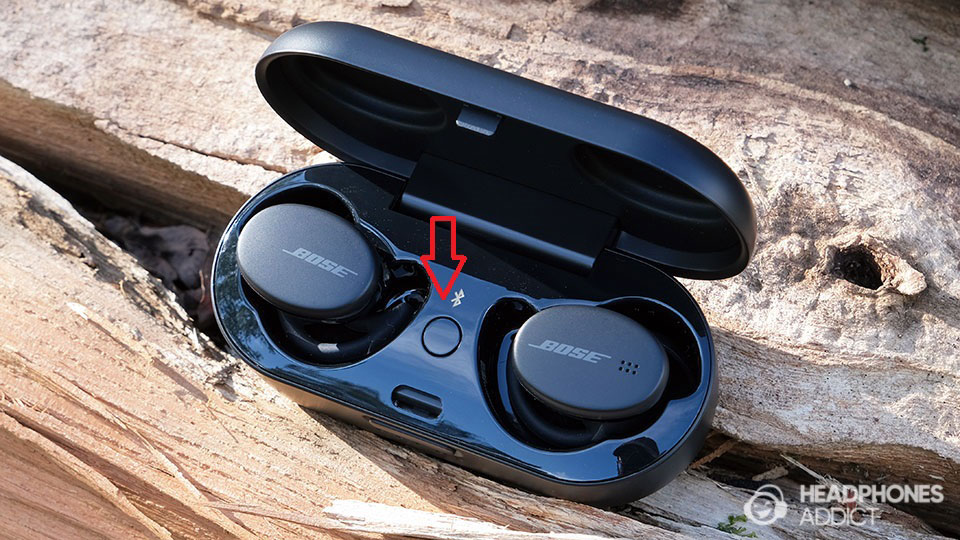
Bose QC35 headphones can remember several paired devices and actively connect with up to two devices at once. This feature is useful if you want to listen from a laptop while keeping your phone available for calls.
To add a second device:
- Connect the QC35 to the first device.
- Hold the Bluetooth switch toward the Bluetooth symbol until the headphones say they are ready to pair.
- Open Bluetooth settings on the second device.
- Select Bose QC35.
- Confirm the connection.
The headphones may switch between the two connected devices. For example, they can pause laptop audio when a call arrives on your phone.
If audio behaves oddly, pause media on the first device before starting playback on the second. Bluetooth multipoint can be convenient, but active audio from both devices may confuse the automatic switching process.

Using the Bose Connect App
The Bose Connect app is optional. You can pair Bose QC35 headphones without it, but the app can help you manage connections and access certain controls.
The app may allow you to:
• View connected headphones
• Manage the device connection list
• Install available firmware updates
• Adjust features supported by your model
• Read battery information
Download the official Bose Connect app from the Apple App Store or Google Play. Turn on the headphones before opening the app, then follow the on-screen instructions.
Avoid installing unofficial apps that ask for unusual permissions. The safest approach is to use the official Bose app or the normal Bluetooth menu on your device.

How to Pair Bose QC35 Headphones When They Do Not Appear
If Bose QC35 headphones do not appear in the Bluetooth list, the headphones may not be in pairing mode. Slide and hold the power switch toward the Bluetooth symbol for about three seconds. A blinking blue light and a voice prompt usually indicate pairing mode.
Also try these steps:
• Move the headphones close to the device.
• Turn Bluetooth off and back on.
• Restart the phone, computer, or tablet.
• Turn off Bluetooth on nearby devices that used the headphones before.
• Charge the headphones for at least 15 minutes.
• Remove old Bose QC35 entries from the device’s Bluetooth list.
• Repeat the pairing process.
A common mistake is releasing the switch too quickly. A short movement turns the headphones on, but holding the switch longer activates pairing mode.
Another common problem occurs when the QC35 automatically reconnects to a device across the room. Turning Bluetooth off on that old device often solves the issue immediately.
How to Clear the Bose QC35 Bluetooth Pairing List
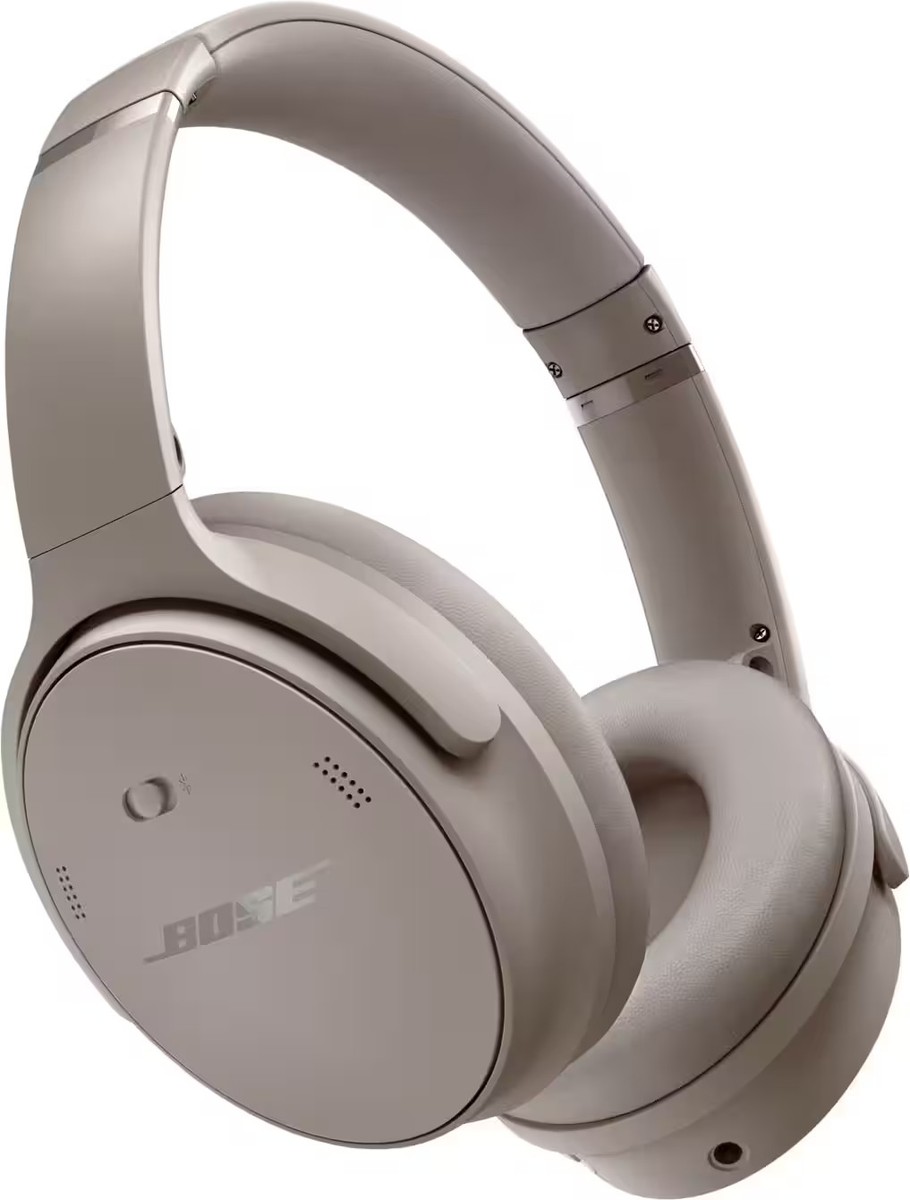
Clearing the Bluetooth list removes saved devices from the headphones. This is helpful when the QC35 keeps connecting to the wrong phone or refuses to pair with a new device.
To clear the list:
- Turn on the headphones.
- Slide and hold the power switch toward the Bluetooth symbol for about 10 seconds.
- Release the switch when the headphones announce that the Bluetooth device list is cleared.
- Remove the old Bose QC35 entry from your phone or computer.
- Pair the headphones again as if they were new.
Clearing the list does not erase your music, phone data, or computer files. It only removes Bluetooth connection records stored in the headphones.
In real-world troubleshooting, this is one of the most useful fixes. Many pairing problems are not hardware failures. They come from an old connection record that no longer matches the device.
How to Reset Bose QC35 Headphones
A reset can help if the headphones freeze, fail to respond, or refuse to connect after clearing the Bluetooth list. A reset is different from simply turning the headphones off and on.
Try this power reset:
- Turn the headphones off.
- Wait about 30 seconds.
- Connect the headphones to a USB power source.
- Wait five seconds.
- Disconnect the USB cable.
- Wait one minute.
- Turn the headphones on and try pairing again.
If the reset does not help, check the charging cable and power source. A damaged cable or weak USB port may prevent the headphones from charging correctly.
Do not repeatedly press every button at random. A calm, step-by-step reset is more effective and makes it easier to identify the real problem.
Bose QC35 Pairing Light Colors Explained
The status light gives useful clues during pairing. The exact timing can vary slightly between the QC35 and QC35 II, but these meanings are generally consistent.
• Blinking blue: The headphones are ready to pair.
• Solid blue: The headphones are connected to a Bluetooth device.
• Blinking white: The headphones may be connecting or updating.
• Solid white: The headphones may be fully charged or operating normally, depending on the light location and activity.
• Red or amber: The battery may be low, or the headphones may need charging.
If the light does not turn on, charge the headphones and try again. A completely drained battery can make a Bluetooth problem look more serious than it is.
Tips for a Stable Bose QC35 Bluetooth Connection
Bluetooth works best when the signal has a clear path. Walls, metal objects, crowded wireless areas, and other active Bluetooth devices can reduce stability.
Use these habits for a stronger connection:
• Keep the source device within about 30 feet when possible.
• Avoid placing your phone inside a bag surrounded by metal objects.
• Keep the headphones and source device updated.
• Pause audio on unused connected devices.
• Avoid pairing near many active wireless devices.
• Keep the headphone battery charged.
The advertised Bluetooth range is not a guarantee. Real-world range depends on the phone, computer, walls, interference, and software. If sound cuts out, move the source device closer before changing advanced settings.
Pairing Bose QC35 Headphones for Calls
The QC35 can handle phone and computer calls through Bluetooth. After pairing, select Bose QC35 as both the speaker and microphone when using apps such as Zoom, Microsoft Teams, FaceTime, or Google Meet.
On a computer, check the app’s audio settings instead of relying only on the system settings. Choose the QC35 as the output and input device.
Call quality may sound less rich than music because Bluetooth often switches to a two-way headset mode when the microphone is active. This is normal behavior, not necessarily a fault with the headphones.
For the clearest music, close unused calling apps and select the stereo output option when you do not need the microphone.
Common Mistakes to Avoid When Pairing Bose QC35 Headphones
Pairing should be easy, but a few habits cause repeated problems.
• Selecting a neighbor’s headphones: Check the full device name before connecting.
• Holding the switch too briefly: Pairing mode usually requires about three seconds.
• Ignoring old connections: The headphones may reconnect to a previously used phone.
• Pairing through the wrong menu: Use Bluetooth settings rather than the general sound menu.
• Forgetting the output setting: Your device may connect but continue using its built-in speakers.
• Using an uncharged headset: Low power can interrupt pairing and playback.
• Resetting too soon: First try reconnecting, then clear the Bluetooth list, and reset only if needed.
When I help users diagnose this issue, the fastest solution is often simple: turn off Bluetooth on nearby devices, clear the QC35 entry from the current device, and start again. It is the Bluetooth equivalent of giving the connection a clean slate.
Frequently Asked Questions About How to Pair Bose QC35 Headphones
Why are my Bose QC35 headphones not showing up on Bluetooth?
Hold the power switch toward the Bluetooth symbol for about three seconds until the light blinks blue. If the headphones still do not appear, turn off Bluetooth on nearby devices, restart your phone or computer, and clear the QC35 pairing list.
How do I put Bose QC35 headphones in pairing mode?
Turn on the headphones and hold the power switch toward the Bluetooth icon for about three seconds. Release it when you hear a pairing prompt or see a blinking blue light.
Can Bose QC35 headphones connect to two devices?
Yes, Bose QC35 headphones can maintain connections with up to two Bluetooth devices. If switching is unreliable, pause media on the first device before playing audio on the second.
Do I need the Bose Connect app to pair QC35 headphones?
No, the app is not required. You can pair Bose QC35 headphones directly through the Bluetooth settings on your phone, tablet, Mac, or Windows PC.
How do I remove old devices from Bose QC35 headphones?
Turn on the headphones and hold the Bluetooth switch for about 10 seconds. The headphones should announce that the Bluetooth device list has been cleared, after which you can pair them again.
Why do my Bose QC35 headphones connect but have no sound?
Open your device’s sound settings and choose Bose QC35 as the audio output. On Windows and Mac, also check the audio settings inside the music, video, or meeting app.
Can I pair Bose QC35 headphones with a smart TV?
Yes, you can pair them with a smart TV that supports Bluetooth audio. Open the TV’s Bluetooth or sound output menu, place the QC35 in pairing mode, and select the headphones.
Conclusion
Pairing Bose QC35 headphones starts with one key step: hold the power switch toward the Bluetooth symbol until the headphones enter pairing mode. Then select Bose QC35 from your phone, tablet, Mac, Windows PC, or compatible TV. If the connection fails, clear the saved Bluetooth list, restart both devices, and try again.
Once you understand the light signals and pairing controls, the process becomes quick and reliable. Try the steps above with your device, and share this guide with anyone who needs help connecting their Bose headphones.
