

Most Xbox consoles do not support Bluetooth earbuds directly, but several reliable workarounds make wireless audio possible.
Learning how to connect earbuds to Xbox can feel confusing because the answer depends on your console, controller, earbuds, and chat needs. Xbox One, Xbox Series X, and Xbox Series S handle Bluetooth audio differently from phones and PCs. This guide explains the working methods, common limits, sound settings, and mistakes to avoid so you can choose the cleanest setup for gaming.
Can You Connect Bluetooth Earbuds Directly to Xbox?
In most cases, you cannot pair standard Bluetooth earbuds directly with an Xbox One, Xbox Series X, or Xbox Series S console. Xbox consoles do not use normal Bluetooth audio in the same way as a phone. They rely on Xbox Wireless, wired controller audio, or approved wireless accessories.
This is the key point when learning how to connect earbuds to Xbox. Opening the Xbox settings and looking for a Bluetooth menu will not usually solve the problem because the console does not offer standard Bluetooth audio pairing.
You still have several good options:
• Connect wired earbuds to the controller’s 3.5 mm headphone jack.
• Use earbuds with an Xbox-compatible wireless USB adapter.
• Connect earbuds to a compatible television or monitor.
• Use the Xbox mobile app for party chat while game audio plays elsewhere.
• Use Remote Play through a phone, tablet, or computer with Bluetooth earbuds.
Each method has different results for sound quality, microphone support, delay, and convenience.

How to Connect Earbuds to Xbox With the Controller
The simplest method is using wired earbuds with a 3.5 mm plug. This works with most Xbox Wireless Controllers that include a headset port. It is also the most reliable option for game audio and voice chat.
Follow these steps:
Turn on your Xbox console and sign in.
Plug the earbuds into the 3.5 mm port at the bottom of the controller.
Press the Xbox button on the controller.
Open the Profile & system menu.
Select Settings.
Choose General, then Volume & audio output.
Adjust the headset volume, chat mixer, and mic monitoring.
Start a game and test both game sound and chat audio.
If your earbuds have a built-in microphone, the Xbox should detect it automatically. Speak into the mic and check whether your friends can hear you in an Xbox party or game chat.
This method answers how to connect earbuds to Xbox with the least effort. It does not need Bluetooth pairing, a charging case, or a special adapter. The main drawback is the cable, which may feel less convenient during long gaming sessions.
A common mistake is plugging the earbuds into the television instead of the controller. TV audio may work, but the microphone usually will not work through that connection. For two-way chat, plug compatible earbuds directly into the controller.

How to Connect Wireless Earbuds to Xbox With a USB Adapter
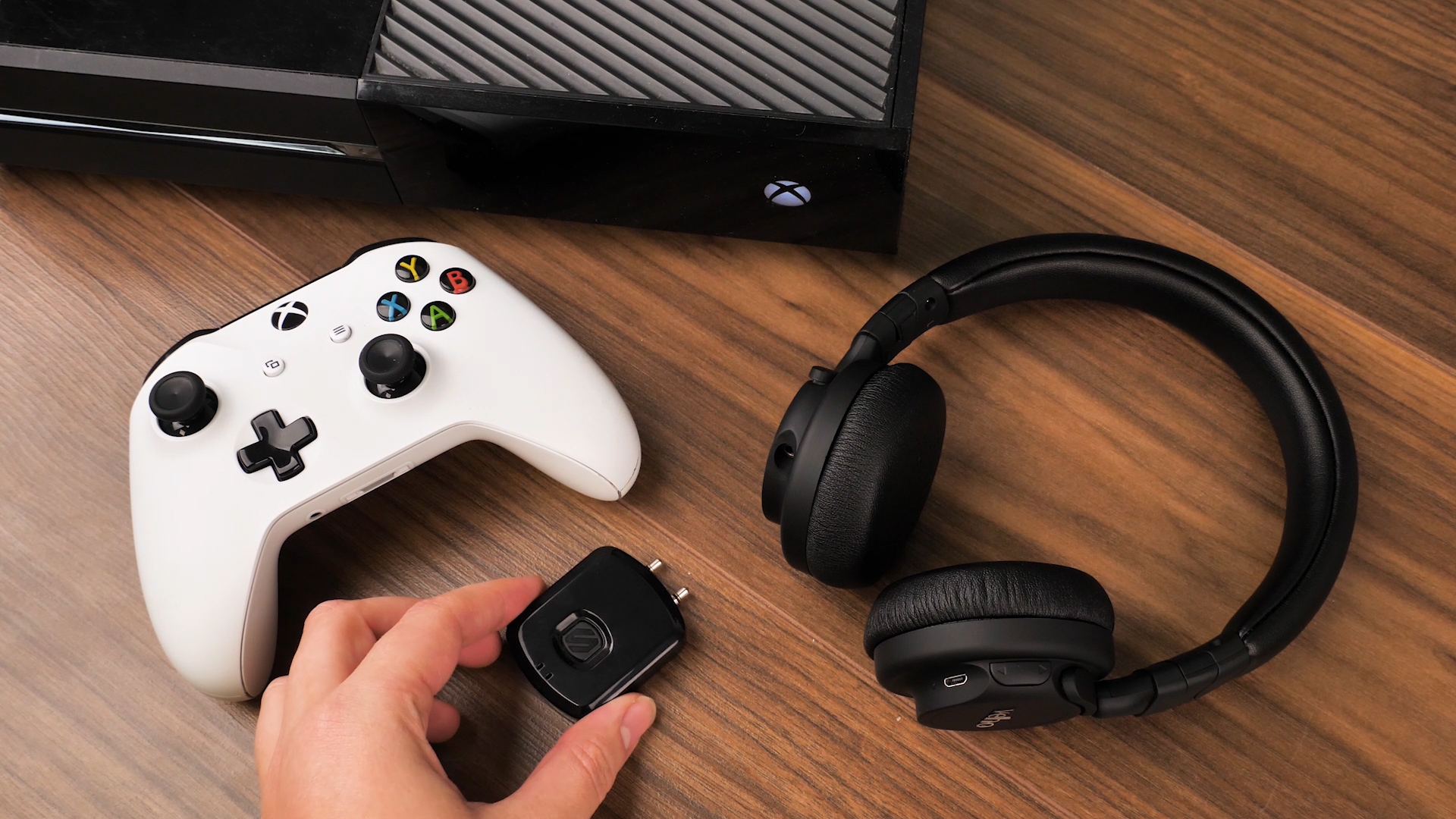
Some wireless earbuds include a USB transmitter made for Xbox. The transmitter sends audio through a wireless connection that the Xbox supports. This is different from ordinary Bluetooth.
Before buying or using an adapter, check the product box carefully. The adapter should clearly state that it supports Xbox One or Xbox Series consoles. A USB receiver made only for PlayStation, Nintendo Switch, or PC may not work correctly with Xbox.
To set up compatible wireless earbuds:
Charge the earbuds and the USB transmitter.
Insert the transmitter into a USB port on the Xbox.
Turn on the earbuds.
Put the earbuds and transmitter into pairing mode.
Wait for the connection indicator to confirm pairing.
Open Settings, then General, then Volume & audio output.
Select the correct headset format if the accessory provides one.
Test game sound and microphone chat.
Some transmitters have a switch for Xbox, PC, or USB mode. Set it to Xbox before connecting the device. If the transmitter has a separate chat cable, optical cable, or setup app, follow the instructions included with that specific product.
This is often the best answer for how to connect earbuds to Xbox without a cable. However, compatibility varies. USB ports on Xbox do not automatically support every Bluetooth dongle. A generic Bluetooth transmitter may provide sound but fail to support microphone chat, volume controls, or console recognition.
In practice, using an Xbox-licensed wireless accessory is safer than guessing with a low-cost adapter. The small price difference can save hours of troubleshooting.

How to Connect Bluetooth Earbuds Through a TV or Monitor
If your television or gaming monitor supports Bluetooth audio, you may be able to send Xbox sound to your earbuds through the display. The Xbox connects to the TV with HDMI, and the TV sends that sound to your earbuds.
The setup usually works like this:
Connect the Xbox to the TV or monitor with HDMI.
Open the display’s Bluetooth or Sound settings.
Put the earbuds into pairing mode.
Select the earbuds from the TV’s device list.
Set the TV audio output to Bluetooth headphones.
Start a game and check the sound.
This method is useful when you only need game audio. It may not support Xbox party chat because the TV does not pass your earbud microphone back to the console. Some televisions also add a small audio delay, which can make gunshots, menu sounds, and movement feel slightly out of sync.
If you notice delay, look for a setting called Game Mode, Low Latency, or Audio Sync. A wired connection to the controller will usually provide a faster response.
This is a practical method for how to connect earbuds to Xbox when you already own a Bluetooth television. It avoids buying a new headset, but it is not ideal for competitive games or group chat.

How to Use Bluetooth Earbuds With Xbox Remote Play
Xbox Remote Play lets you stream a console game to a supported phone, tablet, or computer. In this setup, your Bluetooth earbuds connect to the second device, not directly to the Xbox.
You need:
• An Xbox console connected to the internet.
• Remote features enabled on the console.
• The Xbox mobile app or a supported remote-play device.
• Bluetooth earbuds paired with the phone, tablet, or computer.
To try this method:
Pair the Bluetooth earbuds with your phone or computer.
Open the Xbox app.
Sign in with the same Microsoft account used on the console.
Choose the console connection or Remote Play option.
Start the game.
Adjust audio and microphone permissions on the device.
This can provide both game audio and voice chat through the earbuds. It is convenient for casual play, but it adds network dependence. A weak Wi-Fi connection may cause delay, dropped audio, or lower image quality.
Remote Play is not the best choice for fast competitive games. Still, it is a useful workaround when you own standard Bluetooth earbuds and do not want to purchase an Xbox-specific headset.
How to Connect Earbuds to Xbox for Party Chat
The best method depends on whether you need game audio, party chat, or both.
For game audio and party chat together, use one of these options:
• Wired earbuds connected to the controller.
• An Xbox-compatible wireless headset or earbud system.
• Compatible earbuds connected through a supported Xbox USB transmitter.
For party chat only, you can use the Xbox mobile app on a phone. Connect the Bluetooth earbuds to the phone, join the Xbox party in the app, and keep game audio playing through the TV or another headset.
To check chat settings on Xbox:
Press the Xbox button.
Open Profile & system.
Select Settings.
Choose Devices & connections.
Open Accessories and select the controller.
Review headset volume, chat mixer, and mic monitoring.
The chat mixer controls the balance between game sound and conversation. If the game is too loud, move the balance toward chat. If voices are too loud, move it toward game audio.
Privacy settings can also block communication. Review communication permissions if friends cannot hear you or you cannot hear them. A muted controller, muted headset, or restricted child account can look like an earbud connection problem.

How to Fix Xbox Earbud Connection Problems
Even when the connection method is correct, sound problems can occur. Work through the following checks in order.
No sound in the earbuds
• Make sure the earbuds are firmly plugged into the controller or fully paired with the transmitter.
• Raise the headset volume with the controller controls.
• Check the Xbox headset volume settings.
• Restart the controller and console.
• Test the earbuds with another device.
• Try another controller to rule out a damaged headset port.
The microphone does not work
• Confirm that the earbuds include a microphone.
• Check whether the mic has a physical mute switch.
• Confirm that the adapter supports microphone input, not only audio output.
• Review Xbox privacy and communication settings.
• Disconnect the earbuds from your phone so they do not connect to the wrong device.
• Test the microphone in an Xbox party.
Many earbuds use a four-pole 3.5 mm plug for audio and microphone signals. Older controllers, splitters, or adapters may not support that layout correctly. If sound works but the mic does not, the adapter is often the cause.
Audio keeps cutting out
• Keep the console, transmitter, and earbuds within a short range.
• Remove nearby wireless devices that may cause interference.
• Charge the earbuds and transmitter fully.
• Update the accessory firmware if the manufacturer provides an app.
• Restart the Xbox after connecting the transmitter.
• Avoid placing a USB transmitter behind a metal cabinet or television.
A useful troubleshooting lesson is to change only one thing at a time. If you replace the adapter, change the Xbox settings, and reset the earbuds together, you will not know which step fixed the issue.
How to Choose the Best Earbuds for Xbox
Standard Bluetooth earbuds are designed mainly for phones. Xbox gaming needs extra features, especially low delay and reliable voice chat.
Look for these features:
• Clear Xbox compatibility on the product packaging.
• A dedicated Xbox wireless receiver.
• A built-in microphone that supports game chat.
• Low-latency audio for gaming.
• Physical volume and mute controls.
• Comfortable ear tips for long sessions.
• Strong battery life.
• Simple controls that work while playing.
Earbuds with active noise cancellation can sound excellent, but noise cancellation does not guarantee Xbox compatibility. The important feature is the connection method. A product may pair perfectly with a phone and still fail to connect to an Xbox.
Also consider comfort. In-ear earbuds can feel light and cool compared with large gaming headsets, but some players prefer the wider sound and stronger microphone found on an over-ear model.
For competitive games, prioritize low delay and accurate directional sound. For single-player games, comfort and battery life may matter more than microphone performance.
Important Limits When Connecting Earbuds to Xbox
Understanding the limits can prevent a frustrating purchase.
First, Xbox consoles generally do not accept standard Bluetooth audio directly. A Bluetooth dongle must be specifically designed to work with Xbox, and not every USB transmitter supports console chat.
Second, Bluetooth audio can have noticeable delay. This happens because sound must be compressed, transmitted, and decoded before reaching your ears. The delay may be minor for music but distracting in games that require quick reactions.
Third, TV Bluetooth connections may not support voice chat. They are often one-way audio paths from the television to the earbuds.
Fourth, some wireless products support Xbox only through a special mode. A headset may work on PC through Bluetooth but require a USB receiver for Xbox.
Finally, firmware and console updates can affect accessory behavior. If a device suddenly stops working, check for updates from both Xbox and the accessory maker before assuming the earbuds are broken.
A Simple Setup Recommendation
If you want the easiest setup, use wired earbuds with a microphone through the controller. This option usually provides the lowest delay and the fewest compatibility problems.
If you want a wireless setup, choose earbuds or a headset with an Xbox-compatible USB transmitter. Confirm that the product supports both game audio and chat before buying.
If you already own normal Bluetooth earbuds, try your TV’s Bluetooth feature or Xbox Remote Play. These methods can work well for casual gaming, but they may not provide the same chat quality or response time as an Xbox-ready accessory.
The best method for how to connect earbuds to Xbox is the one that matches your main goal:
• Lowest cost: wired earbuds through the controller.
• Wireless game audio: Xbox-compatible USB transmitter.
• Existing Bluetooth earbuds: compatible TV or Remote Play.
• Best chat experience: Xbox-certified headset or earbud system.
Frequently Asked Questions About How to Connect Earbuds to Xbox
Can I connect AirPods directly to Xbox?
No. Xbox consoles do not normally support direct AirPods pairing through standard Bluetooth. You can use AirPods with a compatible TV, Remote Play device, or third-party adapter that clearly supports Xbox.
Why will my Bluetooth earbuds not connect to Xbox?
The Xbox usually does not include standard Bluetooth audio pairing. Your earbuds need a supported connection method, such as a wired controller connection, Xbox-compatible USB transmitter, television Bluetooth, or Remote Play.
Can I use earbuds for Xbox party chat?
Yes, but the earbuds must support microphone input through the chosen connection. Wired earbuds plugged into the controller and compatible Xbox wireless systems are the most reliable options for game audio and party chat.
Can I connect earbuds to an Xbox controller wirelessly?
Most Xbox controllers do not pair with Bluetooth earbuds. You can connect wired earbuds to the controller’s 3.5 mm port, but wireless earbuds generally need their own Xbox-compatible transmitter.
Do USB Bluetooth adapters work on Xbox?
Some do, but generic Bluetooth adapters often fail to support Xbox audio or microphone chat. Choose an adapter that specifically lists Xbox One or Xbox Series compatibility.
Can I use Bluetooth earbuds with Xbox through my TV?
Often, yes. Pair the earbuds with a Bluetooth-enabled TV and select them as the audio output. This may create audio delay and usually will not carry your microphone to Xbox party chat.
How do I get better sound from earbuds on Xbox?
Check headset volume, chat mixer, microphone monitoring, and the console’s audio output settings. For the clearest result, use earbuds with a secure fit, low-latency support, and an Xbox-compatible connection.
Conclusion
The easiest way to connect earbuds to Xbox is to plug wired earbuds into the controller. For wireless sound, use an Xbox-compatible USB transmitter, a Bluetooth-enabled TV, or Remote Play through a phone or computer. Standard Bluetooth earbuds usually cannot pair directly with the console.
Choose your setup based on what matters most: low delay, wireless freedom, party chat, price, or comfort. Test one connection method at a time, confirm accessory compatibility before buying, and check the Xbox audio and privacy settings if chat fails. Try the method that fits your gear, then share your setup or explore more Xbox audio guides for better game sound.
