

Open Bluetooth on your iPad, place your JBL earbuds in pairing mode, then select them from the Bluetooth device list.
Learning how to connect JBL earbuds to iPad is simple once you know where pairing mode is and what to do when the earbuds do not appear. This guide covers first-time setup, reconnection, troubleshooting, sound checks, and tips for popular JBL models, so you can listen without guesswork.
How to connect JBL earbuds to iPad
Most JBL earbuds use Bluetooth to connect with an iPad. The process works with models such as JBL Tune, Live, Wave, Vibe, Reflect, and many JBL true wireless earbuds.
Before you begin, charge the earbuds and keep them close to the iPad. Bluetooth usually works best within a short range, with no thick walls or active wireless devices between them.
Follow these steps:
- Open the Settings app on your iPad.
- Tap Bluetooth.
- Turn on the Bluetooth switch.
- Place both JBL earbuds in the charging case.
- Open the case lid.
- Put the earbuds into pairing mode.
- Look under Other Devices on the iPad.
- Tap the name of your JBL earbuds.
- Wait until the earbuds appear under My Devices as Connected.
The name may look like JBL Tune 230NC, JBL Live Pro 2, JBL Vibe Beam, or a similar model name. Once connected, audio from music, videos, games, and many apps should play through the earbuds.
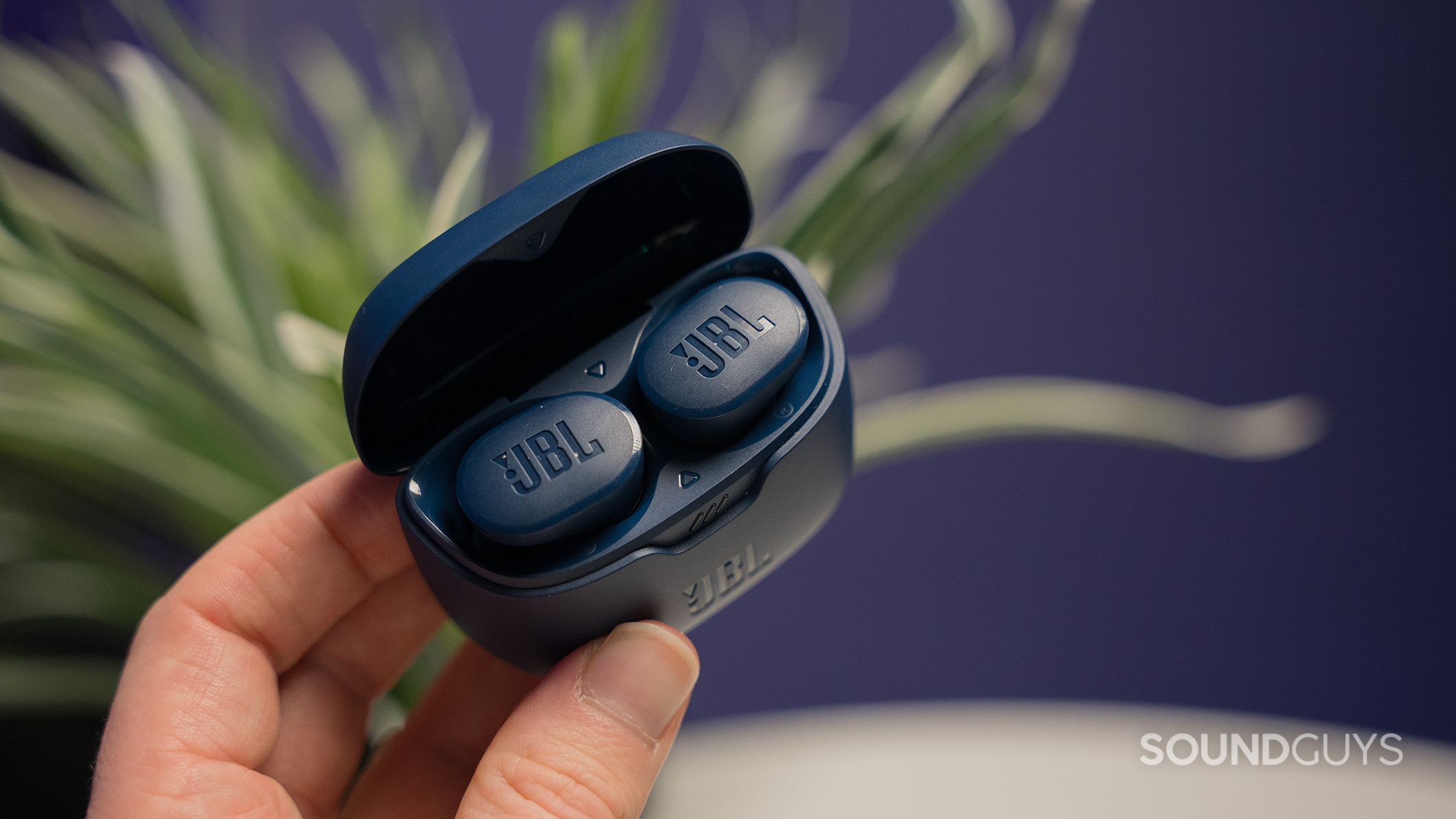
How to put JBL earbuds in pairing mode
Pairing mode allows your iPad to find the earbuds. Without it, the earbuds may stay connected to a phone, laptop, or another device nearby.
For many JBL true wireless earbuds, opening the case starts pairing mode when there is no saved connection. If the earbuds do not appear, touch and hold the control surface on one or both earbuds for a few seconds. The exact gesture depends on the model.
Try these common methods:
• Put both earbuds in the case, close the lid, and open it again.
• Remove both earbuds and touch the control area for several seconds.
• Press the pairing button on the charging case if your model has one.
• Turn off Bluetooth on nearby phones, tablets, and computers.
• Check for a flashing blue or white light, which often signals pairing mode.
JBL model instructions can differ. For example, some earbuds use a long touch on the right earbud, while others use a case button. If the earbuds have a touch panel, avoid tapping quickly, since that may pause music or change the volume instead of starting pairing.
When explaining how to connect JBL earbuds to iPad, pairing mode is the step people most often miss. The iPad cannot connect to earbuds that are still quietly linked to another device.

How to connect JBL earbuds to iPad for the first time
A first connection takes only a minute or two. Keep the iPad unlocked and stay on the Bluetooth settings screen while you prepare the earbuds.
Use this setup:
- Charge the case and earbuds for at least a few minutes.
- Remove the earbuds from the case.
- Activate pairing mode.
- Open Settings on the iPad.
- Tap Bluetooth.
- Select the JBL earbuds when their name appears.
- Accept any pairing request.
You usually do not need a passcode. If the iPad asks for one, try 0000, but most newer JBL earbuds connect without a code.
After pairing, play a short video or song. This confirms that the iPad is sending sound to the earbuds. You can also open Control Center by swiping down from the top right of the screen, tap the audio output icon, and choose the JBL earbuds.
If the earbuds connect but sound still comes from the iPad speakers, the pairing worked but the audio output is set incorrectly. Selecting the JBL device from the audio output menu normally fixes it.

How to reconnect JBL earbuds to iPad
Once JBL earbuds pair with an iPad, they usually reconnect automatically. The earbuds must be charged, Bluetooth must be on, and the earbuds must not be connected to another device.
To reconnect them:
- Turn on Bluetooth on the iPad.
- Open the JBL charging case.
- Remove the earbuds.
- Wait a few seconds.
- Check Settings > Bluetooth.
- Tap the JBL earbuds if they do not connect by themselves.
The word Connected should appear beside the device name. If the earbuds connect to your phone instead, turn off Bluetooth on the phone for a moment. Many JBL earbuds connect to the last device they used, much like a key that returns to the last lock.
Some newer JBL models support multipoint connection. This feature lets the earbuds stay linked to two devices, such as an iPad and phone. However, multipoint behavior varies by model and may require setup in the JBL Headphones app.
When testing how to connect JBL earbuds to iPad, I find that turning off Bluetooth on other nearby devices saves the most time. It removes confusion and gives the iPad a clear path to the earbuds.
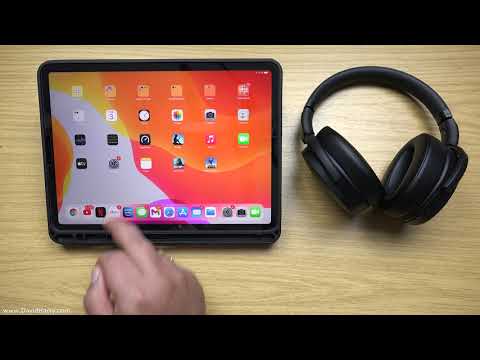
How to fix JBL earbuds that do not appear on iPad
If your JBL earbuds are missing from the Bluetooth list, do not repeatedly tap the same screen. Start with the simple checks, then move to a reset if needed.
Try the following:
• Confirm Bluetooth is enabled on the iPad.
• Keep the earbuds within three feet of the iPad.
• Charge the earbuds and case.
• Turn off Bluetooth on nearby devices.
• Close and reopen the charging case.
• Restart the iPad.
• Put the earbuds back into pairing mode.
• Check whether the earbuds appear under My Devices or Other Devices.
A low battery can prevent pairing, even when the earbuds still show a light. Dirty charging contacts can also stop one earbud from charging. Wipe the metal contacts on the earbuds and inside the case with a clean, dry cloth.
If the earbuds appear but refuse to connect, tap the information icon beside their name and choose Forget This Device. Then place the earbuds in pairing mode and connect them again.
This solution is especially useful after an iPadOS update, a phone change, or a failed connection attempt. It clears the old Bluetooth record and creates a fresh link.

How to forget and pair JBL earbuds again
Forgetting the earbuds removes their saved Bluetooth profile from the iPad. It is often the best fix for repeated connection errors, one-sided sound, or a device that says Not Connected.
Follow these steps:
- Open Settings.
- Tap Bluetooth.
- Find the JBL earbuds under My Devices.
- Tap the information icon beside the name.
- Tap Forget This Device.
- Confirm the choice.
- Put the JBL earbuds into pairing mode.
- Select them under Other Devices.
Forgetting a device does not damage the earbuds. It only removes the iPad’s saved connection details. You can pair them again later.
If the earbuds still do not appear, restart both devices. On most iPads, press and hold the top button and either volume button until the power slider appears. Turn the iPad off, wait briefly, and turn it back on.

How to reset JBL earbuds
A factory reset can solve stubborn Bluetooth problems, but it removes saved connections. You will need to pair the earbuds with your iPad and other devices again.
The reset method depends on the JBL model. Common methods include:
• Touch and hold both earbuds for several seconds.
• Tap one earbud several times, then touch and hold it.
• Press and hold the charging case button.
• Use the JBL Headphones app if the model supports reset controls.
Before resetting, check the instruction guide for your exact model. A method for JBL Tune earbuds may not work on JBL Live or JBL Reflect earbuds.
After the reset:
- Place the earbuds in the case.
- Open the lid.
- Remove the earbuds.
- Activate pairing mode.
- Open Bluetooth settings on the iPad.
- Tap the JBL earbuds.
Resetting should be the last major step, not the first. In many cases, charging the case, forgetting the old Bluetooth profile, and restarting the iPad solve the issue without a full reset.

How to connect JBL earbuds to iPad after connecting to another device
JBL earbuds can remember several devices, but they may connect to only one device at a time unless they support multipoint. If the earbuds were recently used with an Android phone, Mac, Windows PC, or another iPad, that device may take priority.
To switch devices:
- Turn off Bluetooth on the device currently using the earbuds.
- Place the earbuds into pairing mode.
- Open Bluetooth settings on the iPad.
- Select the JBL earbuds.
- Turn Bluetooth back on for the other device after the iPad connects.
If your model supports multipoint, open the JBL Headphones app and look for a connection or multipoint setting. Follow the setup instructions shown there.
A common mistake is leaving a phone nearby with Bluetooth enabled. The earbuds may connect to the phone before the iPad has a chance. Moving the phone away is less reliable than turning its Bluetooth off.
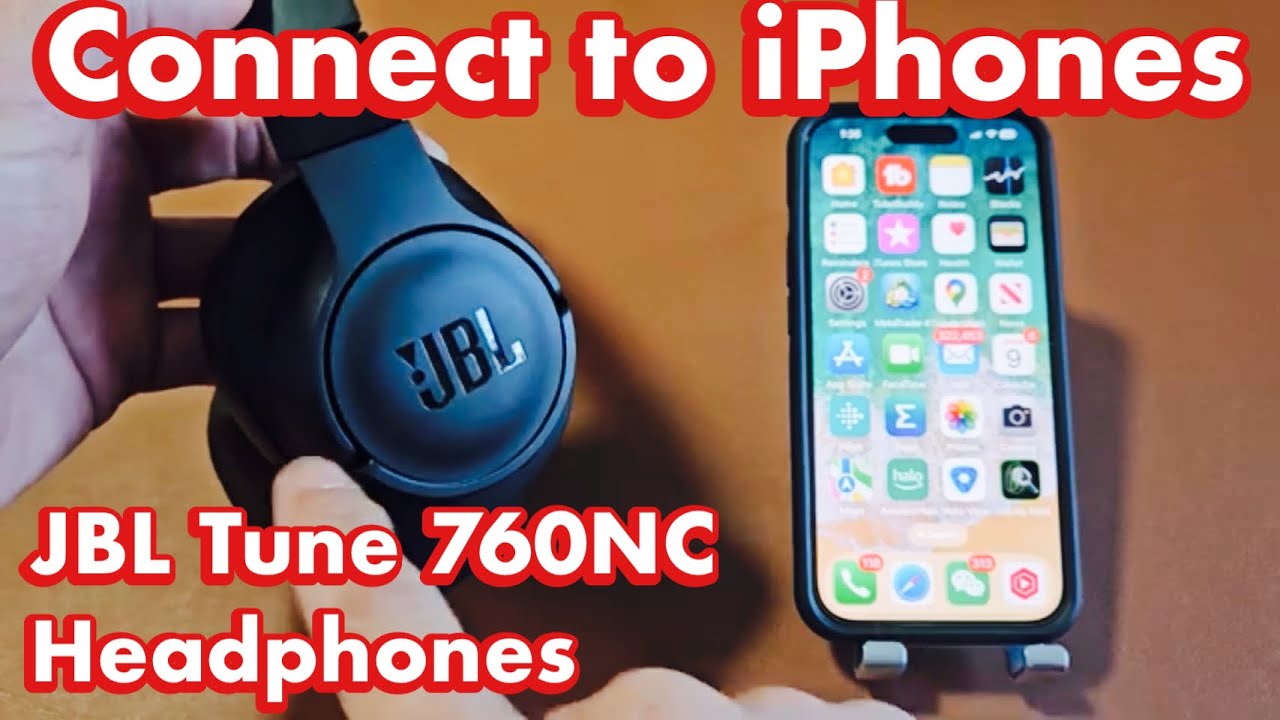
How to check sound and microphone settings
After learning how to connect JBL earbuds to iPad, check the audio settings. A successful Bluetooth connection does not always mean the iPad is using the earbuds for every type of sound.
Check the output device this way:
- Start playing music or a video.
- Open Control Center.
- Tap the audio output icon.
- Select the JBL earbuds.
For calls, video meetings, and voice recordings, confirm that the app has microphone permission. Go to Settings > Privacy & Security > Microphone and make sure the app is allowed to use the microphone.
You can adjust the volume with the iPad buttons or the touch controls on the earbuds. Some JBL models also let you customize controls, equalizer settings, and noise control in the JBL Headphones app.
Keep in mind that some older JBL earbuds may not support every app feature. Basic audio and calls should work, but advanced controls depend on the earbud model, firmware, and app support.
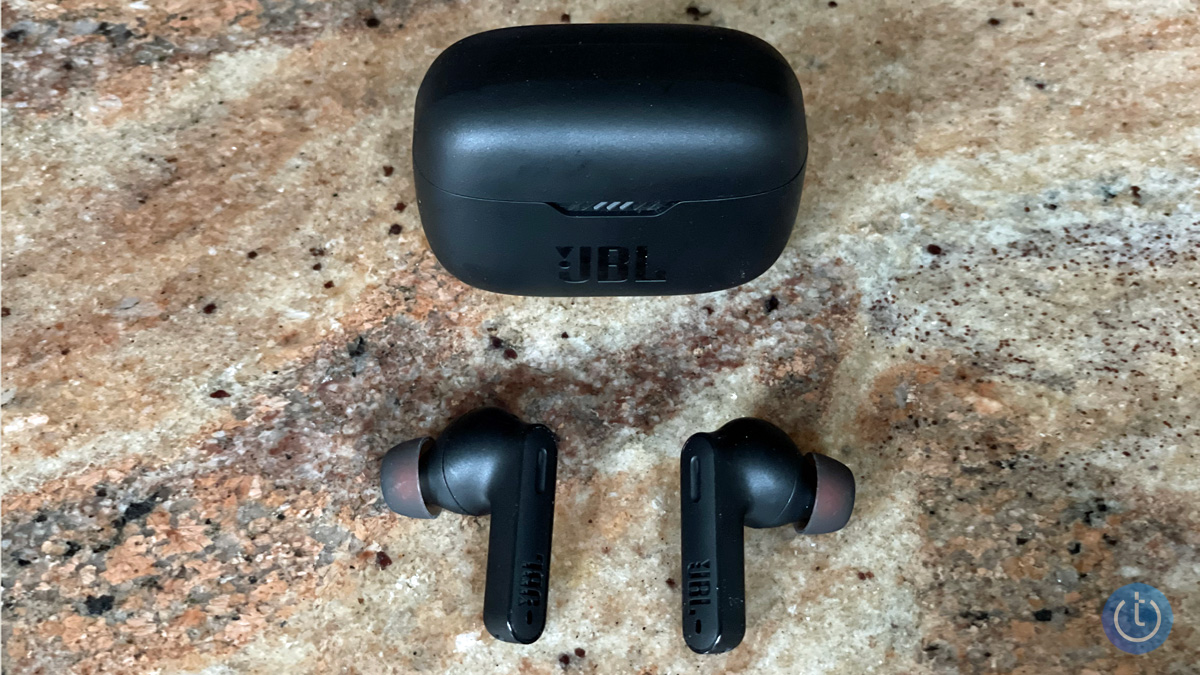
Common problems when connecting JBL earbuds to iPad
Bluetooth problems are usually caused by a small number of issues. Knowing the cause makes the fix much easier.
Only one JBL earbud works
Place both earbuds in the case and confirm that both are charging. Clean the charging contacts, then reset and pair the earbuds again if one side remains silent.
JBL earbuds connect but have no sound
Check the iPad’s audio output in Control Center. Also raise the volume on both the iPad and earbuds, and test a different app.
The connection keeps dropping
Keep the iPad close to the earbuds and remove possible wireless interference. Low battery, outdated firmware, or a damaged earbud can also cause repeated drops.
The JBL earbuds are connected to the wrong device
Turn off Bluetooth on the other device, then select the earbuds from the iPad Bluetooth menu. This is common when a phone was the last device used.
The earbuds work for music but not calls
Check microphone permission for the calling app. Then confirm that the JBL earbuds are selected as the audio and microphone device inside the app.
The iPad cannot find any Bluetooth devices
Restart the iPad and check for an iPadOS update. If several Bluetooth devices fail to appear, the issue may affect the iPad rather than the JBL earbuds.
Tips for a stronger JBL earbud connection
A few habits can make Bluetooth pairing more reliable. They also help preserve battery life and reduce the need to repeat setup.
• Keep the iPad and earbuds within about 30 feet in open space, though walls and interference can reduce this range.
• Keep the charging case above a low battery level.
• Install firmware updates through the JBL Headphones app when available.
• Keep iPadOS updated through Settings > General > Software Update.
• Avoid pairing the earbuds with many devices at the same time.
• Store the earbuds in the case when not in use.
• Keep the earbud speakers and charging contacts clean.
• Use the correct model name when selecting the device.
Bluetooth performance can vary with buildings, Wi-Fi congestion, nearby accessories, and the earbud model. A crowded airport or gym may produce more interference than a quiet room.
The best practical lesson from helping with how to connect JBL earbuds to iPad is to change one thing at a time. First charge the earbuds, then forget the device, then pair again. Making many changes at once makes it harder to know what solved the problem.
How to connect JBL earbuds to iPad with the JBL Headphones app
The JBL Headphones app is not required for basic Bluetooth pairing. You can connect the earbuds through iPad settings without installing any extra software.
The app can still add useful features, depending on the model:
• Firmware updates
• Noise cancellation controls
• Ambient sound settings
• Equalizer adjustments
• Touch control customization
• Battery information
• Find My Buds features on supported models
Install the official app from the App Store, open it, and follow the on-screen steps. Pair the earbuds through Bluetooth first if the app cannot detect them.
The app cannot repair damaged hardware or fix an empty battery. It is a control and update tool, not a replacement for the normal Bluetooth setup.
Frequently Asked Questions about how to connect JBL earbuds to iPad
Can all JBL earbuds connect to an iPad?
Most JBL wireless earbuds with Bluetooth can connect to an iPad. The iPad does not need a special JBL feature for basic audio, but older or unusual models may have different pairing steps.
Why are my JBL earbuds not showing in iPad Bluetooth?
The earbuds may not be in pairing mode, or they may still be connected to another device. Charge them, turn off Bluetooth on nearby devices, and place the earbuds into pairing mode again.
Do I need the JBL Headphones app to connect JBL earbuds to iPad?
No. You can connect JBL earbuds through Settings > Bluetooth on the iPad. The app is useful for updates and extra controls, but it is not required for normal listening.
How do I disconnect JBL earbuds from my iPad?
Open Settings > Bluetooth, tap the information icon beside the JBL earbuds, and choose Disconnect. You can also turn off Bluetooth or place the earbuds back in their charging case.
Can JBL earbuds connect to an iPad and iPhone at the same time?
Only models with multipoint support can maintain connections with two devices. Without multipoint, turn off Bluetooth on one device before connecting the earbuds to the other.
Why do my JBL earbuds connect but play sound from the iPad?
The iPad may be using its built-in speakers as the audio output. Open Control Center, tap the audio output icon, and select the JBL earbuds.
How do I reset JBL earbuds before pairing them again?
The reset steps vary by JBL model. Check the model guide, reset the earbuds, then forget the old Bluetooth entry on the iPad before pairing again.
Conclusion
Connecting JBL earbuds to an iPad usually takes three steps: turn on Bluetooth, place the earbuds in pairing mode, and select them from the device list. If the connection fails, charge the earbuds, disable Bluetooth on other nearby devices, forget the old pairing, and try again.
Once you know how to connect JBL earbuds to iPad, switching between music, calls, videos, and games becomes much easier. Try the steps above with your model, explore the JBL app for supported features, and share your experience or questions in the comments.
