

Use Audio Sharing to connect two compatible Bluetooth headphones to one iPhone at the same time.
Learning how to connect two Bluetooth headphones to iPhone is simple once you know the key rule: both headphones must support Apple’s Audio Sharing feature. In this guide, you’ll learn the exact steps, which iPhone and headphone models work, what to do when pairing fails, and which alternatives help with standard Bluetooth headphones.

What You Need to Connect Two Bluetooth Headphones to iPhone
Apple does not let every iPhone pair with two random Bluetooth headphones for shared audio. Instead, the built-in Audio Sharing feature works with select AirPods and Beats models.
Before you try to connect two Bluetooth headphones to iPhone, check these requirements:
• Your iPhone must support Audio Sharing.
• Your iPhone should run iOS 13 or later. Updating to the newest available iOS version is best.
• Both headphones must be compatible AirPods or Beats headphones.
• Bluetooth must be turned on.
• Both headphones should have enough battery power.
• The first pair of headphones should already be connected to your iPhone.
Compatible headphones usually include:
• AirPods, AirPods Pro, and AirPods Max
• Beats Solo Pro
• Beats Solo 3 Wireless
• Beats Studio 3 Wireless
• BeatsX
• Powerbeats
• Powerbeats Pro
• Powerbeats3 Wireless
Apple has changed its supported device list over time. If your headphones do not appear in the Audio Sharing menu, check Apple’s current compatibility information.
:max_bytes(150000):strip_icc()/008-how-to-connect-multiple-bluetooth-speakers-to-one-device-90b94758e2644abd995c5854ac80db73-f369686037ae47bbadee2285129af330.jpg)
How to Connect Two Bluetooth Headphones to iPhone
The easiest way to connect two Bluetooth headphones to iPhone is through Control Center. The steps take less than a minute when both devices are compatible.
Step 1: Pair the first headphones
First, connect the main headphones to your iPhone.
Open Settings on your iPhone.
Tap Bluetooth.
Turn on Bluetooth if it is off.
Put the first pair of headphones into pairing mode.
Tap the headphones in the list under Other Devices.
Wait until the device shows Connected.
If you have AirPods, open the charging case near your iPhone. Then follow the prompt on the screen. For Beats headphones, press and hold the power or pairing button until the status light flashes.
Step 2: Open Control Center
Once the first headphones play sound, open Control Center.
• On an iPhone with Face ID, swipe down from the top right corner.
• On an iPhone with a Home button, swipe up from the bottom edge.
You should see the audio card near the top right. It may show the current song, podcast, video, or other media.
Step 3: Tap the AirPlay icon
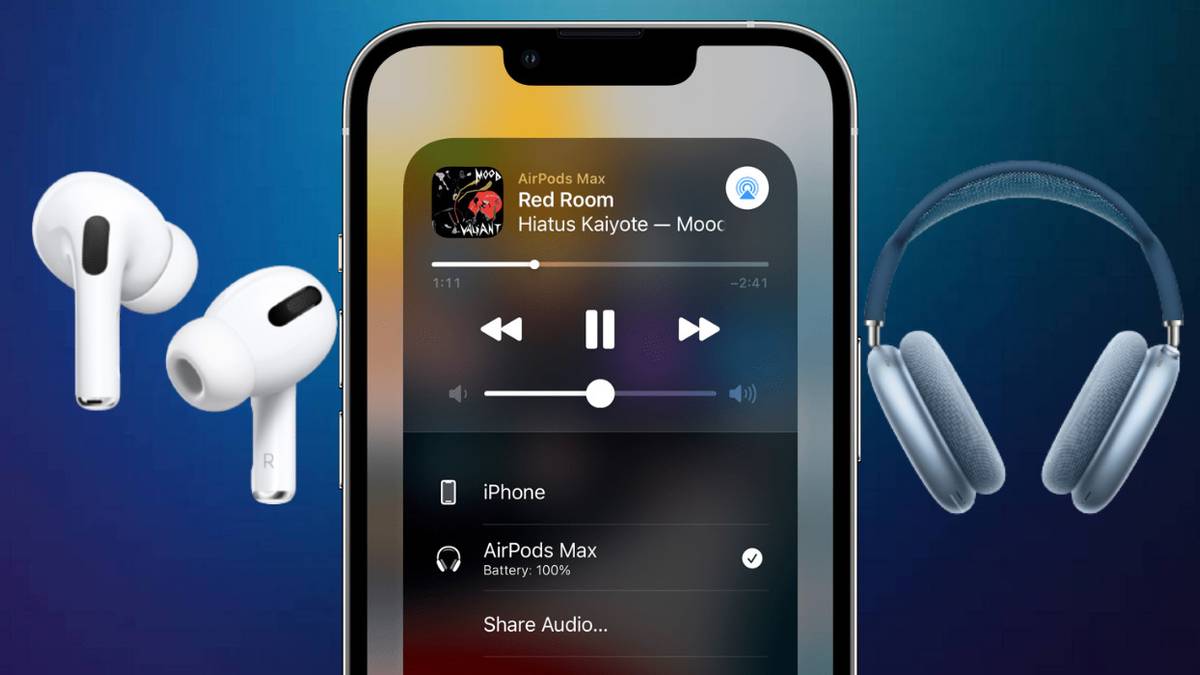
Tap the AirPlay icon in the audio card. The icon looks like a triangle pointing toward three curved lines.
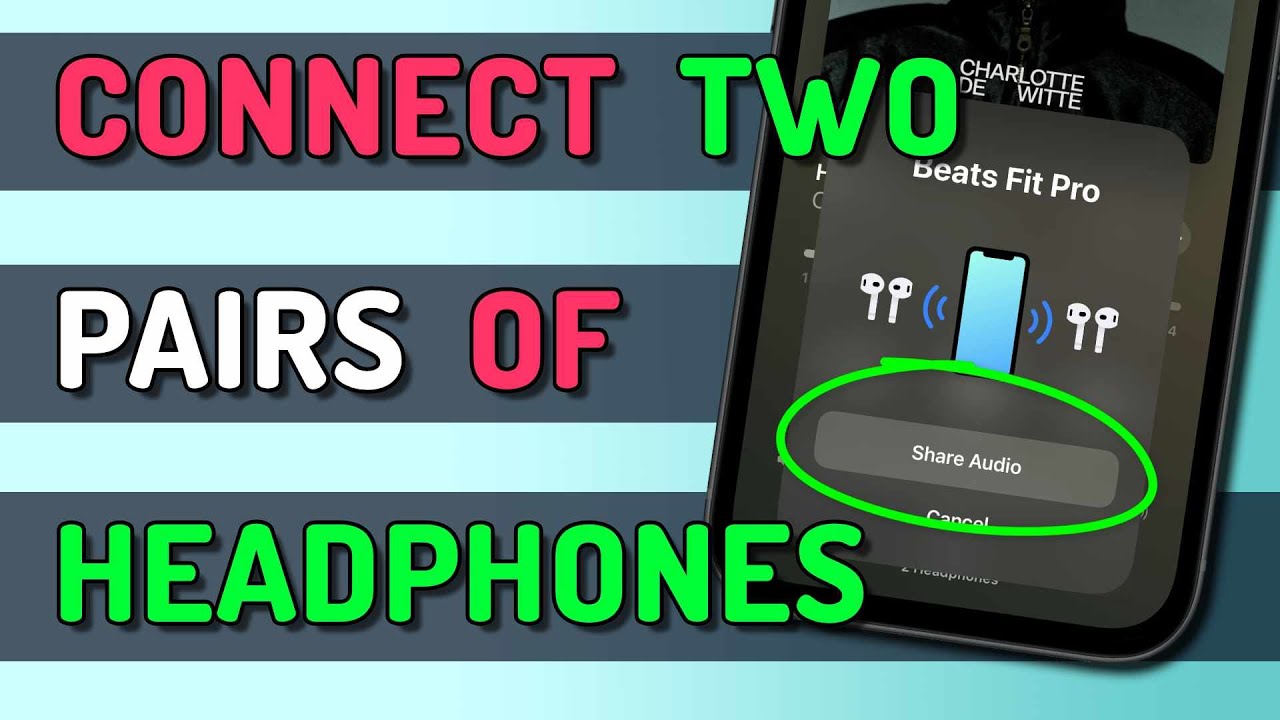
Your iPhone will show the device currently playing audio. Look for the option labeled Share Audio.
Step 4: Bring the second headphones close
Tap Share Audio. Then bring the second pair of compatible headphones close to your iPhone.
For AirPods, open the charging case with the earbuds inside. For some Beats models, place the headphones near the iPhone and turn them on.
Step 5: Confirm the second connection
When the second headphones appear, tap Share Audio again or follow the on-screen instructions.
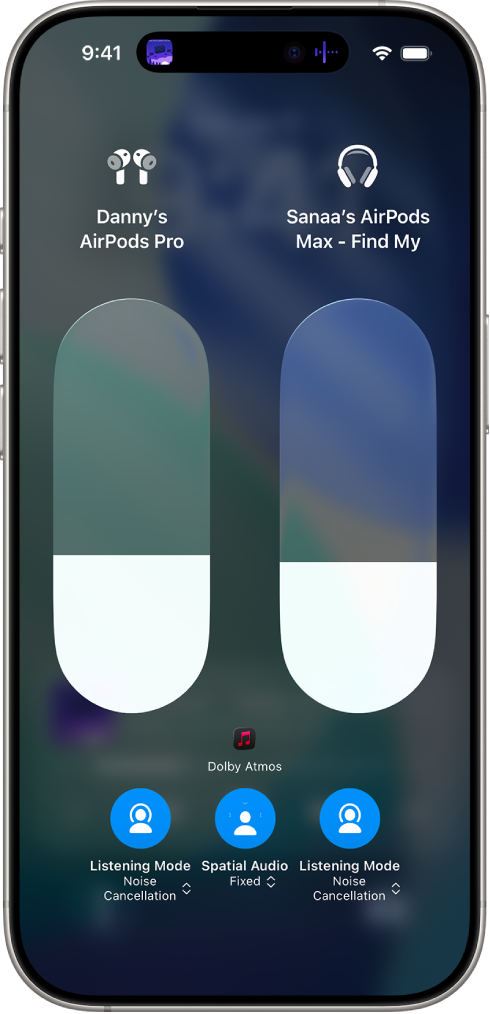
Both headphones should now play the same music, video, podcast, or call audio. You can adjust the volume for each pair separately using the sliders on the AirPlay screen.
That is the full process for how to connect two Bluetooth headphones to iPhone with Audio Sharing.
How to Adjust Volume for Both Headphones
Audio Sharing gives each listener separate volume control. This is helpful when one person prefers quiet sound and the other wants more volume.
To change the volume:
Open Control Center.
Press and hold the audio card.
Tap the AirPlay icon.
Use the individual volume sliders below each headphone name.
You can also use the physical volume buttons on the iPhone. However, these buttons may change the main volume for both headphones together. The AirPlay panel gives you more precise control.
Some compatible AirPods models also support separate controls from the earbuds. One listener can raise or lower the volume without changing the other person’s setting.
How to Stop Sharing Audio
You can stop sharing audio without disconnecting the first headphones.
Open Control Center.
Press and hold the audio card.
Tap the AirPlay icon.
Tap the checkmark beside the second headphones.
The second pair will stop receiving sound. The first pair will continue playing as normal.
You can also put the second headphones back in their case or turn them off. The iPhone may disconnect them after a short time.

Can You Connect Two Regular Bluetooth Headphones to iPhone?
In most cases, you cannot connect two ordinary Bluetooth headphones to iPhone and send the same audio to both. iPhones can remember several Bluetooth devices, but that does not mean they can stream media to two unrelated headphones at once.
This difference often causes confusion. Your iPhone may show both headphones in Bluetooth settings, yet only one may play sound.
The normal Bluetooth menu is mainly for pairing and managing devices. Audio Sharing is the Apple feature that sends the same audio stream to two supported headphones.
If both headphones are standard Bluetooth models, consider these alternatives:
• Use a Bluetooth audio transmitter that supports two headphone connections.
• Choose a headphone model that works with Audio Sharing.
• Use a wired headphone splitter with a compatible adapter.
• Play the same content on two separate devices.
A third-party Bluetooth transmitter may work well, but compatibility and sound delay can vary. Read the product details carefully and look for dual-link or two-device support.

How to Connect Two AirPods to One iPhone
Connecting two pairs of AirPods is usually the smoothest option. Apple designed Audio Sharing for this use, so the setup is quick.
First, connect one pair of AirPods to the iPhone. Then open Control Center, tap the AirPlay icon, and choose Share Audio.
Next, open the case of the second AirPods near the iPhone. Press the pairing button on the case if the connection prompt does not appear. Once the second pair shows on the screen, tap Share Audio.
Both pairs should begin playing the same sound. You can change each listener’s volume from the AirPlay controls.
When I test this setup, the most common mistake is opening the second case too far from the phone. Keep it within a few inches during pairing. A low case battery can also make the second pair seem invisible.

How to Connect AirPods and Beats Headphones Together
You can also share audio between compatible AirPods and Beats headphones. They do not need to be the same brand, but both models must support Audio Sharing.
Use this process:
Connect the AirPods or Beats headphones that you want to use first.
Open Control Center.
Tap the AirPlay icon in the audio card.
Tap Share Audio.
Put the second headphones into pairing mode.
Bring them close to the iPhone.
Tap the second device when it appears.
If the Beats headphones do not appear, make sure they have the latest firmware available and are not connected to another phone, tablet, or computer. Turning off Bluetooth on the other device can help.
What to Do If Audio Sharing Does Not Work
If you cannot connect two Bluetooth headphones to iPhone, work through these fixes in order.
Check device compatibility
Confirm that both headphones support Apple Audio Sharing. Standard Bluetooth headphones may pair with the iPhone but still lack shared audio support.
Update the iPhone
Open Settings, tap General, and choose Software Update. Install any available update, then try Audio Sharing again.
Charge both headphones
Low battery can interrupt pairing. Charge both headphones and their cases before trying again.
Disconnect other devices
The second headphones may already be connected to another phone, tablet, laptop, or television. Disconnect them from that device before pairing.
Restart Bluetooth
Open Settings, tap Bluetooth, and turn it off. Wait about ten seconds, then turn it on again.
Restart the iPhone
A simple restart can clear a temporary wireless connection error. This step often helps when the Share Audio option is missing.
Forget and reconnect the first headphones
Go to Settings, Bluetooth, and tap the information button beside the headphones. Choose Forget This Device, then pair the headphones again.
Keep the headphones close
Bluetooth pairing works best when the devices are near each other. Avoid pairing through walls or near many other wireless devices.
If these steps fail, test each pair separately. This shows whether the problem comes from one headphone set or from the iPhone.
How to Improve Shared Listening Quality
Once you connect two Bluetooth headphones to iPhone, a few small changes can make the experience better.
• Keep the iPhone near both listeners.
• Avoid placing the phone inside a bag or behind thick furniture.
• Pause large downloads while watching video.
• Charge both headphones before a long trip.
• Keep both headphones updated.
• Use moderate volume to protect your hearing.
• Test the setup before a flight, class, or long workout.
Audio Sharing may use more battery than playing through one pair. The difference is not always large, but it can matter during a long movie or road trip.
There may also be a small delay between the iPhone and the headphones. Modern AirPods and Beats models usually handle this well, but older wireless headphones may show a slight lip-sync problem.
Privacy and Safety Tips for Shared Audio
When you connect two Bluetooth headphones to iPhone, both listeners hear the same media. This makes the feature useful for travel, study, and family viewing, but remember that both people share the same audio stream.
Check the volume before starting. A sudden loud sound can be uncomfortable, especially if one listener expects a lower setting.
Do not use shared headphones while driving or crossing busy streets. Wireless earbuds can reduce awareness of nearby sounds. For children, consider using a safe volume limit through the iPhone’s headphone safety settings.
You should also avoid pairing with headphones that belong to someone else without permission. Bluetooth names can look similar, so confirm the correct device before sharing private calls or messages.
When a Bluetooth Splitter Is a Better Choice
A Bluetooth splitter can help when one or both headphones are not compatible with Apple Audio Sharing. It acts like a small bridge between the iPhone and two headphones.
Choose a transmitter that clearly supports:
• Two simultaneous Bluetooth connections
• The Bluetooth profile used for stereo audio
• Low-latency audio, if you watch videos
• The correct iPhone connection, such as Bluetooth or a wired adapter
A splitter may not work as smoothly as Audio Sharing. It can add audio delay, require charging, or need a Lightning or USB-C adapter. Still, it is often the best option for two standard Bluetooth headphones.
For frequent shared listening, compatible AirPods or Beats headphones are usually simpler. For occasional use, a good dual-headphone transmitter may cost less.
Common Mistakes to Avoid
Many connection problems come from small setup mistakes. Avoid these issues when learning how to connect two Bluetooth headphones to iPhone.
• Trying to use two headphones that do not support Audio Sharing
• Pairing the second headphones through Bluetooth settings instead of Share Audio
• Leaving the second headphones connected to another device
• Forgetting to update iOS
• Pairing with a nearly empty battery
• Holding the second headphones too far from the iPhone
• Expecting two headphones to appear under one Bluetooth name
• Assuming all Beats headphones support the same features
The biggest lesson is simple: Bluetooth pairing and Audio Sharing are not the same thing. Pairing connects a device. Audio Sharing sends one audio stream to two supported devices.
Frequently Asked Questions About How to Connect Two Bluetooth Headphones to iPhone
Can I connect two Bluetooth headphones to one iPhone?
Yes, but both headphones must support Apple Audio Sharing. Compatible AirPods and Beats models can receive the same audio from one iPhone.
Why can’t I see the Share Audio option?
The option may be missing because the connected headphones or iPhone do not support Audio Sharing. Updating iOS and connecting compatible AirPods or Beats headphones can restore the option.
Can I connect two different brands of headphones?
You can connect different brands only when both models support Apple’s Audio Sharing feature. Two ordinary Bluetooth headphone brands usually cannot share iPhone audio without a dual-device transmitter.
Can two people control the volume separately?
Yes. Open the AirPlay audio controls in Control Center to see separate volume sliders for each connected headphone set.
Does Audio Sharing work with Bluetooth speakers?
Audio Sharing is designed mainly for compatible AirPods and Beats headphones. It does not generally support two unrelated Bluetooth speakers through the standard iPhone controls.
Can I share a phone call with two headphones?
Audio Sharing is mainly intended for media such as music, videos, and podcasts. Phone call behavior can vary by iPhone, iOS version, and headphone model, so test it before relying on it.
Will connecting two headphones drain the iPhone battery faster?
It may use somewhat more battery because the iPhone sends audio to two devices. The effect depends on the headphone models, distance, audio type, and Bluetooth conditions.
Conclusion
The simplest way to connect two Bluetooth headphones to iPhone is to use Apple’s Audio Sharing feature with compatible AirPods or Beats headphones. Connect the first pair, open Control Center, tap the AirPlay icon, choose Share Audio, and pair the second set.
If you use standard Bluetooth headphones, the iPhone may not send audio to both at once. In that case, a dual-link Bluetooth transmitter or wired splitter can provide a practical solution.
Try the steps with both headphones nearby and fully charged. Once you confirm compatibility, sharing music, movies, and podcasts becomes easy. Explore your iPhone’s audio settings, and share this guide with anyone who wants to listen together.
