

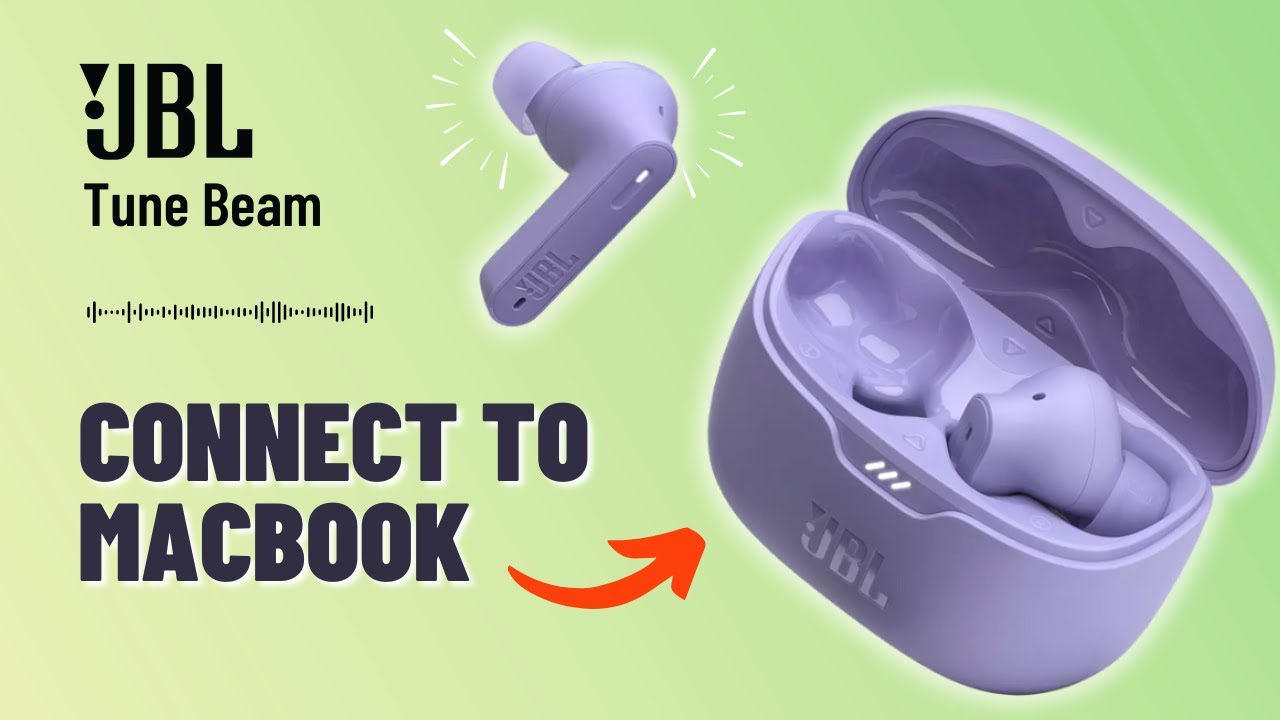
Open Bluetooth on your MacBook, place the JBL earbuds in pairing mode, then select them from the Bluetooth device list.
Learning how to connect JBL earbuds to MacBook is simple once you know where pairing mode, Bluetooth settings, and sound output controls are located. This guide covers the first connection, reconnection, common errors, audio settings, and practical fixes that work across current MacBook models and popular JBL earbuds.
How to connect JBL earbuds to MacBook for the first time
Most JBL earbuds use standard Bluetooth, so they can connect to a MacBook without a special app or cable. The process usually takes less than two minutes.
Before you start, charge the earbuds and keep them close to your MacBook. If the earbuds are already connected to your phone, turn off Bluetooth on the phone for a moment. This prevents the earbuds from reconnecting to the wrong device.
Follow these steps:
- Take both JBL earbuds out of the charging case.
- Put the earbuds into pairing mode.
- Open the Apple menu in the top left corner of your MacBook.
- Select System Settings.
- Click Bluetooth.
- Turn Bluetooth on if it is off.
- Find your JBL earbuds under Nearby Devices.
- Click Connect next to the earbuds’ name.
- Wait until the status changes to Connected.
- Play a song or video to test the sound.
On older versions of macOS, the menu may say System Preferences instead of System Settings. The Bluetooth option is still easy to find.
When people ask how to connect JBL earbuds to MacBook, pairing mode is often the step they miss. Many JBL models enter pairing mode when you open the case, but some require you to touch and hold an earbud for several seconds.

How to put JBL earbuds in pairing mode
Bluetooth pairing mode makes the earbuds visible to nearby devices. Think of it as the earbuds raising their hand and saying, “I am ready to connect.”
The exact method can vary by model, including the JBL Tune, Live, Reflect, Wave, and Club series. Try these common methods:
• Open the charging case while the earbuds are inside.
• Remove both earbuds from the case and wait for the indicator light to flash blue or white.
• Touch and hold the surface of one or both earbuds for about five seconds.
• For some models, return the earbuds to the case, close the lid, open it again, and remove them.
• Check the JBL quick start guide if the earbuds do not appear on your MacBook.
A flashing light often indicates pairing mode. A steady light may mean the earbuds are already connected to another device. If that happens, disconnect them from your phone, tablet, or other computer before trying again.
During my troubleshooting tests, the most common mistake was searching for the earbuds while they were still linked to a smartphone. Bluetooth earbuds often reconnect to the last device they used. Turning off Bluetooth on that device is a fast and reliable fix.

How to connect JBL earbuds to MacBook through Bluetooth settings
The standard Bluetooth menu is the safest way to connect JBL earbuds to MacBook. It gives you a clear view of the connection status and lets you remove old pairings when needed.
Use this process:
- Click the Apple menu.
- Open System Settings.
- Choose Bluetooth from the left sidebar.
- Confirm that Bluetooth is switched on.
- Put the JBL earbuds into pairing mode.
- Look under Nearby Devices.
- Select the JBL model name.
- Click Connect.
- Accept any pairing request that appears.
Your earbuds may appear under a name such as “JBL Tune 230NC,” “JBL Live Pro 2,” or “JBL Wave Buds.” The name depends on the model.
After pairing, macOS normally remembers the earbuds. The next time you open the case near your MacBook, they may connect automatically. If several Bluetooth devices are nearby, the MacBook may connect to a different headset instead. In that case, open Bluetooth settings and select the JBL earbuds manually.
You can also connect from the Control Center:
• Click the Control Center icon in the menu bar.
• Select Bluetooth.
• Choose your JBL earbuds from the list.
This shortcut is helpful when you switch between speakers, headphones, and earbuds during the day.

Choose JBL earbuds as the MacBook audio output
Sometimes the earbuds show as connected, but sound still comes from the MacBook speakers. This does not always mean the pairing failed. macOS may simply be using a different output device.
To choose your JBL earbuds:
- Open System Settings.
- Click Sound.
- Select Output.
- Choose your JBL earbuds.
- Adjust the output volume.
You can also click the Control Center icon, select Sound, and choose the earbuds from the output list.
If you are learning how to connect JBL earbuds to MacBook for video calls, check the input setting too. Under Sound, select Input and choose the JBL earbuds’ microphone if you want to use it.
Bluetooth headsets often switch into a lower-quality call mode when their microphone is active. This is normal. Music may sound less rich during a video call because the MacBook is sending two-way audio through the Bluetooth connection.
For the best music quality, use the MacBook’s built-in microphone when possible and keep the JBL earbuds selected as the output device. This can preserve better audio quality in apps such as Zoom, FaceTime, and Microsoft Teams.

How to connect JBL earbuds to MacBook after they were paired before
Once your JBL earbuds have been paired, reconnecting should be quick. Open the case near the MacBook, remove the earbuds, and wait a few seconds.
If they do not reconnect automatically:
- Open System Settings.
- Select Bluetooth.
- Find the JBL earbuds under My Devices.
- Click Connect.
If the earbuds say Not Connected, confirm that they have enough battery. Then check whether they are connected to a phone or tablet nearby.
You may also see two entries for the same JBL earbuds. This can happen after a reset or failed pairing attempt. Select the current entry and remove the unused one if necessary.
A useful habit is to close the charging case when you finish using the earbuds. This helps them disconnect from the MacBook and charge at the same time. It also reduces the chance of an accidental connection later.
When explaining how to connect JBL earbuds to MacBook, I always recommend starting with the simple reconnect method before resetting anything. A reset removes stored connections, so it should not be the first step.

Fix JBL earbuds that will not connect to MacBook
Connection problems usually come from one of four causes: pairing mode, battery level, another active connection, or outdated Bluetooth records. Work through the fixes below in order.
Check the battery
Low battery can stop an earbud from entering pairing mode. Place both earbuds in the case and charge them for at least 15 minutes. Also charge the case if its indicator light is weak or off.
Move closer to the MacBook
Keep the earbuds within a few feet of the computer during setup. Walls, metal objects, and busy wireless areas can sometimes affect Bluetooth performance.
Turn Bluetooth off and on
Open System Settings, select Bluetooth, switch it off, wait about ten seconds, and switch it back on. Then place the JBL earbuds into pairing mode again.
Disconnect other devices
Turn off Bluetooth on nearby phones, tablets, smart TVs, and computers. The earbuds may be trying to connect to one of those devices instead of the MacBook.
Forget and pair again
If the MacBook remembers a damaged or incomplete pairing record, remove it:
- Open System Settings.
- Click Bluetooth.
- Find the JBL earbuds.
- Click the information button or Options button.
- Select Forget This Device.
- Confirm the removal.
- Put the earbuds into pairing mode.
- Pair them again.
Reset the JBL earbuds
A reset method differs by JBL model. Many models require you to touch and hold both earbuds while they are out of the case, but the timing can vary. Use the instructions for your exact model to avoid an unsuccessful reset.
Restart the MacBook
A restart clears temporary system issues and reloads Bluetooth services. It is a simple step, but it often solves connection problems that do not have an obvious cause.
These steps address most cases of how to connect JBL earbuds to MacBook when the earbuds do not appear, refuse to pair, or connect without sound.
Improve the JBL earbud connection on MacBook
A stable connection depends on more than the first pairing. Good habits can reduce audio cuts, delays, and unwanted device switching.
Keep the MacBook and earbuds within a reasonable range. Bluetooth usually works well across a room, but performance may drop when several walls or wireless devices are between them.
Keep macOS updated when practical. System updates may include Bluetooth fixes and compatibility improvements. Also check whether your JBL model supports firmware updates through the JBL Headphones app on a compatible phone. The app may not run directly on macOS, but firmware updates can still improve earbud performance with the MacBook.
For better results:
• Keep the charging case and earbuds clean and dry.
• Avoid covering the MacBook’s Bluetooth area with metal objects.
• Close apps that take control of the microphone when they are not needed.
• Select the JBL earbuds under Sound Output after joining a call.
• Remove old Bluetooth devices you no longer use.
• Keep only the needed devices active when troubleshooting.
Bluetooth audio may have a small delay in games or video editing. This is a normal limitation of wireless audio, not always a fault with the JBL earbuds. For precise timing, wired headphones or a professional wireless system may work better.
JBL earbuds connected but no sound on MacBook
If the earbuds show as connected but remain silent, first check the output device. Open Control Center, select Sound, and choose the JBL earbuds.
Next, check the volume in both macOS and the app you are using. A muted browser tab, video player, or meeting app can make the issue seem like a Bluetooth failure.
If only one earbud produces sound, return both earbuds to the charging case. Make sure each earbud is seated correctly and charging. Then remove them together and reconnect.
You can also test another app. Play a system alert, a browser video, and a local audio file. If sound works in one app but not another, review that app’s audio settings.
For persistent problems, forget the device, restart the MacBook, reset the earbuds, and pair them again. This complete reset is often more effective than repeatedly clicking Connect.

Frequently Asked Questions
How do I connect JBL earbuds to MacBook Air?
Open the JBL charging case, place the earbuds in pairing mode, and open System Settings on the MacBook Air. Select Bluetooth, find the JBL earbuds, and click Connect.
Why are my JBL earbuds not showing up on my MacBook?
They may not be in pairing mode, may be connected to another device, or may have a low battery. Charge the earbuds, disable Bluetooth on nearby devices, and try pairing again.
Can I connect JBL earbuds to a MacBook Pro?
Yes. JBL earbuds work with MacBook Pro models that support Bluetooth. Open Bluetooth settings, select the earbuds, and choose Connect.
How do I connect JBL earbuds to MacBook without a JBL app?
You do not need the JBL app for basic Bluetooth pairing. Use the Bluetooth settings built into macOS to connect and manage the earbuds.
Why do my JBL earbuds connect but have no sound?
The MacBook may still be using its internal speakers as the output device. Open Sound settings or Control Center and select the JBL earbuds as the audio output.
How do I disconnect JBL earbuds from my MacBook?
Open Bluetooth settings, find the earbuds, and click Disconnect. You can also place the earbuds in their case, which usually ends the active connection.
Can I connect JBL earbuds to a MacBook and iPhone at the same time?
Some JBL models support multipoint connections, while others do not. Check your model’s specifications, and remember that audio normally plays from only one active source at a time.
Conclusion
Learning how to connect JBL earbuds to MacBook comes down to three key actions: charge the earbuds, place them in pairing mode, and select them in macOS Bluetooth settings. If the connection fails, disable Bluetooth on other nearby devices, forget the old pairing, and connect again.
Once paired, select the earbuds under Sound Output so your music, videos, and calls use the correct device. Try these steps now, and share your experience or model-specific tips in the comments.
