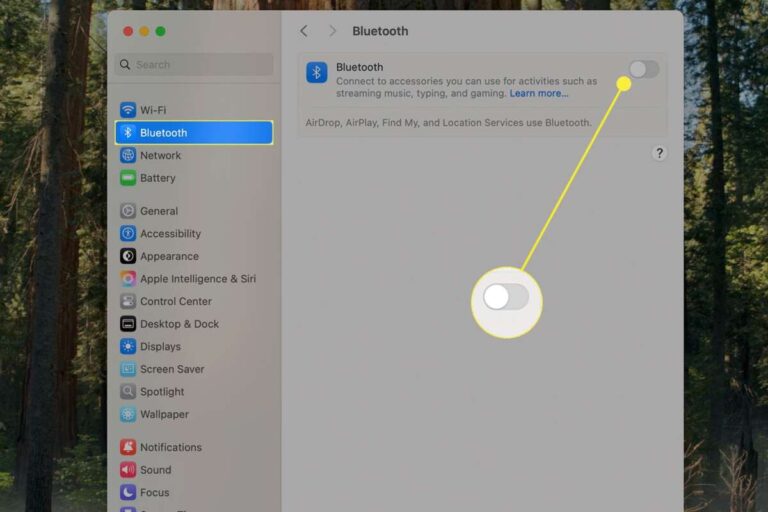
How To Turn On Sony Bluetooth Headphones: Easy Guide
Press and hold the power button for about two seconds until the Sony headphones announce “Power on.”
Learning how to turn on Sony Bluetooth headphones is simple, but the exact button, light, and pairing steps can vary by model. This guide covers WH-1000XM headphones, WF earbuds, CH headphones, and other popular Sony Bluetooth devices, along with fixes for charging, pairing, and power problems.
How to turn on Sony Bluetooth headphones
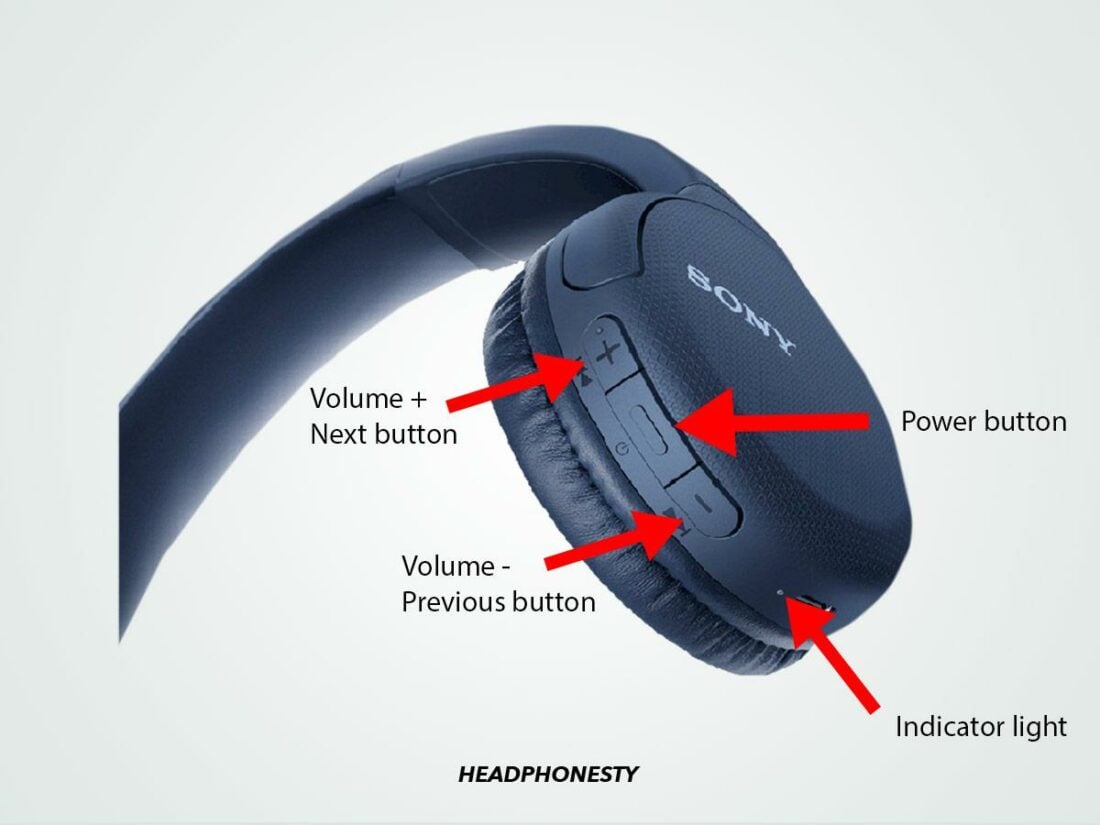
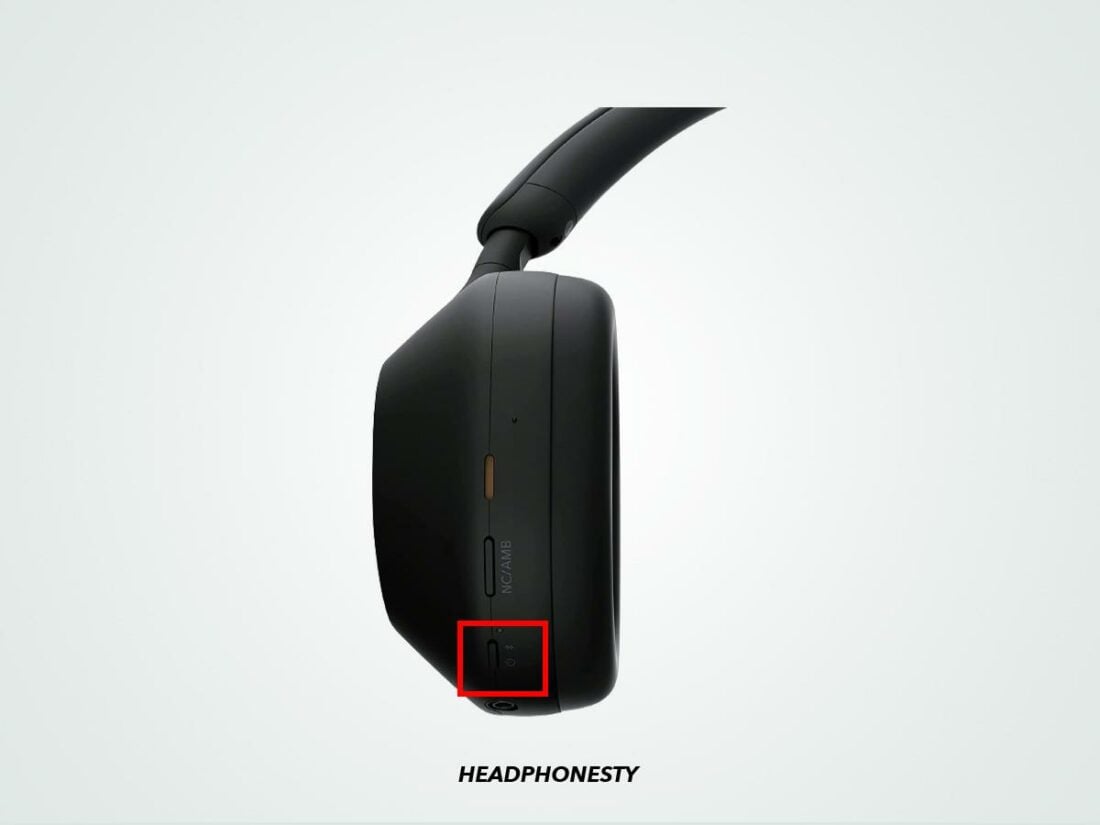
Most Sony Bluetooth headphones turn on with one long press of the power button. The button is usually on the side of an earcup, near the USB charging port or indicator light.
Follow these steps:
- Remove the headphones from their case or storage.
- Find the power button on the left or right earcup.
- Press and hold the button for about two seconds.
- Release the button when you hear “Power on.”
- Check for a blue or green indicator light.


Some models use a touch sensor or automatic power feature. Even so, the physical power button remains the most reliable way to switch on Sony over-ear headphones.
When testing Sony headphones, I find that users often tap the button instead of holding it. A short press may do nothing, while a two-second press starts the headphones. Think of it like turning a key in a car: steady pressure matters.

How to turn on Sony wireless earbuds
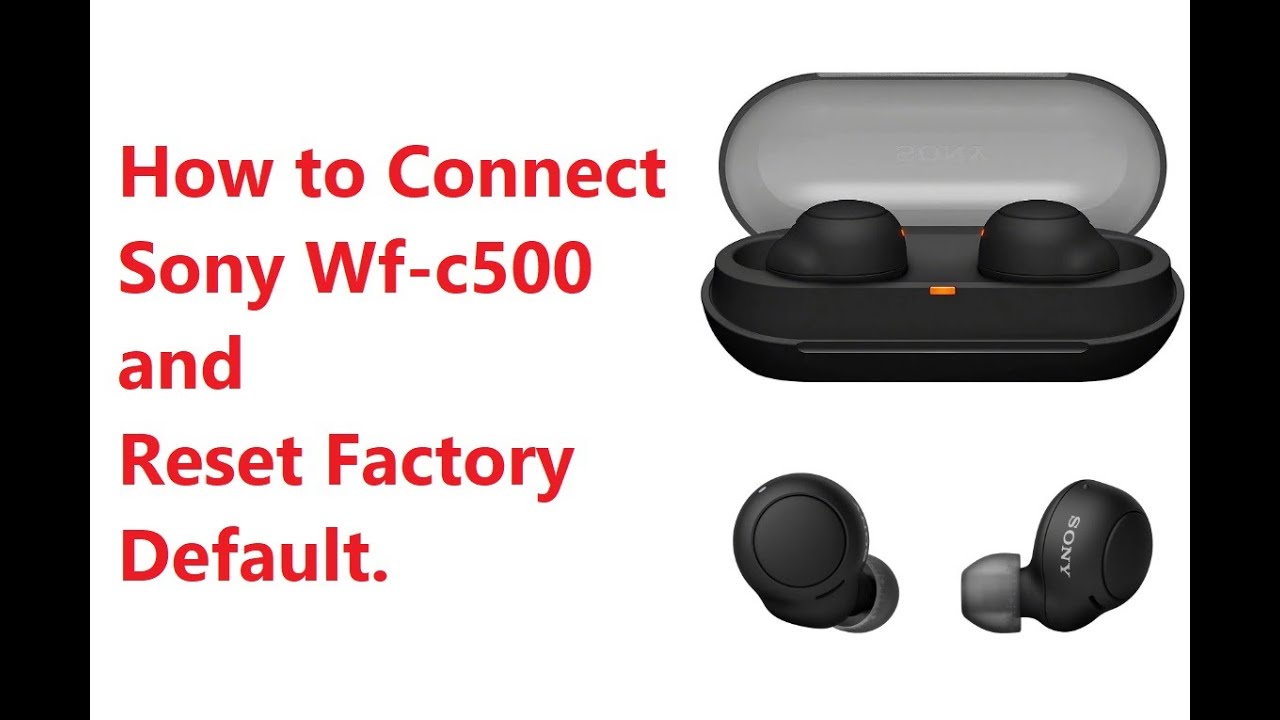
Sony wireless earbuds, such as the WF-1000XM series, usually power on when you remove them from the charging case. Their charging case acts like a small control center.
To turn on Sony wireless earbuds:
- Charge the case if its battery is low.
- Open the charging case.
- Remove both earbuds.
- Wait for the indicator lights to appear.
- Listen for a power-on sound or voice prompt.
If the earbuds stay in the case but you need to start them manually, place them in your ears and touch or press the control area. The exact action depends on the model.
Some Sony earbuds may not turn on if they are not seated correctly in the charging case. Wipe the metal charging contacts with a clean, dry cotton swab. Avoid water, alcohol, or sharp objects, as these can damage the contacts.
A common mistake is removing only one earbud and assuming both earbuds are active. Some models can work with one earbud, but both must have enough charge for normal stereo use.

How to turn on Sony headphones with the power button
The power button on Sony headphones may be small, raised, or built into a control strip. On many WH-1000XM models, it sits beside the custom or noise-canceling button.
Use this method:
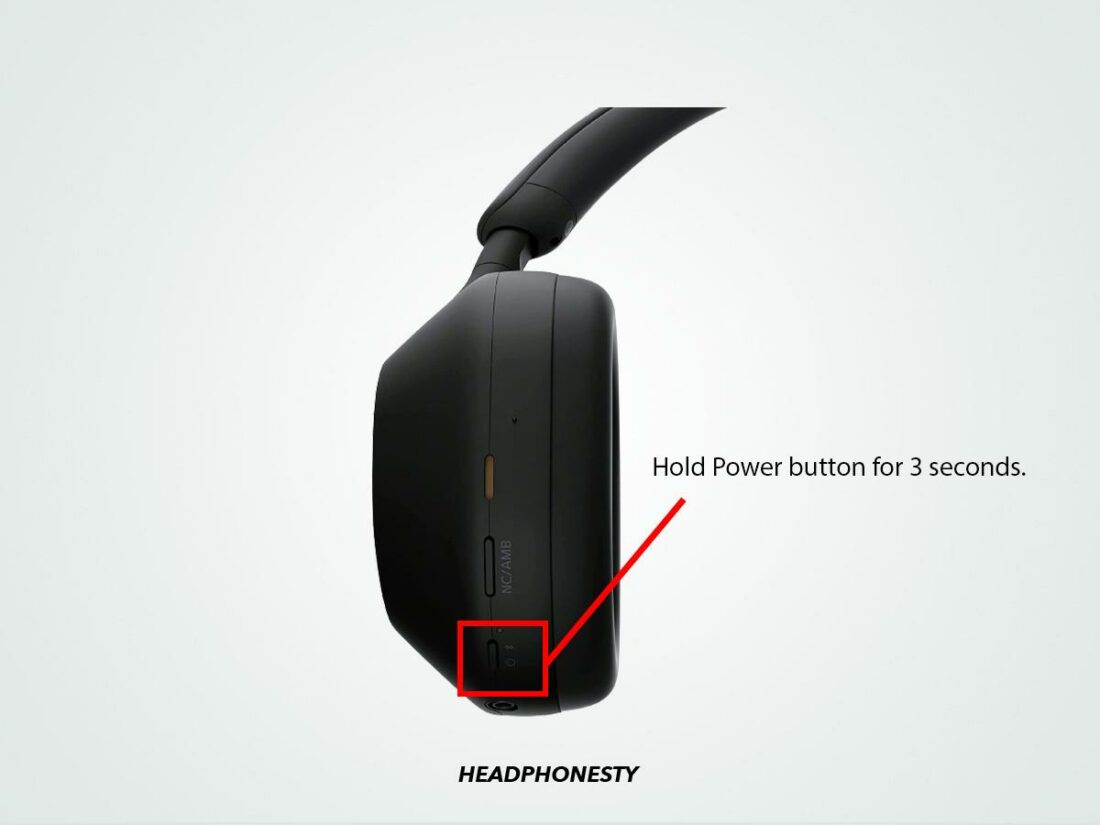
- Hold the power button for two to three seconds.
- Wait for the voice prompt.
- Watch the status light.
- Release the button after the headphones respond.
Do not keep holding the button for too long. A longer press may activate pairing mode, reset a connection, or start another function on certain models.
If you are unsure which button is the power button, look for a power symbol. You can also check the model guide in the Sony | Headphones Connect app or the official product manual.


Older Sony Bluetooth headphones may use a sliding power switch instead of a push button. Slide the switch to the “ON” position, then wait for the indicator light.
How to know if Sony Bluetooth headphones are on
Sony headphones give several signs when they are powered on. These signs may differ slightly between models.
Look for:
• A voice prompt such as “Power on”
• A blue, green, or white indicator light
• A short startup sound
• A visible battery level in your phone’s Bluetooth menu
• Automatic connection to a device that was paired before
Noise-canceling headphones may show a separate light when noise canceling is active. Do not confuse this light with the power status light.
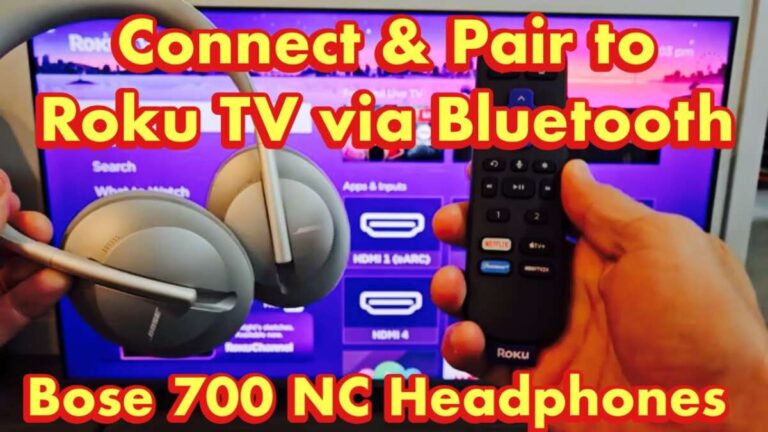
If you hear “Bluetooth connected,” the headphones are both powered on and connected. If you hear only “Power on,” the headphones are on but may not yet be connected to a phone, tablet, computer, or television.
The light may turn off after a few seconds to save battery. This does not always mean the headphones have shut down. Play audio or press the power button briefly to check their status.
How to connect Sony Bluetooth headphones after turning them on
Turning on Sony Bluetooth headphones does not always connect them automatically. You may need to pair them with your device the first time.
Pair Sony headphones with an iPhone or Android phone
- Turn on the headphones.
- Open your phone’s Settings app.
- Select Bluetooth.
- Turn Bluetooth on.
- Choose the Sony headphone model from the device list.
- Tap Pair or Connect.
If the headphones do not appear, press and hold the power button for about seven seconds. Many Sony models enter pairing mode this way. The indicator usually flashes blue, and a voice prompt may say “Bluetooth pairing.”
Keep the headphones close to your phone during setup. A distance of less than three feet works best. Turn off Bluetooth on nearby devices if the headphones keep connecting to the wrong product.
Pair Sony headphones with a Windows computer
- Turn on the headphones.
- Open Settings on your Windows computer.
- Select Bluetooth & devices.
- Turn Bluetooth on.
- Choose Add device.
- Select Bluetooth.
- Click your Sony headphone model.
After pairing, open the sound settings and select the Sony headphones as the output device. Windows may connect them for calls but still play music through the built-in speakers until you choose them manually.


Pair Sony headphones with a Mac
- Turn on the headphones.
- Open System Settings.
- Select Bluetooth.
- Find the Sony headphones.
- Click Connect.
If the device shows as connected but no sound plays, open Sound settings and select the Sony headphones under Output.
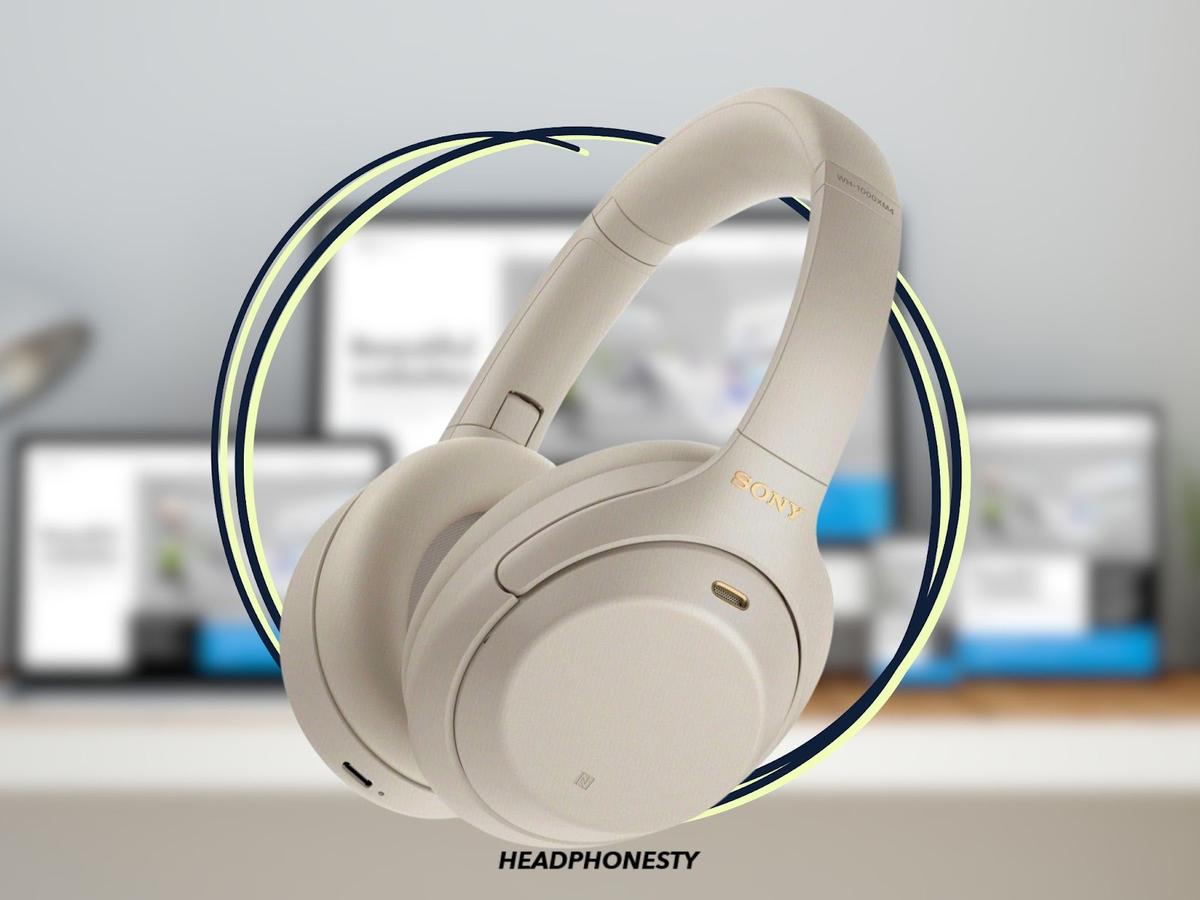
How to turn on Sony headphones without pairing
You can turn on Sony Bluetooth headphones without connecting them to a device. Press and hold the power button until you hear the startup prompt or see the status light.
The headphones can still play audio through a wired connection if the model includes a headphone jack. Some features, such as active noise canceling, may work while the headphones are powered on even when Bluetooth is not connected.
This is useful on airplanes, with older music players, or when you want noise reduction without using wireless audio. Check the product manual because wired operation and noise-canceling behavior vary by model.

What to do when Sony headphones will not turn on
If your Sony headphones do not respond, start with the battery. A completely empty battery may show no light and make no sound.
Try these steps:
- Connect the headphones to a compatible USB charger.
- Leave them charging for at least 30 minutes.
- Try a different charging cable.
- Try another wall adapter or USB port.
- Press and hold the power button again.
- Check the charging port for dust or damage.
Use a stable power source rather than a weak laptop port. Avoid using a damaged cable or forcing the connector into the charging port.
If the headphones turn off as soon as you unplug them, the battery may be worn out. Lithium-ion batteries lose capacity over time, especially after heavy use or exposure to heat. A service center may be needed if the battery no longer holds a charge.
Water can also cause power problems. Even headphones advertised as water resistant may not be safe to immerse, and most over-ear Bluetooth headphones are not designed for sweat or rain.
How to reset Sony Bluetooth headphones
A reset can fix problems such as failed pairing, frozen controls, or repeated disconnections. The reset process is different for each Sony model, so check the user guide before starting.
A common reset pattern is:
- Turn off the headphones.
- Disconnect the USB charging cable.
- Press and hold the power and noise-canceling buttons together.
- Keep holding them for several seconds.
- Release the buttons when the indicator flashes.
Not every Sony model uses this combination. Some headphones reset through the Sony | Headphones Connect app, while some earbuds require placing both units in the case and holding their touch panels.
A reset may delete stored Bluetooth connections. After resetting, return to your phone’s Bluetooth settings and remove the old Sony entry. Then pair the headphones again as if they were new.
Resetting is not the same as initializing. A factory initialization removes more saved settings, including equalizer choices and connection data. Use it only when normal troubleshooting fails.


How to use the Sony | Headphones Connect app
The Sony | Headphones Connect app can help manage supported headphones and earbuds. It may show the battery level, firmware version, sound settings, and connection status.
After turning on Sony Bluetooth headphones:
- Install the official Sony headphone app.
- Turn on Bluetooth on your phone.
- Open the app.
- Follow the pairing instructions.
- Allow the requested permissions.
- Check for a firmware update.
Keep the headphones charged during an update. Do not close the app or power off the headphones while the update is running.
The app does not replace the power button. If the headphones are completely off or out of battery, the app cannot turn them on remotely. It can manage the device only after the headphones have power and establish a wireless connection.
Common mistakes to avoid
Small setup mistakes can make working headphones seem faulty. These are the problems I see most often when helping people with Bluetooth audio.
• Holding the wrong button: Noise canceling and custom buttons do not usually power on the headphones.
• Pressing too briefly: Hold the power button for about two seconds.
• Forgetting the charging case: Earbuds may not start if the case battery is empty.
• Pairing with the wrong device: Turn off Bluetooth on nearby phones, tablets, or laptops.
• Ignoring the Bluetooth menu: A voice prompt may say “Power on,” but the device still needs manual pairing.
• Using a damaged cable: A faulty cable can make charging appear impossible.
• Skipping software updates: Older firmware can cause connection and control issues.
• Wearing wet headphones: Moisture can interfere with buttons, charging contacts, and internal parts.
The simplest lesson is to check power first, then pairing. Trying to fix Bluetooth settings before confirming the battery often wastes time.


Battery and charging tips for Sony headphones
Good charging habits help Sony headphones work more reliably. Use the supplied cable when possible, and charge them in a cool, dry place.
Follow these practical tips:
• Charge before the battery reaches zero when convenient.
• Store earbuds inside their case.
• Keep charging contacts clean.
• Do not leave wet earbuds in the case.
• Avoid hot cars, direct sunlight, and extreme cold.
• Use the correct USB cable and a safe power adapter.
Battery life depends on volume, noise canceling, Bluetooth features, calls, and temperature. A model’s advertised battery life is measured under controlled conditions, so real-world use may be shorter.
If the battery drains much faster than expected, turn off features you do not need. Ambient sound mode, voice assistant access, and constant multipoint connections can affect battery use.
Frequently Asked Questions
How do I turn on Sony Bluetooth headphones?
Press and hold the power button for about two seconds. Release it when you hear “Power on” or see the status light.
How do I turn on Sony wireless earbuds?
Open the charging case and remove the earbuds. They usually turn on automatically if both the case and earbuds have enough charge.
Why will my Sony headphones not turn on?
The battery may be empty, or the charging cable, adapter, or port may have a problem. Charge the headphones for at least 30 minutes, then try holding the power button again.
How do I put Sony headphones into pairing mode?
With the headphones off, press and hold the power button for about seven seconds on many models. Release it when the indicator flashes blue or you hear “Bluetooth pairing.”
Can I use Sony headphones while they are charging?
Many Sony over-ear headphones do not support Bluetooth playback while charging, though behavior varies by model. Check the product guide for your specific headphones.
How do I turn off Sony Bluetooth headphones?
Press and hold the power button until you hear “Power off.” Sony wireless earbuds usually turn off when you place them back into the charging case and close the lid.
Do Sony headphones turn on automatically?
Some Sony earbuds turn on when removed from the case, and some models may support automatic wear detection. Over-ear headphones usually require a press of the power button.


Conclusion
To turn on Sony Bluetooth headphones, hold the power button for about two seconds and wait for the startup prompt or indicator light. For Sony wireless earbuds, open the charging case and remove them. If nothing happens, charge the device, clean the contacts, check the correct button, and reset the headphones only when needed.
Once the headphones power on, pair them through your device’s Bluetooth settings and select them as the audio output. Save this guide for the next time your Sony headphones refuse to connect, and explore the official model guide for features specific to your device.