How To Connect Skullcandy Crusher Headphones: Fast
If you use an iPhone, Android phone, Windows PC, Mac, or smart TV in the United States, you can connect most Skullcandy Crusher headphones through Bluetooth in a few minutes. Turn on pairing mode, choose the headphones in your device’s Bluetooth menu, and wait for the connection message.
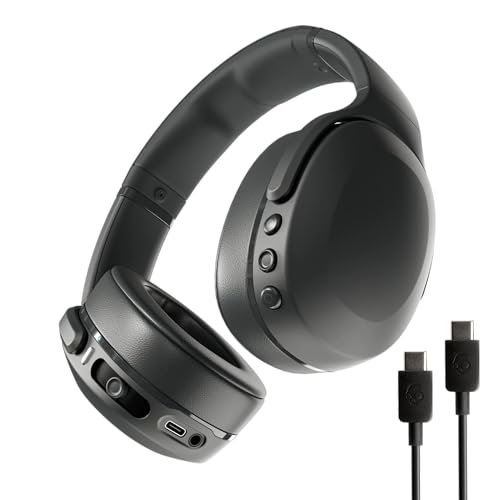
The exact button may vary by model, such as the Crusher Evo, Crusher ANC, Crusher ANC 2, Crusher Wireless, or Crusher 360. The steps below cover the common process and explain what to do if your headphones do not appear.

Before You Connect Skullcandy Crusher Headphones
Before pairing, charge the headphones and place them close to your device. A low battery or long distance can make pairing fail.
You need:
- Skullcandy Crusher headphones
- An iPhone, Android phone, tablet, computer, or other Bluetooth device
- Bluetooth turned on
- Enough battery power in the headphones
- The Skullcandy app, only if your model supports extra app features


Most Crusher models use Bluetooth for wireless audio. You do not need the Skullcandy app for basic pairing. The app may help with firmware updates, sound controls, EQ settings, or features that depend on the model.
Check the model
Look at the name printed on the headphones, box, or original manual. Common models include:
- Crusher Wireless
- Crusher 360
- Crusher Evo
- Crusher ANC
- Crusher ANC 2
- Crusher XT
The power and pairing controls are not identical on every model. If your headphones have a separate pairing button, use that button. If they do not, the main power button usually controls pairing.
How to Pair Skullcandy Crusher Headphones With a Phone
The fastest way to connect Skullcandy Crusher headphones is to place them in Bluetooth pairing mode before opening the phone’s device list.
Pair with an iPhone
- Turn off the Crusher headphones.
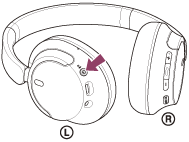
- Press and hold the headphones’ power button until the indicator light flashes or you hear a pairing message.
- Unlock your iPhone.
- Open Settings.
- Tap Bluetooth.
- Turn Bluetooth on if it is off.
- Look under Other Devices.
- Tap the name of your Skullcandy headphones.
- Wait until the name moves to My Devices and shows Connected.
Your iPhone should now send music, calls, and other audio to the headphones.
If the iPhone asks for a passcode, try 0000. Many modern Bluetooth headphones do not need a code, so the prompt may not appear.
Pair with an Android phone
Android menus can differ by brand, but the process is similar.
- Turn off the Crusher headphones.
- Hold the power or pairing button until the status light flashes.
- Open Settings on the Android phone.
- Tap Connected devices, Connections, or Bluetooth.
- Select Pair new device if that option appears.
- Tap the Skullcandy Crusher model in the list.
- Confirm the pairing request if Android displays one.
When the connection works, the headphones should show as Connected. You may also see a headphone icon in the phone’s status area.


Signs that pairing worked
You will usually know the connection succeeded when:
- The headphones say “connected.”
- The LED changes from a rapid flash to a slower flash or steady light.
- The device list shows Connected.
- Music plays through the headphones instead of the phone speaker.
- The headphones appear under previously saved Bluetooth devices.
If the headphones connect but sound still comes from the phone, open the phone’s audio output menu and select the Crusher headphones manually.

How to Connect Skullcandy Crusher Headphones to a Computer
You can connect Crusher headphones to a Windows PC or Mac as a Bluetooth audio device. Keep the headphones near the computer during setup.
Connect to a Windows PC
- Put the headphones into pairing mode.
- On Windows 11, open Settings.
- Select Bluetooth & devices.
- Turn Bluetooth on.
- Click Add device.
- Choose Bluetooth.
- Select your Skullcandy Crusher headphones.
- Click Done when Windows confirms the connection.
On Windows 10, open Settings > Devices > Bluetooth & other devices. Select Add Bluetooth or other device, choose Bluetooth, and then select the Crusher headphones.
If Windows connects the headphones but uses the wrong sound output:
- Click the speaker icon on the taskbar.
- Open the sound output menu.
- Choose the Skullcandy headphones.
- For calls, check that the Crusher headphones are also selected as the microphone and speaker in the call app.
Windows may show two audio options for some Bluetooth headsets. The Stereo option is often better for music. A Hands-Free option may be used for calls but can reduce audio quality.
Connect to a Mac
- Put the Skullcandy headphones in pairing mode.
- Open the Apple menu.
- Select System Settings.
- Click Bluetooth.
- Find the Crusher headphones under nearby devices.
- Click Connect.
On older versions of macOS, open System Preferences > Bluetooth instead.
To choose the headphones for sound, open System Settings > Sound > Output and select the Crusher model.

How to Put Skullcandy Crusher Headphones in Pairing Mode
Pairing mode makes the headphones visible to a new Bluetooth device. Simply turning the headphones on may not be enough.
For many Skullcandy Crusher models:
- Turn the headphones off.
- Press and hold the power button.
- Keep holding it for several seconds.
- Release it when the LED flashes or the headphones announce pairing mode.
- Open the Bluetooth menu on the device you want to connect.


Some models enter pairing mode the first time they are switched on. If the headphones have already connected to another device, they may try to reconnect to that device instead.
If the headphones keep connecting to an old device
Turn off Bluetooth on nearby devices that have used the headphones before. This may include:
- Your old phone
- A tablet
- A laptop
- A family member’s phone
- A smart TV
Then place the Crusher headphones in pairing mode again. This helps prevent automatic reconnection from interrupting the new setup.
Pairing mode versus connected mode
These modes are different:
- Pairing mode: The headphones search for a new device and appear in Bluetooth settings.
- Connected mode: The headphones are already linked to a saved device.
- Powered-on but idle: The headphones are on but may not be visible to a new device.
This difference explains why opening Bluetooth settings without first activating pairing mode often does not work.

What to Do If Skullcandy Crusher Headphones Will Not Connect
Start with the simple checks. Most connection problems come from an old saved pairing, another nearby device, low battery, or the headphones not being in pairing mode.
1. Charge the headphones
Connect the headphones to power and let them charge. If the battery is very low, the headphones may turn off or fail to complete pairing.
Do not rely only on the phone’s battery display. Some devices show an inaccurate or delayed battery level for Bluetooth headphones.
2. Restart both devices
Turn off the Crusher headphones. Restart the phone, computer, or tablet. Then try pairing again.
A restart can clear a temporary Bluetooth service error without changing saved settings.
3. Forget the old Bluetooth connection
If the headphones appear in the device list but will not connect, remove the saved record.
On an iPhone:
- Open Settings > Bluetooth.
- Tap the information button beside the Crusher headphones.
- Select Forget This Device.
- Confirm.
- Put the headphones into pairing mode.
- Pair them again.
On Android, open the Bluetooth settings, tap the gear or settings icon beside the headphones, and choose Forget, Unpair, or Remove.


On Windows and Mac, remove the Crusher headphones from the Bluetooth device list, then add them again.
4. Move away from other Bluetooth devices
Keep the headphones within a few feet of the device during setup. Turn off Bluetooth on devices that may reconnect automatically.
Wireless congestion can also affect pairing. Try again in a different room if the connection repeatedly drops.
5. Check the audio output
A successful Bluetooth connection does not always mean the device has selected the headphones for sound. Check the output menu on the phone or computer and choose the Skullcandy Crusher model.
6. Reset the headphones
A reset can help when the headphones remember an incorrect connection or behave as if they are already paired.
Reset steps differ by Crusher model. Skullcandy has used different button combinations across its product range, so use the instructions for the exact model rather than applying a random combination from another model.
After a reset:
- Remove the headphones from your phone or computer’s Bluetooth list.
- Turn Bluetooth off and back on.
- Put the headphones into pairing mode.
- Pair them as a new device.
Use the model-specific instructions in the Skullcandy Support Center. The product manual is the safest source for the correct reset sequence.
7. Update software when possible
If your model works with the Skullcandy app, check whether the app offers a firmware update. Keep the headphones charged during the update and do not close the app until it finishes.
An update may fix connection or stability issues, but it should not be interrupted.

Can Skullcandy Crusher Headphones Connect to Two Devices?
Some Crusher models support connection to more than one device, while others support only one active Bluetooth connection at a time. The feature may also depend on the model, firmware, and device type.
For example, a phone and laptop may both be saved in the headphones’ Bluetooth memory, but that does not always mean the headphones can play audio from both devices at once.
If two-device switching causes trouble:
- Turn off Bluetooth on one device.
- Connect the headphones to the other device.
- Test audio.
- Turn Bluetooth back on for the first device.
- Reconnect only if the model supports the feature.
If you mainly use the headphones with one phone, removing unused devices can make reconnection more predictable.


Can You Use Skullcandy Crusher Headphones With a TV?
You can use Crusher headphones with a TV if the TV supports Bluetooth audio. Open the TV’s Bluetooth or sound settings, put the headphones into pairing mode, and select them from the list.
TV Bluetooth support varies. Some televisions support Bluetooth keyboards or remotes but do not send sound to Bluetooth headphones. If the TV cannot transmit Bluetooth audio, you may need a compatible Bluetooth audio transmitter connected to the TV’s audio output.
A transmitter can add delay. This may cause the sound to arrive slightly after the picture, especially during movies or games.
Why Do My Skullcandy Crusher Headphones Connect but Have No Sound?
The most common cause is an incorrect audio output setting. The device may show the headphones as connected while still sending sound through its built-in speakers.
Check these items:
- Select the Crusher headphones as the sound output.
- Raise the volume on both the device and headphones.
- Make sure the app is not muted.
- Pause and restart the music or video.
- Disconnect other Bluetooth speakers or earbuds.
- Test a different app.
- Forget and pair the headphones again if only one device has the problem.
On Android, check whether Media audio is enabled for the headphones. On Windows, choose the headphones from the sound output menu. On a Mac, select them under Sound > Output.
How to Use the Skullcandy App After Pairing
The basic Bluetooth connection does not require the Skullcandy app. However, supported Crusher models may use the app for extra controls.
The app may provide access to features such as:
- Firmware updates
- Custom sound settings
- Equalizer controls
- Personalization options
- Product information
Install the official Skullcandy app from the Apple App Store or Google Play. Then follow the app’s instructions to add the headphones.
If the app cannot find headphones that already play audio, close and reopen the app, confirm Bluetooth permissions, and keep the headphones connected in the phone’s Bluetooth settings.
Common Mistakes When Pairing Crusher Headphones
Avoid these common errors:
- Searching for the headphones before activating pairing mode
- Leaving Bluetooth connected to an old phone
- Choosing a similar device name by mistake
- Trying to pair with a nearly empty battery
- Resetting the headphones with instructions for another model
- Assuming a Bluetooth connection automatically selects audio output
- Updating firmware with a weak battery
- Pairing from inside an app instead of the device’s Bluetooth settings
The most reliable order is simple: charge, disconnect old devices, enter pairing mode, remove old Bluetooth records, and pair again.
Key Takeaways
- Turn off the Crusher headphones, then hold the power or pairing button until the light flashes.
- Open Bluetooth settings on the iPhone, Android phone, Windows PC, or Mac.
- Select the exact Skullcandy Crusher model.
- Choose the headphones as the audio output if sound still comes from the device speaker.
- Forget the old pairing and try again if the connection fails.
- Use the exact manual for your model before performing a reset.


Frequently Asked Questions
How do I know if my Skullcandy Crusher headphones are in pairing mode?
The status light usually flashes, and some models announce that they are ready to pair. The headphones should also appear as an available device in your phone or computer’s Bluetooth menu.
Why are my Skullcandy Crusher headphones not showing up in Bluetooth?
They may not be in pairing mode, may be connected to another nearby device, or may have too little battery power. Turn off Bluetooth on old devices, restart the headphones, and hold the power button until the pairing signal appears.
Do I need the Skullcandy app to connect Crusher headphones?
No. The app is not required for basic Bluetooth audio. It may be useful for supported features, firmware updates, and sound controls.
Can I connect Skullcandy Crusher headphones with an audio cable?
Some Crusher models include a 3.5-millimeter audio connection, while others may not. Check the ports and manual for your exact model. A wired connection can work with devices that do not support Bluetooth, but headphone controls and wireless features may not work in the same way.
How do I reconnect Crusher headphones after pairing them once?
Turn on the headphones and enable Bluetooth on the device that was previously paired. The headphones may reconnect automatically. If they do not, open the saved Bluetooth device list and tap the Crusher model.
Conclusion
To connect Skullcandy Crusher headphones, turn on pairing mode, open Bluetooth settings, and select the correct Crusher model. If the headphones do not connect, charge them, disable Bluetooth on nearby devices, forget the old pairing, and try again.
For reset steps, firmware support, and model-specific controls, use the official manual for your exact Skullcandy Crusher version.