Does B450 Support M.2 NVMe SSD: Compatibility Guide
Yes, most B450 motherboards support M.2 NVMe SSDs. However, B450 is a chipset family, not one exact motherboard. The slot type, supported PCIe lanes, CPU, BIOS version, and board layout decide whether a specific NVMe drive will work.
For a PC built in the United States, the safest check is your motherboard’s manual or support page. Look for terms such as “M.2 PCIe,” “NVMe,” or “PCIe x4.” An M.2 slot marked only “SATA” may not support an NVMe SSD.
A B450 system will usually recognize an NVMe drive for storage. It may also boot from it if the motherboard firmware supports NVMe booting and the operating system is installed in UEFI mode.
What does B450 support?
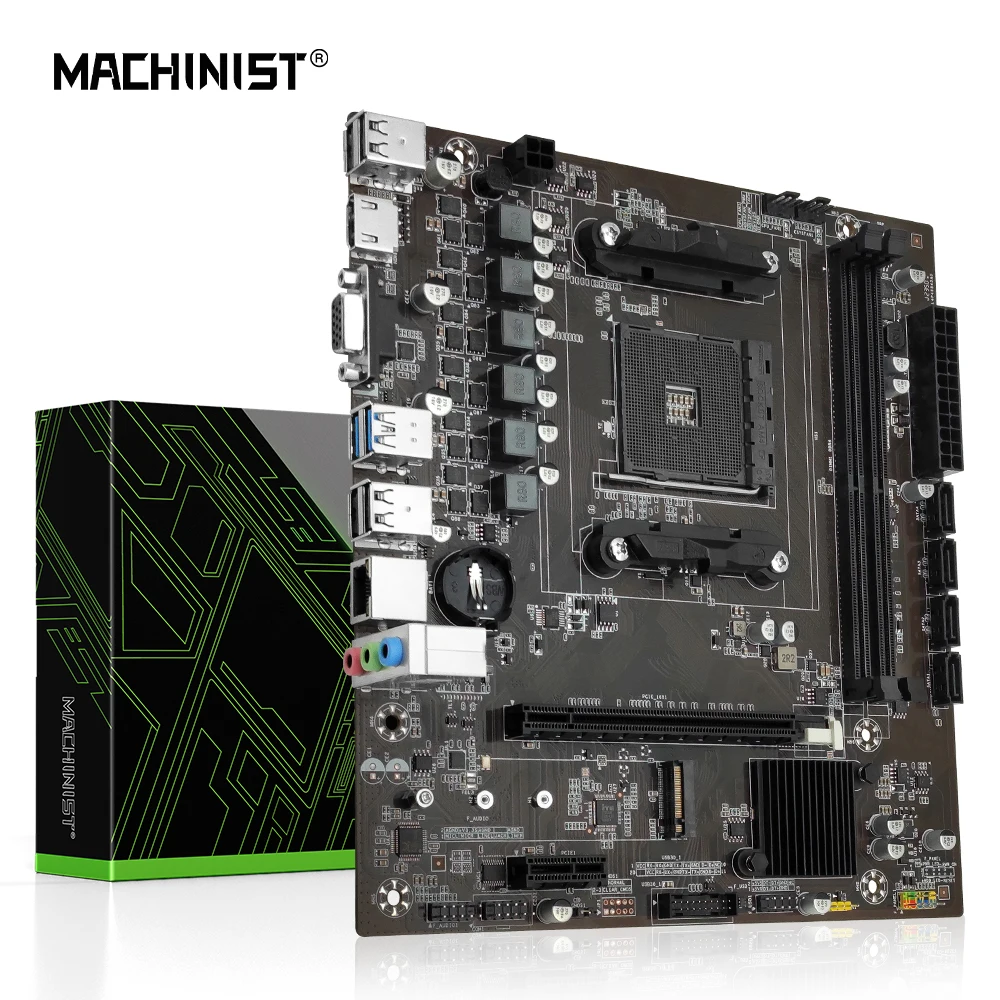
B450 supports NVMe through an M.2 slot when the motherboard maker wired that slot for PCIe storage. The B450 chipset itself does not guarantee the same M.2 features on every board.


B450 motherboards commonly support these drive types:
- M.2 NVMe SSDs, using PCIe lanes
- M.2 SATA SSDs, on boards with a SATA-compatible M.2 slot
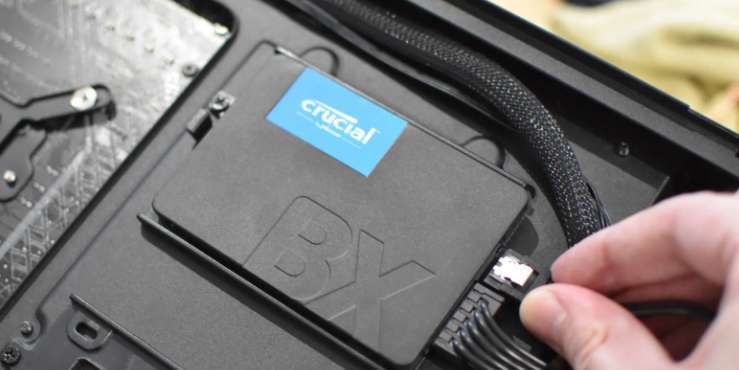
- 2.5-inch SATA SSDs, connected with a SATA data cable
- PCIe 3.0 NVMe drives, on many Ryzen-based systems
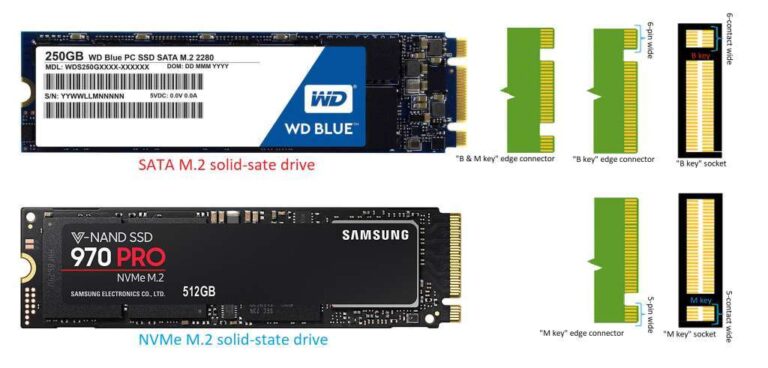
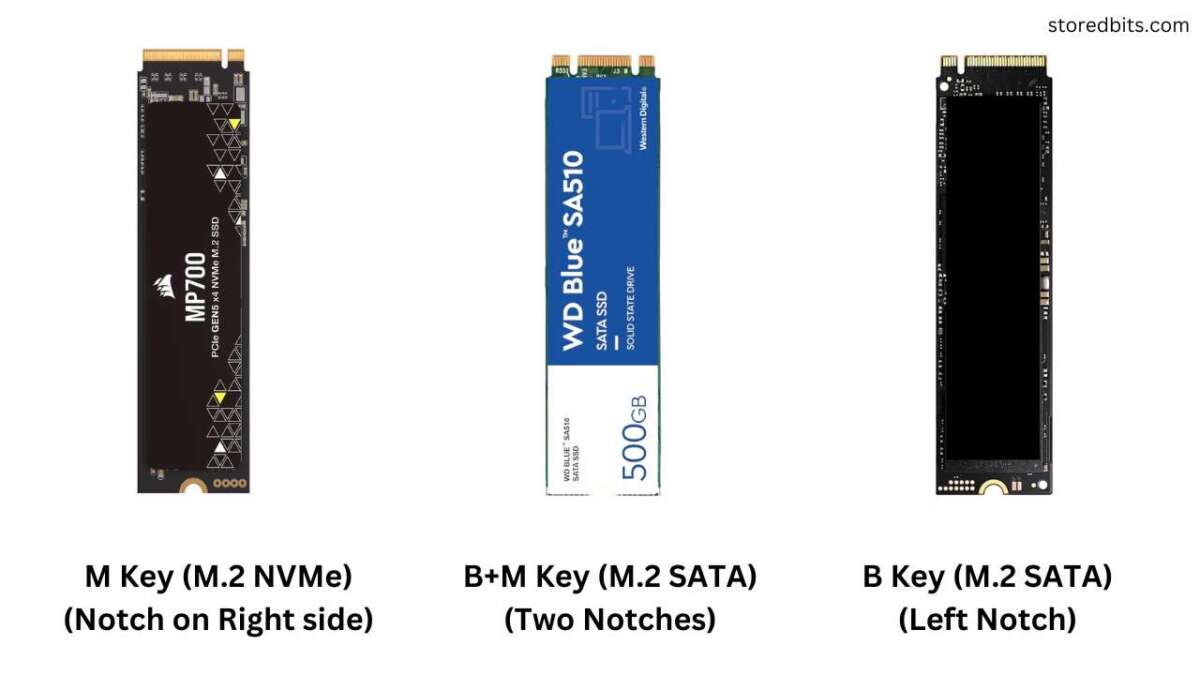
The key point is that M.2 describes the shape of the drive, not its storage protocol. An M.2 SSD can use SATA or NVMe. These two types may look almost identical but do not always work in the same slot.
M.2 SATA versus M.2 NVMe
| Drive type | Connection method | Works in an NVMe-only slot? | Typical limit |
|---|---|---|---|
| M.2 SATA SSD | SATA protocol | Usually no | About SATA 6 Gb/s |
| M.2 NVMe SSD | PCIe/NVMe protocol | Yes, if the slot supports NVMe | Depends on PCIe lanes and generation |
| 2.5-inch SATA SSD | SATA cable | Not applicable | About SATA 6 Gb/s |
A slot labeled M.2 SATA/PCIe usually supports both types. A slot labeled M.2 PCIe or M.2 NVMe normally supports NVMe but may reject an M.2 SATA drive.
Why the motherboard model matters
ASUS, MSI, Gigabyte, ASRock, and other manufacturers used the B450 chipset in boards with different layouts. One B450 board may have:
- One M.2 slot connected to the CPU
- Two M.2 slots with shared bandwidth
- One PCIe NVMe slot and one SATA-only slot
- An M.2 slot that disables one or more SATA ports
- Limited support when using an older Ryzen APU
Therefore, “B450 supports NVMe” is a useful starting point, but it is not a complete compatibility check.
AMD’s official B450 chipset information documents the platform’s general capabilities, while the motherboard manual defines the actual M.2 slot behavior for a particular board. See AMD’s B450 chipset page and the support page for your exact motherboard model.

How to check whether your B450 motherboard supports NVMe
You can confirm compatibility in a few minutes. You do not need to install the drive first.
1. Find the exact motherboard model
Look at the box, invoice, motherboard surface, or BIOS screen. The name might look like:
- MSI B450 Tomahawk MAX
- ASUS ROG Strix B450-F Gaming
- Gigabyte B450 AORUS Elite
- ASRock B450M Pro4


Do not rely on “B450” alone. The full model name is required.
2. Open the official manual
Visit the manufacturer’s support site and download the manual for your exact board revision. Some boards have different revisions, such as rev. 1.0, rev. 1.1, or MAX versions.
Search the manual for:
M.2NVMePCIeSATAstoragebootshared bandwidth
The specifications may state something similar to:
M.2 supports PCIe 3.0 x4 and SATA mode
That wording means the slot can support an NVMe drive through PCIe and may also support an M.2 SATA drive.
3. Check the physical key and size
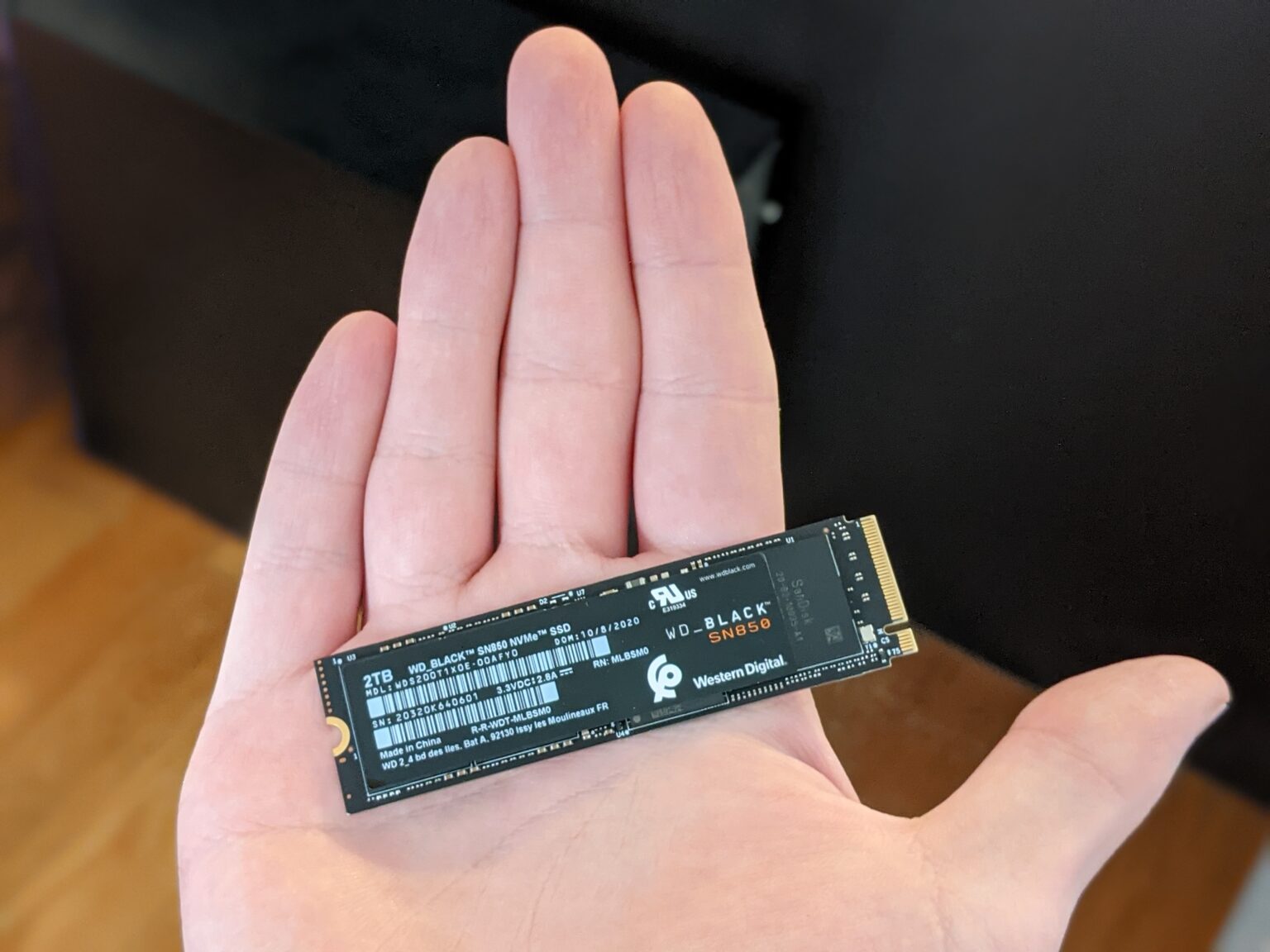
Most desktop NVMe drives use an M-key connector. The common physical size is 2280, which means:
- 22 millimeters wide
- 80 millimeters long
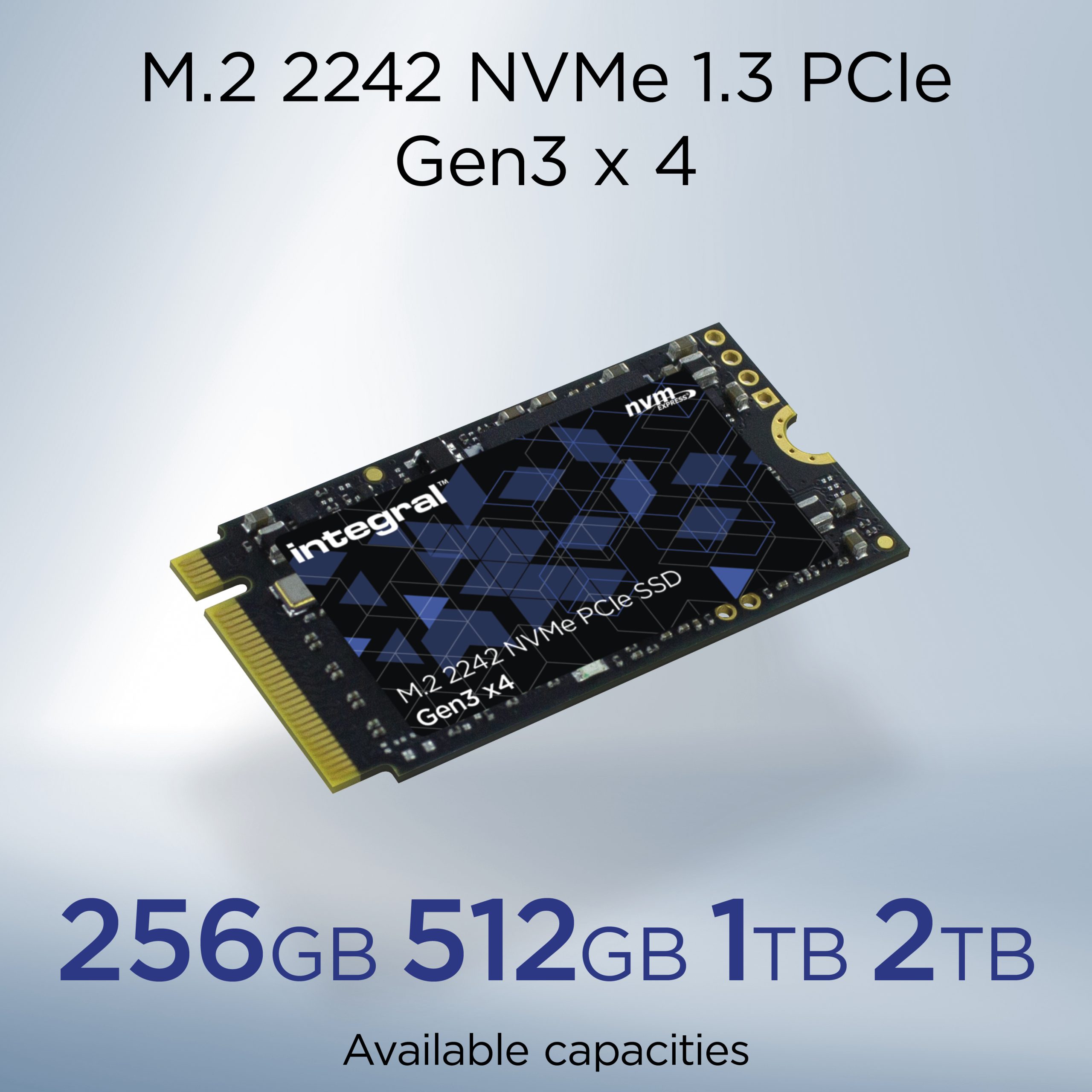
Your board must have a mounting post at the 2280 position. Some compact boards support only 2242 or 2260 drives, although 2280 is the normal size for desktop NVMe SSDs.
4. Check the CPU restrictions
The processor can affect the M.2 slot. Many B450 boards connect the primary M.2 slot directly to the Ryzen CPU. Older AMD APUs may provide fewer PCIe lanes or different storage support.
The manual may list conditions such as:
- PCIe mode with Ryzen 3000 or 5000 processors
- PCIe x2 mode with certain APUs
- M.2 disabled with a specific processor
- A second M.2 slot supported only by the B450 chipset
The exact CPU model matters. A Ryzen 5 3600, Ryzen 5 5600, Ryzen 3 2200G, and Athlon 3000G do not necessarily expose the same PCIe resources.
5. Read the storage-sharing table
Some B450 boards disable SATA ports when an M.2 drive is installed. For example, an M.2 slot may share resources with SATA ports 5 and 6. In that case, installing an SSD in the slot can make those ports unavailable.
This is not usually a fault. It is a board design limit. Connect your other SATA drives to the ports that remain active.

Will an NVMe SSD run at full speed on B450?
A compatible NVMe SSD will work on B450, but its speed depends on the slot, CPU, drive, and PCIe generation.


Most B450 systems use PCIe 3.0 for the primary NVMe slot when paired with a compatible Ryzen processor. A PCIe 4.0 NVMe SSD can usually operate at a lower, backward-compatible speed if the slot supports the same physical connection. It will not deliver PCIe 4.0 performance in a PCIe 3.0 slot.
Common speed outcomes
| Slot connection | Drive | Likely result |
|---|---|---|
| PCIe 3.0 x4 | PCIe 3.0 NVMe | Normal PCIe 3.0 performance |
| PCIe 3.0 x4 | PCIe 4.0 NVMe | Works at PCIe 3.0 speed |
| PCIe 2.0 x4 | PCIe 3.0 NVMe | Works, but at PCIe 2.0 speed |
| PCIe x2 | PCIe NVMe | Works at reduced bandwidth |
| SATA-only M.2 slot | NVMe drive | Usually not detected |
A PCIe 3.0 x4 link provides more bandwidth than a SATA connection. In real use, the difference is most noticeable during large file transfers, system imaging, video work, and some application loads. Boot time and everyday app opening may improve less dramatically than benchmark numbers suggest.
Why a fast SSD may benchmark below its label
A drive advertised as “7,000 MB/s” needs a suitable PCIe 4.0 x4 connection to approach that class of speed. A B450 board will commonly limit it to the speed of its available PCIe link.
Other factors also affect results:
- The drive may be in a secondary chipset-connected slot.
- The CPU may limit the slot to fewer lanes.
- The SSD may be nearly full.
- The drive may slow during long writes after its cache fills.
- Thermal throttling may reduce speed.
- The benchmark may use a different test size or queue depth.
The practical rule is simple: match the SSD’s expected speed to the motherboard’s slot, not just to the SSD’s box.

How to install an M.2 NVMe SSD on a B450 motherboard
Before installation, shut down the computer, switch off the power supply, unplug the power cable, and press the case power button for a few seconds. Work on a clean surface and avoid touching the gold contacts on the drive.
Installation steps
-
Confirm the slot type.
Make sure the slot supports PCIe NVMe, not only M.2 SATA. -
Locate the mounting screw and standoff.
The standoff should be in the 2280 position for most desktop NVMe drives. -
Remove the M.2 heatsink, if present.
If the board has a heatsink, remove its protective film before reinstalling it. -
Insert the SSD at an angle.
Align the notch in the connector with the key in the slot. Slide the drive in gently. -
Press the free end down.
Do not bend the circuit board. -
Secure the drive.
Use the correct M.2 screw. Do not overtighten it. -
Reinstall the heatsink.
Make sure the thermal pad contacts the SSD controller and NAND area as designed. -
Reconnect the computer and enter BIOS.
Press the key shown during startup, often Delete or F2. -
Check whether the drive appears.
It may appear under NVMe information, storage devices, or boot devices. -
Initialize the drive in Windows if needed.
In Windows, open Disk Management, initialize the new disk as GPT, create a volume, and format it.
Installing Windows on the NVMe drive
For a new Windows installation, use UEFI mode where possible. On many B450 boards, this means:
- Use a current motherboard BIOS.
- Set the boot mode to UEFI or disable legacy-only boot.
- Create the Windows installer with Microsoft’s official Media Creation Tool.
- Select the NVMe drive during setup.
- Remove old partitions only if you have backed up the data and intend to erase that disk.
Microsoft explains UEFI and GPT requirements in its Windows deployment documentation. Existing Windows installations may need a conversion from MBR to GPT before they can boot in UEFI mode.
Moving an existing Windows installation
You can clone an old system drive to an NVMe SSD, but cloning is not always plug-and-play. Before cloning:
- Back up important files.
- Confirm that the cloning tool copies the EFI System Partition.
- Use GPT for a modern UEFI installation.
- Check the boot order after cloning.
- Keep the old drive disconnected during the first boot if the firmware selects the wrong boot files.
If Windows loads from the old drive, the clone may be complete but the boot entry may still point to the original disk.
What to do if the B450 motherboard does not detect the NVMe drive
A missing drive usually has a fixable cause. Check the simplest possibilities first.
The drive is missing in BIOS
Try these steps in order:


- Power off the system and reseat the SSD.
- Confirm that the M.2 screw is not holding the drive above the connector.
- Test the primary M.2 slot if the board has more than one.
- Remove other M.2 or PCIe storage devices temporarily.
- Check the manual for disabled SATA ports or lane-sharing rules.
- Update the BIOS using the manufacturer’s documented method.
- Test the SSD in another compatible computer or enclosure.
Do not flash a BIOS file made for a different model or revision. A failed or incorrect BIOS update can prevent the motherboard from starting.
The drive appears in BIOS but not in Windows
This often means the drive is new and has no partition table. Open Disk Management and look for an uninitialized disk or unallocated space.
If the disk contains important files, stop before initializing or formatting it. Those actions can make recovery harder. Check the drive on another system or consult a qualified data-recovery service.
Windows boots, but the SSD is not a boot option
Check these settings:
- UEFI boot mode
- GPT partition style
- Windows Boot Manager entry
- Correct boot priority
- Current BIOS version
- EFI System Partition on the NVMe drive
Some older B450 BIOS versions can detect an NVMe drive as storage but lack reliable boot support. A BIOS update may help, but read the release notes and instructions first.
The computer freezes or the SSD runs hot
An NVMe drive can become hot during long transfers. Use the motherboard heatsink if it has one, maintain good case airflow, and check that the thermal pad contacts the drive.
If the system freezes, update the motherboard BIOS and SSD firmware from official sources. Also check for unstable overclocks. Return the CPU and memory to default settings while testing.
Common B450 and NVMe compatibility mistakes
Mistake 1: Assuming every M.2 slot supports NVMe
The M.2 shape does not tell you the protocol. Read the manual.
Mistake 2: Confusing PCIe x4 with PCIe 4.0
“x4” describes the number of PCIe lanes. “PCIe 3.0” and “PCIe 4.0” describe the generation. A slot can be PCIe 3.0 x4, which is different from PCIe 4.0 x4.
Mistake 3: Ignoring the CPU
The same B450 board may offer different M.2 behavior with a Ryzen CPU and an older APU. Check the processor support list and storage notes.
Mistake 4: Forgetting disabled SATA ports
An M.2 drive may share resources with one or more SATA connectors. If an existing hard drive disappears after installation, move its cable to an active port listed in the manual.
Mistake 5: Expecting PCIe 4.0 performance
A PCIe 4.0 SSD can be backward compatible, but a B450 system generally cannot make it perform like a PCIe 4.0 system. Buy a faster drive only if you also plan to use it in a newer platform.
Mistake 6: Formatting the wrong disk
Disk Management shows drive numbers, not always familiar brand names. Confirm the capacity and back up data before deleting partitions.


B450 NVMe compatibility checklist
Use this short checklist before buying or installing a drive:
- I know the exact B450 motherboard model and revision.
- The manual says the M.2 slot supports PCIe or NVMe.
- The SSD uses the supported M.2 key and size.
- The board has a 2280 mounting point if needed.
- My CPU supports the listed M.2 mode.
- I understand which SATA ports may be disabled.
- I have backed up important data.
- The BIOS is compatible with the CPU and NVMe booting.
- I will use UEFI and GPT for a new Windows installation.
- I know that PCIe 4.0 performance may be limited on B450.
The best next action is to download the manual for your exact motherboard and search for “M.2,” “NVMe,” and “PCIe.” That document gives a more reliable answer than the B450 label alone.

Frequently asked questions
Can every B450 motherboard use an NVMe SSD?
No. Most do, but the exact board may have an M.2 slot that supports only SATA, may lack an M.2 slot, or may impose CPU-specific limits. Check the model manual.
Does B450 support PCIe 4.0 NVMe SSDs?
A PCIe 4.0 NVMe SSD may work in a B450 PCIe slot, but it will normally run at the lower PCIe generation supported by the motherboard and CPU. Do not expect full PCIe 4.0 speed.
Can I use an M.2 NVMe SSD with a Ryzen 5 2600?
Usually, yes, if the B450 motherboard has a PCIe NVMe-capable M.2 slot. The exact slot connection and speed still depend on the board design.
Does installing an NVMe SSD disable SATA ports?
It can. Some B450 boards share M.2 and SATA resources. The manual identifies the affected ports.
Can I boot Windows from an NVMe SSD on B450?
Usually, yes, with a compatible BIOS and a proper UEFI/GPT installation. Older BIOS versions may need an update.
Is an NVMe SSD better than a SATA SSD on B450?
An NVMe SSD can provide much higher storage bandwidth when the M.2 slot uses PCIe x4. The benefit is largest in file transfers and demanding workloads. Everyday tasks may not feel several times faster.
Conclusion
B450 generally supports M.2 NVMe SSDs, but the motherboard model and CPU determine the real compatibility. Confirm that the slot supports PCIe NVMe, check the supported drive size, review lane-sharing limits, and expect PCIe 3.0-class performance on many systems.
If the SSD is not detected, reseat it, check the manual, review BIOS support, inspect SATA-sharing rules, and avoid formatting any disk that contains needed data. The exact motherboard manual remains the final authority for your system.