How To Use Macrium Reflect To Clone SSD To SSD: Easy Guide
To clone one SSD to another with Macrium Reflect, connect the new SSD to your Windows PC, open Macrium Reflect, select the old SSD as the source, choose Clone this disk, select the new SSD as the destination, copy every required partition, and start the clone. After it finishes, shut down the PC, install or select the new SSD as the boot drive, and test Windows before formatting the old drive.
This guide is written for people in the United States who want to upgrade, replace, or move a Windows installation from one solid-state drive to another. The menu names may differ slightly between Macrium Reflect editions and releases, but the process is much the same.

Before You Clone an SSD
Prepare the hardware and protect your data before starting the clone. A cloning job copies the contents of the source drive to the destination drive, so selecting the wrong disk can erase the wrong files.
You will need:
- The old SSD with your current Windows installation.
- The new SSD.
- A free M.2 slot, SATA port, or compatible USB-to-SATA or USB-to-NVMe adapter.
- Macrium Reflect installed in Windows.
- A backup of important files.
- The BitLocker recovery key, if Windows drive encryption is enabled.
- Enough free space on the new SSD for the data being copied.


Check the SSD type and connection
Confirm that the new drive uses a connection supported by your computer:
- 2.5-inch SATA SSD: Connect it to a SATA data port and a SATA power cable, or use a USB-to-SATA adapter.
- M.2 SATA SSD: It requires an M.2 slot that supports SATA.
- M.2 NVMe SSD: It requires an M.2 slot that supports NVMe PCIe storage.
- External USB enclosure: Useful for cloning, but the new SSD may need to be installed internally before it can boot reliably.
An M.2 drive is not automatically an NVMe drive. M.2 describes the shape and connector. SATA and NVMe describe different storage interfaces.
Check the current disk layout
Right-click the Windows Start button and open Disk Management. Identify:
- The disk containing the C: drive.
- The small EFI System Partition, if the PC uses UEFI.
- The Microsoft Reserved (MSR) partition, if present.
- The Windows recovery partition.
- Any separate data partitions.
Do not rely only on the disk number. Disk numbers can change when you reconnect drives. Compare the disk size, partition layout, and volume labels before choosing a source or destination in Macrium Reflect.
Back up important files
A clone is not the same as a backup. A clone reproduces a drive at a particular point in time. If the source drive later fails, the clone may also be out of date.
Before cloning, copy important documents, photos, tax records, and other personal files to a separate drive or trusted backup service. If the computer contains business or regulated data, follow your organization’s backup and recovery rules.
Save the BitLocker recovery key
If BitLocker or Windows device encryption is active, save the recovery key before changing drives. You can check this in Windows settings or through your Microsoft account, depending on how encryption was enabled.
Keep the key somewhere other than the drive being cloned. You may need it after the hardware change, firmware update, or first boot from the new SSD.
How to Clone an SSD to an SSD With Macrium Reflect
The process has four main parts: select the source, select the destination, adjust partitions if needed, and run the clone.


1. Connect and initialize the new SSD
Connect the new SSD to the PC while Windows is running. If Windows asks to initialize the disk, choose the partition style that matches the existing system:
- GPT is standard for modern UEFI computers.
- MBR is used by older Legacy BIOS systems.
If you are replacing a modern Windows 10 or Windows 11 system drive, GPT is common. However, the source disk’s current boot mode matters more than the age of the computer.
Do not create new volumes on the destination unless Macrium Reflect requires it. The cloning process will replace the destination’s existing partition layout.
2. Open Macrium Reflect and identify the source disk
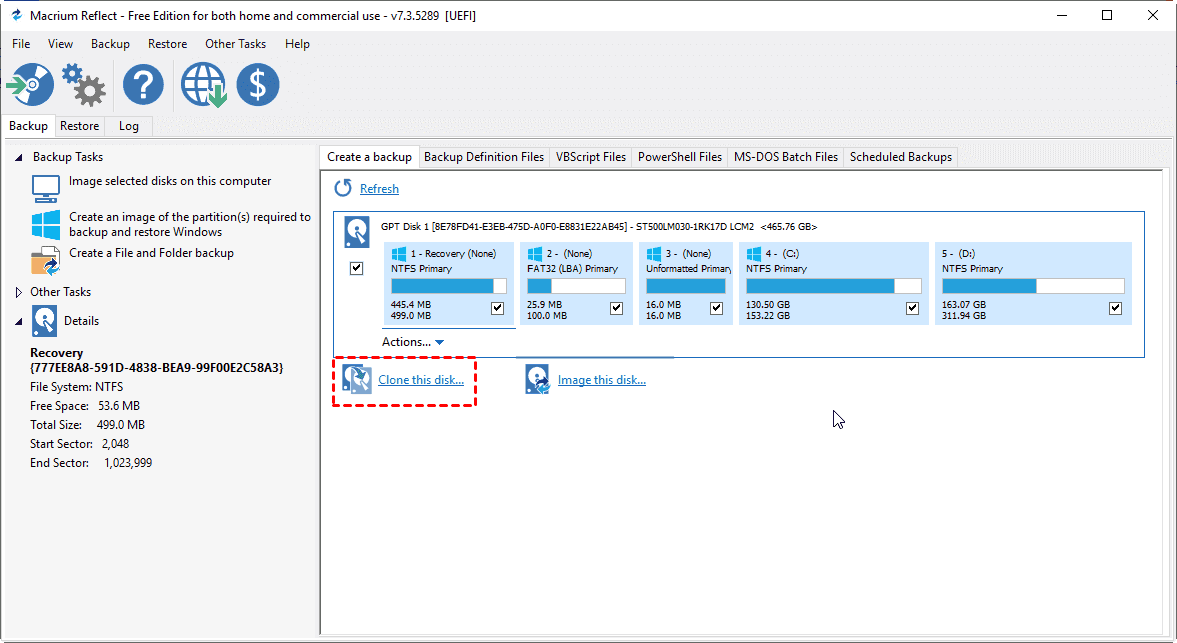
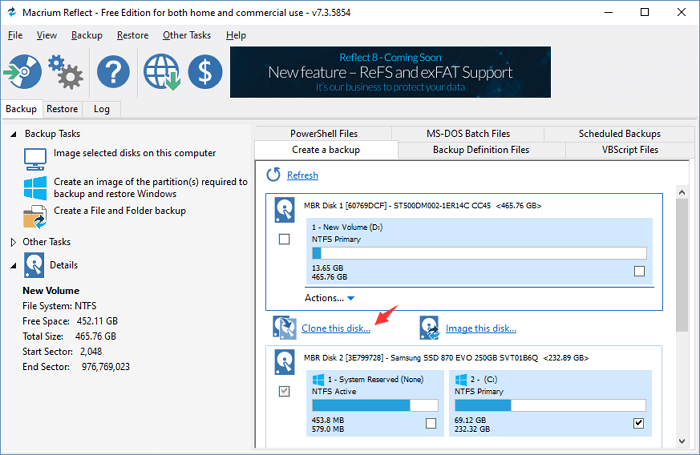
Start Macrium Reflect as an administrator. The main window displays the disks and partitions connected to the PC.
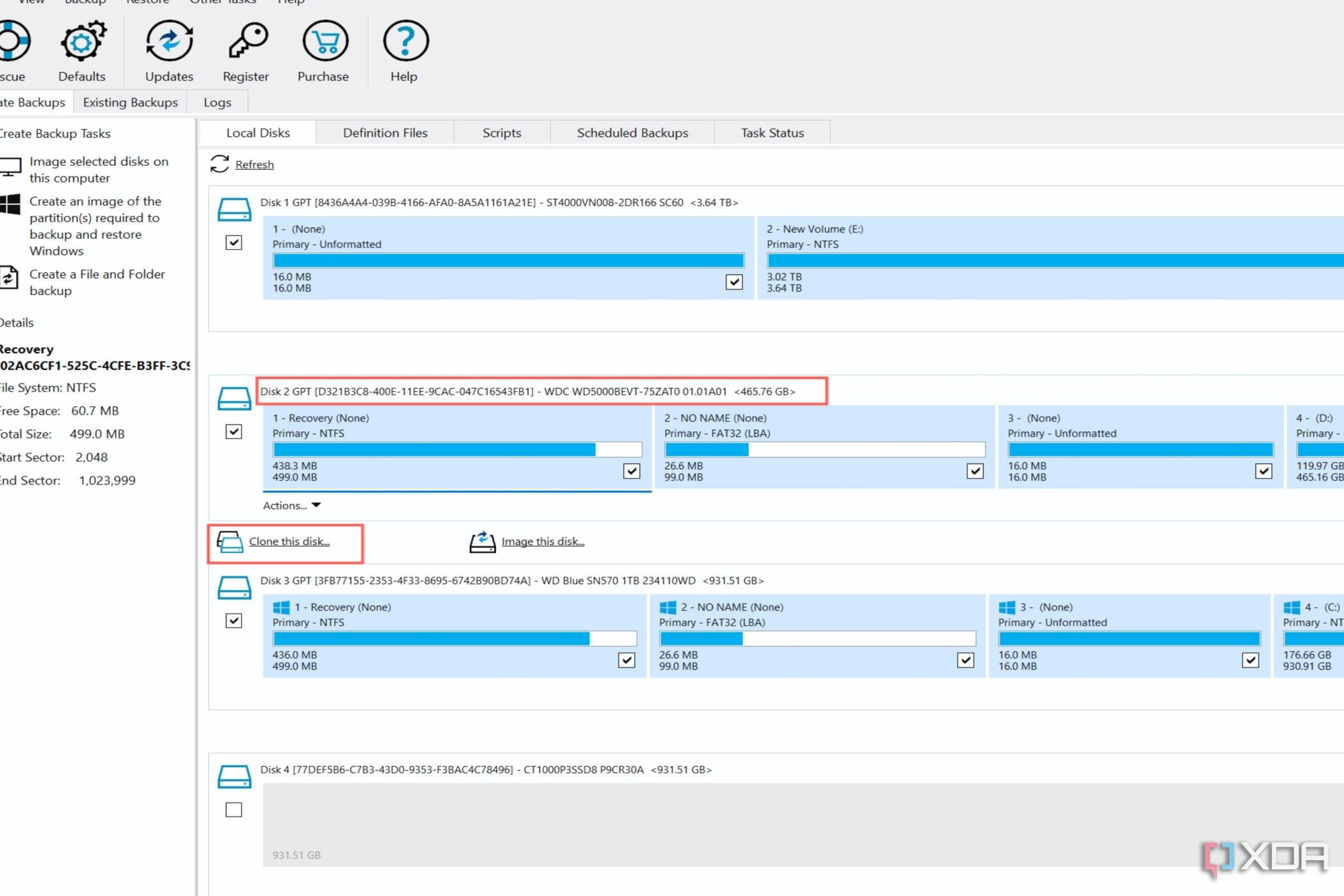
Find the disk that contains Windows. It normally includes the C: partition, but also look for the EFI, MSR, and recovery partitions. The source disk is the drive you want to copy.
Click Clone this disk below the source disk.
3. Choose the new SSD as the destination
In the cloning window, select Select a disk to clone to. Choose the new SSD.
Check the destination carefully:
- Confirm its capacity.
- Confirm its model name.
- Confirm that it is not the source disk.
- Confirm that you do not need files already stored on it.
Macrium Reflect warns that the destination partitions may be deleted. Treat that warning seriously. A clone normally overwrites the destination’s existing partition layout.
4. Copy all required partitions
For a bootable Windows clone, copy the full system layout rather than only the C: drive.
The usual partitions include:
- EFI System Partition or System Reserved partition.
- Microsoft Reserved partition, if shown.
- Windows partition, usually C:.
- Recovery partition.
- Any separate data partition that you want to move.
Macrium Reflect lets you drag partitions from the source disk to the destination disk. You can also use the option to copy selected partitions, depending on the version.
If you copy only the C: partition, the new SSD may contain Windows files but still fail to boot. The boot files and recovery tools often reside on separate small partitions.
5. Resize partitions when the SSD sizes differ
The destination SSD does not always need to match the exact capacity of the source SSD.


When the new SSD is larger
You can expand the Windows partition to use the extra space. In the cloning window, select the C: partition and choose Cloned Partition Properties or the equivalent resize option. Then expand the partition into the unallocated space.
You can also leave the extra space unallocated and extend the partition later with Windows Disk Management. Expanding it during the clone is often simpler.
When the new SSD is smaller
The total amount of data on the source must fit on the destination. Macrium Reflect may shrink the Windows partition during the clone, but the partition must contain enough free space to shrink.
For example, a 1 TB source SSD with 220 GB of used data may clone to a 500 GB SSD. A source with 700 GB of used data cannot fit on a 500 GB destination without removing files or moving data first.
Do not shrink a partition below the amount of space Windows and your applications need. Leave room for updates, temporary files, and normal use.
6. Review the clone summary
Before starting, review the source and destination diagrams. Confirm:
- The old SSD is the source.
- The new SSD is the destination.
- The required boot partitions are included.
- The Windows partition fits.
- The destination does not contain files you still need.
- The partition sizes are reasonable.
Macrium Reflect may offer a schedule option. For a one-time SSD migration, a scheduled clone is usually unnecessary. Choose the option to run the clone now.
7. Start the cloning process
Start the clone and allow Macrium Reflect to complete the job. Do not disconnect either SSD or shut down the computer during the process.
The time required depends on the amount of data copied, the connection type, and the speed of both drives. A USB connection can take longer than a direct internal connection.
Macrium Reflect may use an intelligent sector copy, which copies used file-system sectors instead of every empty sector. This can make the process faster than a sector-by-sector copy. A forensic or exact-sector copy is different and is normally used for special recovery or forensic needs.
8. Confirm that the clone completed successfully
Macrium Reflect should report that the operation completed without errors. Read the log if the program reports warnings or failures.
A successful clone means the data was copied. It does not prove that the PC will boot from the new SSD until you test it.
Shut down Windows fully. Do not format or erase the old SSD yet.
How to Boot From the Cloned SSD
The safest test is to boot with the old SSD disconnected or disabled. This prevents the computer from silently starting from the original drive.


Desktop computer
- Shut down the PC.
- Turn off the power supply and unplug the computer.
- Install the new SSD in the primary storage slot.
- Disconnect the old SSD temporarily, if practical.
- Start the computer.
- Enter the UEFI or BIOS setup if Windows does not start.
- Set Windows Boot Manager on the new SSD as the first boot option.
- Save the settings and restart.
Laptop
Laptop upgrades vary by model. Remove the bottom cover only if the manufacturer permits it and you are comfortable working inside the computer.
Install the new SSD in the original drive bay or M.2 slot. If the laptop has only one storage slot, the old SSD must be cloned while connected through an adapter or enclosure before the replacement.
Check the boot result
After Windows starts, verify that you are using the new SSD:
- Open Disk Management and inspect the disk model and partition layout.
- Open Task Manager, select Performance, and review the disk model.
- Check that your files and applications open normally.
- Restart the PC more than once.
- Test sleep, updates, and any important work software.
If Windows boots only when both drives are connected, the firmware may be starting from the old drive. Disconnect the old drive and repair the boot configuration if necessary.
Do not erase the old SSD immediately
Keep the original SSD unchanged for a few days while you test the replacement. This gives you a fallback if a program, boot setting, or file does not work as expected.
Once you are certain that the new SSD works, you can reuse the old drive. Before doing so, securely erase or format it if it contains personal data. Remember that a quick format is not the same as a secure erase.
What to Do If the Cloned SSD Will Not Boot
A cloned SSD that does not boot usually has a boot-mode mismatch, missing boot files, an incorrect boot order, or a partition problem.
Symptom: The computer says “No boot device”
Try these checks in order:
- Shut down and disconnect the old SSD.
- Enter UEFI or BIOS setup.
- Look for the new SSD or Windows Boot Manager entry.
- Move the new SSD’s Windows Boot Manager to the top of the boot list.
- Confirm that the firmware uses the same general boot mode as the source, such as UEFI or Legacy BIOS.
- Verify that the EFI or System Reserved partition was copied.
If the drive appears in firmware but Windows does not start, Macrium Reflect’s rescue media may help rebuild the boot files.
Symptom: Windows starts only when the old SSD is connected
This often means the boot files are still on the old SSD. The C: partition may have been cloned, but the EFI or System Reserved partition may not have been copied correctly.
Turn off the computer and disconnect the old drive. If the new SSD cannot boot by itself, reconnect the old drive, create or use Macrium rescue media, and run the boot repair tools. The exact repair options vary by Windows boot mode.
Symptom: The new SSD is smaller
A clone can fail when the destination does not have enough usable space. Check the amount of used data on the source, then remove or move large files.


You may also need to shrink the source Windows partition before cloning. Windows Disk Management can show how far a partition can safely shrink, although files placed near the end of a partition can limit the available shrink space.
Symptom: Macrium reports read errors
Read errors may indicate a failing source SSD, damaged file-system data, a loose cable, or an unstable USB adapter.
Stop repeated cloning attempts if the source drive is failing. First copy irreplaceable files. For a seriously damaged drive, specialized data-recovery software or a professional recovery service may be safer than repeated full-disk operations.
Symptom: BitLocker asks for a recovery key
A change in the storage device or boot configuration can trigger BitLocker recovery. Enter the saved recovery key.
After Windows starts, check BitLocker status. If you suspended protection before the clone, resume it after confirming that the new system boots correctly.
Important SSD Cloning Choices
The best cloning method depends on the drive sizes, boot mode, encryption, and how the destination will be used.
| Situation | Recommended action |
|---|---|
| New SSD is larger | Clone all partitions, then expand the Windows partition |
| New SSD is smaller | Reduce used data and shrink the source partition first |
| New SSD is connected by USB | Clone normally, then install it internally before testing boot |
| Source uses UEFI and GPT | Copy the EFI, MSR, Windows, and recovery partitions |
| Source uses Legacy BIOS and MBR | Copy the System Reserved and Windows partitions |
| BitLocker is enabled | Save the recovery key and follow a cautious encryption workflow |
| Old SSD is failing | Back up important files before attempting a full clone |
| Destination contains needed files | Move or back up those files before cloning |
Clone versus backup
A clone creates a replacement drive. A backup creates a recoverable copy of files or a system image.
Use a clone when you are:
- Upgrading to a larger SSD.
- Replacing a worn or defective SSD.
- Moving Windows to a faster drive.
- Migrating to a different internal storage interface.
Use a backup when you need:
- Multiple recovery points.
- Protection from accidental deletion.
- Protection from ransomware.
- A copy stored away from the computer.
For important computers, a clone should not replace a separate backup plan.
Clone versus clean Windows installation
Cloning preserves installed programs, settings, user profiles, and most system preferences. That makes it convenient for an SSD upgrade.
A clean installation takes more time, but it can remove old drivers, unwanted software, and accumulated system problems. If the existing Windows installation is unstable or infected, a clean installation may be safer than cloning the problem to a new drive.
NVMe and SATA performance
Moving Windows to an NVMe SSD can reduce storage access time compared with SATA, but the real-world improvement varies by workload. Large file transfers, application launches, and video work may benefit more than ordinary web browsing.
The clone copies data. It does not change the interface of the drive or add features that the computer’s motherboard does not support.
Common Mistakes to Avoid
Avoid these mistakes when using Macrium Reflect to clone an SSD:


- Choosing the wrong destination: Verify the model and capacity before starting.
- Copying only the C: partition: Include the boot and recovery partitions.
- Ignoring partition size: A smaller destination must have enough room for the used data.
- Leaving both drives connected during the first test: The PC may boot from the old SSD and hide a problem.
- Formatting the old drive too soon: Keep it as a fallback until the new installation is tested.
- Skipping the backup: A clone operation can fail or overwrite the wrong disk.
- Forgetting BitLocker: Save the recovery key before changing the drive.
- Assuming USB cloning proves internal booting: Test the new SSD in its final internal connection.
- Using the wrong M.2 drive type: Check whether the slot supports SATA, NVMe, or both.
- Interrupting the clone: A power loss or disconnected cable can leave the destination incomplete.
Frequently Asked Questions
Can Macrium Reflect clone to a smaller SSD?
Yes, if the used data and resized partitions fit on the smaller SSD. Shrink the source Windows partition or remove large files before starting. The destination’s total capacity must be large enough for the data and required partitions being copied.
Do I need to clone the recovery partition?
You should normally copy the recovery partition when moving a Windows installation. It contains Windows recovery tools and may be needed for troubleshooting, reset, or startup repair.
Can I clone an SSD while Windows is running?
Yes. Macrium Reflect can create a live clone of a running Windows system by using snapshot technology. Close open applications, avoid changing files during the operation, and do not disconnect either drive.
Should I format the new SSD before cloning?
Usually, no. Macrium Reflect can replace the destination’s partition layout during the clone. If Windows asks you to initialize an entirely new disk, use the appropriate partition style, but do not create unnecessary volumes first.
Will cloning Windows remove activation?
Cloning to another internal SSD in the same computer usually does not change the computer’s main hardware identity. Windows activation should generally remain available, but activation depends on the license and hardware configuration. Keep your Microsoft account and product-key records available if activation is requested.
Why does the cloned SSD show the wrong size?
The clone may have copied the original partition size and left extra capacity unallocated. Open Disk Management and extend the Windows partition if the unallocated space is directly beside it. If another partition sits between the Windows partition and the free space, a partition-management tool may be required.
Key Takeaways
- Back up important files before cloning.
- Confirm the source and destination by model and size.
- Copy all required boot, Windows, and recovery partitions.
- Resize the Windows partition when the SSD capacities differ.
- Save the BitLocker recovery key.
- Disconnect the old SSD during the first boot test.
- Keep the original drive until the new SSD works reliably.
- Remember that a clone is a migration tool, not a complete backup strategy.
Conclusion
Macrium Reflect can move a Windows installation from one SSD to another without reinstalling Windows and your applications. The most important steps are choosing the correct source and destination, copying the complete partition layout, managing size differences, and testing the new drive on its own.
After the new SSD boots successfully, confirm your files and programs work before reusing the old drive. Keep a separate backup for ongoing protection, because a clone reflects the state of the source drive only when the cloning process runs.