

To put JLab earbuds in pairing mode, remove them from the case and select their name in your device’s Bluetooth menu.
Knowing how to put JLab earbuds in pairing mode saves time when you switch between a phone, tablet, laptop, or smart TV. Most JLab models pair in seconds, but the exact button or touch action can vary between GO Air, JBuds, Epic Air, and older models. This guide explains the safe method, common fixes, and reset steps so you can connect with confidence.

How to Put JLab Earbuds in Pairing Mode
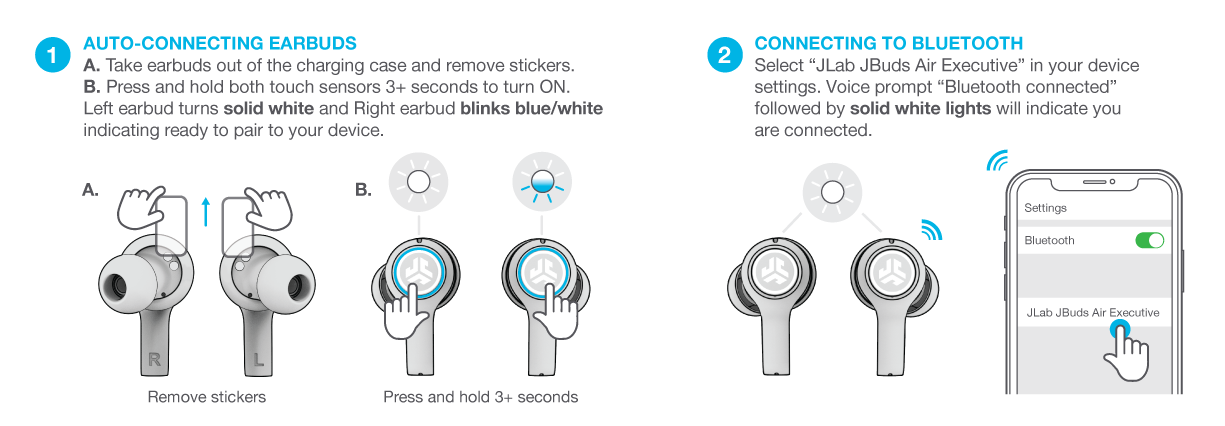
Most JLab true wireless earbuds enter pairing mode automatically the first time you remove them from the charging case. The LED on one earbud usually flashes blue and white, or blue and red, to show that it is ready to connect.
Follow these steps:
- Charge the earbuds and case for a few minutes.
- Place both earbuds inside the charging case.
- Open the case lid.
- Remove both earbuds.
- Wait for one earbud to flash blue and white.
- Open Bluetooth settings on your phone or other device.
- Select the JLab model name from the list.
- Tap Pair, Connect, or Confirm if your device asks.
The name may appear as JLab GO Air Pop, JLab JBuds Air, JLab Epic Air, or a similar model name. Do not choose a duplicate name unless you know it belongs to your earbuds.
If the earbuds do not appear, turn Bluetooth off and back on. Keep the earbuds close to your device, ideally within 3 feet during the first connection.

Pair JLab Earbuds With an Android Phone
Android phones use a standard Bluetooth menu, although the wording can differ by brand. The steps below work on most Samsung Galaxy, Google Pixel, Motorola, OnePlus, and similar phones.
- Remove the JLab earbuds from their case.
- Open Settings on your Android phone.
- Tap Connected devices, Connections, or Bluetooth.
- Turn Bluetooth on.
- Tap Pair new device if your phone does not scan by itself.
- Choose your JLab earbuds from the available devices.
- Accept the pairing request.
If your Android phone asks for a PIN, try 0000. Most modern JLab earbuds do not need a PIN, so this request may point to an older model or a pairing error.
Once connected, the JLab earbuds should show as Connected. You can then play music, make calls, and use the earbuds with supported apps.
Connect JLab Earbuds to an iPhone or iPad
Pairing JLab earbuds with an iPhone is simple. The key is to open the Bluetooth screen before taking the earbuds out of the case if you want the process to move quickly.
- Open Settings on your iPhone or iPad.
- Tap Bluetooth.
- Make sure Bluetooth is on.
- Remove both JLab earbuds from the charging case.
- Wait for the flashing pairing light.
- Tap the JLab device name under Other Devices.
- Wait until the status changes to Connected.
If the JLab earbuds were paired with another phone, they may connect to that device first. Turn Bluetooth off on the old phone, or use the forget and reset steps later in this guide.
Apple devices usually remember trusted Bluetooth accessories. After the first setup, your JLab earbuds should reconnect when you remove them from the case, as long as Bluetooth is enabled.

Pair JLab Earbuds With a Windows Laptop
You can connect JLab earbuds to a Windows 10 or Windows 11 laptop for music, calls, meetings, and videos. Put the earbuds into pairing mode before opening the Windows Bluetooth menu.
On Windows 11:
- Open Start and select Settings.
- Choose Bluetooth & devices.
- Turn Bluetooth on.
- Select Add device.
- Choose Bluetooth.
- Click the JLab earbuds when they appear.
- Select Done after the connection completes.
On Windows 10:
- Open Settings.
- Select Devices.
- Choose Bluetooth & other devices.
- Turn Bluetooth on.
- Click Add Bluetooth or other device.
- Choose Bluetooth.
- Select your JLab earbuds.
Windows may connect the earbuds for music but use the wrong microphone setting for calls. If that happens, open the sound settings and choose the JLab headset option for both input and output.
Pair JLab Earbuds With a Mac
The process is similar on a MacBook, iMac, or Mac mini.
- Open the Apple menu.
- Select System Settings or System Preferences.
- Click Bluetooth.
- Remove the earbuds from the case.
- Wait for the pairing light.
- Find the JLab model in the device list.
- Click Connect.
Older macOS versions may show a Pair button instead of Connect. After pairing, open Sound settings to select the JLab earbuds as the output device.
If the earbuds connect but sound still comes from the Mac speakers, click the Control Center icon in the menu bar. Choose Sound, then select the JLab earbuds.
Put JLab Earbuds in Pairing Mode Manually
Sometimes the automatic method fails. The earbuds may still remember another device, or one earbud may not have synchronized with the other. In that case, manual pairing can help.
Try this general method:
- Turn off Bluetooth on nearby phones, tablets, and computers.
- Remove both earbuds from the case.
- Press and hold the button or touch sensor on each earbud.
- Keep holding for about 3 seconds, or until the earbuds power off.
- Press and hold the control on one or both earbuds again.
- Wait for the pairing light to flash.
- Open Bluetooth settings on your device.
- Select the JLab earbuds.
The control method depends on the model. Button-based JBuds often use a physical button, while newer models use a touch panel. A short press may pause music, so hold the control firmly but do not tap it repeatedly.
JLab manuals are the best source for model-specific timing. If your earbuds have no visible button, touch the outer panel rather than the charging contacts.
How to Pair Only One JLab Earbud
Many JLab earbuds support single-earbud use. This is useful when you want to hear your surroundings or save battery.
To try single-earbud pairing:
- Place both earbuds in the case.
- Remove the earbud you want to use.
- Leave the other earbud in the case.
- Wait for the removed earbud to flash.
- Open Bluetooth settings.
- Select the JLab device name.
Some models may require both earbuds to pair together first. If one earbud connects alone but the other does not work later, reset and resynchronize both earbuds.
Single-earbud use can also change the microphone behavior. The active earbud often handles calls, so switching sides may change call quality.

What the JLab LED Lights Mean
LED colors help show what the earbuds are doing. The exact pattern varies by model, but these signals are common:
• Flashing blue and white: The earbuds are ready to pair.
• Flashing blue: The earbud is powered on or connected.
• Solid red: The earbud is charging.
• Red light that turns off: The earbud may be fully charged, depending on the model.
• Alternating red and blue: The earbud may be searching for a Bluetooth connection.
• No light: The earbud may be out of power, switched off, or not making contact with the case.
Do not rely on color alone. Some JLab models use different light patterns, and bright rooms can make small LEDs hard to see. Check whether the earbuds appear in your phone’s Bluetooth list as a second test.
JLab Earbuds Not Showing in Bluetooth
If your JLab earbuds do not appear, the issue is often a saved connection rather than a serious hardware fault. Start with the simple fixes before resetting the earbuds.
Try these steps:
• Move the earbuds close to the device.
• Turn Bluetooth off, wait 10 seconds, and turn it on again.
• Close music and call apps that may control the Bluetooth connection.
• Turn off Bluetooth on devices the earbuds used before.
• Put both earbuds back in the case, close the lid, and wait 10 seconds.
• Charge the case and earbuds.
• Restart your phone, tablet, or computer.
• Remove an old JLab entry from the Bluetooth list.
On your phone, choose Forget This Device, Unpair, or Remove beside the saved JLab name. Then repeat the pairing process from the start.
A useful troubleshooting lesson is to check the old device first. In many pairing problems, the earbuds are already connected to a tablet in another room, so they never become visible to the new phone.

How to Reset JLab Earbuds
A reset clears old Bluetooth information and often fixes one-earbud, connection, and pairing problems. It does not repair a damaged battery or broken charging case, but it can restore a clean connection state.
The reset method varies by product. A common process is:
- Forget the JLab earbuds on every nearby device.
- Turn Bluetooth off on those devices.
- Remove both earbuds from the case.
- Tap or press an earbud several times, often seven times, to clear its connection.
- Repeat the process on the other earbud.
- Return both earbuds to the case.
- Remove them again and wait for pairing mode.
- Turn Bluetooth on and pair them again.
Some JLab models use a four-tap reset, while others use a longer button hold. Do not force a single reset pattern onto every JLab product. Check the manual for your exact model if the common process does not work.
After a reset, the earbuds should behave like a new Bluetooth accessory. You may need to adjust EQ settings, touch controls, and the JLab app connection again.
Common Pairing Mistakes to Avoid
Small setup mistakes can make working JLab earbuds seem faulty. Avoid these common errors:
• Pairing before the earbuds enter pairing mode: The earbuds must flash the correct LED pattern first.
• Leaving the old phone nearby: The earbuds may reconnect to it automatically.
• Selecting the wrong device: Choose the JLab name, not an unknown Bluetooth signal.
• Pairing one earbud at a time by accident: Some models need both earbuds to synchronize first.
• Ignoring low battery warnings: A weak charge can interrupt the pairing process.
• Repeatedly tapping the sensor: This may activate play, pause, or voice controls instead of pairing.
• Resetting too soon: Try charging, restarting Bluetooth, and forgetting the old connection first.
The best approach is to treat pairing like a fresh introduction. Clear the old connection, give the earbuds enough power, and let one device search at a time.

Improve JLab Bluetooth Connection Quality
Once you know how to put JLab earbuds in pairing mode, good habits can keep the connection stable. Bluetooth works best with a clear path and limited interference.
Keep the earbuds within a reasonable range of the connected device. Walls, metal objects, crowded wireless areas, and some USB 3.0 devices can reduce connection quality.
You can also improve performance by:
• Keeping the JLab earbuds and phone software updated.
• Cleaning earbud charging contacts with a dry, soft cloth.
• Charging both earbuds evenly.
• Closing unused Bluetooth connections.
• Keeping the JLab app updated when your model supports it.
• Re-pairing after a major phone update if connection problems begin.
Bluetooth audio can also pause when a device switches between music and call profiles. That behavior is normal on many computers and does not always mean the JLab earbuds are defective.
Frequently Asked Questions
How do I put JLab earbuds in pairing mode?
Remove both earbuds from the charging case and wait for one LED to flash blue and white. Then open your device’s Bluetooth settings and select the JLab model name.
Why are my JLab earbuds not showing up on Bluetooth?
They may already be connected to another nearby device, have low power, or need a reset. Turn off Bluetooth on old devices, charge the earbuds, forget the saved JLab entry, and try again.
How do I reset JLab earbuds for pairing?
Forget the earbuds from your phone or computer, then use the model-specific tap or button reset method. Many models use several taps on each earbud, but the exact pattern differs.
Can I pair JLab earbuds with more than one device?
Most JLab earbuds can remember more than one device, but many models connect to only one device at a time. Turn off Bluetooth on the first device before pairing with a new one.
Why does only one JLab earbud work?
The earbuds may have lost synchronization, or one earbud may not be charging. Charge both earbuds, forget the Bluetooth connection, reset them together, and pair them again.
Do JLab earbuds need an app to pair?
No. You can pair most JLab earbuds through the normal Bluetooth settings on your device. The JLab app is optional and may provide updates, EQ controls, and extra settings.
Conclusion
Learning how to put JLab earbuds in pairing mode is usually a quick process: charge them, remove them from the case, wait for the pairing light, and select the correct JLab name in Bluetooth settings. If pairing fails, disable nearby connections, forget the old device, restart Bluetooth, and reset the earbuds only when needed.
Use the steps that match your JLab model, since touch controls and reset patterns can vary. Save this guide for your next device switch, and explore your model’s official manual for advanced controls and updates.
