How To Connect Sony Earbuds To Laptop: Easy Guide
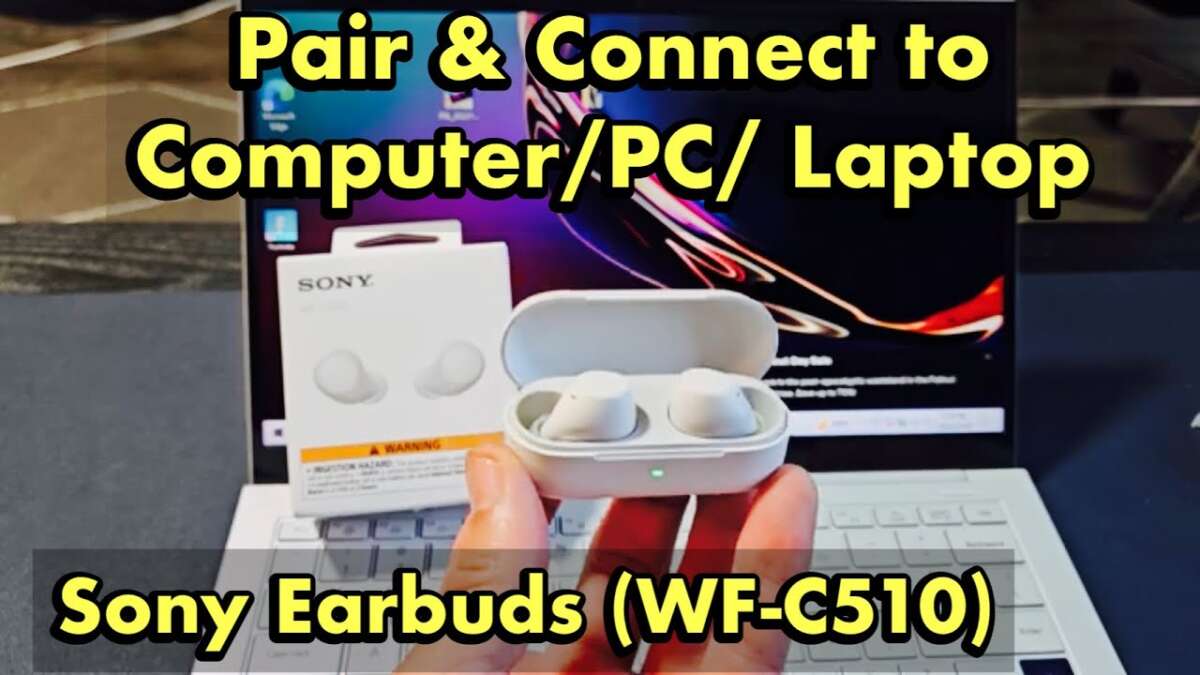
To connect Sony earbuds to a laptop, turn on bluetooth, place the earbuds in pairing mode, and select them.
Learning how to connect Sony earbuds to laptop devices is usually simple, but the exact steps can differ between Windows and macOS. This guide explains the full process, including pairing, sound settings, microphone fixes, multipoint connections, and solutions for common Bluetooth problems.
Before connecting your Sony earbuds to a laptop
Before you connect Sony earbuds to a laptop, check a few basic details. These quick checks prevent most pairing problems and save time.
• Charge the earbuds and their charging case. Very low battery power can stop pairing.


• Keep the earbuds within three feet of the laptop during setup.
• Turn off Bluetooth on nearby phones, tablets, or other devices. Your earbuds may connect to the last device they used.
• Make sure your laptop supports Bluetooth. Most modern Windows laptops and MacBooks do.
• Install pending Windows or macOS updates. Bluetooth drivers and wireless features often improve through system updates.
Sony earbuds use Bluetooth pairing, which creates a wireless link between the earbuds and your laptop. The first connection may take a minute, but future connections should happen automatically when Bluetooth is active.

How to connect Sony earbuds to a Windows laptop
The process for connecting Sony earbuds to a Windows laptop is nearly the same on Windows 10 and Windows 11. The menu design may look slightly different, but the key Bluetooth settings remain similar.
Put Sony earbuds into pairing mode
Pairing mode makes the earbuds visible to nearby devices. Without it, your laptop may not find them.
-
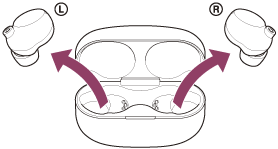
Remove both earbuds from the charging case.
-
Touch and hold the sensors or buttons on both earbuds, depending on the model.
-
Continue holding until the indicator light flashes blue or white, or until you hear a pairing prompt.
-
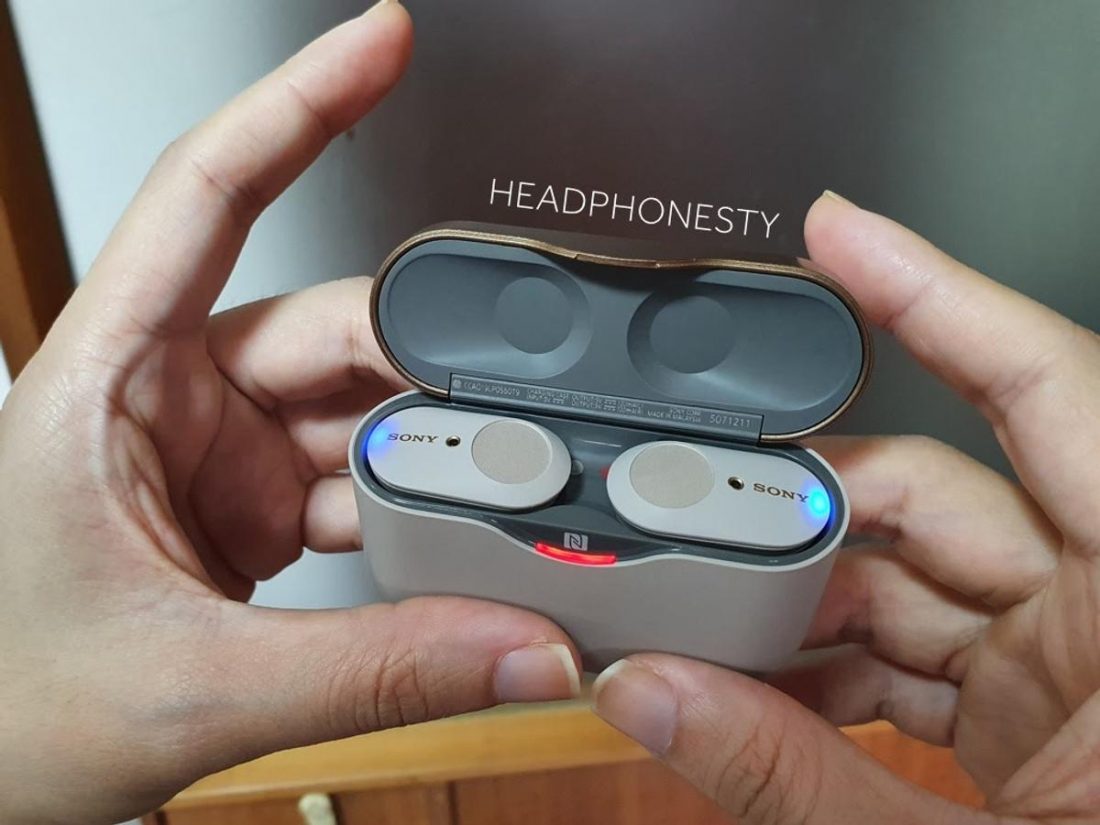
If your model has a pairing button on the case, open the lid and hold that button until the indicator starts flashing.
Some Sony models enter pairing mode automatically the first time you remove them from the case. If they have already paired with another device, you may need to press and hold the earbuds or case button manually.
Connect Sony earbuds to Windows 11
Follow these steps to connect Sony earbuds to a Windows 11 laptop:
-
Select the Start menu.
-
Open Settings.
-
Select Bluetooth & devices.
-
Turn on Bluetooth.
-
Select Add device.
-
Choose Bluetooth.
-
Select your Sony earbuds from the list.
-
Wait for the message that says your device is connected.


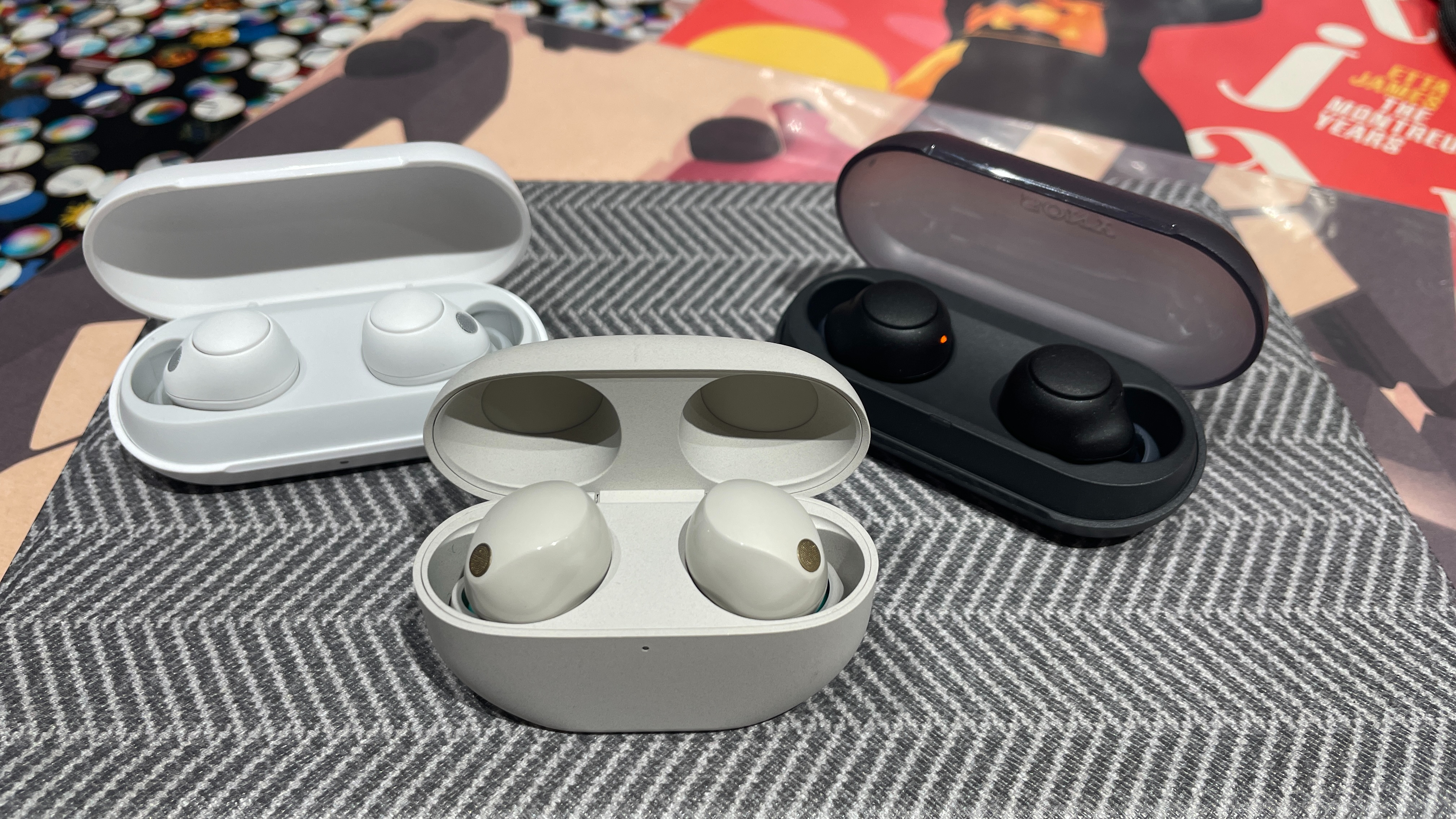
Your earbuds may appear under a model name such as “WF-1000XM5,” “WF-C700N,” “LinkBuds,” or “WH-1000XM.” Select the name that matches your earbuds.
If Windows shows two similar options, choose the standard device name first. Avoid selecting an entry labeled “LE” unless Sony specifically recommends it for your model. The LE entry may support special features but may not work as the main audio connection on every laptop.
Connect Sony earbuds to Windows 10
To connect Sony earbuds to a Windows 10 laptop:
-
Open the Start menu.
-
Select Settings.
-
Choose Devices.
-
Select Bluetooth & other devices.
-
Turn Bluetooth on.
-
Select Add Bluetooth or other device.
-
Choose Bluetooth.
-
Select your Sony earbuds.
-
Click Done after Windows confirms the connection.
Once paired, Windows usually connects to the earbuds whenever they are removed from the case and Bluetooth is enabled. If the earbuds do not connect, open the Bluetooth menu and select Connect beside their name.
How to connect Sony earbuds to a MacBook
Connecting Sony earbuds to a MacBook takes only a few steps. The process works on MacBook Air, MacBook Pro, iMac, and other recent Mac computers with Bluetooth.
Pair Sony earbuds with macOS
-
Place the Sony earbuds in pairing mode.
-
Select the Apple menu in the top left corner.
-
Open System Settings.
-
Select Bluetooth.
-
Turn Bluetooth on.
-
Find your Sony earbuds under Nearby Devices.
-
Select Connect.
-
Approve any pairing request that appears.
On older macOS versions, open System Preferences instead of System Settings. Then select Bluetooth and choose Connect beside the Sony earbuds.
After pairing, you can control the connection from the Bluetooth menu in the macOS menu bar. If you do not see the earbuds, place them back in the case, close the lid, open it again, and repeat pairing mode.
Set Sony earbuds as the Mac audio output
Your Mac may connect to the earbuds but continue playing sound through its built-in speakers. To change the output:
-
Open System Settings.
-
Select Sound.
-
Choose Output.
-
Select your Sony earbuds.
You can also select the Control Center icon in the menu bar, choose Sound, and then select the earbuds. This is useful when switching between laptop speakers, a monitor, and Bluetooth headphones.
How to choose Sony earbuds for sound and calls
After you connect Sony earbuds to a laptop, you may need to select them as the output and input device. Bluetooth connections often have separate settings for listening and speaking.
Set the earbuds as the output device in Windows
-
Select the speaker icon on the Windows taskbar.
-
Select the sound output menu.
-
Choose your Sony earbuds.


For more control, open Settings, select System, and choose Sound. Under Output, select the Sony earbuds and adjust the volume.
Set the earbuds as the microphone
To use the Sony earbuds for video calls:
-
Open Settings.
-
Select System.
-
Choose Sound.
-
Find the Input section.
-
Select the microphone option linked to your Sony earbuds.
In apps such as Zoom, Microsoft Teams, Google Meet, or Discord, open the app’s audio settings and choose the Sony earbuds for both speaker and microphone. Some apps keep their own audio choice, even after you change the main Windows setting.
Understand stereo and hands-free modes
Windows may display two audio options for Bluetooth earbuds. Stereo mode usually offers better music quality. Hands-free mode activates the earbud microphone but may reduce sound quality.
This is a normal Bluetooth limitation. If music sounds thin during a call, the laptop may have switched to hands-free mode. For the best call quality, use the earbuds for listening and the laptop’s built-in microphone, or connect a separate USB microphone.

How to connect Sony earbuds to a laptop after pairing
Once you connect Sony earbuds to a laptop for the first time, future connections should be automatic. Still, several conditions can affect how quickly they reconnect.
Keep Bluetooth turned on and remove the earbuds from the case. Most models will reconnect to the last available device. If they connect to your phone instead, turn off Bluetooth on the phone for a moment or disconnect the earbuds through the Sony companion app.
Windows users can open Bluetooth & devices, select the earbuds, and choose Connect. Mac users can open System Settings, select Bluetooth, and click Connect beside the Sony earbuds.
If automatic connection is unreliable, place both earbuds in the case for about ten seconds. Then remove them together. This often resets the connection without requiring a full reset.

How to fix Sony earbuds that will not connect
If you cannot connect Sony earbuds to a laptop, do not immediately reset them. Start with simple checks, then move to more advanced solutions.
Confirm that the earbuds are discoverable
The earbuds must be in pairing mode. A flashing indicator usually confirms this. If there is no light or sound prompt, charge the case and earbuds, then try again.
Remove the old Bluetooth connection
A saved but damaged pairing record can block a new connection.
On Windows:
-
Open Settings.
-
Select Bluetooth & devices.
-
Find the Sony earbuds.
-
Select the three-dot menu.
-
Choose Remove device.
On macOS:
-
Open System Settings.
-
Select Bluetooth.
-
Find the Sony earbuds.
-
Select the information button.
-
Choose Forget This Device.


Put the earbuds into pairing mode again and reconnect them as a new device.
Restart Bluetooth
Turn Bluetooth off, wait about ten seconds, and turn it on again. Then restart the laptop and repeat the pairing process.
This simple step refreshes the wireless service. It often fixes cases where the earbuds appear in the device list but refuse to connect.
Move away from wireless interference
Bluetooth shares the 2.4 GHz radio band with some Wi-Fi networks, wireless mice, keyboards, and other devices. Heavy wireless traffic can cause dropouts or prevent discovery.
Move closer to the laptop and temporarily disconnect unused wireless accessories. USB 3.0 devices can also create interference on some computers, so try moving external drives or USB hubs away from the laptop’s Bluetooth area.
Update Bluetooth drivers on Windows
Outdated or damaged drivers can stop a laptop from connecting to Sony earbuds.
-
Right-click the Start button.
-
Open Device Manager.
-
Expand Bluetooth.
-
Right-click the Bluetooth adapter.
-
Select Update driver.
-
Choose Search automatically for drivers.
You can also check your laptop maker’s support page for the latest Bluetooth driver. Use the official manufacturer site rather than a random driver download page.
Reset the Sony earbuds
A reset can remove stored pairing information, but the steps differ by model. Sony’s official help guide for your exact model should be used because the button or touch control sequence is not the same for every pair.
A reset is useful when the earbuds connect to other devices but never connect to your laptop. It also helps when only one earbud works or the earbuds repeatedly disconnect.
How to improve the Sony earbuds laptop connection
A stable connection depends on more than successful pairing. These habits can improve sound quality and reduce dropouts.
• Keep the laptop and earbuds within a reasonable range. Walls, furniture, and your body can weaken the Bluetooth signal.
• Keep the earbuds firmware current through Sony’s official headphones app on a compatible phone.
• Avoid pairing the earbuds with many devices at the same time unless your model supports multipoint.
• Close unused video call and audio apps. Several apps competing for the microphone can create sound conflicts.


• Keep the laptop’s operating system updated.
• Use the correct audio output in each app.
Sony models with multipoint can remain connected to two devices at once. For example, the earbuds may stay connected to a laptop and a phone. This is convenient, but it can also confuse the connection if both devices try to play audio. When troubleshooting, disconnect every other device first and test the laptop alone.

How to disconnect or remove Sony earbuds from a laptop
Disconnecting is different from removing. Disconnecting ends the current session but keeps the pairing record. Removing or forgetting the device deletes that record.
To disconnect on Windows, open the Bluetooth menu and select Disconnect. On a Mac, open Bluetooth settings and select Disconnect beside the earbuds.
To remove the earbuds completely, choose Remove device on Windows or Forget This Device on macOS. Use this option when you plan to pair the earbuds again from the beginning or when the saved connection is damaged.
If someone else uses the laptop, removing the earbuds can also protect your privacy. The next person will not automatically connect to them without pairing again.
Common mistakes when connecting Sony earbuds to a laptop
Many connection problems come from small setup errors. These are the mistakes I see most often in practical Bluetooth setups.
Pairing only one earbud
Some users remove one earbud and expect both to connect. This can create a single-ear connection or leave the second earbud inactive. Place both earbuds in the case, remove them together, and use the correct pairing process.
Leaving the phone connected
Sony earbuds often reconnect to a nearby phone before the laptop has a chance. Turn off phone Bluetooth for the first setup, then reconnect your phone after the laptop works.
Choosing the wrong device entry
A laptop may show a standard Bluetooth name and a low-energy entry. The standard audio entry is usually the better choice for music, calls, and videos.
Ignoring app audio settings
Changing the laptop output does not always change the setting inside Zoom, Teams, Discord, or a browser call. Check the audio menu inside the app when sound or microphone problems continue.
Resetting too soon
A full reset erases stored connections and may create more work. Try charging, restarting Bluetooth, removing the old device, and pairing again before resetting the earbuds.


Benefits and limitations of using Sony earbuds with a laptop
Sony earbuds are useful for work, study, travel, and entertainment. They are small, easy to carry, and usually offer clear sound, noise canceling, and touch controls.
They also have limits. Bluetooth audio can have a slight delay in games or video editing. Microphone quality may vary by model and operating system. Battery life also depends on features such as noise canceling, call use, and volume.
A wired headset may be better for competitive gaming, long meetings, or professional recording. Sony earbuds are a strong choice for everyday laptop use, but they are not always a replacement for a dedicated USB headset.
Frequently asked questions about how to connect Sony earbuds to a laptop
Why are my Sony earbuds not showing up on my laptop?
Place the earbuds into pairing mode and keep them close to the laptop. If they still do not appear, turn Bluetooth off and on, charge the earbuds, and remove any old Sony earbud entry from the laptop before trying again.
Can I connect Sony earbuds to a Windows laptop?
Yes, Sony earbuds work with most Windows laptops that support Bluetooth. Open Bluetooth settings, choose Add device, select Bluetooth, and pick your Sony earbuds from the list.
Can I connect Sony earbuds to a MacBook?
Yes, you can pair them through System Settings > Bluetooth on macOS. Put the earbuds in pairing mode, select their name, and then choose them under Sound if the Mac continues using its speakers.
Why do my Sony earbuds connect but have no sound?
The laptop may still be using its built-in speakers as the output device. Open the sound settings and select the Sony earbuds, then check the audio output inside the app you are using.
Can Sony earbuds connect to two devices at once?
Some Sony models support multipoint Bluetooth and can remain connected to two devices. If your model does not support multipoint, disconnect the earbuds from the first device before pairing them with the laptop.
How do I use Sony earbuds as a laptop microphone?
Select the Sony earbuds under the laptop’s input or microphone settings. Then open the audio settings in your calling app and choose the earbuds there as well.
Why is the sound quality worse during a laptop call?
Your laptop may switch the earbuds from stereo mode to hands-free mode when it activates the earbud microphone. This is a common Bluetooth behavior, and using the laptop’s built-in microphone can sometimes restore better earbud sound.
Conclusion
Learning how to connect Sony earbuds to a laptop takes only a few minutes when the earbuds are charged and in pairing mode. Select them through Windows or macOS Bluetooth settings, choose them as the sound and microphone device, and remove old pairings if the connection fails.
For a smoother experience, keep your laptop updated, limit nearby Bluetooth connections, and check each app’s audio settings. Try the steps above now, and share your experience or questions in the comments.