

Your external SSD keeps disconnecting because of power issues, faulty cables, loose ports, or software conflicts.
If you are asking, “why does my external SSD keep disconnecting,” the answer is often simple but not always obvious. A weak USB connection can look like a drive failure, while sleep settings, heat, file system errors, or a failing SSD can cause the same symptom. This guide explains how to find the real cause, protect your data, and stop the disconnects for good.
Why Does My External SSD Keep Disconnecting?
An external SSD depends on three things working together: stable power, a reliable data connection, and compatible software. If any one of these fails, the drive may vanish from File Explorer or Finder, show an error, or reconnect a few seconds later.
The most common causes include:
• A damaged, loose, or low-quality USB cable
• A weak USB port or unstable USB hub
• Insufficient power from the computer
• USB power-saving settings
• Outdated drivers or system software
• An overheating SSD enclosure
• File system corruption
• A failing SSD, enclosure, or USB bridge chip
• A poor connection between the SSD and its enclosure
The key is to identify whether the problem follows the cable, the computer, or the drive. That simple test can save hours of guessing.

Common Reasons an External SSD Disconnects
1. A faulty USB cable
The cable is the first thing to check. USB cables can bend, wear out, or lose a stable connection even when they look fine. Some cables also support charging but not fast or reliable data transfer.
A cable may work when the SSD is idle but fail during a large file copy. Heavy data use puts more demand on the connection, which can reveal a weak cable.
Try a short, high-quality cable that matches the SSD’s port. For example, use a USB-C cable rated for data transfer instead of a cable designed mainly for charging.
2. A loose or damaged USB port
A computer’s USB port may have dust, physical wear, or a loose internal connection. A USB-C plug can also sit loosely if the port is damaged.
Test the SSD in another port. If possible, use a port connected directly to the computer rather than a front-panel port, keyboard port, or monitor port.
If the drive disconnects when you gently move the cable, stop using that port. Repeated movement can worsen the damage and may interrupt file transfers.
3. An unstable USB hub
USB hubs are convenient, but some cannot provide enough power for an external SSD. This is more likely when the hub also powers a webcam, hard drive, keyboard, or other device.
A bus-powered hub draws energy from one computer port. If several devices share that power, the SSD may reset or disconnect.
Connect the SSD directly to the computer. If that solves the problem, use a powered USB hub with its own AC adapter.
4. USB power management
Windows and macOS may reduce power to USB devices to improve battery life. Usually, this works well. However, some systems wake the SSD poorly or cut power during long periods of low activity.
This can explain why your external SSD keeps disconnecting during backups, downloads, or long file transfers. The drive may appear stable at first and then disappear after a period of inactivity.
Power management is especially common on laptops. Battery-saving modes can make the problem worse.
5. Outdated drivers or system software
USB drivers, chipset drivers, and operating system updates control how the computer communicates with the SSD. A driver problem can cause repeated disconnects, slow speeds, or an error that says the device is not recognized.
Install current updates from your computer manufacturer and operating system provider. Avoid random driver websites. They may provide incorrect or unsafe files.
6. Heat inside the SSD enclosure
SSDs have no moving parts, but they still produce heat. Small external SSDs and compact NVMe enclosures can become hot during long transfers.
Many NVMe drives reduce speed when they get too hot. In severe cases, the controller may reset. The result can look like a loose cable or a dead drive.
Touch the enclosure carefully during a large transfer. Warm is normal. Very hot, sudden disconnects are a warning sign. Place the drive in an open area and avoid covering it with clothing, papers, or a laptop case.
7. File system errors
A damaged file system can cause read and write failures. The operating system may disconnect the drive to prevent further damage.
File system problems can occur after:
• Unplugging the SSD during a transfer
• Losing power during a write
• Removing the drive without ejecting it
• Using the SSD with several operating systems
• A failing enclosure or storage controller
A repair tool may fix minor errors, but it cannot repair every hardware fault. Back up important files before running repairs.
8. A damaged enclosure or USB bridge
An external SSD usually contains an internal drive and an enclosure. The enclosure uses a USB-to-SATA or USB-to-NVMe bridge chip to connect the storage to your computer.
That bridge can fail even when the SSD itself is healthy. If the drive works in a different enclosure, the original enclosure is likely the problem.
This is common with very cheap enclosures, poor thermal designs, and models with weak USB controllers.
9. A failing SSD
If the SSD disconnects on several computers with different cables and ports, the drive may be failing. Warning signs include:
• Files becoming unreadable
• Very slow transfer speeds
• Frequent repair messages
• Strange names or missing folders
• The drive becoming extremely hot
• The SSD disappearing under heavy use
Do not keep testing a failing drive with important files. Copy what you can, then use a professional recovery service if the data is valuable.
How to Fix an External SSD That Keeps Disconnecting
Follow these steps in order. Start with the simple physical checks before changing system settings.
Step 1: Stop active transfers
If the SSD is disconnecting during a file copy, stop the transfer. Repeated failed writes can damage files and make recovery harder.
Wait for the drive to reconnect. If it does not, restart the computer before trying another cable or port.
Step 2: Try another cable
Use a known-good USB cable that supports data. Keep it short when possible.
For USB-C SSDs, check the cable’s speed rating. A cable that supports charging may not support the transfer speeds your SSD needs.
Step 3: Connect directly to the computer
Remove docks, hubs, adapters, and extension cables. Plug the SSD into the computer itself.
If the drive works directly but fails through a hub, the hub or adapter is the likely cause. A powered hub may solve the problem.
Step 4: Test another USB port
Try every suitable port on the computer. On a desktop, rear motherboard ports are often more stable than loose front-panel ports.
On a laptop, test both sides if available. Some ports may share power with other internal devices.
Step 5: Test another computer
This is one of the best diagnostic steps. If the SSD works normally on another computer, your original system may have a driver, port, or power issue.
If the SSD disconnects everywhere, focus on the cable, enclosure, and drive.
Step 6: Check Disk Management or Disk Utility
On Windows, open Disk Management and see whether the SSD appears when it disconnects from File Explorer. If it appears there but has no drive letter, the issue may be a partition or mount problem.
On macOS, open Disk Utility. Select the physical drive and check whether the volume is mounted. Avoid erasing or initializing the drive unless you have a complete backup.
Step 7: Eject the SSD properly
Always eject the drive before unplugging it. On Windows, use the “Safely Remove Hardware” option. On macOS, click the eject icon in Finder or drag the drive to the Trash.
Safe removal reduces the risk of interrupted writes and file system corruption. It is not a complete fix for a bad cable, but it prevents additional problems.
How to Stop Windows From Disconnecting an External SSD
Windows may turn off USB devices to save energy. You can test whether this setting is causing the problem.
Disable USB selective suspend
- Open Control Panel.
- Select Power Options.
- Choose “Change plan settings.”
- Select “Change advanced power settings.”
- Expand “USB settings.”
- Open “USB selective suspend setting.”
- Set it to “Disabled.”
- Apply the change and restart Windows.
The exact menu names may differ between Windows versions. This setting can increase battery use, so test it rather than disabling it without a reason.
Check USB root hub power settings
- Right-click the Start button.
- Open Device Manager.
- Expand “Universal Serial Bus controllers.”
- Open a USB Root Hub or Generic USB Hub.
- Select the “Power Management” tab.
- Clear “Allow the computer to turn off this device to save power.”
- Restart the computer.
Not every system shows the same options. If the tab is missing, update the chipset and USB drivers instead.
Update system drivers
Install updates from your computer maker. Pay close attention to:
• Chipset drivers
• USB controller drivers
• BIOS or UEFI updates
• Storage controller drivers
Create a restore point before major driver changes. If the problem began immediately after an update, rolling back that driver may help.
Check Windows Event Viewer
Event Viewer can show whether Windows is reporting a USB reset, disk error, or controller problem.
Open Event Viewer and review Windows Logs under “System.” Look for errors that occur at the same time the SSD disconnects. Event messages can be technical, but repeated disk or USB reset errors provide useful evidence.

How to Stop macOS From Disconnecting an External SSD
Mac users should first check the cable, adapter, and Finder settings. macOS can also unmount a drive after detecting a file system problem.
Check Finder settings
Open Finder settings and make sure external disks are set to appear on the desktop and in the Finder sidebar. This does not repair a disconnect, but it prevents confusion when the drive is mounted but not visible.
Use Disk Utility First Aid
Open Disk Utility and select the external SSD. Run First Aid on the volume, then the container if shown.
First Aid can repair some directory and file system errors. It cannot fix a failing SSD or a damaged USB bridge. Back up important files before attempting repairs.
Review system information
Open the Apple menu, choose “About This Mac,” and open the system report. Review the USB section to see whether macOS detects the SSD and its connection speed.
If the SSD disappears from the USB list, suspect the cable, port, adapter, enclosure, or power. If it remains listed but the volume vanishes, the issue may involve mounting or file system errors.
Check sleep behavior
Test the SSD while the Mac is connected to power. If the drive only disconnects during sleep or when the lid closes, review energy and sleep settings.
Some third-party docks and adapters do not wake correctly after sleep. Updating the dock firmware or connecting the SSD directly may help.
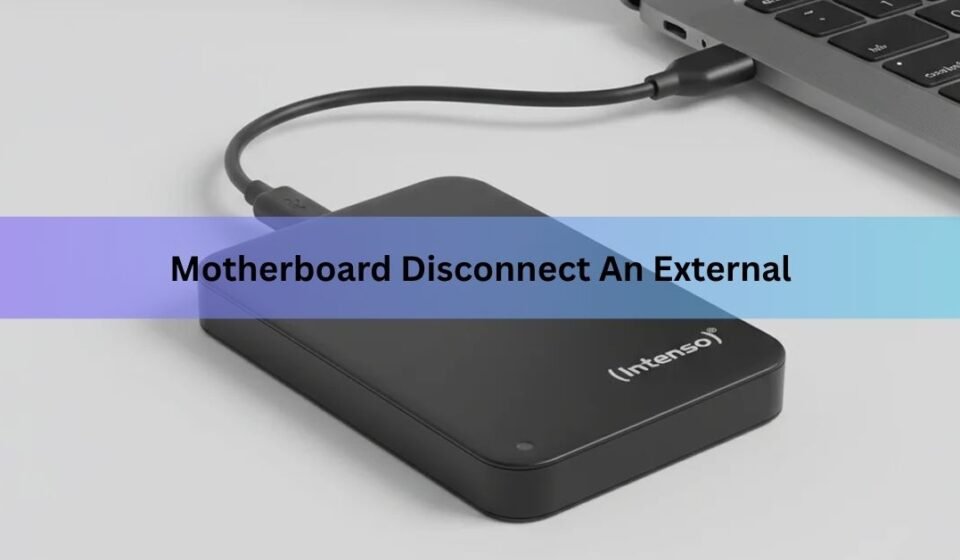
How to Tell Whether the SSD or Cable Is Failing
Good troubleshooting separates the parts. Change one thing at a time so you know what solved the issue.
Use this test:
- Try the current SSD with a different cable.
- Try a different USB port.
- Test the SSD on another computer.
- Test another external drive on the original computer.
- Remove all hubs and adapters.
- Watch for heat during a large transfer.
The results can point to the cause:
• Only one cable fails: replace the cable.
• Only one port fails: avoid or repair that port.
• Several drives fail on one computer: check the computer or operating system.
• One SSD fails everywhere: suspect the SSD or enclosure.
• The drive fails only through a hub: replace or power the hub.
• The drive fails when hot: improve cooling or replace the enclosure.
In practical testing, I have found that cable swaps solve more “SSD failure” reports than people expect. The mistake is often testing the drive with the same questionable cable each time.

How to Protect Your Data Before Troubleshooting
A disconnecting SSD may be a warning, not just an annoyance. Protect your files before making repairs.
Copy the most important data first. Start with photos, work files, account records, and anything that cannot be replaced.
Use a second storage device or a trusted cloud backup. A backup is useful only when the files can be opened, so check a few copied files afterward.
Follow these safety rules:
• Do not format the SSD if you need the files.
• Do not initialize an unknown partition without a backup.
• Do not repeatedly unplug the drive during transfers.
• Do not run demanding repair tools on a severely failing drive.
• Do not open the SSD enclosure if it may affect a warranty.
• Stop if the drive becomes extremely hot or makes repeated connection sounds.
If the data is important and the SSD disconnects every few seconds, professional data recovery may be safer than home repair. Recovery can be costly, but repeated testing can reduce the chance of success.

When You Should Replace the External SSD
Replace the SSD, enclosure, or cable when testing shows a repeatable hardware fault.
A cable is inexpensive and should be replaced first if it is loose, bent, or unreliable. An enclosure is also easy to replace, especially when the internal SSD works in another enclosure.
Replace the SSD when it disconnects on multiple computers, with multiple cables, and after proper cooling. Check the drive’s health information if your operating system or manufacturer tool supports it.
Health tools are helpful but not perfect. A drive can fail without showing a clear warning. Treat repeated disconnects as meaningful evidence, even if the reported health says “good.”
Choose a replacement with:
• A reputable controller and warranty
• A clear USB 3.2 or USB4 specification
• Good heat control
• Strong reviews from long-term users
• A return policy
• Encryption support if you store private files

Mistakes That Can Make the Problem Worse
A few common actions can turn a small connection issue into data loss.
Pulling the cable during a transfer
An SSD can write data in the background even when the progress bar looks complete. Eject the drive before unplugging it.
Using the cheapest adapter
A low-cost USB-C adapter may not handle power, speed, or signal quality well. Use a certified adapter from a reliable brand.
Ignoring heat
Do not place the SSD under a pillow, blanket, or laptop. Heat needs a path to escape.
Formatting too soon
Formatting may make the drive appear fixed, but it destroys the current file structure. Back up or recover data first.
Changing too many settings at once
If you change power settings, drivers, cables, and ports together, you may not know what solved the problem. Change one item at a time and keep notes.

Frequently Asked Questions About Why Does My External SSD Keep Disconnecting
Why does my external SSD keep disconnecting during file transfers?
Large transfers can expose a weak cable, poor USB port, insufficient power, or overheating enclosure. Try a direct connection, a different data cable, and better airflow before assuming the SSD has failed.
Can a bad USB cable cause an external SSD to disconnect?
Yes. A damaged or low-quality cable can interrupt both power and data, especially when the SSD is under heavy load. Replace it with a short, reliable cable that supports data at the required speed.
Does an external SSD need its own power supply?
Most portable SSDs draw power from USB and do not need a separate adapter. However, a weak laptop port or overloaded hub may not provide stable power, so a powered hub or direct connection can help.
How do I know if my external SSD is dying?
Frequent disconnects on different computers, unreadable files, slow transfers, mounting errors, and extreme heat can indicate failure. Back up important data immediately and avoid repeated repair attempts.
Can sleep mode disconnect an external SSD?
Yes. USB power-saving and sleep settings can interrupt some SSDs, docks, and adapters. Test the drive while the computer is awake and connected to power, then adjust USB power settings if needed.
Will formatting fix an external SSD that keeps disconnecting?
Formatting may repair a file system problem, but it will not fix a bad cable, port, enclosure, power issue, or failing SSD. Never format the drive until important data is backed up.
Conclusion
The reason your external SSD keeps disconnecting is usually a weak cable, unstable port, USB power setting, faulty hub, excess heat, or a failing enclosure. Test the simple causes first, connect the drive directly, update your system, and protect your files before using repair tools.
If the SSD fails on several computers with different cables, treat it as a hardware warning. Replace the cable or enclosure when testing points to those parts, and seek professional recovery help when the data matters most. Try these steps today, then share your results or explore more storage guides to keep your backups safe.
