

Connect earbuds to a PS5 through a USB adapter, the dualsense controller, or PlayStation-compatible wireless technology.
Learning how to connect earbuds to PS5 can be confusing because the console does not support most regular Bluetooth earbuds directly. The good news is that you still have several reliable options. This guide explains each method, fixes common sound and microphone issues, and helps you choose the setup that fits your games.

Can You Connect Any Earbuds to a PS5?
You cannot connect every pair of earbuds to a PS5. Most standard Bluetooth earbuds, including many AirPods models, do not pair directly with the console because the PS5 does not support normal Bluetooth audio connections.
This limit helps reduce audio delay and connection problems. However, it means you need one of these options:
• Earbuds made for PlayStation
• A USB Bluetooth audio adapter
• A wireless USB transmitter included with the earbuds
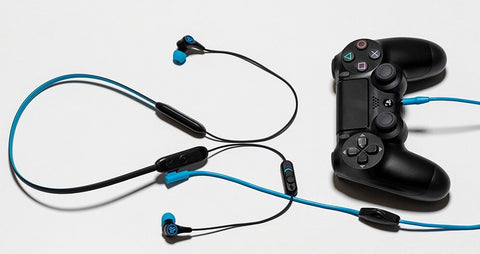
• A 3.5 mm connection through the DualSense controller
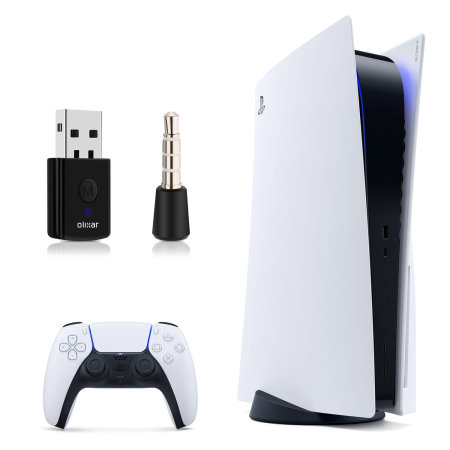
The easiest way to connect earbuds to PS5 is usually with a USB transmitter. The transmitter handles the wireless link, while the PS5 treats it like a normal USB headset.

How to Connect Wireless Earbuds to PS5 With a USB Adapter
A USB adapter is the most flexible method for wireless earbuds. Choose an adapter that clearly supports PS5 audio. Some adapters support sound only, while others also support microphone input.
Follow these steps:
- Turn on your PS5 and open the home screen.
- Plug the USB adapter into a USB-A or USB-C port on the console.
- Put your earbuds into pairing mode.
- Hold the pairing button on the USB adapter.
- Wait for the adapter and earbuds to connect.
- Open Settings on the PS5.
- Select Sound.
- Choose Audio Output.
- Select USB Headset under Output Device.
- Set Output to Headphones to All Audio.
Your earbuds should now play game sound, chat, music, and system sounds. If the PS5 does not detect them, remove the adapter, restart the console, and plug it into another USB port.
Some adapters have a small pairing button. Others enter pairing mode when you connect them. Read the adapter instructions if the status light does not change.
How to Connect PlayStation-Compatible Earbuds to PS5
PlayStation-compatible earbuds often use a dedicated USB receiver or PlayStation Link. These products are designed to work with the PS5, so setup is usually quick.
For earbuds with a USB receiver:
- Insert the receiver into the PS5.
- Turn on the earbuds.
- Wait for the receiver and earbuds to pair.
- Go to Settings.
- Select Sound, then Audio Output.
- Choose the USB headset as the output device.
For PlayStation Link earbuds, connect the PlayStation Link USB adapter to the console. The PS5 should recognize the connection without extra Bluetooth settings.
This method often provides lower delay than a basic Bluetooth adapter. It may also support better microphone quality, sidetone, and battery information. Features depend on the earbud model and its firmware.
When learning how to connect earbuds to PS5, check whether the product says “PS5 compatible.” A label that only says “Bluetooth” does not guarantee console support.

How to Connect Earbuds to PS5 With the DualSense Controller
A wired connection is simple, stable, and often gives the lowest delay. The DualSense controller has a 3.5 mm headset jack under the PS button.
To connect earbuds to PS5 with the controller:
- Plug the earbuds into the 3.5 mm jack.
- Open Settings on the PS5.
- Select Sound.
- Choose Audio Output.
- Select Headset Connected to Controller.
- Set Output to Headphones to All Audio.
- Adjust the volume under Volume.
You can also change the settings while playing. Press the PS button, select Sound, and move the Headphones volume slider.
This method works with many wired earbuds that have a microphone. If your earbuds use a four-pole 3.5 mm plug, the PS5 may support both sound and voice chat. Some phone earbuds may have poor microphone quality or may not work correctly because of different wiring standards.
A wired connection also uses less battery. The tradeoff is the cable, which can feel less convenient during long gaming sessions.

How to Connect Bluetooth Earbuds to PS5
The PS5 does not normally connect to Bluetooth earbuds from its built-in Bluetooth menu. You will not find a standard “pair new Bluetooth headphones” option like you might on a phone or tablet.
You can still use Bluetooth earbuds with a separate USB Bluetooth transmitter:
- Buy a USB Bluetooth transmitter that supports PS5.
- Plug it into the PS5.
- Put the earbuds in pairing mode.
- Press the transmitter’s pairing button.
- Select the USB audio device in Settings, Sound, and Audio Output.
- Test game audio and voice chat.
There are some limits. Many basic Bluetooth adapters support only listening, not microphone input. Bluetooth audio can also have more delay than a dedicated gaming transmitter.
For fast games, such as competitive shooters or racing games, even a small delay can feel distracting. A PlayStation-compatible wireless system is usually a better choice when timing matters.

How to Connect AirPods to PS5
AirPods do not connect directly to the PS5. To use them, you need a compatible USB Bluetooth adapter.
Connect the adapter to the console, then place the AirPods in their charging case. Open the lid, press and hold the button on the case, and wait for the adapter to detect them.
After pairing, check these settings:
• Settings > Sound > Audio Output
• Output Device > USB Headset
• Output to Headphones > All Audio
AirPods may work well for listening, but their microphone may not work through every adapter. Some adapters disable the microphone to improve sound quality. Others switch to a lower-quality headset mode when voice chat starts.
If you need reliable party chat, test the microphone before joining a group. A wired headset or PlayStation-focused earbuds may provide a smoother experience.
How to Set Earbud Audio and Microphone Settings
After you connect earbuds to PS5, adjust the audio settings for a better experience. The correct settings can make quiet dialogue easier to hear and prevent loud game effects from covering voice chat.
Open Settings, then select Sound. From there, review these options:
• Output Device: Choose the connected USB headset or controller headset.
• Output to Headphones: Select All Audio for full game sound.
• Volume: Raise or lower the headphone volume.
• Microphone: Choose the earbud microphone or controller microphone.
• Adjust Microphone Level: Speak normally and move the slider until your voice sounds clear.
• Sidetone Volume: Use this option if your headset supports it.
You can also use the PS button and open the Sound menu during a game. This shortcut lets you change volume and mute the microphone without leaving the match.
The PS5 controller has a built-in microphone. If your earbuds do not support voice input, the console may continue using the controller mic. Check the microphone input device before starting a party chat.
How to Fix Earbuds That Do Not Work on PS5
If your earbuds connect but produce no sound, the PS5 may be using the TV, monitor, or another audio device. Open Settings > Sound > Audio Output and select the correct output device.
Try these fixes:
• Unplug and reconnect the USB receiver.
• Restart the PS5 with the receiver still connected.
• Charge the earbuds and their case.
• Pair the earbuds again.
• Try another USB port.
• Check the earbud volume and mute controls.
• Set Output to Headphones to All Audio.
• Update the earbuds through the manufacturer’s app if one is available.
• Check whether the adapter supports PS5.
If you hear sound but the microphone does not work, the adapter may support audio output only. Try the DualSense controller microphone or use earbuds with a dedicated gaming receiver.
If the sound cuts out, move the USB receiver away from other wireless devices. A short USB extension cable can help place the receiver closer to the earbuds and away from the console’s metal housing.
When testing how to connect earbuds to PS5, test the setup in a quiet menu first. This makes it easier to spot a pairing issue before you enter a live game.
How to Improve Earbud Sound Quality and Connection Range
Good placement can improve wireless audio. Do not hide the USB receiver behind a television, inside a cabinet, or next to a crowded USB hub.
Try these practical tips:
• Keep the receiver in an open position.
• Avoid placing the PS5 inside a closed cabinet.
• Charge the earbuds before long sessions.
• Keep the console software and earbud firmware updated.
• Turn off nearby Bluetooth devices that are not needed.
• Use the receiver’s recommended USB port.
• Avoid connecting several wireless adapters beside each other.
The room layout also matters. Walls, metal furniture, and other wireless signals can weaken a connection. A short USB extension cable often solves range problems without changing the earbuds.
In my testing approach, the most common mistake is changing many settings at once. Change one setting, test the sound, and then move to the next. This makes the cause much easier to find.
USB Earbuds vs. Wireless Earbuds vs. Wired Earbuds
Each method has clear benefits and limits. The best choice depends on comfort, chat use, battery life, and your budget.
USB wireless earbuds
• No cable between you and the controller
• Usually simple to set up
• Often lower delay than regular Bluetooth
• May include a working microphone
• Requires a receiver and battery charging
Wired earbuds
• Low audio delay
• No battery to charge
• Usually affordable
• Easy to connect through the DualSense
• The cable may limit movement
Standard Bluetooth earbuds
• Small and convenient
• Often already owned
• May need a separate adapter
• Microphone support can be limited
• Delay may be noticeable in fast games
For most players, dedicated wireless earbuds with a USB receiver offer the best balance. For the lowest cost, wired earbuds through the controller are hard to beat.
Common Mistakes to Avoid
Many connection problems come from using the wrong type of adapter. A USB adapter made for keyboards or file transfers will not carry audio. Check the product details before buying.
Avoid these mistakes:
• Assuming all Bluetooth earbuds work directly with PS5
• Pairing the earbuds with a phone instead of the USB receiver
• Choosing an adapter that supports audio but not chat
• Forgetting to set Output to Headphones to All Audio
• Leaving the microphone muted
• Using earbuds with a nearly empty battery
• Plugging the receiver into a television instead of the PS5
• Ignoring firmware updates
It is also wise to check return terms when buying an adapter. Compatibility can vary between earbud brands, adapter models, and PS5 software versions.
The safest purchase is a receiver that lists PS5 support and clearly explains microphone support. Product pages that only promise “Bluetooth audio” may not meet your needs.
Frequently Asked Questions About How to Connect Earbuds to PS5
Can I connect Bluetooth earbuds directly to a PS5?
No. The PS5 does not normally pair with standard Bluetooth earbuds directly. You need a compatible USB Bluetooth adapter or a PlayStation wireless receiver.
Why does my PS5 detect my earbuds but produce no sound?
The console may still be sending audio to the TV or monitor. Go to Settings > Sound > Audio Output, choose the earbuds or USB headset, and set Output to Headphones to All Audio.
Can I use AirPods with a PS5?
Yes, but you need a USB Bluetooth transmitter that supports PS5. AirPods may work for listening, while microphone support depends on the adapter.
Can I use earbuds for PS5 voice chat?
Yes, if the earbuds or adapter supports microphone input. If the microphone does not work, select the correct input device or use the DualSense controller microphone.
Do wired earbuds work with a PS5 controller?
Yes. Plug compatible 3.5 mm earbuds into the DualSense controller, then select the controller headset as the output device in the PS5 sound settings.
Why is there a delay with my wireless earbuds?
Regular Bluetooth connections can add audio delay. A PlayStation-compatible receiver or dedicated gaming earbuds usually reduce delay compared with a basic Bluetooth adapter.
Can I connect two pairs of earbuds to one PS5?
The PS5 does not normally send game audio to two separate wireless earbud pairs at the same time. A special audio splitter or compatible external setup may be required.
Conclusion
The best way to connect earbuds to PS5 depends on the earbuds you own. Use a USB receiver for wireless gaming, a PlayStation-compatible system for the smoothest experience, or the DualSense controller for a simple wired setup.
Remember to choose the correct output device, set the audio to All Audio, and test the microphone before joining a party. Start with the method that matches your gear, then explore more PS5 audio tips or share your setup in the comments.
