

Turn on Bluetooth, enter pairing mode on your Skullcandy headphones, then select them in your laptop’s Bluetooth settings.
Learning how to connect Skullcandy headphones to laptop devices is simple once you know where pairing mode, Bluetooth settings, and sound output controls are located. This guide covers Windows laptops, MacBooks, wired models, USB transmitters, common connection errors, and practical tips that help your headphones connect faster and stay stable.

Before you connect Skullcandy headphones to a laptop
Most wireless Skullcandy headphones connect through Bluetooth. Popular models such as Crusher, Hesh, Riff, Indy, and Sesh use similar steps, although the buttons may look different.
Before starting, check these points:
• Charge the headphones for at least a few minutes.
• Keep the headphones within three feet of the laptop.
• Turn off Bluetooth on your phone if the headphones connect to it first.
• Make sure your laptop supports Bluetooth.
• Close music apps while pairing.
A low battery can prevent pairing or cause the connection to drop. Also, some Skullcandy headphones automatically reconnect to the last device they used. Turning off Bluetooth on that device often solves the problem right away.
If your laptop has no Bluetooth, you can still use Skullcandy headphones with a USB Bluetooth adapter, a Skullcandy wireless transmitter, or an audio cable.
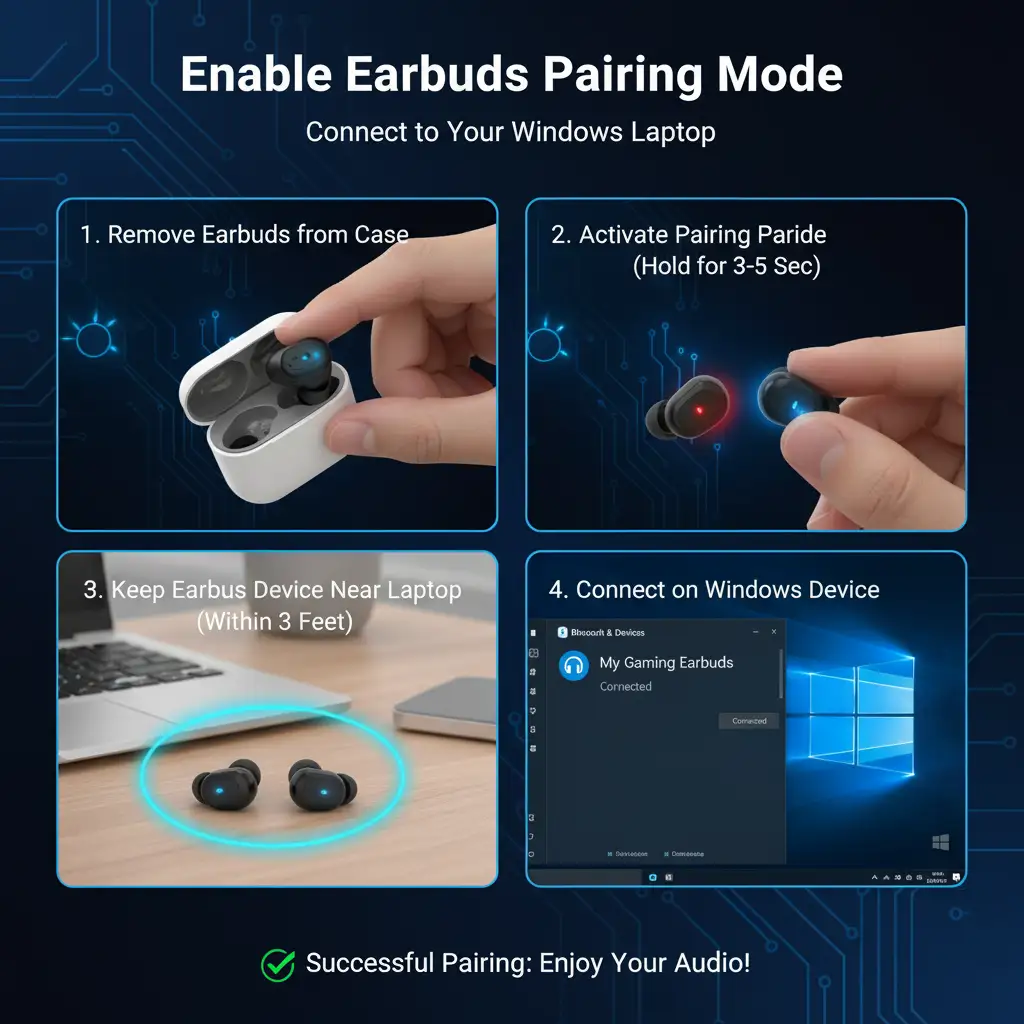
How to connect Skullcandy headphones to a Windows laptop
Windows 10 and Windows 11 use nearly the same Bluetooth process. The main difference is the location of some menu options.
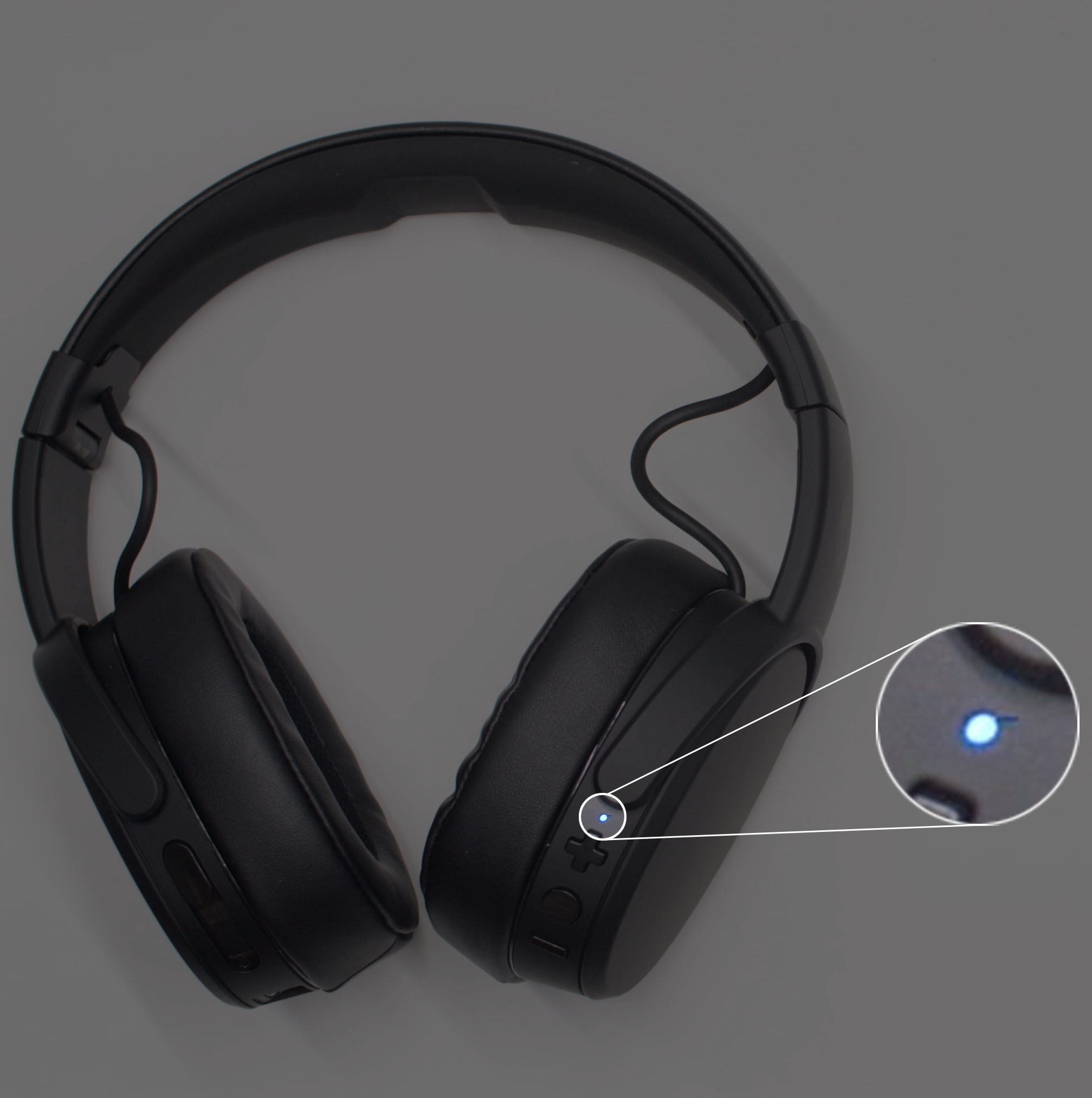
Step 1: Put your Skullcandy headphones in pairing mode
Turn the headphones off first. Then press and hold the power button for about three to six seconds.
Release the button when the LED light flashes blue and red, flashes blue quickly, or you hear “pairing.” The exact light pattern depends on the model.
If the headphones turn on but do not enter pairing mode, press and hold the power button again. On some models, holding the main button for several seconds after startup activates pairing mode.
Step 2: Open Bluetooth settings in Windows
On Windows 11:
- Select Start.
- Open Settings.
- Select Bluetooth & devices.
- Turn on Bluetooth.
- Select Add device.
- Choose Bluetooth.
On Windows 10:
- Open Start.
- Select Settings.
- Choose Devices.
- Select Bluetooth & other devices.
- Turn on Bluetooth.
- Select Add Bluetooth or other device.
- Choose Bluetooth.
Step 3: Select your Skullcandy headphones
Wait for the Skullcandy model name to appear. It may show as “Crusher,” “Hesh,” “Riff,” “Sesh,” or a longer model name.
Select the name, then wait for Windows to show “Connected” or “Connected voice, music.” Your laptop should now send sound to the headphones.
This is the standard method for how to connect Skullcandy headphones to laptop computers running Windows.

How to connect Skullcandy headphones to a MacBook
Connecting Skullcandy headphones to a MacBook takes only a few steps. macOS places Bluetooth controls in System Settings instead of the Windows Settings app.
Pair Skullcandy headphones with macOS
- Turn on your Skullcandy headphones.
- Hold the power button until the LED flashes or the pairing message plays.
- Select the Apple menu.
- Open System Settings.
- Select Bluetooth.
- Find your Skullcandy headphones under nearby devices.
- Select Connect.
On older Mac computers, open System Preferences, select Bluetooth, and choose Connect next to the headphone name.
After connecting, play a short video or song. If you hear sound from the MacBook speakers, open System Settings, select Sound, and choose your Skullcandy headphones under Output.
The Bluetooth menu may show the headphones as connected, but the sound output can still be set to the built-in speakers. Checking the output device is an important part of how to connect Skullcandy headphones to laptop devices correctly.
How to connect wired Skullcandy headphones to a laptop
Some Skullcandy headphones use a 3.5-millimeter audio cable instead of Bluetooth. Wired headphones do not need pairing or charging.
Connect one end of the cable to the headphones and the other end to the laptop’s headphone jack. Then play audio.
If your laptop has a combined headset port, the microphone may work as well. If it has separate microphone and headphone ports, you may need a splitter cable.
Newer laptops may not include a headphone jack. In that case, use a USB-C audio adapter or a compatible USB headset adapter.
For wired headphones, open your laptop’s sound settings and select the connected headset if it does not switch automatically. Wired connections usually have less delay than Bluetooth, which makes them useful for gaming, video calls, and video editing.

How to connect Skullcandy headphones without built-in Bluetooth
Some older desktop computers and budget laptops do not have Bluetooth. You can add wireless support with a small USB Bluetooth adapter.
Use a USB Bluetooth adapter
- Buy a Bluetooth adapter that supports your laptop’s operating system.
- Plug it into a USB port.
- Install the driver if Windows requests one.
- Turn on Bluetooth through the adapter software or Windows settings.
- Put the Skullcandy headphones into pairing mode.
- Select the headphones from the Bluetooth device list.
Most modern Windows systems install the needed driver automatically. If the adapter does not work, download the driver from the adapter maker’s official support page.
Use a wireless transmitter
Some Skullcandy products include a USB transmitter. Plug the transmitter into the laptop, turn on the headphones, and follow the product instructions.
A transmitter can be useful for gaming because it may reduce delay. However, not every Skullcandy headphone works with every transmitter. Confirm compatibility before buying one.
How to set Skullcandy headphones as the audio output
Pairing does not always mean that your laptop has selected the headphones for sound. You may need to choose them manually.
On Windows
- Select the speaker icon on the taskbar.
- Select the sound output menu.
- Choose your Skullcandy headphones.
- Raise the volume on both the laptop and headphones.
You can also open Settings, select System, choose Sound, and select the headphones under Output.
For calls, check the input and output devices in apps such as Zoom, Microsoft Teams, Discord, or Google Meet. Bluetooth headphones can appear as two options: a high-quality stereo mode and a headset mode with microphone support.
On a MacBook
- Open Control Center.
- Select Sound.
- Choose your Skullcandy headphones.
You can also go to System Settings, select Sound, and choose the headphones under Output.
If the sound is quiet, check the volume controls in the laptop, the headphones, and the app you are using. Three separate volume controls can sometimes make a working connection seem faulty.

What to do when Skullcandy headphones will not connect
When learning how to connect Skullcandy headphones to laptop devices, the most common issue is that the headphones are not really in pairing mode. A flashing light does not always mean the same thing on every model, so listen for the pairing sound when possible.
Try these fixes in order:
- Turn off the headphones.
- Turn off Bluetooth on nearby phones and tablets.
- Restart the laptop.
- Charge the headphones.
- Place the headphones into pairing mode again.
- Remove the old Skullcandy entry from the laptop.
- Search for the headphones again.
- Update the laptop’s Bluetooth driver.
To remove a device in Windows, open Bluetooth & devices, select the three-dot menu beside the Skullcandy name, and choose Remove device. On macOS, select the information button beside the device and choose Forget This Device or Disconnect, depending on the macOS version.
A reset may help if the headphones connect to other devices but not your laptop. Reset steps differ by model, so use the instructions for your exact Skullcandy product. A reset usually clears saved Bluetooth connections, so you will need to pair the headphones again.

Fix sound, microphone, and connection problems
Headphones connect but produce no sound
First, select the Skullcandy headphones as the output device. Then pause and restart the media. Some apps keep using the old output device until you restart them.
Also check whether the headphones are muted. If the laptop shows several Skullcandy options, choose the stereo option for music and video.
The microphone does not work
Open the privacy settings on your laptop and make sure the app can access the microphone. Then select the Skullcandy headset as the input device in the app’s audio settings.
Bluetooth headset mode may lower music quality while the microphone is active. This is a normal Bluetooth limitation on many computers, not necessarily a defect in the headphones.
The connection keeps dropping
Keep the laptop and headphones close together. Avoid placing the laptop behind a metal desk, inside a bag, or next to a crowded USB hub.
Wireless interference can come from Wi-Fi routers, other Bluetooth devices, and some USB 3.0 accessories. Updating Bluetooth drivers and installing system updates may also improve stability.
In my own device testing, the most common mistake was leaving the headphones connected to a phone in another room. The laptop showed the headphones briefly, but pairing failed until the phone’s Bluetooth was turned off. This small check saves a surprising amount of time.

How to improve Bluetooth performance
A good connection depends on more than the first pairing. These habits can make your Skullcandy headphones more reliable:
• Keep the headphone firmware updated through the official Skullcandy app when your model supports it.
• Install Windows or macOS updates when available.
• Keep the headphones within a clear range of the laptop.
• Avoid pairing many new devices at the same time.
• Remove old Bluetooth devices you no longer use.
• Keep the headphone battery above a low charge level.
• Restart Bluetooth if audio becomes delayed or distorted.
Bluetooth range varies by laptop, adapter, walls, and interference. Manufacturers may list an estimated range under ideal conditions, but real homes and offices can produce different results.
For gaming, a wired connection or a compatible wireless transmitter may feel more responsive than regular Bluetooth. For music, calls, and everyday work, standard Bluetooth is usually convenient and reliable.
How to disconnect or reconnect Skullcandy headphones
To disconnect the headphones without deleting them, turn off the headphones or disable Bluetooth on the laptop. The saved pairing remains available for later use.
To reconnect them:
- Turn on the headphones.
- Open the laptop’s Bluetooth settings.
- Select the saved Skullcandy device.
- Choose Connect.
If the headphones do not reconnect automatically, remove the device and pair it again. Automatic reconnection can fail when the headphones were recently used with another phone, tablet, or computer.
If your Skullcandy model supports multipoint pairing, it may connect to two devices at once. This feature is useful, but it can also create confusion when audio comes from the wrong device. Disconnecting the headphones from unused devices usually makes switching easier.
Frequently Asked Questions
Why are my Skullcandy headphones not showing on my laptop?
Put the headphones into pairing mode and turn off Bluetooth on devices they used before. If they still do not appear, restart Bluetooth, charge the headphones, and remove any old Skullcandy entry from the laptop.
Can I connect Skullcandy headphones to a laptop without Bluetooth?
Yes. Use a 3.5-millimeter audio cable, a USB Bluetooth adapter, or a compatible wireless transmitter. The best option depends on whether your headphones support wired audio or a specific transmitter.
How do I put Skullcandy headphones into pairing mode?
Turn the headphones off, then press and hold the power button until the LED flashes or you hear a pairing message. Button timing differs by model, so check the instructions for your exact headphones if this does not work.
Why are my Skullcandy headphones connected but silent?
Your laptop may still be using its internal speakers. Open the sound output settings and select the connected Skullcandy headphones, then check the volume on both devices.
Can Skullcandy headphones connect to both a phone and a laptop?
Some models support multipoint pairing, while others connect to only one device at a time. If your headphones will not switch properly, disconnect them from the phone before connecting them to the laptop.
How do I reset Skullcandy headphones?
Reset steps vary between models. Use the official instructions for your specific Skullcandy headphones, then remove the old Bluetooth pairing from the laptop and connect the headphones again.
Conclusion
Connecting Skullcandy headphones to a laptop usually takes less than a minute: charge the headphones, activate pairing mode, open Bluetooth settings, and select the Skullcandy name. Windows and MacBook users can follow nearly the same process, while wired headphones and USB adapters offer useful alternatives.
If the connection fails, check pairing mode, nearby devices, sound output, battery level, and old Bluetooth records before assuming the headphones are broken. Try the steps above with your model, and share your experience or questions in the comments.
