

Introduction
To connect BERIBES headphones in the United States, turn on bluetooth on your phone, tablet, computer, or TV. Then place the headphones in pairing mode, select the BERIBES device name, and confirm the connection.
Most BERIBES wireless headphones follow this same process. Button labels and indicator lights may differ by model, so check the user manual if your headphones do not enter pairing mode. This guide covers first-time setup, reconnection, computer pairing, TV use, wired mode, and common fixes.

What You Need Before Pairing BERIBES Headphones
You need three things before you begin:
- BERIBES headphones with some battery power
- A Bluetooth-enabled device
- The headphones within a few feet of that device
Charge the headphones if the power light does not turn on. A low battery can stop pairing or cause the connection to drop.
Also, turn off Bluetooth on devices that have used the headphones before. Your headphones may connect to an old phone, tablet, or laptop before your new device can find them.
What pairing mode means
Pairing mode allows a Bluetooth device to search for and connect to the headphones. On many BERIBES models, the headphones enter pairing mode when you hold the power button while turning them on.
A flashing blue or red-and-blue light often shows pairing mode. The exact color and flash pattern can vary by model. The device name may appear as BERIBES, BERIBES H6, BERIBES H7, or another model name.
Do not choose a nearby device with a similar name unless you know it belongs to your headphones.
Quick preparation checklist
Before you pair:
- Charge the headphones.
- Keep the headphones close to the device.
- Turn off Bluetooth on previously connected devices.
- Remove the headphones from their case, if your model uses one.
- Make sure the headphones are not connected through the 3.5-millimeter audio cable.

How to Put BERIBES Headphones in Pairing Mode
The most common method is to start with the headphones turned off. Then press and hold the power button for several seconds until the indicator light flashes.
Use this sequence:
- Turn off the BERIBES headphones.
- Press and hold the Power button.
- Keep holding it as the headphones turn on.
- Release the button when the light flashes or you hear a pairing voice prompt.
- Open the Bluetooth menu on your source device.
- Select the BERIBES headphones from the list.
If the headphones turn on but do not appear, turn them off and repeat the process. A short press may only power them on. Pairing mode often requires a longer press.
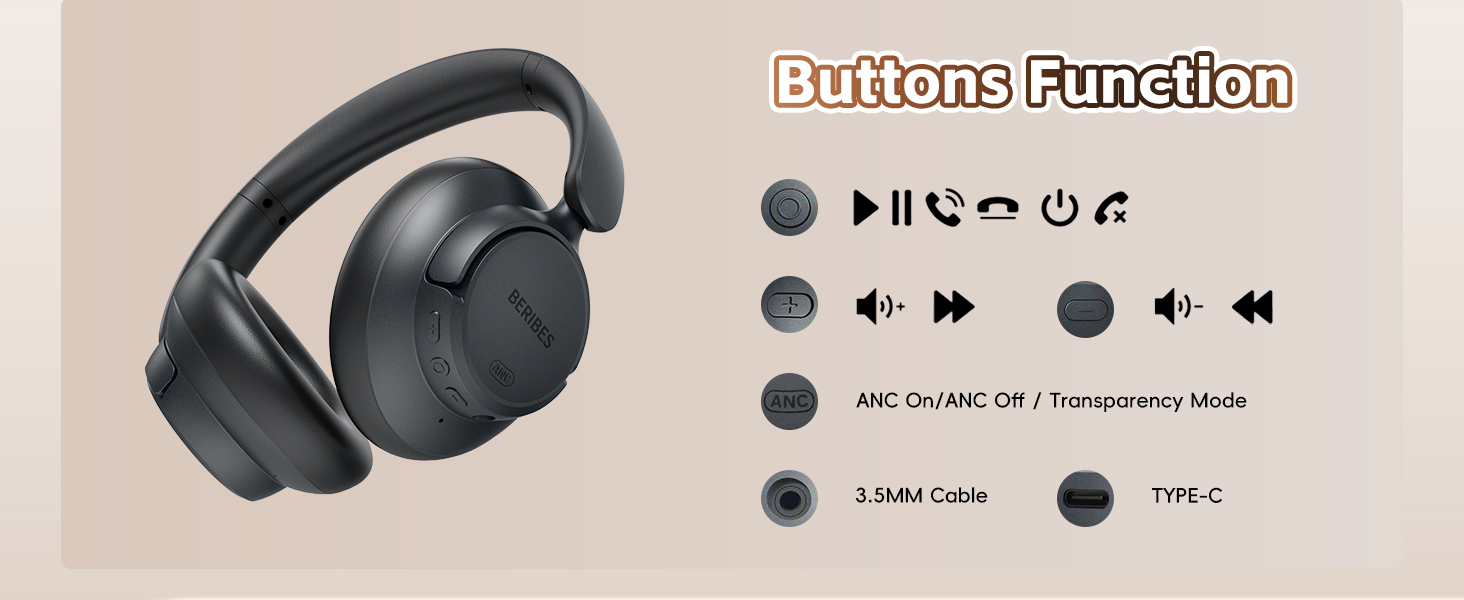
Some models use a separate Bluetooth or multifunction button. If your headphones have one, hold that button instead of the power button. Use the labels on the headset and the manual for your exact model.
How to tell when pairing worked
Pairing is complete when one or more of these signs appears:
- The headphones say “connected.”
- The indicator light stops flashing.
- The headphones show as connected in the Bluetooth menu.
- Sound plays through the headphones.
- The device lists the headphones under saved or paired devices.
A saved device is not always an active connection. Open the Bluetooth menu and confirm that the status says Connected.

How to Connect BERIBES Headphones to a Phone or Tablet
The steps are nearly the same on Android phones, iPhones, and most tablets. First place the headphones in pairing mode, then search for them in the device’s Bluetooth settings.
Android phones and tablets
- Open Settings.
- Tap Connected devices, Connections, or Bluetooth. The name can vary by Android version.
- Turn Bluetooth on.
- Tap Pair new device or wait for the available-device list.
- Select the BERIBES headphones.
- Tap Pair if Android asks you to confirm.
After pairing, play a song or video. If the sound still comes from the phone speaker, open the media output control and select the BERIBES headphones.
iPhone and iPad
- Open Settings.
- Tap Bluetooth.
- Turn Bluetooth on.
- Wait for the BERIBES headphones to appear under Other Devices.
- Tap the headphone name.
- Wait until it moves to My Devices and shows Connected.
If the headphones were paired before, they may appear under My Devices. Tap the name to reconnect them.
If your phone asks for a passcode
Most modern Bluetooth headphones pair without a passcode. If your phone asks for one, try 0000 or 1234 only if the BERIBES manual lists that code. Do not guess repeatedly, because some devices may temporarily block new pairing attempts.

How to Connect BERIBES Headphones to a Windows PC
You can connect BERIBES headphones to a Windows computer through the Bluetooth settings. The PC must have Bluetooth hardware. Many laptops do, but some desktop computers need a separate USB Bluetooth adapter.
Windows 11
- Turn on the headphones and place them in pairing mode.
- Select Start > Settings.
- Open Bluetooth & devices.
- Turn Bluetooth on.
- Select Add device.
- Choose Bluetooth.
- Select the BERIBES headphones.
- Select Done when Windows finishes pairing.
Windows 10
- Put the headphones in pairing mode.
- Open Start > Settings.
- Select Devices.
- Choose Bluetooth & other devices.
- Turn Bluetooth on.
- Select Add Bluetooth or other device.
- Choose Bluetooth.
- Select the BERIBES headphones.
If Windows shows two entries, one may be the standard music connection and the other may be a hands-free headset profile. For music, select the normal stereo output when available. The hands-free option may reduce audio quality but can support the computer’s microphone.
Set BERIBES as the sound output
Pairing does not always change the active sound output. If you hear sound from the computer speakers:
- Select the speaker icon on the Windows taskbar.
- Open the sound output list.
- Choose the BERIBES headphones.
- Play audio to test the connection.

How to Connect BERIBES Headphones to a Mac
A Mac can pair with BERIBES headphones through System Settings or System Preferences, depending on the macOS version.
- Put the headphones in pairing mode.
- Select the Apple menu.
- Open System Settings.
- Select Bluetooth.
- Find the BERIBES headphones.
- Select Connect.
On older macOS versions, open System Preferences > Bluetooth instead.
If the Mac connects but does not use the headphones for sound, go to System Settings > Sound > Output and select the BERIBES headphones. You may also need to select them under Input if you want to use the headphone microphone.

How to Connect BERIBES Headphones to a TV
A TV can connect to BERIBES headphones only if it supports Bluetooth audio output. Many newer smart TVs do, but some TVs support Bluetooth only for remotes, keyboards, or controllers.
Try these steps:
- Turn on Bluetooth audio output in the TV settings.
- Put the BERIBES headphones in pairing mode.
- Open the TV’s Settings menu.
- Find Sound, Audio Output, or Bluetooth Speaker List.
- Search for available Bluetooth devices.
- Select the BERIBES headphones.
- Confirm the connection.
- Play a program to test the sound.
The menu name depends on the TV brand and software. If the TV cannot find the headphones, check the TV manual for Bluetooth headphone support.
Some TVs connect to headphones but keep playing sound from the built-in speakers. Set the TV’s audio output to Bluetooth, wireless headphones, or an equivalent option.
TV delay and connection limits
Bluetooth audio can have a small delay. You may notice that speech does not match lip movement. Look for an audio delay, lip-sync, or Bluetooth delay setting on the TV.
Some TVs also support only one Bluetooth audio device at a time. Disconnect other Bluetooth speakers or headphones before pairing BERIBES headphones.

How to Reconnect BERIBES Headphones After the First Setup
After the first successful connection, BERIBES headphones usually reconnect automatically to the last compatible device. Turn on Bluetooth on that device, then turn on the headphones.
If they do not reconnect:
- Open the device’s Bluetooth settings.
- Find the BERIBES headphones under saved devices.
- Tap or select the name.
- Choose Connect.
- If needed, turn Bluetooth off and on again.
Automatic reconnection may fail when another nearby device connects first. For example, the headphones may connect to a laptop in another room instead of your phone.
Turn off Bluetooth on the unwanted device, then connect the headphones manually to the device you want to use.

BERIBES Headphones Not Pairing? Try These Fixes
Most connection problems come from pairing mode, an old saved connection, low battery, or Bluetooth interference. Follow the checks below in order.
The headphones do not appear in the Bluetooth list
Try these steps:
- Turn the headphones off.
- Turn Bluetooth off on your phone or computer.
- Turn Bluetooth back on.
- Put the headphones into pairing mode again.
- Move them within a few feet of the device.
- Search for available devices again.
If the headphones connect to another device, disconnect them there first. Bluetooth headphones often accept a new connection only when they are free.
The headphones appear but will not connect
Remove the old Bluetooth record and pair again.
On a phone or tablet, open the Bluetooth settings, tap the information icon or gear beside the BERIBES name, and choose Forget, Unpair, or Remove. On Windows or macOS, remove the device from the Bluetooth settings.
Then restart both devices and repeat the pairing process.
The headphones connect but have no sound
Check the active audio output. Your device may remain set to its internal speaker.
Also check:
- The media volume on the source device
- The volume on the headphones
- Whether an app is muted
- Whether the headphones are connected for calls but not media
- Whether the audio cable is plugged in
On a computer, select the BERIBES headphones in the sound output menu. On a phone, open the media output panel and choose the headphones.
The sound cuts out
Keep the source device near the headphones. Walls, metal objects, crowded wireless areas, and other Bluetooth connections can affect performance.
You can also try:
- Moving away from a Wi-Fi router
- Closing unused Bluetooth connections
- Restarting the headphones
- Charging the battery
- Testing with a different phone or computer
If the connection fails on several devices at close range, the issue may be with the headphones rather than the original source device.
The headphones connect to the wrong device
Turn off Bluetooth on devices you do not want to use. Then disconnect or forget the BERIBES headphones on those devices.
Some BERIBES models may support connections to more than one device, while others may not. Do not assume that every model has multipoint Bluetooth. Check the manual for your exact model.

How to Reset BERIBES Headphones
A reset can clear a damaged or confusing Bluetooth record. The reset method is model-specific, so use the instructions supplied with your headphones whenever possible.
Common methods may include:
- Holding the power button for an extended period
- Holding the power and volume buttons together
- Turning the headphones off, then holding a multifunction button
- Removing the saved headphones from every source device and pairing again
Do not hold random buttons while the headphones are charging unless the manual permits it. If the manual does not explain how to reset the model, remove the Bluetooth record from the source device, restart both devices, and try fresh pairing first.
A reset does not fix physical damage, a failed battery, or a faulty charging port.

Using BERIBES Headphones With a Cable
Many BERIBES over-ear models include a 3.5-millimeter audio cable. Wired use can help when Bluetooth is unavailable, the battery is empty, or a device does not support Bluetooth audio.
To use wired mode:
- Turn down the device volume.
- Plug one end of the cable into the headphones.
- Plug the other end into the phone, computer, tablet, or other audio source.
- Select the correct audio output if needed.
- Raise the volume slowly.
Some newer phones and tablets do not have a 3.5-millimeter headphone jack. In that case, you may need a compatible audio adapter.
Bluetooth controls and microphone functions may work differently in wired mode. The exact behavior depends on the BERIBES model and the cable design.

Common Mistakes to Avoid
Avoid these mistakes when connecting BERIBES headphones:
- Pressing the power button too briefly: The headphones may turn on without entering pairing mode.
- Pairing while connected to another device: A previous phone or computer may claim the connection.
- Choosing the wrong Bluetooth entry: Select the BERIBES name that matches your headphones.
- Ignoring audio output settings: A successful pairing does not always change the active speaker.
- Pairing from an app instead of system settings: Pair the headphones through the phone, computer, or TV Bluetooth menu first.
- Using a cable and Bluetooth at the same time: Wired mode may override wireless audio.
- Trying to pair with a dead battery: Charge the headphones before troubleshooting.
- Assuming every model works the same way: Button functions and reset steps can differ.
Bluetooth is a short-range radio link, not a permanent connection. A device can be paired but disconnected, connected but muted, or connected for calls but not selected for music.
BERIBES Headphones Connection FAQ
Why are my BERIBES headphones not showing up?
They may not be in pairing mode, may have low battery, or may already be connected to another device. Turn them off, hold the power button until the light flashes, and search again. If that fails, turn off Bluetooth on nearby devices that previously used the headphones.
How do I put BERIBES headphones into pairing mode?
Usually, turn the headphones off and hold the power button while turning them on. Release it when the indicator light flashes or a voice prompt announces pairing mode. Check the manual because some models use a separate Bluetooth or multifunction button.
Can I connect BERIBES headphones to two devices?
Some models may support two-device connections, but this feature is not universal. Check the specifications or manual for your exact model. If the headphones keep switching devices, disconnect them from devices you are not using.
Can I connect BERIBES headphones to a smart TV?
Yes, if the TV supports Bluetooth audio output. Open the TV’s sound or Bluetooth menu, put the headphones in pairing mode, and select them. TVs without Bluetooth audio may require a compatible Bluetooth transmitter.
Why do BERIBES headphones connect but play no sound?
Your source device may still use its internal speakers. Select the BERIBES headphones as the active audio output. Then check the volume, app settings, and whether an audio cable is connected.

Conclusion: The Fastest Way to Connect BERIBES Headphones
To connect BERIBES headphones, charge them, turn them off, hold the power button to enter pairing mode, and select them from your device’s Bluetooth menu. Confirm that the headphones show as connected and that they are the active audio output.
If pairing fails, forget the old Bluetooth record, turn off nearby devices that may connect first, restart both devices, and try again. For model-specific button functions or reset steps, use the manual that came with your BERIBES headphones.
