

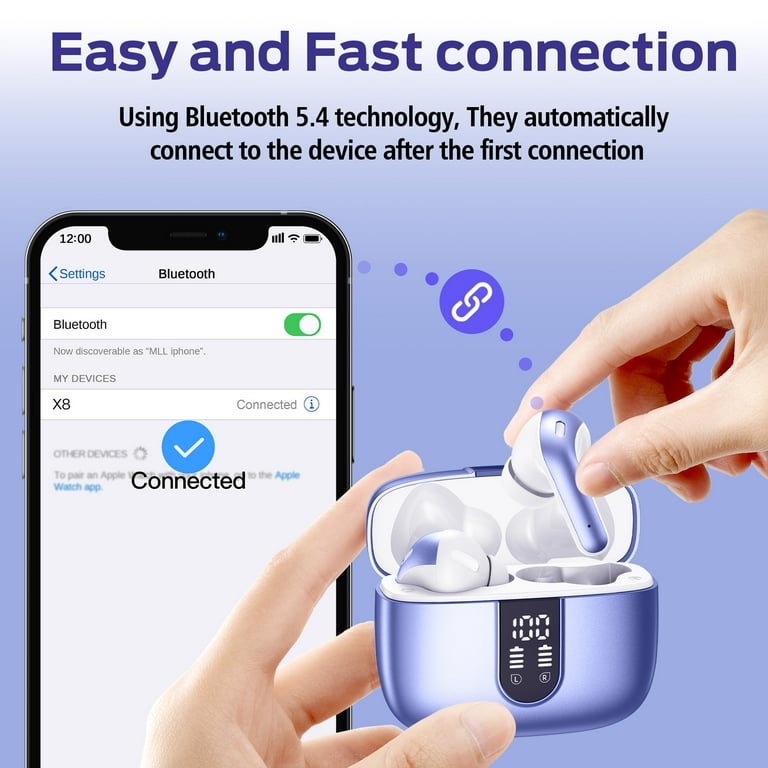
Open Settings on your iPhone, tap Bluetooth, then select your TOZO earbuds from the list of available devices.
Learning how to connect TOZO earbuds to iPhone is simple once you know the correct pairing order. I have found that most connection issues come from an old Bluetooth record, earbuds that are still linked to another device, or earbuds that are not in pairing mode. This guide explains the full process, fixes common problems, and helps you keep your TOZO connection stable.
What You Need Before Pairing TOZO Earbuds With an iPhone
Before you connect TOZO earbuds to iPhone, check a few basic things. These small steps prevent most pairing problems and take less than a minute.
• Charge both earbuds and the charging case. A very low battery can stop the pairing process.
• Keep the earbuds close to your iPhone, ideally within 3 feet during setup.
• Turn off Bluetooth on nearby phones, tablets, laptops, or TVs that have used the earbuds before.
• Make sure your iPhone is running a supported version of iOS. Updating iOS can fix Bluetooth bugs and improve accessory support.
• Remove any protective film covering the charging contacts on new earbuds.
TOZO models can use slightly different touch controls. The general Bluetooth steps are similar, but the reset method may vary. If a specific model does not respond as expected, check the instructions supplied with that model.

How to Connect TOZO Earbuds to iPhone for the First Time
The first connection usually takes only a few moments. Follow these steps in order.
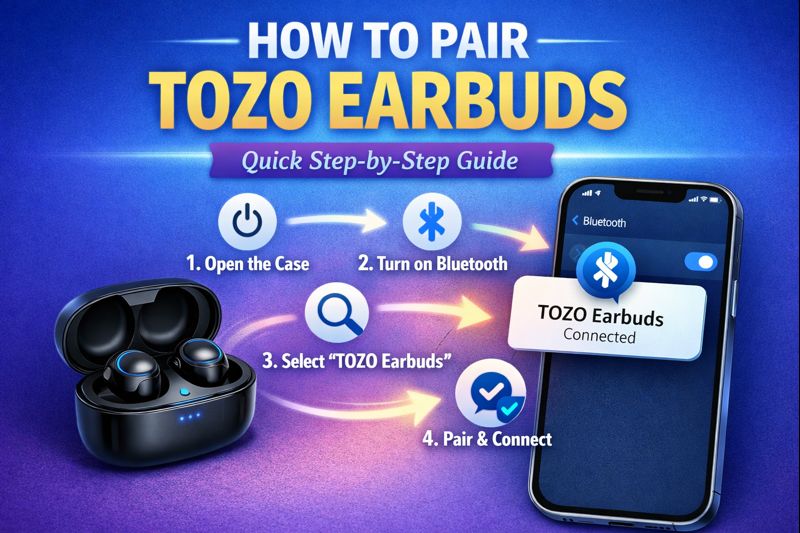
1. Put the TOZO earbuds in the charging case
Place both earbuds inside the case. Leave the lid open if your model uses automatic pairing, or remove the earbuds if the model enters pairing mode when powered on.
Many TOZO earbuds turn on as soon as you remove them from the case. Some models show flashing lights when they are ready to pair.
2. Open Bluetooth settings on your iPhone
On your iPhone:
- Open the Settings app.
- Tap Bluetooth.
- Turn on the Bluetooth switch.
- Stay on this screen while your iPhone searches for devices.
You may also open Control Center and press the Bluetooth icon, but the Settings app gives you a clearer view of available devices during the first setup.
3. Put the earbuds into pairing mode
Remove both earbuds from the case. In many TOZO models, the indicator lights flash red and blue, or blue and white, when pairing mode is active.
If the earbuds do not enter pairing mode, place them back in the case for several seconds. Then remove them again. On some models, touching and holding both earbuds for a few seconds activates pairing mode.
4. Select your TOZO earbuds
Look under the Other Devices section on your iPhone. Tap the name that matches your earbuds, such as TOZO-T10, TOZO A1, TOZO NC9, or another model name.
Wait until the status changes to Connected. Your TOZO earbuds should now work for music, calls, videos, and other audio.
5. Test the connection
Play a short song or video. Raise the volume on both the iPhone and the earbuds if needed.
Also make a quick test call. This checks both the speakers and the built-in microphones. Testing right away is useful because it reveals connection or microphone problems before you need the earbuds in a meeting or on the go.

How to Connect TOZO Earbuds to iPhone After the First Setup
After the first successful pairing, your iPhone should reconnect automatically.
Take the earbuds out of the charging case and keep Bluetooth enabled on your iPhone. In most cases, the earbuds connect within a few seconds.
If they do not reconnect:
- Open Settings.
- Tap Bluetooth.
- Find your TOZO earbuds under My Devices.
- Tap the device name.
- Wait for the Connected label.
If the earbuds show Not Connected, place them in the case and remove them again. This often restarts the connection without requiring a full reset.
You can also select the audio output manually:
- Start playing music or a video.
- Open Control Center.
- Tap the audio output icon in the media box.
- Select your TOZO earbuds.
This is helpful when your iPhone is connected to more than one Bluetooth device, such as a car stereo, Apple Watch, or speaker.

How to Pair TOZO Earbuds With a New iPhone
If your TOZO earbuds are connected to an old iPhone, they may not appear on a new one. Bluetooth earbuds often try to reconnect to the last device they used.
Start by turning off Bluetooth on the old iPhone. If you no longer have that phone, reset the earbuds or remove the old Bluetooth record when possible.
Then follow these steps:
- Open the Settings app on the new iPhone.
- Tap Bluetooth and turn it on.
- Put the TOZO earbuds in pairing mode.
- Tap the TOZO name under Other Devices.
- Confirm that the status says Connected.
Some TOZO earbuds support connections with more than one device, but many do not offer true multipoint Bluetooth. If the earbuds keep switching back to another device, turn Bluetooth off on that device before pairing.

How to Fix TOZO Earbuds That Will Not Connect to iPhone
When TOZO earbuds will not connect, the problem is usually easy to fix. Work through these solutions from top to bottom.
Check the battery
Place both earbuds in the charging case. Confirm that the case has power and that the earbuds sit correctly on the charging pins.
Clean dirty charging contacts with a dry cotton swab. Do not use water or spray cleaner inside the case.
Forget the TOZO Bluetooth device
An old Bluetooth record can become damaged or confused. Removing it gives your iPhone a fresh connection.
- Open Settings.
- Tap Bluetooth.
- Tap the information icon next to the TOZO earbuds.
- Select Forget This Device.
- Tap Forget Device to confirm.
- Put the earbuds back into pairing mode.
- Select them again under Other Devices.
This is one of the most effective ways to connect TOZO earbuds to iPhone after a failed setup.
Restart Bluetooth
Turn Bluetooth off in Settings, wait about 10 seconds, and turn it on again. Avoid relying only on the Control Center shortcut because it may disconnect accessories without fully disabling Bluetooth.
You can also restart the iPhone. A simple restart often clears a temporary wireless error.
Reset the TOZO earbuds
Resetting removes previous pairing information from the earbuds. The exact method depends on the model, but many TOZO earbuds reset when you touch and hold both earbuds while they are in the case or after removing them.
Because touch controls differ, use the instructions for your specific model. After the reset, forget the earbuds on the iPhone and pair them again.
Move away from wireless interference
Bluetooth uses the crowded 2.4 GHz wireless band. Wi-Fi routers, USB 3 devices, smartwatches, and other Bluetooth products can sometimes cause brief interference.
Try pairing in a quiet area with fewer active wireless devices. Keep the iPhone close to the earbuds during setup.
Update iOS
Apple regularly includes Bluetooth improvements in iOS updates. Open Settings, tap General, and choose Software Update.
Install updates only when your iPhone has enough battery or is connected to power. After updating, restart the iPhone and try the pairing steps again.

How to Fix One TOZO Earbud Not Working
Sometimes the iPhone connects to the earbuds, but sound comes from only one side. This usually means the earbuds lost their connection with each other.
Try this process:
- Put both earbuds in the charging case.
- Confirm that both earbuds are charging.
- Remove both earbuds at the same time.
- Wait for them to connect to each other.
- Forget the TOZO device on your iPhone if only one side still works.
- Reset both earbuds using the model-specific instructions.
- Pair the earbuds with the iPhone again.
Check the iPhone audio balance if the problem continues. Go to Settings, tap Accessibility, choose Audio & Visual, and make sure the balance slider is centered.
Also check whether Mono Audio is enabled. This setting can change how sound reaches each earbud, especially during troubleshooting.

How to Improve TOZO Earbud Connection Quality
A successful pairing is only the beginning. Good habits help the connection stay stable.
• Keep your iPhone on the same side of your body as the main earbud when walking or exercising.
• Avoid covering the earbuds with a thick hat or placing the iPhone inside a bag surrounded by metal items.
• Keep the earbuds and charging case clean and dry.
• Charge the case before long trips.
• Disconnect unused Bluetooth accessories when troubleshooting.
• Store the earbuds in their case when you are finished using them.
• Use the correct audio output when several Bluetooth devices are nearby.
Bluetooth has a practical range, but walls, furniture, the human body, and interference can reduce that range. If audio cuts out only in one room, the issue may be the environment rather than the earbuds.
In my experience helping people troubleshoot wireless audio, the most common mistake is repeatedly tapping the device name without resetting the old connection. A clean “Forget This Device” step often works faster than trying the same pairing attempt again and again.

How to Use TOZO Earbuds for Calls on iPhone
After you connect TOZO earbuds to iPhone, the earbuds should handle calls automatically. If your iPhone uses its built-in microphone instead, adjust the call audio route.
During a call:
- Tap the audio button on the call screen.
- Select your TOZO earbuds.
- Speak normally and keep the microphones uncovered.
You can also check the default call audio setting by opening Settings, selecting Accessibility, and reviewing Touch or Call Audio Routing options, depending on your iOS version.
If the other person cannot hear you, clean the microphone openings and check whether the earbuds are muted. A phone case, scarf, or hand can also block the microphone during calls.
Common Mistakes When Pairing TOZO Earbuds
Avoiding a few common mistakes can save time.
• Trying to pair while the earbuds are still connected to another device.
• Searching for the earbuds before they enter pairing mode.
• Pairing only one earbud when the model expects both earbuds to be active.
• Ignoring low battery warnings.
• Resetting the earbuds without first forgetting the old iPhone connection.
• Assuming every TOZO model uses the same reset gesture.
• Standing too far from the iPhone during setup.
The best approach is simple: charge the earbuds, disable nearby Bluetooth connections, forget the old record if needed, and pair from the iPhone’s Bluetooth settings.
Frequently Asked Questions About How to Connect TOZO Earbuds to iPhone
Why are my TOZO earbuds not showing on my iPhone?
Make sure Bluetooth is on and the earbuds are in pairing mode. If they still do not appear, charge them, turn off Bluetooth on nearby devices, and reset the earbuds before searching again.
Do TOZO earbuds work with every iPhone?
Most TOZO Bluetooth earbuds work with iPhones that support the Bluetooth version used by the earbuds. Some advanced features may depend on the TOZO model, its companion app, or the iOS version.
How do I put TOZO earbuds in pairing mode?
Many models enter pairing mode when you remove both earbuds from the charging case. If that does not happen, place them back in the case, remove them again, or use the model-specific touch control described in the user guide.
Why does my iPhone connect to only one TOZO earbud?
The two earbuds may have lost their connection with each other. Put both earbuds in the case, reset them if needed, forget the Bluetooth device on the iPhone, and pair both earbuds again.
Can I connect TOZO earbuds to an iPhone without the TOZO app?
Yes. You can connect most TOZO earbuds through Settings, Bluetooth, without installing an app. The app may provide extra controls, battery information, equalizer settings, or firmware features on supported models.
How do I disconnect TOZO earbuds from my iPhone?
Open Settings, tap Bluetooth, and tap the information icon beside the TOZO earbuds. Choose Disconnect for a temporary break, or choose Forget This Device to remove the saved pairing.
Why do my TOZO earbuds keep disconnecting?
Low battery, distance, wireless interference, or a connection with another device can cause dropouts. Charge the earbuds, keep the iPhone nearby, forget the old pairing, and reconnect after restarting both devices.
Conclusion
Connecting TOZO earbuds to iPhone usually takes less than a minute: charge the earbuds, enable Bluetooth, enter pairing mode, and select the TOZO name. If the connection fails, forgetting the old Bluetooth record and resetting the earbuds are the most useful next steps.
Once paired, your TOZO earbuds should reconnect automatically whenever Bluetooth is enabled and the earbuds are removed from the case. Try the steps above with your model, and share this guide with anyone who needs help setting up wireless earbuds.
