

To connect TOZO earbuds, turn on Bluetooth, open the case, and select your earbuds from the device list.
Learning how to connect TOZO earbuds is simple once you understand pairing mode, Bluetooth settings, and reset steps. This guide covers phones, tablets, Windows PCs, Macs, common connection problems, and practical tips that help your earbuds reconnect faster.

How to Connect TOZO Earbuds for the First Time
Most TOZO earbuds use the same basic Bluetooth process. The exact lights and touch controls may differ by model, but the connection steps are nearly identical.
Before you begin, charge the earbuds and their case. Keep the earbuds close to your phone or computer, and turn off Bluetooth on devices that may already be connected to them.
- Place both TOZO earbuds inside the charging case.
- Open the case lid.
- Remove the earbuds from the case.
- Wait for the earbuds to enter pairing mode.
- Open Bluetooth settings on your device.
- Look for a name such as “TOZO A1,” “TOZO T6,” “TOZO NC9,” or another TOZO model name.
- Tap or click the TOZO name.
- Wait for the status to show “Connected.”
Your TOZO earbuds should now play audio through the device. If you see two separate TOZO names, choose the listing that appears to represent the complete earbuds rather than a single left or right earbud.
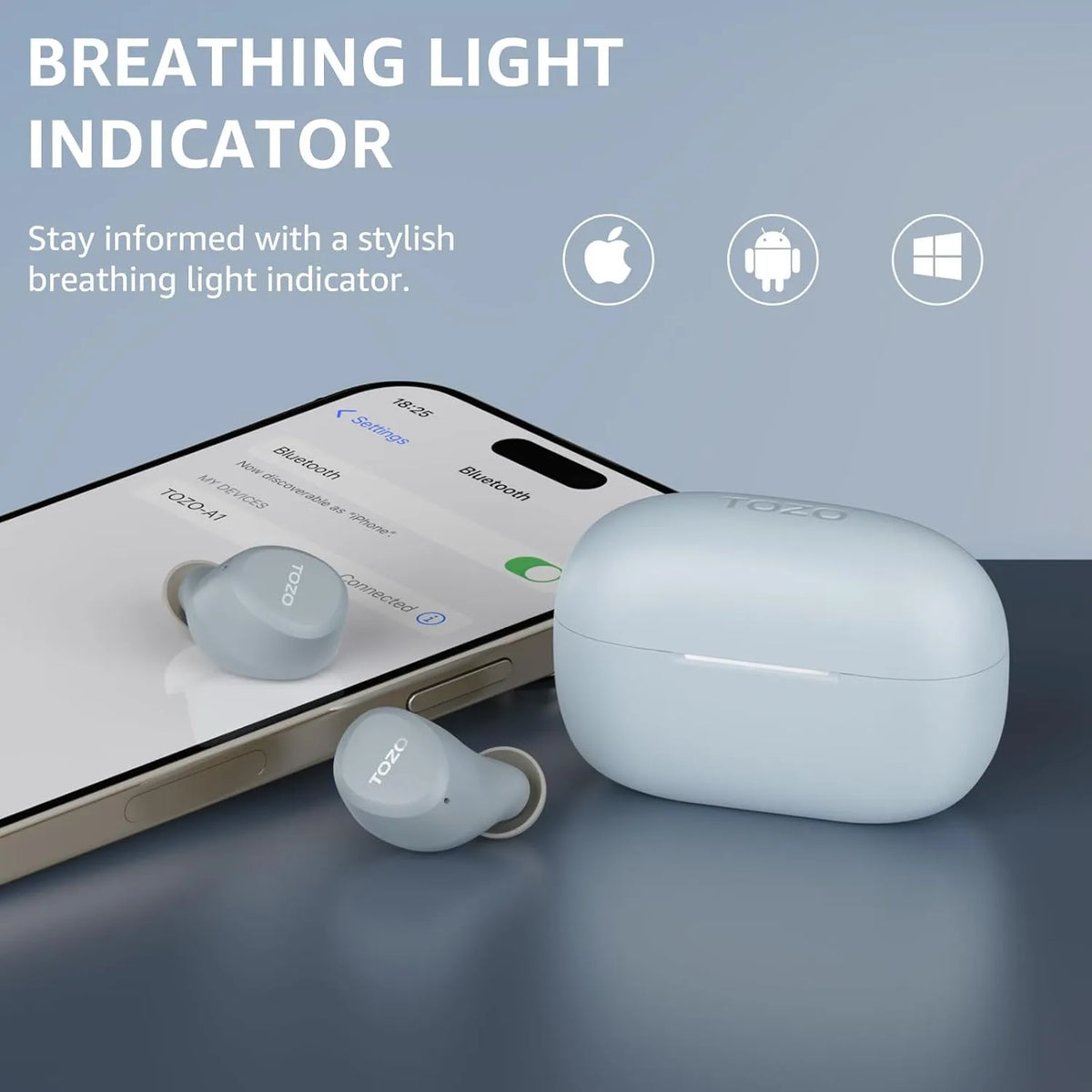
How to Connect TOZO Earbuds to an iPhone or iPad
Connecting TOZO earbuds to an iPhone or iPad takes less than a minute in most cases. Apple devices use the standard Bluetooth pairing process, so you do not need a special app for basic audio.
Pair TOZO earbuds with an iPhone
- Unlock your iPhone.
- Open the Settings app.
- Tap Bluetooth.
- Turn on Bluetooth if it is off.
- Open the TOZO charging case.
- Remove both earbuds.
- Wait for your TOZO model to appear under “Other Devices.”
- Tap the TOZO name.
- Confirm that the status changes to “Connected.”
You can now play music, podcasts, videos, and calls through your earbuds. If the earbuds do not appear, place them back in the case, close the lid for a few seconds, and try again.
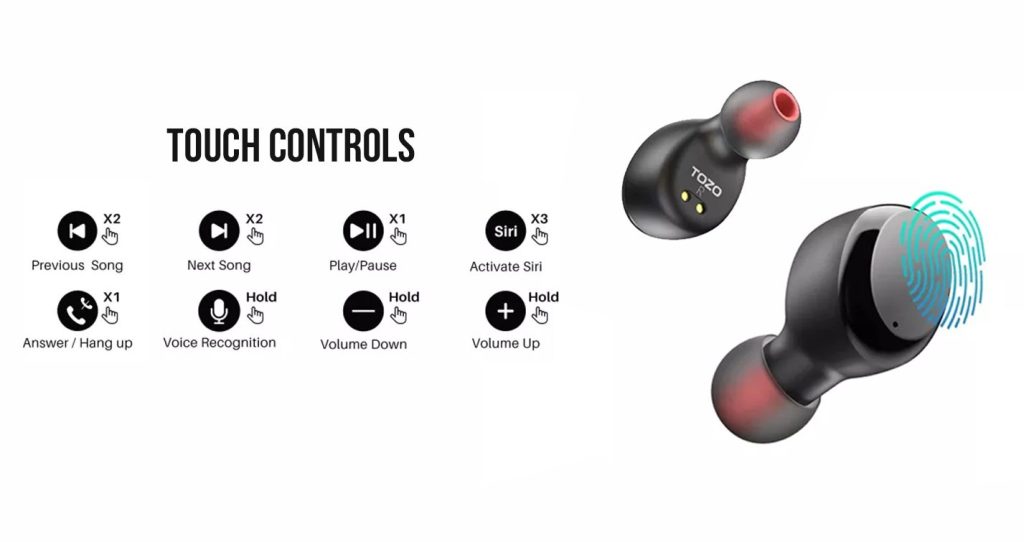
Some TOZO models support a companion app for features such as noise control, equalizer settings, firmware updates, and battery information. The app is optional for basic Bluetooth use.
If only one TOZO earbud works on iPhone
This problem often means the earbuds lost their connection with each other. The phone may connect to only one side instead of treating both earbuds as a stereo pair.
Try this simple fix:
- Forget the TOZO earbuds in iPhone Bluetooth settings.
- Place both earbuds in the charging case.
- Remove both earbuds at the same time.
- Wait for them to pair with each other.
- Search for the TOZO name again on your iPhone.
- Tap the name to reconnect.
The wording may vary by TOZO model. Always check the model’s manual if the earbuds use a special reset gesture.

How to Connect TOZO Earbuds to an Android Phone
The process for Android phones is much like the iPhone method. Menu names can vary slightly between Samsung, Google Pixel, Motorola, OnePlus, and other Android devices.
- Open Settings on your Android phone.
- Select Connected devices, Connections, or Bluetooth.
- Turn on Bluetooth.
- Open the TOZO charging case.
- Take out both earbuds.
- Tap “Pair new device” if your phone does not scan automatically.
- Select your TOZO model from the available devices.
- Approve the pairing request if one appears.
After pairing, the earbuds should connect automatically whenever they are removed from the case. This works best when Bluetooth is on and the earbuds are not connected to another nearby device.
Give the earbuds the right permissions
Some Android phones ask for permission to find nearby devices. Allow this permission if requested. Without it, the phone may not scan for Bluetooth accessories correctly.
You usually do not need to enable location for normal Bluetooth audio. However, certain Android versions or companion apps may request location access during device discovery. Review the permission request and allow only what the app needs.
How to Connect TOZO Earbuds to a Windows PC
TOZO earbuds can connect to a Windows laptop or desktop that supports Bluetooth. This is useful for calls, online classes, music, and video meetings.
Pair TOZO earbuds with Windows 11
- Open the TOZO case and remove both earbuds.
- Press Windows + I to open Settings.
- Select Bluetooth & devices.
- Turn on Bluetooth.
- Click Add device.
- Choose Bluetooth.
- Select your TOZO earbuds.
- Wait for Windows to confirm the connection.
On some computers, you can also open the Quick Settings panel near the clock, select Bluetooth, and choose the TOZO device.
Choose TOZO earbuds for sound output
Windows may connect the earbuds but continue sending sound through the built-in speakers. To change the output:
- Click the speaker icon on the taskbar.
- Open the sound output menu.
- Select your TOZO earbuds.
- Test the audio.
For calls, Windows may show two sound options. One may be labeled “Headphones,” while another may be labeled “Headset.” The headset option enables the microphone but may reduce sound quality during a call. This is normal Bluetooth behavior.
How to Connect TOZO Earbuds to a Mac
Mac computers pair with TOZO earbuds through System Settings. Keep the earbuds near the Mac during setup.
- Remove both TOZO earbuds from the charging case.
- Click the Apple menu.
- Open System Settings.
- Select Bluetooth.
- Turn Bluetooth on.
- Find your TOZO model under nearby devices.
- Click Connect.
On older macOS versions, Bluetooth appears in System Preferences instead of System Settings.
If music still plays through the Mac speakers, click the Control Center icon in the menu bar. Select Sound, then choose the TOZO earbuds as the output device.
For video calls, open the audio settings inside the meeting app too. Select the TOZO earbuds for both speaker and microphone input if you want to use the earbud microphone.

How to Put TOZO Earbuds in Pairing Mode
Pairing mode allows your phone or computer to find the earbuds. Most TOZO models enter pairing mode automatically when they are removed from the case for the first time.
A flashing light usually shows that the earbuds are ready to pair. The color and flash pattern depend on the model, so do not assume every TOZO earbud uses the same indicator.
Try these steps if your earbuds do not enter pairing mode:
- Put both earbuds in the case.
- Make sure the case has enough battery.
- Close the lid for about 10 seconds.
- Open the lid.
- Remove both earbuds together.
- Search for the TOZO name again.
Avoid removing one earbud first during the initial setup. Some models may enter a single-earbud mode, which can make the Bluetooth list look confusing.

How to Connect TOZO Earbuds After They Were Paired Before
Once TOZO earbuds are paired, reconnecting is usually automatic. Turn on Bluetooth on the same phone or computer, then remove the earbuds from the case.
If they do not reconnect, open Bluetooth settings and tap the saved TOZO name. Wait a few seconds for the status to change to “Connected.”
Several conditions can stop automatic reconnection:
• Bluetooth is turned off.
• The earbuds are inside the charging case.
• The earbuds are connected to another device.
• The phone is too far away.
• The saved Bluetooth profile is damaged.
• The earbuds or case have very low battery.
In my experience, the most common mistake is leaving Bluetooth enabled on a second device. For example, the earbuds may connect to a tablet in a nearby room before your phone has a chance to connect. Turn off Bluetooth on the unused device, then try again.

How to Fix TOZO Earbuds That Will Not Connect
When TOZO earbuds will not connect, start with the easiest fixes. Bluetooth problems often come from an old pairing record rather than a serious hardware fault.
Check the basics
• Charge the earbuds and case.
• Keep the earbuds within a few feet of the device.
• Turn Bluetooth off, wait five seconds, and turn it on again.
• Restart the phone, tablet, or computer.
• Remove nearby Bluetooth devices that are not in use.
• Confirm that the earbuds are not connected to another device.
Also check whether your device can connect to another Bluetooth accessory. If no Bluetooth accessory works, the issue may involve the phone or computer rather than the TOZO earbuds.
Forget and pair the earbuds again
A fresh pairing often solves connection errors.
On an iPhone or iPad:
- Open Settings.
- Tap Bluetooth.
- Tap the information icon beside the TOZO name.
- Choose Forget This Device.
- Confirm the action.
- Pair the earbuds again.
On Android:
- Open Bluetooth settings.
- Tap the gear icon beside the TOZO name.
- Select Forget, Unpair, or Remove.
- Scan for the earbuds again.
- Tap the TOZO name to pair.
On Windows or Mac, remove the TOZO device from the Bluetooth list before pairing it again.
Reset the TOZO earbuds
A reset can clear old connections and restore the earbuds to a fresh state. The exact method differs among TOZO models. Some use touch controls, while others use the charging case button or a long press on both earbuds.
Before resetting, check the instructions for your exact model. Using the wrong reset process may do nothing or place only one earbud into pairing mode.
A typical reset process may include:
- Forgetting the TOZO device on your phone or computer.
- Placing both earbuds in the case.
- Touching or holding both earbuds for several seconds.
- Waiting for the indicator lights to flash.
- Removing both earbuds together.
- Pairing them as a new Bluetooth device.
How to Fix One TOZO Earbud Not Working
If one earbud has no sound, first check whether it is charging. Dirt or earwax on the charging contacts can prevent one side from charging inside the case.
Clean the metal contacts with a dry, soft cotton swab. Do not pour liquid into the case, and do not use sharp tools that may damage the charging pins.
Next, check the audio balance on your device. On an iPhone, go to Accessibility and Audio/Visual, then make sure the balance slider is centered. Android and computer sound settings may have similar left and right balance controls.
If the problem continues, forget the Bluetooth connection and reset both earbuds. The earbuds must usually pair with each other before they pair with your phone. Think of them as a two-person team: if one loses the meeting, the phone may only recognize half of the team.
How to Connect TOZO Earbuds to Multiple Devices
Many TOZO earbuds can remember more than one paired device, but remembering a device is not the same as connecting to two devices at once. Bluetooth multipoint support depends on the specific TOZO model.
To switch between devices:
- Disconnect the earbuds from the current device.
- Open Bluetooth settings on the second device.
- Select the saved TOZO name.
- Wait for the second device to connect.
If your model supports multipoint, you may be able to keep two devices connected. For example, the earbuds could stay connected to a laptop for work while also remaining connected to a phone for calls. Check the product manual because this feature is not available on every model.
How to Improve TOZO Bluetooth Connection Quality
A stable connection depends on more than the earbuds. Bluetooth signals can weaken when blocked by walls, metal objects, or crowded wireless areas.
Use these habits for a better connection:
• Keep your phone or computer nearby.
• Avoid placing the device in a bag surrounded by metal items.
• Keep the earbuds and device on the same side of your body when possible.
• Move away from crowded wireless areas if audio cuts out.
• Keep your device software updated.
• Install official firmware updates when your model supports them.
Bluetooth does not normally require a clear line of sight, but distance and obstacles still matter. Water can also weaken radio signals, which is one reason a phone in a back pocket may perform differently from a phone held in your hand.
TOZO Earbuds Connected but No Sound
A connected status does not always mean the earbuds are selected for audio output. Your phone or computer may still use its speaker, another headset, or a car audio system.
Try these checks:
- Play a song or video.
- Open the device’s volume or output menu.
- Select your TOZO earbuds.
- Raise the volume on both the device and earbuds.
- Check that the app is not muted.
- Disconnect other audio accessories.
On Windows, confirm that the TOZO earbuds are selected under the sound output menu. On a Mac, use Control Center and select the earbuds under Sound. For calls, select the earbuds inside the calling app as well.
If audio cuts out only during phone calls, the microphone mode may be using a lower-quality Bluetooth profile. This is common with wireless earbuds and does not always indicate a defect.
Safety and Care Tips for TOZO Earbuds
Good care can prevent many connection and charging problems. Keep the case and earbuds dry, especially after exercise or outdoor use.
Follow these simple practices:
• Wipe sweat from the earbuds before placing them in the case.
• Keep the charging contacts clean.
• Do not leave the case in extreme heat.
• Use the correct charging cable and a safe power adapter.
• Store the earbuds in the case when you are not using them.
• Avoid charging them near water.
Sweat resistance is not the same as full waterproofing. Check the rating for your exact TOZO model before using the earbuds in rain, near a pool, or during intense workouts.
Frequently Asked Questions About How to Connect TOZO Earbuds
Why are my TOZO earbuds not showing up in Bluetooth?
Place both earbuds in the case, close the lid, and reopen it. Then remove both earbuds together and search again. If they still do not appear, forget old TOZO entries on your device and reset the earbuds using the instructions for your model.
How do I connect TOZO earbuds to a new phone?
Turn off Bluetooth on the old phone or select “Forget” for the TOZO earbuds. Then open the new phone’s Bluetooth settings, remove both earbuds from the case, and tap the TOZO model name when it appears.
Can I connect TOZO earbuds without the TOZO app?
Yes. The app is not required for basic Bluetooth audio on most TOZO models. You can connect TOZO earbuds directly through the Bluetooth settings on your phone, tablet, or computer.
Why do my TOZO earbuds connect separately?
Separate connections usually mean the earbuds lost their internal stereo pairing. Forget the earbuds on your device, place both in the case, reset them together, and pair only the main TOZO listing that appears afterward.
How do I reset TOZO earbuds?
The reset method depends on the model. In many cases, you must first forget the Bluetooth connection, place both earbuds in the case, and hold their touch controls or the case button for several seconds. Use the manual for your exact TOZO model to confirm the timing.
Can TOZO earbuds connect to a laptop?
Yes. A Windows PC or Mac with Bluetooth can pair with TOZO earbuds. Open the computer’s Bluetooth settings, place the earbuds in pairing mode, and select the TOZO model from the available device list.
Conclusion
Learning how to connect TOZO earbuds comes down to three steps: enter pairing mode, open Bluetooth settings, and select the correct TOZO model. If the earbuds fail to connect, charge them, remove old pairing records, check the audio output, and reset both earbuds together when needed.
Once you complete the first pairing, daily use should be easy. Keep the case charged, control nearby Bluetooth devices, and save the instructions for your exact model. Try these steps now, and share this guide with anyone who needs help connecting their TOZO earbuds.
