

Most Xbox consoles do not support Bluetooth earbuds directly, so use a TV, adapter, or compatible headset.
Learning how to connect Bluetooth earbuds to Xbox can feel confusing because Xbox consoles use Xbox Wireless for gaming audio, not standard Bluetooth. The good news is that several reliable workarounds can get your earbuds working. This guide explains each method, its limits, and the best choice for game sound, chat, and low delay.
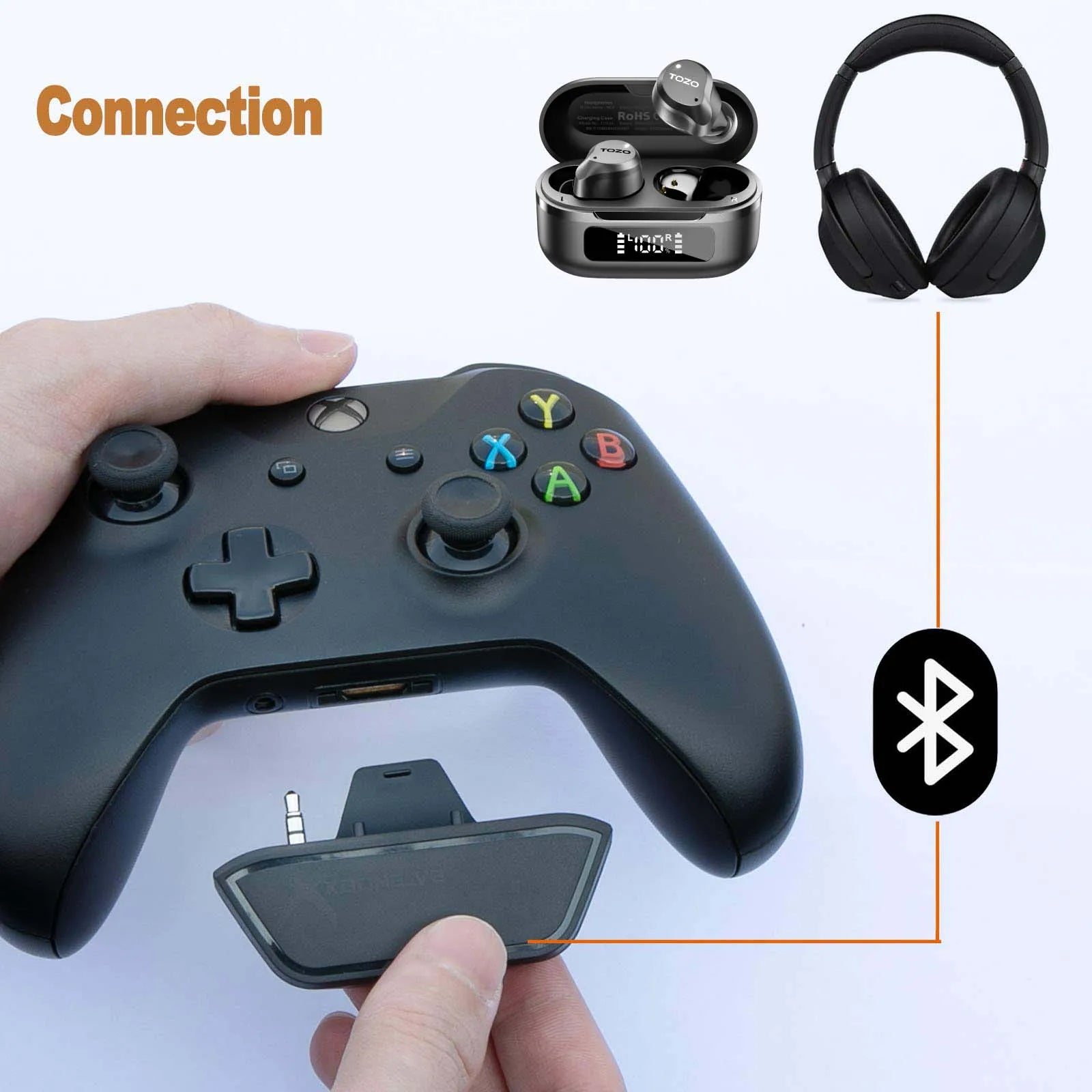
Can you connect Bluetooth earbuds directly to Xbox?
In most cases, you cannot pair regular Bluetooth earbuds directly with an Xbox One, Xbox Series X, or Xbox Series S. Xbox consoles do not include standard Bluetooth audio pairing in the same way that phones, tablets, and PCs do.
Instead, Xbox uses a wireless system called Xbox Wireless for supported headsets. This system is designed for stable game audio and voice chat, but it is different from Bluetooth.
That means your Xbox will not usually show regular earbuds in the list under:
- Open the Xbox guide.
- Select Profile & system.
- Open Settings.
- Choose Devices & connections.
- Select Accessories.
You may see Xbox controllers and licensed accessories there, but standard Bluetooth earbuds will not appear as a pairable audio device.
Still, you have several ways to connect Bluetooth earbuds to Xbox:
• Connect the earbuds to a Bluetooth-enabled TV.
• Use a Bluetooth transmitter with your TV.
• Use a Bluetooth transmitter connected to the controller’s 3.5 mm jack.
• Use Xbox Remote Play through a phone or tablet.
• Replace the earbuds with an Xbox-compatible wireless headset.
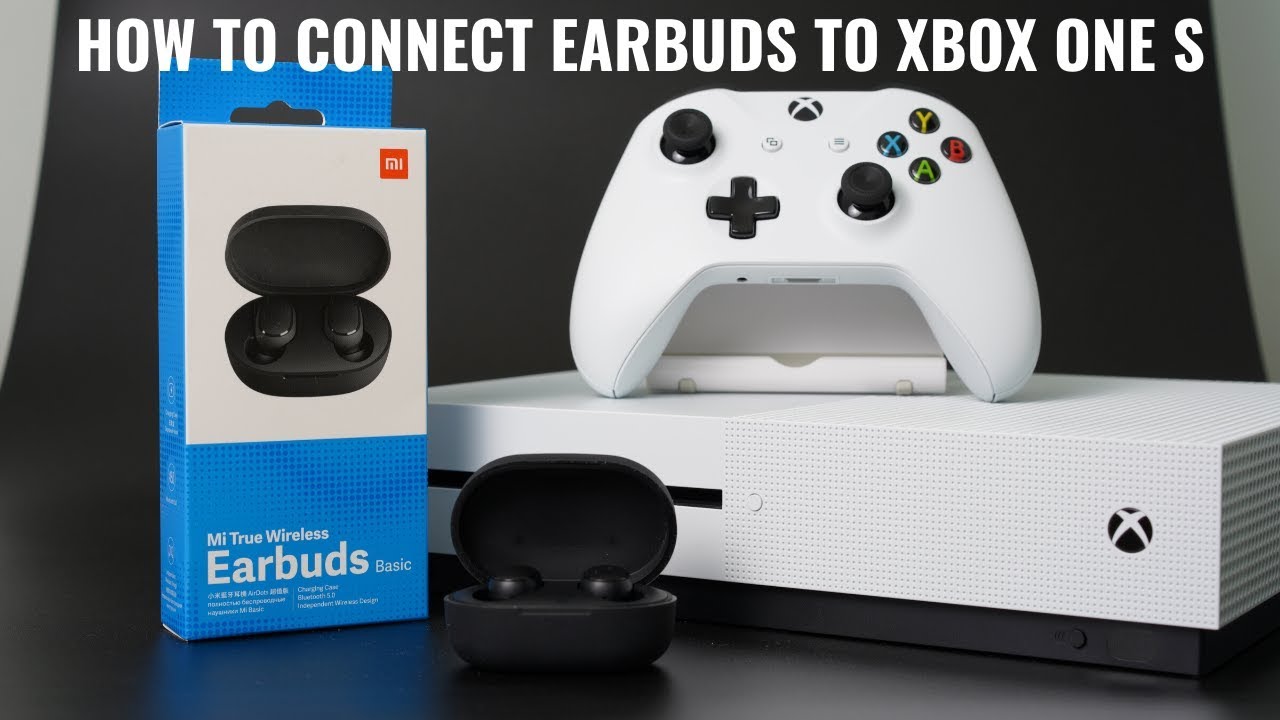
Method 1: Connect Bluetooth earbuds to a Bluetooth TV
This is usually the easiest method for hearing Xbox game audio through Bluetooth earbuds. Your Xbox sends sound to the TV through HDMI, and the TV sends that sound to your earbuds.
This method works best when you only need game audio. Voice chat may not work through the earbuds because many TVs do not send the microphone signal back to the Xbox.
Steps to pair your earbuds with the TV
- Turn on your Xbox and TV.
- Put both earbuds inside the charging case.
- Open the case and hold the pairing button.
- Keep holding it until the LED flashes.
- Open your TV’s Settings menu.
- Find Sound, Audio, Bluetooth, or Wireless Speaker settings.
- Select Add device or Bluetooth device list.
- Choose your earbuds.
- Confirm the connection.
- Start a game and adjust the volume.
The exact menu names differ by TV brand. Some models call the feature Bluetooth Audio, while others place it under Sound Output.
What if the TV cannot find the earbuds?
Start by disconnecting the earbuds from your phone. Earbuds often reconnect to the last device they used, which can stop the TV from finding them.
Then try these fixes:
• Place the earbuds close to the TV.
• Charge the earbuds and case.
• Restart the TV.
• Reset the earbuds.
• Remove old Bluetooth devices from the TV’s memory.
• Turn off Bluetooth on nearby phones and tablets.
One common mistake is leaving the earbuds connected to a smartphone. I have seen this cause more pairing problems than almost anything else. Put the earbuds into pairing mode again after disconnecting them from other devices.
Possible audio delay
Bluetooth audio can have a small delay. You may notice it when a character speaks and the sound reaches your ears a moment later. This is called latency.
For story games, the delay may not bother you. In games such as first-person shooters, fighting games, and rhythm games, even a small delay can affect timing. If your TV has a Game Mode or audio sync setting, enable it and test the result.
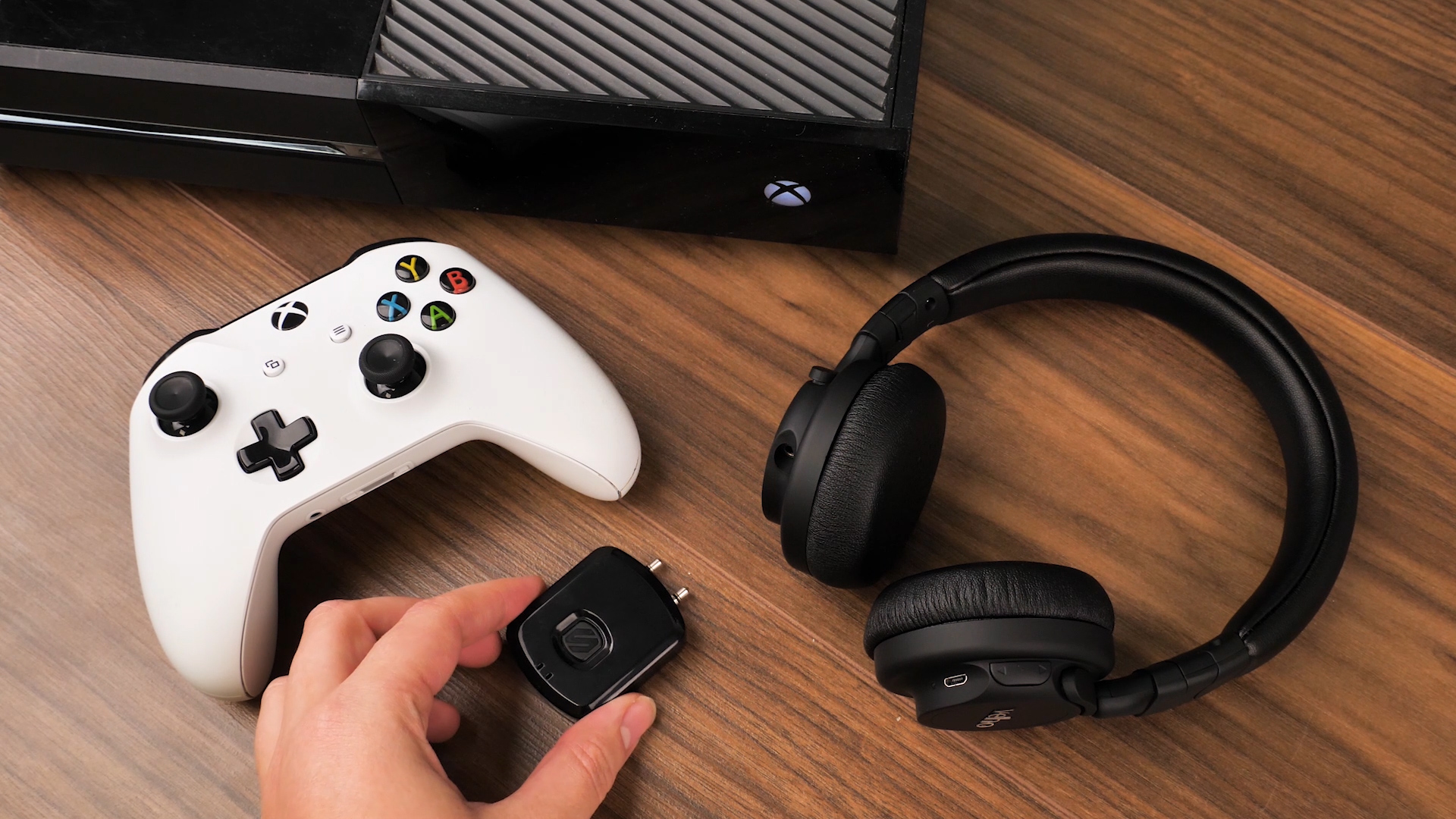
Method 2: Use a Bluetooth transmitter with your TV
If your TV does not support Bluetooth, a Bluetooth transmitter can add that feature. The transmitter receives audio from the TV and sends it to your earbuds.
This is a practical answer for people searching for how to connect Bluetooth earbuds to Xbox without buying a new headset. However, you must choose the correct transmitter and connect it to the right TV output.
What you need
• A Bluetooth audio transmitter
• A 3.5 mm, optical, or USB audio connection supported by your TV
• Your Bluetooth earbuds
• A free power source, if the transmitter requires USB power
Setup steps
- Connect the transmitter to the TV’s audio output.
- Select the correct input on the transmitter.
- Turn on pairing mode.
- Put the earbuds into pairing mode.
- Wait for both devices to connect.
- Select the proper audio output on the TV.
- Test the Xbox sound.
A 3.5 mm transmitter is simple to install. An optical transmitter may offer better sound, but it requires an optical audio port on the TV. USB ports often provide power only, so do not assume that a USB port sends audio.
Check these features before buying
Look for a transmitter with:
• Low-latency support
• A compatible audio input
• The ability to pair with two devices, if needed
• A built-in battery or USB power
• A clear pairing button
• Support for stereo audio
Low-latency support can reduce the delay between the game and the earbuds. It does not remove delay in every situation, because the TV, transmitter, and earbuds all affect performance.

Method 3: Use a Bluetooth transmitter with the Xbox controller
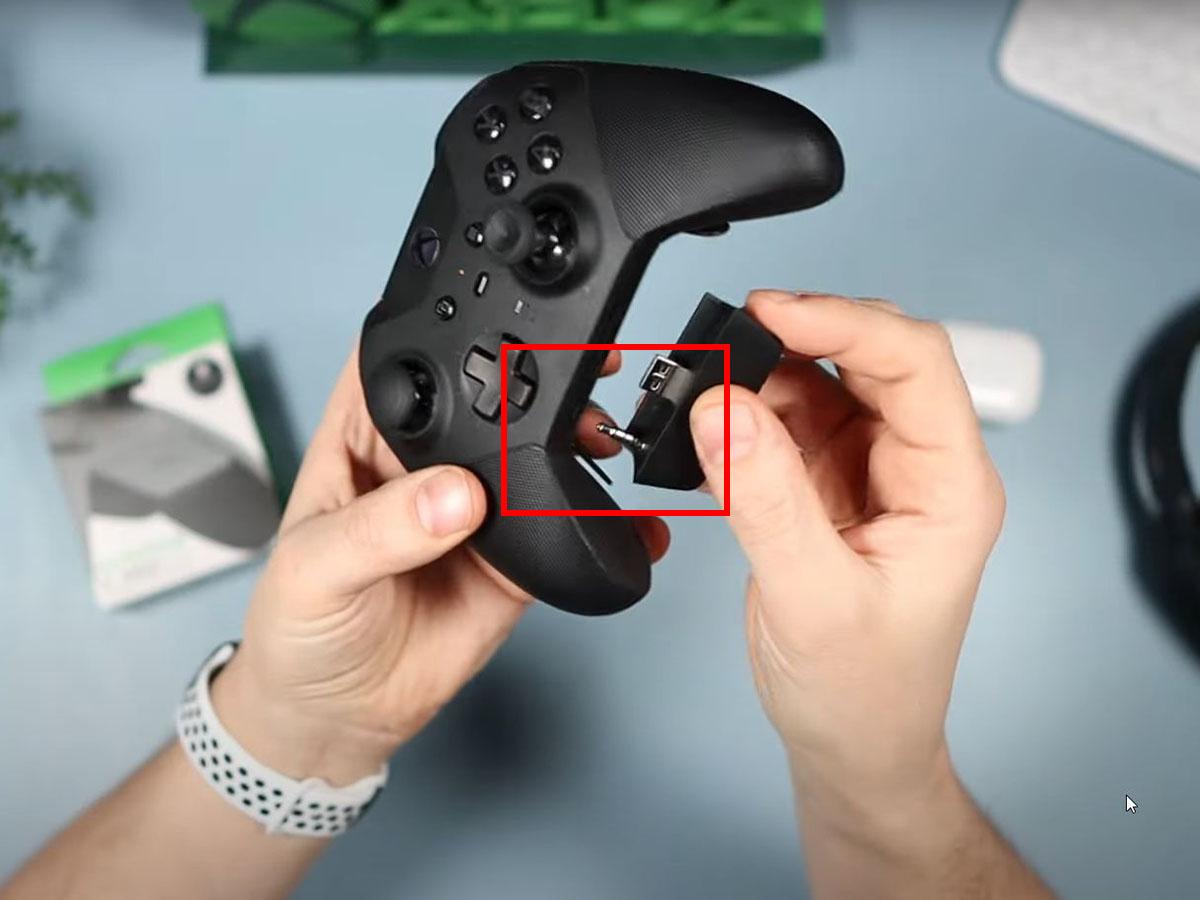
Another way to connect Bluetooth earbuds to Xbox is to use a small transmitter plugged into the controller’s 3.5 mm headset port.
This setup sends controller audio to the transmitter. The transmitter then sends the sound to your earbuds. It can work well, but it has important limits.
How to set it up
- Plug the Bluetooth transmitter into the controller’s headset jack.
- Turn on the transmitter.
- Put the transmitter into pairing mode.
- Put your earbuds into pairing mode.
- Wait for the devices to connect.
- Open Xbox Settings.
- Go to General, then Volume & audio output.
- Adjust headset volume and chat mixer settings.
- Test game sound.
This method may be useful when your TV is far away or lacks Bluetooth. It also keeps audio connected to the controller, so you can use earbuds while playing on a monitor.
Important limitations
A transmitter connected to the controller may not support microphone input. You may hear game sound but still need the Xbox controller microphone, Kinect microphone, or another supported chat solution.
Some transmitters also add extra weight to the controller. A large adapter can get in the way, especially during long gaming sessions.
Before buying one, confirm that it supports audio transmission from a 3.5 mm source. Many Bluetooth adapters are receivers only. A receiver accepts Bluetooth audio, while a transmitter sends audio to Bluetooth earbuds.
Method 4: Use Xbox Remote Play with Bluetooth earbuds
Xbox Remote Play lets you stream a game from your console to a compatible phone or tablet. You can then connect your Bluetooth earbuds to that mobile device.
This method does not send the earbuds directly to the Xbox. Instead, the phone handles the audio connection while the Xbox streams the game.
Steps to use Remote Play
- Enable Remote Features on your Xbox.
- Open Settings.
- Select Devices & connections.
- Choose Remote features.
- Turn on remote play.
- Install the Xbox mobile app.
- Sign in with the same Microsoft account.
- Pair your Bluetooth earbuds with your phone.
- Open the Xbox app.
- Start Remote Play.
You need a strong home network for a smooth experience. The Xbox should ideally use a wired Ethernet connection, while the phone should use a stable Wi-Fi connection.
Benefits and drawbacks
Remote Play can provide game audio and voice chat through your mobile device. It is also useful when someone else is using the TV.
However, streaming adds another possible source of delay. Your network quality, phone, Xbox settings, and earbuds all play a role. This method is better for casual games than highly competitive online play.
:max_bytes(150000):strip_icc()/PXL_20201108_004746486-e6e2c998b9704a258f0fa4878556501e.jpg)
Method 5: Use an Xbox-compatible wireless headset
For the best overall experience, consider a headset made for Xbox. These headsets use Xbox Wireless or an Xbox-approved wireless adapter.
This is often better than learning how to connect Bluetooth earbuds to Xbox through several extra devices. A compatible headset usually offers direct console pairing, game audio, voice chat, and headset controls.
Xbox Wireless headsets
Xbox Wireless headsets pair with the console much like a controller. Many models do not need a separate USB dongle.
The general process is:
- Turn on the headset.
- Press the pair button on the headset.
- Press the pair button on the Xbox.
- Wait for the devices to connect.
- Open Xbox audio settings.
- Adjust volume and chat balance.
Always check the product box or manufacturer specifications. A headset that works with a PC or PlayStation may not support direct Xbox Wireless pairing.
USB wireless headsets
Some headsets use a USB wireless adapter. Plug the adapter into the Xbox, turn on the headset, and wait for the connection.
USB compatibility varies. A USB headset designed only for Windows may not work with Xbox. Look for clear Xbox One or Xbox Series support before buying.

How to fix Bluetooth earbud connection problems
When learning how to connect Bluetooth earbuds to Xbox, most problems come from pairing mode, audio routing, or compatibility.
Use this checklist before replacing your equipment:
• Make sure the earbuds are charged.
• Disconnect the earbuds from your phone.
• Reset the earbuds according to the manufacturer’s instructions.
• Restart the Xbox, TV, or transmitter.
• Keep the earbuds within a few feet of the pairing device.
• Confirm that the transmitter is in transmit mode.
• Check that the TV is sending sound through the correct output.
• Update the TV, Xbox, or transmitter firmware when updates are available.
• Reduce the number of active wireless devices nearby.
• Test the earbuds with a phone to confirm that they work.
If the earbuds work with a phone but not the TV, the problem is likely the TV’s pairing process or Bluetooth compatibility. If they fail with every device, the earbuds may need a reset or replacement.
Fix sound but no chat
Hearing game audio does not always mean voice chat will work. Bluetooth earbuds often connect as an output device only. Their built-in microphone may not be available to the Xbox.
Check the following:
- Open Xbox Settings.
- Select Account.
- Choose Privacy & online safety.
- Confirm that communication features are allowed.
- Open Party or chat settings.
- Check the chat mixer.
- Test the controller microphone or supported headset.
For reliable multiplayer chat, an Xbox-compatible headset remains the safer option.
Bluetooth earbuds versus Xbox wireless headsets
Both options have strengths. The right choice depends on whether you care most about comfort, cost, sound delay, or voice chat.
| Feature | Bluetooth earbuds | Xbox wireless headset |
|---|---|---|
| Direct Xbox pairing | Usually unavailable | Usually supported |
| Game audio | Possible through a TV or adapter | Direct connection |
| Voice chat | Often limited | Usually supported |
| Setup | May require extra equipment | Usually simple |
| Audio delay | Possible | Usually lower |
| Portability | Excellent | Moderate |
| Battery life | Varies | Varies |
Bluetooth earbuds are small and convenient. You may already own them, which makes a TV or transmitter solution attractive.
Xbox wireless headsets offer a cleaner setup. They are generally better for online multiplayer, competitive games, and players who want a working microphone.
In my testing experience, the best choice depends on the game. Bluetooth earbuds are fine for single-player games and casual sessions. For ranked matches, I prefer a direct Xbox-compatible headset because fewer connection points mean fewer surprises.
How to reduce Bluetooth audio delay
Bluetooth latency can make gameplay feel slightly out of sync. You may not notice it in a slow adventure game, but fast games make the problem clear.
Try these steps:
• Use earbuds and a transmitter that support low-latency audio.
• Enable Game Mode on the TV.
• Connect the transmitter directly to the TV instead of routing it through extra equipment.
• Disable TV audio processing features such as surround simulation.
• Keep the earbuds close to the transmitter.
• Avoid pairing several Bluetooth devices at the same time.
• Use a wired headset for competitive gaming.
It is also important to understand that low-latency support must exist on both ends. A low-latency transmitter cannot fully solve the issue if the earbuds use a slower Bluetooth audio mode.
Bluetooth sound can also drop when there is heavy wireless interference. Wi-Fi routers, phones, smart home devices, and nearby Bluetooth products may compete for space. Moving the transmitter away from the router can sometimes help.
Is using Bluetooth earbuds on Xbox worth it?
Using Bluetooth earbuds with Xbox is worth it when convenience matters more than a perfect setup. They are light, easy to carry, and comfortable for short gaming sessions.
They may not be worth the effort if you play competitive games or depend on party chat. Extra adapters can create delay, battery concerns, pairing problems, and microphone limits.
Choose Bluetooth earbuds if:
• You already own a good pair.
• You mainly play single-player games.
• Your TV supports Bluetooth audio.
• You do not need a headset microphone.
Choose an Xbox-compatible headset if:
• You play online multiplayer often.
• You need clear voice chat.
• You want the lowest practical delay.
• You want direct console pairing.
• You do not want extra adapters.
There is no single perfect answer. The best solution balances sound quality, comfort, price, and how you play.
Frequently asked questions
Can you connect Bluetooth earbuds directly to an Xbox Series X?
No, Xbox Series X does not normally pair with standard Bluetooth earbuds directly. You can connect the earbuds through a Bluetooth TV, compatible transmitter, or Xbox Remote Play.
Can you connect AirPods to Xbox?
AirPods cannot normally pair directly with an Xbox console. You can use them with a Bluetooth-enabled TV, a compatible Bluetooth transmitter, or a phone running Xbox Remote Play.
Will Bluetooth earbuds work for Xbox party chat?
They may not provide party chat because many Bluetooth workarounds support sound output only. For dependable game and chat audio, use an Xbox-compatible wireless headset or a supported wired headset.
How do you connect Bluetooth earbuds to Xbox without an adapter?
Connect the earbuds to a Bluetooth-enabled TV, then route Xbox audio through the TV. If your TV has no Bluetooth audio support, you will usually need a transmitter or another workaround.
Why is there a delay with Bluetooth earbuds on Xbox?
Bluetooth audio must travel through an extra wireless connection, which can create latency. A low-latency transmitter and compatible earbuds can reduce the delay, but a wired or Xbox Wireless headset is usually better for fast games.
Can you use Bluetooth earbuds with an Xbox controller?
The controller does not normally pair with Bluetooth earbuds directly. A Bluetooth transmitter connected to the controller’s 3.5 mm port may send audio to the earbuds, but microphone support is not guaranteed.
What is the best way to connect earbuds to Xbox?
For simple game audio, connect the earbuds to a Bluetooth TV. For online gaming and voice chat, use an Xbox-compatible wireless headset or a wired headset connected to the controller.
Conclusion
Learning how to connect Bluetooth earbuds to Xbox starts with one key fact: Xbox consoles generally do not support direct Bluetooth audio pairing. You can still use your earbuds through a Bluetooth TV, audio transmitter, controller adapter, or Xbox Remote Play.
For casual gaming, a TV connection is often the easiest and least expensive choice. For competitive play and party chat, an Xbox-compatible wireless headset provides better reliability, lower delay, and stronger microphone support.
Try the method that matches your setup, test the audio before an important match, and check every device for Xbox compatibility. If you have found another useful way to connect Bluetooth earbuds to Xbox, share your experience or explore more gaming setup guides.
