

Connect earbuds to a Roku TV through bluetooth, the Roku mobile app, or a compatible streaming device.
Learning how to connect earbuds to Roku TV is simple once you know which connection method your TV supports. Roku models differ, so the right steps depend on whether your TV has built-in Bluetooth, supports private listening, or needs a separate device. This guide explains each option clearly, including setup steps, common problems, sound delays, and tips for a smoother listening experience.

Check whether your Roku TV supports earbuds
Before you try to connect earbuds to Roku TV, check how your Roku TV handles wireless audio. Some models can pair with Bluetooth headphones directly. Others use the Roku mobile app for private listening.
Start by checking your TV model and Roku software version. You can find this information by opening:
- Press the Home button on your Roku remote.
- Select Settings.
- Choose System.
- Select About.
Look for the TV model number and software version. Then check the audio settings and device menu for options such as:
• Wireless headphones
• Bluetooth devices
• Private listening
• Remotes & devices
• Audio devices
If you do not see a Bluetooth or headphone option, your Roku TV may not support direct Bluetooth pairing. That does not mean you cannot use earbuds. The Roku mobile app may still let you listen privately.
Roku TV models can vary by brand, year, and hardware. A TCL Roku TV, Hisense Roku TV, onn. Roku TV, and Roku-branded television may not offer the same Bluetooth features. Always rely on the menus shown on your specific TV.

Method 1: Connect earbuds directly through Roku TV Bluetooth
Some newer Roku TV models support Bluetooth audio devices. If your TV includes this feature, you can pair Bluetooth earbuds without using a phone.
Keep the earbuds close to the television during setup. Charge them first, because low battery power can interrupt pairing.
Put your earbuds into pairing mode
The exact process depends on the earbud brand. Most earbuds enter pairing mode in one of these ways:
• Place both earbuds in the charging case and open the lid.
• Press and hold the case button for a few seconds.
• Remove the earbuds and hold both touch controls.
• Open the Bluetooth settings on the earbuds’ companion app.
A flashing white, blue, or red light usually means the earbuds are ready to pair. If the earbuds connect to your phone right away, turn off Bluetooth on the phone for a moment.
Pair the earbuds with your Roku TV
To connect earbuds to Roku TV by Bluetooth:
- Press Home on the Roku remote.
- Open Settings.
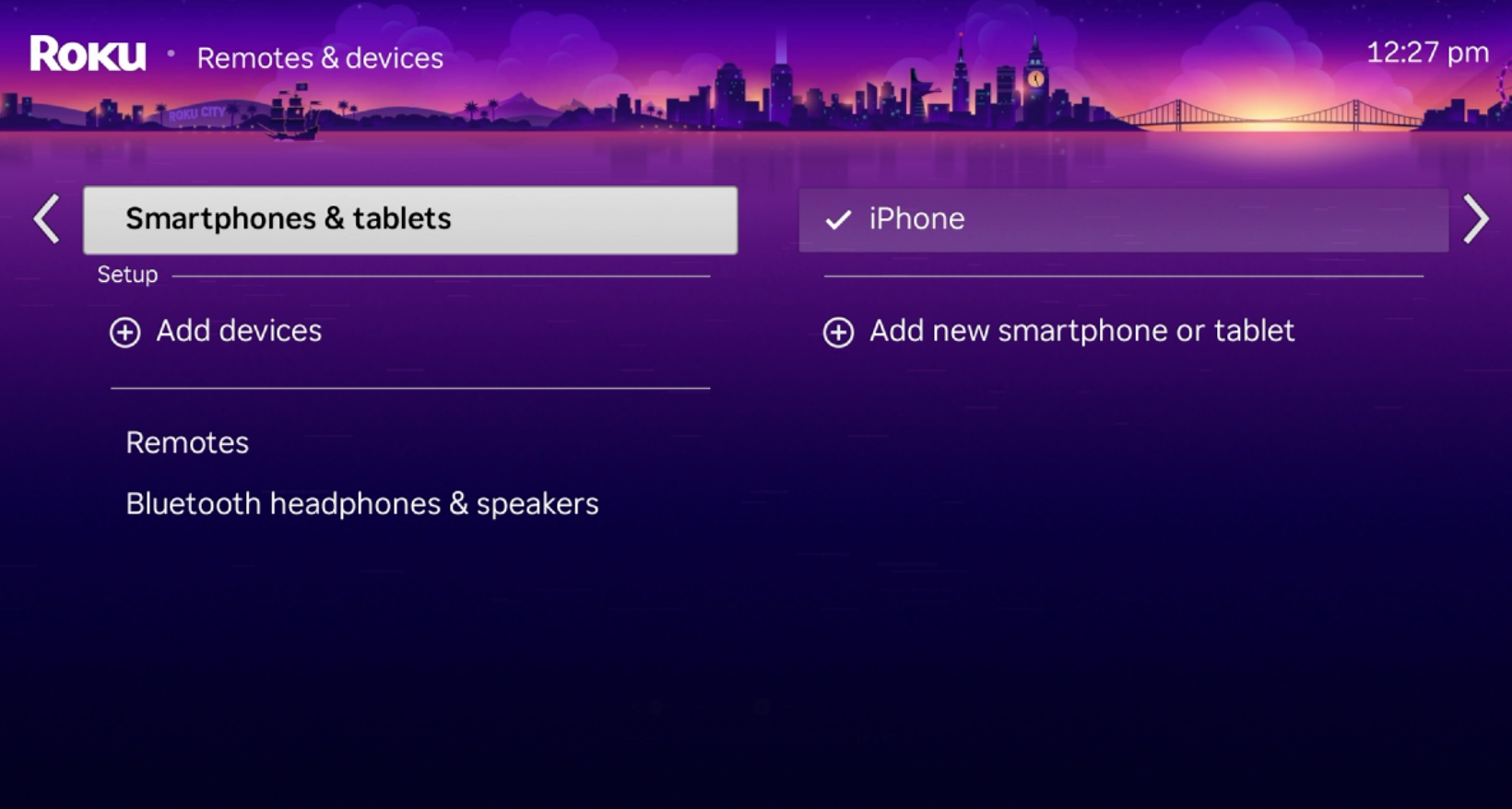
- Select Remotes & devices.
- Choose Wireless headphones or Bluetooth devices, if available.
- Select Add device.
- Choose Headphones or another matching device type.
- Select your earbuds from the list.
- Wait for the pairing message.
After pairing, play a show or movie to test the sound. Your TV speakers may mute automatically. On some models, you may need to select the earbuds as the active audio output.
If the earbuds do not appear, place them back into pairing mode. Bluetooth devices can stop advertising after a short time, much like a doorbell that only rings for a few seconds.
Method 2: Use the Roku mobile app for private listening
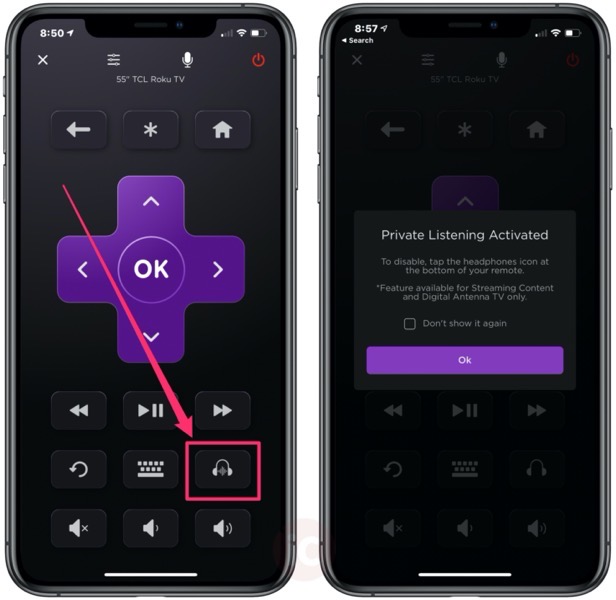
The Roku mobile app is often the easiest way to connect earbuds to Roku TV. It sends the TV audio to your smartphone, while your earbuds play the sound.
This method works with many Roku TVs that do not support direct Bluetooth audio. It also supports wired headphones plugged into your phone, although most people use wireless earbuds.
Set up private listening
Follow these steps:
- Download the official Roku mobile app for iPhone or Android.
- Connect your phone to the same Wi-Fi network as your Roku TV.
- Open the app.
- Select Devices.
- Choose your Roku TV.
- Tap the headphones icon.
- Connect your earbuds to your phone.
- Start watching content on the TV.
You should hear the TV sound through your earbuds. The television may reduce or mute its speaker volume while private listening is active.
If the headphones icon does not appear, make sure the app is controlling the correct Roku TV. Also confirm that your phone and TV use the same Wi-Fi network. A phone on mobile data or a guest Wi-Fi network may not find the TV.
Private listening can use extra phone battery. For long movies, keep your phone charged or connect it to power. Also avoid closing the Roku app completely, since the app may need to remain active.

Method 3: Connect earbuds to a Roku streaming stick or box
A Roku streaming stick or Roku box may offer different audio options than a Roku TV. Some Roku devices support private listening through the Roku app, while others may work with Roku wireless audio products.
If your TV has no Bluetooth support, try this setup:
- Connect the Roku streaming device to an HDMI port.
- Set the TV to the correct HDMI input.
- Install the Roku mobile app.
- Connect the phone and Roku device to the same Wi-Fi network.
- Pair your earbuds with the phone.
- Open the Roku app.
- Tap the headphones icon to start private listening.
Some streaming devices can also work with Bluetooth audio through a compatible accessory. However, Bluetooth support depends on the exact Roku model and Roku OS version. Do not assume that every Roku stick supports direct Bluetooth earbuds.
A useful alternative is a Bluetooth transmitter connected to the TV’s optical, headphone, or audio output. The transmitter sends the TV sound to your earbuds. This can work well, but it adds another device and may create audio delay.
Method 4: Use a Bluetooth transmitter
A Bluetooth transmitter is helpful when your Roku TV cannot connect to earbuds directly and the mobile app is not practical.
The transmitter receives sound from the TV. It then sends that sound wirelessly to your earbuds. Think of it as a small bridge between older TV audio ports and newer Bluetooth headphones.
Connect a transmitter to your TV
- Buy a Bluetooth transmitter with an audio input that matches your TV.
- Connect the transmitter to the TV’s optical, 3.5 mm headphone, or RCA audio output.
- Turn on the transmitter.
- Put your earbuds into pairing mode.
- Hold the transmitter’s pairing button.
- Wait for the connection.
- Play a video and check the sound.
Optical connections often provide clean digital audio, but your TV may require a setting change. Open the Roku TV audio settings and look for digital output options. Try PCM or stereo if the earbuds remain silent.
A 3.5 mm connection is usually easier. However, the TV may treat that port as a headphone jack and mute its built-in speakers. That is useful for private listening but less useful if other people want to hear the program.
Choose a transmitter with low-latency Bluetooth support if possible. Even then, results can vary. Video and audio must stay synchronized, and inexpensive transmitters may introduce a noticeable delay.

How to fix Roku earbuds that will not connect
When you cannot connect earbuds to Roku TV, the problem is often simple. The earbuds may still be linked to another device, or the TV and phone may not be on the same network.
Try these fixes in order:
• Charge the earbuds and charging case.
• Turn Bluetooth off and on again on your phone.
• Restart the Roku TV from Settings > System > Power > System restart.
• Restart the phone and reopen the Roku app.
• Forget the earbuds from the phone’s Bluetooth menu, then pair them again.
• Remove old Bluetooth devices from the Roku TV.
• Move the earbuds closer to the TV or phone.
• Check that your phone and Roku TV use the same Wi-Fi network.
• Update the Roku software and mobile app.
• Reset the earbuds using the manufacturer’s instructions.
Bluetooth earbuds often connect automatically to the last device they used. For example, earbuds may silently reconnect to a laptop in the next room. Turn Bluetooth off on nearby devices before trying to pair with the Roku TV.
If you use the Roku app, make sure the app has permission to access your local network. On iPhone, check Settings > Privacy & Security > Local Network. Android users may need to allow nearby device or location permissions, depending on the phone model.

Fix audio delay, cutting out, or poor sound
A slight delay can occur when wireless audio travels through several devices. The signal may move from the Roku TV to the phone, then from the phone to the earbuds. This creates more chances for the picture and sound to drift apart.
Try these steps:
- Move the earbuds closer to the phone or TV.
- Close music, video, and game apps running in the background.
- Turn off unused Bluetooth devices nearby.
- Restart private listening.
- Lower the video quality if your Wi-Fi network is busy.
- Use a low-latency transmitter if you need direct TV audio.
- Test another pair of earbuds.
If the sound cuts out during private listening, your Wi-Fi network may be the issue. Roku app private listening depends on the phone receiving a stable audio stream from the TV. A crowded network, weak signal, or mesh Wi-Fi handoff can interrupt playback.
For lip-sync problems, look for an audio delay setting on the TV, earbuds, or transmitter. Not every Roku TV includes manual lip-sync controls. If there is no adjustment, a wired connection may provide better timing.
Gaming can make delays easier to notice. For movies and shows, a small delay may be tolerable. For fast games, rhythm games, and live sports, low-latency earbuds or a wired headset usually perform better.

Best earbuds and connection choices for Roku TV
You do not need special “Roku earbuds” for most setups. Standard Bluetooth earbuds can work when the TV, phone, or transmitter supports the required connection.
Consider these points before choosing a setup:
• Direct Bluetooth pairing is the cleanest option when your Roku TV supports it.
• Roku app private listening is flexible and works with many earbuds.
• A Bluetooth transmitter helps older or basic Roku TVs.
• Wired earbuds usually have the lowest delay.
• Low-latency earbuds may improve gaming and live TV.
• Earbuds with physical buttons are easier to control during setup.
• A long battery life matters for movies and sports.
Noise-canceling earbuds can make quiet listening more comfortable. They are useful in busy homes, shared bedrooms, or late-night viewing. Remember that noise cancellation does not improve the Bluetooth connection itself.
Earbud controls may also behave differently. Volume buttons might change phone volume rather than TV volume when you use private listening. In that case, adjust the volume in the Roku app or on the phone.
How to disconnect or switch earbuds
After you connect earbuds to Roku TV, you can disconnect them when you finish watching. The method depends on the connection type.
For direct Bluetooth pairing:
- Open Settings on the Roku TV.
- Select Remotes & devices.
- Open the wireless headphone or Bluetooth menu.
- Select the connected earbuds.
- Choose Disconnect or Remove.
For Roku mobile app private listening, tap the headphones icon again. You can also disconnect the earbuds from your phone’s Bluetooth settings.
If you share the TV with other people, remove the earbuds only if you do not plan to use them again. Choosing Disconnect is faster for regular use. Choosing Forget or Remove requires a new pairing later.
A practical habit is to place the earbuds in their case after disconnecting. This stops the Bluetooth signal and helps preserve battery life.
Safety and privacy tips for private listening
Wireless earbuds are convenient, but safe use still matters. Keep the volume low enough to hear important sounds around you, especially if children, pets, alarms, or visitors are nearby.
The World Health Organization advises limiting loud sound exposure to reduce the risk of hearing damage. A simple rule is to use the lowest comfortable volume and take breaks during long viewing sessions.
Private listening also has a privacy benefit. It prevents TV audio from disturbing people nearby. However, anyone wearing the earbuds can hear the program, so remove them before discussing sensitive information in the room.
Do not wear earbuds while driving or walking near traffic. Roku private listening is designed for home entertainment, not situations that require full awareness of your surroundings.
Common mistakes when connecting earbuds to Roku TV
Many setup problems come from using the wrong connection path. Avoid these common mistakes:
• Searching for Bluetooth settings on a Roku TV that does not support direct Bluetooth audio.
• Leaving the earbuds connected to a phone, tablet, or laptop.
• Using different Wi-Fi networks for the Roku TV and mobile app.
• Closing the Roku app while private listening is active.
• Pairing the earbuds before putting them into pairing mode.
• Ignoring software updates.
• Expecting every Roku remote to support Bluetooth earbuds.
• Buying a transmitter without checking the TV’s audio output.
One especially common mistake is confusing the Roku remote’s wireless connection with Bluetooth audio. A Roku remote may use wireless technology to control the TV, but that does not mean the TV can pair with Bluetooth earbuds.
Another mistake is assuming that a Roku TV made by one brand has the same features as another brand’s Roku TV. The Roku interface may look similar, but hardware features can differ.
Frequently Asked Questions About How to Connect Earbuds to Roku TV
Can I connect Bluetooth earbuds directly to a Roku TV?
Yes, but only if your specific Roku TV supports Bluetooth or wireless headphones. Check Settings, then Remotes & devices, for a pairing option.
Can I use AirPods with a Roku TV?
You can use AirPods through the Roku mobile app by pairing them with your iPhone or Android phone. Direct pairing works only on Roku TV models that support Bluetooth audio.
Why does my Roku TV not show my earbuds?
Your earbuds may still be connected to another device, or they may not be in pairing mode. Turn off nearby Bluetooth devices, reset the earbuds into pairing mode, and check whether your Roku TV supports direct Bluetooth audio.
Can I connect earbuds to Roku TV without Wi-Fi?
Direct Bluetooth pairing may work without a phone or Wi-Fi if your Roku TV supports it. Roku mobile app private listening needs the phone and Roku TV to communicate over the same Wi-Fi network.
How do I use private listening on Roku?
Install the Roku mobile app, connect your phone and TV to the same Wi-Fi network, pair the earbuds with your phone, and tap the headphones icon in the app. The TV sound should then play through your earbuds.
Why is there a delay between the Roku picture and earbud sound?
Wireless audio can create a small delay, especially when private listening uses both Wi-Fi and Bluetooth. Restarting the connection, moving closer to the device, or using a low-latency transmitter may reduce the delay.
Can two people use earbuds with one Roku TV?
Some Roku setups may support multiple private listening connections, but support varies by app version, phone, and Roku device. For two listeners, a compatible Bluetooth transmitter with dual-headphone support may be more reliable.
Conclusion
You can connect earbuds to Roku TV in several ways. Use direct Bluetooth pairing when your TV supports it, the Roku mobile app for private listening, or a Bluetooth transmitter for older models. Always check your Roku model first, keep the earbuds in pairing mode, and make sure nearby devices do not steal the connection.
Start with the Roku app if you want the simplest option. If you notice sound delay or connection drops, try restarting the devices, improving your Wi-Fi signal, or using a low-latency transmitter. Test the method that fits your TV, earbuds, and viewing habits, then share your setup or questions in the comments.
