

Keep free space available, enable TRIM, control heat, update firmware, and avoid unnecessary write-heavy tasks.
Solid-state drives are fast, quiet, and more durable than many older storage devices, but they can slow down as they fill, age, or handle heavy workloads. Understanding how to prevent SSD performance drop over time helps you protect speed, extend drive life, and avoid sudden storage problems. This guide explains the technical causes, practical maintenance steps, common mistakes, and proven habits that keep an SSD responsive for years.

Why SSD performance drops over time
An SSD stores data in NAND flash memory. Unlike a hard drive, it has no moving parts. However, NAND cells must be erased before new data can replace old data. This extra work can reduce write speed, especially when the drive is nearly full.
The controller inside the SSD manages this process. It also handles wear leveling, garbage collection, error correction, and data mapping. As the drive fills with data, the controller has fewer empty blocks available for fast writes.
The main causes of an SSD performance drop include:
• Low free space, which gives the controller less room for background work
• Heavy write activity, such as video editing, gaming captures, virtual machines, and databases
• Disabled or unsupported TRIM
• High operating temperatures
• Outdated firmware or storage drivers
• Very high drive wear
• A weak or nearly full overprovisioning area
• Poor power management or sudden power loss
Most modern SSDs manage these problems well. Still, good maintenance matters. Think of free space as a workbench. When the bench is clear, tasks are quick. When every inch is covered, each task takes longer.
How to prevent SSD performance drop over time with free space
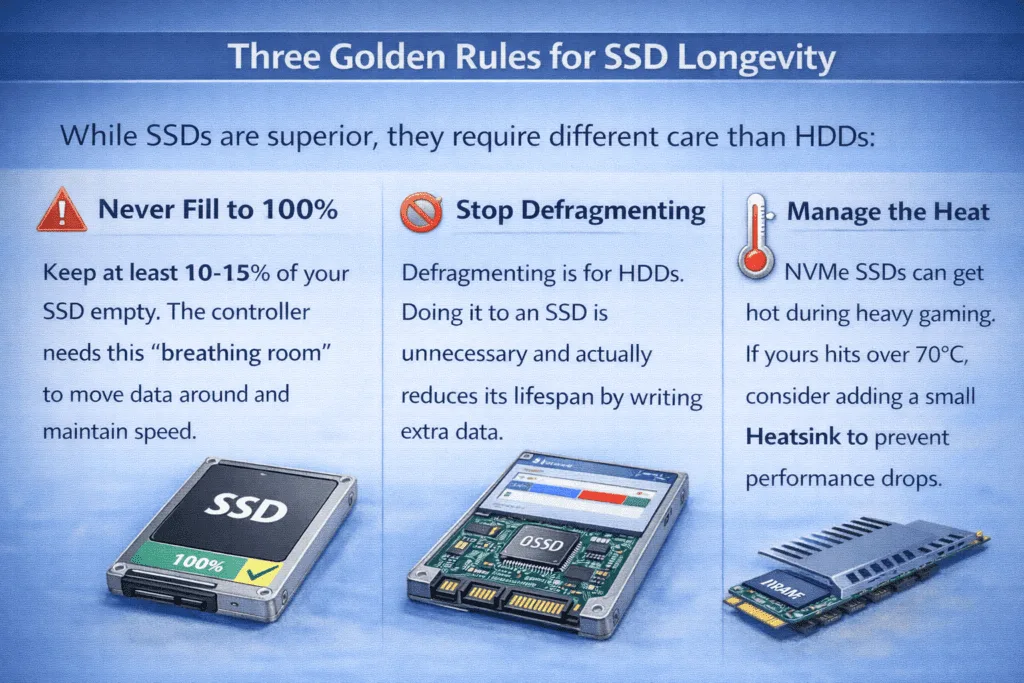
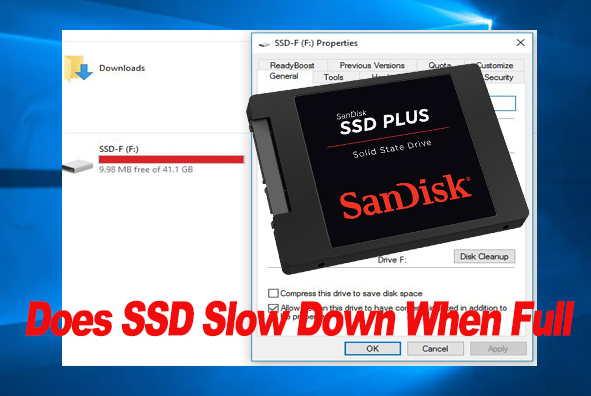
Keeping free space available is one of the simplest answers to how to prevent SSD performance drop over time. A practical target is to keep at least 10% to 20% of the drive empty.
Some SSDs remain fast with less free space, while others slow down sooner. The result depends on the NAND type, controller, firmware, capacity, and workload. A small 500 GB drive used for large file transfers may need more free space than a 2 TB drive used for office work.
Free space helps the SSD in several ways:
• It gives garbage collection more clean blocks to use.
• It reduces the need to copy valid data during block reclamation.
• It supports stable sustained write speeds.
• It improves wear leveling across the NAND cells.
• It leaves room for temporary files and operating system updates.
Do not treat the advertised capacity as your working capacity. If you own a 1 TB SSD, plan your storage around roughly 800 GB to 900 GB instead of filling it completely.
Use these habits:
Remove old downloads, installers, and duplicate media.
Move large video libraries to a secondary drive or network storage.
Review game files and unused applications every few months.
Keep at least 15% free if the SSD handles frequent large writes.
Avoid storing long-term archives on your main system SSD.
A nearly full SSD may still appear healthy in a quick benchmark. Real-world performance can drop during long file transfers or background maintenance. This is why free space is a daily maintenance tool, not just a benchmark trick.

Enable TRIM and let the SSD clean itself
TRIM tells an SSD which data blocks are no longer needed. When you delete a file, the operating system usually removes its reference rather than erasing every flash cell at once. TRIM sends a later notice to the drive so it can prepare those blocks for reuse.
TRIM is a key part of how to prevent SSD performance drop over time. It reduces unnecessary work during future writes and helps the controller manage free blocks more efficiently.
On Windows, open Command Prompt as an administrator and run:
fsutil behavior query DisableDeleteNotify
A result of 0 usually means TRIM notifications are enabled. A result of 1 means they are disabled for that file system or configuration.
You can also optimize a drive through the Windows “Defragment and Optimize Drives” tool. For an SSD, Windows normally sends an optimization command rather than performing traditional hard drive defragmentation.
On Linux, TRIM may run through a scheduled service. You can check the status of the timer with:
systemctl status fstrim.timer
On macOS, TRIM support varies by Apple hardware, macOS version, and the type of SSD. Apple-installed drives generally receive proper support. Third-party upgrades may depend on the enclosure, adapter, and operating system.
Avoid manually running random “SSD optimizer” tools. Some tools change settings without a clear benefit. The operating system’s built-in TRIM support is usually safer and sufficient.
Control SSD temperature
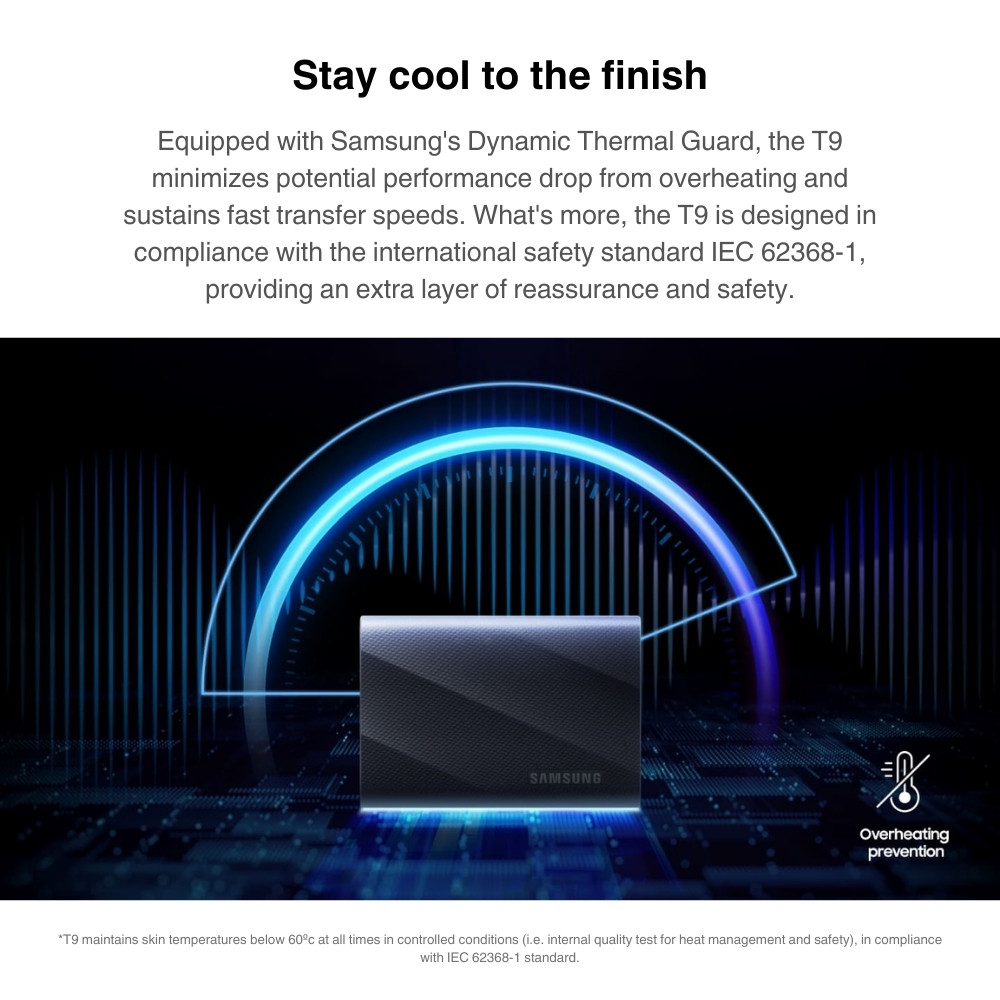
Heat can reduce SSD performance in two ways. First, the controller may use thermal throttling to prevent damage. Second, repeated high temperatures can add stress to the NAND and shorten the drive’s useful life.
NVMe SSDs are especially sensitive because they can move large amounts of data through a small circuit board. A drive installed under a graphics card may receive hot air during gaming or rendering.
To manage temperature:
• Install the correct motherboard heatsink if one is included.
• Make sure the thermal pad touches the SSD controller.
• Improve case airflow around the M.2 slot.
• Keep dust away from intake fans and filters.
• Avoid placing an NVMe drive beside a major heat source.
• Check drive temperature during large transfers, not only at idle.
Many SSD tools report a temperature sensor. Exact safe limits vary by model, so use the manufacturer’s specifications. As a general rule, brief temperature spikes are less concerning than sustained high heat.
During testing, a drive may reach a high temperature for a short period and work normally. The concern is repeated throttling. If transfer speed rises, then sharply falls and stays low, heat may be the cause.
Temperature control is one of the most overlooked answers to how to prevent SSD performance drop over time. A clean case and a correctly fitted heatsink can make a noticeable difference.
Update SSD firmware and system drivers
SSD firmware controls how the drive handles caching, error correction, garbage collection, and power states. Manufacturers sometimes release updates that improve stability, compatibility, or sustained performance.
Check the SSD maker’s management software every few months. Before updating firmware, back up important files and follow the exact instructions. A firmware update is usually safe, but power loss during the process can create serious problems.
Also update:
• The motherboard BIOS or UEFI when a storage compatibility issue is reported
• The chipset driver
• The operating system
• The NVMe or storage controller driver when recommended
Do not update drivers simply because a newer number exists. A stable system does not always benefit from experimental software. Read the release notes and use trusted vendor tools.
In practical support work, firmware has often explained a performance problem that looked like a failing SSD. One system showed slow wake times and inconsistent writes. The issue improved after a firmware update and a BIOS setting change. The lesson is simple: check software before replacing hardware.

Choose the right SSD for the workload
Not every SSD is built for the same task. A budget drive may be excellent for web browsing and documents but struggle with constant large writes.
Important specifications include:
NAND type
TLC NAND stores three bits per cell and usually offers a good balance of speed, cost, and endurance. QLC NAND stores four bits per cell, which increases capacity but may have lower sustained write performance after its cache fills.
DRAM and controller design
Some SSDs include DRAM to track data locations quickly. Others use Host Memory Buffer or a DRAM-less design. DRAM-less drives can work well in light workloads, but heavy random access may expose their limits.
Write cache
Many consumer SSDs use a fast SLC cache. Small transfers may look very fast, but long writes can slow down once the cache is full. Check sustained write tests if you regularly move large files.
Endurance rating
Terabytes written, or TBW, estimates how much data a drive can write during its warranty period. It is not a guaranteed failure point. Many drives exceed the rating, while unusual workloads may create different results.
For gaming and office work, a mainstream TLC SSD is often a sensible choice. For constant recording, professional editing, servers, or virtual machines, choose a model designed for sustained writes.
Buying the right SSD is an important part of how to prevent SSD performance drop over time. Maintenance cannot fully compensate for a drive that is too small or poorly suited to its workload.
Reduce unnecessary write activity
Every write does not damage an SSD immediately, but constant unnecessary writing adds workload and consumes part of the drive’s rated endurance.
Common sources of extra writes include:
• Browser caches stored on a busy system drive
• Continuous screen recording
• Large download folders
• Repeated virtual machine snapshots
• Temporary render files
• Frequent database logs
• Cloud applications that sync large changing files
You do not need to disable every cache or background service. Caches often improve performance and are part of normal computer use. The goal is to reduce waste, not to make the system fragile.
For a write-heavy computer, consider these steps:
Store video scratch files on a suitable secondary SSD.
Keep large virtual machines on a drive with enough capacity and endurance.
Set recording software to use a dedicated location.
Remove old system restore points when they are no longer needed.
Avoid repeatedly copying the same large file during testing.
Use a hard drive or network storage for cold archives.
A helpful rule is to match storage to the job. Use a fast SSD for active work. Use larger, less expensive storage for files that rarely change.

Leave room for overprovisioning
Overprovisioning is storage space reserved for the SSD controller. It may be hidden by the manufacturer or created by leaving part of the drive unused.
This space helps with:
• Wear leveling
• Bad block replacement
• Garbage collection
• Stable write performance
• Longer write endurance
Consumer SSDs often include built-in spare area. You can add more by leaving unallocated space at the end of the drive. For many users, leaving 10% unallocated is a reasonable choice, especially on a drive used for heavy writes.
Overprovisioning does not guarantee a specific speed or lifespan. The benefit depends on the controller, NAND design, firmware, and workload. Still, it can help a busy drive maintain steadier performance.
Do not create a partition that uses every last block if the SSD handles professional workloads. A little unused space is usually more valuable than a small increase in usable capacity.
Monitor SSD health without panic
Monitoring helps you spot changes before they become failures. Most SSDs support SMART data, which can report wear, temperature, power-on hours, unsafe shutdowns, and media errors.
Useful values may include:
• Percentage used or remaining life
• Total host writes
• Available spare capacity
• Critical warnings
• Drive temperature
• Uncorrectable errors
Different manufacturers label these values in different ways. A “percentage used” value of 10 does not mean the drive has only 10% life left. It usually means the drive has used an estimated 10% of its endurance rating.
Watch for trends rather than one number. A gradual rise in host writes is normal. A sudden increase in errors, critical warnings, or unsafe shutdowns deserves attention.
Back up important data even when the SSD health reading says “good.” SMART data is useful, but it cannot predict every failure. Electronics, firmware, power problems, and controller faults may happen without a long warning period.
A simple backup plan includes:
Keep one current local backup.
Keep another backup on a separate device or cloud service.
Test file recovery from time to time.
Replace a drive early if it shows repeated errors or unstable behavior.
Monitoring supports how to prevent SSD performance drop over time, but it does not replace backups.
Use the correct power and connection settings
A weak connection can look like an SSD performance problem. SATA drives need a reliable data cable and power connection. NVMe drives need a properly seated module and a compatible M.2 slot.
Check these areas if performance suddenly changes:
• SATA link speed in system information
• PCIe generation and lane configuration
• BIOS storage settings
• Power management behavior
• USB enclosure quality
• Thunderbolt or USB transfer limits
An external SSD may be limited by the connection rather than the drive. USB 3.2, USB4, and Thunderbolt have different real-world limits. Cheap cables and hubs can also reduce stability.
Sudden power loss is another concern. It can interrupt writes and corrupt data. A UPS is useful for desktop computers that handle important work. Laptop users should avoid heavy write tasks when the battery is nearly empty.
Do not change advanced BIOS storage settings without a reason. A setting designed for one system can cause boot problems on another. Record the original value before making changes.
Benchmark SSD performance the right way
Benchmarks can help, but they can also mislead. A short test may measure only the SSD’s cache. It may not reveal what happens after a long transfer or when the drive is nearly full.
For useful testing:
• Run the test with similar free space each time.
• Close heavy background tasks.
• Let the drive cool between tests.
• Use the same benchmark and test size.
• Compare results with the manufacturer’s published conditions.
• Test both random and sequential performance.
Real-world use matters more than one impressive score. If applications open quickly and file transfers remain stable, a small benchmark difference may not matter.
Avoid running large benchmarks every day. Each test writes data and creates heat. Occasional testing is enough for most home users.
This measured approach is another part of how to prevent SSD performance drop over time. Test to answer a question, not simply to chase a higher number.
Mistakes that can make SSD performance worse
Some popular tips cause more harm than good. Avoid these common mistakes:
• Defragmenting an SSD manually on a regular schedule
• Filling the drive to its maximum capacity
• Disabling TRIM without a specific reason
• Running aggressive “optimization” software
• Repeatedly secure-erasing the drive for routine maintenance
• Ignoring high temperatures
• Assuming a health percentage is an exact failure countdown
• Using an inexpensive enclosure for sustained high-speed work
Traditional defragmentation is designed for hard drives. It can create unnecessary writes on an SSD. Modern operating systems know the difference and apply suitable optimization methods.
Secure erase has a legitimate use before selling or repurposing a drive. It is not a normal performance maintenance step. Frequent secure erase operations add wear without solving everyday slowdown.
The safest approach is simple: keep backups, keep free space, enable TRIM, control heat, and let the operating system manage routine maintenance.
A simple SSD maintenance schedule
You do not need to watch your SSD every day. A short routine every few months is enough for most computers.
Monthly
• Check free space.
• Confirm that the system recognizes the SSD correctly.
• Notice any unusual slowdown, freezing, or file errors.
Every three to six months
• Review SSD health data.
• Check for firmware updates.
• Clean dust from the computer.
• Confirm that TRIM is active.
• Remove unused large files.
Once a year
• Test your backup recovery process.
• Review whether the SSD still fits your workload.
• Check temperatures during a demanding task.
• Inspect cables, heatsinks, and mounting points.
This schedule keeps maintenance practical. It also makes it easier to spot a gradual change before the problem becomes urgent.
How to prevent SSD performance drop over time: a practical checklist
Use this checklist when setting up a new SSD or improving an older one:
Keep 10% to 20% of the capacity free.
Confirm that TRIM is enabled.
Install current, stable firmware.
Keep the SSD cool during demanding work.
Use a drive suited to your write workload.
Leave extra unallocated space for heavy workloads.
Reduce unnecessary large writes.
Monitor SMART health and temperature.
Use reliable power and proper cables.
Maintain at least two copies of important files.
Avoid routine defragmentation and aggressive optimizer tools.
Replace the drive when errors, warnings, or unstable behavior appear.
These steps explain how to prevent SSD performance drop over time without expensive equipment or complicated tuning. Good storage habits usually matter more than small benchmark improvements.
Frequently Asked Questions About How to Prevent SSD Performance Drop Over Time
Does an SSD slow down when it gets full?
Yes. An SSD may slow down when very little free space remains because the controller has fewer empty blocks for writing and garbage collection. Keeping at least 10% to 20% free space can help maintain more stable performance.
How often should I optimize an SSD?
Modern operating systems usually manage SSD optimization automatically. Confirm that TRIM is active, but do not manually defragment the drive as you would a hard drive.
Does TRIM improve SSD speed?
TRIM can improve sustained write behavior by telling the SSD which blocks are no longer needed. It does not create extra speed in every benchmark, but it supports efficient long-term operation.
How hot is too hot for an SSD?
The safe range depends on the model and its specifications. Brief spikes may be normal, but sustained high temperatures and repeated thermal throttling indicate that airflow or heatsink installation needs attention.
Can an SSD wear out from normal use?
Yes, NAND flash has a finite write endurance. Normal office, gaming, and web use may take many years to reach that limit, while constant recording, rendering, or database activity can use endurance faster.
Should I leave part of an SSD unallocated?
Leaving some space unallocated can help heavy workloads by providing extra overprovisioning. It is not essential for every light-use computer, but 10% can be useful for frequent large writes.
Do SSD health programs accurately predict failure?
They provide useful indicators, but they cannot predict every failure. Watch health trends, errors, temperature, and system behavior, and always keep current backups.
Conclusion
Learning how to prevent SSD performance drop over time comes down to a few steady habits. Keep free space available, enable TRIM, control heat, update firmware carefully, reduce wasteful writes, and choose storage that matches your workload.
Do not wait for a slowdown before taking action. Check your SSD today, improve airflow, review free space, and confirm that your backups work. For more practical storage advice, explore related guides or share your SSD maintenance experience in the comments.
