

Turn off Speak-to-Chat in the Sony app, then check wear detection, touch controls, and Bluetooth settings if pausing continues.
Sony headphones often pause music when their microphones detect speech. This feature is called Speak-to-Chat, and it is helpful in some settings but frustrating when background noise or a quiet comment triggers it. This guide explains how to stop Sony headphones from pausing when I talk, including app steps, model differences, and fixes for pauses caused by other features.
Why Sony headphones pause when you talk
Most Sony headphones pause audio because Speak-to-Chat is enabled. This smart feature listens through the headset microphones and lowers or pauses music when it detects your voice.
Sony created Speak-to-Chat for quick conversations. You can talk to a coworker, hear a reply, or order coffee without removing your headphones. The problem is that the microphones may mistake humming, singing, coughing, or nearby speech for your voice.
If you are searching for how to stop Sony headphones from pausing when I talk, Speak-to-Chat should be your first check. It is the most common cause, especially on models such as the WH-1000XM4, WH-1000XM5, WF-1000XM4, WF-1000XM5, and LinkBuds.
Other settings can also pause audio:
• Wear detection may stop playback when an earbud shifts slightly.
• A touch sensor may receive an accidental tap from hair, a hat, or a hand.
• A connected phone, laptop, or smartwatch may send a pause command.
• Google Assistant, Siri, or another voice assistant may interrupt playback.
• Bluetooth interference can cause brief stops that look like voice detection.
Understanding the cause saves time. Do not reset the headphones before checking the simple settings first.
Turn off Speak-to-Chat in the Sony app
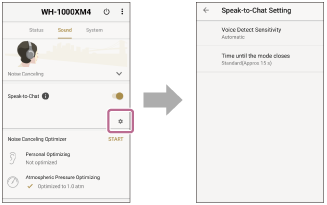
The fastest way to stop Sony headphones from pausing when I talk is to disable Speak-to-Chat in the Sony companion app. Sony has changed the app name over time, so you may see Sony | Sound Connect or the older Sony | Headphones Connect app.
Follow these steps:
Install or open Sony | Sound Connect on your iPhone or Android phone.
Connect your Sony headphones or earbuds.
Open the headphone control screen.
Look for Speak-to-Chat under System, Sound, Device Settings, or Automatic Power Saving.
Turn Speak-to-Chat off.
Play music and speak normally to test the change.
Some models show Speak-to-Chat as a direct toggle. Others place it inside a menu called Automatic Ambient Sound Control. The menu layout may also change after an app update.
If the app does not show the setting, update both the app and the headphone firmware. You can usually find firmware information under System or Device Information. Keep the headphones close to your phone during an update, and do not close the app until the process ends.
In my troubleshooting experience, people often turn off ambient sound control but leave Speak-to-Chat active. These are different features. Ambient sound lets outside noise in; Speak-to-Chat reacts to your voice and can lower or pause the audio.

Use the touch sensor to disable Speak-to-Chat
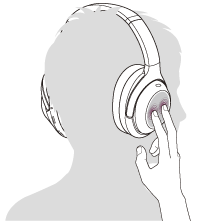
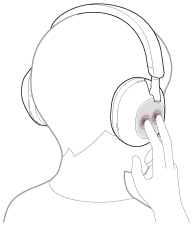
Some Sony headphones let you activate Speak-to-Chat by touching the right ear cup. On many over-ear models, placing your palm over the touch panel enables ambient sound mode. A quick touch or accidental hand movement can change the audio behavior.
To avoid this:
• Open Sony | Sound Connect.
• Go to Device Settings or System.
• Select the touch sensor or custom button settings.
• Remove Speak-to-Chat from the assigned control, if your model allows it.
• Set the custom button to Noise Canceling, Ambient Sound, or another function.
• Test the headphones without touching the ear cup.
On certain models, Speak-to-Chat can be turned on with a touch gesture even when the feature appears disabled in the app. Check the control guide for your exact model. Sony uses different touch layouts across product lines, so a setting on the WH-1000XM5 may not appear in the same place on the WF-1000XM5.
Clean the touch panel with a soft, dry cloth. Sweat, moisture, and dirt can make touch controls less reliable. Never spray cleaner directly onto the headphones.
Check automatic pause and wear detection
If disabling Speak-to-Chat does not solve the problem, check automatic pause settings. Many Sony earbuds use a proximity sensor to detect when you remove one earbud. The headphones then pause music.
This sensor can react when an earbud becomes loose. It may also react to glasses, long hair, a loose fit, or movement during exercise.
Look for these options in Sony | Sound Connect:
• Pause when headphones are removed
• Automatic playback pause
• Wearing detection
• Pause when one earbud is removed
Turn the setting off for a short test. If the random pauses stop, the issue is likely fit or sensor related rather than voice detection.
For earbuds, try a different ear tip size. A secure seal helps the earbud stay in place and keeps the sensor aligned. For over-ear headphones, adjust the headband so both ear cups sit evenly around your ears.
A practical test is simple: play music while sitting still, then walk and speak. If the pause happens only while moving, wear detection or a loose fit is more likely than Speak-to-Chat.
Check voice assistants and device controls
Sometimes Sony headphones are not pausing because of Speak-to-Chat. Your phone or computer may hear a wake word and send a pause command through the headset.
Temporarily disable voice assistant access to identify the cause:
• On iPhone, check Siri settings and headphone button assignments.
• On Android, review Google Assistant and Gemini settings.
• On Windows, check app permissions for microphone access.
• On Mac, review Siri and microphone permissions.
Also check the media controls on every connected device. A laptop, tablet, smartwatch, or smart TV may still control the same Bluetooth connection.
If your headphones use multipoint Bluetooth, disconnect the second device. For example, your headphones may connect to both your phone and work laptop. A video call notification on the laptop can interrupt music from the phone.
Here is a useful test:
Turn off Bluetooth on nearby devices.
Connect the Sony headphones to only one phone.
Disable voice assistant features for five minutes.
Play music and speak at a normal volume.
Reconnect other devices one at a time.
This method helps you find the device sending the pause command. It is also a reliable way to stop Sony headphones from pausing when I talk if the Sony app settings appear correct.
Update the headphones and Sony app
Firmware updates can fix bugs involving touch controls, microphone detection, Bluetooth connections, and automatic pause. Updates do not always solve every issue, but they are worth checking before a factory reset.
Open Sony | Sound Connect and check for an available update. Charge the headphones first, keep your phone nearby, and avoid switching apps during installation.
Then update your phone or computer. Older Bluetooth drivers can cause audio interruptions, especially on Windows laptops. If the issue began after connecting to a new computer, install the latest Bluetooth and audio drivers from the computer manufacturer.
Do not assume a firmware update will preserve every custom setting. After the update, review:
• Speak-to-Chat
• Automatic ambient sound control
• Wearing detection
• Touch sensor functions
• Multipoint connection
• Voice assistant access
After updates, test the headphones in a quiet room. Then test them outdoors. This separates a software problem from microphone activation caused by wind, traffic, or nearby speech.

Reset Bluetooth connections
A damaged Bluetooth pairing record can cause strange behavior, including repeated pauses. Removing and pairing the headphones again often clears this problem.
Start with a basic reconnect:
Open your phone’s Bluetooth settings.
Select the Sony headphones.
Choose Forget This Device or Unpair.
Turn Bluetooth off for about 10 seconds.
Restart the phone.
Turn Bluetooth on again.
Pair the Sony headphones as a new device.
If you use multipoint, pair the main phone first. Add the second device only after the headphones work normally.
A full initialization is different from forgetting the Bluetooth connection. It returns the headphones to factory settings and removes stored pairings. Use the exact reset instructions for your model because button combinations differ. Sony’s support instructions are the safest reference for this step.
Before resetting, note your preferred equalizer, noise control, and button settings. A reset may remove them.
Reduce false voice detection
If you want to keep Speak-to-Chat but stop Sony headphones from pausing when I talk by accident, adjust your habits and surroundings.
Try these changes:
• Avoid humming or singing while Speak-to-Chat is active.
• Move away from loud conversations and strong wind.
• Lower microphone sensitivity if your model offers that setting.
• Avoid covering the microphone openings.
• Keep the headphone microphones clean and dry.
• Use the app to set a shorter Speak-to-Chat timeout.
Speak-to-Chat normally resumes audio after a period of silence. If the headphones keep pausing after you stop talking, the microphone may still detect noise. A fan, air conditioner, keyboard, or road noise can sometimes keep the feature active.
In one common real-world case, a user thought the headphones were defective because music paused while they quietly sang along. The actual cause was Speak-to-Chat detecting the voice through the microphones. Turning off the feature fixed the issue immediately.
This is also why testing in a quiet room matters. It removes background noise and makes the cause easier to identify.
What to do when nothing fixes the problem
If you have disabled Speak-to-Chat, checked wear detection, updated the software, and repaired Bluetooth but the problem remains, the issue may be hardware or device-specific.
Try these final checks:
• Test the headphones with another phone.
• Test another music app.
• Turn off noise canceling and test again.
• Check whether the pause happens with downloaded music.
• Inspect the microphone openings for dirt or moisture.
• Test each earbud separately, if possible.
If the headphones pause with several devices and apps, contact Sony support or an authorized repair center. Keep your model number, firmware version, purchase details, and troubleshooting steps ready.
Do not open the headphones yourself if they are under warranty. Internal microphones, batteries, and touch sensors can be damaged by untrained repairs. Water damage is also not always covered, even when a product has some water resistance.
A helpful rule is this: one device suggests a connection problem, one app suggests an app problem, and every device suggests a headphone problem.

Benefits and limits of turning off Speak-to-Chat
Turning off Speak-to-Chat gives you uninterrupted audio. It is useful when you listen to music while working, exercising, commuting, or watching a show.
You will need to pause the audio manually when someone speaks to you. You may also need to remove an earbud or press a button to hear your surroundings.
Speak-to-Chat is not a safety feature. It does not replace awareness in traffic, at a train station, or near machinery. When you need to hear the environment, use Ambient Sound mode or remove the headphones.
A balanced setup may work best. Keep Speak-to-Chat off for music sessions, then turn it on when you expect short conversations. Sony | Sound Connect makes this change fairly quick on supported models.
Frequently Asked Questions
Why do my Sony headphones pause when I speak?
Speak-to-Chat is usually responsible. It uses the headphone microphones to detect your voice and pause or lower the audio.
How do I turn off Speak-to-Chat on Sony headphones?
Open Sony | Sound Connect, connect your headphones, and turn off Speak-to-Chat in the device or system settings. The exact menu name can vary by model and app version.
Why do my Sony earbuds pause when I move?
The wearing detection sensor may think an earbud has been removed. Try a different ear tip, clean the sensor, or turn off automatic pause as a test.
Can wind make Sony headphones pause?
Yes. Strong wind can reach the microphones and trigger voice detection or other automatic sound controls. Test the headphones indoors to see whether wind is the cause.
Why do my Sony headphones pause with only one phone?
The phone may have a Bluetooth, voice assistant, media app, or driver problem. Forget the headphones, restart the phone, update its software, and pair the headphones again.
Will resetting Sony headphones stop the pauses?
A reset can fix corrupted settings or pairing data, but it will not help if Speak-to-Chat is still enabled or a sensor is faulty. Check the app settings before performing a full reset.
Conclusion
The best way to stop Sony headphones from pausing when I talk is to disable Speak-to-Chat in Sony | Sound Connect. If the pauses continue, test wearing detection, touch controls, voice assistants, multipoint Bluetooth, firmware, and the connection itself.
Start with the app setting, then test one change at a time. This simple process can reveal whether the problem comes from voice detection, movement, another device, or a hardware fault. Try the steps today, and share your Sony model and solution if you discover another useful fix.
