

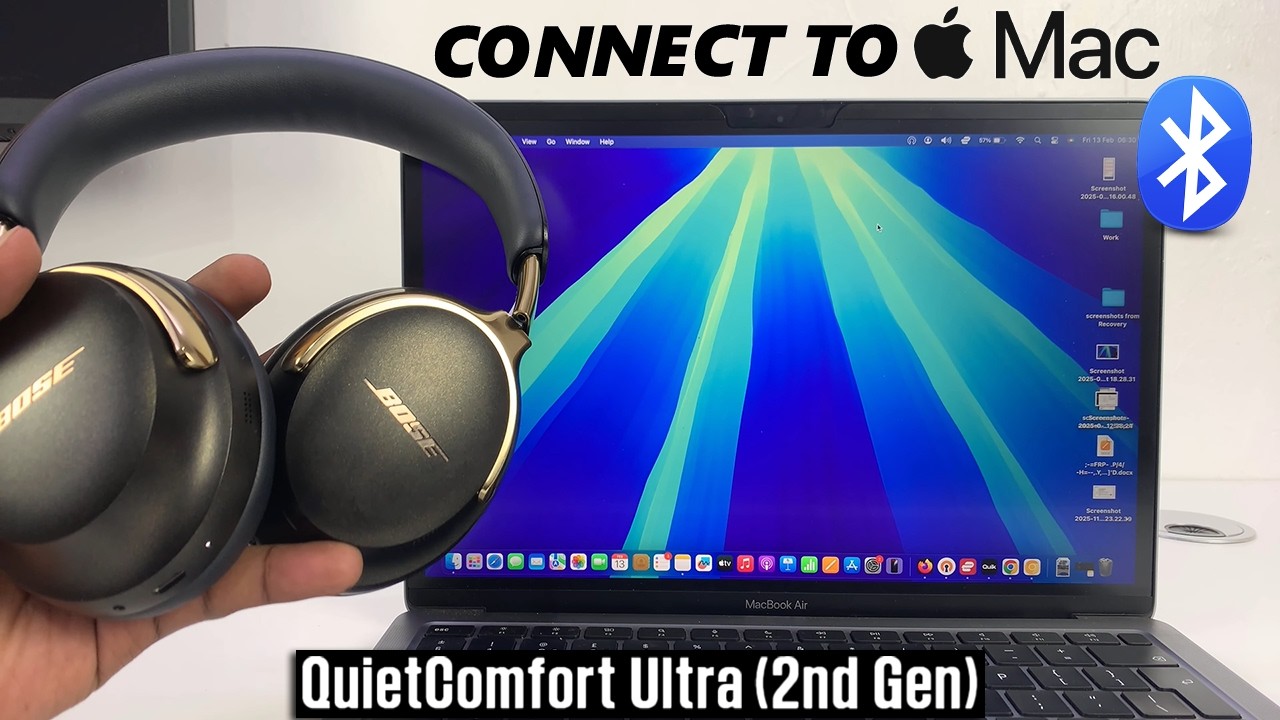
To connect earbuds to a MacBook, turn on Bluetooth, put the earbuds in pairing mode, and select them in Sound settings.
Learning how to connect earbuds to MacBook computers is simple once you know where macOS hides its Bluetooth controls. Whether you use AirPods, Beats, Sony earbuds, Bose QuietComfort models, or a budget Bluetooth pair, the same basic steps work. This guide explains the setup process, fixes common connection problems, and shares practical tips for better sound and battery life.
How to Connect Earbuds to MacBook
Most wireless earbuds connect to a MacBook through Bluetooth. You do not need a special app or cable for the first setup. Keep the earbuds close to your MacBook, charge them, and follow these steps.
- Place both earbuds in their charging case.
- Open the case lid.
- Press and hold the pairing button, if your earbuds have one.
- Keep holding until the status light flashes white, blue, or another pairing color.
- On your MacBook, click the Apple menu in the top-left corner.
- Select System Settings.
- Click Bluetooth.
- Turn Bluetooth on if it is off.
- Find your earbuds under Nearby Devices.
- Click Connect next to the earbuds’ name.
Your earbuds should connect within a few seconds. You may hear a tone or see a connected message when the process is complete.
On older MacBooks running earlier versions of macOS, open System Preferences, choose Bluetooth, and select Connect beside your earbuds. The wording may differ slightly, but the process remains much the same.

How to Put Different Earbuds Into Pairing Mode
Pairing mode makes your earbuds visible to nearby devices. Without it, your MacBook may not find them, even when Bluetooth is working correctly.
AirPods and AirPods Pro
To connect AirPods to a MacBook:
- Put both AirPods in the charging case.
- Open the lid.
- Press and hold the button on the back of the case.
- Wait for the light to flash white.
- Open Bluetooth settings on your MacBook.
- Select AirPods from the device list.
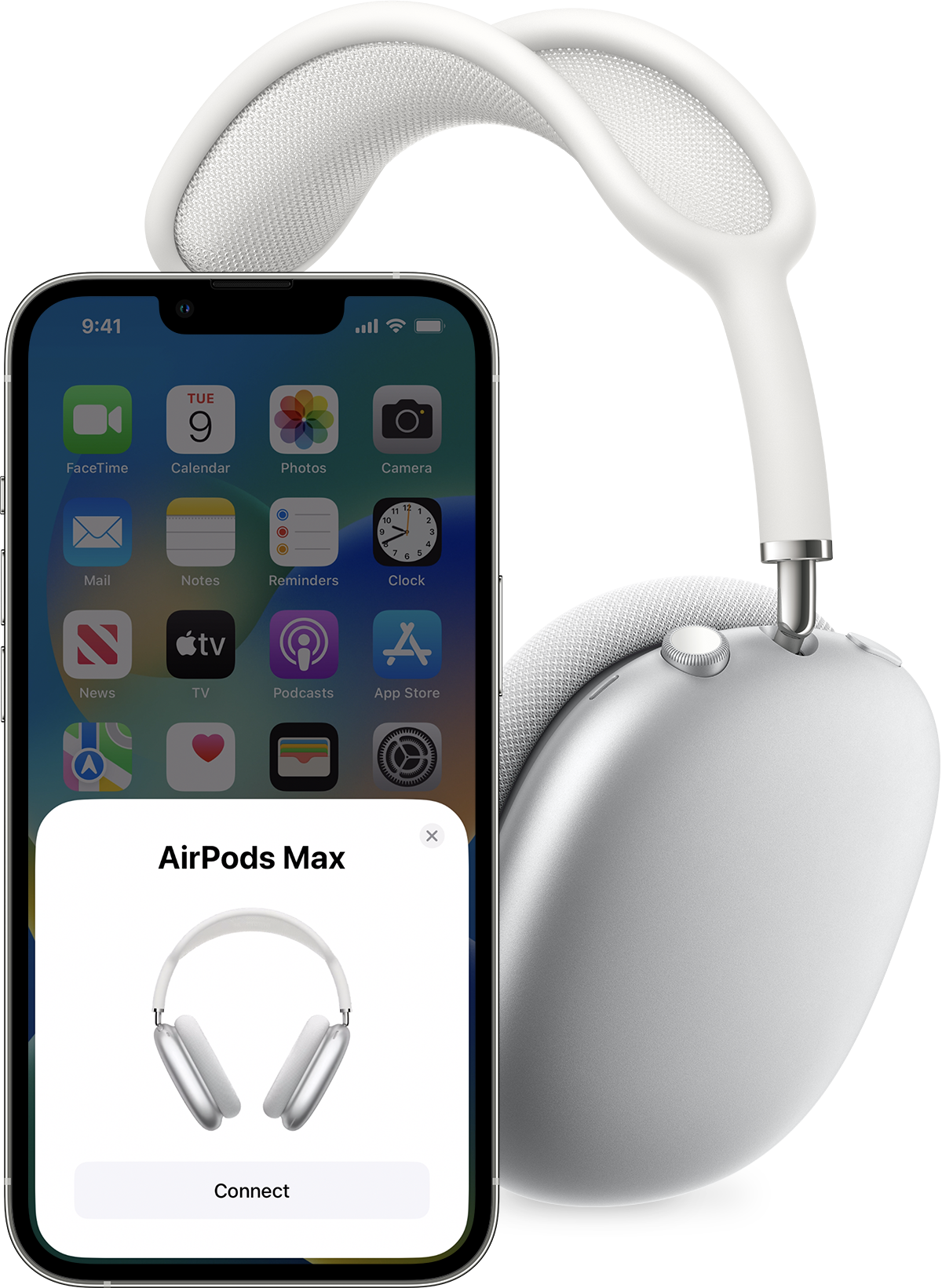
If your AirPods use the same Apple Account as your MacBook, they may appear automatically. Select them from the Bluetooth menu or the Sound menu in the menu bar.
Beats earbuds
Place the Beats earbuds in their case and open the lid. Hold the pairing button until the light flashes. Then select the Beats name in your MacBook’s Bluetooth settings.
Some Beats models use a button on the earbuds rather than the case. Check the model instructions if the light does not flash.
Sony, Bose, Jabra, and other earbuds
Most third-party earbuds follow a similar method. Open the case, remove the earbuds, and hold the touch control or case button for several seconds. A flashing light or voice prompt usually confirms pairing mode.
If the earbuds were connected to your phone, turn off Bluetooth on the phone for a moment. Otherwise, the earbuds may reconnect to the phone before your MacBook can find them.

How to Select Earbuds as the MacBook Audio Output
Sometimes your earbuds connect but the MacBook keeps using its built-in speakers. This is an audio output setting, not a pairing failure.
After you connect your earbuds:
- Click the Control Center icon in the menu bar.
- Select Sound.
- Choose your earbuds under Output.
- Play music or a video to test the sound.
You can also open System Settings, click Sound, and select your earbuds under the Output section. This menu lets you adjust the volume and check whether macOS recognizes the earbuds.
If you use a video meeting app, check its audio settings too. Zoom, Microsoft Teams, Google Meet, and Discord can use their own input and output choices. Select your earbuds for both Speaker and Microphone when needed.
One important detail is microphone quality. Bluetooth earbuds often switch to a hands-free microphone mode during calls. This can reduce music quality because Bluetooth must handle both audio playback and microphone input at once.

How to Connect Earbuds to MacBook Automatically
After the first successful setup, your earbuds should reconnect when they are nearby and ready. Keep Bluetooth enabled on the MacBook, and make sure the earbuds have enough battery.
For reliable automatic connection:
• Keep the earbuds in their case when you are not using them.
• Open the case near the MacBook.
• Make sure the earbuds are not actively connected to another device.
• Update macOS when a normal system update is available.
• Select the earbuds from the Bluetooth menu if they do not reconnect by themselves.
AirPods often switch between Apple devices through iCloud-based features. This can be convenient, but it may also cause confusion. Your AirPods may connect to an iPhone, iPad, or Apple Watch instead of the MacBook if that device is playing audio.
In my own testing, the fastest fix is often to open Control Center, choose Sound, and select the earbuds manually. This takes less time than removing and pairing them again.

How to Connect Earbuds to MacBook Without AirPods
You do not need AirPods to use wireless audio with a MacBook. Bluetooth is a standard feature, so many brands work with macOS.
To connect non-Apple earbuds:
- Charge the earbuds and case.
- Disconnect them from nearby phones or tablets.
- Place them in pairing mode.
- Open System Settings on the MacBook.
- Click Bluetooth.
- Select the earbuds.
- Click Connect.
- Open Sound settings and choose them as the output device.
Some earbuds offer companion apps for phones but not for Mac. The earbuds can still play sound through Bluetooth, though advanced features may be limited. These features can include equalizer controls, firmware updates, spatial audio settings, and touch-control customization.
Bluetooth codecs can also affect performance. macOS supports common Bluetooth audio formats, but the exact codec depends on the MacBook, earbuds, and software. If you notice a delay while watching video, try closing other Bluetooth devices or using a wired connection for tasks that need very low delay.

How to Fix Earbuds That Will Not Connect to MacBook
If your earbuds do not appear in Bluetooth settings, start with simple checks. Many connection problems come from pairing mode, low battery, or another device taking control of the earbuds.
Try these steps in order:
- Charge the earbuds for at least 10 minutes.
- Turn Bluetooth off and back on from System Settings.
- Put the earbuds back into pairing mode.
- Move the earbuds closer to the MacBook.
- Turn off Bluetooth on your phone or tablet.
- Restart the MacBook.
- Remove old entries for the earbuds from the Bluetooth list.
- Pair the earbuds again.
To remove an old connection, open System Settings, select Bluetooth, find the earbuds, and click the information button. Choose Forget This Device or Remove, depending on your macOS version. Then repeat the normal pairing steps.
If several Bluetooth devices fail to connect, the problem may be with macOS or the MacBook’s Bluetooth service. Restarting the computer often refreshes that service. If the problem continues after a macOS update, test a different Bluetooth accessory to see whether the issue affects one device or all devices.

How to Fix Connected Earbuds With No Sound
A MacBook can show “Connected” while sending sound to its internal speakers. This is one of the most common issues when learning how to connect earbuds to MacBook computers.
Check the audio output first:
• Open Control Center.
• Select Sound.
• Click the connected earbuds.
• Raise the MacBook volume and the earbud volume.
• Play audio from a different app.
If only one app has no sound, check that app’s volume and output settings. A browser tab may be muted, or a meeting app may be using a different speaker.
Also check Balance in System Settings under Sound. Make sure the left and right balance is near the center. If one earbud remains silent, place both earbuds in the case, close the lid, wait a few seconds, and try again.
A wired accessory, external monitor, USB audio device, or audio interface can also become the selected output. macOS may switch to it automatically when you connect or wake the MacBook.
How to Improve Bluetooth Earbud Connection Quality
A strong connection depends on distance, interference, battery level, and the number of nearby wireless devices. Bluetooth usually works well across a room, but your best results come from keeping the earbuds within a few feet of the MacBook.
Use these practical tips:
• Keep the MacBook and earbuds on the same side of your body when walking.
• Avoid covering the MacBook’s Bluetooth area with metal objects.
• Move away from crowded wireless equipment if audio cuts out.
• Keep your earbuds charged.
• Close unused Bluetooth accessories.
• Install stable macOS updates.
• Avoid placing the MacBook behind large metal surfaces.
In busy offices and apartments, Wi-Fi routers, wireless mice, keyboards, and other Bluetooth devices may create congestion. Bluetooth is designed to manage interference, but no wireless connection is perfect.
If you need dependable audio for recording, gaming, or live presentations, wired earbuds may be a better choice. Wireless earbuds offer freedom and convenience, but they can have small delays, compression, or occasional dropouts.
How to Disconnect or Remove Earbuds From a MacBook
To disconnect earbuds temporarily, open Control Center, select Sound, and choose MacBook Speakers or another output device. You can also turn off Bluetooth, but this disconnects other Bluetooth accessories too.
To remove the earbuds completely:
- Open System Settings.
- Click Bluetooth.
- Find the earbuds.
- Click the information button.
- Select Forget This Device or Remove.
- Confirm the choice.
Removing a device is useful when the earbuds keep connecting to the wrong MacBook or refuse to pair correctly. It clears the saved connection and gives you a clean start.
If you plan to use the earbuds again, you will need to place them in pairing mode and connect them as a new device.
Common Mistakes to Avoid When Pairing Earbuds
Small mistakes can make a simple Bluetooth setup feel harder than it is. The most common mistake is assuming that turning on the earbuds automatically turns on pairing mode. Many earbuds only become visible after you hold a button or touch control.
Other mistakes include:
• Leaving the earbuds connected to a phone.
• Searching for the earbuds while they are inside a closed case.
• Ignoring a low battery warning.
• Selecting the earbuds for output but not for microphone input.
• Forgetting to check the audio settings inside a meeting app.
• Repeatedly pairing without removing a damaged old connection.
I once spent several minutes troubleshooting a pair of earbuds that seemed broken. The real problem was that they were still connected to a phone in another room. Turning off the phone’s Bluetooth solved the issue immediately. Checking nearby devices first can save a surprising amount of time.
How to Connect Earbuds to MacBook for Calls and Meetings
Earbuds can work well for FaceTime, Zoom, Teams, and other calls. After pairing, open the meeting app’s settings and choose the earbuds for both the speaker and microphone.
Before an important call:
- Connect the earbuds early.
- Test the microphone.
- Check the speaker volume.
- Confirm that the correct output is selected.
- Keep the charging case nearby.
Some Bluetooth earbuds sound less clear during calls than during music playback. This is normal for many Bluetooth headsets because the microphone uses a different audio profile. If voice quality matters more than freedom from cables, use the MacBook’s built-in microphone with the earbuds as the speaker, or use a wired headset.
A short test call can reveal problems before a work meeting, class, or interview begins.
Frequently Asked Questions About How to Connect Earbuds to MacBook
Why are my earbuds not showing up on my MacBook?
Put the earbuds into pairing mode and keep them close to the MacBook. If they still do not appear, turn off Bluetooth on nearby phones, charge the earbuds, restart the MacBook, and search again.
Can I connect any Bluetooth earbuds to a MacBook?
Most Bluetooth earbuds can connect to a MacBook for basic audio playback. However, some advanced features, companion apps, and controls may only work with specific phones or operating systems.
How do I connect AirPods to a MacBook?
Open the AirPods case, press and hold the setup button until the light flashes white, then select AirPods in System Settings under Bluetooth. If the AirPods use the same Apple Account as the MacBook, they may also appear automatically.
Why are my earbuds connected but playing no sound?
Open Control Center, choose Sound, and select the earbuds as the output device. Also check the volume and the audio settings inside the app you are using.
Can I connect two pairs of earbuds to one MacBook?
A MacBook can connect to multiple Bluetooth devices, but sending the same audio to two Bluetooth earbud sets may require a feature such as Audio MIDI Setup or a supported macOS audio-sharing option. Results can vary by macOS version and earbud model.
How do I stop my earbuds from connecting to my iPhone instead?
Turn off Bluetooth on the iPhone for a moment, or disconnect the earbuds from the iPhone’s Bluetooth menu. Then place the earbuds in pairing mode and connect them to the MacBook.
Do earbuds work with a MacBook during Zoom calls?
Yes. Select the earbuds as the speaker and microphone in Zoom’s audio settings. Test them before the call because some Bluetooth models reduce music quality when their microphone is active.
Conclusion
Learning how to connect earbuds to MacBook devices usually takes only a few minutes. Put the earbuds in pairing mode, open Bluetooth settings, select them, and then confirm them as the MacBook’s sound output. If the connection fails, check battery level, pairing mode, nearby devices, and app-specific audio settings before removing the device and starting again.
Once your earbuds are paired, test them before calls, keep them charged, and remember that wired headphones may still be better for zero-delay audio. Try the steps above with your earbuds today, and share your model or troubleshooting experience in the comments.
