

Most Skullcandy headphones reset by holding a control button, then removing the old Bluetooth pairing from your device.
Knowing how to reset Skullcandy headphones can save you from dropped audio, pairing loops, and one earbud refusing to connect. The exact button steps vary by model, so this guide explains safe reset methods for popular Skullcandy headphones and earbuds, along with fixes for common problems.
What a reset does to Skullcandy headphones
A reset returns the headphones or earbuds to a fresh connection state. It can clear stored Bluetooth information, remove connection errors, and help both earbuds sync again.
A reset may help when:
• Your Skullcandy headphones will not pair
• Only one earbud produces sound
• The headphones connect but play no audio
• Bluetooth keeps disconnecting
• The Skullcandy app cannot find the device
• The headphones remain linked to an old phone
A reset does not usually repair physical damage, a weak battery, or a broken charging port. Think of it like restarting a frozen computer. It clears small software issues, but it cannot fix damaged hardware.
How to reset Skullcandy headphones
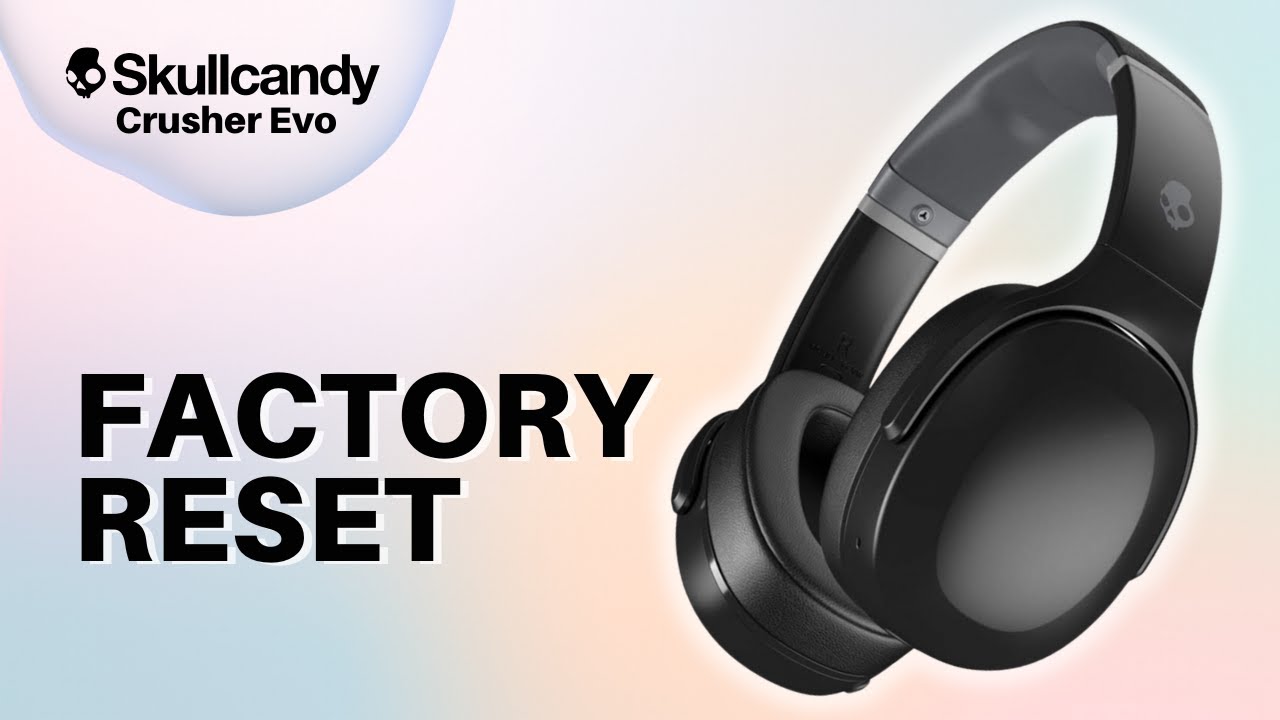
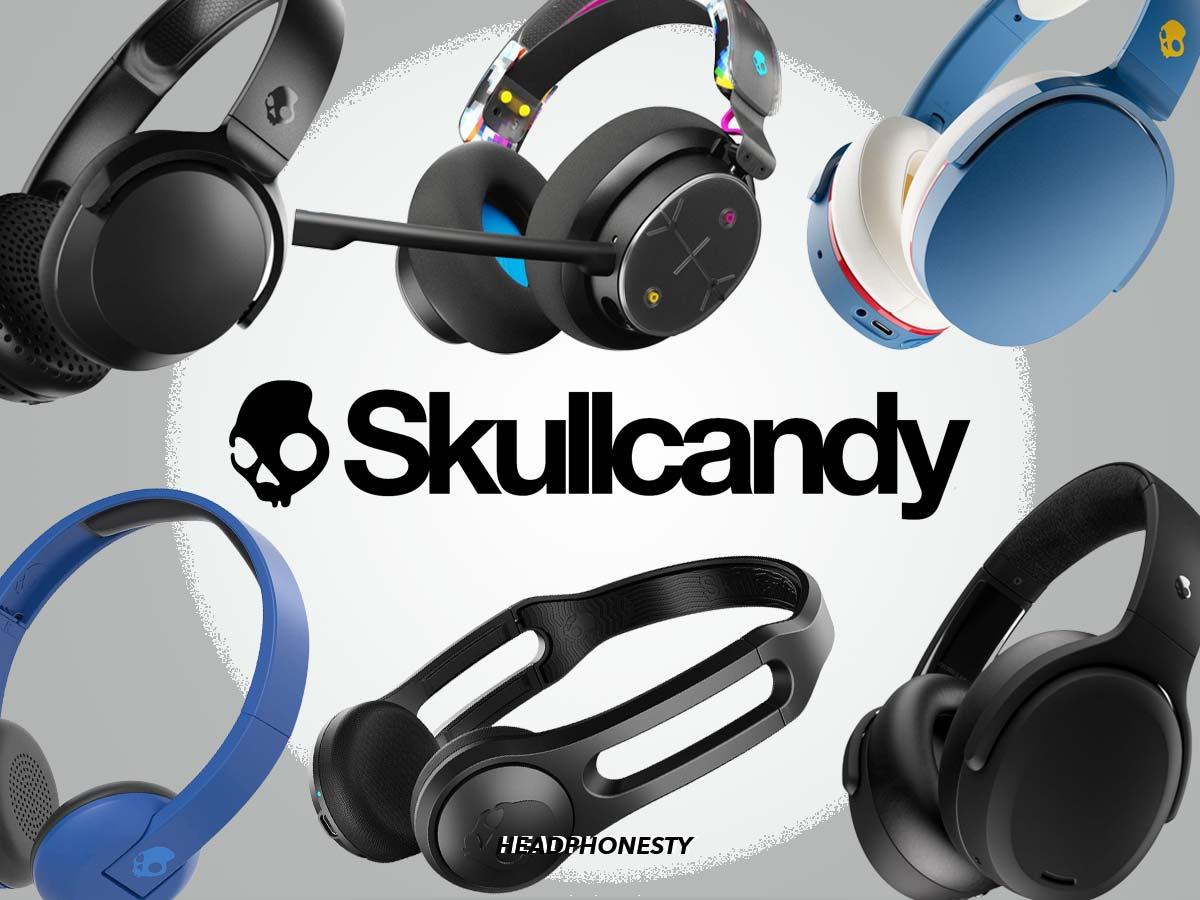
The safest general method works for many Skullcandy over-ear and on-ear models, including several Crusher, Hesh, Riff, and Cassette versions. Since Skullcandy uses different controls across its product range, do not force a button combination if your model reacts differently.
General reset method
Turn off your Skullcandy headphones.
Press and hold the power button for about 10 seconds.
Release the button when the indicator light changes or flashes.
Wait a few seconds.
Turn the headphones on again.
Open your phone’s Bluetooth settings.
Select the Skullcandy device and choose Forget, Remove, or Unpair.
Turn Bluetooth off, wait five seconds, and turn it back on.
Put the headphones into pairing mode and connect them again.
This method often clears temporary pairing trouble. On some models, holding the power button for 10 seconds only powers the headphones off or on. If nothing changes, use the model-specific instructions below.
Pair the headphones again
After resetting Skullcandy headphones, pairing them again is important. A reset may not remove the old Bluetooth record stored on your phone.
Follow these steps:
Keep the headphones close to your phone.
Turn the headphones off.
Press and hold the power button until the light flashes blue and red, or until you hear a pairing prompt.
Open Settings on your phone.
Tap Bluetooth.
Select your Skullcandy model from the available devices.
Accept the pairing request if one appears.
If the model appears twice, choose the entry that does not include a low-energy or app-only label. Also, turn off Bluetooth on nearby phones, tablets, or laptops. Another device may connect first and make the headphones seem faulty.
How to reset Skullcandy earbuds
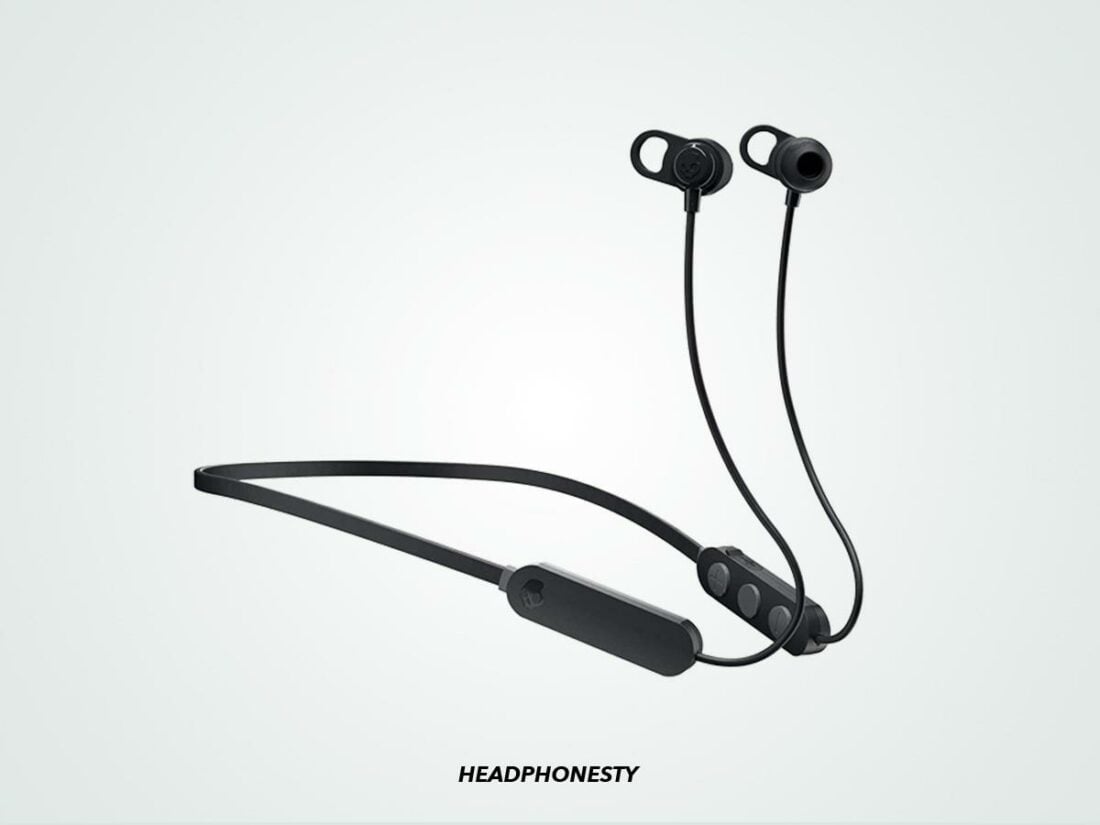
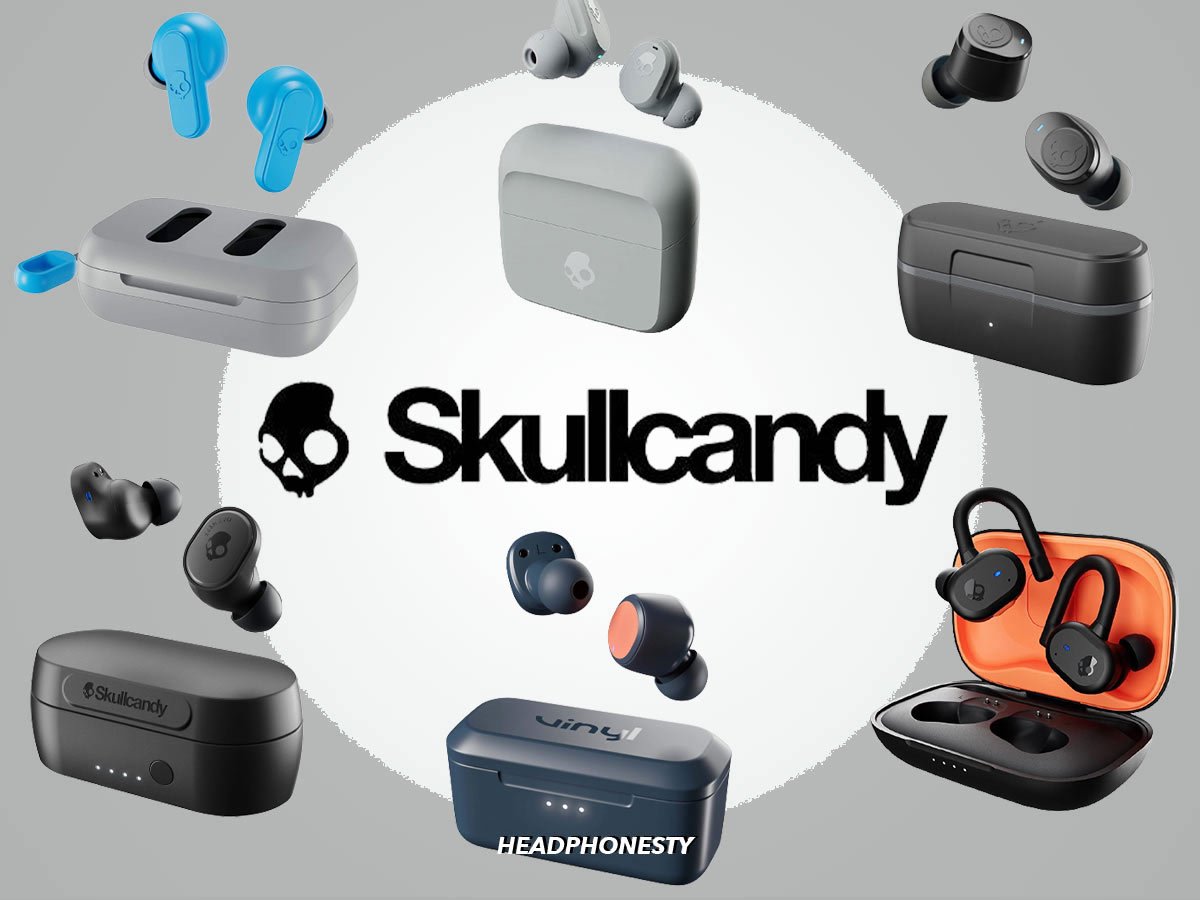
Skullcandy earbuds use different reset commands from over-ear headphones. Most models reset through the buttons or touch controls on the earbuds, not through the charging case alone.
Before you start, charge both earbuds and the case. Low battery power can make a reset fail halfway through.
Reset Skullcandy Indy earbuds
Indy models have changed over time, so the exact touch pattern can vary between Indy, Indy Evo, Indy ANC, and related versions. A common reset process is:
Remove both earbuds from the case.
Turn off Bluetooth on your phone.
Tap the control area on each earbud several times, often four taps, to clear the pairing state.
Place both earbuds back into the charging case.
Close the lid for at least 10 seconds.
Remove both earbuds together.
Turn Bluetooth on and pair them again.
If the earbuds still do not sync, forget every Skullcandy entry from your phone first. Then repeat the reset with both earbuds outside the case at the same time.
Reset Skullcandy Sesh earbuds
Many Sesh versions use a repeated button press to reset. A common method is:
Remove both earbuds from the case.
Press the button on each earbud six times.
Place both earbuds back in the case.
Close the lid and wait several seconds.
Remove both earbuds together.
Pair them with your phone again.
The number of presses can differ between Sesh, Sesh Evo, and Sesh ANC. If six presses do not work, check the quick-start guide for your exact model before trying another pattern.
Reset Skullcandy Dime earbuds
For many Dime versions, the reset command uses three button presses:
Remove both earbuds from the case.
Press the button on one earbud three times.
On the third press, hold the button briefly.
Repeat the process on the other earbud if needed.
Put both earbuds into the case.
Forget the old Bluetooth connection.
Remove both earbuds and pair them again.
Some Dime models reset through the button on each earbud rather than one side only. If the earbuds do not flash or respond, charge them for 15 to 30 minutes and try again.
Reset Skullcandy Grind earbuds
Grind earbuds often use touch controls and may support reset options through the Skullcandy app. Start with the basic process:
Forget the Grind earbuds from your phone.
Turn Bluetooth off.
Place the earbuds in the charging case.
Remove both earbuds.
Press and hold the touch controls or buttons according to your model’s guide.
Return the earbuds to the case.
Remove them together and pair again.
If your Grind model supports Skull-iQ, open the app after reconnecting. Install any available firmware update. Software updates can fix connection bugs that a standard reset does not solve.

How to reset Skullcandy Crusher, Hesh, and Riff headphones
Crusher, Hesh, and Riff headphones are full-size wireless headphones. Their reset steps can differ by generation, so use the button combination listed for your exact model when possible.
Crusher headphones
For many Crusher models, start with a full power reset:
Turn off the headphones.
Hold the power button for about 10 seconds.
Release it when the light flashes or the headphones respond.
Forget the headphones from every nearby device.
Restart your phone.
Turn the headphones on and enter pairing mode.
Some Crusher ANC versions use a combination of the power button and volume controls for a factory reset. Do not assume that the regular Crusher method applies to Crusher ANC, Crusher ANC 2, or Crusher Evo.
Hesh headphones
For many Hesh models:
Turn the headphones off.
Hold the power button for around 10 seconds.
Release the button.
Remove the old Bluetooth record from your phone.
Turn the headphones on.
Hold the power button until pairing mode starts.
Select the headphones in your Bluetooth menu.
Hesh ANC and newer Hesh models may use another button combination. A model name printed inside the headband or on the packaging can help you find the correct guide.
Riff headphones
A basic Riff reset usually starts with the power button:
Power the headphones off.
Press and hold the power button for about 10 seconds.
Wait for the indicator light to change.
Forget Riff from your phone.
Turn Bluetooth off and back on.
Pair the headphones again.
If the headphones connect to a computer but not a phone, remove the pairing from both devices. Bluetooth devices can remember more than one connection, and an old laptop may take priority.
How to reset Skullcandy headphones through the Skullcandy app
Some newer Skullcandy products work with the Skullcandy app or Skull-iQ app. The app can show battery status, update firmware, and provide model-specific controls.
Try this process:
Install the correct Skullcandy app.
Open the app and sign in if required.
Connect the headphones through your phone’s Bluetooth settings.
Add the headphones inside the app.
Look for Device Settings, Support, or Reset options.
Follow the instructions shown for your model.
An app reset is useful when the headphones connect but behave strangely. It may also expose a firmware update. Keep the headphones charged during an update, and do not close the app until the process ends.
One important detail: the Skullcandy app cannot repair a device that never powers on. If there is no light, sound, or charging response, check the cable, charging port, and power source first.

What to do before resetting Skullcandy headphones
A reset is not always the first step. Try these simple checks before clearing your settings:
• Charge the headphones for at least 30 minutes.
• Test a different charging cable and wall adapter.
• Clean dust from the charging contacts.
• Keep the headphones within three feet of your phone.
• Turn off Bluetooth on other nearby devices.
• Restart your phone or computer.
• Check that the headphones are not muted.
• Test another audio app.
• Confirm that the phone is sending sound to the Skullcandy device.
In my troubleshooting work, the most common mistake is resetting the headphones while leaving the old Bluetooth profile on the phone. That is like changing a lock while keeping the old key in the door. Remove the old connection before pairing again.
Why Skullcandy headphones may not reset
Several issues can prevent a reset from working:
The battery is too low
A very low battery may allow the indicator light to flash but not provide enough power for a reset. Charge the headphones and case, then try again.
The button or touch panel is not responding
A damaged button, wet touch panel, or dirt around the control area can block the reset command. Dry the device fully and clean it with a soft, dry cloth.
The wrong reset method is being used
A reset method for Dime earbuds may not work on Indy earbuds. Likewise, Crusher ANC controls can differ from standard Crusher controls.
Another device is connected
A tablet, laptop, or second phone may reconnect automatically. Disable Bluetooth on those devices while you reset and pair the headphones.
The firmware has a problem
Firmware errors can cause repeated disconnections or app failures. Once the device reconnects, check for an official firmware update.
The hardware is damaged
No reset can fix a broken charging port, water damage, failed battery, or damaged speaker. If the headphones show no response after charging, professional service may be needed.

How to check whether the reset worked
A successful reset usually produces one or more of these signs:
• The headphones enter pairing mode
• The LED flashes in a new pattern
• The old device name disappears from the headphone’s memory
• Both earbuds connect together
• The Skullcandy app detects the product as a new device
• Audio works after fresh pairing
Play a short audio clip after reconnecting. Test the left and right channels, the microphone, and the controls. This quick check can reveal whether the reset solved the real problem.
I also recommend testing the headphones with a second phone. If they work on the second phone, the issue likely comes from the original phone’s Bluetooth settings rather than the headphones.

Resetting versus restarting Skullcandy headphones
A restart and a reset are not the same.
A restart simply turns the headphones off and on. It is useful for a temporary freeze or minor audio delay.
A reset clears connection data or restores the device to a fresh setup state. It is better for pairing loops, one-earbud problems, and devices that connect to the wrong phone.
Use a restart first when the issue is small. Use a reset when the same problem returns or the headphones cannot establish a clean Bluetooth connection.
Tips to prevent future Bluetooth problems
Good habits can reduce the need to reset Skullcandy headphones.
• Keep the firmware current.
• Store earbuds in the charging case when not in use.
• Avoid pairing with many devices at the same time.
• Keep the charging contacts clean.
• Do not leave the headphones fully discharged for long periods.
• Remove old Bluetooth entries from devices you no longer use.
• Keep headphones away from strong water, heat, and impact.
• Use the correct Skullcandy app for your model.
Bluetooth works best when the connection path is simple. Fewer paired devices usually mean fewer connection conflicts.
Frequently asked questions about how to reset Skullcandy headphones
How do I reset Skullcandy headphones that will not turn on?
Charge the headphones for at least 30 minutes and try another cable or power source. If there is still no light or response, the issue may involve the battery, charging port, or internal hardware rather than the reset process.
How do I reset Skullcandy headphones without a phone?
Turn the headphones off, use the correct button or touch command for your model, and place the earbuds in their case if applicable. You can pair them with a phone later after the reset is complete.
Why do my Skullcandy earbuds connect separately?
The earbuds may have lost their left and right synchronization. Forget all Skullcandy Bluetooth entries, reset both earbuds together, place them in the case, and pair them again as one device.
Will resetting Skullcandy headphones delete my phone’s Bluetooth data?
A reset clears connection data stored on the headphones, but it does not automatically remove the Bluetooth record on your phone. Use Forget or Remove Device in your phone’s Bluetooth settings before pairing again.
How long should I hold the Skullcandy power button?
Many over-ear models respond to a 10-second hold, but the correct time varies by model. Earbuds often use repeated button presses or touch taps instead, so check the instructions for your exact product.
Do I need the Skullcandy app to reset my headphones?
No. Many Skullcandy headphones and earbuds can reset through their physical buttons or touch controls. The app is helpful for supported models, firmware updates, and model-specific troubleshooting.
Conclusion
Resetting Skullcandy headphones usually involves turning the device off, using the correct button or touch command, forgetting the old Bluetooth profile, and pairing again. The exact steps depend on whether you use Crusher, Hesh, Riff, Indy, Dime, Sesh, Grind, or another Skullcandy model.
Start with charging and a simple restart. If the issue continues, follow the model-specific reset method and remove every old Bluetooth entry. If the headphones still show no response, check the charging hardware or contact official support. Try the steps above today, and share which Skullcandy model you use if you need more troubleshooting help.
