

Pair onn headphones by turning them on, opening Bluetooth settings, and selecting “onn” from the device list.
Learning how to pair onn headphones is simple once you know the correct order. Most pairing problems come from an old connection, low battery, or pairing mode not being active. This guide explains how to pair onn headphones with Android phones, iPhones, computers, tablets, smart TVs, and other Bluetooth devices, plus the fixes that work when the connection fails.

How to pair onn headphones for the first time
Most onn headphones use Bluetooth pairing. The names and button locations may differ by model, but the basic process is nearly the same.
Before you begin, charge the headphones and keep them close to your device. Bluetooth works best at short range, especially during the first connection.
- Turn on your onn headphones by pressing and holding the power button.
- Keep holding the button for a few seconds if the headphones do not enter pairing mode.
- Look for a flashing blue, red, or white light.
- Open the Bluetooth settings on your phone, tablet, or computer.
- Turn Bluetooth on.
- Wait for the device list to load.
- Tap the option that says “onn,” “onn Headphones,” or a similar name.
- Select Pair, Connect, or OK if your device asks for confirmation.
- Play audio to test the connection.
A flashing light usually means the headphones are ready to pair. A steady light often means they are already connected to another device or are simply powered on.
When I help people with this process, the most common mistake is releasing the power button too soon. Turning the headphones on and putting them into Bluetooth pairing mode are related but separate steps on some onn models.

How to pair onn headphones with an Android phone
Android phones from Samsung, Google, Motorola, OnePlus, and other brands use similar Bluetooth menus. The exact wording may vary by Android version.
- Open the Settings app.
- Tap Connected devices, Connections, or Bluetooth.
- Choose Pair new device if needed.
- Turn on Bluetooth.
- Wait for “onn” to appear under Available devices.
- Tap the onn device name.
- Confirm the pairing request.
After the connection is complete, the onn headphones should appear under Paired devices or Saved devices. You can tap the gear icon beside the headphones to check options such as phone calls, media audio, or automatic reconnection.
If the headphones do not appear, turn Bluetooth off and on again. Then place the headphones back into pairing mode. On many models, this means holding the power button until the indicator light flashes quickly.
Android may also show a pop-up asking whether you want to connect. Approve the request only when the device name matches your headphones. This helps prevent connecting to a nearby device by mistake.

How to pair onn headphones with an iPhone or iPad
Pairing onn headphones with an iPhone or iPad takes only a few steps.
- Open Settings.
- Tap Bluetooth.
- Turn Bluetooth on.
- Put the onn headphones into pairing mode.
- Find the headphones under Other Devices.
- Tap the onn device name.
- Wait until the status changes to Connected.
If the headphones have already been paired with the iPhone, they may appear under My Devices. Tap the name to reconnect them.
The first connection may take several seconds. Do not close the Bluetooth screen until the headphones show as connected. Once paired, your iPhone should remember the headphones and reconnect when they are turned on and nearby.
If you see “Not Connected,” tap the device name once. If that does not work, tap the information icon, choose Forget This Device, and pair the headphones again from the start.

How to pair onn headphones with a Windows computer
You can connect onn headphones to most Windows 10 and Windows 11 computers with built-in Bluetooth. Desktop computers may need a Bluetooth adapter if Bluetooth is not included.
Windows 11
- Open Settings.
- Select Bluetooth & devices.
- Turn Bluetooth on.
- Click Add device.
- Choose Bluetooth.
- Select your onn headphones.
- Click Done when Windows finishes pairing.
Windows 10
- Open Settings.
- Select Devices.
- Choose Bluetooth & other devices.
- Turn Bluetooth on.
- Click Add Bluetooth or other device.
- Select Bluetooth.
- Choose the onn headphones from the list.
After pairing, click the speaker icon on the Windows taskbar. Select the onn headphones as the sound output device if audio still comes through the computer speakers.
Windows may show separate options for headphones and headset audio. Headset mode supports the microphone but can reduce sound quality during calls. For music, headphones or stereo mode usually provides better audio.
How to pair onn headphones with a Mac
Mac computers can connect to onn headphones through System Settings or System Preferences.
- Put the onn headphones into pairing mode.
- Click the Apple menu.
- Open System Settings on newer macOS versions.
- Select Bluetooth.
- Find the onn headphones under Nearby Devices.
- Click Connect.
On older Macs, open System Preferences, choose Bluetooth, and select Connect beside the onn headphones.
Once connected, click Control Center in the menu bar. Select Sound and choose the onn headphones if your Mac does not switch audio automatically.
If the headphones connect but produce no sound, check the Mac’s output settings. This is a common issue because Bluetooth pairing and audio output are separate settings.

How to pair onn headphones with a smart TV
Smart TV menus vary by brand, but the main steps remain similar. Your TV must support Bluetooth audio for this method to work.
- Turn on the onn headphones and activate pairing mode.
- Open the TV’s Settings menu.
- Go to Sound, Audio, Remotes and Accessories, or Bluetooth.
- Choose Bluetooth devices or Add device.
- Select the onn headphones.
- Confirm the connection.
Some TVs may connect only to Bluetooth speakers or headphones with specific audio profiles. Older TVs may not support Bluetooth audio at all.
If your TV cannot find the headphones, move them closer to the screen. Also disconnect them from your phone first. Many headphones try to reconnect to the last device they used, which can stop the TV from finding them.
A Bluetooth transmitter can add wireless headphone support to a TV that lacks Bluetooth. The transmitter plugs into the TV’s headphone, optical, or audio output, depending on the model.
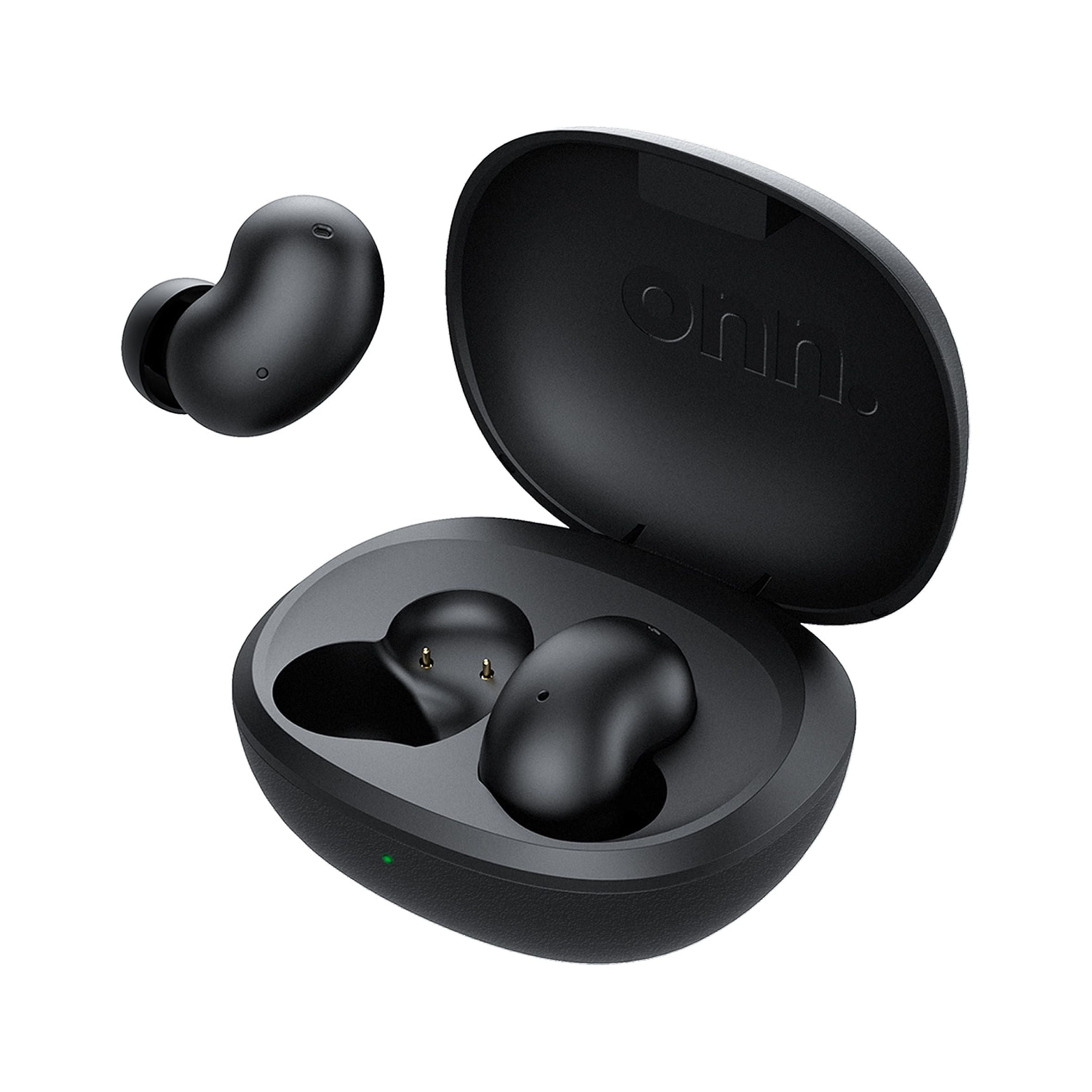
How to pair onn earbuds with a phone
Onn earbuds often use a charging case. Their pairing process can be slightly different from full-size onn headphones.
- Place both earbuds in the charging case.
- Open the case lid.
- Remove the earbuds, or press the case pairing button if your model has one.
- Wait for the indicator light to flash.
- Open Bluetooth settings on your phone.
- Select the onn earbuds.
- Confirm the connection.
Some onn earbuds turn on as soon as you remove them from the case. Others require you to touch or hold each earbud.
If only one earbud works, place both earbuds back in the case. Close the lid, wait a few seconds, and remove them together. This often allows the earbuds to link to each other before they connect to your phone.
The exact reset method varies by onn model. Check the quick-start guide that came with the earbuds before holding buttons for a long time.
How to put onn headphones in pairing mode
Pairing mode allows a Bluetooth device to find your headphones. Without it, the headphones may turn on but remain invisible.
Try these steps:
- Turn the headphones off.
- Press and hold the power button.
- Continue holding it for about five to ten seconds.
- Release the button when the light begins flashing.
- Search for the headphones in your device’s Bluetooth menu.
Some models use a dedicated Bluetooth button instead of the power button. Others enter pairing mode automatically the first time they turn on.
A slow flashing light may indicate normal operation. A fast flashing light often indicates pairing mode. Because onn sells several headphone and earbud designs, light patterns are not identical across every model.
If you are unsure, turn the headphones off and try again. Starting from a fully powered-off state is often more effective than pressing buttons while the headphones are already connected.
How to pair onn headphones when they will not connect
When onn headphones refuse to connect, work through the problem in order. Randomly pressing buttons can make the issue harder to identify.
Check the battery
Low battery power can prevent pairing or cause repeated disconnections. Charge the headphones for at least 15 to 30 minutes before trying again.
Disconnect other devices
Your headphones may be connecting to a nearby phone, tablet, or laptop. Turn Bluetooth off on devices you previously used, or move them away during setup.
Forget the old connection
Remove the saved pairing from your device.
• On Android, open Bluetooth settings, tap the gear icon, and choose Forget or Unpair.
• On iPhone, tap the information icon beside the device and select Forget This Device.
• On Windows, open Bluetooth settings and choose Remove device.
• On Mac, open Bluetooth settings and select Forget This Device or Disconnect.
Then restart pairing from the beginning.
Restart both devices
Turn the headphones off. Restart the phone, computer, or tablet. This clears temporary Bluetooth errors and often restores normal discovery.
Move closer
Keep the headphones within a few feet of the device during setup. Walls, metal surfaces, Wi-Fi equipment, and crowded wireless areas can affect Bluetooth performance.
Reset the headphones
If nothing works, reset the headphones according to the model instructions. A reset usually removes stored connections and returns the device to a clean pairing state.
How to reset onn headphones before pairing again
A reset is useful when the headphones connect to the wrong device, appear twice, or refuse to enter pairing mode. However, the reset steps differ between onn models.
Common reset methods include:
• Holding the power button for 10 to 15 seconds
• Holding the volume-up and volume-down buttons together
• Placing earbuds in the case and holding the case button
• Touching both earbuds for several seconds
Do not assume one reset method works for every onn product. Look for the model number on the headphones, case, box, or user guide.
After resetting, remove the old onn entry from your phone or computer. Then turn Bluetooth off and on, put the headphones into pairing mode, and select them again.
A reset may erase all saved Bluetooth connections. This is normal. You will need to pair the headphones again with each device.
Why onn headphones keep disconnecting
A successful first connection does not always mean the connection will remain stable. Several factors can cause repeated disconnections.
• The battery is nearly empty.
• The headphones are too far from the device.
• Another device is trying to connect.
• The phone or computer has outdated Bluetooth software.
• Wireless interference is affecting the signal.
• The headphones are connected to a device with poor Bluetooth support.
Keep your phone in the same room while testing. Avoid placing it inside a bag or behind a metal object. If the connection stays stable nearby but fails at a distance, range or interference is likely the cause.
Bluetooth devices use short-range radio signals. The Bluetooth standard supports different ranges based on device power and surroundings, so real-world performance can vary. Walls and other wireless devices may reduce the usable range.
How to improve sound after pairing onn headphones
Pairing only creates the connection. Good sound also depends on settings, fit, and the audio source.
Start by checking the volume on both the device and headphones. Then make sure the correct output device is selected. A phone may remain set to its built-in speaker even when the headphones show as connected.
For earbuds, use the ear tips that create a comfortable seal. A poor seal can make music sound thin and reduce bass. For full-size headphones, adjust the headband so the ear cushions sit evenly around your ears.
You can also check your phone’s sound settings for equalizer controls, mono audio, balance, or volume limits. Keep enhancements modest. Heavy equalizer changes can create distortion or make voices sound unnatural.
If sound cuts out during calls but music works well, the issue may involve the headset microphone profile. Test the headphones with another app or device to see whether the problem follows the headphones.
Best practices for using onn headphones with multiple devices
Many people use the same headphones with a phone, laptop, tablet, and TV. Most basic Bluetooth headphones connect to one active source at a time, even if they remember several devices.
To switch devices smoothly:
- Disconnect the headphones from the current device.
- Turn Bluetooth off on that device if it keeps reconnecting.
- Open Bluetooth settings on the new device.
- Select the saved onn headphones.
- Wait for the connection to complete.
Some newer headphones support multipoint Bluetooth, which allows two active connections. Do not assume every onn model includes this feature. Check the product guide for confirmation.
A simple habit helps: turn off Bluetooth on devices you are not using. This prevents your headphones from jumping back to an old connection when you want to listen on another device.
Common mistakes to avoid when pairing onn headphones
Small errors can make Bluetooth pairing seem harder than it is.
• Searching for the headphones before activating pairing mode
• Trying to connect while the headphones are nearly out of battery
• Leaving the headphones connected to another nearby device
• Selecting a similarly named Bluetooth device
• Pairing from the wrong settings menu
• Forgetting to choose the headphones as the audio output
• Resetting the headphones without removing the old saved connection
The most reliable approach is to use a clean sequence: charge, power off, enter pairing mode, open Bluetooth, select the correct device, and test audio.
This process removes guesswork. It is also the approach I recommend when helping someone who says, “My headphones are on, but my phone cannot see them.”
Frequently Asked Questions About How to Pair Onn Headphones
How do I put onn headphones into Bluetooth pairing mode?
Turn the headphones off, then press and hold the power button for about five to ten seconds. Release it when the indicator light flashes, then select the headphones from your device’s Bluetooth menu.
Why are my onn headphones not showing up on Bluetooth?
They may not be in pairing mode, or they may already be connected to another device. Charge them, disconnect nearby devices, restart Bluetooth, and try pairing again.
Can I pair onn headphones with an iPhone?
Yes. Open Settings, tap Bluetooth, turn it on, and select the onn headphones under Other Devices. Confirm the connection when prompted.
Can I connect onn headphones to two devices at once?
Some models support multipoint connections, but many basic onn headphones connect to one active device at a time. Check the model’s instructions to confirm whether multipoint is available.
How do I reset onn headphones?
The reset method depends on the model. Common methods include holding the power button or both volume buttons for several seconds, but you should check the product guide for the correct steps.
Why do my onn headphones connect but have no sound?
Your device may still be using its built-in speaker. Open the sound or audio output settings and choose the onn headphones as the active output device.
Do onn headphones work with a smart TV?
They work with smart TVs that support Bluetooth audio. Open the TV’s Bluetooth or sound settings, put the headphones in pairing mode, and select them from the available device list.
Conclusion
Pairing onn headphones usually takes less than a minute: charge them, activate pairing mode, open Bluetooth, and select the correct onn device. If the connection fails, forget the old pairing, disconnect other devices, restart both devices, and try again.
The key lesson is to treat pairing mode as its own step. Once you follow the correct order, your onn headphones should connect smoothly to phones, computers, tablets, and compatible TVs. Try these steps with your model, then share your experience or explore your device’s Bluetooth settings for more useful audio tips.
