

Using Bose earbuds starts with charging them, pairing them through Bluetooth, and learning a few simple touch controls.
Bose earbuds are made to feel simple, but the first setup can still raise questions. The steps may differ slightly between QuietComfort Ultra Earbuds, QuietComfort Earbuds, Sport Earbuds, and older SoundSport models. This guide explains how to use Bose earbuds from the first charge to daily listening, calls, noise control, care, and troubleshooting.
Getting started with Bose earbuds
Before learning how to use Bose earbuds, check that you have the earbuds, charging case, USB cable, and the correct Bose app for your model. Most current Bose wireless earbuds work with the Bose app, formerly known on many devices as Bose Music.
Start with these steps:
- Place both earbuds in the charging case.
- Connect the case to power with the supplied USB cable.
- Let the earbuds charge before pairing them.
- Remove any stickers or protective film from the charging contacts.
- Download the Bose app from the Apple App Store or Google Play.
- Turn on Bluetooth on your phone.
- Keep the earbuds near your phone during setup.
Most Bose earbuds use small lights to show charging, pairing, and battery status. The exact light color can vary by model, so check the model’s guide if the lights do not match what you expect.
A common mistake is trying to pair the earbuds while the case battery is empty. I have also seen people leave the earbuds in the case with a thin shipping film still covering the contacts. Both issues can make working earbuds seem faulty.
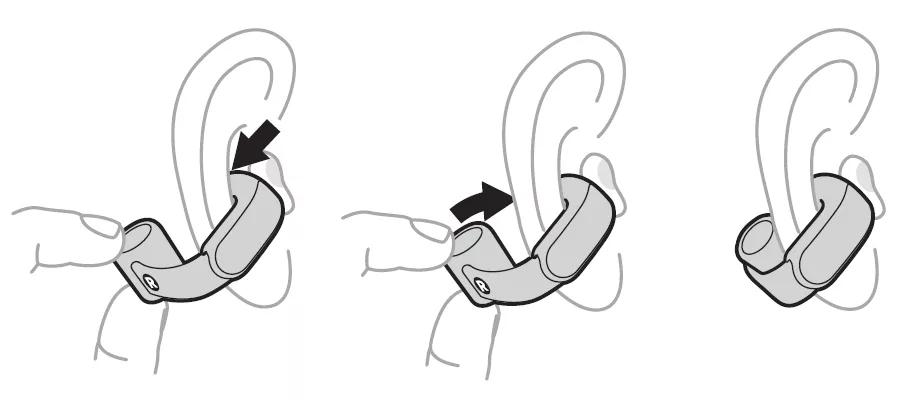
How to pair Bose earbuds with a phone
Pairing Bose earbuds with an iPhone or Android phone is usually quick. The Bose app can guide you, but you can also pair them from the Bluetooth menu.
Pair Bose earbuds with the Bose app
- Open the Bose app.
- Sign in or continue as a guest, if that option appears.
- Select your Bose earbuds from the product list.
- Follow the on-screen instructions.
- Allow Bluetooth and nearby-device permissions when requested.
- Choose a name for the earbuds if the app offers that option.
The app may also check for firmware updates. Keep the earbuds in the charging case or follow the app’s instructions during an update. Do not close the app or move the earbuds far from your phone until the update finishes.
Pair Bose earbuds through Bluetooth settings
If you prefer manual setup:
- Open Settings on your phone.
- Select Bluetooth.
- Turn Bluetooth on.
- Open the earbud case.
- Press and hold the Bluetooth or setup button on the case, if your model has one.
- Select the Bose earbuds from the available devices list.
- Confirm the connection.
Some older Bose models use a button on the earbuds instead of a case button. If your earbuds do not appear, place them in pairing mode by following the model-specific instructions.
Once paired, the earbuds should connect automatically when you remove them from the case. This works best when Bluetooth is on and the earbuds were not connected to another nearby device.

How to use Bose earbuds controls
bose earbuds may use touch controls, physical buttons, or a mix of both. The exact controls depend on the model and firmware. You can often view or change them in the Bose app.
Typical controls include:
• Play or pause: Tap the right earbud once.
• Skip forward: Double-tap the right earbud.
• Skip back: Triple-tap the right earbud.
• Answer a call: Tap the touch surface or press the call button once.
• End a call: Tap or press the same control again.
• Adjust noise control: Press and hold the left earbud or use the app.
• Activate a voice assistant: Use the assigned shortcut or touch control.
Touch controls can fail when your fingers are wet, when you tap too lightly, or when you touch the wrong area. Tap the center of the touch surface rather than the edge. With physical buttons, use a firm but gentle press.
To change controls, open the Bose app and look for Settings, Shortcut, or Product Controls. Available choices may include noise cancellation, transparency mode, voice assistant access, battery information, and Spotify controls.
Learning how to use Bose earbuds becomes much easier when you practice one control at a time. Start with play, pause, and noise control. Add advanced shortcuts later.
How to use the Bose app
The Bose app is the main control center for many Bose wireless earbuds. It can help you manage sound, updates, connections, and shortcuts.
Depending on your model, the app may let you:
• Check the battery level of each earbud and the case.
• Change noise cancellation or aware mode.
• Adjust bass, midrange, and treble with an equalizer.
• Create custom listening modes.
• Change touch shortcuts.
• Install firmware updates.
• Rename the earbuds.
• Manage Bluetooth connections.
• Find support instructions for your model.
Use the equalizer with small changes. Too much bass can make voices sound dull, while too much treble may make music feel sharp. A balanced setting is often best for podcasts, calls, and long listening sessions.
Firmware updates may improve stability, sound features, or app support. They can also change how a control works. Read the update notes when available, especially if a familiar shortcut behaves differently afterward.
The app cannot fix every hardware problem. If one earbud has no sound, the issue may involve blocked speaker mesh, poor charging contact, or physical damage rather than software.
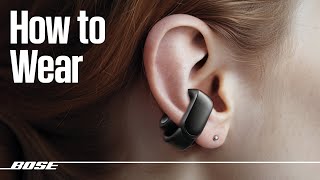
How to wear Bose earbuds correctly
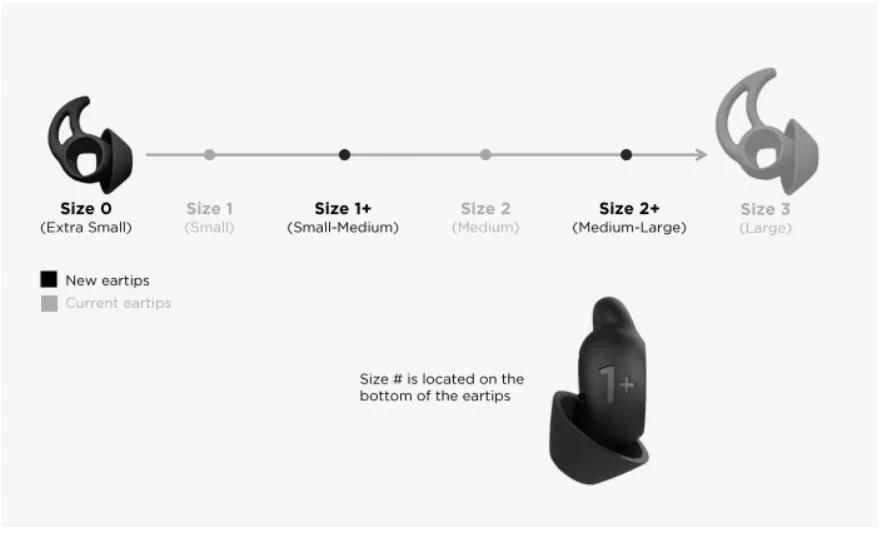
Proper fit affects sound quality, comfort, microphone performance, and noise cancellation. Bose earbuds often include different sizes of ear tips or stability bands. Try each size until the earbud feels secure without creating pressure.
To fit Bose earbuds:
- Choose the ear tip that seals your ear canal comfortably.
- Insert the earbud with the nozzle aimed slightly forward.
- Rotate it gently until it sits securely.
- Add the stability band if your model includes one.
- Repeat the fit test on the other ear.
Your ears may not be the same size. It is completely normal to use a medium tip in one ear and a small or large tip in the other.
A good seal should reduce outside sound even when noise cancellation is off. If music sounds thin or bass is weak, the ear tip may be too small. If your ears feel sore after a short time, the tip may be too large or inserted too deeply.
Do not force an earbud into your ear. Stop using it if you feel pain, skin irritation, dizziness, or unusual pressure. Clean the tips and let them dry before wearing the earbuds again.

How to use Bose noise cancellation and aware mode
Many Bose earbuds include active noise cancellation, often called ANC. ANC uses microphones to detect outside sound and creates an opposing signal to reduce steady noise, such as airplane engines, air conditioners, and train rumble.
Noise cancellation does not remove every sound. Voices, sudden noises, alarms, and high-pitched sounds may still be heard. A proper ear seal helps ANC work better.
Aware mode, also called transparency mode on some products, lets more outside sound reach your ears. It is useful when walking, speaking with someone, listening for announcements, or working in an office.
To switch modes:
- Press and hold the assigned earbud control.
- Use the Bose app.
- Select a saved mode or create a custom mode.
- Adjust the noise control level if your model supports it.
Use aware mode near roads, bike lanes, and busy public areas. Noise cancellation can reduce your awareness of important sounds. Even with aware mode enabled, stay alert because earbuds may still mask traffic or warning signals.
Some Bose models include immersive audio features. These can make music feel wider, but they may use more battery. Turn them off when you want longer play time.
How to use Bose earbuds for phone calls
Bose earbuds can work as a wireless headset for phone calls, video meetings, and voice messages. Their microphones pick up your voice while the earbuds play the other person’s audio.
Before an important call:
• Check that both earbuds have enough battery.
• Make sure the correct Bose earbuds are selected as the audio device.
• Test the microphone in a quiet place.
• Keep the microphones clear of hair, clothing, and your hand.
• Use a stable Bluetooth connection.
On a phone call, you can usually answer or end the call by tapping or pressing the assigned control. On a computer, select the earbuds under both the speaker and microphone settings. Choosing the earbuds only as speakers may leave the computer using its built-in microphone.
Wind, traffic, and crowded rooms can reduce call quality. If people say your voice sounds distant, clean the microphone openings with a dry, soft brush. Never push sharp objects into the microphone ports.
For video meetings, keep the earbuds close to the computer and close extra Bluetooth devices if the connection becomes unstable. Bluetooth performance can change with distance, walls, Wi-Fi congestion, and the computer’s own Bluetooth hardware.

How to charge Bose earbuds and case
Charging Bose earbuds is simple, but small habits can protect battery life and charging contacts.
- Put each earbud into the matching side of the case.
- Check that the earbuds sit fully in place.
- Connect the case to a USB power source.
- Watch the case indicator for charging status.
- Close the lid when charging is complete.
Some models support wireless charging with a compatible charging case or accessory. Place the case in the center of the charging pad. If it does not charge, remove thick phone-style cases or reposition the case.
Keep the charging contacts clean and dry. Sweat, dust, and skin oils can stop an earbud from charging. Wipe the contacts with a dry cotton swab or soft cloth. Do not use water inside the case.
Battery life varies by model, volume, noise control, immersive features, call use, and battery age. High volume and advanced audio features usually reduce play time. Avoid leaving the case in a hot car, because heat can shorten lithium-ion battery life.
How to clean and care for Bose earbuds
Regular cleaning keeps Bose earbuds comfortable and helps protect sound quality. Earwax can block the speaker mesh and make one side sound quieter.
Use this care routine:
• Remove silicone ear tips and wash them with mild soap and water if the model instructions allow it.
• Dry the tips fully before putting them back on.
• Wipe the earbuds with a soft, slightly damp cloth.
• Use a dry, soft brush to remove debris from the speaker mesh.
• Clean the charging contacts with a dry cotton swab.
• Keep the case free from moisture.
Do not use alcohol, bleach, aerosol cleaners, or sharp tools unless Bose specifically recommends them for your model. Do not submerge the earbuds unless they are clearly rated for that use. Water resistance does not mean waterproof protection.
After exercise, wipe away sweat before placing the earbuds in the case. Let damp earbuds dry in a cool place first. Sealing moisture inside the case can lead to charging problems and corrosion.
How to connect Bose earbuds to a computer
You can use Bose earbuds with Windows PCs, Macs, tablets, smart TVs, and some game devices. The connection steps are similar, but Bluetooth menus differ.
On a Windows computer:
- Open Settings.
- Select Bluetooth and devices.
- Turn Bluetooth on.
- Choose Add device.
- Select Bluetooth.
- Choose your Bose earbuds.
On a Mac:
- Open System Settings.
- Select Bluetooth.
- Turn Bluetooth on.
- Find your Bose earbuds.
- Select Connect.
If sound plays through the computer speakers, open the sound settings and choose the Bose earbuds as the output device. For calls, also select them as the microphone.
Some TVs and game consoles do not support Bluetooth earbuds or may offer limited microphone support. A Bluetooth transmitter can help, but compatibility and audio delay vary. For gaming, wired headphones or a device-specific wireless headset may provide better synchronization.
How to fix common Bose earbud problems
Many Bose earbud problems have simple causes. Try the steps below before assuming the earbuds need repair.
Bose earbuds will not connect
• Turn Bluetooth off and on again.
• Restart your phone or computer.
• Move away from other Bluetooth devices.
• Forget the Bose earbuds in Bluetooth settings.
• Put the earbuds back into pairing mode.
• Restart the Bose app.
• Check for a firmware update.
If the earbuds remain connected to an old phone, disable Bluetooth on that phone first. This is one of the most common reasons new pairing attempts fail.
One Bose earbud has no sound
• Check the left and right balance in your phone’s accessibility settings.
• Clean the quiet earbud’s speaker mesh.
• Confirm that it is charging.
• Place both earbuds in the case, close the lid, and try again.
• Restart the earbuds through the app or model instructions.
A blocked mesh can make one side seem broken. If cleaning does not help, the issue may involve the battery, speaker, or charging contact.
Bose earbuds keep disconnecting
Keep your phone within a reasonable Bluetooth range. Avoid placing the phone in a bag surrounded by metal objects or other electronics. Forgetting and re-pairing the earbuds can also clear a corrupted connection profile.
Bose earbuds sound too quiet
Check the volume on both the phone and the earbuds. Then inspect the ear tips and speaker mesh. If only one app sounds quiet, check that app’s volume settings and equalizer.
How do I reset Bose earbuds?
Reset instructions differ by model. Use the Bose app or the support guide for your exact product. A reset may erase saved connections and custom settings, so try restarting and re-pairing first.
Tips for using Bose earbuds safely
Good sound should never come at the cost of your hearing. The World Health Organization advises reducing loud sound exposure and taking breaks during extended listening.
Follow these habits:
• Keep the volume at a level that lets you notice important sounds when appropriate.
• Take short breaks during long listening sessions.
• Use aware mode near traffic and in crowded spaces.
• Do not use both earbuds while driving or cycling.
• Keep earbuds away from young children who may swallow small parts.
• Stop listening if you notice ringing, pain, or muffled hearing.
Bose earbuds can be comfortable enough to make long listening sessions feel effortless. That comfort can also make it easy to listen too loudly for too long. A safe volume and regular breaks are better than relying on noise cancellation alone.
During workouts, choose a secure fit and check the product’s water or sweat resistance rating. Resistance ratings have limits and may not cover salt water, soap, pools, or heavy rain.
Frequently Asked Questions about how to use Bose earbuds
How do I turn on Bose earbuds?
Most Bose wireless earbuds turn on when you remove them from the charging case. They usually turn off or enter standby when you place them back in the case, although the exact behavior varies by model.
How do I put Bose earbuds in pairing mode?
Open the case and press the Bluetooth or setup button until the status light shows pairing mode. On some older models, press and hold a button on the earbud instead.
Can I use only one Bose earbud?
Many newer Bose earbuds support single-earbud use, but support depends on the model. Check the Bose app or product guide to confirm whether the left or right earbud can work alone.
Why are my Bose earbuds not charging?
Check that the earbuds sit correctly in the case and that the charging contacts are clean. Also charge the case itself, since empty cases cannot recharge the earbuds.
How do I control volume on Bose earbuds?
Some models let you adjust volume with touch gestures or button shortcuts. If your model does not offer direct volume control, adjust the volume on your phone or use the Bose app if that feature is available.
Do Bose earbuds work with Android and iPhone?
Yes, Bose Bluetooth earbuds generally work with both Android phones and iPhones. Features such as voice assistant access, app controls, and automatic switching may differ between devices.
Can I use Bose earbuds without the Bose app?
Yes, you can usually pair them directly through your phone’s Bluetooth settings. The app is helpful for firmware updates, custom controls, battery details, and sound settings.
Conclusion
Learning how to use Bose earbuds comes down to a few core steps: charge the case, pair the earbuds, choose the right ear tips, learn the controls, and adjust noise modes for your surroundings. The Bose app adds useful tools for updates, equalizer settings, battery checks, and custom shortcuts.
Clean the earbuds often, keep the charging contacts dry, and protect your hearing with moderate volume and regular breaks. Try these steps today, then explore your model’s settings to build a setup that fits your music, calls, travel, and daily routine.
