

Most Sony headphones reset by holding the power and noise-control buttons for about seven seconds.
Knowing how to reset Sony headphones can solve pairing errors, frozen controls, charging glitches, and strange sound problems in minutes. The exact button combination depends on whether you use WH over-ear headphones, WF wireless earbuds, or a CH model, so this guide explains each safe method clearly and shows what to do if a reset does not work.

Resetting Sony headphones: What the reset does
A reset restarts the headphone system without always deleting your saved settings. It is similar to restarting a phone when an app stops responding.
A factory reset, which Sony often calls an initialization, goes further. It usually removes Bluetooth pairing data and returns the headphones to their original settings.
Use a reset when:
• Your Sony headphones will not connect to a phone or computer
• Bluetooth pairing keeps failing
• One side has no sound
• The touch controls or buttons stop responding
• Noise canceling behaves strangely
• The headphones keep connecting to an old device
• The Sony | Sound Connect app cannot detect the headphones
Before you begin, charge the headphones or earbuds. Low battery power can interrupt the process and make a working reset seem unsuccessful.
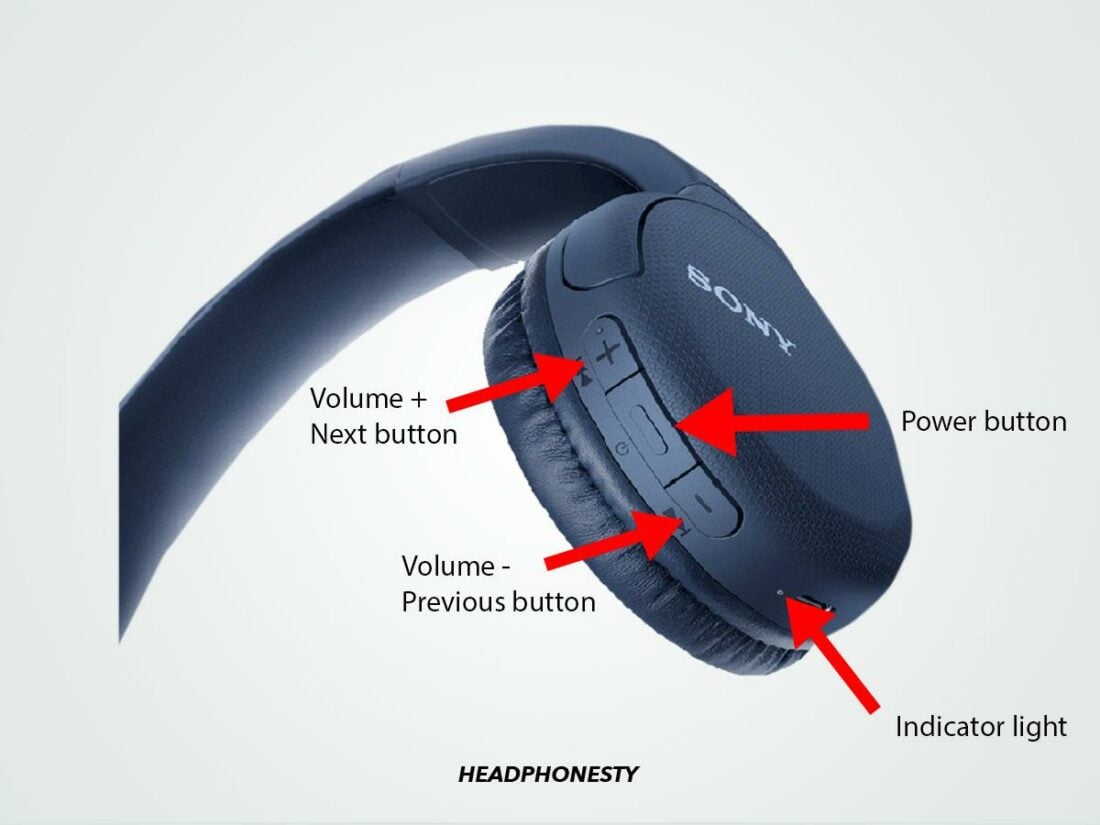
How to reset Sony over-ear headphones
Sony uses several button layouts. The most common reset method applies to many WH-series models, including several WH-1000XM headphones.
Basic reset for many Sony WH headphones
Follow these steps first:
- Turn off the headphones.
- Disconnect the USB-C or micro-USB charging cable.
- Press and hold the Power button and the NC/AMB or CUSTOM button at the same time.
- Continue holding both buttons for about seven seconds.
- Release the buttons when the indicator light flashes.
This process usually resets the internal system. It may not erase Bluetooth pairing information on every model.
If the headphones still act strangely, perform an initialization. An initialization normally deletes all Bluetooth pairing data, so you will need to connect the headphones again.
Factory reset for Sony WH-1000XM5
To initialize the WH-1000XM5:
- Turn off the headphones.
- Remove the USB charging cable.
- Press and hold the Power button and the NC/AMB button together.
- Keep holding them for at least seven seconds.
- Release the buttons after the blue indicator flashes four times.
After this process, remove the old headphones from your phone’s Bluetooth menu. Then pair them again as if they were new.
Factory reset for Sony WH-1000XM4
The WH-1000XM4 uses a similar process:
- Turn off the headset.
- Unplug the charging cable.
- Press and hold Power and CUSTOM at the same time.
- Hold both buttons for about seven seconds.
- Release them when the blue indicator flashes four times.
The CUSTOM button may be labeled differently on some Sony models. Check the button labels or the official help guide for your exact model before holding any buttons.
Older WH models and CH models
Many older Sony WH models use Power plus CUSTOM or NC/AMB. However, some CH-series headphones use a different button combination or reset process.
Look at the model name inside the headband, near the ear cup, or in the Sony app. Search the official Sony support page for that exact model. This small step prevents a common mistake: using the WH-1000XM reset method on headphones that do not support it.

How to reset Sony wireless earbuds
Sony WF earbuds use touch sensors instead of large physical buttons. The earbuds must usually be inside the charging case, with the lid open.
Reset Sony WF-1000XM4 earbuds
To initialize the WF-1000XM4:
- Put both earbuds in the charging case.
- Leave the case lid open.
- Touch and hold both earbud sensors at the same time.
- Keep holding for about 10 seconds.
- Release your fingers when the indicators begin flashing red.
- Complete the process within the timing shown in the Sony support instructions for your region and model.
Afterward, the earbuds should return to their factory state. Delete the old WF-1000XM4 entry from your phone before pairing again.
Reset Sony WF-1000XM5 earbuds
For the WF-1000XM5:
- Place both earbuds in the charging case.
- Keep the lid open.
- Touch and hold both earbud sensors for about 10 seconds.
- Release when the orange indicators start flashing.
- Wait for the indicators to flash green several times.
The light pattern confirms that initialization has started. If nothing happens, clean the charging contacts and make sure both earbuds are seated correctly.
Other Sony WF earbuds
The reset method varies across WF, LinkBuds, and INZONE models. Some models require holding the touch sensors. Others use the case button or a specific app command.
Do not guess the timing from another model. Sony changes the light colors and button steps across product families. The model number gives you the most reliable answer.
If one earbud does not respond
A single dead earbud can block the reset. Try these steps:
• Clean the metal charging contacts on the earbud and case with a dry cotton swab
• Charge the case for at least 30 minutes
• Place both earbuds in the case and check whether each indicator reacts
• Forget the earbuds from every nearby phone, tablet, and computer
• Restart the reset process with the case lid open
If one earbud still shows no light, the issue may involve the battery, charging contact, or internal hardware rather than software.

How to reset Sony headphones with the Sony app
The Sony | Sound Connect app can help with connection and software issues. It also shows the exact product name, battery level, firmware version, and some available device settings.
Open the app and connect your headphones. Check the device settings for options such as reset, initialize, or restore default settings. Not every model offers the same controls.
Before using the app:
- Update the app from the App Store or Google Play.
- Turn on Bluetooth.
- Keep the headphones close to the phone.
- Close other audio apps.
- Make sure the headphones have enough battery.
- Install any available firmware update.
A reset cannot fix every problem. For example, damaged speakers, water exposure, a broken charging port, and worn batteries need repair or replacement.

What to do after resetting Sony headphones
Resetting Sony headphones removes or changes the connection state. Follow these steps to create a clean connection:
- Open your phone’s Bluetooth settings.
- Find the Sony headphones in the saved device list.
- Tap Forget This Device, Remove Device, or Unpair.
- Turn Bluetooth off for a few seconds.
- Turn Bluetooth back on.
- Put the headphones or earbuds into pairing mode.
- Select the Sony model from the available devices.
- Open the Sony app and finish setup.
Pair only with one main device at first. This makes troubleshooting easier. After the connection works, turn on multipoint if your model supports two-device connections.
If the headphones connect but produce no sound, check the audio output menu. Your phone or computer may still be sending sound to its built-in speakers, a car system, or another Bluetooth device.
Sony headphones reset but still will not connect
A reset fixes many software errors, but connection problems can have other causes.
Remove old Bluetooth records
A phone may keep an outdated Bluetooth profile. Delete the saved Sony device before pairing again. If the headphones were paired with several devices, remove the old record from each one.
Move away from wireless interference
Wi-Fi routers, crowded offices, game consoles, and many nearby Bluetooth devices can make pairing unstable. Try pairing in a quiet room with other Bluetooth devices turned off.
Restart both devices
Restart the headphones and the phone, tablet, or computer. This clears temporary Bluetooth errors on both ends.
Check for updates
Firmware updates can improve connection stability and fix known bugs. Use the Sony app when possible, and keep the headphones connected to power during a long update.
Test another source
Pair the headphones with a different phone or computer. If they work there, the first device likely has a Bluetooth setting or software problem. If they fail everywhere, the headphones may need service.
Common mistakes when resetting Sony headphones
The reset itself is simple, but small errors can stop it from working.
• Holding the wrong buttons: Button names differ between models.
• Leaving the charging cable connected: Many Sony models will not initialize while charging.
• Releasing too soon: Some reset processes require about seven or ten seconds.
• Forgetting to erase the Bluetooth profile: The phone may reconnect using the same faulty record.
• Resetting only one earbud: Most WF models require both earbuds to be reset together.
• Ignoring battery level: A very low battery can prevent the light pattern from appearing.
• Pairing too soon: Wait until the reset finishes before opening Bluetooth settings.
In hands-on troubleshooting, the most common mistake is not the button timing. It is skipping the “Forget Device” step afterward. The headphones may be reset correctly, but the phone keeps using an old connection record, making the reset seem useless.
Reset versus initialize: Which should you use?
Choose a basic reset when the headphones are frozen, controls lag, or audio stops briefly. It is the least disruptive option because it may preserve your saved connections.
Choose initialization when pairing repeatedly fails, the headphones connect to the wrong device, or normal troubleshooting does not help. Initialization is more powerful, but it removes Bluetooth information and custom settings on many models.
Here is a simple guide:
• Temporary freeze: Use a basic reset.
• Bluetooth pairing failure: Try a reset, then initialize if needed.
• Selling or giving away the headphones: Initialize them first.
• App detection problem: Reset, remove the Bluetooth profile, and pair again.
• Physical damage or no power: A reset is unlikely to repair it.
Sony’s exact process can change by model and firmware. Treat the model-specific support guide as the final authority when its instructions differ from general steps.
How to prevent future Sony headphone problems
Good care reduces the need to reset Sony headphones.
Keep the firmware current, but do not interrupt an update. Store earbuds in their charging case, and keep the case contacts clean. Avoid leaving headphones in a hot car or in a damp bag.
Use multipoint connections carefully. If two devices fight for the audio connection, disconnect the device you are not using. Also, avoid repeatedly pairing and unpairing the same headphones across many devices.
For travel, charge the headphones before leaving and keep a wired audio cable available if your model supports one. A reset may solve software trouble, but it cannot replace a reliable backup plan when you are on a flight or in a busy airport.
Frequently asked questions about how to reset Sony headphones
Does resetting Sony headphones delete Bluetooth connections?
A basic reset may not delete saved connections. A factory initialization usually removes Bluetooth pairing information, so you must pair the headphones again.
How long does it take to reset Sony headphones?
Most button-based resets take about seven seconds. Earbud initialization often takes about 10 seconds, followed by a short light sequence.
Why will my Sony headphones not reset?
The battery may be too low, the charging cable may still be connected, or you may be using the wrong button combination. Confirm the model number and follow its exact Sony support instructions.
Do I need to reset both Sony earbuds?
Yes, most true wireless Sony earbuds must be initialized together. Put both earbuds in the case and activate the reset on both touch sensors unless your model’s guide says otherwise.
Will a reset improve Sony headphone sound quality?
A reset can fix software, connection, or sound-routing problems. It will not repair a damaged speaker, blocked earbud mesh, weak battery, or hardware fault.
Should I forget my Sony headphones before resetting them?
You can reset first, but forgetting the saved Bluetooth device afterward is often more effective. It creates a clean pairing record and prevents the phone from restoring a faulty connection.
Can I reset Sony headphones without the Sony app?
Yes. Many Sony headphones and earbuds support a button or touch-control reset without the app. The exact steps depend on the model.
Conclusion
Resetting Sony headphones is often the fastest way to solve pairing errors, frozen controls, and unusual audio behavior. Start with a basic reset, then use factory initialization when you need to erase old connections and restore default settings.
Always confirm your model before using a button combination, charge the device first, and forget the old Bluetooth profile after initialization. If the headphones still fail with several devices, contact Sony support or an authorized repair center. Try the correct reset today, then share your model and results in the comments for more troubleshooting help.
